



A digital hall of fame aria-braillelabel audit is a targeted review of interactive controls on your school’s recognition platform, checking whether any aria-braillelabel overrides present on inductee controls are genuinely improving the Braille reading experience—and confirming that the attribute has not been added to controls where the ordinary accessible name already converts to clear, readable Braille. The short answer for school athletic recognition administrators, IT teams, and facilities specialists: inventory every interactive control on your inductee pages; confirm each control has a valid accessible name through a native <label>, aria-label, or aria-labelledby association first; apply aria-braillelabel only in the narrow circumstance where converting the accessible name to Braille would produce a poor result—such as when a lengthy icon description renders as an unwieldy Braille string—and verify any override with an actual braille display and compatible assistive technology before deploying it to your recognition platform.
Most interactive controls on a school digital hall of fame—name search fields, sport-category filters, class-year selectors, and “View Profile” buttons—carry accessible names whose Braille representations are clear and accurate. A filter button labeled “Football” converts to a concise Braille cell sequence that a braille display user can read in a single pass. A search input labeled “Search inductees by name” converts into Braille without loss of meaning. For the overwhelming majority of inductee controls, the accessible name already provides the best Braille user experience, and aria-braillelabel is not needed.
The audit exists for a narrower reason: to check the exception cases. A small set of controls on recognition platforms use icon-based accessible names, star ratings, or emoji glyphs whose text equivalents—accurate for a screen reader reading aloud—may produce verbose or awkward Braille output. For those controls only, aria-braillelabel provides a purpose-written Braille string that a braille display renders instead of the default text-to-Braille conversion. The audit also checks for the opposite problem: aria-braillelabel added wholesale to ordinary text controls where it offers no benefit and may silently diverge from the accessible name if either is updated without the other.
For school athletic directors and recognition-program coordinators who have invested in digital hall of fame installations to preserve decades of athletic legacy, this audit is a targeted quality check—not a sweeping remediation effort. Understanding when aria-braillelabel helps, when it adds unnecessary maintenance overhead, and how to verify the result with real assistive technology protects the experience your recognition platform provides to every visitor who arrives at your inductee archive.

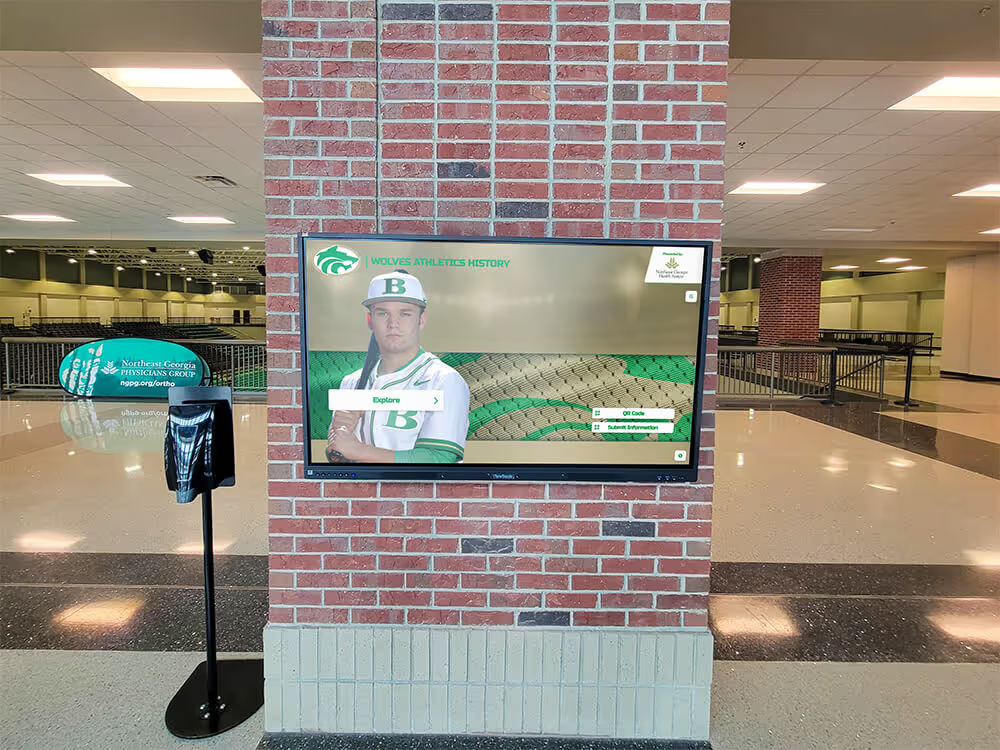
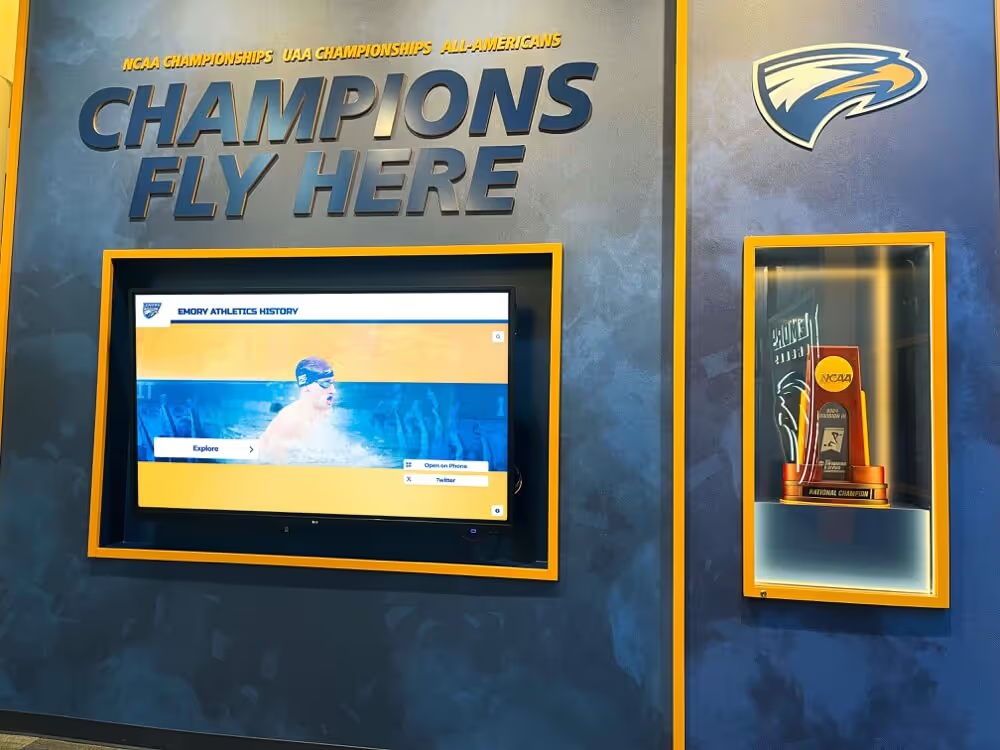
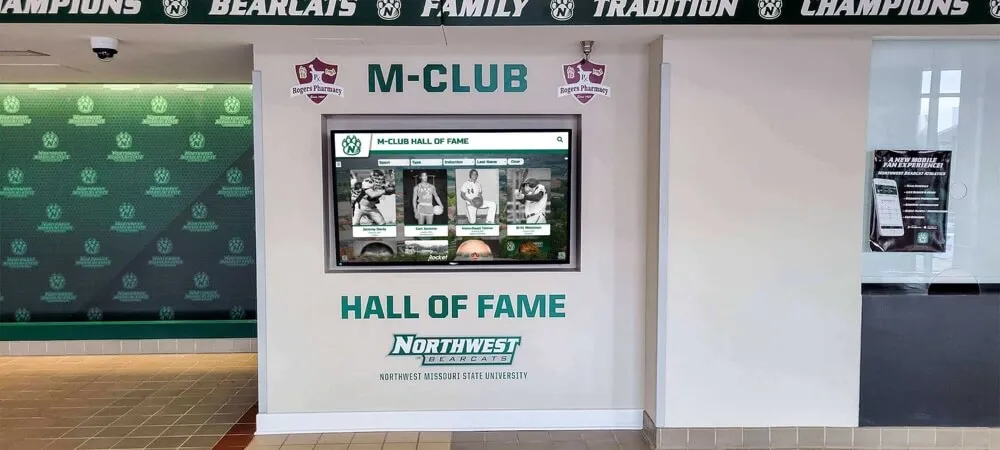
Interactive controls on a digital wall of honor carry accessible names that assistive technology converts to Braille for visitors using braille displays—this audit checks whether any controls warrant the exceptional aria-braillelabel override
What aria-braillelabel Is—and What It Is Not
aria-braillelabel is a global WAI-ARIA attribute that defines a string specifically intended for conversion to Braille by assistive technologies. When a braille display and its paired screen reader encounter an element with both an accessible name and an aria-braillelabel value, the aria-braillelabel value overrides the accessible name for Braille output. The accessible name is still used for audio speech output; only the Braille channel is affected.
The attribute is documented on the MDN Web Docs aria-braillelabel reference and defined in the WAI-ARIA specification. It accepts an unconstrained string value, applies to all ARIA roles, and has a corresponding DOM property Element.ariaBrailleLabel. When applying the attribute, the element must already have a valid accessible name; the aria-braillelabel value must be non-empty; the value must differ from the accessible name; and values should be localized to match the document language.
What aria-braillelabel is not: it is not an alternative to aria-label, not a replacement for a missing accessible name, and not a tool for correcting poor accessible names on ordinary text controls. The MDN documentation states this plainly: using the accessible name alone—from content or via aria-label—is almost always the better user experience, and aria-braillelabel should not be used to replicate aria-label. Applying it to controls whose accessible names already render clearly in Braille adds maintenance overhead without accessibility benefit. If the accessible name changes, the aria-braillelabel value must also be updated to remain accurate; the two strings are maintained independently.
Braille display support is not universal. Braille display hardware requires compatible screen reader software, and support for aria-braillelabel specifically varies across screen reader versions and hardware combinations. Never assume the attribute is functioning without testing it with the specific assistive technology configuration your community members are likely to use. Testing with real equipment is the only reliable verification method.
No WCAG 2.1 success criterion requires aria-braillelabel. Adding aria-braillelabel to controls that do not need it does not satisfy any WCAG requirement and does not improve the experience for visitors who navigate by audio speech output alone.
Where aria-braillelabel May Apply on Inductee Controls
The circumstance where aria-braillelabel may genuinely improve the Braille user experience is narrow: when the accessible name of a control—accurate as a spoken description—becomes verbose, awkward, or misleading when converted character-by-character to Braille.
Icon Buttons with Verbose Text Equivalents
Some digital hall of fame platforms add icon buttons to inductee profile cards: a bookmark icon to save an inductee to a favorites list, a share icon for social sharing, or a star-based community recognition indicator. When these buttons carry accessible names written for audio speech output—“Save to your favorites list” or “3 community recommendation stars out of 5”—the resulting Braille string may be long. A braille display has a fixed number of cells (commonly 40 or 80), and a long accessible name can occupy multiple display passes.
The MDN documentation illustrates this pattern with a star rating button: an accessible name of “3 out of 5 stars” may render more usefully in Braille as *** (three literal asterisks conveying the rating in a format a braille reader can scan quickly). This is an illustrative example of the pattern, not a universal prescription. Whether your specific controls warrant this override depends on the Braille rendering of your actual accessible name strings—which requires testing with a braille display, not only reading the accessible name text.
Sport-Icon or Emoji Toggle Controls
Recognition platforms that use sport emoji or icon glyphs in the accessible names of sport-category filter buttons may encounter unexpected Braille output. A button whose accessible name is “Football” converts to clear Braille and needs no override. A button whose accessible name is constructed from an emoji character plus count information—for example, “🏈 24 inductees”—produces Braille output that may include the Unicode emoji name as text (“football 24 inductees”) or an unexpected expansion depending on the assistive technology’s Unicode Braille table. If testing confirms the expansion is problematic, a purpose-written aria-braillelabel of “Football, 24” may be clearer for that specific control.
Platforms implementing toggle controls for sport categories should first confirm that aria-pressed state is accurately communicated before evaluating whether aria-braillelabel adds any value. The digital hall of fame aria-pressed audit for toggle controls covers the state representation side of sport-filter buttons—a prerequisite check before considering any Braille label override on those same controls.
Symbolic Pagination and Navigation Controls
Some recognition platforms use symbolic accessible names for pagination or navigation controls: “«” for first page, “‹” for previous, “›” for next, “»” for last. Symbol characters may convert to their full Unicode names in Braille—“left-pointing double angle quotation mark”—rather than to the navigation concept they represent. In these cases, aria-braillelabel values of short directional phrases may provide clearer Braille output than the symbol-name conversions. Whether this applies to your platform depends on testing the actual output on a braille display; do not add overrides based on assumptions about how a specific screen reader handles Unicode symbols.
If your inductee gallery uses standard text pagination controls—“Previous page,” “Next page,” “Page 3 of 12”—no aria-braillelabel override is needed; these phrases convert to Braille without ambiguity.
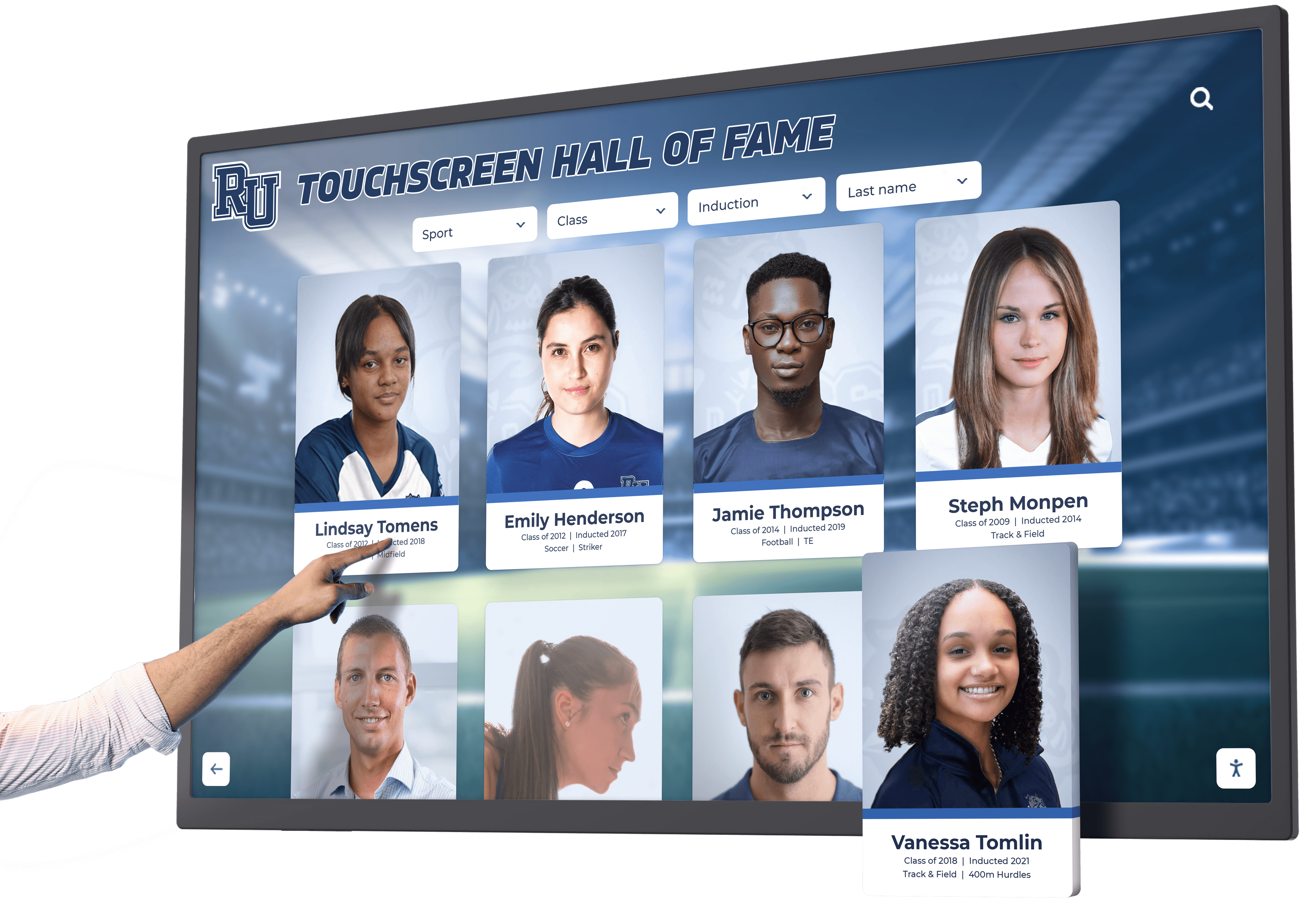
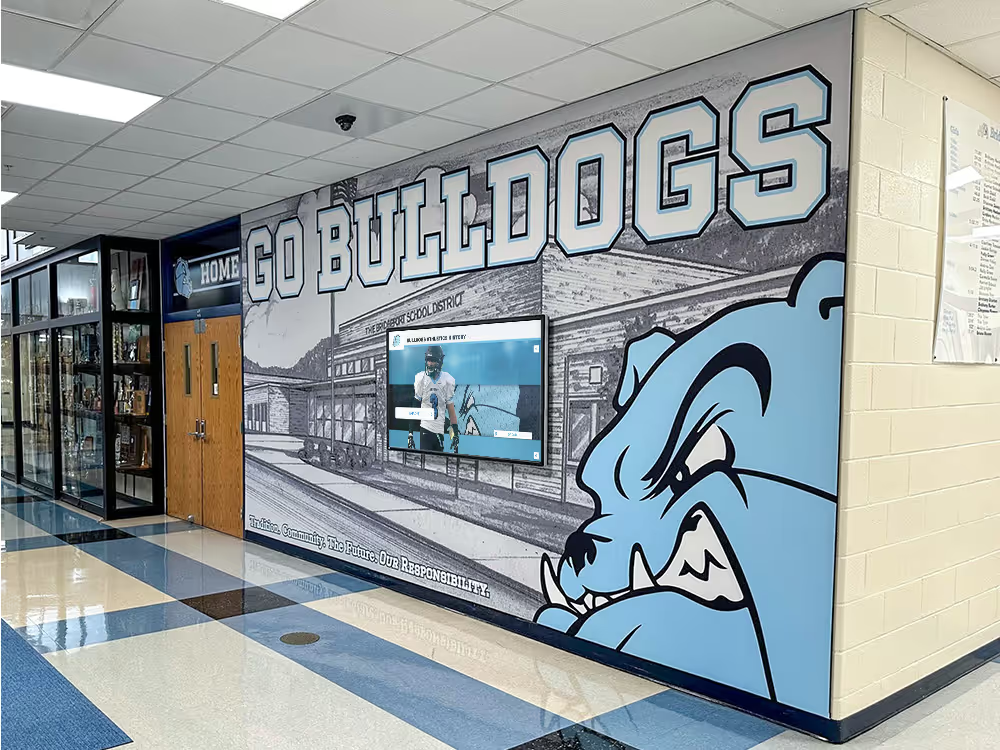
Icon-based controls on inductee profile cards are among the narrow set of controls where aria-braillelabel may improve Braille output—only when the ordinary accessible name produces a verbose or awkward Braille string, confirmed by testing with a real braille display
Where aria-braillelabel Should Not Be Applied
The more common audit finding is not that aria-braillelabel is missing where it would help—it is that aria-braillelabel has been added to controls where the ordinary accessible name already converts to clear, concise Braille.
Text search inputs and filter controls whose accessible names are plain English phrases—“Search inductees by name,” “Filter by sport,” “Select graduation year”—do not benefit from aria-braillelabel. These phrases convert directly to Braille cells and are as readable on a braille display as their audio equivalents. Adding the attribute to these controls creates a parallel string that must be maintained separately. If a platform redesign changes the visible label from “Filter by sport” to “Select sport category,” the accessible name updates but any aria-braillelabel remains at its old value unless explicitly updated.
Inductee name search autocomplete inputs that carry accessible names like “Search inductees by name or sport” do not require aria-braillelabel. The autocomplete behavior and its associated ARIA annotations are separate concerns; the digital hall of fame aria-autocomplete audit for inductee search covers how autocomplete suggestions are exposed to assistive technology on inductee search interfaces.
Profile navigation links with text content such as inductee names convert to Braille accurately from their link text. aria-braillelabel is not needed and should not be added to links whose text is already clear.
Standard button text such as “View Profile,” “See Full Biography,” “Show Statistics,” or “Return to Inductee Gallery” converts to Braille without loss. The accessible name already provides the right Braille experience for these controls.
Virtualized data table controls—sort buttons, column headers, and row position displays—typically carry accessible names that convert to clear Braille. The digital hall of fame aria-rowcount and aria-rowindex audit for virtualized inductee tables addresses how row position information is exposed to assistive technology; aria-braillelabel is not the mechanism for communicating row counts or table structure.
Audit Checklist: Five Steps for Inductee Controls
Complete this checklist on your recognition platform’s web interface and on any browser-rendered kiosk displays. Steps 1 through 3 use browser DevTools. Steps 4 and 5 require a braille display paired with a compatible screen reader.
Step 1: Inventory All Interactive Controls
Open your inductee gallery, search interface, and inductee profile pages. For each interactive control, record:
- The control type (search input, filter button, navigation link, icon button, pagination control)
- The visible label or icon used to identify the control visually
- The accessible name—check the Accessibility panel in browser DevTools (F12, select the element, view the Computed Accessible Name field)
- Whether an
aria-braillelabelattribute is present on the element, and if so, its current value
This inventory identifies both controls that already carry aria-braillelabel and controls whose accessible names contain emoji, symbols, or verbose icon descriptions that may warrant Braille rendering review.
Step 2: Identify Controls with Icon or Symbol Accessible Names
From your inventory, flag controls whose accessible names include any of the following:
- Emoji characters or their Unicode text expansions (for example, “⭐,” “🏈,” or their expanded forms)
- Full Unicode symbol names produced by screen reader expansion of glyph characters
- Long descriptive phrases written primarily for audio output (for example, “4 out of 5 community recommendation stars, gold star icon”)
- Symbolic characters used as shorthand navigation labels ("«," “»,” “‹,” “›”)
These are candidates for Braille rendering review. For each flagged control, note whether aria-braillelabel is currently present and what its value is if so. Do not add or remove aria-braillelabel based on this step alone—Step 4 with real hardware is required before making changes.
Step 3: Apply the Decision Test to Existing Overrides
For each control that already carries aria-braillelabel, verify all of the following:
- The element has a valid accessible name through
aria-label,aria-labelledby, or native label association—aria-braillelabelrequires an existing accessible name to override - The
aria-braillelabelvalue is not empty or whitespace-only - The
aria-braillelabelvalue is not identical to the accessible name—if identical, the override has no effect and can be removed - The
aria-braillelabelvalue is written in the same language as the surrounding document content—localization matters, as Braille transliteration varies by language
Use the decision table in the next section to evaluate whether each existing override is justified or should be removed.
Step 4: Test Braille Rendering with Real Assistive Technology
Browser DevTools cannot show you how an accessible name renders on a braille display. Only a physical braille display connected to a supporting screen reader can confirm the actual Braille cell output.
For each flagged control identified in Step 2:
- Connect a braille display to a computer running a compatible screen reader (JAWS, NVDA with a supported Braille driver, or VoiceOver on macOS with a connected braille display)
- Navigate to the control on your recognition platform
- Read the Braille output on the display for the control’s accessible name
- Evaluate whether the output is clear and accurate for a braille reader navigating your school’s inductee archive
- If the output is verbose or unclear, draft a candidate
aria-braillelabelvalue, add it, and test the display output again before deploying
If you do not have access to a braille display, consult a braille accessibility specialist or engage a community member who uses braille hardware before making changes based on assumptions about Braille rendering. Recognition programs evaluating the full range of dynamic loading states across the inductee gallery—such as when results update after a filter is applied—can review how aria-busy communicates interim loading states to assistive technology in the digital hall of fame aria-busy audit.
Step 5: Verify Localization for Multilingual Platforms
If your recognition platform serves content in more than one language—for example, biographical sections in Spanish for inductees from a bilingual community—any aria-braillelabel values on controls within those sections should be written in the appropriate language. Braille transliteration varies by language; an English Braille string on a Spanish-language control may not render correctly for a visitor using a Spanish Braille table.
Check that the HTML lang attribute accurately reflects the language of each page section and that any aria-braillelabel values you add match that language declaration. Schools with multilingual communities considering the full scope of platform implementation and ongoing content support can review turnkey digital hall of fame options with content setup and training to understand how ongoing content decisions affect accessibility maintenance.
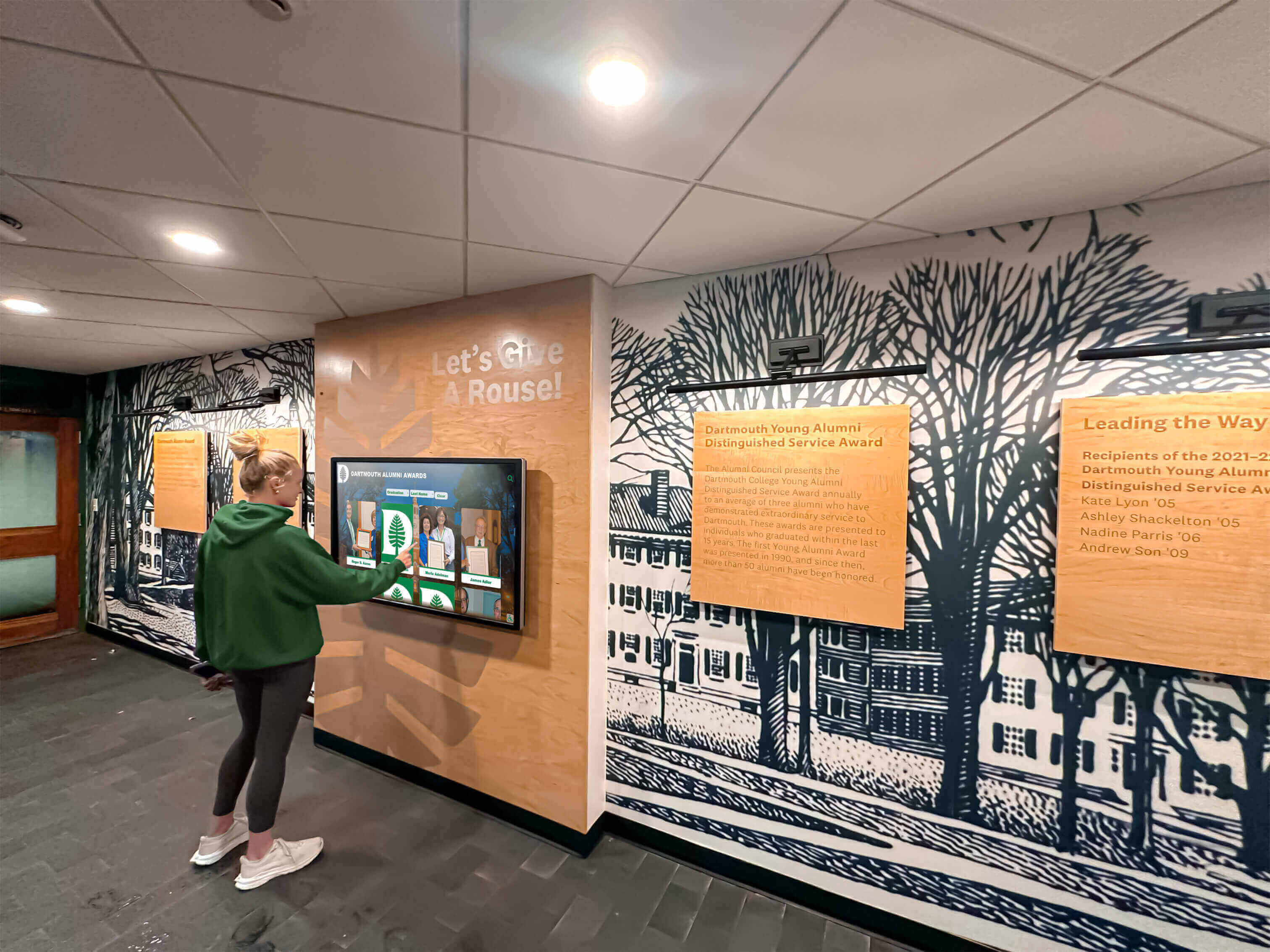
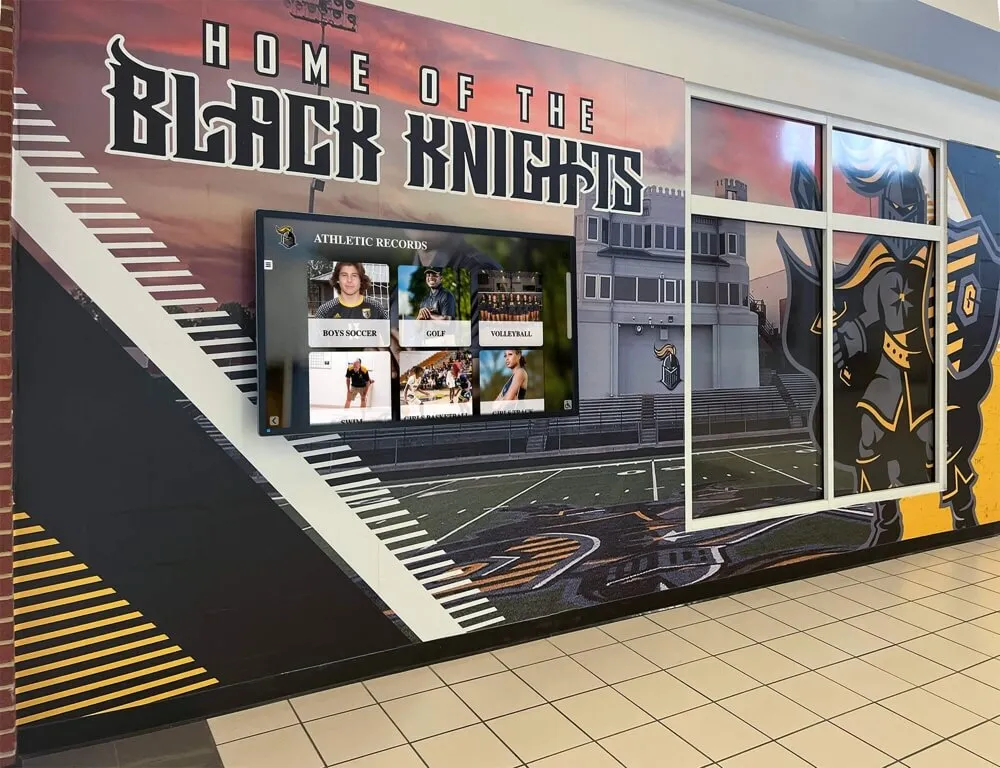
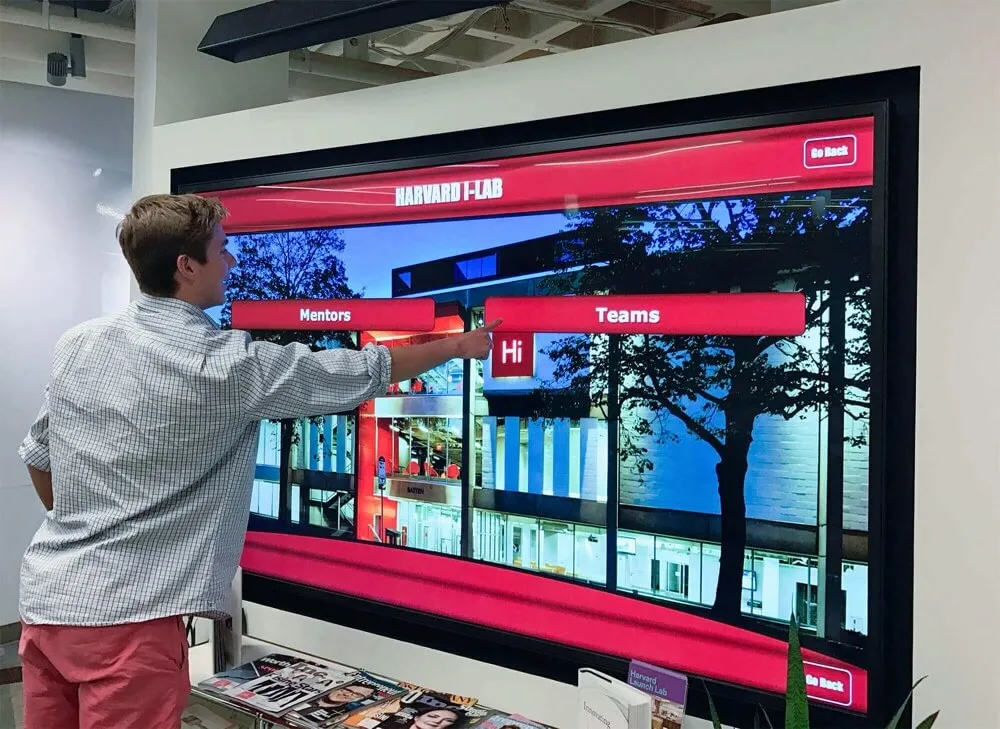
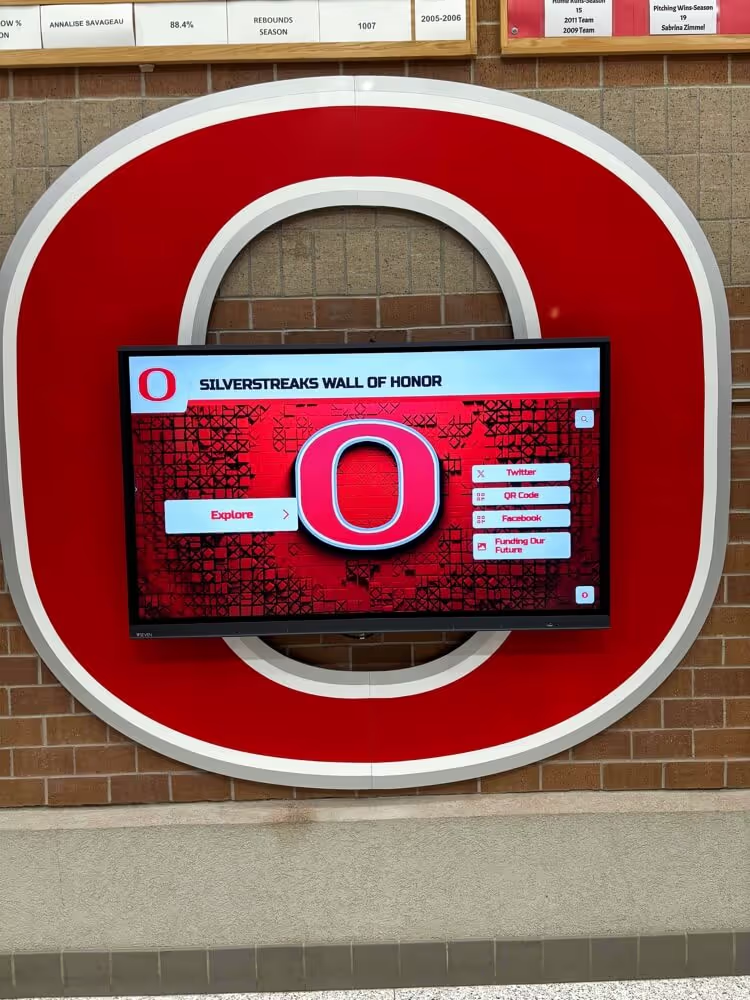
Every interactive control a student encounters on a hall of fame touchscreen is in scope for the aria-braillelabel audit—most will correctly require no override, and the checklist confirms which rare exception controls have been verified with real braille hardware
Decision Table: Apply or Skip aria-braillelabel
Use this table to evaluate each control identified in your inventory. Start at the top and stop at the first row that matches the control’s situation.
| Condition | Action |
|---|---|
Control has no valid accessible name (no <label>, aria-label, or aria-labelledby) | Fix the missing accessible name first. aria-braillelabel cannot substitute for a missing accessible name and is not applicable until one exists. |
| Accessible name is plain English text with no emoji, symbols, or verbose icon descriptions | No aria-braillelabel needed. The accessible name converts to Braille accurately. Skip this control. |
| Accessible name contains emoji characters or Unicode glyph expansions | Test Braille rendering with a real braille display. If the output is confirmed unclear or unwieldy, draft a shorter aria-braillelabel value and test again before deploying. |
| Accessible name is a verbose phrase written for audio output that testing confirms produces an unwieldy Braille string | Draft a concise aria-braillelabel value, test on the braille display, and deploy only if the override improves the output. |
| Accessible name uses symbolic navigation characters ("«," “»,” “‹,” “›”) | Test Braille rendering. Symbols may expand to long Unicode names. If confirmed by testing, add short directional aria-braillelabel values and verify the result on the display. |
aria-braillelabel is already present; value is identical to the accessible name | Remove aria-braillelabel. An identical value has no effect on Braille output and adds maintenance overhead. |
aria-braillelabel is already present; value differs from accessible name | Verify the value is accurate, localized, non-empty, and still matches the control’s current purpose. Test with a braille display to confirm the override improves the output. |
aria-braillelabel is already present on a plain-text control with a clear accessible name | Remove the override. Plain-text accessible names do not benefit from aria-braillelabel and the parallel string introduces maintenance risk. |
| A new icon control or emoji-labeled button is being added to the platform | Establish a valid accessible name first. Evaluate the Braille rendering before launch; do not add aria-braillelabel preemptively without testing. |
Pass and Fail Examples for Hall of Fame Controls
The following examples illustrate correct and incorrect application of aria-braillelabel on control patterns common to school digital hall of fame platforms. These are illustrative patterns; the appropriateness of aria-braillelabel in your specific context depends on your accessible name strings and testing with a real braille display.
Search Input — Pass (no aria-braillelabel needed)
<label for="inductee-search">Search inductees by name or sport</label>
<input type="search" id="inductee-search" placeholder="Type a name or sport">
The accessible name “Search inductees by name or sport” converts to clear Braille. No aria-braillelabel is needed or appropriate.
Search Input — Fail (unnecessary aria-braillelabel added)
<label for="inductee-search">Search inductees by name or sport</label>
<input
  type="search"
  id="inductee-search"
  aria-braillelabel="Search inductees"
  placeholder="Type a name or sport">
The aria-braillelabel value “Search inductees” offers no Braille UX improvement over the accessible name—both are short English phrases that convert to Braille clearly. The override introduces maintenance risk: if the visible label changes, the aria-braillelabel stays at its old value unless manually updated.
Star-Rating Icon Button — Pass (aria-braillelabel evaluated and justified)
<button
  aria-label="4 out of 5 community recognition stars"
  aria-braillelabel="****">
  <img src="stars-4.png" alt="">
</button>
The accessible name is accurate for audio speech output. If testing on a braille display confirms that four asterisks convey the same rating more concisely than the full phrase, the override is justified. The element carries a valid accessible name, the aria-braillelabel value is non-empty and differs from the accessible name, and the override was verified with a braille display before deployment.
Star-Rating Icon Button — Fail (aria-braillelabel without accessible name)
<button aria-braillelabel="****">
  <img src="stars-4.png" alt="">
</button>
No accessible name is present. aria-braillelabel cannot compensate for a missing accessible name; it only overrides an existing name for Braille output. This button has no name for audio speech output. Fix: add aria-label="4 out of 5 community recognition stars" before evaluating whether aria-braillelabel is needed.
Sport Filter Button — Pass (no aria-braillelabel needed)
<button role="tab" aria-selected="true" aria-controls="panel-football">
  Football
</button>
“Football” is a single clear word that converts to Braille without ambiguity. No aria-braillelabel is needed.
Symbolic Pagination — Requires Testing Before Deciding
<!-- Verify on a braille display before adding or keeping aria-braillelabel -->
<nav aria-label="Inductee gallery pages">
  <a href="/inductees?page=1" aria-label="First page" aria-braillelabel="First page">«</a>
  <a href="/inductees?page=next" aria-label="Next page" aria-braillelabel="Next">›</a>
</nav>
The aria-braillelabel value “First page” is identical to the accessible name “First page”—no effect; remove it. The value “Next” differs from “Next page” and might be marginally shorter on the braille display, but whether this represents a genuine improvement depends on testing with real hardware. In many cases the accessible name “Next page” converts to Braille clearly and the override should be removed.
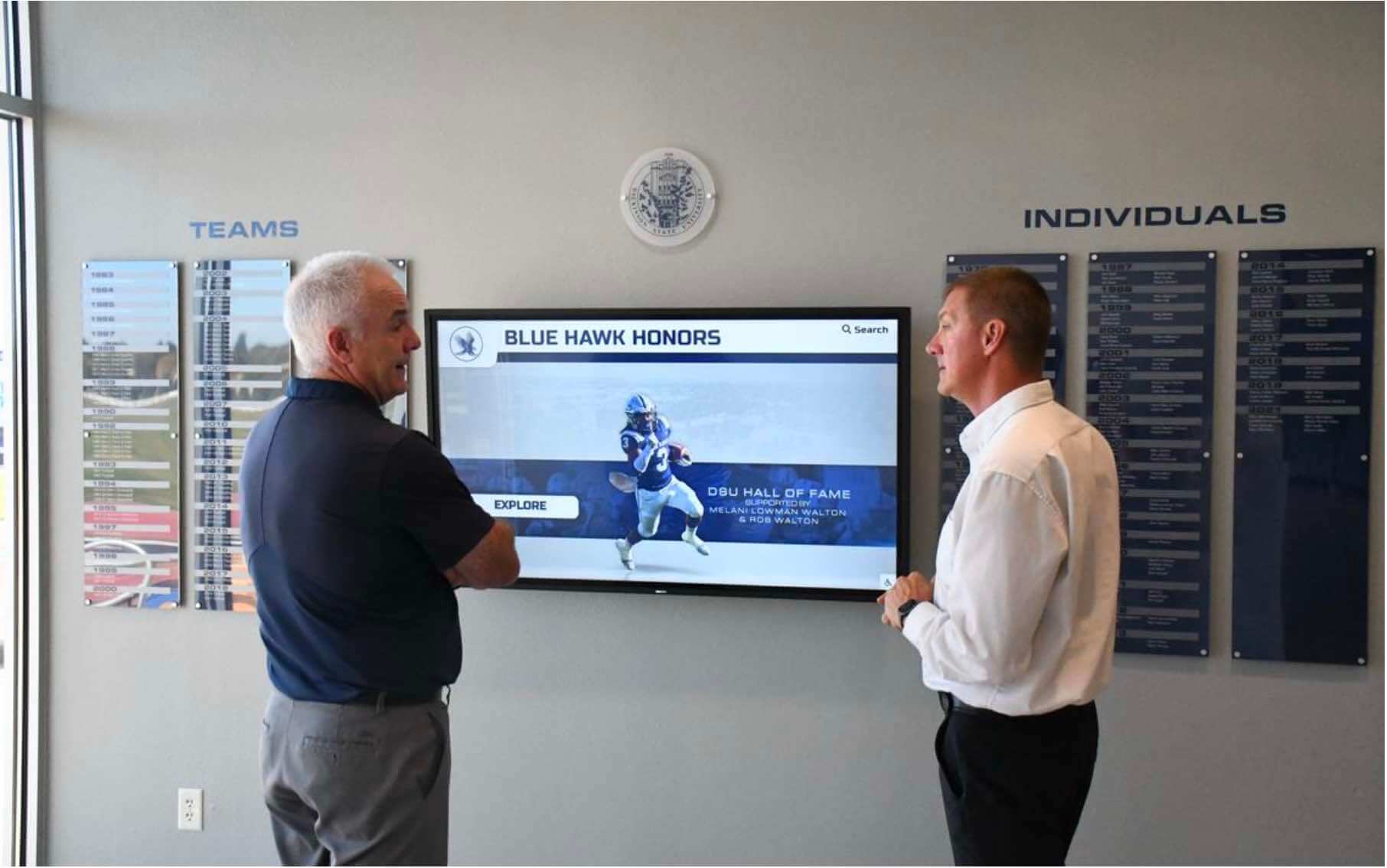
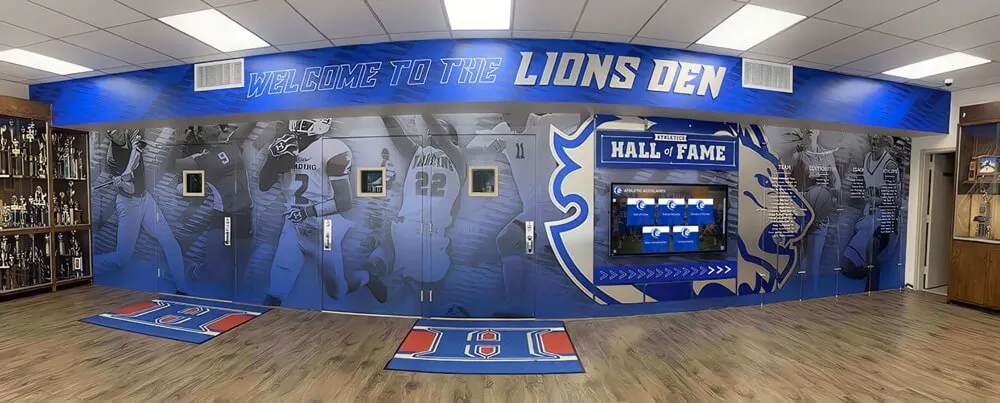
Standard text-labeled controls on hall of fame platforms carry accessible names that convert clearly to Braille—these controls pass the audit without any aria-braillelabel override
Common Errors and How to Fix Them
Error: aria-braillelabel added to all controls as a blanket accessibility measure
Some developers apply aria-braillelabel to every interactive control on a recognition platform, treating it as a general-purpose accessibility enhancement. This is incorrect. The attribute is an exception mechanism for the specific case where an accessible name produces poor Braille output. Blanket application creates a large set of parallel strings that diverge from accessible names over time and may produce a worse Braille experience than the accessible name alone.
Fix: Remove aria-braillelabel from controls whose accessible names are plain English text. Retain only overrides that have been verified with a braille display to improve Braille readability.
Error: aria-braillelabel value is identical to the accessible name
When aria-braillelabel contains the same text as the element’s accessible name, the override has no effect on Braille output. This commonly occurs when a developer copies the aria-label value into aria-braillelabel without adapting it for a Braille context.
Fix: Verify that aria-braillelabel differs meaningfully from the accessible name. If the value and accessible name are the same, remove aria-braillelabel—the accessible name already provides that output for the Braille channel.
Error: aria-braillelabel present but element has no accessible name
aria-braillelabel overrides the Braille representation of an accessible name, but it does not create one. An element with aria-braillelabel but no aria-label, aria-labelledby, or native label association has no accessible name for audio screen reader output.
Fix: Establish a valid accessible name first through aria-label, aria-labelledby, or a native <label> association. Then evaluate whether the accessible name’s Braille rendering warrants an aria-braillelabel override by testing with a braille display.
Error: aria-braillelabel value is empty or whitespace-only
An empty aria-braillelabel value removes the Braille label from the element, potentially leaving a braille display user with no output for that control.
Fix: Ensure aria-braillelabel carries a non-empty, meaningful string. If no meaningful Braille override exists, remove the attribute rather than leaving it empty.
Error: aria-braillelabel value is not localized
A recognition platform serves content in both English and Spanish. English-language aria-braillelabel values carry over into Spanish-language page sections without being translated. A visitor using a Spanish Braille table encounters English Braille strings on a Spanish-language inductee section.
Fix: Verify that aria-braillelabel values match the language of the surrounding content, using the same lang attribute logic that governs the rest of the page. This applies particularly to schools with multilingual communities where the recognition platform serves non-English content sections.
Error: aria-braillelabel added to controls that need other ARIA fixes first
Teams auditing aria-braillelabel sometimes conflate it with resolving other ARIA labeling issues—adding aria-braillelabel when the real problem is a missing aria-label or a broken aria-labelledby reference. The digital hall of fame aria-labelledby audit for inductee search controls covers foundational accessible naming patterns that should be in place before any aria-braillelabel override is considered.
Fix: Resolve missing accessible names through aria-label or aria-labelledby before considering aria-braillelabel. The two concerns are independent; aria-braillelabel does not fix an accessible name failure.
Frequently Asked Questions
Q: What is aria-braillelabel and how is it different from aria-label?
A: aria-braillelabel defines a string specifically intended for conversion to Braille by assistive technology. aria-label defines an accessible name used for all output channels—including audio speech and Braille. When an element has both, the screen reader uses aria-label for audio output and aria-braillelabel for Braille output on a braille display. The key difference is that aria-braillelabel only affects the Braille channel; it does not change what a screen reader speaks aloud. Use aria-label when you need an accessible name; use aria-braillelabel only when you need the Braille representation to differ from the spoken name—and only after testing confirms the need.
Q: Does WCAG 2.1 require aria-braillelabel on inductee controls?
A: No. WCAG 2.1 does not reference aria-braillelabel, and no WCAG 2.1 success criterion requires its use. The attribute is defined in the WAI-ARIA specification as an optional override for the specific case where Braille rendering of the accessible name produces a poor user experience. Providing accurate accessible names through aria-label, aria-labelledby, or native <label> associations is the WCAG requirement; aria-braillelabel is a refinement for Braille output in the narrow circumstances where it is warranted.
Q: How do we test whether aria-braillelabel is working correctly?
A: The only reliable test is a physical braille display connected to a compatible screen reader. Browser DevTools’ Accessibility panel will show the aria-braillelabel value if present, but it cannot show you how the string renders as Braille cells on an actual display. Test with JAWS, NVDA (with a supported Braille driver), or VoiceOver on macOS connected to a braille display. Navigate to the control and read the output. If you do not have braille hardware available, engage a braille accessibility specialist or a user who navigates your platform by braille display before making changes.
Q: Should we add aria-braillelabel to all icon buttons on our inductee cards?
A: Not automatically. First ensure each icon button has a valid accessible name through aria-label or equivalent. Then test that accessible name on a braille display. If the output is clear and concise, no override is needed. Only add aria-braillelabel if testing confirms the accessible name produces a poor Braille result. The MDN documentation on aria-braillelabel states directly: using the accessible name alone is almost always the better user experience, and aria-braillelabel should not be used to replicate aria-label.
Q: Our platform uses a third-party recognition software component. Can we request aria-braillelabel support?
A: Yes, if testing with a braille display confirms a specific control’s accessible name produces poor Braille output. File a support request identifying the control, its accessible name, and the Braille rendering issue observed with a real braille display—including the platform, screen reader version, and Braille table in use. For components where you control the template, you can add aria-braillelabel directly to the element. After a vendor update, re-test with a braille display to confirm the change produced the intended Braille output before accepting it as production-ready.
Q: Does aria-braillelabel work the same on a touchscreen kiosk as on a website?
A: aria-braillelabel is a browser-rendered HTML attribute processed by the browser’s accessibility tree. On kiosk interfaces running Chromium-based browsers, the attribute renders the same way as on a web page. Whether a braille display is connected and functioning with the kiosk depends on the kiosk hardware configuration and operating system’s assistive technology support. Lobby kiosk environments typically do not include braille display connections by default; confirm whether your kiosk installation supports braille peripherals before evaluating whether aria-braillelabel is relevant to the kiosk interface specifically.
Q: How often should we audit aria-braillelabel on our recognition platform?
A: Include aria-braillelabel in your accessibility review whenever an interactive control is added or changed on your inductee pages—particularly controls that use icon imagery, emoji, star ratings, or symbolic characters. A full audit of existing controls is a one-time check for most platforms: identify which controls carry aria-braillelabel, verify those that do are correctly implemented, and check whether any icon-based controls warrant an override that is currently missing. After that initial review, the check becomes part of your change-review process rather than a recurring full-platform sweep.
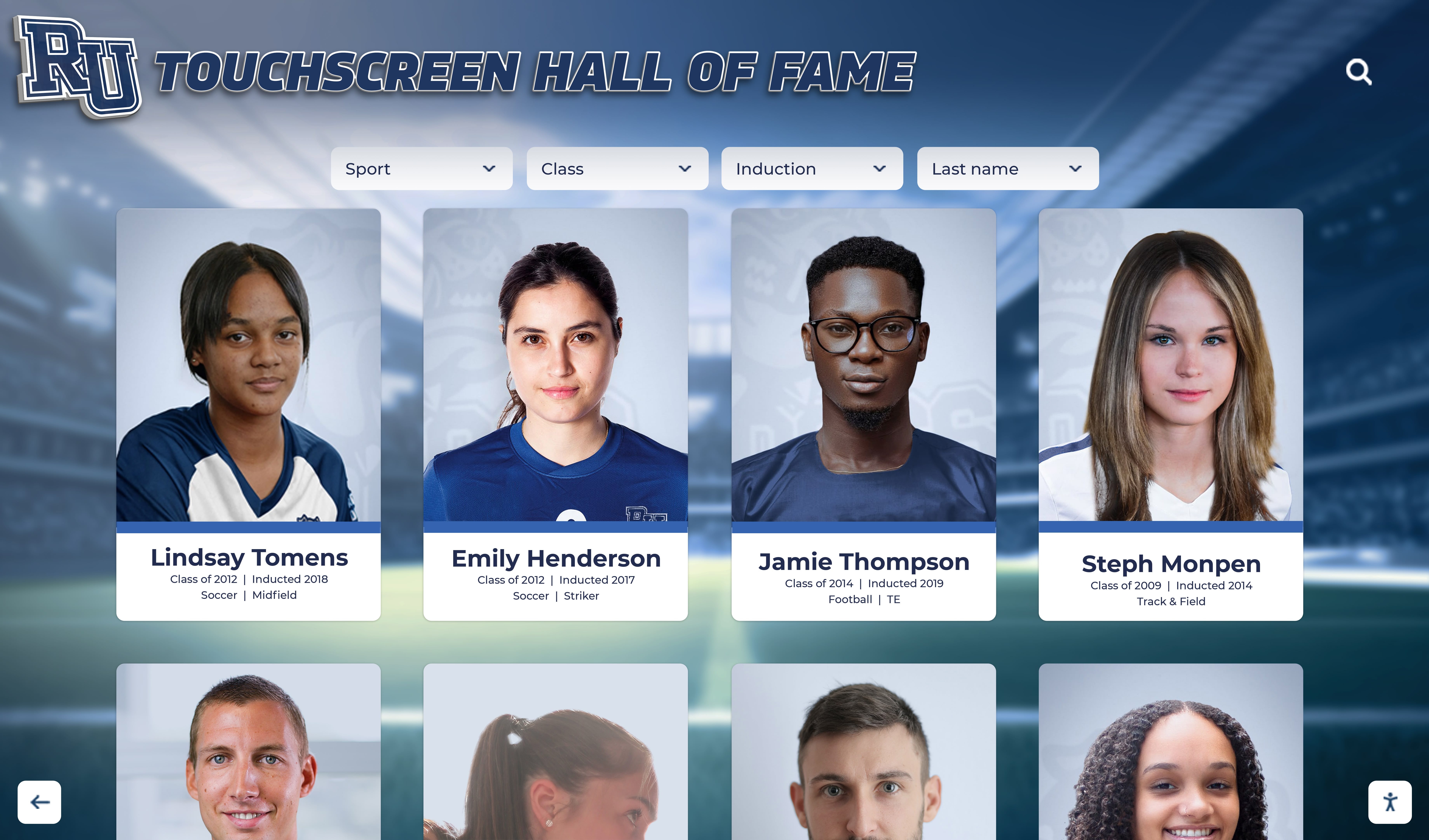
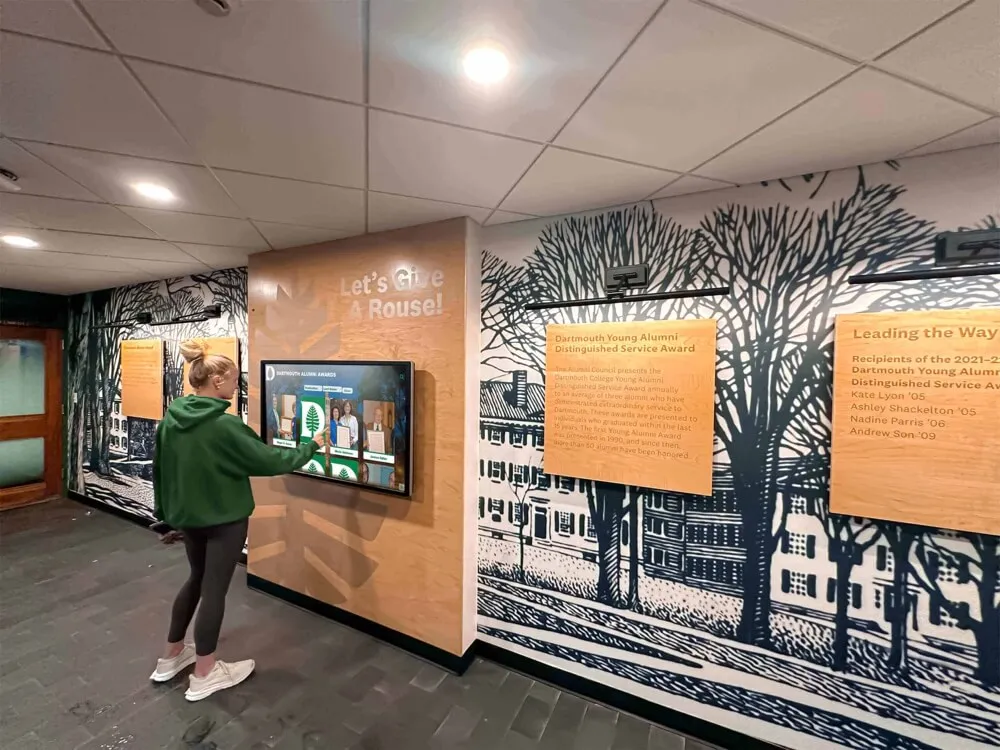
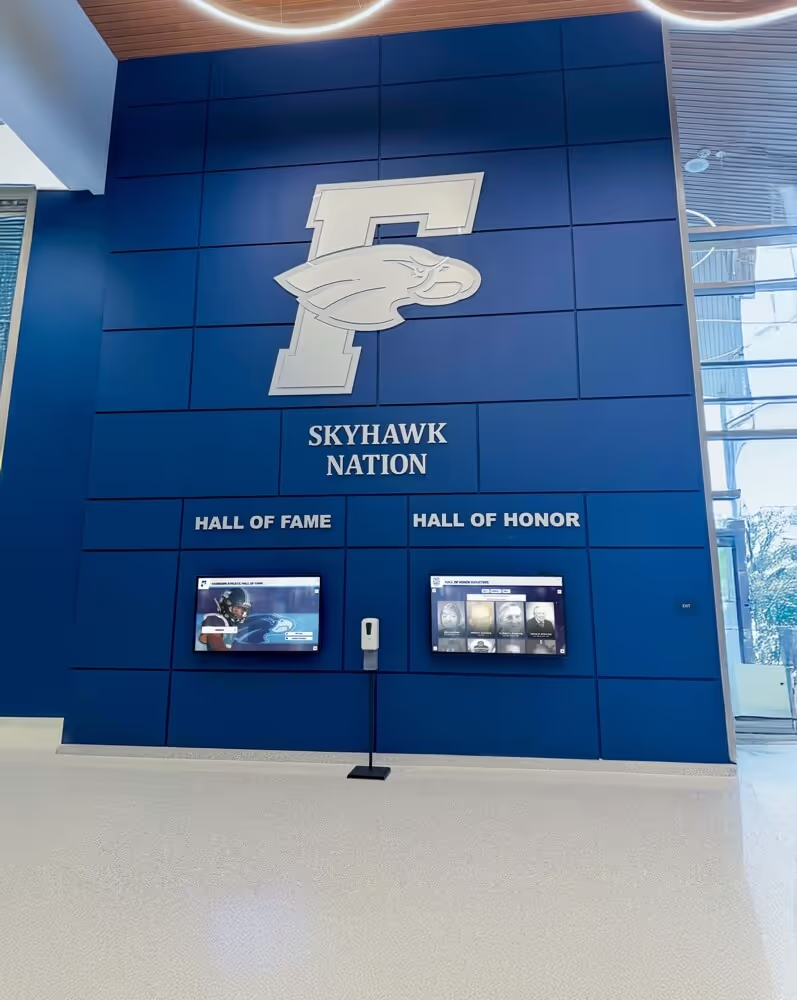
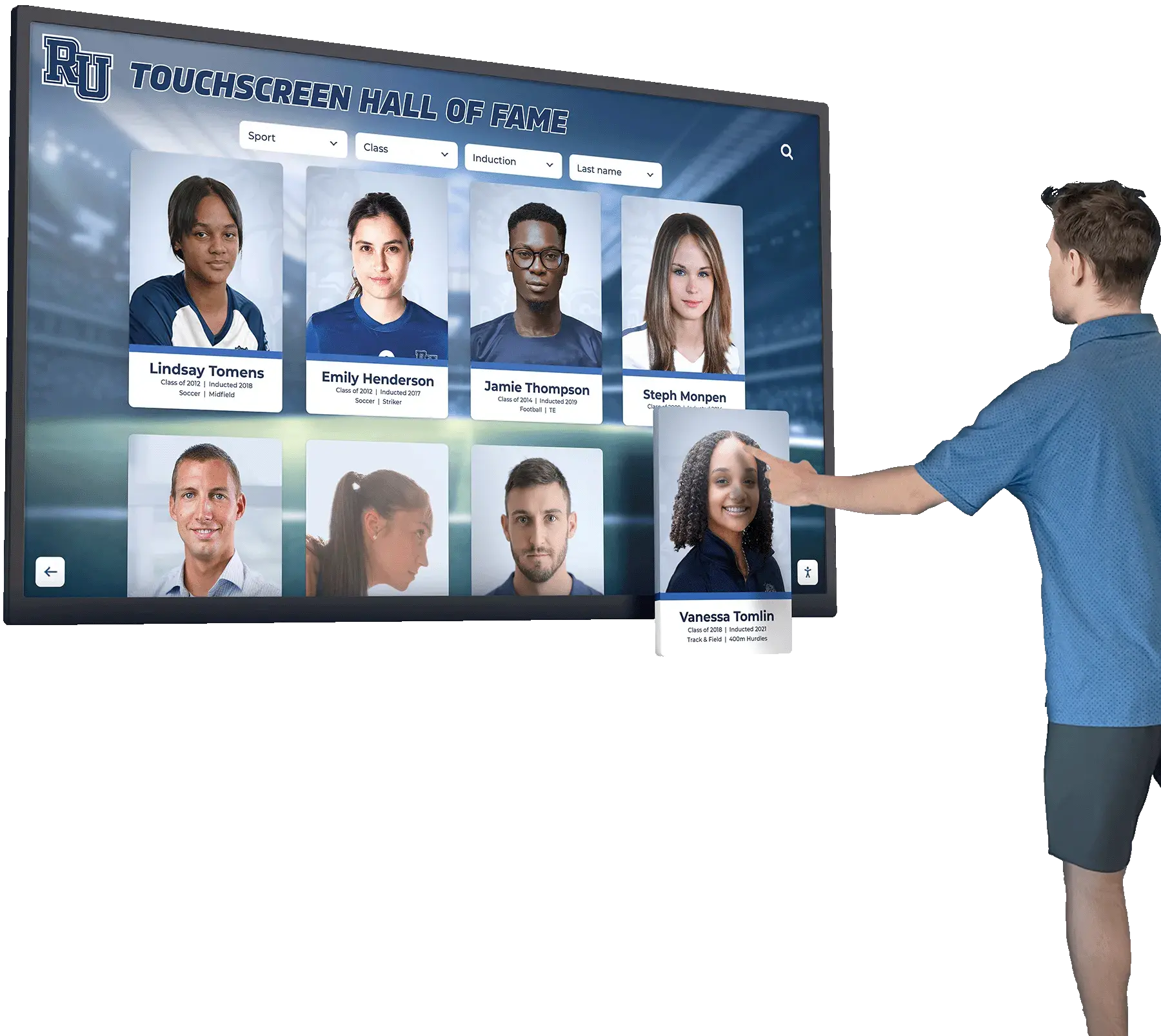
Inductee portrait cards on a hall of fame platform carry accessible names through their interactive controls—the audit confirms that most plain-text accessible names need no aria-braillelabel override, and that any overrides present have been verified against actual braille display output
For a school athletic recognition program that has preserved decades of inductee records, the digital hall of fame is where that legacy is shared with every visitor who arrives in the lobby, visits the website, or browses from a mobile device. A aria-braillelabel audit for inductee controls is a targeted, modest undertaking: most controls will pass without modification because their accessible names already produce clear Braille output. The audit’s value is in catching the exceptions—icon buttons with verbose accessible names that expand poorly on a braille display, symbolic navigation controls with unexpected Unicode character expansions, or incorrectly applied aria-braillelabel values that have drifted from their accessible names—and in confirming that any Braille overrides present were verified with a real braille display rather than assumed to work.
The practical scope is small: flag controls with emoji, symbol, or icon-based accessible names; test those specific controls with braille hardware; add aria-braillelabel only where testing confirms the accessible name produces a genuinely poor Braille result; and remove any existing aria-braillelabel values that duplicate accessible names or have been added to plain-text controls that need no override. That targeted, evidence-based approach protects the experience your recognition program provides to every community member who arrives at your hall of fame with a braille display—without introducing maintenance overhead that undermines the accessible names your platform already gets right.
See an Accessible Hall of Fame Platform in Action
Rocket Alumni Solutions builds digital wall of fame platforms designed to serve every visitor who arrives at your school's recognition program—including those using braille displays and other assistive technology. Request a demo to see how accessible inductee controls work across web and touchscreen kiosk interfaces for your school's athletic legacy.
Request Your Custom Demo