Digital Hall of Fame ARIA-Current Audit: Make Active Navigation Clear to Screen Readers
- Home /
- Digital Wall of Fame Blog - Recognition Display Insights & Resources /
- Digital Hall of Fame ARIA-Current Audit: Make Active Navigation Clear to Screen Readers
The Easiest Touchscreen Solution




Live Example: Rocket Alumni Solutions Touchscreen Display
Interact with a live example (16:9 scaled 1920x1080 display). All content is automatically responsive to all screen sizes and orientations.
A digital hall of fame aria-current audit is a structured review confirming that every navigation link, sport-category filter tab, class-year selector, and breadcrumb on your recognition pages uses the aria-current attribute to communicate its active state to screen readers. Without this attribute, a visitor navigating your inductee gallery with NVDA, JAWS, VoiceOver, or TalkBack receives no programmatic signal identifying which link is active, which tab is selected, or which page is currently displayed—even when those states are clearly indicated by visual styling such as color, font weight, or underline. The short answer: add aria-current="page" to the <a> element of the active navigation link on every page, add aria-current="page" or aria-current="true" to the selected tab in every sport-category or class-year filter group, verify those attributes are present with a screen reader before each major content update, and confirm the attribute updates dynamically whenever a visitor activates a new tab or filter.
Screen readers present navigation menus as lists of links. When a visitor using assistive technology tabs through the site navigation of a digital hall of fame—hearing “Football link, Basketball link, Baseball link, Track and Field link, Soccer link”—nothing in that sequence tells them which sport’s inductee page they are currently viewing. Sighted visitors know at a glance: the active link is bold, underlined, or highlighted with the school’s accent color. That visual distinction must be replicated in the markup for screen reader users, and aria-current is the WAI-ARIA attribute designed for exactly this purpose.
For school athletic directors, IT teams, and recognition-program administrators who maintain both web-based inductee collections and physical lobby kiosks, the aria-current audit is one of the faster accessibility checks available. It requires no specialized tools beyond a browser and a screen reader, can be completed in under an hour, and produces a specific, actionable list of elements that need a single attribute added or corrected.

Active navigation state must be communicated programmatically—not only visually—on every page type in a hall of fame recognition collection
What WCAG Requires for Active State Communication
WCAG 2.1 Success Criterion 4.1.2 (Name, Role, Value) at Level A requires that for all user interface components, the name, role, and current states can be programmatically determined. When a navigation link is visually styled as “active” or “current”—through color, underline, or weight—that state is a component state that must be programmatically determinable to satisfy SC 4.1.2. A CSS class such as class="active" affects visual rendering but is invisible to assistive technology; aria-current is the attribute that makes the same state available to a screen reader.
WCAG 2.1 SC 1.3.1 (Info and Relationships) at Level A additionally requires that information conveyed through visual presentation be available programmatically. An active navigation link that is visually distinct from its siblings conveys information—specifically, “this is where you are in the site’s structure”—and that information must be programmatically accessible, not only visually apparent.
Both SC 4.1.2 and SC 1.3.1 are Level A requirements, the foundational tier that underpins virtually every school ADA compliance policy and website accessibility standard. Failing to expose active navigation state programmatically is not a theoretical accessibility concern; for a screen reader user, it makes the site’s current location invisible in the navigation.
It is worth distinguishing between what the standards require and what implementation practice recommends. WCAG 2.1 SC 4.1.2 and SC 1.3.1 require that active state be programmatically determinable; they do not prescribe the specific mechanism. The aria-current attribute is the approach recommended by the WAI-ARIA specification and current accessibility guidance because it is purpose-built for this use case, is well-supported by all major screen readers, and does not require additional visible or hidden text in the markup. Schools should consult the authoritative WCAG 2.1 specification at www.w3.org and their accessibility advisor for compliance guidance specific to their program.
The aria-current Attribute: Values and When to Use Each
The aria-current attribute accepts several token values, each appropriate for a different type of “current” context. For hall of fame and recognition program pages, four values are most relevant:
| Value | Meaning | Hall of Fame Use Case |
|---|---|---|
aria-current="page" | This link points to the currently loaded page | Active link in the site navigation menu or breadcrumb trail |
aria-current="true" | This element represents the current item in a set (generic) | Selected tab in a client-side sport-category filter group |
aria-current="step" | Current step in a linear sequence | Current step in a multi-step induction nomination form |
aria-current="date" | Current date or period in a date-based interface | Current year or decade in a timeline history navigation |
The most common value on recognition pages is aria-current="page", applied to the navigation link that matches the URL of the currently loaded page. For client-side filtered tab strips that do not navigate to separate URLs, aria-current="true" (or the aria-selected attribute within a proper ARIA tablist) marks the selected tab.
The aria-current attribute should appear on at most one element within each set of related links or tabs. Applying it to multiple links in the same navigation menu simultaneously is incorrect and will confuse screen reader users who expect a single “current” marker per navigation set.
Hall of Fame Navigation Scenarios Requiring aria-current
Primary Site Navigation
Every page of a digital hall of fame website should include aria-current="page" on the navigation link that corresponds to the current page. If the inductee gallery is accessible via a link labeled “Hall of Fame” or “Inductees,” that link should carry aria-current="page" while the visitor is on any page within that section. If the navigation uses nested dropdown menus—for example, a top-level “Sports” link that expands to reveal sport-specific sub-links—the specific sport sub-link should carry aria-current="page" when the corresponding sport page is active.
For recognition collections that also include search tools and filtering interfaces for finding inductees by name or sport, the navigation link pointing to the search page should carry aria-current="page" while the visitor is in the search flow.
Sport-Category Filter Tabs
Inductee galleries commonly allow visitors to filter by sport: Football, Basketball, Baseball, Volleyball, Track and Field, and so on. When these filters are implemented as links that navigate to separate pages per sport, the link for the active sport should carry aria-current="page". When the filters are client-side—meaning they show or hide inductee cards without changing the URL—they should be implemented as a proper ARIA tablist with aria-selected="true" on the active tab button, or as a button group using aria-current="true" on the selected button.
Sport-specific record pages—covering individual disciplines from volleyball, track and field, and other athletic events—each need their corresponding sport filter link or tab to expose its active state to screen readers when that page is displayed.
Class-Year and Induction Cycle Tabs
Many recognition collections organize inductees by induction year or graduating class. A tab strip reading “Class of 2020 | Class of 2021 | Class of 2022 | Class of 2023 | Class of 2024” requires the active tab to expose its selected state—either through aria-selected="true" within a tablist or aria-current="true" on the active element—so that screen reader users can confirm which class year is currently displayed without having to read the page content.
Recognition programs that also honor academic distinction through graduation honors and cords—where class-year or honor-level sorting is equally central—should apply the same tab-state audit to their academic recognition pages as to their athletic inductee gallery.
Breadcrumb Navigation
Breadcrumb trails on inductee profile pages—for example, “Home > Hall of Fame > Football Inductees > John Doe”—should mark the final item with aria-current="page". The WAI-ARIA Authoring Practices Guide recommends this pattern specifically for breadcrumbs. It allows screen reader users to identify immediately that the last item in the breadcrumb represents where they already are, rather than a link to navigate to.
Alphabetical Index Navigation
When an inductee directory is organized alphabetically and presented with letter tabs or an A–Z jump list, the tab or link representing the currently displayed letter grouping should carry aria-current="true" or aria-current="page" depending on whether the letter view is a separate page or a client-side filter. This is especially important for large inductee collections spanning dozens of entries per letter.
Schools that combine athletic recognition with interactive digital yearbooks and school memory archives often implement similar A–Z or class-year navigation on both platforms, making a consistent aria-current implementation policy valuable across the full digital recognition suite.

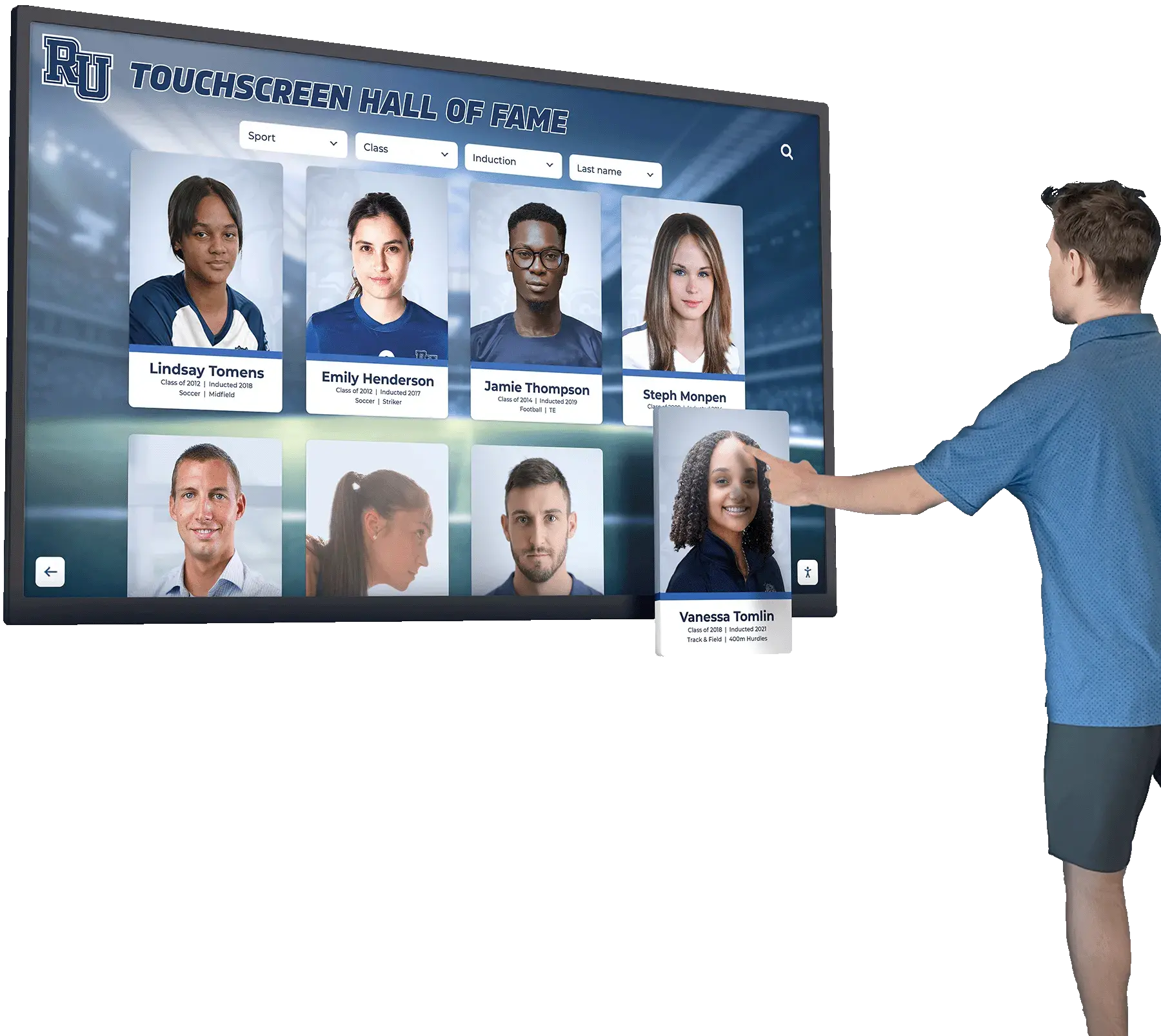
When visitors navigate sport-category filter tabs or class-year selectors on a recognition display, screen readers must receive an explicit signal identifying which tab or link is currently active
The aria-current Audit Checklist
Complete this checklist on the web-based inductee collection and on any browser-rendered lobby kiosk interfaces. A screen reader—NVDA on Windows or VoiceOver on macOS—is required for Steps 4 through 7. Steps 1 through 3 can be completed using only browser DevTools.
Step 1: Map Every Navigation Set on Key Page Types
Before testing, document every group of links or tabs on your hall of fame pages that has a concept of an “active” or “current” item. Common sets include:
- Primary site navigation bar
- Sport-category filter tabs or links on the inductee gallery
- Class-year or induction-cycle tab strip
- Inductee profile detail tabs (Biography, Statistics, Media, Awards)
- Alphabetical index navigation
- Breadcrumb trail on individual profile pages
- Pagination controls where the active page number is visually highlighted
- Timeline or decade navigation on school history pages
Record each set before testing. You cannot audit what you have not identified.
Step 2: Inspect the Active Element in DevTools
For each navigation set identified in Step 1, load the relevant page and open browser DevTools (F12 in Chrome, Firefox, or Edge).
- Navigate to a page where one element in the set should be active—for example, the Football inductee page, where the “Football” link or tab should be current.
- In the DevTools Elements panel, locate the active link or tab element.
- Check whether
aria-currentis present on the element. A correctly implemented navigation link appears as:
<a href="/inductees/football" aria-current="page">Football</a>
A correctly implemented client-side tab button (where tabs filter without navigating) appears as either:
<!-- Using aria-current with a button group -->
<button aria-current="true">Football</button>

<!-- Or using proper ARIA tablist pattern -->
<button role="tab" aria-selected="true">Football</button>
- If the active element carries only a CSS class and no
aria-currentoraria-selectedattribute, record the element and page URL for the remediation list.
Step 3: Confirm Only One Element Carries aria-current per Set
Within each navigation set, confirm that exactly one element carries aria-current at any given time. In DevTools, search the page source for aria-current. If multiple sibling navigation links carry the attribute simultaneously, that is a markup error. aria-current marks a single current item within a set—only the element representing the current page or current selection should carry it.
Step 4: Test Primary Navigation with a Screen Reader
With NVDA running on Windows, load an inductee gallery page for a specific sport—for example, the Basketball inductee page. Navigate to the primary site navigation using the screen reader’s landmark jump shortcut (D in NVDA to move to the next landmark). Move through the navigation links using the arrow keys and listen for the screen reader’s announcement of the active link.
Pass: NVDA announces the active link as “Basketball, current page link” or similar. VoiceOver on macOS announces “Basketball, link, current page.”
Fail: The screen reader announces only “Basketball link” with no mention of current-page state. The active state communicated visually by the design is absent from the screen reader output.
Step 5: Test Sport-Category Filter Tabs
On the inductee gallery, activate a sport-category filter tab using the keyboard (Tab to the tab element, press Enter or Space to activate it). After the page updates, navigate back to the tab strip.
Pass (navigation tabs): The screen reader announces the activated link as “Football, current page link.”
Pass (client-side filter tabs): The screen reader announces the active tab as “Football, selected” (using aria-selected) or “Football, current” (using aria-current).
Fail: The screen reader announces “Football, tab” or “Football, button” with no indication of selected or current state.
For schools that update their digital displays during high-traffic periods such as homecoming week and school spirit events, include an aria-current spot-check in your display review before those events—new visitors arriving during high-traffic periods will encounter the navigation for the first time.
Step 6: Test Breadcrumb Navigation
Navigate to an individual inductee profile page. Locate the breadcrumb trail using the screen reader. Move through the breadcrumb links with the arrow keys and listen to the announcement of the final item.
Pass: The screen reader announces the last breadcrumb item as “John Doe, current page” or similar, and the element is presented as a text item rather than a clickable link navigating away from the current page.
Fail: The screen reader announces the last breadcrumb item as a regular link with no current-page state, or announces it as a navigable link to the URL of the page already loaded.
Step 7: Test Class-Year Archive Tabs
Navigate to a class-year archive page and activate a specific class-year tab. Then navigate back to the tab strip using the keyboard.
Pass: The screen reader announces the active year tab as “Class of 2023, selected” or “Class of 2023, current.”
Fail: All tabs are announced identically as “tab” or “button” with no distinction identifying which is currently active.
Pass/Fail Code Examples
The following examples show correct and incorrect markup for the navigation patterns most commonly audited on school hall of fame pages.
Primary Navigation — Pass
<nav aria-label="Primary navigation">
  <ul>
    <li><a href="/inductees/football" aria-current="page">Football</a></li>
    <li><a href="/inductees/basketball">Basketball</a></li>
    <li><a href="/inductees/baseball">Baseball</a></li>
  </ul>
</nav>
Primary Navigation — Fail
<nav aria-label="Primary navigation">
  <ul>
    <li><a href="/inductees/football" class="active">Football</a></li>
    <li><a href="/inductees/basketball">Basketball</a></li>
    <li><a href="/inductees/baseball">Baseball</a></li>
  </ul>
</nav>
The CSS class active changes the visual appearance but communicates nothing to assistive technology. The aria-current attribute is absent.
Client-Side Sport Filter Tabs — Pass
<div role="tablist" aria-label="Filter inductees by sport">
  <button role="tab" aria-selected="true" aria-controls="football-panel" id="tab-football">Football</button>
  <button role="tab" aria-selected="false" aria-controls="basketball-panel" id="tab-basketball">Basketball</button>
  <button role="tab" aria-selected="false" aria-controls="volleyball-panel" id="tab-volleyball">Volleyball</button>
</div>
Breadcrumb — Pass
<nav aria-label="Breadcrumb">
  <ol>
    <li><a href="/">Home</a></li>
    <li><a href="/inductees/">Hall of Fame</a></li>
    <li><a href="/inductees/football/">Football Inductees</a></li>
    <li><span aria-current="page">John Doe</span></li>
  </ol>
</nav>
In this breadcrumb, the current item is a <span> rather than an <a> element because the current page does not need a link to itself. The aria-current="page" attribute on the <span> communicates the current-page state to assistive technology.
Breadcrumb — Fail
<nav aria-label="Breadcrumb">
  <ol>
    <li><a href="/">Home</a></li>
    <li><a href="/inductees/">Hall of Fame</a></li>
    <li><a href="/inductees/football/">Football Inductees</a></li>
    <li><a href="/inductees/football/john-doe/" class="active">John Doe</a></li>
  </ol>
</nav>
The final breadcrumb item is a link with only a CSS class indicating active state. Screen readers announce it as a navigable link with no current-page information.
Audit Summary Table
| Navigation Set | Correct aria-current Value | Common Failure Mode |
|---|---|---|
| Primary site navigation | aria-current="page" on active <a> | CSS class active applied; no ARIA attribute present |
| Sport tabs (page-per-sport) | aria-current="page" on active <a> | Visual active state applied through CSS only |
| Sport tabs (client-side filter) | aria-selected="true" on active tab button | JavaScript updates CSS class but does not update ARIA state |
| Class-year archive tabs | aria-selected="true" or aria-current="true" | Same pattern as sport filter tabs—same failure mode |
| Breadcrumb trail | aria-current="page" on last breadcrumb item | Last item is an <a> with class active and no ARIA state |
| Alphabetical index | aria-current="true" or aria-current="page" | A–Z index implemented as unstyled links with no active-state markup |
| Inductee detail tabs | aria-selected="true" within role="tablist" | Tab group updates content via AJAX but does not update ARIA selected state |
| Pagination | aria-current="page" on active page number | Active page number is visually distinct but carries only a CSS class |
Built for Accessible Navigation from Day One
Rocket Alumni Solutions' digital wall of fame platform is designed with ADA and WCAG 2.1 AA compliance in mind. Active navigation states, landmark regions, focus management, and aria-current implementation are handled at the platform level—so your recognition team focuses on honoring athletes, not auditing markup. See how it works for your school.
Request Your Custom DemoCommon Errors and How to Fix Them
Error: CSS class used instead of aria-current
The most common failure is using a CSS class—class="active", class="current", class="selected"—to mark the active navigation link without adding the corresponding ARIA attribute. CSS classes affect visual styling but are invisible to assistive technology. Fix: add aria-current="page" (or the appropriate value) to the same element that carries the active CSS class. The CSS class and the ARIA attribute can coexist on the same element.
Error: aria-current applied to a parent wrapper instead of the link
A recurring implementation error places aria-current on a list item (<li>) or wrapper <div> rather than on the link or button element itself. Screen readers associate aria-current with the element it is directly applied to; placing it on a parent element may not propagate the announcement to the link. Fix: move aria-current directly to the <a> or <button> element.
Error: aria-current not updated on tab activation
In JavaScript-driven tab interfaces, the active tab’s aria-current or aria-selected value must be updated dynamically when the user selects a different tab. A common error is setting the attribute in the initial HTML but failing to update it in the JavaScript event handler that switches tabs. Fix: ensure your tab activation script removes the current-state attribute from the previously active tab and adds it to the newly activated one at the same time it updates the visual styling.
Error: aria-current on every tab simultaneously
Applying aria-current="true" to all tabs in a strip—perhaps intending to indicate they are all “within the current section”—is incorrect. aria-current marks a single current item per set. Fix: ensure only the actively selected tab carries the attribute; all other tabs in the same set should have no aria-current attribute.
Error: Breadcrumb last item is a self-referencing link without aria-current
Some implementations make the current-page breadcrumb item a link pointing to the current page and omit aria-current. A screen reader user hears a navigable link to a page they are already on, with no indication it represents the current location. Fix: either add aria-current="page" to the link element, or replace the link with a non-interactive <span> carrying aria-current="page".
Programs that extend recognition to coaches, staff, and administrators—similar in scope to staff appreciation and employee recognition initiatives—should apply this checklist to every tabbed interface and navigation menu in their full recognition suite, not only to the athletic inductee gallery.
Recognition programs that launch new inductee content at the start of each school year—featuring hall of fame stories during first-day activities and student orientation events—benefit from running an aria-current spot-check as part of the pre-launch review. New navigation entries added for the incoming induction class need the attribute wired up correctly from the moment of first publication.
When designing or evaluating a lobby touchscreen component for a recognition program, planning the school’s wayfinding kiosk and lobby navigation strategy naturally intersects with active-state communication requirements. Visitors using assistive technology at in-lobby kiosks need the same clear signals about where they are in the navigation hierarchy as web-based visitors do.
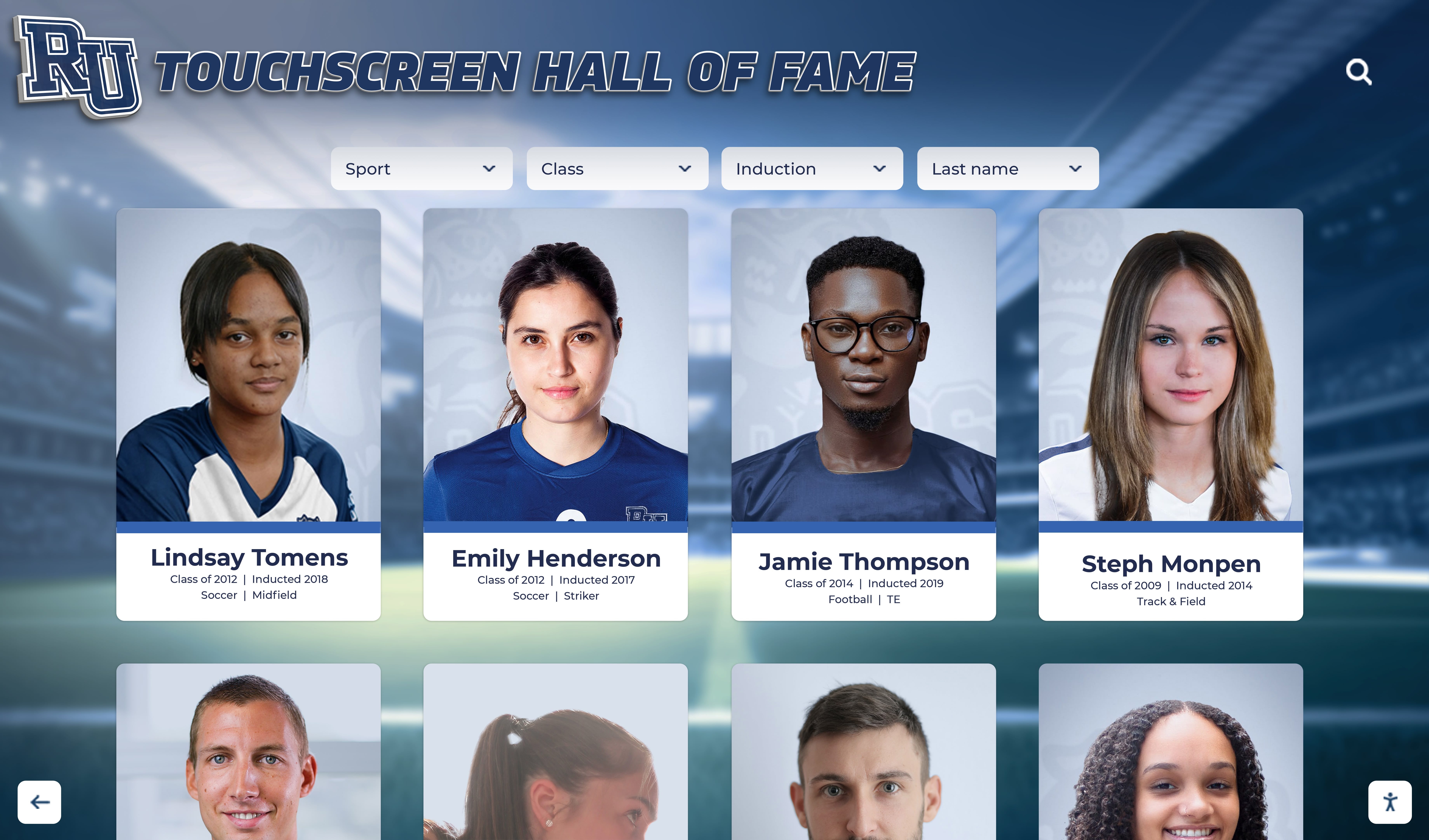
Sport-category filter tabs above an inductee card grid are among the most common places where aria-current is missing—screen readers cannot distinguish which tab is active without the attribute
Frequently Asked Questions
Q: Is aria-current required by WCAG 2.1?
A: WCAG 2.1 SC 4.1.2 (Name, Role, Value) and SC 1.3.1 (Info and Relationships) require that the state of user interface components—including the “currently active” or “currently selected” state of navigation links and tabs—be programmatically determinable. The WAI-ARIA specification defines aria-current as the standard mechanism for communicating active navigation state. A navigation menu where the active link is visually distinct but carries no programmatic state indicator would, in most interpretations, fail these Level A criteria. Consult the authoritative WCAG 2.1 specification at www.w3.org and your accessibility advisor for compliance guidance specific to your institution.
Q: What is the difference between aria-current and aria-selected?
A: aria-current and aria-selected address similar but distinct patterns. aria-selected is used within formal ARIA widget roles that support selection—a role="tab" within a role="tablist", an option within a listbox, or a gridcell within a grid. aria-current is used for elements representing the current item in a navigation context—a link pointing to the currently loaded page, the current step in a multi-step form, or the active date in a calendar navigation—where the “current” state is determined by page location or application state rather than a user selection within a self-contained widget. Choosing between them depends on how the interface is implemented: page-navigating links use aria-current="page"; client-side tab panels use role="tab" and aria-selected.
Q: Our hall of fame platform is a third-party CMS. How do we request aria-current fixes?
A: Submit a support request to your CMS vendor identifying the specific page and element where aria-current is missing or incorrect. Reference WCAG 2.1 SC 4.1.2 and SC 1.3.1 in your request. Ask for a timeline and confirmation of the fix. After the vendor deploys the update, repeat the DevTools inspection in Step 2 and the screen reader tests in Steps 4 through 7 to verify the attribute is correctly applied, and document the verified result in your accessibility audit record.
Q: Does this apply to the kiosk display as well as the website?
A: Hall of fame kiosk interfaces that render in a browser-based environment—the most common architecture for modern touchscreen recognition systems—are subject to the same HTML and ARIA attribute requirements as web-based pages. If the kiosk navigation menu includes sport-category tabs or class-year filters, those elements require aria-current just as their web-based equivalents do. Kiosk installations that support an external keyboard or assistive technology peripheral must function correctly with those devices, including correct ARIA state announcements.
Q: How often should we run an aria-current audit?
A: Run a full audit at initial platform launch, after any update that modifies navigation structure—new sport category added, new induction year tab added, breadcrumb trail redesigned—and annually as part of a broader accessibility review. A lightweight check—loading the main inductee gallery page, inspecting the active navigation link in DevTools for aria-current="page", and confirming the announcement with a screen reader—takes under five minutes and is appropriate after any deployment that adds or changes navigation items.
Q: Can automated tools detect missing aria-current?
A: Automated accessibility scanners such as axe, WAVE, and Lighthouse do not comprehensively detect missing aria-current because its presence and correctness depend on application state: which link is active depends on which page is loaded, and which tab is selected depends on user interaction. Manual DevTools inspection and screen reader testing remain the most reliable methods. Some scanners will flag aria-current misuse—such as an unrecognized attribute value—but they cannot reliably detect its absence on elements where it should be present.
Q: Do we need aria-current on every link in the navigation, or only the active one?
A: Only the single active item within each navigation set should carry aria-current. All other links in the same set should have no aria-current attribute—or explicitly aria-current="false", though omitting it entirely is equally valid and is the more common practice. Applying aria-current to non-active elements either incorrectly marks multiple items as current or communicates an explicit “not current” state that is redundant for elements that have never had the attribute.
Every recognition program invests significant effort ensuring inductee stories are told accurately, displayed beautifully, and updated efficiently. An aria-current audit ensures that the navigation framing those stories is equally accurate for visitors who rely on screen readers. Adding aria-current="page" to a navigation link and aria-current="true" to a selected filter tab are among the smallest markup changes available to a web team—each is a single attribute addition, often achievable through a CMS platform configuration or template update rather than custom development. Running this audit before each induction season, and confirming the results with a screen reader, costs less than an hour and protects a recognition program’s accessibility posture for every visitor who arrives using NVDA, JAWS, VoiceOver, or TalkBack.
Learn more about Rocket Alumni Solutions’ Digital Wall of Fame platform to understand how the platform’s cloud-based CMS and accessible navigation architecture handle active-state markup at the template level, reducing the audit burden for recognition program teams.
See an Accessible Digital Hall of Fame in Action
Rocket Alumni Solutions builds interactive touchscreen and web-based recognition programs designed to serve every visitor—keyboard users, touch users, and screen reader users alike. Accessible navigation states, ARIA landmark regions, and cloud-based CMS tools are built into the platform from the ground up. Schedule a custom demo to see how it handles aria-current, focus management, and searchable inductee records across any device.
Request Your Custom DemoLive Example: Rocket Alumni Solutions Touchscreen Display
Interact with a live example (16:9 scaled 1920x1080 display). All content is automatically responsive to all screen sizes and orientations.