Digital Hall of Fame ARIA-Errormessage Audit for Search and Nomination Forms
- Home /
- Digital Wall of Fame Blog - Recognition Display Insights & Resources /
- Digital Hall of Fame ARIA-Errormessage Audit for Search and Nomination Forms

The Easiest Touchscreen Solution




Live Example: Rocket Alumni Solutions Touchscreen Display
Interact with a live example (16:9 scaled 1920x1080 display). All content is automatically responsive to all screen sizes and orientations.
A digital hall of fame ARIA errormessage audit is a structured review confirming that every validation error displayed by a recognition platform’s search and nomination forms is programmatically linked to its triggering control through the aria-errormessage attribute—and that the control simultaneously carries aria-invalid="true" whenever a validation error is active. The short answer for school administrators, athletic directors, and IT teams: open each form on the platform, trigger a validation error on every field, use browser developer tools to confirm that the input element carries both aria-invalid="true" and an aria-errormessage value matching the ID of the visible error element, then test the flow with a screen reader to confirm the error message is announced automatically when a user reaches the invalid field.
When a student’s family member submits a nomination for an athletic hall of fame inductee and leaves the nominee’s graduation year blank, the form should display an error—and a screen-reader user filling out the same form should hear that error automatically, without having to hunt for it. The WCAG 2.1 success criteria that govern error identification and error suggestion (3.3.1 and 3.3.3) require that errors be described to users in text, but they do not specify how that text must be connected to the form control. The aria-errormessage attribute exists precisely to make that connection explicit: it tells assistive technologies which element contains the error for a given control, and it ensures the message is announced at the right moment—when the user lands on or interacts with the invalid field.
For school recognition programs that run youth athlete of the year nomination campaigns alongside their digital hall of fame platform, the nomination form is often the most form-intensive surface on the entire site. Nomination forms typically require a nominator’s name and contact information, the nominee’s full name, category or sport, years of eligibility, and a written statement. Each of those fields is a candidate for validation failure—and without a correct aria-errormessage implementation, the error feedback is invisible to assistive technology users even when it is perfectly visible on-screen.
This audit walkthrough is written for school IT administrators, web developers managing the recognition platform, and athletic department staff who want to verify their forms meet programmatic accessibility requirements before the next nomination cycle opens.

Nomination and search forms on a digital hall of fame platform must communicate validation errors programmatically, not just visually, so that all community members can participate in the recognition process
What aria-errormessage Does and How It Differs from aria-describedby
Before running the audit, it helps to understand exactly what aria-errormessage does and why it was added to the ARIA specification when aria-describedby already existed.
aria-describedby references one or more elements whose content provides a description of the control. Screen readers typically announce the description immediately after the label when the user focuses the control. This makes aria-describedby useful for persistent hint text—a field that says “Enter the four-digit graduation year” beneath a text input, for example. Because aria-describedby content is always announced, it is not well-suited to error messages that should only be announced when the control is in an invalid state. If you use aria-describedby for both hint text and error messages, users hear the error message on every focus event, even before they have attempted to fill in the field.
aria-errormessage was added in ARIA 1.1 specifically to address this limitation. It references the ID of an element containing the error message for the control, but assistive technologies are only expected to announce that element’s content when aria-invalid="true" is also set on the same control. When aria-invalid is absent or set to "false", the referenced error element is ignored by the AT. This pairing—aria-invalid="true" together with aria-errormessage="element-id"—is the intended, fully programmatic pattern for connecting a validation error to its triggering control.
The practical difference is significant for nomination forms. A field that shows a character-count hint (“Nomination statement: 0 / 500 characters”) can use aria-describedby to reference the counter without triggering error-announcement behavior. When the user submits the form with a statement that is too short, the script sets aria-invalid="true", populates the referenced error element with text such as “Nomination statement must be at least 50 characters,” and the AT announces that message when the user navigates to or focuses the invalid field.
When aria-errormessage Is Not Enough Alone
The aria-errormessage and aria-invalid pair handles focus-based announcement: the error message is read when the user tabs to or clicks the field. For users who have already passed through the form once and are reviewing a summary of errors, or who navigate the page using heading and landmark navigation rather than field-by-field tabbing, the error messages may not be announced unless supplementary techniques are used.
For comprehensive error feedback after form submission, many implementations combine aria-errormessage (for per-field announcement on focus) with either a summary error region at the top of the form (implemented as a live region or a focus-receiving container) or an aria-live="assertive" region that announces a brief summary such as “4 errors found. Please review the highlighted fields.” These two techniques address different navigation patterns and are complementary, not redundant.
Where aria-errormessage Failures Appear on Hall of Fame Platforms
A digital hall of fame recognition platform typically exposes forms in three categories, each with distinct validation requirements.
Nomination Forms
Nomination forms collect structured information about a nominee submitted by a community member—a parent, alumnus, coach, or fellow student. Common fields and their validation rules include:
| Field | Typical Validation | Common Error Text |
|---|---|---|
| Nominee full name | Required, alphabetic characters, 2–100 characters | “Please enter the nominee’s full legal name.” |
| Sport or category | Required select field | “Please select a sport or recognition category.” |
| Graduation year | Required, four-digit year within a valid range | “Please enter a valid four-digit graduation year.” |
| Nominator name | Required | “Please provide your name.” |
| Nominator email | Required, valid email format | “Please enter a valid email address.” |
| Nomination statement | Required, minimum character count | “Nomination statement must be at least 50 characters.” |
| Supporting documents | File type and size validation | “File must be a PDF, JPG, or PNG under 5 MB.” |
Each of these fields must carry aria-errormessage referencing the ID of its corresponding error element, and each error element must be populated and visible—not hidden with display: none—when the validation error is active.
Schools that host recognition programs alongside traditional events like sports banquets often run their nomination period in the weeks preceding the annual ceremony. Any form accessibility failure that blocks a community member from submitting a nomination during that window is a time-sensitive problem with no easy workaround.
Search Forms
Hall of fame search forms allow visitors to look up inductees by name, sport, year, or category. Validation errors on search forms are less common but do occur:
- A search query that contains special characters not permitted by the search backend
- A date-range filter where the end year is earlier than the start year
- A search submitted with no query text when the platform requires at least one character
For search forms, aria-errormessage failures are often lower-severity in isolation—a sighted user can read the on-screen error and correct the query—but they remain a barrier for screen-reader users who rely on the programmatic connection to hear what went wrong with their search.
Contact and Inquiry Forms
Many recognition platforms include a contact or inquiry form for schools considering the platform, or for community members with questions about an existing inductee record. These forms have the same aria-errormessage requirements as nomination forms and should be included in the audit scope.
For schools that honor academic achievement—including Latin honors designations and scholarship recognition—alongside athletic induction, the academic nomination form may be managed by a different staff team with different technical resources. Include all active forms on the platform in the audit scope, regardless of which department manages the associated recognition program.
The aria-errormessage Audit: Step-by-Step
Step 1: Inventory All Forms on the Platform
Before testing, create a complete list of every form on the digital hall of fame platform. Check:
- The public-facing nomination form (often linked from a “Nominate Someone” or “Submit a Nomination” button)
- The search form on the inductee directory page
- Any filter controls that use form inputs (year range, sport category, graduation cohort)
- The contact or inquiry form
- Any member or alumni login form if the platform includes authenticated access
- Admin-facing forms if the scope of your audit includes the CMS interface used by staff to enter inductee records
For each form, note the URL or page location and the names of each field. This inventory becomes the tracking document for the audit.
Step 2: Trigger Validation Errors on Each Field
For each field on each form, trigger the validation error state deliberately:
- For required text fields: submit the form without entering any value.
- For email fields: enter a string that is not a valid email address (for example, “test@” or “notanemail”).
- For select fields: if the field has a blank or placeholder option, submit the form with that option selected.
- For character-limited fields: enter text that is shorter than the minimum or longer than the maximum.
- For file upload fields: attempt to upload a file with a disallowed extension or a file that exceeds the size limit.
- For date and year fields: enter a value outside the permitted range, or enter a non-numeric string.
If the form uses real-time validation (errors appear as the user types or on blur), trigger the error by focusing the field, entering an invalid value, and then tabbing away. If the form uses submit-time validation (errors appear only after the submit button is clicked), submit the form with all fields invalid simultaneously.
Record a screenshot or browser inspection of the error state for each field. The error element must be visible on-screen at this stage.

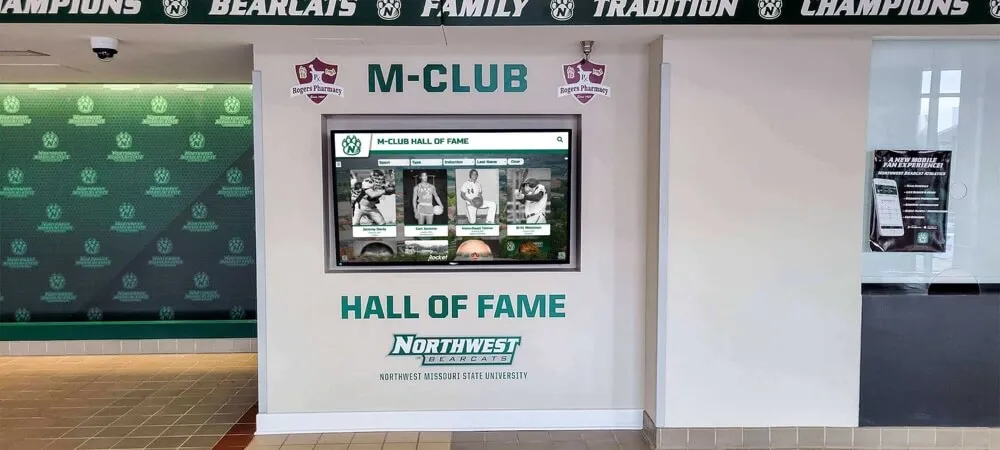
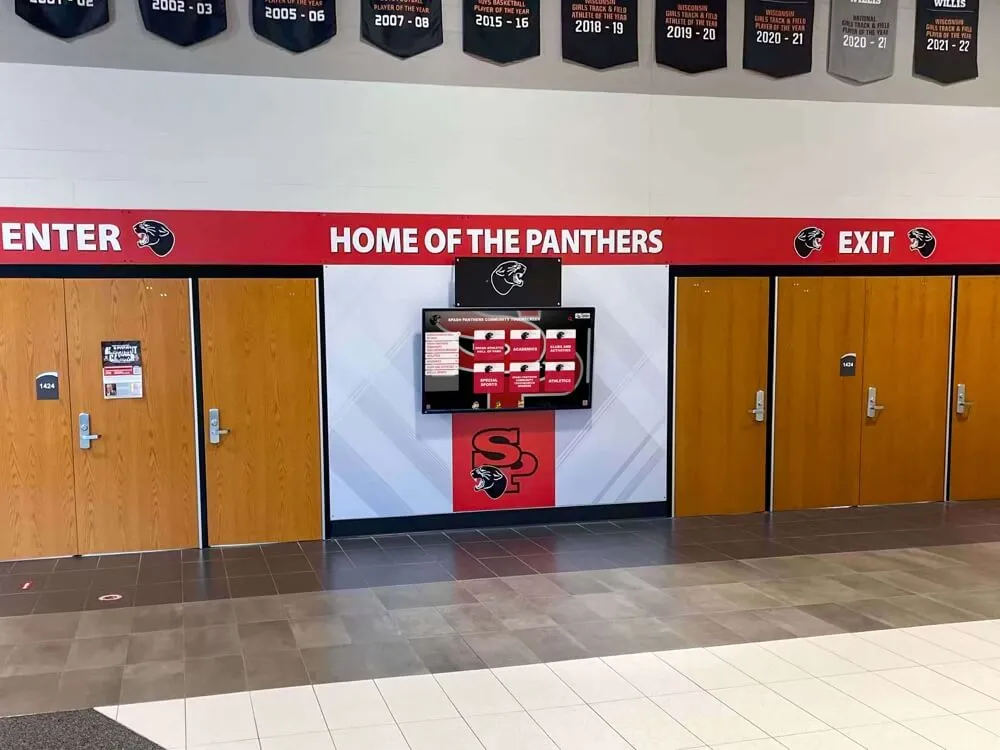
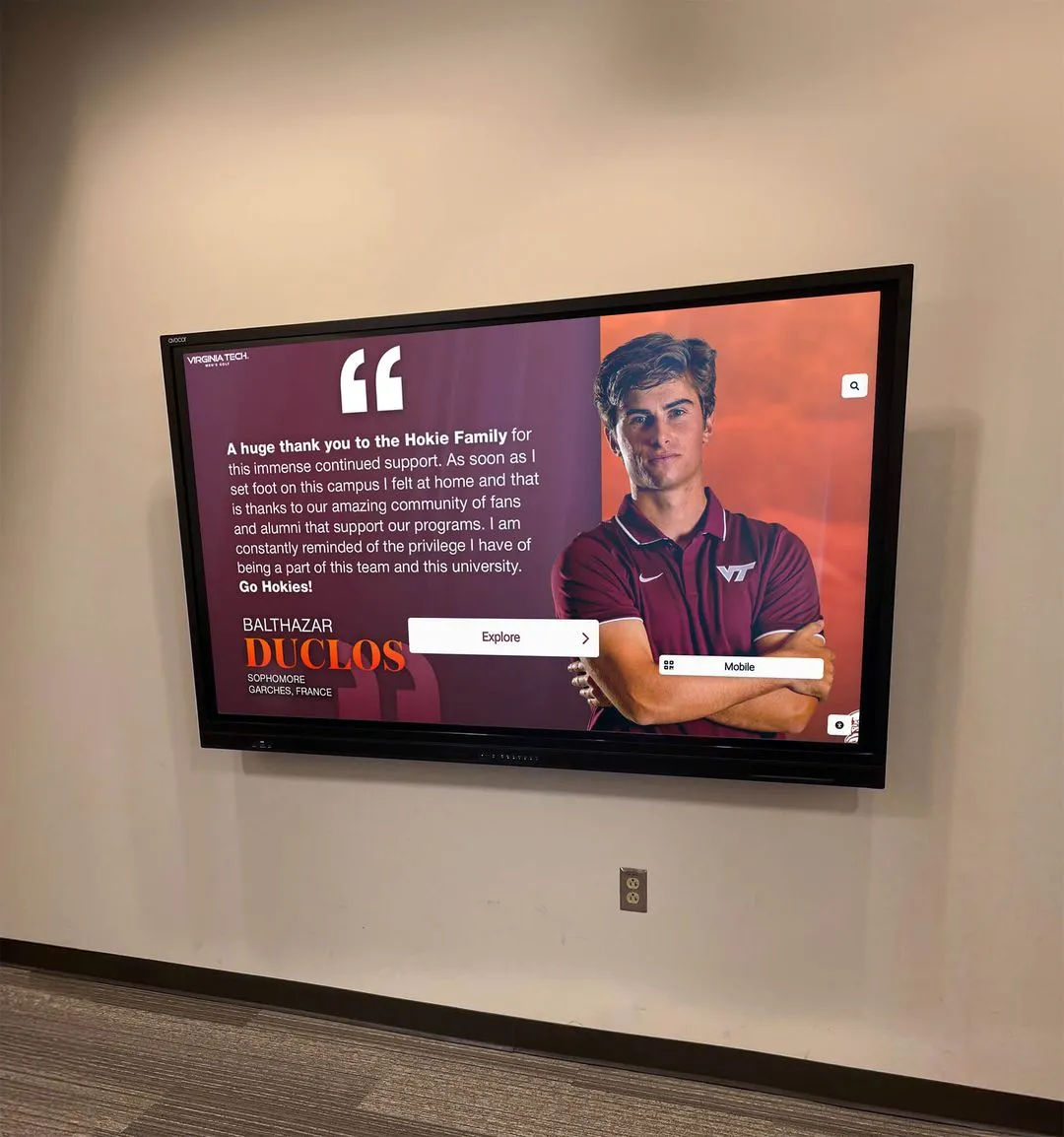
Whether a visitor is filling out a nomination form on a web browser or using a touchscreen kiosk interface, form validation errors must be programmatically associated with the triggering control via aria-errormessage
Step 3: Inspect the DOM for aria-errormessage and aria-invalid
With the error state active for a given field, open browser developer tools and inspect the input element (or select, textarea, or other form control). Look for two attributes:
aria-invalid: The value must be "true" (the string, not the boolean) when the error is active. If the attribute is absent, or if it is present with the value "false", this is a failure.
aria-errormessage: The value must be a string matching the id attribute of the element that contains the error message text. If the attribute is absent, this is a failure. If the attribute is present but the value does not match any element ID in the DOM, this is a failure.
Example of a correctly marked-up field in the error state:
<label for="nominee-name">Nominee Full Name</label>
<input
  type="text"
  id="nominee-name"
  name="nominee-name"
  aria-required="true"
  aria-invalid="true"
  aria-errormessage="nominee-name-error"
>
<span id="nominee-name-error" class="field-error">
  Please enter the nominee's full legal name.
</span>
Example of a common failure pattern—error shown visually but not connected programmatically:
<label for="nominee-name">Nominee Full Name</label>
<input
  type="text"
  id="nominee-name"
  name="nominee-name"
  aria-required="true"
>
<span class="field-error">
  Please enter the nominee's full legal name.
</span>
In the failure pattern, the error span has no id, the input has no aria-errormessage, and aria-invalid is not set. A screen-reader user who tabs to this field hears the label and nothing else.
Record the result for each field: pass (both attributes present and correctly matched), or fail (one or both attributes missing or incorrect).
Step 4: Verify the Referenced Element Is Visible When the Error Is Active
aria-errormessage does not work correctly if the referenced element is hidden from the accessibility tree at the time the error is active. The most common version of this failure is an error element toggled with display: none while the error state is active.
To verify: with the error state active and the aria-errormessage reference confirmed, inspect the referenced element and check that it does not have display: none, visibility: hidden, or aria-hidden="true" applied. Any of these will suppress the element from the accessibility tree and prevent the error message from reaching screen-reader users.
Acceptable techniques for hiding the error element when there is no error include visibility: hidden (which preserves layout space), an empty text node, or an empty <span> that is populated with error text by JavaScript when the error becomes active. The element itself may exist in the DOM at all times as long as its content is empty and it is not announced until it is populated.
Step 5: Test the Announcement with a Screen Reader
DOM inspection confirms the markup is present; screen-reader testing confirms the markup works as intended in practice. Choose at least one combination from the following:
| Screen Reader | Browser | Platform |
|---|---|---|
| NVDA | Chrome or Firefox | Windows |
| JAWS | Chrome or Edge | Windows |
| VoiceOver | Safari | macOS |
| VoiceOver | Safari | iOS |
| TalkBack | Chrome | Android |
For each tested form field:
- Navigate to the field using the Tab key (or touch explore on mobile).
- If the form uses submit-time validation: fill the form with invalid data, submit, and then navigate back to the first invalid field using Tab.
- Listen for whether the screen reader announces the error message automatically when focus reaches the invalid field.
- If the error is not announced on initial focus, navigate away from the field and return to it. The error message should be announced on the second focus event in most implementations.
- Record whether the announced error matches the visible error text.
A field where the screen reader announces the label but not the error message, or announces the error message with a significant delay that requires the user to wait through unrelated content, is a functional failure even if the DOM markup is technically correct. If markup is correct and AT announcement still fails, the issue may be in the browser and AT version combination—note the specific combination tested and check against the AT vendor’s known issue list.

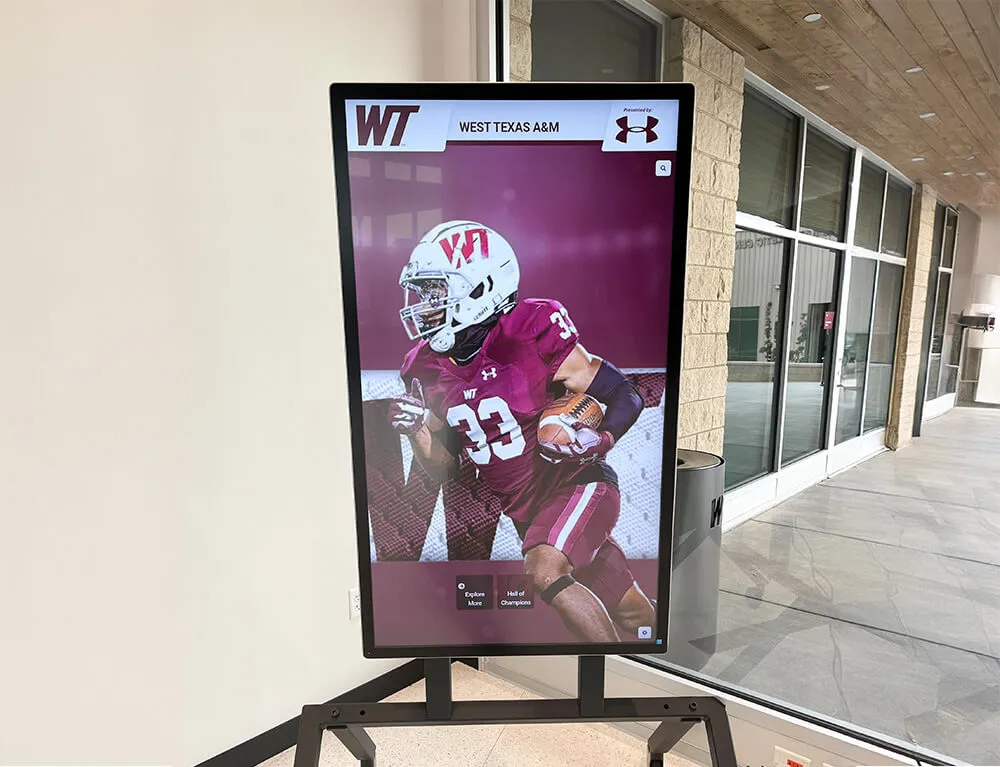
Form validation on touchscreen hall of fame kiosks must use the same aria-errormessage and aria-invalid patterns as web-based forms—assistive technology users interact with kiosk interfaces through connected devices and hardware-based screen readers
Step 6: Document Findings and Prioritize Remediation
Compile findings from Steps 3, 4, and 5 into a single tracking document with these columns:
| Form | Field | aria-invalid present | aria-errormessage present | ID match | Element visible | AT announcement | Priority |
|---|---|---|---|---|---|---|---|
| Nomination | Nominee name | No | No | N/A | Yes | Fail | High |
| Nomination | Sport/category | Yes | Yes | Yes | Yes | Pass | — |
| Search | Name query | No | No | N/A | Yes | Fail | Medium |
Assign priority based on impact: required fields on the nomination form that a user cannot bypass are high priority; optional filter controls on the search page are lower priority. Fields where the error is announced but the message text differs from the visible text should be flagged separately as a content consistency issue.
The Six Most Common aria-errormessage Failures in Hall of Fame Platforms
Recognition platforms that were built or launched before ARIA 1.1 became widely supported (roughly 2018) often have form components that predate the aria-errormessage attribute. Platforms that have undergone partial updates may have mixed implementations. The six failures below cover the patterns most commonly found in audit results.
1. aria-errormessage and aria-invalid both absent. The form displays error messages visually using JavaScript class toggling or conditional rendering, but neither attribute is added to the input element. This is the most common failure and the one with the broadest impact.
2. aria-invalid present but aria-errormessage absent. The form sets aria-invalid="true" when an error is active, which signals to AT that the field is in error, but does not point to the error message element. Screen readers may announce “invalid entry” or a similar generic phrase, but not the specific error text. Users know something is wrong but not what to correct.
3. ID mismatch between aria-errormessage value and error element. The input carries aria-errormessage="name-error" but the error element has id="nominee-name-error". The IDs do not match, so the reference resolves to nothing. This failure often results from copy-paste errors during development or from template renaming that updated the error element ID but not the attribute value on the input.
4. Error element hidden with display: none while aria-errormessage references it. The error element exists in the DOM, the IDs match, but the element is toggled with display: none when there is no error—and a developer forgot to remove display: none when making the error active. The error element becomes visible to sighted users through some other mechanism (such as an absolutely positioned overlay), but the element in the DOM that aria-errormessage points to remains hidden.
5. Attributes set correctly at page load but not updated dynamically. A form that uses server-side validation (the page reloads after submission with errors pre-rendered) may have correct markup in the initial HTML. A form that uses client-side validation must apply the attributes dynamically via JavaScript when the error state changes. Developers who set aria-invalid="true" in the initial HTML but clear it to "false" on page load—or who add aria-errormessage only in the initial error state but fail to remove it when the error is corrected—produce inconsistent behavior that fails dynamically triggered re-validation.
6. Search “no results” feedback not connected to the search input. When a visitor searches for an inductee and the platform returns zero results, the platform typically displays a message such as “No inductees found for your search.” This message is informational, not a validation error in the strict sense. However, if the platform treats an empty result as a form error and displays a visible alert, that alert should be announced to AT users. The most common failure is a results count that updates visually (changing from “24 results” to “0 results” or a “no results” message) without any programmatic announcement mechanism—no aria-errormessage, no aria-live region, and no focus management.
Fix Patterns for the Most Common Failures
Adding aria-errormessage and aria-invalid to an Existing Form Field
If the form is rendered server-side, add both attributes to the input element’s HTML when validation errors are present. If the form uses client-side validation, update both attributes through JavaScript at the time the error state is triggered and when the error is cleared.
JavaScript example for adding the error state:
function setFieldError(inputId, errorId, errorMessage) {
  const input = document.getElementById(inputId);
  const errorEl = document.getElementById(errorId);
  if (!input || !errorEl) return;
  input.setAttribute('aria-invalid', 'true');
  input.setAttribute('aria-errormessage', errorId);
  errorEl.textContent = errorMessage;
  errorEl.style.display = 'block';
}

function clearFieldError(inputId, errorId) {
  const input = document.getElementById(inputId);
  const errorEl = document.getElementById(errorId);
  if (!input || !errorEl) return;
  input.setAttribute('aria-invalid', 'false');
  input.removeAttribute('aria-errormessage');
  errorEl.textContent = '';
  errorEl.style.display = 'none';
}
Fixing a display: none Conflict
When the error element must be hidden before an error is active, use an approach that hides the element visually but keeps it available to the accessibility tree—or simply empty the element’s text content while keeping it in the flow. An empty <span> with no display: none applied occupies no visual space and produces no announcement, making it a safe placeholder.
Addressing the “No Results” Search Feedback
For search forms, add an aria-live="polite" attribute to the results count or results status element. When the search executes and the results update, the live region announces the new content automatically without requiring focus management or aria-errormessage. A simple pattern:
<p id="search-status" aria-live="polite" aria-atomic="true">
  24 inductees found.
</p>
When the search returns zero results, the script updates this element’s text to “No inductees found. Try a different name or category.” The aria-live="polite" region announces the change after the current AT speech finishes.
Quick-Reference Audit Checklist
Use the checklist below as a field-by-field verification sheet during the audit. Mark each row Pass or Fail.
| Check | Pass Condition |
|---|---|
| aria-invalid attribute present on control | Attribute present on every form control that can have a validation error |
| aria-invalid value is “true” when error is active | Value is the string “true”, not the boolean or absent |
| aria-invalid value is “false” or removed when error is cleared | Attribute does not remain “true” after the user corrects the field |
| aria-errormessage attribute present on control | Attribute present on every control that displays a validation error |
| aria-errormessage value matches an element ID in the DOM | The referenced ID exists as an element in the current document |
| Referenced error element is visible when error is active | Element does not have display:none, visibility:hidden, or aria-hidden=“true” |
| Referenced error element text matches visible error text | AT users hear the same message sighted users read |
| Attributes updated dynamically when form re-validates | JavaScript updates aria-invalid and aria-errormessage on each validation event |
| AT announces error on field focus when error is active | Tested with at least one screen reader; error message is heard |
| Search “no results” feedback uses aria-live | Results status region is a live region or focus is managed after search |
| Server-side validation errors rendered with same markup | Page-reload validation uses identical attribute patterns as client-side |
WCAG Success Criteria Connected to aria-errormessage
The aria-errormessage pattern directly supports several WCAG 2.1 success criteria. School IT teams and platform developers who need to tie the audit to a compliance framework can reference the following:
1.3.1 Info and Relationships (Level A): Information, structure, and relationships conveyed through presentation must be programmatically determinable. A visual error message positioned near a form field conveys a relationship—“this message belongs to this field”—that must be made explicit in the markup. aria-errormessage is the mechanism for making that relationship programmatically determinable.
3.3.1 Error Identification (Level A): If an input error is automatically detected, the item in error is identified and the error is described to the user in text. Setting aria-invalid="true" identifies the item in error; the content of the referenced error element provides the textual description.
3.3.3 Error Suggestion (Level AA): If an input error is detected and suggestions for correction are known, the suggestion is provided to the user. When the error message element contains corrective guidance—“Enter a year between 1950 and the current year”—the aria-errormessage reference ensures that guidance reaches AT users at the moment it is most useful.
4.1.3 Status Messages (Level AA): Status messages that are not given focus must be communicated to assistive technologies. Inline validation errors that appear without moving focus (real-time validation on blur) qualify as status messages when they are not paired with focus management. aria-errormessage addresses the per-field case; aria-live regions address the form-level summary case.

Accessible form validation matters for every user who interacts with a digital hall of fame platform, including students, family members, and community visitors who rely on assistive technology
Nomination Form Audit Considerations by Recognition Category
The specific fields and validation rules on a nomination form vary by recognition category. Schools that honor athletes, academic achievers, and community contributors through the same platform may operate multiple distinct nomination forms. Audit each form independently.
Athletic hall of fame nomination forms typically include sport-specific fields: the sport or activity, varsity level, seasons completed, championship records, and statistical highlights. Year-range validation on these fields—“Seasons completed: from year to year”—is a frequent source of aria-errormessage failure because the second field’s error depends on the value of the first field, creating a cross-field validation dependency that many client-side implementations handle only visually.
For schools that recognize a broad range of athletic achievement—from marquee varsity sports to programs that receive recognition at events like how schools and programs honor their top young performers ceremonies—the nomination form’s sport dropdown may contain dozens of options. Confirm that the select element’s validation error uses aria-errormessage correctly; select elements are among the controls most frequently overlooked in accessibility audits because their visual appearance as dropdowns leads developers to handle them through different code paths than text inputs.
Academic recognition nomination forms may include fields for GPA, class rank, AP or IB course completion, or scholarship type. For platforms that track academic recognition programs and honor students who have earned Latin distinctions or subject-area awards, these fields often include complex conditional logic—a field for scholarship name that only appears if the scholarship type is “external”—and conditional fields are particularly prone to missing aria-errormessage because they are tested less frequently during development.
Community contributor and alumni nomination forms vary widely by institution. Verify that any free-text “nomination statement” or “description of contributions” field that enforces a character minimum or maximum uses aria-errormessage to convey the length-related error to AT users. Long-form text areas with character counts are a common source of failure because developers often implement character counting through a separate JavaScript event listener that does not update aria-invalid and aria-errormessage alongside the visible counter.
Schools that maintain comprehensive recognition archives—including yearbook archives and senior recognition traditions that feed into the hall of fame inductee pool—may find that some nomination data originates from archival submissions rather than live form entries. Even when the primary submission path is a staff-entered record rather than a public form, the form interface that staff use to enter records must meet the same aria-errormessage standards if any staff member relies on assistive technology.
Managing Ongoing Form Accessibility Quality
A one-time aria-errormessage audit resolves identified failures, but form accessibility can regress when form components are updated, when new validation rules are added to existing fields, or when new forms are deployed for a new recognition category. Three practices help maintain quality over time.
Automated scanning on form submission. Integrate an automated accessibility scanner—such as axe-core, which is available as a browser extension, a CI plugin, and an API—into the development workflow for any form change. Axe-core includes rules for missing aria-errormessage and aria-invalid patterns that catch the most common structural failures before code reaches production. Automated scanning does not replace manual and AT testing, but it dramatically reduces the number of structural failures that reach the audit stage.
Nomination cycle pre-launch checklist. Before each nomination period opens, run a manual verification of every active nomination form. The verification should take less than thirty minutes if the form structure has not changed significantly since the last audit cycle. Time the verification to occur at least two weeks before the nomination window opens, so that any identified failures can be corrected and retested before community members begin submitting nominations.
Component library documentation. If the recognition platform’s forms are built using a shared component library—whether internal or from a third-party UI framework—document the aria-errormessage implementation pattern in the component library’s usage guide. When developers add a new field type or a new validation rule, a documented pattern reduces the likelihood of introducing a new failure.
For schools that include their recognition platform alongside athletic championships in their facilities—including programs featured in wrestling hall of fame recognition programs and other sport-specific nomination campaigns—the nomination form is a public-facing channel that community members return to on a recurring annual basis. A form that works accessibly the first year and breaks the second creates a disproportionate impact on users who depend on assistive technology, since they are less likely to have a visual workaround available when the programmatic connection fails.
How Rocket Alumni Solutions Approaches Form Accessibility
Learn more about Rocket Alumni Solutions’ Digital Wall of Fame platform to understand how the platform approaches form design for nomination submissions and inductee search. Recognition platform administrators who want to verify their current form implementation or request a review of their nomination workflow accessibility can connect with the Rocket team directly.
The platform’s WCAG 2.1 AA compliance commitment covers both the inductee-facing search and display layer and the nomination form interfaces used by community members. That commitment includes the aria-errormessage implementation patterns described in this audit guide.
Community members of all abilities use digital hall of fame platforms to search for inductees and submit nominations—programmatic form validation through aria-errormessage ensures every user can participate
Frequently Asked Questions
Can I use role=“alert” instead of aria-errormessage for form validation errors?
Yes, but the two approaches have different behavior and are not interchangeable. role="alert" on an error element causes the AT to announce the element’s content immediately when it is added to the page or when its content changes, regardless of where focus is. This behavior is useful for a form-level summary of errors after submission, but it can be disruptive if applied to every individual field error simultaneously. aria-errormessage announces the error only when focus is on the associated control. A best practice for many forms is to combine both: use role="alert" or aria-live="assertive" for a form-level summary after submission, and use aria-errormessage for per-field error messages that are announced on field focus during correction.
Does aria-errormessage work on select elements and textareas, not just text inputs?
Yes. The aria-errormessage and aria-invalid attributes can be applied to any form control, including <select>, <textarea>, <input type="checkbox">, <input type="radio">, and custom controls with appropriate ARIA roles. The same audit steps apply to all control types.
If our platform uses a third-party form component, who is responsible for the aria-errormessage implementation?
The component’s built-in behavior determines whether aria-errormessage is implemented correctly. Audit the rendered HTML in the browser (not the component’s source code) to confirm the attributes are present in the DOM as users experience it. If the component does not output the correct attributes, contact the component vendor or implement a wrapper that adds the missing attributes dynamically.
Our search form shows a “no results” banner, not a validation error. Does aria-errormessage apply?
If the “no results” state is treated as a form error—for example, if the search input receives aria-invalid="true" when no results are found—then aria-errormessage should point to the “no results” message. If the “no results” state is treated as informational content rather than a validation error, use an aria-live="polite" region to announce the result count change. Neither approach is inherently correct; the choice depends on how the platform conceptually models the “no results” state.
How often should we run the aria-errormessage audit?
Run the full audit whenever a form is modified—new fields added, validation rules changed, error message text updated, or underlying form component library updated. Run a spot-check of all active nomination forms at the start of each nomination cycle. A full audit of all forms annually is appropriate for platforms where form components are stable and changes are infrequent.
See How Rocket Alumni Solutions Handles Form Accessibility
Rocket Alumni Solutions builds recognition platforms designed to meet WCAG 2.1 AA standards—including programmatic form validation that works for every member of your school community.
Live Example: Rocket Alumni Solutions Touchscreen Display
Interact with a live example (16:9 scaled 1920x1080 display). All content is automatically responsive to all screen sizes and orientations.