Digital Hall of Fame ARIA-Level Audit for Inductee Page Headings
- Home /
- Digital Wall of Fame Blog - Recognition Display Insights & Resources /
- Digital Hall of Fame ARIA-Level Audit for Inductee Page Headings
The Easiest Touchscreen Solution




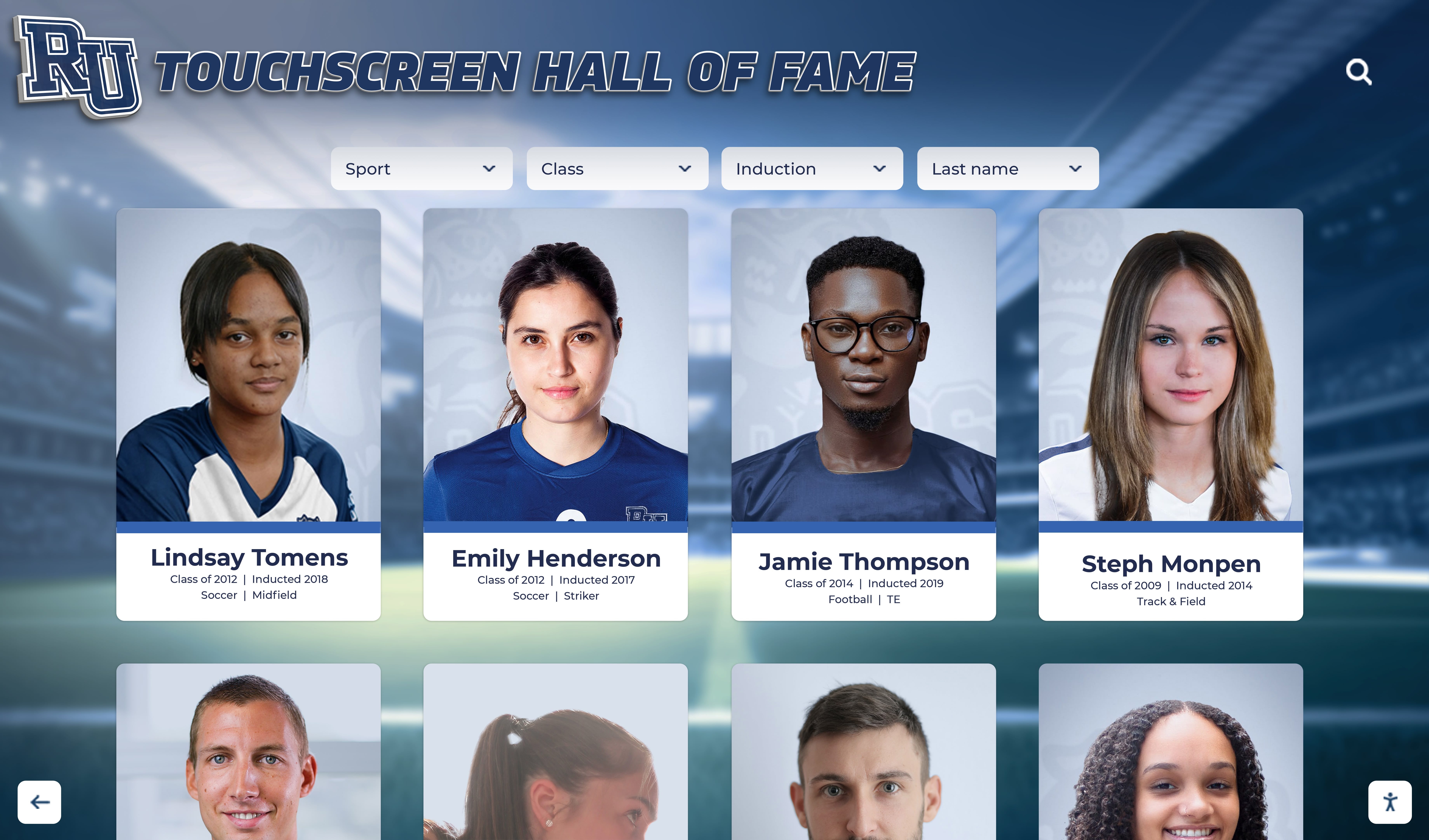
Live Example: Rocket Alumni Solutions Touchscreen Display
Interact with a live example (16:9 scaled 1920x1080 display). All content is automatically responsive to all screen sizes and orientations.
A digital hall of fame ARIA-level audit is a structured review confirming that every heading element on your inductee profile pages—whether a native <h1>–<h6> or a custom element carrying role="heading"—exposes the correct hierarchical level to assistive technology through the aria-level attribute, so screen reader users navigating by heading can understand the page structure without relying on visual size or weight cues. The short answer for school administrators, athletic directors, IT teams, and recognition-program owners: open each inductee profile and each category or class-year section page on the platform; use browser DevTools to inspect every element that functions as a heading; confirm that any element with role="heading" carries an explicit aria-level integer reflecting its position in the page’s heading outline; verify that native <h1>–<h6> elements are not assigned conflicting aria-level values that would misrepresent the heading level to screen readers; test heading navigation with NVDA or VoiceOver to confirm the announced hierarchy matches the intended reading order; and repeat the audit after any platform update that introduces new inductee page templates or adds dynamic section headers.
When a first-generation student navigating your school’s digital hall of fame pauses to look up the inductee who inspired her to pursue athletics—a record-holding sprinter from twenty years ago—she should be able to press H in NVDA or swipe headings in VoiceOver and move directly to “Career Highlights,” “Awards and Records,” and “Biography” on the inductee profile without reading every paragraph in sequence. That navigation depends entirely on heading elements being correctly marked up: each heading in its proper place in the hierarchy, each role="heading" element carrying an aria-level that matches its visual importance on the page. When a dynamic inductee profile component renders a section header as a styled <div> without a heading role—or assigns role="heading" without an aria-level—screen reader users lose one of their most efficient navigation tools on a page that may be dense with statistics, photos, and biographical content.
Recognition programs serving schools with growing inductee databases know that profile pages grow over time. An inductee added in 2015 with a simple bio and a headshot may have accumulated video tributes, updated record entries, and nomination citation updates by 2026. Each addition is an opportunity for template inconsistency—for a new “Notable Moments” section header to be added as a <p> element styled to look like a heading, or for a trophy section title to receive role="heading" without an aria-level, defaulting it to level 2 and flattening it into the same heading level as the inductee’s name.
This guide walks through every surface on a digital hall of fame where aria-level matters for inductee page accessibility, provides a step-by-step audit checklist, and includes pass/fail code examples for each common failure pattern.

Inductee profile pages on a digital hall of fame platform must expose a correct heading hierarchy—with accurate aria-level values on any role="heading" element—so assistive-technology users can navigate by heading to career highlights, award records, and biographical sections without reading every line in sequence
When aria-level Is Appropriate
aria-level is a WAI-ARIA property that defines the hierarchical level of a heading in the document structure. It accepts integer values of 1 or greater; values 1 through 6 parallel the native HTML heading elements <h1> through <h6>. Values above 6 are valid according to the specification, but browser and screen reader support for levels beyond 6 varies and should be verified through testing before production use.
aria-level is appropriate—and required—in two specific situations on a digital hall of fame platform:
1. Custom heading elements that cannot use native HTML heading tags. When a developer uses a non-heading element (<div>, <span>, <li>, <p>) as a visual section heading and applies role="heading" to expose it as a heading to assistive technology, aria-level is required to specify which heading level the element represents. Without an explicit aria-level, the WAI-ARIA specification sets the default value to 2—meaning every custom heading element on an inductee profile would be announced as a level-2 heading regardless of its intended position in the hierarchy. A section heading that should be level 3 (nested inside a level-2 inductee name heading) would be announced at the same level as the inductee name, breaking the outline.
2. Dynamic heading levels that change based on rendering context. Some digital hall of fame platforms assemble inductee profile pages from reusable components. A “Statistics” section heading component may be configured to render at level 3 on the full inductee profile page (where the inductee name is level 2 and the page title is level 1) but at level 2 on a standalone career-statistics sub-page where no inductee name heading precedes it. In this pattern, a custom element with role="heading" and a programmatically set aria-level is more flexible than a hard-coded <h3>, because the component can adjust its heading level based on context without requiring a different template for each page type.
aria-level is not appropriate in the following situations:
- On native
<h1>–<h6>elements. The heading level of a native heading element is determined by its tag name, not byaria-level. Settingaria-level="3"on an<h2>element does not reliably change the element to level 3 in the accessibility tree—behavior varies by browser and screen reader combination. If the heading level needs to change, the correct approach is to change the element tag or restructure the heading hierarchy. - On elements without
role="heading".aria-levelhas no effect on elements that lack a heading role. Addingaria-level="2"to a<p>or a<div>that does not also carryrole="heading"does not make that element a heading in the accessibility tree. - As a substitute for proper heading hierarchy.
aria-levelexposes correct heading levels to assistive technology—it is not a tool for correcting a heading hierarchy that is also broken visually. If the page’s heading structure is architecturally wrong, the fix is to restructure the headings, not to usearia-levelto announce a different level than the one the element occupies.
Where aria-level Failures Appear on Inductee Pages
Inductee Name and Profile Section Headings
The most heading-dense surface on a digital hall of fame is the inductee profile page. A well-structured profile page carries this heading outline:
- Level 1: Page or site title (e.g., “Springfield High School Hall of Fame”)
- Level 2: Inductee name (e.g., “Marcus Williams”)
- Level 3: Major sections (e.g., “Career Highlights,” “Awards and Records,” “Biography,” “Nomination Citation”)
- Level 4: Subsection headings (e.g., “State Championships,” “Academic Honors,” “Community Impact”)
When profile pages are assembled from component libraries, the inductee name and section headings are often built from non-heading elements styled to visually match heading sizes. A <div class="inductee-name"> styled to display as large bold text may look identical to an <h2> to a sighted user but carries no heading role in the accessibility tree. Applied throughout a platform with hundreds of inductee profiles, this pattern means screen reader users navigating by heading find no headings on profile pages—the entire page appears, from a heading-navigation perspective, to contain only the site-level page title.
Platforms that use component systems built on design-token grids—where heading-like elements are frequently built from primitive <div> or <span> elements—are particularly prone to this failure. Teams reviewing the platform’s accessibility history or evaluating vendor claims about WCAG conformance should examine how inductee profile section headings are constructed before accepting a vendor’s self-reported accessibility certification.
Dynamic Category and Class-Year Section Headers
Many recognition platforms organize inductees under groupings that load dynamically: sport categories, graduation class years, or induction year cohorts. When a visitor navigates to “Football Inductees — Class of 1998,” the section header announcing that grouping may be rendered by a JavaScript component that injects heading elements after the initial page load.
Dynamic heading injection introduces two failure patterns:
- Heading injected without
role="heading". A section header injected as a styled<div>has no heading role in the accessibility tree. If the component’s template adds only visual styling without ARIA, the section header is invisible to screen reader heading navigation. - Heading injected with
role="heading"but withoutaria-level. Whenrole="heading"is present butaria-levelis absent, browsers apply the default level 2. If the page already has a level-2 inductee name heading, an injected dynamic section header that is structurally subordinate to the name heading but also announced as level 2 creates a flattened, confusing heading outline.
For platforms that use loading indicators while dynamic content populates, the heading injection and the removal of the loading indicator must occur in the correct sequence. Teams who have already audited their platform’s loading-state ARIA implementation—including checking whether aria-busy is correctly used during inductee content loads—should extend that audit scope to confirm that injected headings carry the correct aria-level values when the loading state resolves.
Sorting and Filtering Result Headers
Recognition platforms that expose sortable inductee tables or filterable galleries often include result summary headings—text like “47 Football Inductees” or “Results Sorted by Year (Ascending)"—that update when the visitor changes the sort order or applies a filter. These result summary headers serve a navigational function: a screen reader user who jumps to the heading can confirm what the current view contains without reading through the inductee list.
When these result summary headers carry role="heading" and aria-level, the heading must update its text content when the sort or filter changes—and must do so in a way that the screen reader detects and announces. For platform teams who have audited sortable inductee table accessibility, the aria-sort audit for sortable inductee tables is a complementary resource covering the table-column header side of this interaction, where heading and column-sort semantics must work together to communicate the current view state.
Expanded Panel and Modal Headings
Some digital hall of fame platforms open inductee detail in an expanded panel or modal overlay rather than navigating to a separate profile page. These panels typically contain a heading that announces the inductee’s name at the top of the expanded content. When the panel is built from a <div> container with a custom header component, the inductee name heading inside the panel requires role="heading" and an explicit aria-level so screen reader users can navigate to it by heading.
The appropriate aria-level for a panel heading depends on context. If the panel overlays the inductee list page—a page that has no pre-existing level-2 heading for the inductee—the panel heading should typically be assigned aria-level="2" so it represents a meaningful heading below the page title. If the panel is nested within an already-structured page that has level-2 and level-3 headings, the panel heading’s level should continue the hierarchy rather than reset it. Platform teams who have audited expand/collapse toggle accessibility should extend that audit to confirm that panel heading levels are correctly set. The aria-pressed audit for toggle controls covers the toggle button behavior that triggers panel expansion, which pairs with the heading level requirement inside the opened panel.
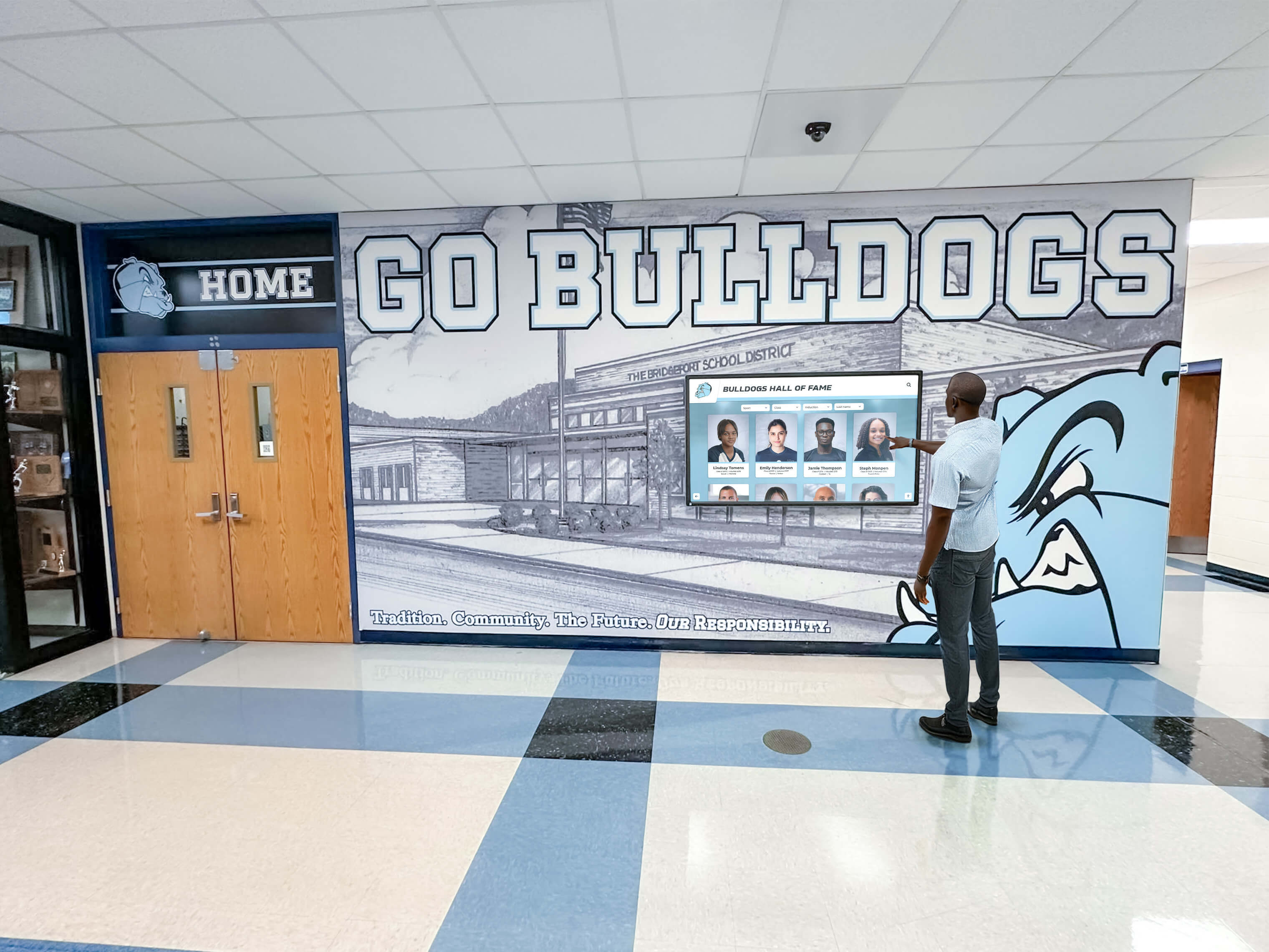
Every inductee profile on a hall of fame touchscreen or web platform must expose a correct heading hierarchy through aria-level on any custom role="heading" element so screen reader users who navigate by heading can reach section content directly
See Inductee Profiles Built with Correct Heading Hierarchy
Rocket Alumni Solutions' digital wall of fame platform builds inductee profile pages and dynamic category sections with semantically correct heading structure—native heading elements and aria-level values that give screen reader users a clear, navigable heading outline on every recognition profile. Request a demo to see how accessible heading architecture supports community engagement in your school's recognition program.
Request Your Custom DemoThe ARIA-Level Audit: Step-by-Step Checklist
Complete this checklist on the web-based recognition platform and on any browser-rendered kiosk interfaces that expose inductee profile pages. Steps 1 through 4 require only browser DevTools. Steps 5 and 6 require a screen reader—NVDA on Windows or VoiceOver on macOS.
Step 1: Build a Heading Map of Each Inductee Page Template
Before inspecting individual elements, use browser DevTools to generate a heading outline of each page template on the platform. In Chrome or Edge DevTools, open the Elements panel and search for elements with role="heading" alongside a separate search for native heading tags.
Document the following for each template (full inductee profile, category roster page, inductee search results, any expanded panel or modal):
- Every native heading element (
<h1>through<h6>) and its visible text - Every element carrying
role="heading"and its visible text - Whether each
role="heading"element has anaria-levelattribute and what value it carries - Whether the heading hierarchy is contiguous (no skipped levels between major sections)
Tools that generate heading outlines automatically include the Web Accessibility Evaluation Tool (WAVE) browser extension, the Accessibility Insights for Web extension, and the headings panel in Firefox’s accessibility inspector. Use at least one automated tool alongside manual DevTools inspection to ensure no heading elements are missed.
For platforms that serve inductee profiles across multiple sport types and induction eras, spot-check heading structure across profiles from different categories—a basketball inductee from 1995 and a soccer inductee from 2019 may have been entered through different content workflows with different template versions. Teams that have completed a landmark audit for inductee navigation will already have a list of the major page regions on each template; extend that map to include every heading element within each region.
Step 2: Identify Every role=“heading” Element and Check for aria-level
In browser DevTools, search for role="heading" across each template’s rendered DOM. For each element found:
Check 1: Is aria-level present?
A custom heading element without aria-level defaults to level 2 per the WAI-ARIA specification. If the element should be level 3 or lower, the absence of aria-level is a failure.
A correctly marked inductee section heading:
<div role="heading" aria-level="3" class="section-title">
  Career Highlights
</div>
An incorrectly marked inductee section heading:
<div role="heading" class="section-title">
  Career Highlights
</div>
The second example defaults to aria-level="2". If the inductee name above it is also announced as level 2 (either natively as an <h2> or via role="heading" aria-level="2"), the heading outline has two consecutive level-2 headings—inductee name and section title at the same level—which does not convey subordination.
Check 2: Is the aria-level value correct for the element’s position in the hierarchy?
Compare the aria-level value against the intended heading outline documented in Step 1. A section heading that should be level 3 because it is subordinate to a level-2 inductee name must carry aria-level="3", not aria-level="2" or aria-level="4".
Check 3: Are any native heading elements carrying aria-level?
Inspect all <h1> through <h6> elements for aria-level attributes. Native heading elements should not carry aria-level; the heading level is determined by the tag name, and adding aria-level with a different value produces inconsistent behavior across browser and screen reader combinations. If an <h2> carries aria-level="3", remove the attribute and change the tag to <h3> instead.
Step 3: Verify Heading Level Continuity
After mapping all headings, verify that the heading outline does not skip levels. Skipping from level 2 to level 4 with no level-3 headings on an inductee profile creates confusion for screen reader users who navigate by heading level—pressing the number keys in NVDA or using VoiceOver’s rotor to jump to headings of a specific level.
A correct inductee profile heading outline:
H1: Springfield High School Hall of Fame
  H2: Marcus Williams — Football, Class of 2001
    H3: Career Highlights
    H3: Awards and Records
      H4: State Championships
      H4: All-State Selections
    H3: Biography
    H3: Nomination Citation
A failing inductee profile heading outline (skipped levels, flat structure):
H1: Springfield High School Hall of Fame
H2: Marcus Williams — Football, Class of 2001
H2: Career Highlights
H2: Awards and Records
H4: State Championships
H4: All-State Selections
H2: Biography
In the failing example, “Career Highlights,” “Awards and Records,” and “Biography” are at the same level as the inductee name—the outline suggests four peers rather than three sections nested within one inductee’s profile. The jump from level 2 to level 4 for “State Championships” skips level 3 entirely, which NVDA flags as a heading-level skip when the user reaches it.
Step 4: Test Dynamic Heading Injection
For inductee pages where section headings load dynamically—appearing after a JavaScript fetch completes or after a filter or category selection—verify heading levels in the post-load DOM state, not in the initial page source.
Procedure:
- Open the inductee category page (e.g., “Basketball — All Inductees”).
- Inspect the DOM immediately after page load, before any filter is applied. Record the heading outline.
- Apply a filter or sort (e.g., “Class of 2005–2010”). Wait for the filtered content to render.
- Inspect the DOM again. Confirm that any newly injected section headings carry
role="heading"and the correctaria-level. - If a result-summary heading updates its text (e.g., from “All Basketball Inductees” to “Basketball Inductees — Class of 2005–2010”), confirm the heading’s
aria-levelis unchanged and its text replacement is detectable by the screen reader (either through focus management to the heading or via an appropriatearia-liveregion).
Step 5: Test Heading Navigation with a Screen Reader
With NVDA running on Windows (or VoiceOver on macOS), navigate to an inductee profile page and use heading navigation to move through the page.
NVDA heading navigation test:
Press H to navigate to the next heading, or 1 through 6 to navigate to the next heading of that level.
Pass: Pressing H from the top of the page lands on the page title (level 1), then the inductee name (level 2), then “Career Highlights” (level 3), then “Awards and Records” (level 3), then “Biography” (level 3). NVDA announces each heading with its level: “Career Highlights, heading level 3.” The heading outline reflects the intended page hierarchy.
Fail: Pressing H from the top of the page lands on the page title (level 1), then the inductee name (level 2), then immediately on a subsection entry (level 4)—because the level-3 section headings are built from <div> elements that carry no heading role. NVDA does not announce them as headings; they are invisible to heading navigation. The visitor cannot jump directly to the “Biography” section without reading through every prior element.
Fail (flat outline): Pressing H moves through the page but announces every heading at level 2—inductee name, “Career Highlights,” “Awards and Records,” “Biography,” and all subsections at the same level. All custom heading elements carry role="heading" without an explicit aria-level, defaulting all of them to level 2. Screen reader users cannot distinguish the inductee name from its subordinate sections.
VoiceOver heading navigation test (macOS):
Open the Web Rotor (Control + Option + U), navigate to the Headings category, and review the full list of headings on the page. Confirm the list reflects the intended heading hierarchy in the correct order. Navigate to each heading from the Rotor to confirm focus lands at the correct position on the page.
Step 6: Verify Heading Hierarchy on Kiosk Interfaces
If the recognition platform serves inductee profiles through a kiosk interface—a touchscreen wall of fame in a school lobby—verify that the kiosk browser renders the same heading structure as the web interface. Kiosk browsers are typically Chromium-based and render the same HTML, so heading hierarchy failures present identically on both surfaces.
For kiosk implementations that support external keyboards or switch-access devices for accessibility compliance, screen reader heading navigation is a relevant interaction mode. Confirm that role="heading" elements on kiosk-rendered inductee pages carry the same aria-level values as their web equivalents.
Quick-Reference Audit Table
| Page Surface | Element Type | Required Pattern | Common Failure |
|---|---|---|---|
| Inductee name heading | Custom <div> or <span> | role="heading" aria-level="2" | role="heading" absent; element styled but not in accessibility tree as heading |
| Profile section header (Career Highlights, Records) | Custom heading component | role="heading" aria-level="3" | aria-level absent; defaults to level 2, flattening hierarchy |
| Subsection header (State Championships) | Custom heading component | role="heading" aria-level="4" | Level skipped from 2 to 4 with no level-3 heading between |
| Dynamic category section header | Injected <div> or <span> | role="heading" + aria-level matching intended depth | Injected without heading role; invisible to screen reader heading navigation |
| Filter result summary heading | Dynamically updated element | role="heading" aria-level="2" + text update | Heading text updates but screen reader not notified; no focus management or live region |
| Modal or panel inductee name heading | Panel header component | role="heading" aria-level="2" (typically) | aria-level absent; defaults to 2 only if that level happens to be correct—unpredictable on pages with complex hierarchy |
| Donor recognition section header | Custom heading | role="heading" aria-level="3" | Heading absent entirely; donor section not navigable by heading (particularly relevant where donor wall displays share a page with inductee profiles) |
Native <h2> element | <h2> tag | No aria-level needed; level defined by tag | aria-level="3" added to override level—produces inconsistent screen reader behavior |
Pass/Fail Code Examples
Inductee Name Heading — Pass
<!-- Native h2 — heading level is defined by tag, no aria-level needed -->
<h2 class="inductee-name">Marcus Williams</h2>
Screen readers announce “Marcus Williams, heading level 2.” No aria-level is required or beneficial on a native heading element.
Inductee Name Heading — Fail (Custom element without heading role)
<div class="inductee-name-display">Marcus Williams</div>
No heading role. Screen readers announce “Marcus Williams” as plain text during linear reading—the element does not appear in heading navigation. A visitor using NVDA or VoiceOver cannot jump to the inductee name by pressing H.
Section Heading — Pass (Custom element with correct aria-level)
<div role="heading" aria-level="3" class="profile-section-title">
  Career Highlights
</div>
Screen readers announce “Career Highlights, heading level 3.” A visitor can press 3 in NVDA to jump directly to this heading and any other level-3 section heading on the profile.
Section Heading — Fail (Custom element with missing aria-level)
<div role="heading" class="profile-section-title">
  Career Highlights
</div>
aria-level absent. Per the WAI-ARIA specification, the default value is 2. Screen readers announce “Career Highlights, heading level 2”—indistinguishable in heading level from the inductee name immediately above it. The intended heading hierarchy is lost.
Section Heading — Fail (aria-level on native heading)
<!-- Incorrect attempt to re-level a native heading -->
<h2 class="profile-section-title" aria-level="3">Career Highlights</h2>
This pattern produces inconsistent results across browser and screen reader combinations. Some announce level 2 (the native tag level), others level 3 (the aria-level value). The correct fix is to change the tag to <h3>.
Dynamic Category Section Header — Pass
<!-- Injected by JavaScript after filter resolves -->
<div
role="heading"
aria-level="2"
id="category-heading"
class="category-section-title"
>
Football Inductees — Class of 2005–2010
</div>
Injected with role="heading" and aria-level="2". Screen readers can navigate to this heading after injection. If the platform manages focus to this heading after injection, or uses an aria-live region to announce the filter result, screen reader users learn of the new section immediately.
Dynamic Category Section Header — Fail (Injected without heading role)
<!-- Injected by JavaScript after filter resolves -->
<div class="category-section-title category-heading--active">
Football Inductees — Class of 2005–2010
</div>
No heading role. The injected element is visually prominent but invisible to heading navigation. A screen reader user who had navigated to the previous category heading cannot navigate to this updated heading by pressing H.
Panel Inductee Heading — Pass
<div
role="dialog"
aria-modal="true"
aria-labelledby="panel-inductee-name"
>
<div
role="heading"
aria-level="2"
id="panel-inductee-name"
class="panel-header-name"
>
Elena Vasquez — Track and Field, Class of 2008
</div>
<!-- panel content -->
</div>
The inductee name heading at level 2 also labels the dialog via aria-labelledby. Screen readers announce the dialog as “Elena Vasquez — Track and Field, Class of 2008, dialog” when the panel opens. The inductee name is navigable by heading within the panel.
Subsection with Skipped Level — Fail
<h2 class="inductee-name">Marcus Williams</h2>
<!-- No h3 section headings present — section titles built from divs with no role -->
<div class="section-title">Career Highlights</div>
<h4 class="subsection-title">State Championships</h4>
The heading outline jumps from level 2 (inductee name) directly to level 4 (subsection). The level-3 section headings are styled <div> elements with no heading role. NVDA’s heading-level jump detection flags the gap, and pressing 3 to navigate level-3 headings finds nothing on the page.
Common Errors and How to Fix Them
Error: Inductee name and section headings built from non-heading elements with no ARIA
Profile pages where the inductee name, sport category header, and section titles are all built from <div> or <p> elements with heading-like CSS produce a page with a single heading—the level-1 site or page title—in the accessibility tree. Every section on the profile is navigable only by linear reading or by landmark, with no heading-granularity navigation available.
Fix: Audit the component library for every element that functions visually as a heading. For each element, either replace the non-heading tag with the appropriate native heading tag (<h2>, <h3>, <h4>), or add role="heading" and the correct aria-level value to the existing element. Prefer native heading tags when the element’s visual level is stable and matches the intended heading hierarchy.
Error: All role=“heading” elements default to level 2 because aria-level is absent
A component library where heading-like elements receive role="heading" without aria-level produces a flat heading outline—every custom heading announces at level 2 regardless of its intended hierarchical position. On an inductee profile page, this means the inductee name, every section title, and every subsection title are all announced at the same level.
Fix: Audit every element in the component library that carries role="heading". Add aria-level with the integer value that reflects the element’s intended position. For components designed to be reused at different heading levels in different contexts, expose an ariaLevel prop that the parent template sets when using the component, rather than hard-coding a level inside the component definition.
Error: aria-level applied to native heading elements to change their announced level
Some teams discover that a section heading is visually correct (styled like an h3) but uses an <h2> tag and attempt to fix the mismatch by adding aria-level="3" to the <h2>. This produces inconsistent results across screen readers.
Fix: Change the tag to match the intended level. If an element should be announced as level 3, use <h3> (or <div role="heading" aria-level="3">). Do not attempt to override the native heading level through aria-level on a native heading element.
Error: Dynamic section headings injected without heading role after filter or search
Filtered inductee views and search result pages often inject a result-count or section-context heading dynamically. When the injection adds only CSS classes and text content but no heading role, the injected element is absent from screen reader heading navigation.
Fix: The JavaScript function responsible for injecting dynamic section headers must include role="heading" and aria-level in the element’s attribute set at creation time. Verify by inspecting the DOM immediately after the injection event fires to confirm the attributes are present from the moment the element enters the DOM.
Error: Heading levels skip non-sequentially within an inductee profile
A heading audit reveals jumps such as level 2 → level 4, or level 3 → level 5, within an inductee profile. This occurs when a component designed for a different page context—where its heading level was appropriate—is reused on an inductee profile without adjusting the heading level to maintain continuity.
Fix: Map the heading outline of every page template on the platform. For any template where heading levels skip, identify whether the gap is caused by a native heading with the wrong tag or a custom heading with an incorrect aria-level. Adjust the heading level in the component props or template. Reassess heading hierarchy whenever a new section type is added to an inductee profile template.
Error: Heading levels inconsistent between web and kiosk rendering
A kiosk-specific CSS override or a kiosk-targeted template variant may render inductee profile headings differently from the web platform. If the kiosk template uses a <div> for the inductee name where the web template uses <h2>, the heading hierarchy is correct on the web and missing on the kiosk.
Fix: Maintain a single heading hierarchy specification across both templates. If kiosk and web share the same component library, heading role and aria-level values should come from the component—not from the template—ensuring consistency across rendering contexts.
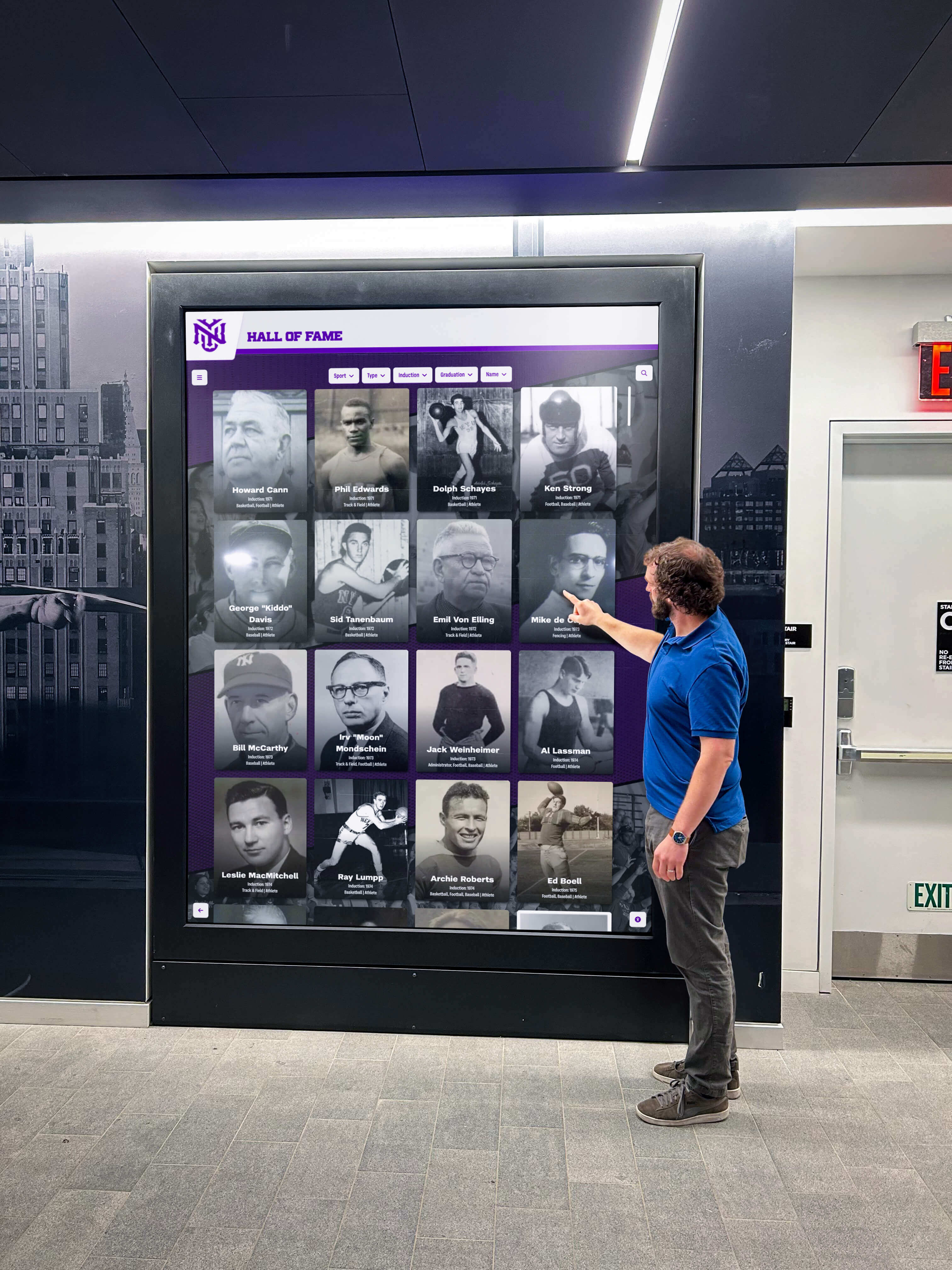
Hall of fame inductee profiles on both web and kiosk platforms must expose a heading hierarchy that screen reader users can navigate with heading keys—each custom heading element must carry role="heading" and an explicit aria-level so the announced level matches the visual structure of the profile page
Frequently Asked Questions
Q: What is the default value of aria-level when it is not specified?
A: When an element carries role="heading" but no aria-level attribute, the WAI-ARIA specification sets the implicit default value to 2. This means every custom heading element without an explicit aria-level is announced as a level-2 heading by screen readers, regardless of its intended position in the hierarchy. On a page where the inductee name is level 2 and section headings are intended to be level 3, omitting aria-level from the section headings causes them to be announced at the same level as the inductee name—flattening the hierarchy that makes heading navigation useful.
Q: Should we add aria-level to native h1 through h6 elements?
A: No. Native heading elements (<h1> through <h6>) expose their heading level to the accessibility tree through their tag name. Adding aria-level with the same value is redundant but harmless. Adding aria-level with a different value—for example, aria-level="3" on an <h2>—produces inconsistent behavior across browser and screen reader combinations, with some announcing level 2 and others announcing level 3. If the announced level of a native heading element needs to change, change the element tag or restructure the heading hierarchy.
Q: Can aria-level be set to values above 6?
A: The WAI-ARIA specification does not restrict aria-level to values 1 through 6. Integer values greater than 6 are valid, and some screen readers announce them (NVDA and JAWS announce “heading level 7” for aria-level="7"). However, HTML natively supports only six heading levels, and document structures requiring more than six heading levels are typically a sign of over-nesting. Levels 1 through 6 are sufficient for even complex inductee profile pages. Use aria-level values above 6 only if a specific structural requirement cannot be met within six levels, and verify screen reader behavior in testing before deploying.
Q: What is the difference between a heading absent from the accessibility tree and a heading with an incorrect aria-level?
A: Both are accessibility failures but affect screen reader users differently. An element that functions visually as a heading but carries no heading role is completely absent from the heading outline—screen reader users navigating by heading skip over it entirely. An element with role="heading" but an incorrect aria-level appears in the heading outline at the wrong level, distorting the hierarchy. A user navigating by heading level—pressing 3 in NVDA to move between level-3 headings—will either find headings that should not be at that level or miss headings that should be. Both failures prevent efficient navigation of the inductee profile; both require remediation.
Q: Does aria-level affect visual appearance?
A: No. aria-level is a WAI-ARIA property that communicates information to the accessibility tree and to assistive technology. It has no effect on visual rendering. Changing an element’s aria-level from 2 to 3 does not change its font size, weight, spacing, or any other visual property. This separation means that a <div role="heading" aria-level="3"> element can be styled to look visually identical to an <h2> while being announced as level 3 to screen readers—and conversely, that a visually prominent heading with an incorrect aria-level will be announced at the wrong level even though it looks correct on screen.
Q: How often should we run an aria-level audit for inductee pages?
A: Run a full heading hierarchy audit at platform launch, after any update that adds or modifies inductee profile templates, and annually as part of a broader accessibility review. Priority audit moments include: when new section types are added to the inductee profile template; when a platform upgrade changes the component library that renders profile headings; and when new inductee categories or sport types are added that introduce category-level heading elements. A quick spot-check requires only opening an inductee profile in a browser, running the WAVE extension, and confirming the heading outline in the WAVE report matches the intended heading hierarchy. This takes under five minutes per template and is practical to run before deploying any inductee profile template change.
Q: Our platform uses a third-party component library that renders headings as div elements. How do we request a fix?
A: Submit a support request identifying each component that renders a visually heading-like element without role="heading" and aria-level. Reference WAI-ARIA Authoring Practices for the heading role and note that the missing attributes prevent screen reader heading navigation on inductee profile pages. Request that the component library expose heading level as a configurable prop so that parent templates can set the appropriate level contextually, rather than hard-coding a level inside the component. After the vendor deploys the fix, repeat the Step 1 heading map and Step 5 screen reader navigation test on a staging build before accepting the update as production-ready.
A digital hall of fame’s inductee profile page is the destination that matters most for screen reader users: the page where a community member goes to read about the person whose name they searched, whose career they remember, whose record they want to share with a student who never saw them play. When that page carries a correct heading hierarchy—inductee name at level 2, career sections at level 3, subsections at level 4—heading navigation transforms the profile from a wall of text into a structured document that can be scanned at the pace the visitor chooses. When the heading hierarchy is absent because custom components carry no heading role, or flattened because role="heading" elements lack aria-level, the profile is readable only in linear order—and that is a meaningful barrier for screen reader users who navigate by heading as a first instinct.
A digital hall of fame ARIA-level audit takes under an hour for a platform with one or two inductee profile templates. The six-step checklist—build a heading map, inspect every role="heading" element, verify heading continuity, test dynamic injection, confirm heading navigation with a screen reader, and verify kiosk rendering—surfaces failures that automated scanners often miss because heading-level correctness requires understanding the intended heading hierarchy, not just detecting the presence of heading elements. Running the audit before each induction cycle and after each platform update to profile templates ensures that every community member navigating by heading can reach any section of any inductee profile directly.
Learn more about Rocket Alumni Solutions’ Digital Wall of Fame platform to understand how the platform’s inductee profile templates and component architecture implement heading hierarchy through native heading elements and aria-level values that give screen reader users a complete, navigable heading outline on recognition profiles across programs of any size.
Schedule a Demo of an Accessible Hall of Fame Platform
Rocket Alumni Solutions builds digital wall of fame platforms with inductee profiles that expose correct heading hierarchy through native heading elements and aria-level values—giving screen reader users full heading navigation on every recognition page. See how accessible inductee profile architecture supports your school's recognition community in a live demo.
Schedule Your Accessible Hall of Fame DemoLive Example: Rocket Alumni Solutions Touchscreen Display
Interact with a live example (16:9 scaled 1920x1080 display). All content is automatically responsive to all screen sizes and orientations.