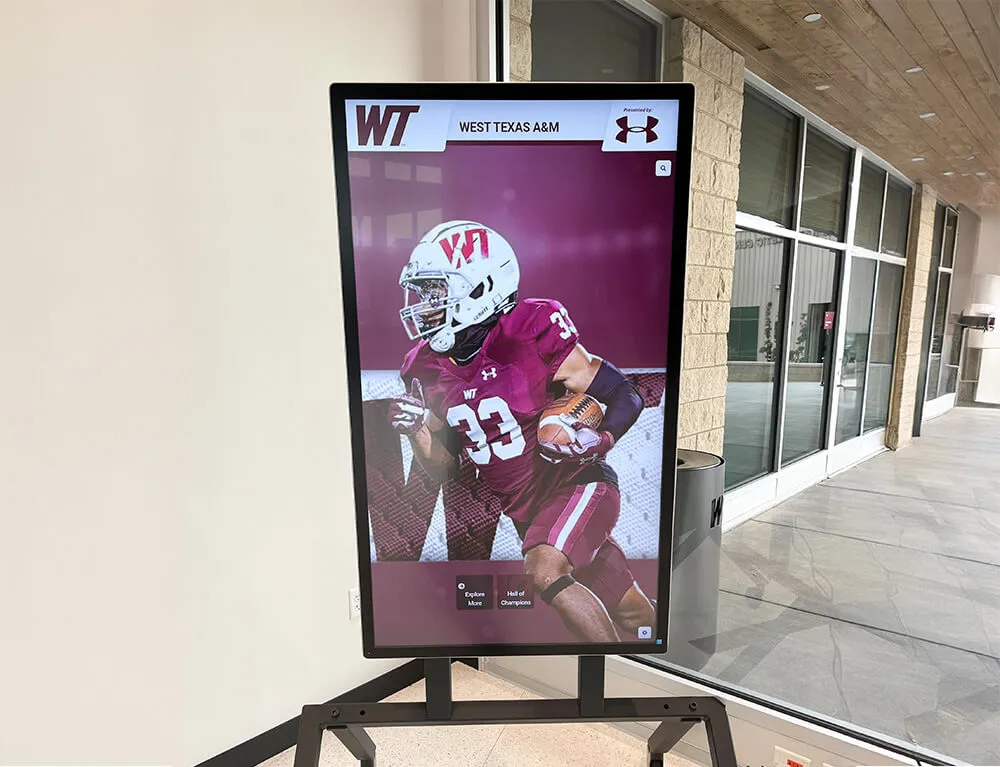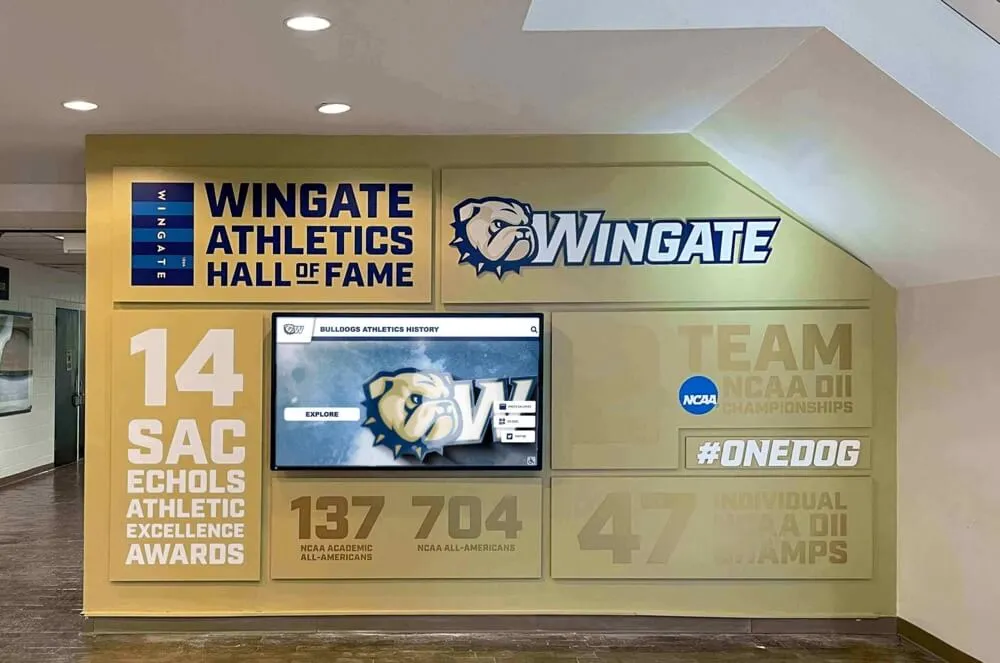




A digital hall of fame ARIA tablist audit is a structured keyboard and screen-reader review confirming that every sport-category tab strip and era navigation tab strip on your recognition platform implements the complete WAI-ARIA tablist pattern—so visitors browsing inductees by sport or graduation decade can navigate between tabs using arrow keys, move focus into the active inductee panel using the Tab key, and hear the tab’s name, role, count, and selected state announced without relying on visual styling. The short answer for school athletic directors, IT teams, and administrators: identify every tab strip on your hall of fame pages; press Tab once to reach the tablist and confirm focus lands on the active tab; press the Right Arrow key to confirm focus moves to the next tab without leaving the strip; press the Tab key to confirm focus enters the associated inductee panel; open DevTools and verify each tab carries role="tab", aria-selected, aria-controls, and a tabindex of 0 (active) or -1 (inactive); then confirm the same behavior with NVDA or VoiceOver before each induction season.
Intent: test. When a parent, alumnus, or community member arrives at your school’s digital hall of fame and uses only a keyboard to browse sport categories—pressing Tab to reach the strip, then attempting to navigate between Football, Basketball, and Baseball tabs—what happens next determines whether your recognition platform is accessible or broken for keyboard users. If the platform implements the sport navigation as a plain row of <button> elements without the ARIA tablist pattern, pressing the Tab key moves through every tab in sequence before reaching the inductee panel. If the platform implements a proper role="tablist" with roving tabindex, pressing the Right Arrow key moves between tabs and pressing Tab jumps directly to the inductee results—the behavior that screen readers announce correctly and that keyboard users expect from a tab interface.
For athletic directors, IT teams, and recognition-program administrators who maintain school digital inductee archives, the tablist keyboard audit addresses a gap that many implementations leave open: not just whether tabs are reachable, but whether the keyboard interaction model, focus management, and screen reader announcements match the WAI-ARIA specification for the tablist pattern. A tab interface that works visually for mouse users but fails keyboard navigation or announces incorrectly to NVDA and VoiceOver fails the foundational accessibility requirements that ADA compliance policies reference.

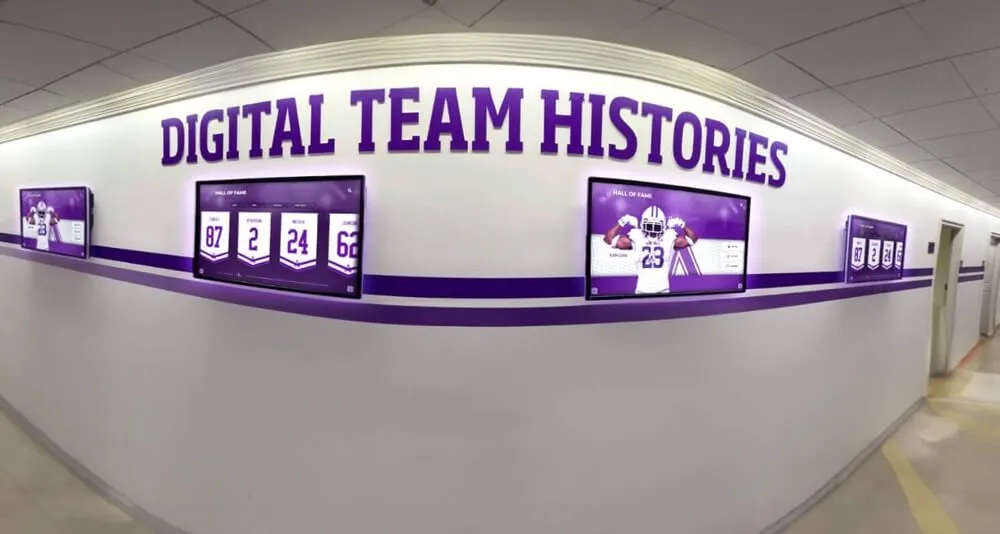
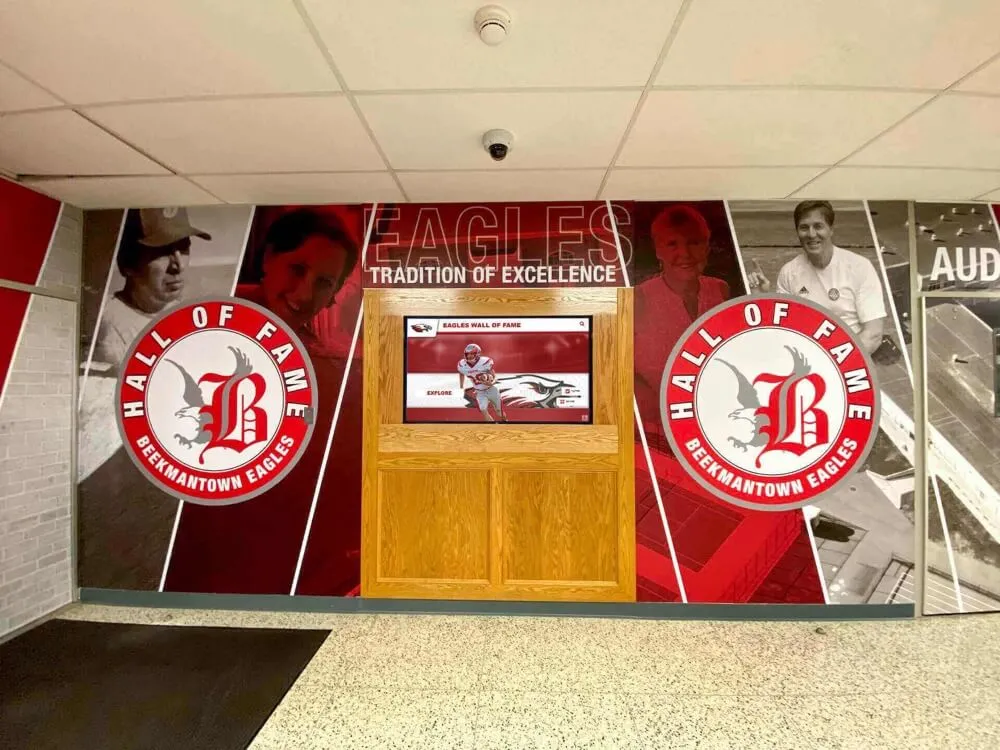
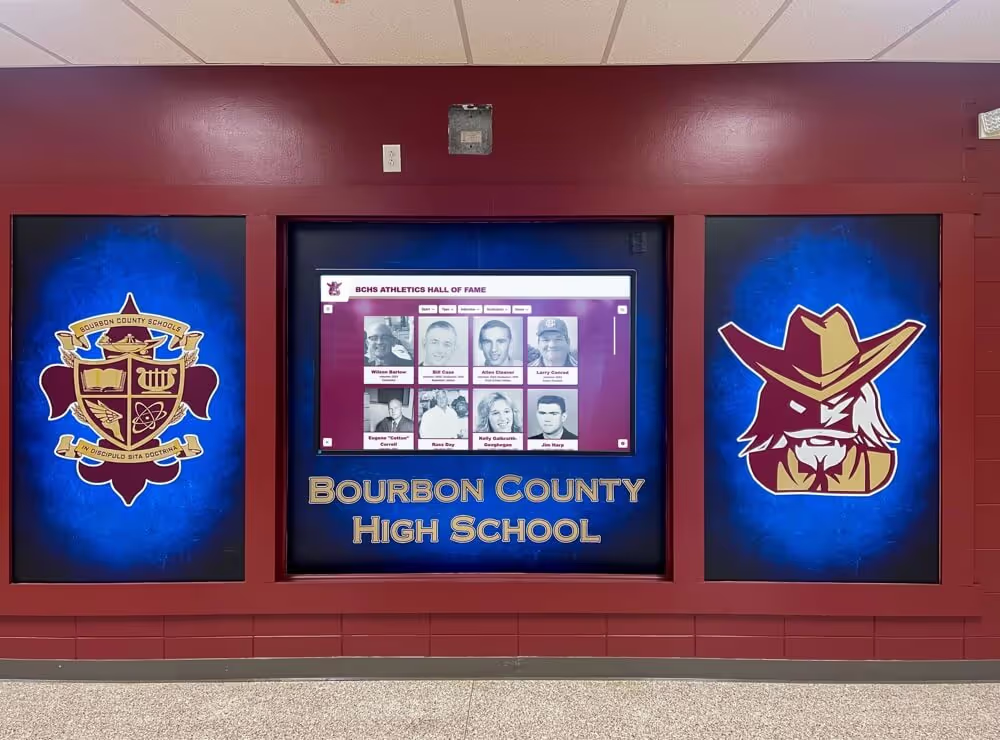
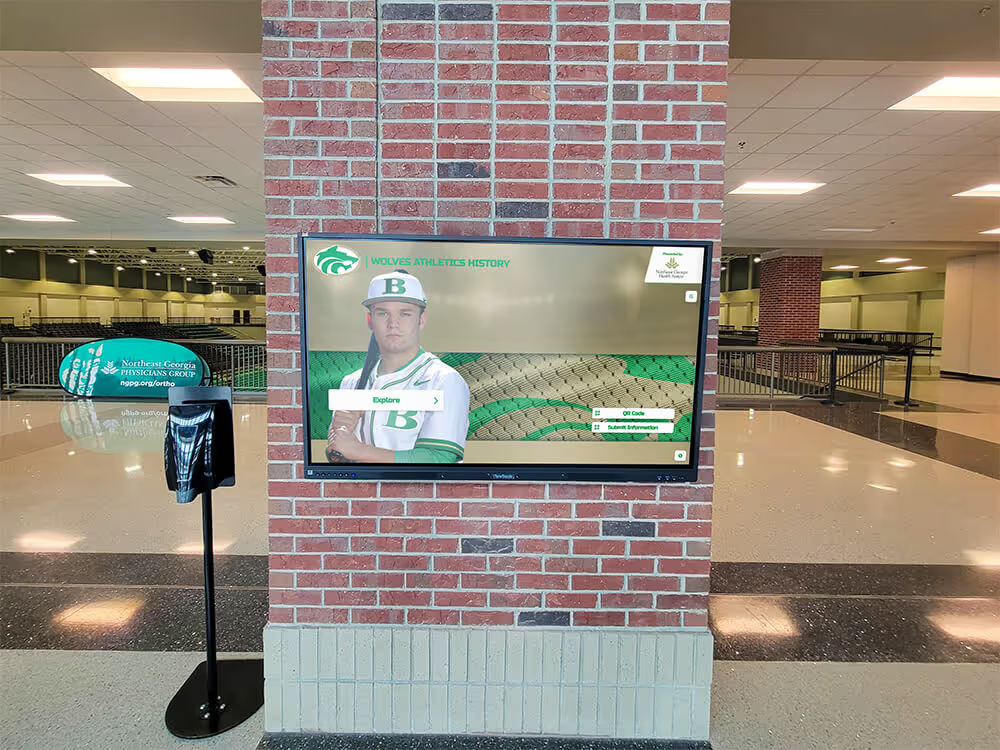
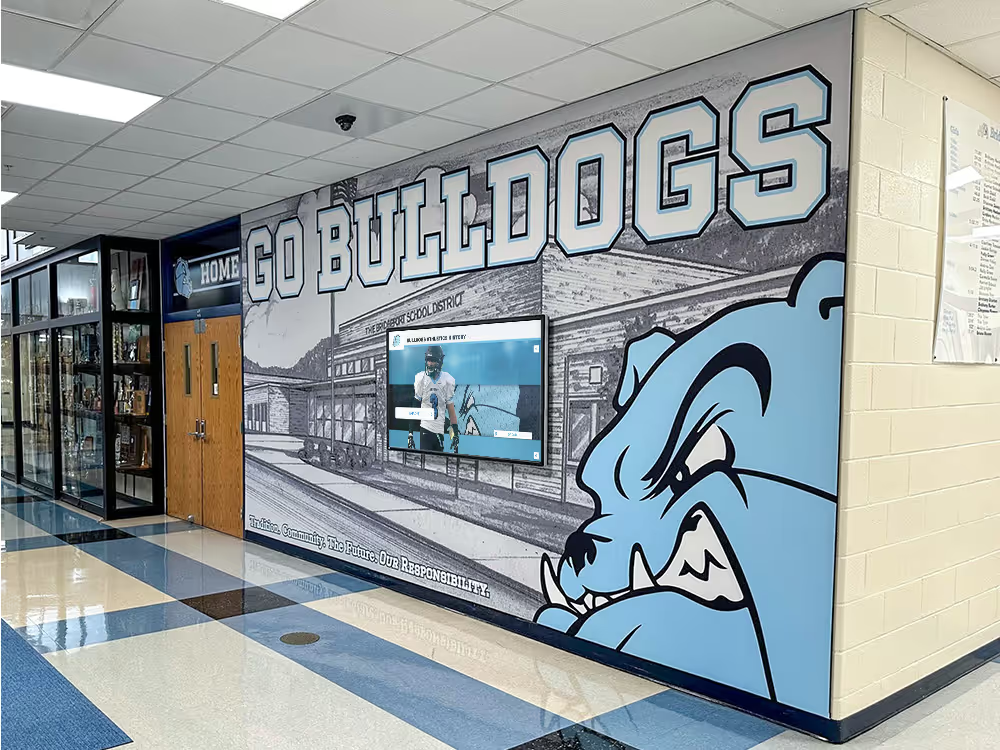
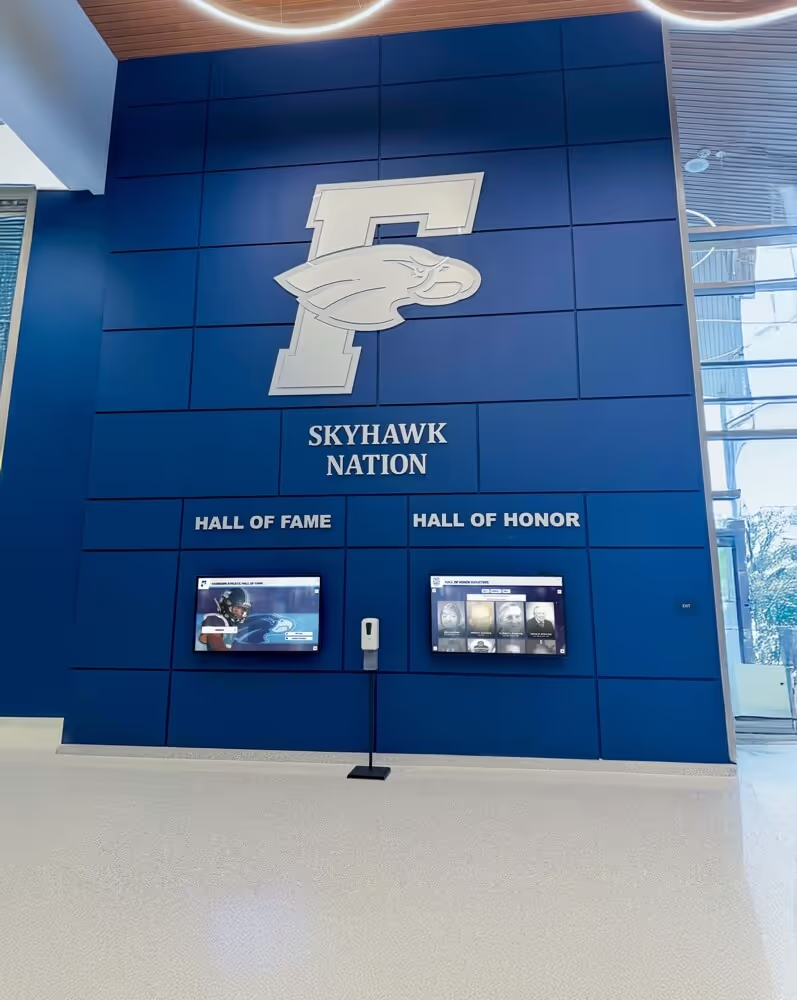
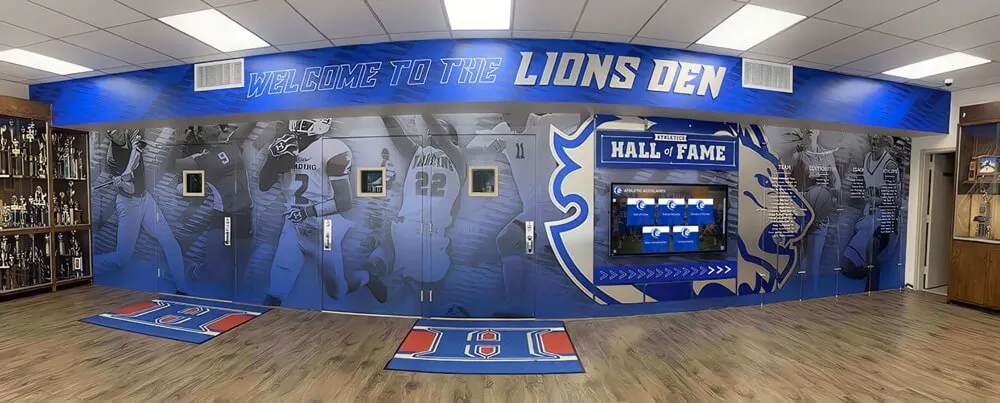
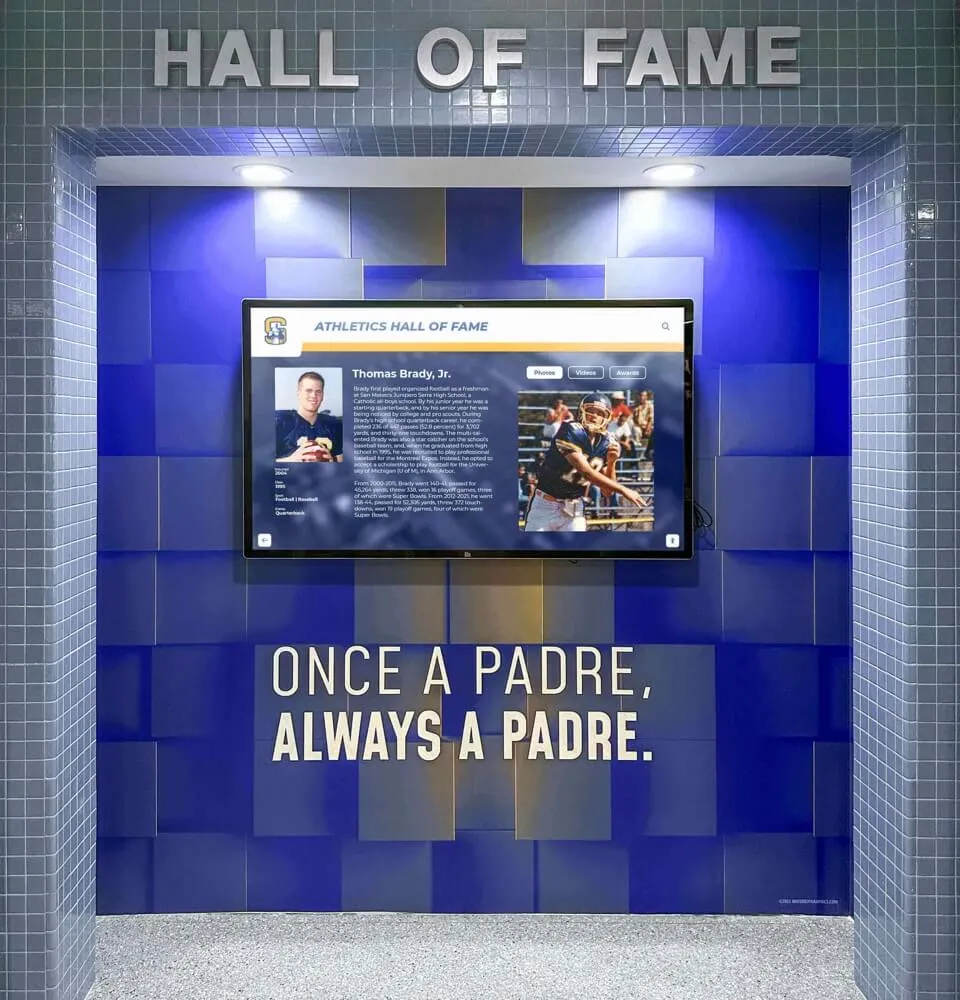
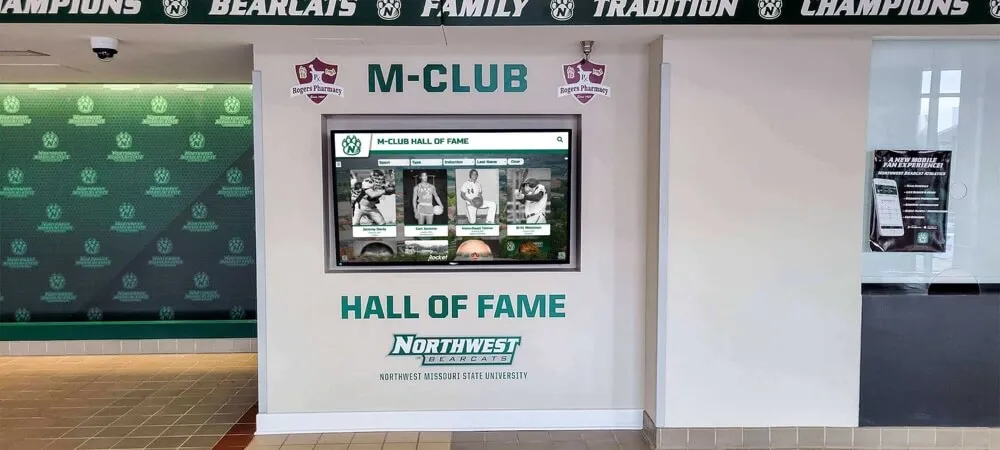
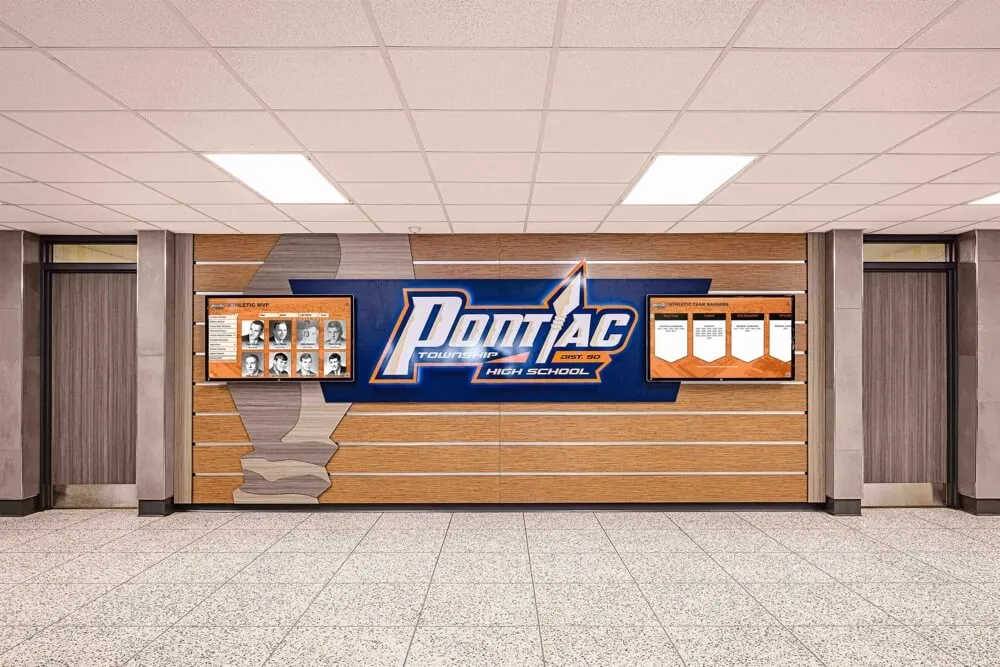
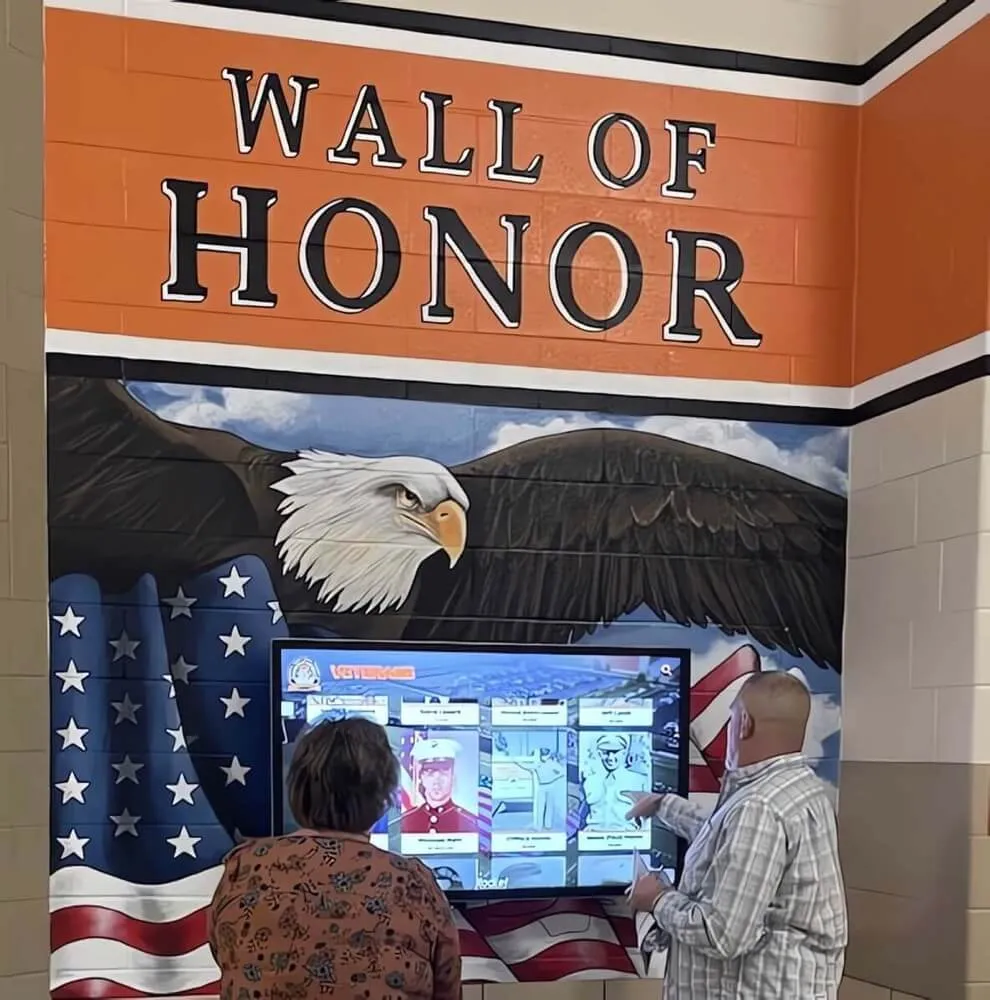
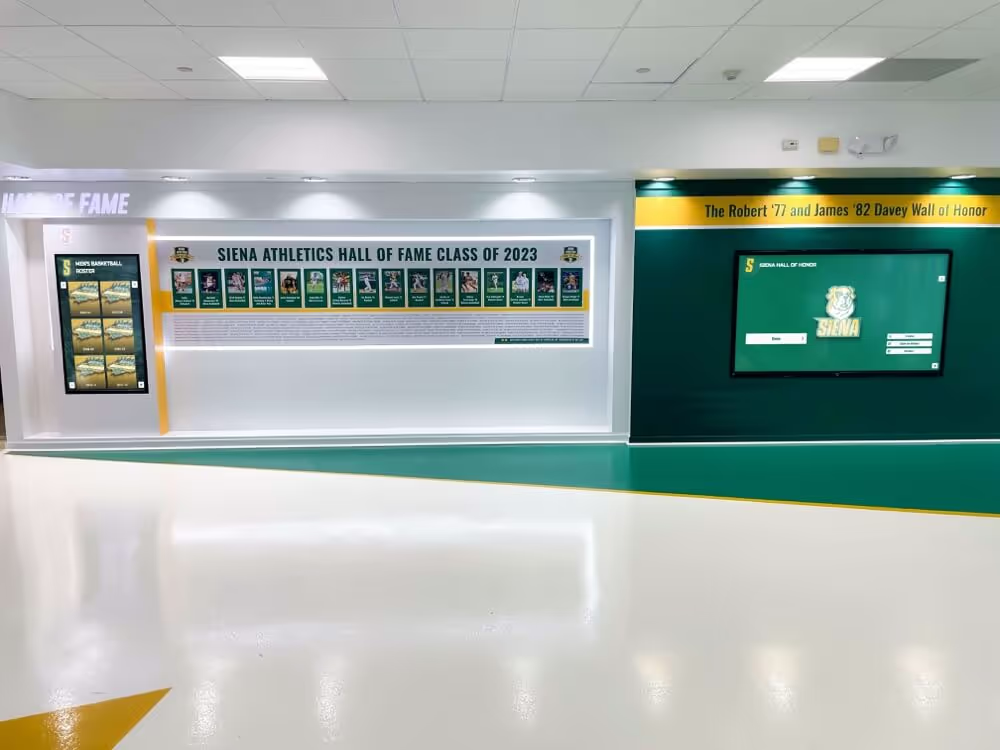
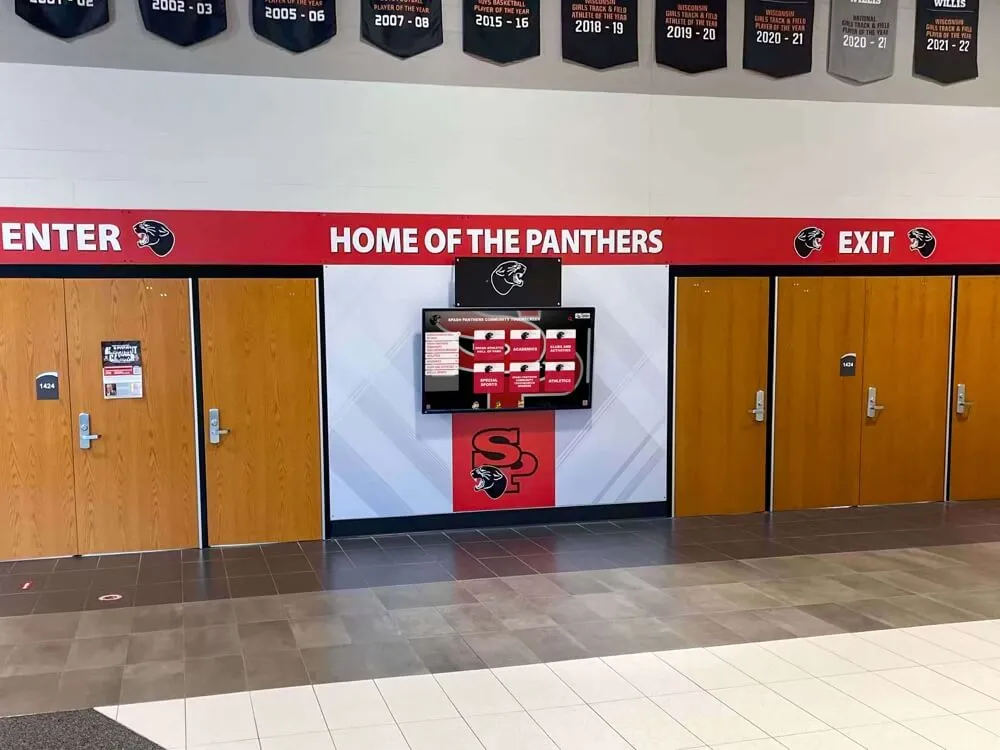
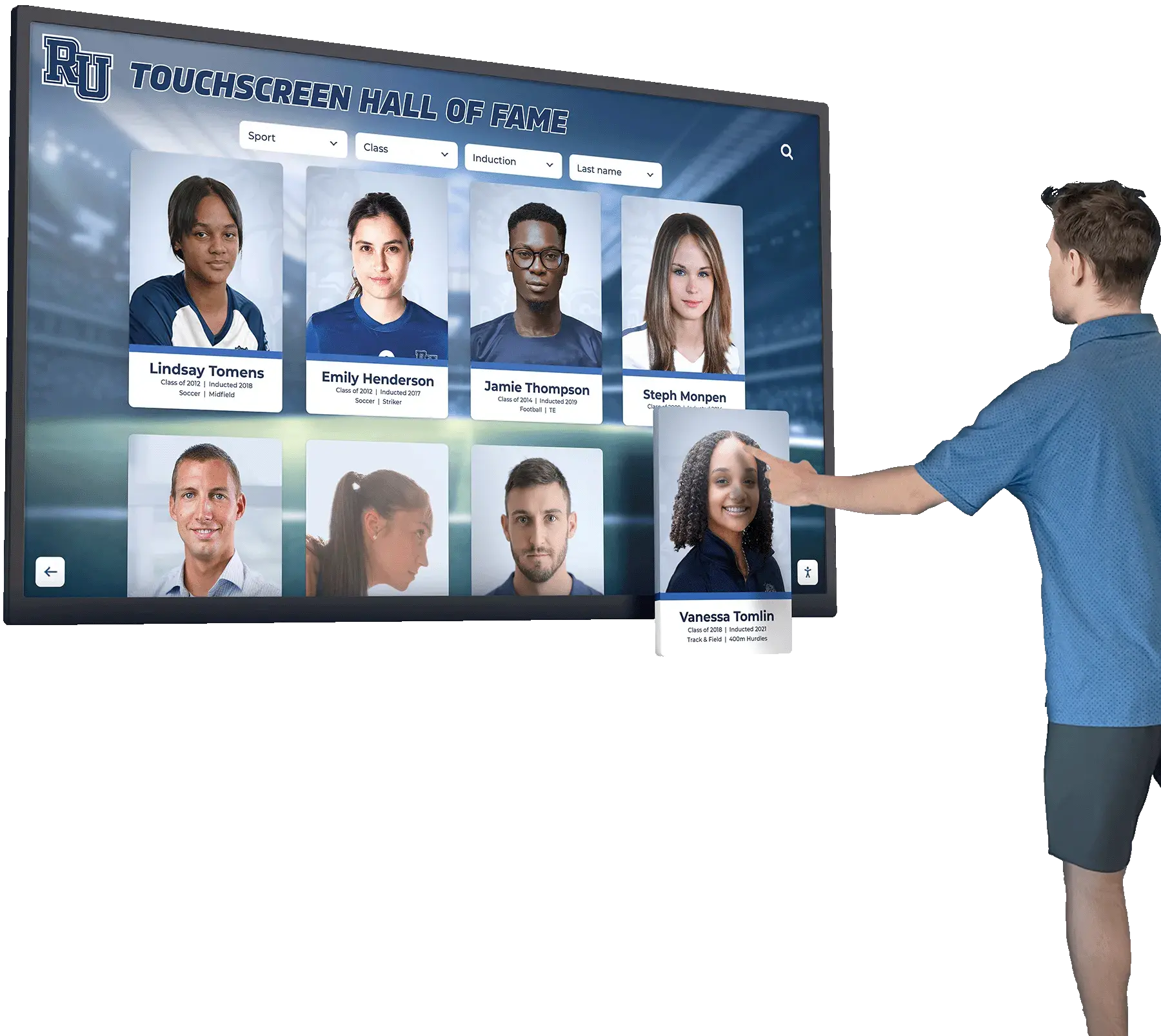
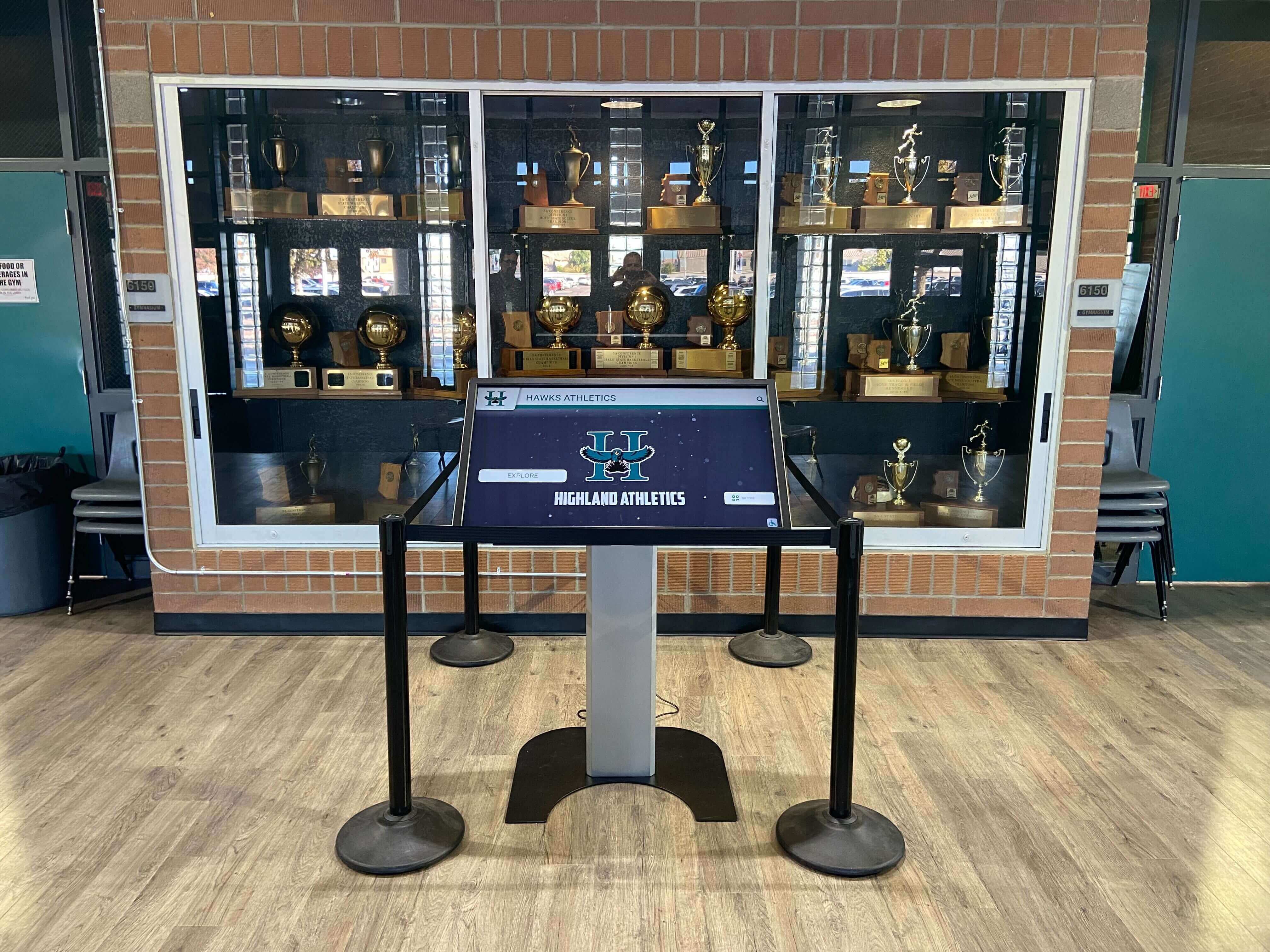
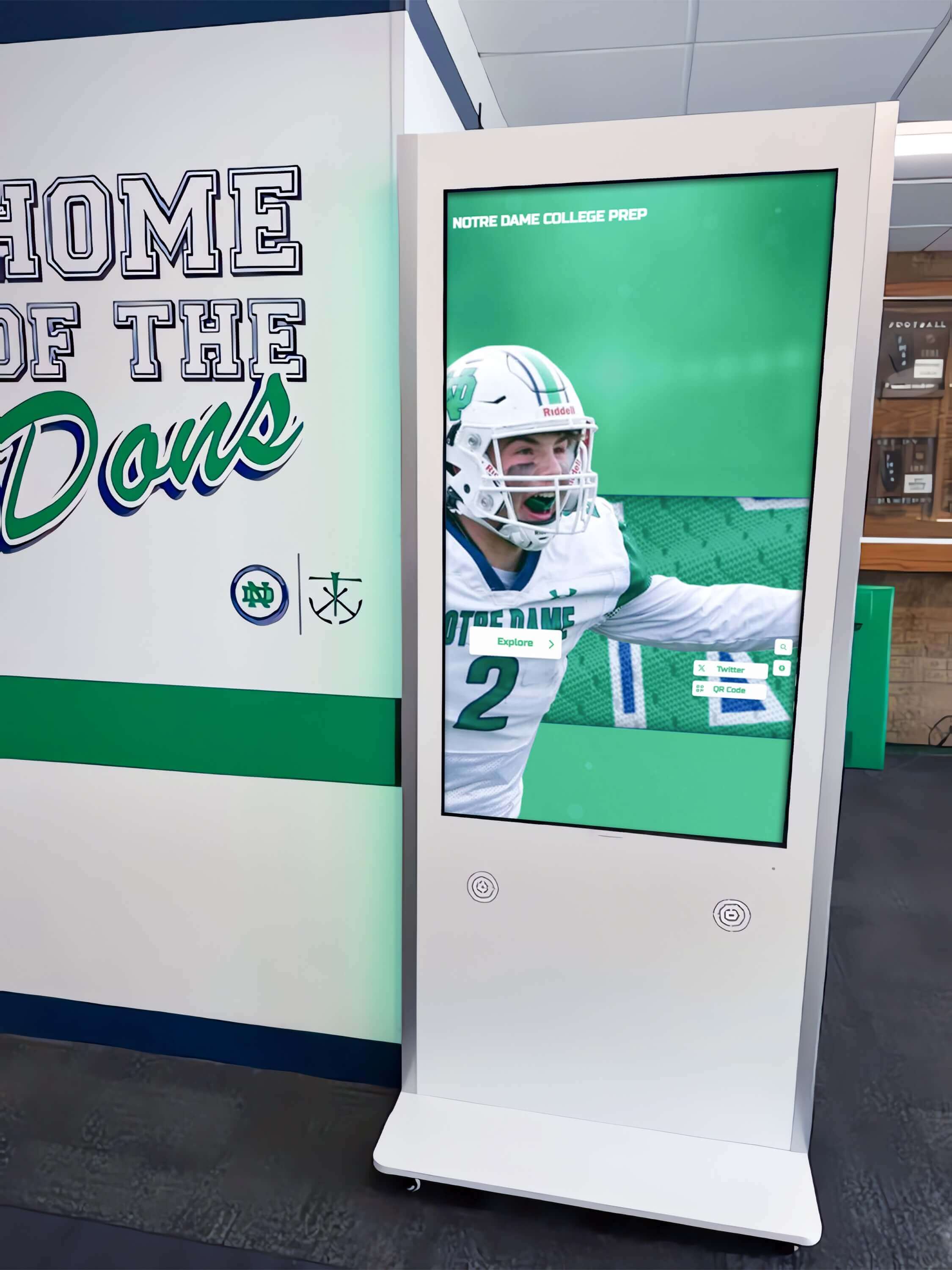
A touchscreen hall of fame kiosk in a school trophy case—sport-category and era tab strips must implement the complete ARIA tablist keyboard pattern, including arrow-key navigation and roving tabindex, so every visitor can browse inductee categories without requiring a mouse
What the ARIA Tablist Pattern Requires
The WAI-ARIA specification defines the tablist pattern as a set of three related roles—tablist, tab, and tabpanel—with specific keyboard interactions and required attributes. Understanding all three components is necessary before auditing a hall of fame sport or era tab strip.
role="tablist" is placed on the container element that groups the tab buttons. The tablist container should carry an aria-label (or aria-labelledby referencing a visible heading) that describes what the tabs control—for example, aria-label="Browse inductees by sport" or aria-label="Browse inductees by era". Without a label, screen readers announce only “tablist” with no context for what the tabs navigate.
role="tab" is placed on each tab button within the tablist. Each tab must carry:
aria-selected="true"on the active tab andaria-selected="false"on all other tabsaria-controlsreferencing theidof the associated tabpaneltabindex="0"on the active tab andtabindex="-1"on all inactive tabs (the roving tabindex pattern)- A unique
idthat the associated tabpanel can reference througharia-labelledby
role="tabpanel" is placed on each content region that a tab controls. Each tabpanel must carry:
aria-labelledbyreferencing theidof the tab that controls ittabindex="0"so keyboard users can move focus into the panel using the Tab key- A
hiddenattribute (or equivalent) on inactive panels so screen readers do not expose their content when another tab is selected
The keyboard interaction model for a correctly implemented tablist is distinct from standard keyboard navigation:
- Tab key: moves focus into the tablist, landing on the currently active tab. Pressing Tab again moves focus out of the tablist and into the active tabpanel.
- Right Arrow / Left Arrow: moves focus between tabs within the tablist. The focus stays within the tablist; Tab is not used to move between tabs.
- Home: moves focus to the first tab in the tablist.
- End: moves focus to the last tab in the tablist.
- Space or Enter: activates the focused tab and displays its associated panel (in the manual activation pattern). In the automatic activation pattern, focus movement immediately activates each tab.
WCAG 2.1 Success Criterion 4.1.2 (Name, Role, Value) at Level A requires that for every user interface component, the name, role, and states can be programmatically determined and set. A sport-category tab strip that uses <button> elements with CSS classes for styling but no ARIA roles or attributes communicates nothing to assistive technology about its structure—screen readers encounter a row of buttons with no tablist relationship, no selected-state announcement, and no keyboard model. Schools should consult the authoritative WCAG 2.1 specification at www.w3.org and their accessibility advisor for compliance guidance specific to their program.
Why Sport and Era Navigation Tabs Need a Separate Audit
School hall of fame platforms routinely implement two distinct tab strip types: sport-category tabs that filter the inductee grid by athletic discipline, and era or decade tabs that filter the archive by graduation year range. Both strip types share the same underlying ARIA tablist pattern, but each presents distinct failure risks.
Sport-category tabs tend to be added incrementally as programs grow—a school that starts with Football, Basketball, and Baseball tabs may add Swimming, Soccer, and Volleyball tabs as induction cycles expand. Each addition is an opportunity for the tab implementation to diverge: a new tab added without role="tab", without aria-selected, or with a mismatched aria-controls value that does not match the corresponding panel’s id. An audit should verify not just the initial implementation but every tab present at the time of review.
Era tabs are particularly common on programs with long institutional histories—schools founded in the 1920s or 1930s may organize inductees across seven or eight decade ranges. Era tabs are often added by platform administrators through a content management interface rather than by developers, which means ARIA attributes may not be applied automatically by the CMS template. An era tab created through a CMS panel that inserts only a <div> with a click handler—and no role="tab" or aria-selected—is indistinguishable from the correct implementation visually but completely invisible to assistive technology.
For platforms that also use ARIA orientation attributes, the ARIA orientation audit for tabbed inductee navigation covers how aria-orientation="horizontal" and aria-orientation="vertical" affect the arrow key direction screen readers announce and expect—a detail that matters when a tab strip is displayed vertically on a narrow sidebar layout.
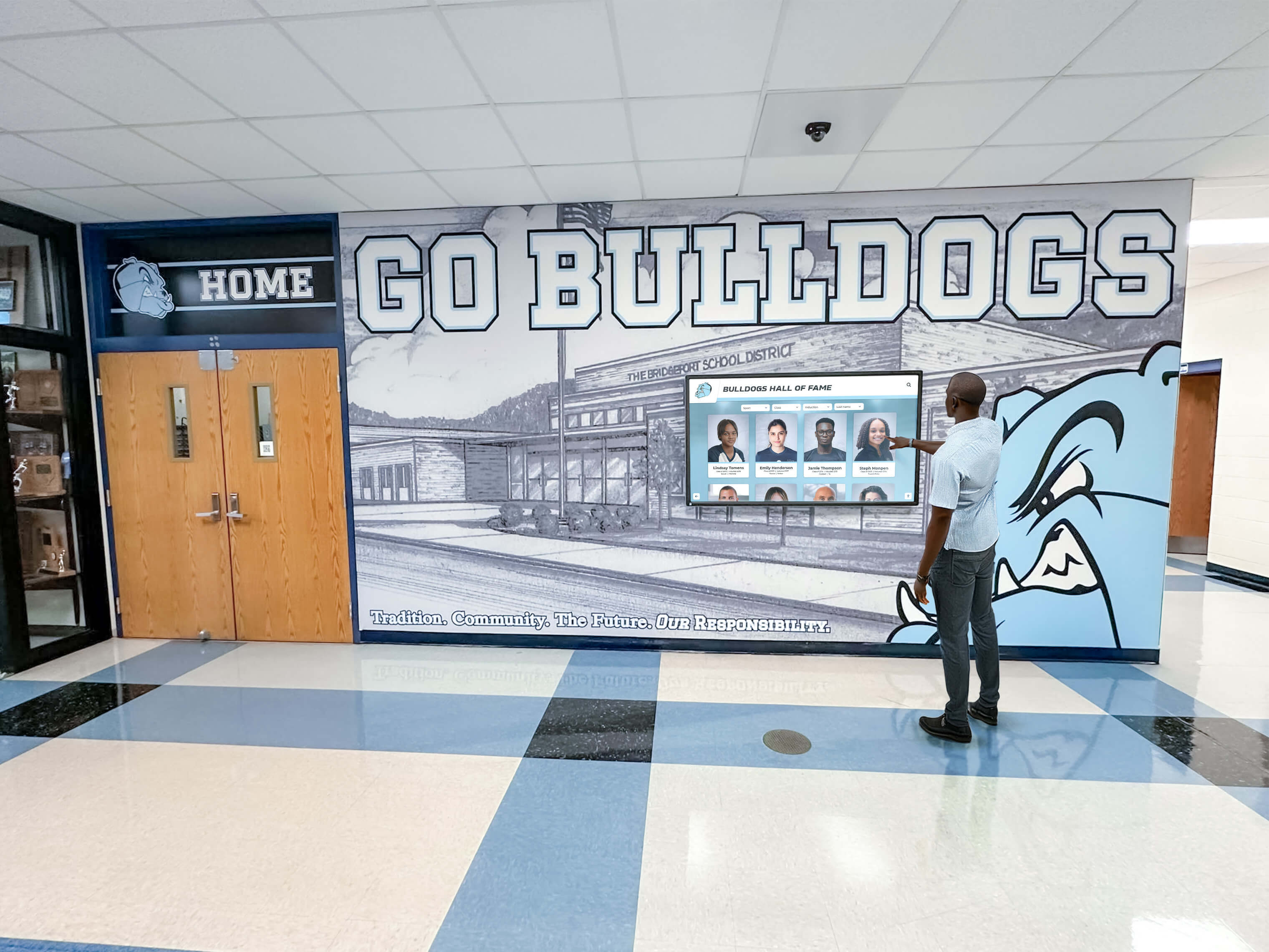
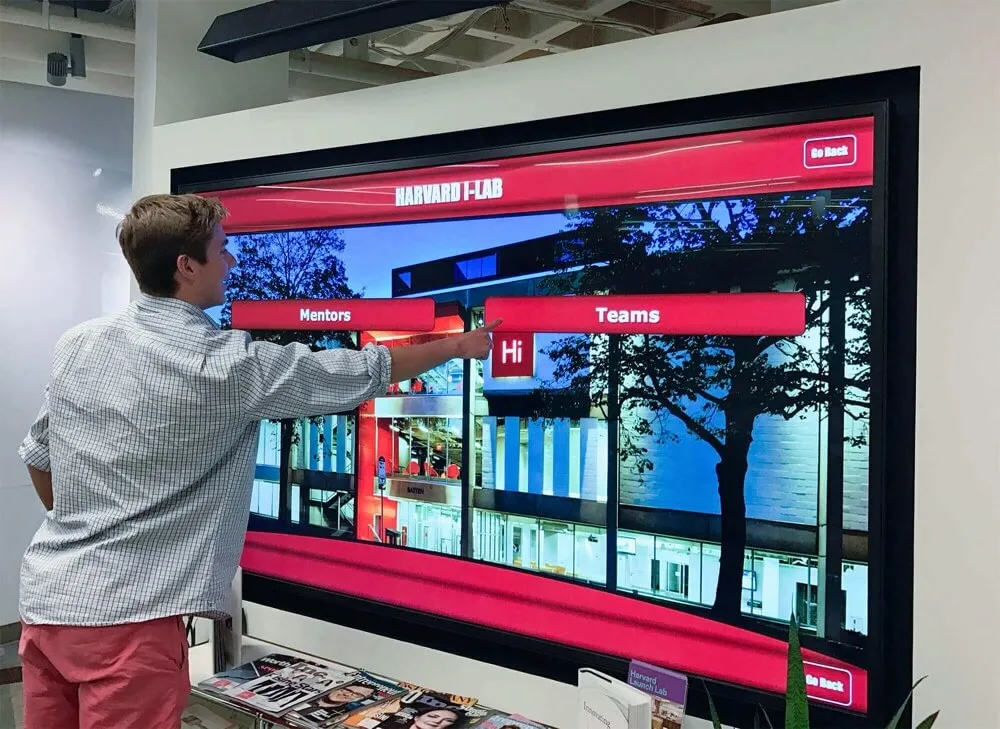
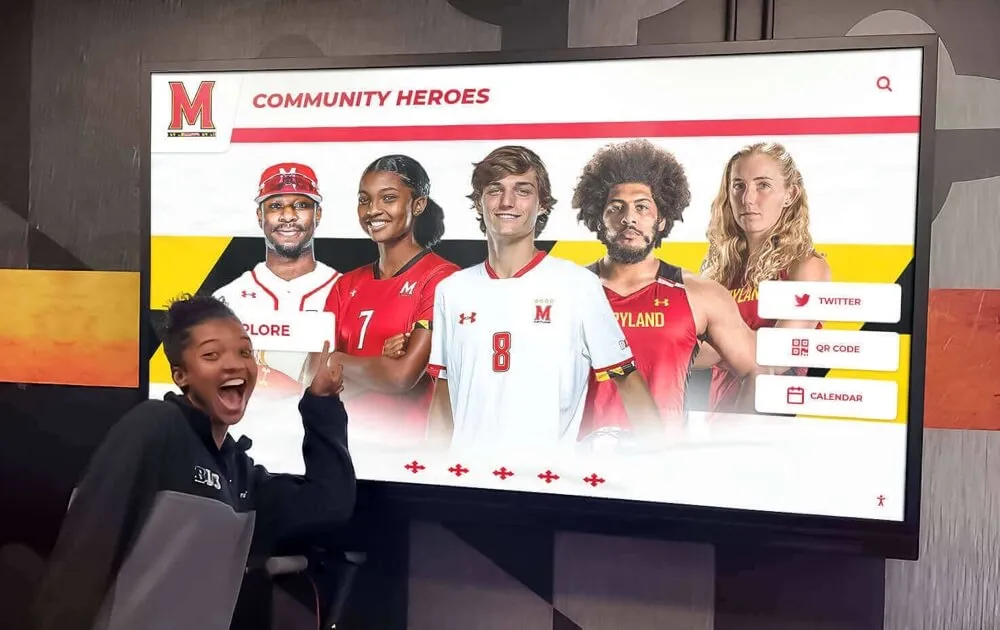
Sport-category tab strips on hall of fame touchscreen interfaces require the roving tabindex pattern—arrow keys move between tabs, Tab exits the strip and enters the active panel—so visitors using keyboards or assistive technology navigate categories at the same speed as mouse users
The Roving Tabindex Pattern: Why It Matters for Hall of Fame Tabs
The roving tabindex pattern is the mechanism that makes arrow-key navigation within a tablist work correctly. Without it, every tab button is reachable by pressing Tab in sequence—meaning a visitor navigating a sport strip with six tabs presses Tab six times before reaching the inductee panel below. This violates the WAI-ARIA tab interaction model and creates a keyboard navigation burden not present for mouse users.
In the roving tabindex implementation:
- The active tab carries
tabindex="0"and is included in the natural tab order. - All inactive tabs carry
tabindex="-1"and are removed from the natural tab order. - Arrow keys move focus among all tabs—including those with
tabindex="-1". - When a tab is activated (by arrow key or Space/Enter), the JavaScript handler sets the newly active tab to
tabindex="0"and all other tabs totabindex="-1".
This means a keyboard visitor pressing Tab reaches the active sport tab in one keystroke, uses arrow keys to survey available sport categories, activates a category with Space or Enter, and then presses Tab once to move into the inductee panel. The experience is efficient and matches the pattern screen reader users expect from a tablist interface.
A common failure is implementing roving tabindex for the initial HTML but not updating it when a different tab is activated. The visitor arrives, presses Tab to reach Football (correct—tabindex="0"), presses Right Arrow to move to Basketball, presses Space to activate Basketball, then presses Tab to exit the tablist. If the JavaScript handler updated aria-selected on Basketball but did not update tabindex values, Tab focus does not move to the Basketball panel—it moves instead to the next focusable element after the tablist in the DOM. The inductee panel for the selected category is unreachable by Tab.
For programs evaluating platforms that implement keyboard shortcuts for faster navigation through large inductee databases, the ARIA keyshortcuts audit for search navigation covers how aria-keyshortcuts can be used alongside the tablist pattern to provide keyboard shortcut access to specific sport categories for frequent users.
The ARIA Tablist Audit: Step-by-Step Checklist
Complete this checklist on the web-based inductee gallery and on any browser-rendered kiosk interface that presents sport-category or era tabs. Steps 1 through 4 require only a keyboard and browser DevTools. Steps 5 and 6 require NVDA on Windows or VoiceOver on macOS.
Step 1: Map Every Tab Strip on Inductee Gallery Pages
Before testing, document every tab strip on your hall of fame pages that navigates between sport categories, era ranges, or both. For each tab strip, record:
- The page template or URL where the strip appears
- The number of tabs in the strip
- The element type used for tabs (button, div, anchor, span)
- Whether an ARIA role is visible in page source (view-source or DevTools)
- The content region that each tab controls (the inductee grid, gallery, or list panel)
A school platform may have multiple tab strips: a sport-category strip on the main inductee gallery, an era strip on the same page or a separate archive page, and a secondary tab set inside inductee profile pages for Biography/Statistics/Awards. Each strip requires its own audit pass.
Step 2: Keyboard-Only Navigation Test
Without opening DevTools, navigate the inductee gallery using only the keyboard. This step reveals failures in the keyboard interaction model before examining the underlying markup.
- Press Tab repeatedly from the top of the page until focus reaches the sport-category tab strip. Note which tab receives focus first. A correctly implemented tablist places focus on the active tab when Tab reaches the strip.
- Check the visual focus indicator on the focused tab. WCAG 2.1 SC 2.4.7 (Focus Visible) at Level AA requires that keyboard-focused elements show a visible focus indicator. If the focused tab shows no visible outline, ring, or highlight, that is an additional failure to document.
- Press the Right Arrow key. Focus should move to the next tab in the strip without leaving the tablist. If pressing Right Arrow does nothing, or if Tab is required to move between tabs, the roving tabindex is not implemented.
- Press Home. Focus should jump to the first tab. Press End. Focus should jump to the last tab.
- With focus on a non-active tab, press Space or Enter to activate it. Confirm the inductee panel updates to show the selected sport’s inductees.
- Press Tab once. Focus should move from the now-active tab into the associated inductee panel—not to the next interactive element after the tablist. If Tab skips the panel, the tabpanel’s
tabindex="0"is absent.
Document each failure—key that did not behave as expected, and the element on which it occurred.
Step 3: Inspect Tab Roles and Required Attributes in DevTools
Open browser DevTools (F12 in Chrome, Edge, or Firefox) and locate the sport-category tab strip in the Elements panel.
Check the tablist container. Select the wrapper element enclosing all sport tabs.
Pass:
<div role="tablist" aria-label="Browse inductees by sport">
Fail (no role, no label):
<div class="sport-tabs">
Check each tab element. Inspect each sport tab button.
Pass:
<button
  role="tab"
  id="tab-football"
  aria-selected="true"
  aria-controls="panel-football"
  tabindex="0">
  Football
</button>
<button
  role="tab"
  id="tab-basketball"
  aria-selected="false"
  aria-controls="panel-basketball"
  tabindex="-1">
  Basketball
</button>
Fail (CSS-only selection, no ARIA):
<button class="tab active" data-sport="football">Football</button>
<button class="tab" data-sport="basketball">Basketball</button>
Check aria-controls references. For each tab, copy the aria-controls value and search the DOM for an element with a matching id. A broken reference—aria-controls="panel-football" with no element carrying id="panel-football" in the DOM—produces a declared relationship that assistive technology cannot follow.
Check each tabpanel. Locate each inductee content region controlled by a tab.
Pass:
<div
  role="tabpanel"
  id="panel-football"
  aria-labelledby="tab-football"
  tabindex="0">
  <!-- Football inductee cards -->
</div>
<div
  role="tabpanel"
  id="panel-basketball"
  aria-labelledby="tab-basketball"
  tabindex="0"
  hidden>
  <!-- Basketball inductee cards -->
</div>
Fail (no role, no labelledby, no tabindex):
<div id="football" class="panel show"><!-- cards --></div>
<div id="basketball" class="panel" style="display:none"><!-- cards --></div>
Step 4: Activate a Tab and Verify Dynamic Attribute Updates
Click or keyboard-activate a non-active tab and immediately re-inspect the markup in DevTools.
After tab activation, the newly active tab must show:
aria-selected="true"(changed from"false")tabindex="0"(changed from"-1")
The previously active tab must show:
aria-selected="false"(changed from"true")tabindex="-1"(changed from"0")
The newly active tabpanel must lose the hidden attribute (or equivalent hiding). The previously active panel must gain hidden.
A common partial failure: the JavaScript handler updates aria-selected correctly but does not update tabindex. The selected state is announced correctly by screen readers, but keyboard focus cannot be managed with arrow keys after the activation—the roving tabindex is broken for subsequent navigation sessions that start after a tab switch.
Step 5: Test with NVDA on Windows
With NVDA running on Windows, navigate to the inductee gallery.
Tablist entry: Press D to jump to the next landmark. Identify the tablist landmark region if the tablist is enclosed in a navigation or main landmark. Alternatively, press Tab until focus reaches the tablist.
Tab announcement: NVDA should announce the active tab as: “Football, tab, 1 of 6, selected.” The announcement includes the tab’s visible name, its role (“tab”), its position within the tablist (“1 of 6”), and its selected state (“selected”).
Failure announcements to watch for:
- “Football, button” —
role="tab"is absent; the element is exposed as a button with no tablist structure - “Football, tab” — position count is absent (tablist label may be missing or the tab count is not exposed by the implementation)
- “Football, tab, selected” — no position count; screen reader may not be reading count without
role="tablist"on the container
Arrow key navigation: Press the Right Arrow key. NVDA should announce the next tab: “Basketball, tab, 2 of 6, not selected.” Focus should move to Basketball without Tab being pressed.
Tab key exit: Press Tab once. NVDA should announce focus moving into the tabpanel: “Football inductee results, region” (or the panel’s content depending on focus landing point). The panel must be reachable by Tab in one keystroke.
Era tab strip: Repeat the same tests on the era or decade tab strip. NVDA should announce era tabs identically: “1990s, tab, 2 of 5, selected.”
Step 6: Test with VoiceOver on macOS
With VoiceOver active on macOS (Command + F5), navigate to the inductee gallery.
Open the Web Rotor (Control + Option + U) and navigate to the Tabs category. The Rotor should display a list of tabs from the page. Each sport category tab and each era tab should appear in the list. If no tabs appear in the Rotor, the elements are not implemented with role="tab" and the tablist pattern is absent.
Navigate to each tab from the Rotor. VoiceOver announces: “Football, selected, tab 1 of 6.”
Activate a non-active tab and confirm VoiceOver announces the change: “Basketball, selected, tab 2 of 6.” The previously active tab, if re-focused, should be announced as “Football, tab 1 of 6” without “selected.”
Press Tab from the active tab. VoiceOver should move focus into the tabpanel: “Football inductees, web content.”
See Accessible Sport and Era Tab Navigation in Action
Rocket Alumni Solutions' digital wall of fame platform implements the complete ARIA tablist pattern for sport-category and era navigation—roving tabindex, correct arrow-key behavior, tabpanel focus management, and accurate NVDA and VoiceOver announcements built in. Request a demo to see how accessible tab navigation works for your school's inductee collection.
Request Your Custom DemoAudit Decision Table: Tablist Implementation vs. Common Alternatives
When evaluating a sport or era navigation interface, the implementation pattern determines which audit steps apply and what failures to expect.
| Navigation Pattern | ARIA Roles Required | Keyboard Model | Screen Reader Announcement | Common Failure |
|---|---|---|---|---|
| Tablist (client-side panel swap) | role="tablist", role="tab", role="tabpanel" | Arrow keys between tabs; Tab to panel | “Football, tab, 1 of 6, selected” | Arrow keys do nothing; Tab used to navigate between tabs |
| Navigation links (separate page per sport) | No tablist; aria-current="page" on active link | Tab to each link; Enter to navigate | “Football, link, current page” | aria-current absent; no selected-state indicator for screen readers |
| Button group (filter, multi-select) | role="group" on container; aria-pressed on each button | Tab to each button; Space to toggle | “Football, button, pressed” | aria-pressed absent; aria-selected used incorrectly on role="button" |
| Single-select listbox | role="listbox" on container; role="option" on items | Arrow keys within listbox; Tab to exit | “Football, option, 1 of 6, selected” | CSS class marks selection; no role="option" or aria-selected |
| Accordion (one sport expanded) | role="button" on trigger; aria-expanded on trigger | Tab between headers; Space/Enter to expand | “Football inductees, button, expanded” | aria-expanded not updated dynamically; panel not associated with trigger |
Use this table to identify which pattern your hall of fame platform uses before applying the tablist audit steps. Auditing a navigation-link sport filter for tablist keyboard behavior produces false failures—the correct test for navigation links is aria-current, not aria-selected within a tablist. Confirming the implementation pattern in Step 3’s DevTools inspection determines which row of this table applies.
For programs that also surface checkbox-style filter controls alongside or instead of tabs—allowing visitors to select multiple sports simultaneously—the ARIA checked audit for inductee filters covers the aria-checked attribute for checkbox-role filter controls, which is distinct from the aria-selected used in tablists.
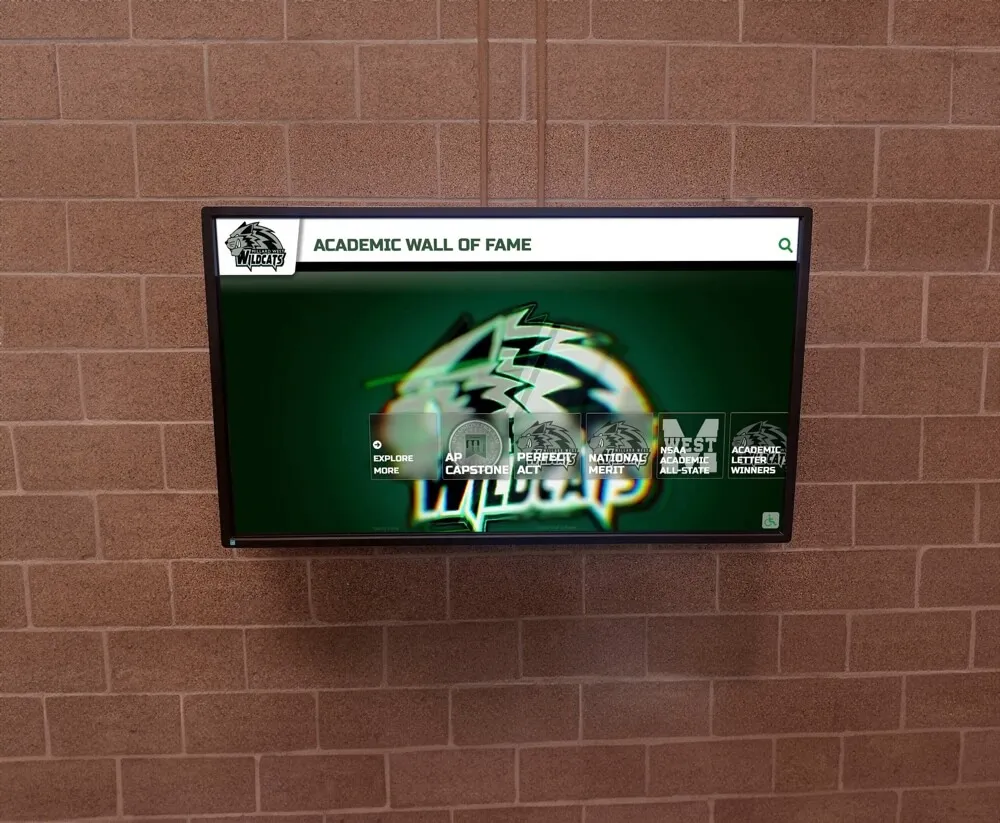
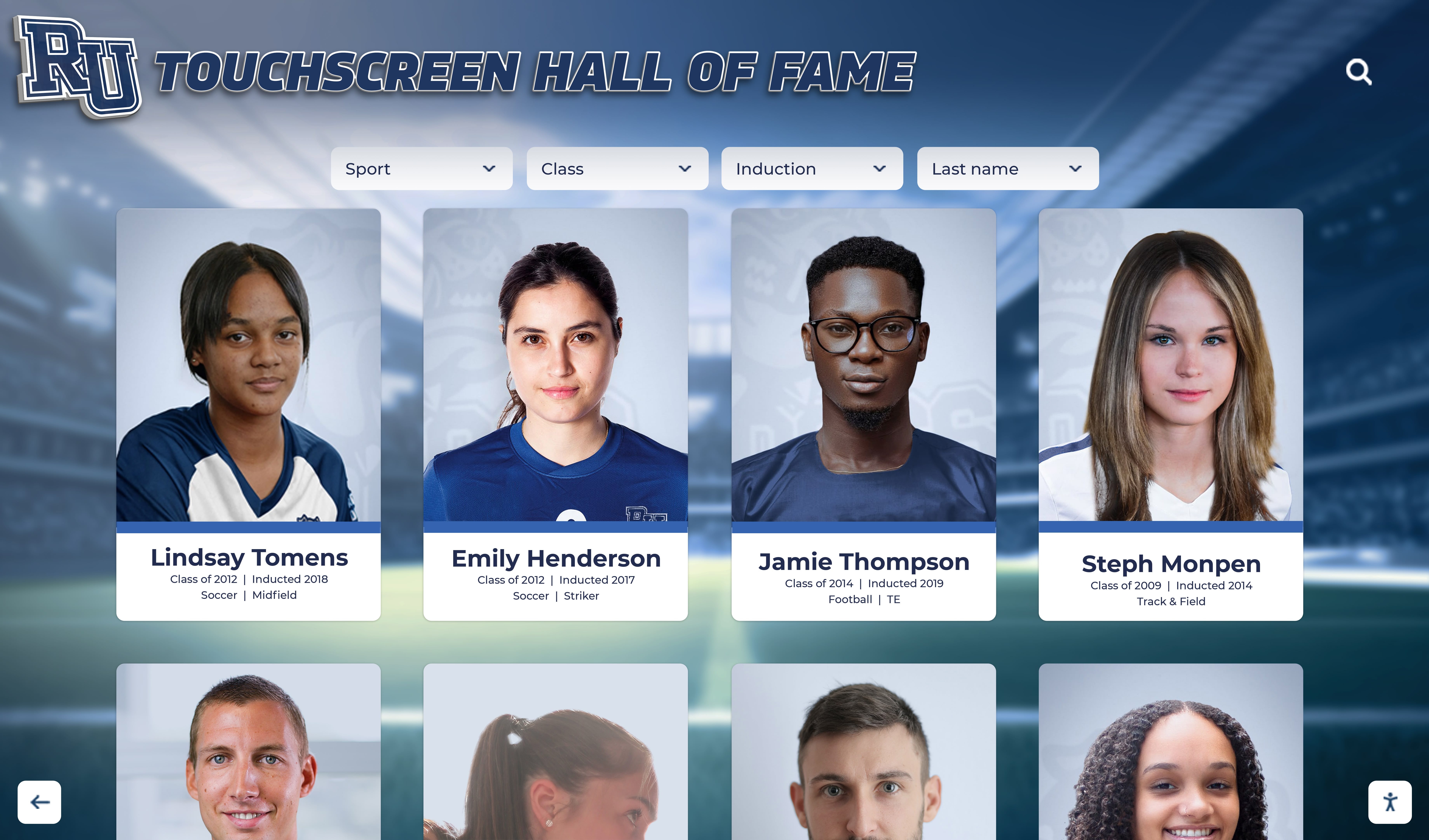
A hall of fame kiosk showing sport-specific inductee cards—the sport-category tabs controlling this view must implement roving tabindex, correct arrow-key interaction, and tabpanel focus management so every visitor can navigate between sports without requiring touch or mouse input
Pass/Fail Code Examples
The following examples show complete correct and incorrect implementations for the sport-category tablist and era tablist patterns most commonly audited on school hall of fame platforms.
Sport-Category Tablist — Complete Pass
<div role="tablist" aria-label="Browse inductees by sport">
  <button
    role="tab"
    id="tab-football"
    aria-selected="true"
    aria-controls="panel-football"
    tabindex="0">
    Football
  </button>
  <button
    role="tab"
    id="tab-basketball"
    aria-selected="false"
    aria-controls="panel-basketball"
    tabindex="-1">
    Basketball
  </button>
  <button
    role="tab"
    id="tab-baseball"
    aria-selected="false"
    aria-controls="panel-baseball"
    tabindex="-1">
    Baseball
  </button>
</div>

<div
  role="tabpanel"
  id="panel-football"
  aria-labelledby="tab-football"
  tabindex="0">
  <!-- Football inductee cards -->
</div>
<div
  role="tabpanel"
  id="panel-basketball"
  aria-labelledby="tab-basketball"
  tabindex="0"
  hidden>
  <!-- Basketball inductee cards -->
</div>
<div
  role="tabpanel"
  id="panel-baseball"
  aria-labelledby="tab-baseball"
  tabindex="0"
  hidden>
  <!-- Baseball inductee cards -->
</div>
NVDA announces the active tab as “Football, tab, 1 of 3, selected.” Arrow keys move between tabs. Tab moves focus into the active panel.
Sport-Category Tablist — Fail (no ARIA, no keyboard model)
<div class="sport-tabs">
  <button class="tab active" onclick="showSport('football')">Football</button>
  <button class="tab" onclick="showSport('basketball')">Basketball</button>
  <button class="tab" onclick="showSport('baseball')">Baseball</button>
</div>

<div id="football" class="sport-panel show"><!-- cards --></div>
<div id="basketball" class="sport-panel hidden"><!-- cards --></div>
<div id="baseball" class="sport-panel hidden"><!-- cards --></div>
NVDA announces “Football, button” with no tablist context, no selected state, and no position count. Pressing the Right Arrow key does nothing—Tab must be used to reach Basketball. Tab does not move into the inductee panel after the buttons; it moves to the next focusable element in the DOM.
Era Tablist — Complete Pass
<div role="tablist" aria-label="Browse inductees by era">
  <button role="tab" id="tab-pre1990" aria-selected="false"
    aria-controls="panel-pre1990" tabindex="-1">Pre-1990</button>
  <button role="tab" id="tab-1990s" aria-selected="true"
    aria-controls="panel-1990s" tabindex="0">1990s</button>
  <button role="tab" id="tab-2000s" aria-selected="false"
    aria-controls="panel-2000s" tabindex="-1">2000s</button>
  <button role="tab" id="tab-2010s" aria-selected="false"
    aria-controls="panel-2010s" tabindex="-1">2010s</button>
  <button role="tab" id="tab-2020s" aria-selected="false"
    aria-controls="panel-2020s" tabindex="-1">2020–Present</button>
</div>

<div role="tabpanel" id="panel-1990s"
  aria-labelledby="tab-1990s" tabindex="0">
  <!-- 1990s inductee cards -->
</div>
<!-- remaining panels with hidden attribute -->
VoiceOver announces “1990s, selected, tab 2 of 5.” Arrow keys move between era tabs. Tab moves into the 1990s inductee panel.
Common Errors and How to Fix Them
Error: Arrow keys do not move focus between tabs
The most common keyboard failure on hall of fame sport tabs: the tablist container has no keyboard event handler for Arrow key navigation. Each tab button is an independent focusable element reached only by Tab. Keyboard users must Tab through every tab to reach one—a significant burden on strips with six or more sports.
Fix: Add a keydown event listener to the tablist container that intercepts ArrowLeft, ArrowRight, Home, and End keys. On ArrowRight, identify the currently focused tab (via document.activeElement), find the next sibling tab in the tablist, and call .focus() on it. Simultaneously update tabindex: set the previously focused tab to tabindex="-1" and the newly focused tab to tabindex="0". Do not call .click() unless the implementation uses automatic activation—manual activation waits for Space or Enter.
Error: Roving tabindex not updated after tab activation
A JavaScript handler correctly updates aria-selected when a tab is activated but does not update tabindex values. The next visitor who Tabs to the strip finds focus landing on the originally active tab—not the tab they activated on their previous visit—because tabindex="0" was never moved.
Fix: In the tab activation handler, after updating aria-selected, iterate over all tabs in the tablist and set tabindex="-1". Then set tabindex="0" on the newly activated tab. The two updates—aria-selected and tabindex—must execute together in the same handler.
Error: tabpanel has no tabindex=“0”
A correctly implemented tablist delivers keyboard focus to the active tab when Tab enters the strip. When the visitor presses Tab again to exit the strip, focus should move into the active tabpanel so they can read the inductee cards. Without tabindex="0" on the tabpanel, Tab skips the panel and lands on the next focusable element after the tablist in the DOM—often a footer link or an unrelated page section—requiring the visitor to navigate backward to find inductee content.
Fix: Add tabindex="0" to every role="tabpanel" element. This makes the panel itself a focusable destination for the Tab key without requiring the first interactive element inside the panel to receive focus directly. Keyboard users can then read the panel content using arrow keys or standard screen reader reading commands from the panel’s focus point.
Error: tablist container has no aria-label
A role="tablist" container without aria-label or aria-labelledby provides no context for screen reader users about what the tabs navigate. NVDA announces the tablist but does not announce what category it organizes. A page with both a sport tablist and an era tablist—two separate strips—is particularly confusing without distinct labels: the visitor hears “tab, 1 of 6” without knowing whether they are in the sport strip or the era strip.
Fix: Add aria-label="Browse inductees by sport" to the sport tablist container and aria-label="Browse inductees by era" to the era tablist container. If a visible heading already labels each strip, use aria-labelledby referencing that heading’s id instead.
Error: aria-controls references a mismatched or missing panel id
A tab carries aria-controls="panel-football" but the corresponding inductee region carries id="football-panel" or has no id at all. The declared relationship cannot be resolved; screen readers that implement aria-controls navigation cannot offer a shortcut to the controlled panel.
Fix: Ensure the aria-controls value on each tab exactly matches the id attribute on the corresponding tabpanel. Use consistent, predictable naming—tab-football / panel-football—and verify each pair in DevTools after any template or CMS update that adds a new sport or era tab.
Error: Inactive panels not hidden from assistive technology
Tabpanels for inactive sports or eras are visually hidden with CSS (display:none or visibility:hidden via a class) but the hidden attribute is not applied to the element. In some implementations, CSS-hidden panels remain in the accessibility tree and screen readers can navigate into them using standard reading commands—exposing inductee content from sport categories the visitor has not selected.
Fix: Add the hidden attribute to all inactive tabpanels. When a tab is activated, remove hidden from the newly active panel and add hidden to the previously active panel. The hidden attribute removes the element from the accessibility tree entirely, so screen readers encounter only the active panel’s inductee content.
For programs that also need to confirm the disclosure state of inductee detail sections that expand inline—not tabs but collapsible content blocks—the ARIA expanded audit for hall of fame disclosure controls covers aria-expanded on the trigger elements that control these sections, a separate pattern from the tablist keyboard model.
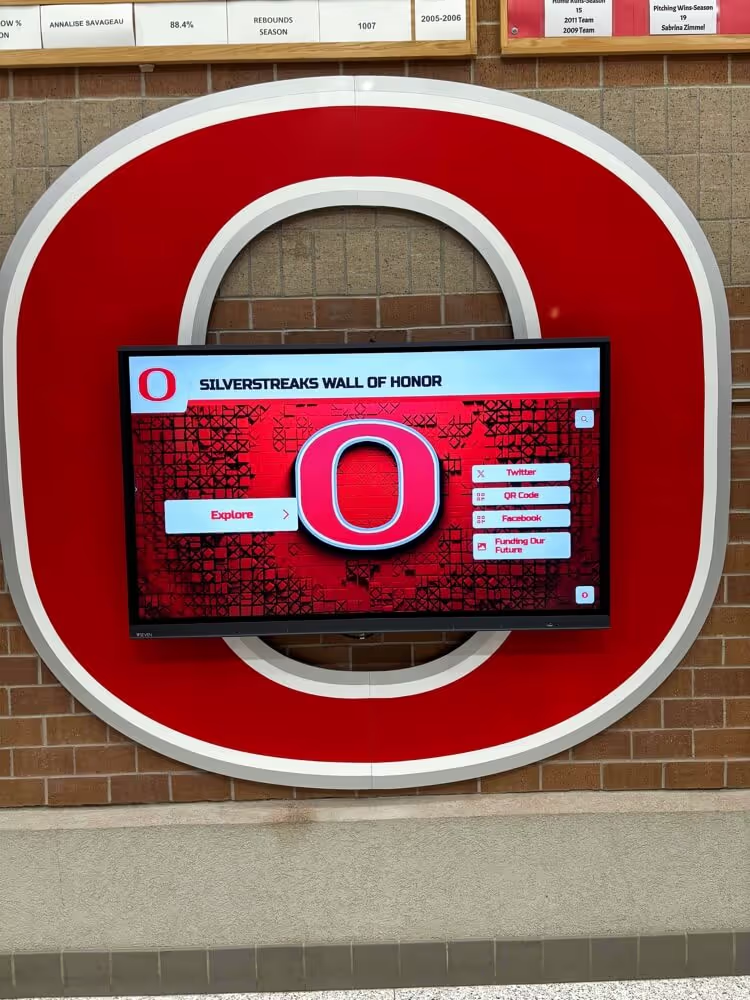
The inductee portrait card grid is controlled by sport-category tabs that must implement the complete tablist keyboard pattern—roving tabindex, panel tabindex, and dynamic attribute updates—so every visitor can access the grid after navigating between sport categories by keyboard
Comparing Tablist Implementations: Rocket Alumni Solutions and Alternatives
Schools evaluating digital hall of fame platforms should verify how each platform’s sport-category and era tab interfaces behave under keyboard testing before selecting a vendor.
Rocket Alumni Solutions implements sport-category and era navigation using the complete WAI-ARIA tablist pattern. The platform’s tab strips carry role="tablist" with descriptive aria-label values, role="tab" with aria-selected, aria-controls, and roving tabindex on each tab, and role="tabpanel" with aria-labelledby and tabindex="0" on each inductee panel. Arrow-key navigation is handled by a keyboard event listener on the tablist container. Dynamic updates to aria-selected and tabindex fire together in the same activation handler, so the pattern remains correct after each tab switch. NVDA and VoiceOver users receive complete tab count, position, and selected-state announcements.
When evaluating other platforms or vendor proposals, request a live keyboard walkthrough of the sport-category tab interface: press Tab to reach the strip, Right Arrow to move between tabs, Space to activate a tab, and Tab to enter the inductee panel. A platform that requires Tab to navigate between sports—or that produces no tab-count announcement in NVDA—has not implemented the WAI-ARIA tablist keyboard pattern.
For programs that need to assess toggle-style sport filters that use aria-pressed rather than aria-selected—platforms where multiple sports can be active simultaneously—the ARIA pressed audit for toggle controls provides the equivalent keyboard and screen reader test procedure for that pattern.
The landmark structure that encloses the tablist and tabpanel regions also affects screen reader navigation efficiency. Visitors using NVDA’s landmark navigation (D key) or VoiceOver’s Rotor can jump to the tablist region by landmark if it is wrapped in a navigation or complementary landmark. The ARIA landmark audit for inductee navigation covers how landmark regions on hall of fame pages should be structured to support efficient screen reader navigation to the sport and era tab interfaces.
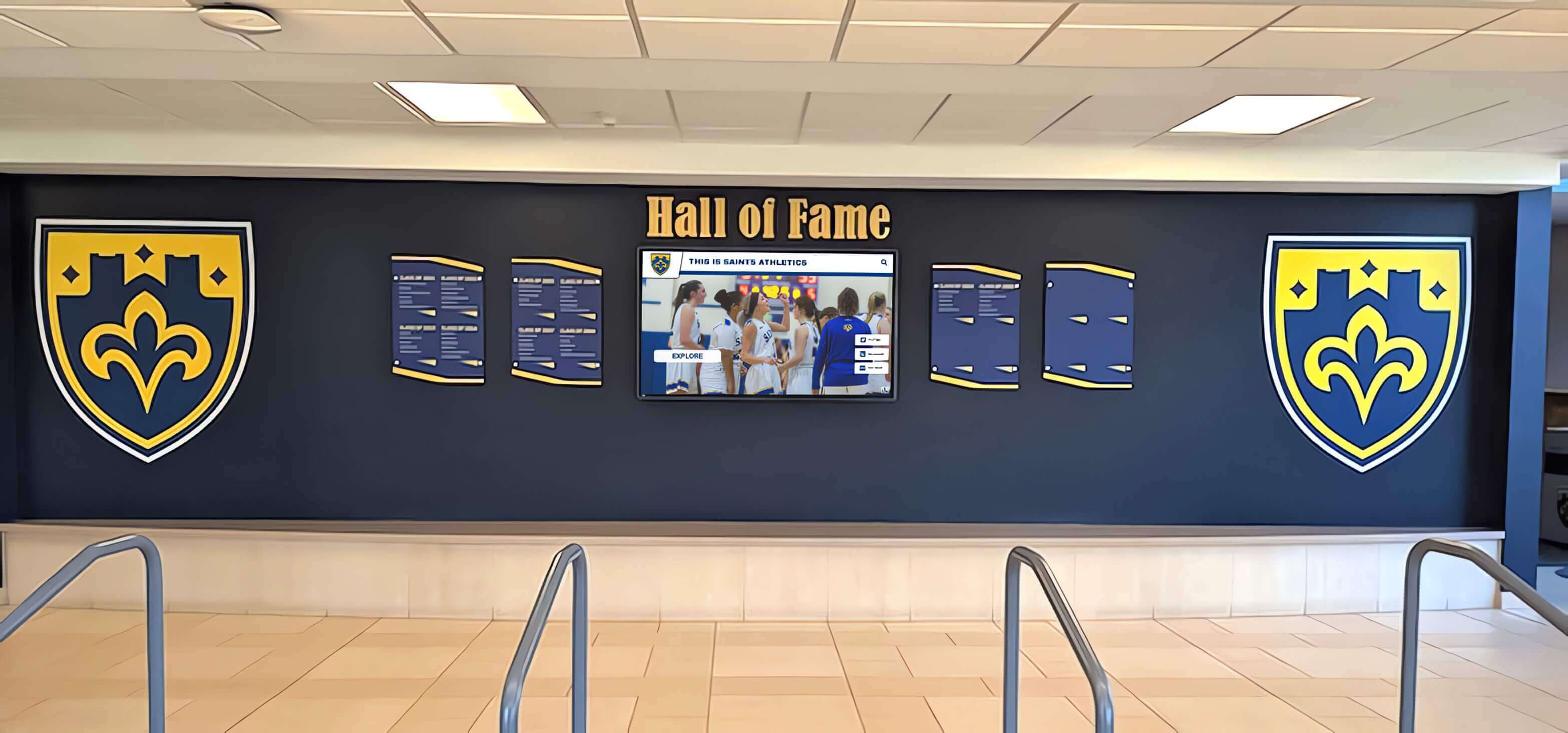
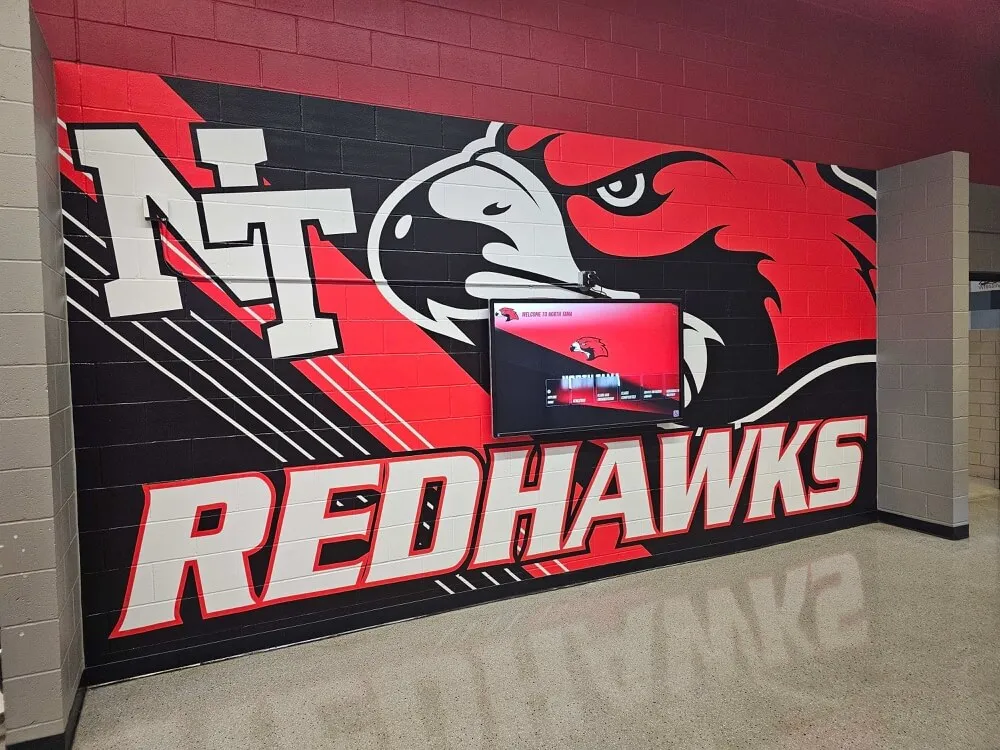
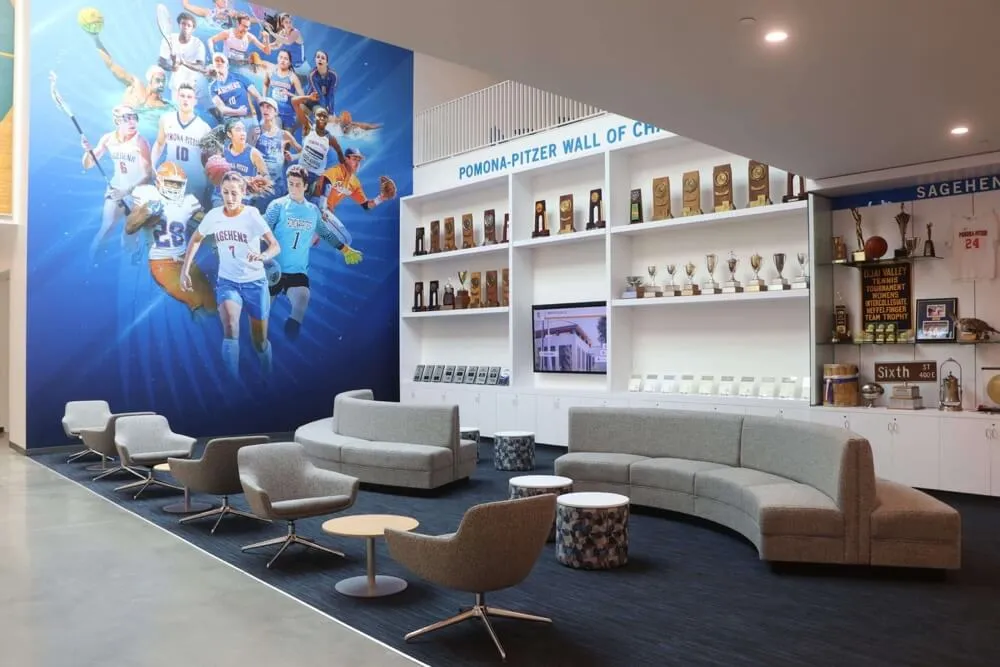
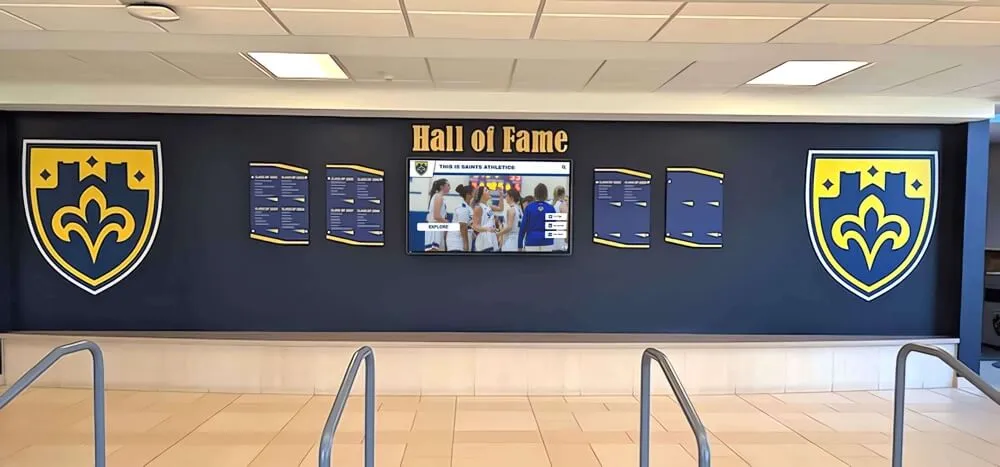
A recognition display combining physical shields with a digital screen—the digital interface's sport and era navigation tabs must implement the complete ARIA tablist keyboard model so visitors using keyboards or screen readers can browse inductee categories alongside those using touch or mouse
Frequently Asked Questions
Q: What is the difference between the tablist keyboard audit and the aria-selected audit?
A: The aria-selected audit verifies that the selected state of the active tab is correctly communicated to screen readers through the aria-selected attribute. The tablist keyboard audit covers the complete interaction model: whether arrow keys move between tabs (not Tab), whether roving tabindex is correctly implemented and updated after each activation, whether Tab moves focus into the active panel, whether the tablist and tabpanel roles are present, whether aria-controls references correct IDs, and whether NVDA and VoiceOver announce the tab count and position. An aria-selected check is one step within the broader tablist keyboard audit—not a substitute for it.
Q: Should we use automatic or manual tab activation?
A: The WAI-ARIA Authoring Practices Guide describes two activation models. In automatic activation, moving focus to a tab with an arrow key immediately displays that tab’s panel—no Space or Enter required. In manual activation, focus moves without activating; the visitor presses Space or Enter to activate. For sport-category tabs that load large inductee grids—potentially triggering a network request or heavy DOM render—manual activation is preferable so that keyboard users who are exploring the available sports do not trigger a load on every arrow keypress. For era tabs with smaller result sets, automatic activation may be acceptable. Either model is valid; the chosen model should be documented and consistent across all tab strips on the platform.
Q: Does the tablist keyboard model apply to kiosk touchscreen interfaces?
A: Hall of fame kiosk interfaces that render in a browser-based environment—the most common architecture for modern touchscreen recognition systems—render the same HTML and are subject to the same WAI-ARIA keyboard requirements. Visitors using an external keyboard connected to the kiosk, or switch-access devices, rely on the tablist keyboard pattern to navigate sport and era categories. Kiosk installations at schools with ADA compliance programs should verify that the sport and era tab strips on the kiosk interface behave identically to the web interface under keyboard testing.
Q: What if our platform uses anchor links for sport navigation instead of tabs?
A: If sport categories are implemented as <a> elements that navigate to separate page URLs for each sport—/inductees/football/, /inductees/basketball/—the tablist pattern does not apply. Anchor-based sport navigation should use aria-current="page" on the link corresponding to the currently viewed sport, not aria-selected. Keyboard navigation uses Tab to move between links and Enter to navigate. The tablist keyboard audit steps in this article apply only to client-side tab interactions that swap panel content without a full page navigation. To confirm which pattern your platform uses, examine whether the URL changes when switching sports in the browser address bar.
Q: How do we handle a sport tab strip where new sports are added through a CMS?
A: When tab strips are populated dynamically through a content management interface—as era tabs frequently are on platforms with administrator-created content—verify that the CMS template injects the required ARIA attributes automatically for each new tab. A CMS that generates only a <div> element with a click handler when an administrator adds a new sport requires a developer to add role="tab", aria-selected, aria-controls, and tabindex to the template before the new tab is accessible. After any CMS-driven tab addition, run a targeted DevTools inspection on the new tab element to confirm all required attributes are present before the update goes live.
Q: How often should we run a tablist keyboard audit?
A: Run a full audit at platform launch, after any update that modifies the sport or era tab interface, after any CMS-driven addition of new sport or era tabs, and annually as part of a broader accessibility review. A quick spot-check—Tab to the sport strip, Right Arrow to move between tabs, Tab to enter the panel, and one NVDA announcement check—takes under three minutes per strip and is appropriate after any deployment that touches tablist markup or JavaScript. Run this check before each induction ceremony season when hall of fame traffic peaks and new visitors encounter the platform for the first time.
A school’s digital hall of fame is the recognition infrastructure that makes inductee stories discoverable for every visitor—students, parents, alumni, and community members who arrive with a name or a sport in mind. When the sport-category and era tab strips that organize the inductee database implement the complete ARIA tablist keyboard pattern, every visitor navigates the recognition archive at the same speed regardless of whether they use a mouse, a keyboard, or a screen reader. When those strips omit roving tabindex, skip arrow-key handlers, or leave tabpanels unreachable by Tab, keyboard users encounter a navigation interface that works visually and fails functionally. The tablist keyboard audit—mapping tab strips, testing arrow-key behavior, inspecting ARIA attributes in DevTools, verifying tabpanel accessibility, and confirming NVDA and VoiceOver announcements—costs under an hour per page template and delivers a recognition platform that is equally navigable for every visitor your school’s induction season brings.
Learn more about Rocket Alumni Solutions’ Digital Wall of Fame platform to understand how the platform’s sport-category and era navigation tab interfaces implement the complete ARIA tablist keyboard pattern—roving tabindex, correct arrow-key handling, tabpanel focus management, and accurate screen reader announcements—for recognition programs of any size.
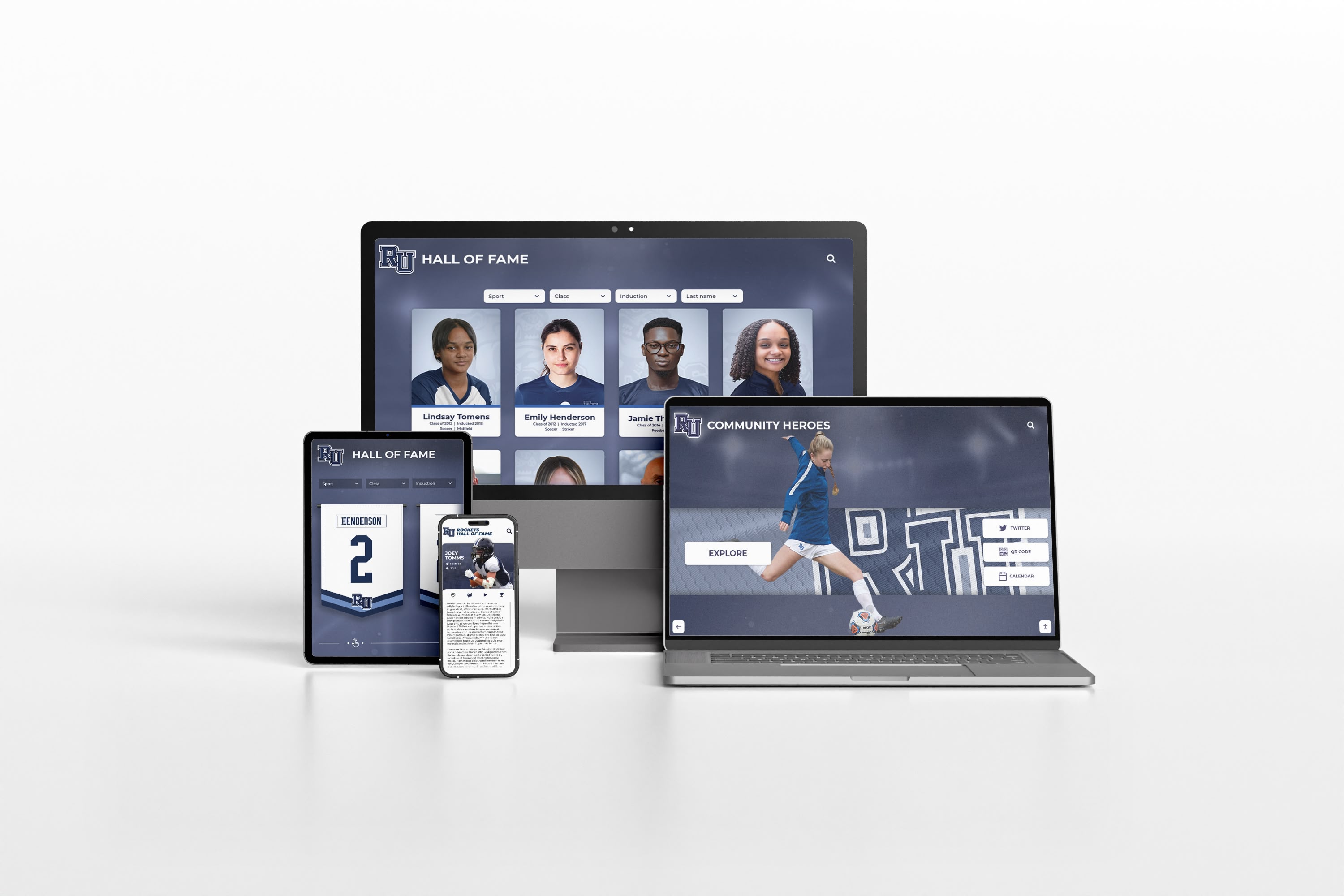
A digital hall of fame recognition platform across multiple device types—sport and era navigation tabs must implement the complete ARIA tablist keyboard pattern on every viewport so keyboard and screen reader users can browse inductee categories regardless of screen size or device
Schedule a Demo of an Accessible Hall of Fame Tab Interface
Rocket Alumni Solutions builds interactive touchscreen and web-based recognition platforms with sport-category and era navigation that passes the complete ARIA tablist keyboard audit—arrow-key navigation, roving tabindex, tabpanel focus management, and correct NVDA and VoiceOver announcements built in from the ground up. See how accessible tab navigation works for your school's inductee collection.
Schedule Your Accessible Hall of Fame Demo