Digital Hall of Fame Focus-Not-Obscured Audit: WCAG 2.2 Checklist for Sticky Controls and Dialogs
- Home /
- Digital Wall of Fame Blog - Recognition Display Insights & Resources /
- Digital Hall of Fame Focus-Not-Obscured Audit: WCAG 2.2 Checklist for Sticky Controls and Dialogs
The Easiest Touchscreen Solution




Live Example: Rocket Alumni Solutions Touchscreen Display
Interact with a live example (16:9 scaled 1920x1080 display). All content is automatically responsive to all screen sizes and orientations.
A digital hall of fame focus-not-obscured audit checks whether every keyboard-focusable element on your inductee pages, search tools, and navigation menus remains fully or at least partially visible when sticky headers, cookie consent banners, and modal dialogs are present on screen. WCAG 2.2 Success Criterion 2.4.11 (Level AA) requires that a focused component is never completely hidden by author-created content; SC 2.4.12 (Level AAA) extends this to prohibit any partial concealment. School web teams, IT departments, and recognition-program administrators can run this audit using only a keyboard and a browser—no specialized tools required.
This checklist walks through every element category that commonly obscures keyboard focus on hall of fame websites—from sticky athletic-record filter bars to inductee biography lightboxes—and provides clear pass/fail criteria you can verify in under an hour.
Keyboard accessibility matters for every web property, but digital hall of fame sites present a specific combination of challenges that makes the focus-not-obscured requirement particularly easy to fail. Recognition pages typically layer several fixed UI patterns into a single visitor session: a sticky top navigation with search and category filters, an announcement bar promoting induction ceremony dates, cookie consent overlays displayed at session start, modal dialogs for inductee biography detail, and floating call-to-action widgets anchored to the viewport corner. Any one of these elements, positioned incorrectly, can push keyboard focus behind it without the visitor being able to scroll it into view.
School administrators, athletic directors, and IT teams who manage these platforms have an obligation to current and former athletes, staff, and community members who rely on assistive technology. An inductee who uses a keyboard to navigate should be able to search for their own name, open their profile, and read their biography without the focus indicator disappearing behind a sticky nav bar.

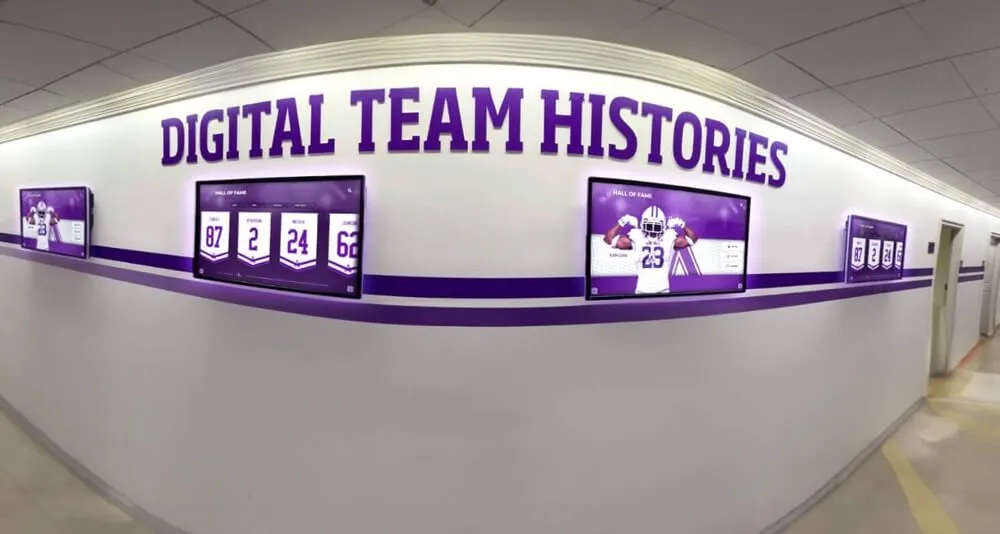
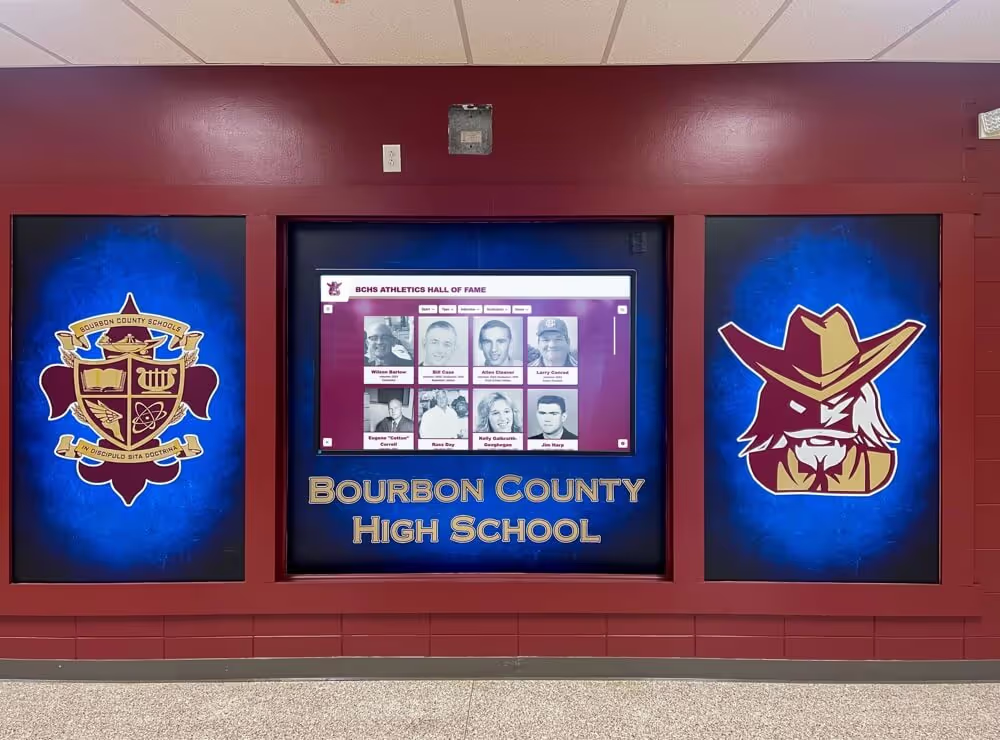
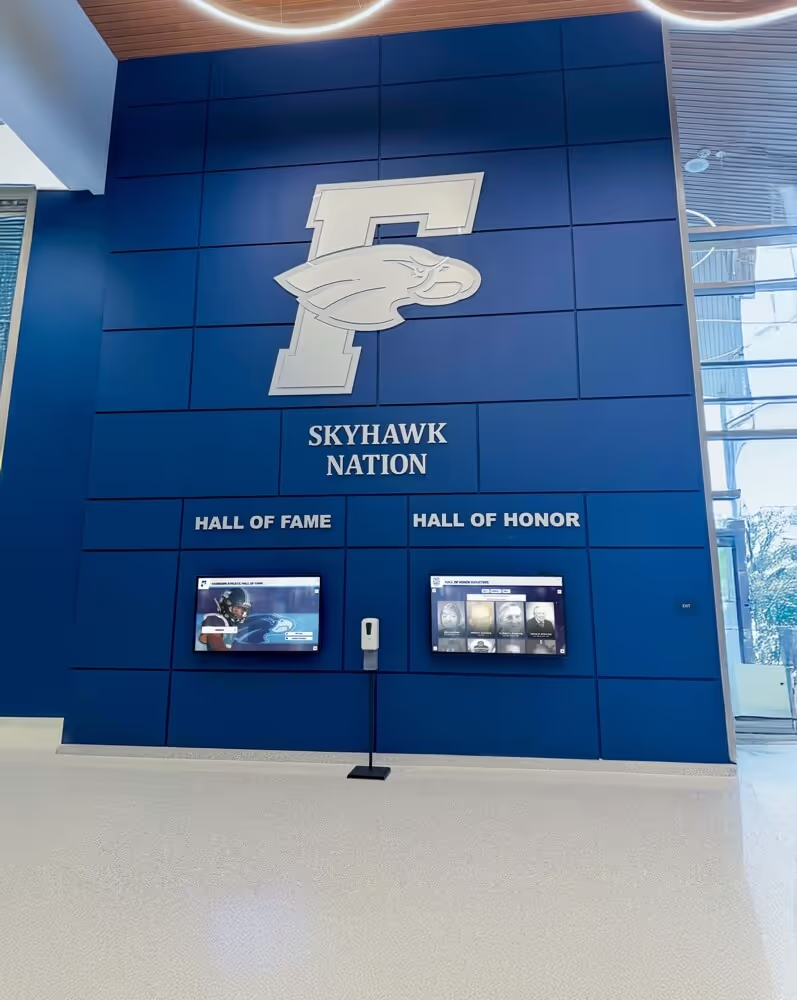
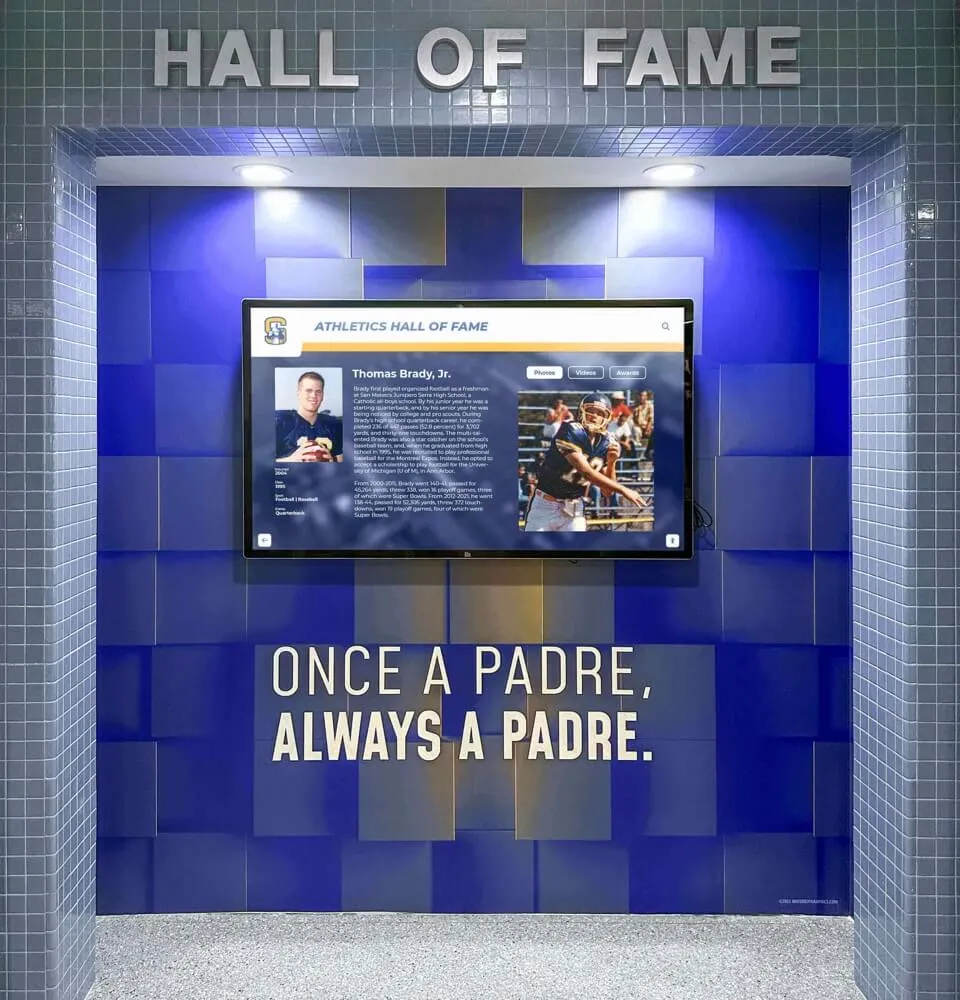
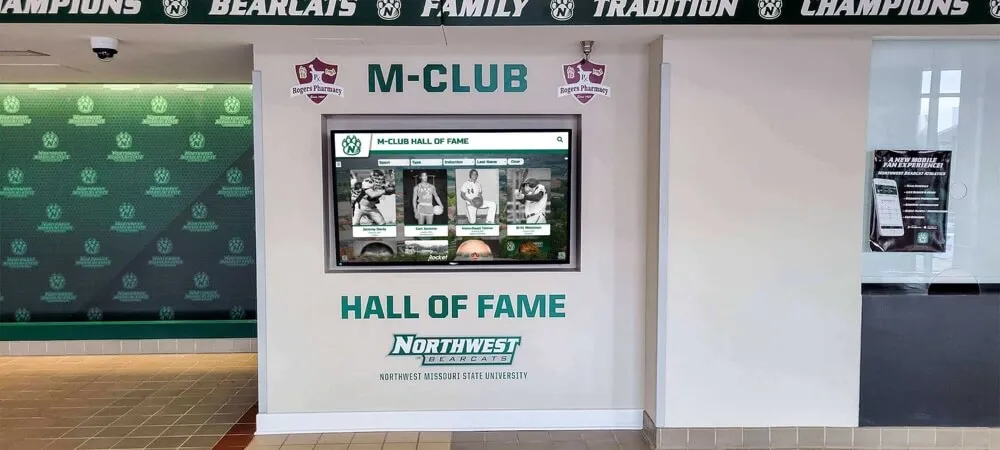
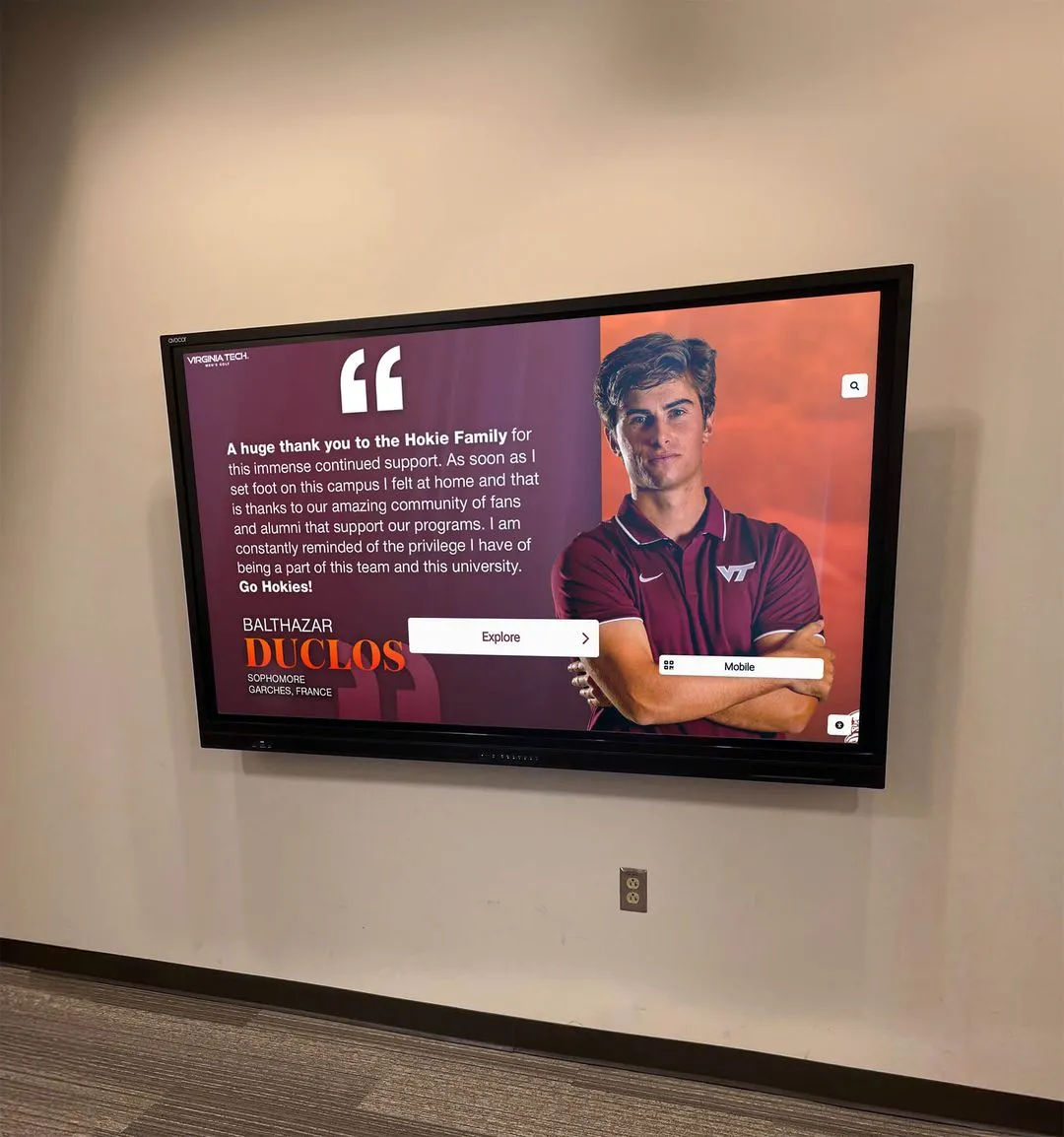
Interactive hall of fame displays that serve keyboard and touch users equally require deliberate testing of every sticky or layered UI element
What WCAG 2.2 Requires for Focus Visibility
WCAG 2.2, published by the W3C Web Accessibility Initiative in October 2023, introduced two new success criteria specifically addressing the problem of focused components being covered by other page content.
Success Criterion 2.4.11 — Focus Not Obscured (Minimum), Level AA: When a user interface component receives keyboard focus, the component is not entirely hidden due to author-created content. A component that is partially visible passes this criterion; one that is completely hidden fails.
Success Criterion 2.4.12 — Focus Not Obscured (Enhanced), Level AAA: When a user interface component receives keyboard focus, no part of the component is hidden by author-created content. This stricter standard means that even a few pixels of a focused element hidden behind a sticky header constitutes a failure.
Most school recognition programs target WCAG 2.1 AA compliance as a baseline. WCAG 2.2 AA extends that baseline with SC 2.4.11 and several other new criteria. Building the focus-not-obscured check into your regular accessibility review process puts your program in a stronger compliance position and serves the visitors who rely on keyboard navigation most.
A comprehensive overview of academic recognition programs and how they approach accessibility requirements provides useful context for how WCAG standards apply across the different display formats and web platforms schools use today.
Why Hall of Fame Sites Are Particularly Vulnerable
Most general-purpose websites have one or two fixed-position elements: a top navigation bar and perhaps a cookie notice. A digital hall of fame website or embedded recognition page typically layers several more:
- Sticky global navigation with search, sport/year category filters, and record-board links that scroll with the page
- Induction ceremony announcement bars fixed above or below the main header
- Cookie consent or privacy overlays displayed at session start, sometimes blocking the full viewport
- Inductee biography modal dialogs triggered by activating a profile card
- Video player overlays for highlight reel content embedded in inductee profiles
- Floating “Request Demo” or “Contact Us” widgets anchored to the corner of the viewport
- Toast notifications for recently added profiles or live leaderboard updates
- Third-party chat or help widgets added by the platform vendor or the school’s web team
Each element is reasonable in isolation. Together, they create a layered environment in which the focused element—the currently active link, button, or input field—can easily slip behind one of these layers during keyboard navigation.
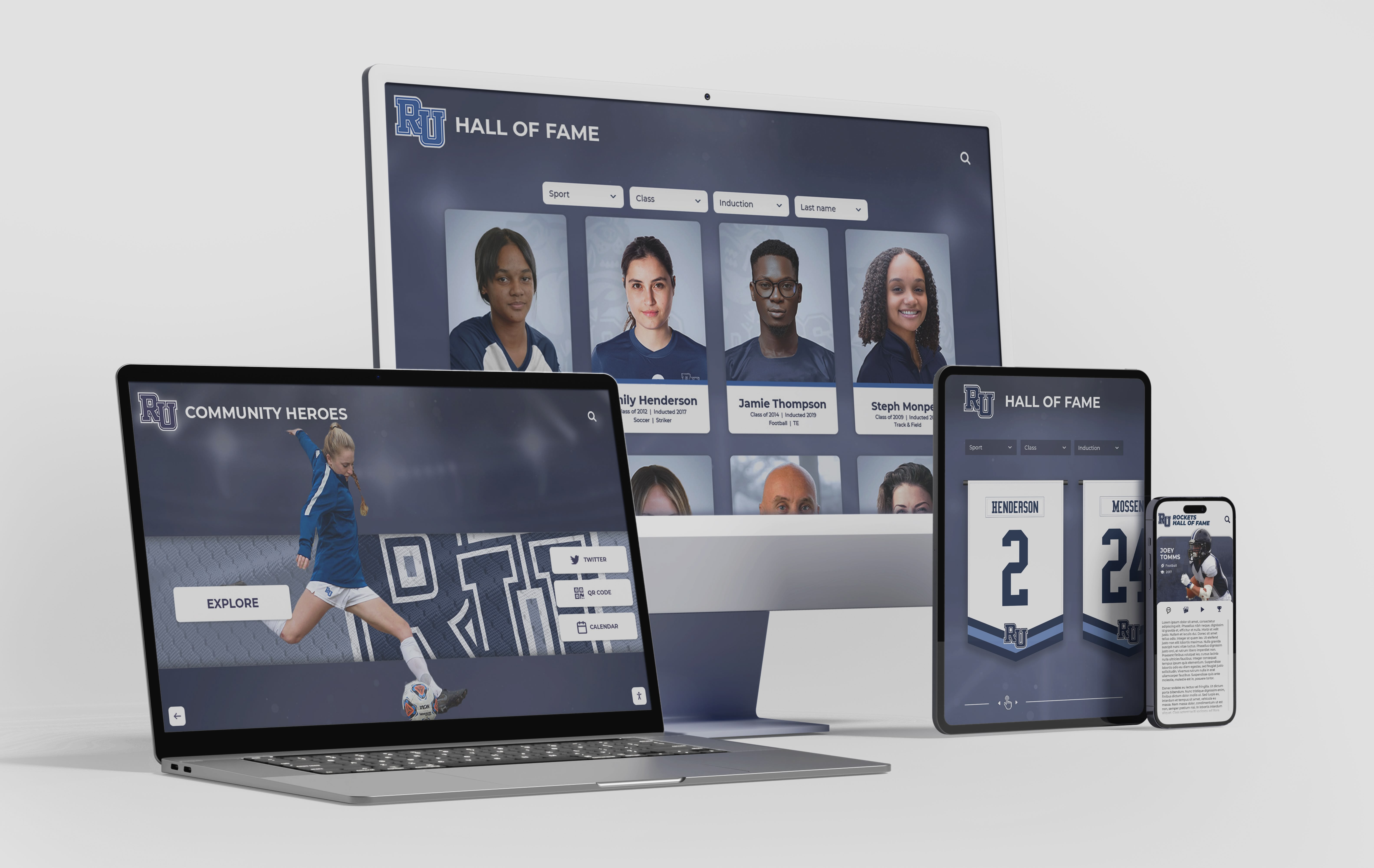
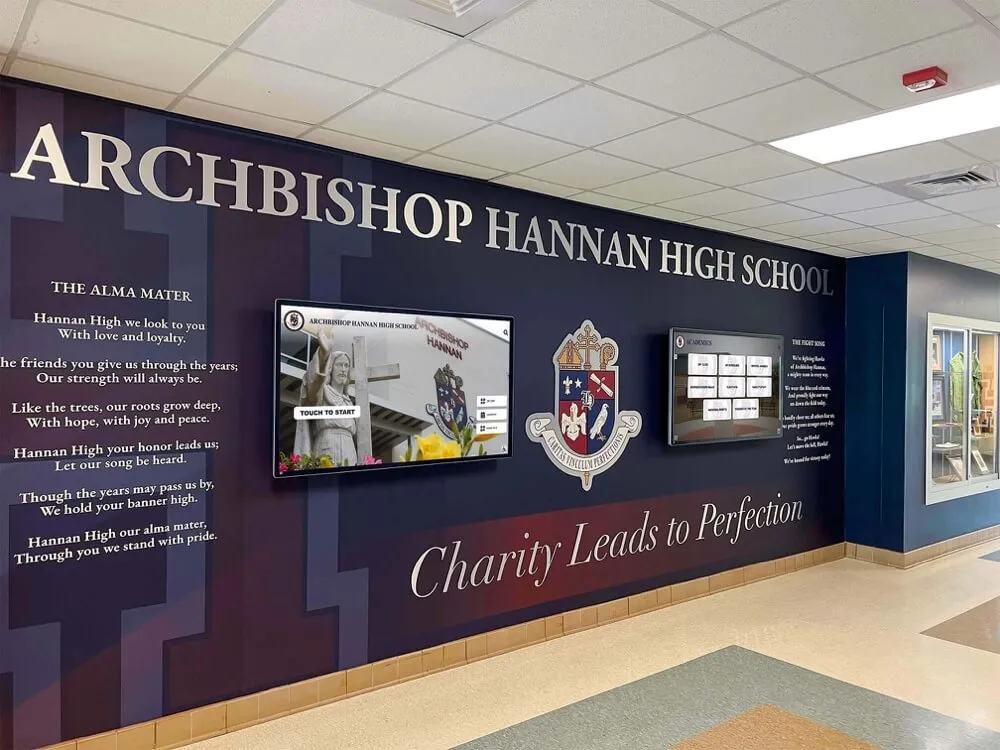
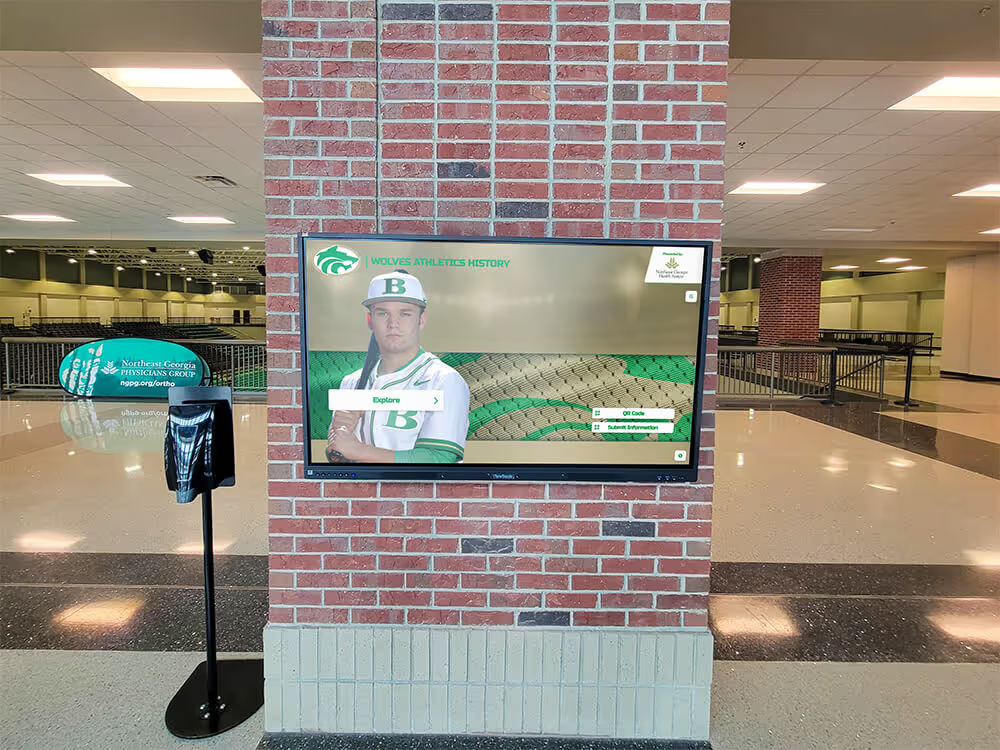
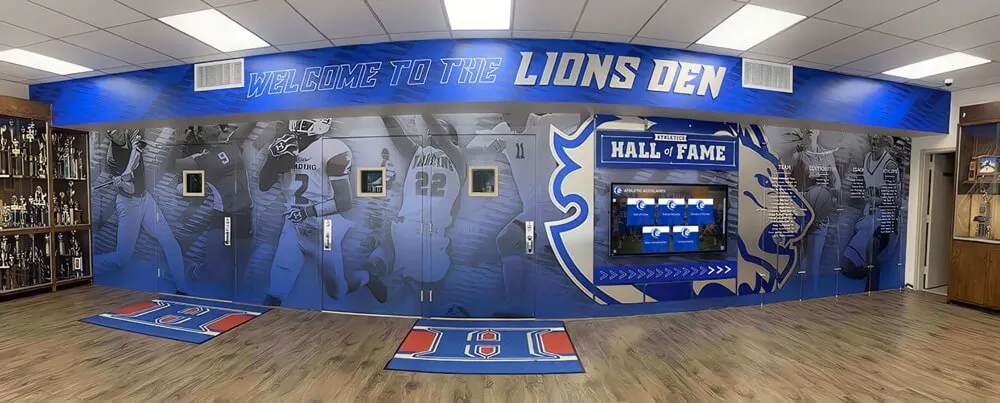
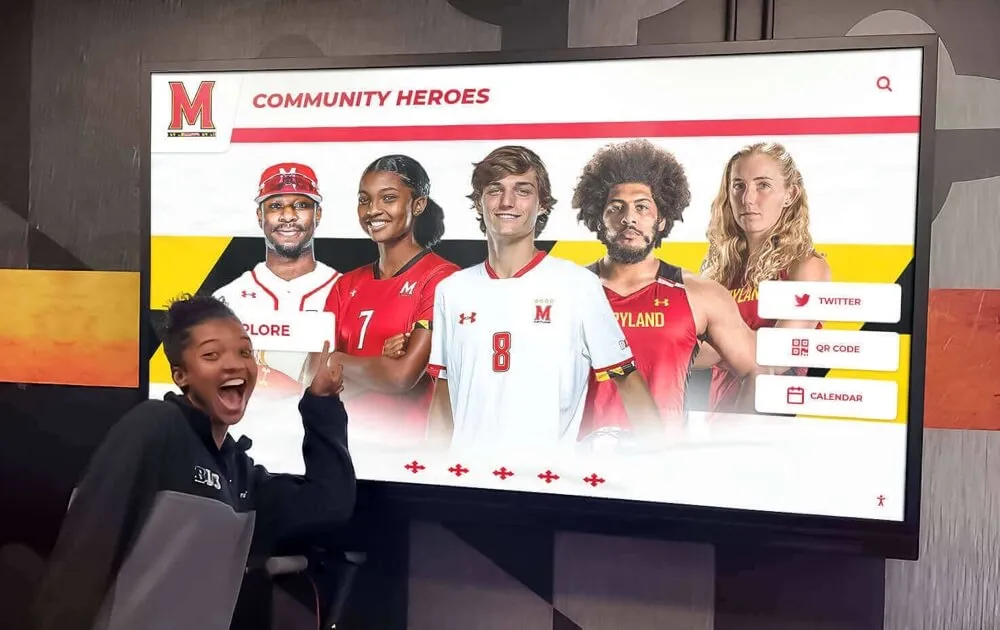
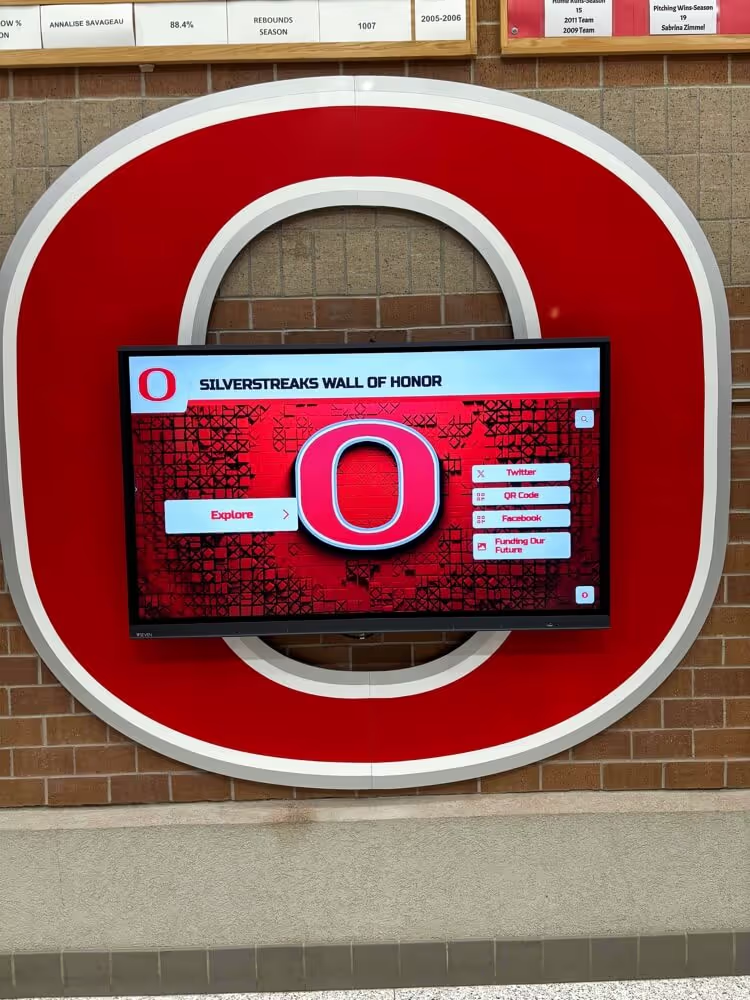
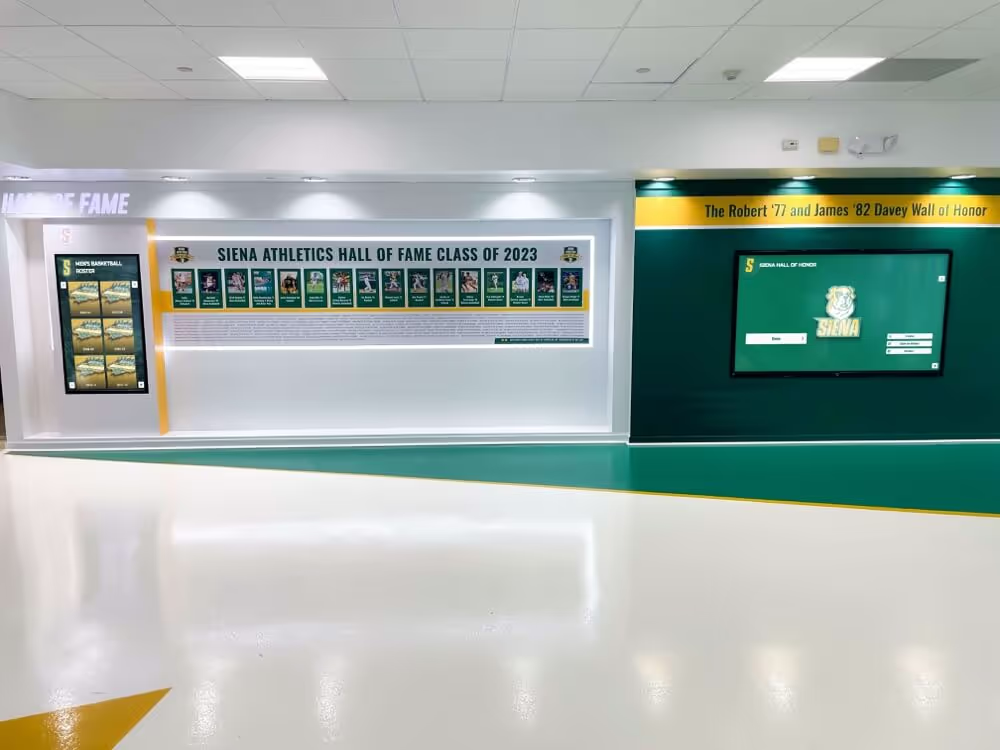
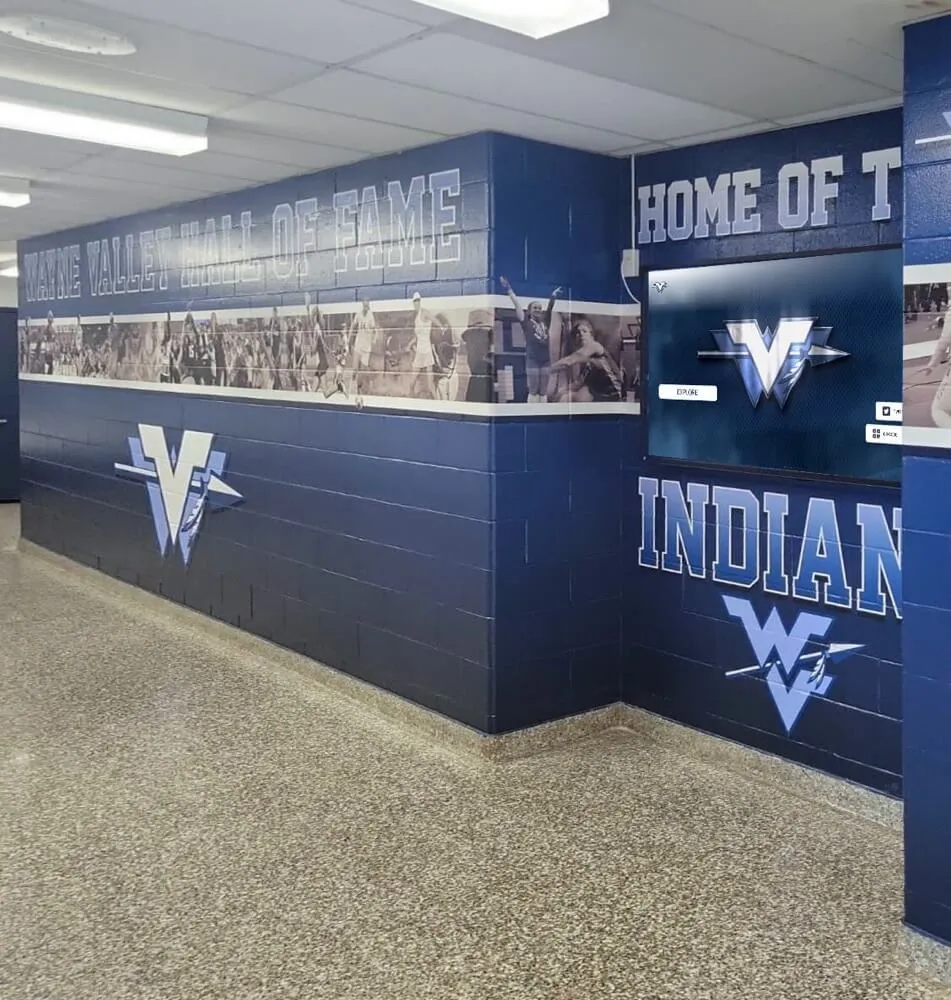
Hall of fame websites often include multiple layered UI elements across device sizes—each of which must be tested for focus obscuring during a WCAG 2.2 audit
The Focus-Not-Obscured Audit Checklist
Complete these steps in order. Use a standard desktop browser (Chrome, Firefox, or Edge) and a standard keyboard. No plugins or automated tools are required for initial verification, though supplemental methods are described later in this post.
Step 1: Inventory All Fixed and Sticky Elements
Before testing, document every element that remains fixed to the viewport or sticks to a scroll position. Open your hall of fame page or inductee search page and scroll from top to bottom while noting:
- Elements that do not move as you scroll (
position: fixedin CSS) - Elements that stop scrolling and remain visible once they reach a specific position (
position: sticky) - Elements that overlay the page regardless of scroll position (modals, overlays, floating widgets)
Create a written list. You cannot test what you haven’t identified. A typical hall of fame page might have four to eight distinct fixed or sticky elements when fully loaded, including third-party widgets.
Step 2: Load the Page Fresh and Note Session-Start Overlays
Open the page in a private or incognito window to trigger session-start behaviors:
- Does a cookie consent overlay appear?
- Does a privacy notice or terms banner load?
- Is there a welcome modal?
Tab through the elements visible before dismissing the overlay. Verify that keyboard focus does not move to elements hidden behind the overlay, and that the overlay itself has a keyboard-accessible dismiss or accept control. Confirm that after dismissal, focus is returned to a logical position on the page.
Pass: The overlay receives focus on load, has a keyboard-accessible dismiss control, and does not allow focus to reach elements behind it. Fail: Focus moves behind the overlay to elements the user cannot see, or the overlay has no keyboard-accessible dismiss control.
Step 3: Test the Sticky Navigation Header
With the page loaded, use the Tab key to move keyboard focus forward through interactive elements. Watch for the point at which focus moves to elements near the top of the main content area—links in the first body paragraph, search inputs, filter buttons. Observe whether the sticky header covers any portion of the focused element.
Scroll the page down by approximately one screen height so the sticky header is fully visible at the top. Then Tab through elements in the main content. Ask:
- Can you see the focus indicator (the outline or highlight around the focused element) while it is focused?
- Does the focus indicator disappear or become partially hidden behind the sticky header at any scroll position?
Pass: The focused element is always at least partially visible, even adjacent to the sticky header. The focus indicator is not entirely hidden. Fail: The focus indicator disappears completely behind the sticky header as you Tab through body content, or as you reverse-tab (Shift+Tab) from the beginning of the main content back toward the navigation.
For sticky navigation that also contains dropdowns or mega-menus, open each menu using keyboard activation (Enter or Space) and Tab through the menu items. Confirm that none of the dropdown items are obscured by a fixed announcement bar above or below the sticky nav.
Step 4: Test Fixed Announcement and Alert Bars
Many recognition sites include a fixed bar above the main navigation announcing upcoming induction events. These bars add approximately 40–60 pixels of covered viewport area and frequently cause focus to disappear when keyboard users reach the content just below the bar’s bottom edge.
Test by tabbing through elements just below the bar while it is visible. Also check from below: scroll to the bottom of the page and Shift+Tab backward through links in the footer area, watching for any focus that disappears behind a fixed bottom bar (some sites place cookie notices, chat widgets, or CTA banners at the bottom).
Pass: No focused element in the main content is fully hidden by announcement bars at any scroll position. Fail: Any focused element becomes entirely invisible because the announcement bar sits between the viewport edge and the element’s rendered position.
Step 5: Test Inductee Profile Modal Dialogs
Modal dialogs for inductee biography detail are among the most common focus-obscuring failure points on recognition sites. When a dialog opens, keyboard focus should move into the dialog. When it closes, focus should return to the element that opened it—typically the inductee profile card.
Test the following sequence:
- With keyboard, activate an inductee profile card (press Enter or Space while the card is focused).
- Verify the dialog opens and receives keyboard focus immediately.
- Tab through all interactive elements inside the dialog (close button, biography links, video play controls, social media links).
- Confirm none of these elements are obscured by the dialog’s own header or footer, or by any fixed element outside the dialog.
- Close the dialog using the keyboard (Escape key or the close button).
- Verify focus returns to the inductee card that opened the dialog.
A modal dialog that opens correctly but allows Tab focus to escape into the background—where content is hidden behind the overlay—fails both SC 2.4.11 and the related ARIA Dialog pattern requirements.
Pass: Focus is trapped inside the dialog while it is open, all dialog elements are visible and reachable, and focus returns to the triggering element on close. Fail: Focus escapes the dialog, moves to elements obscured by the overlay, or does not return to the triggering element on close.
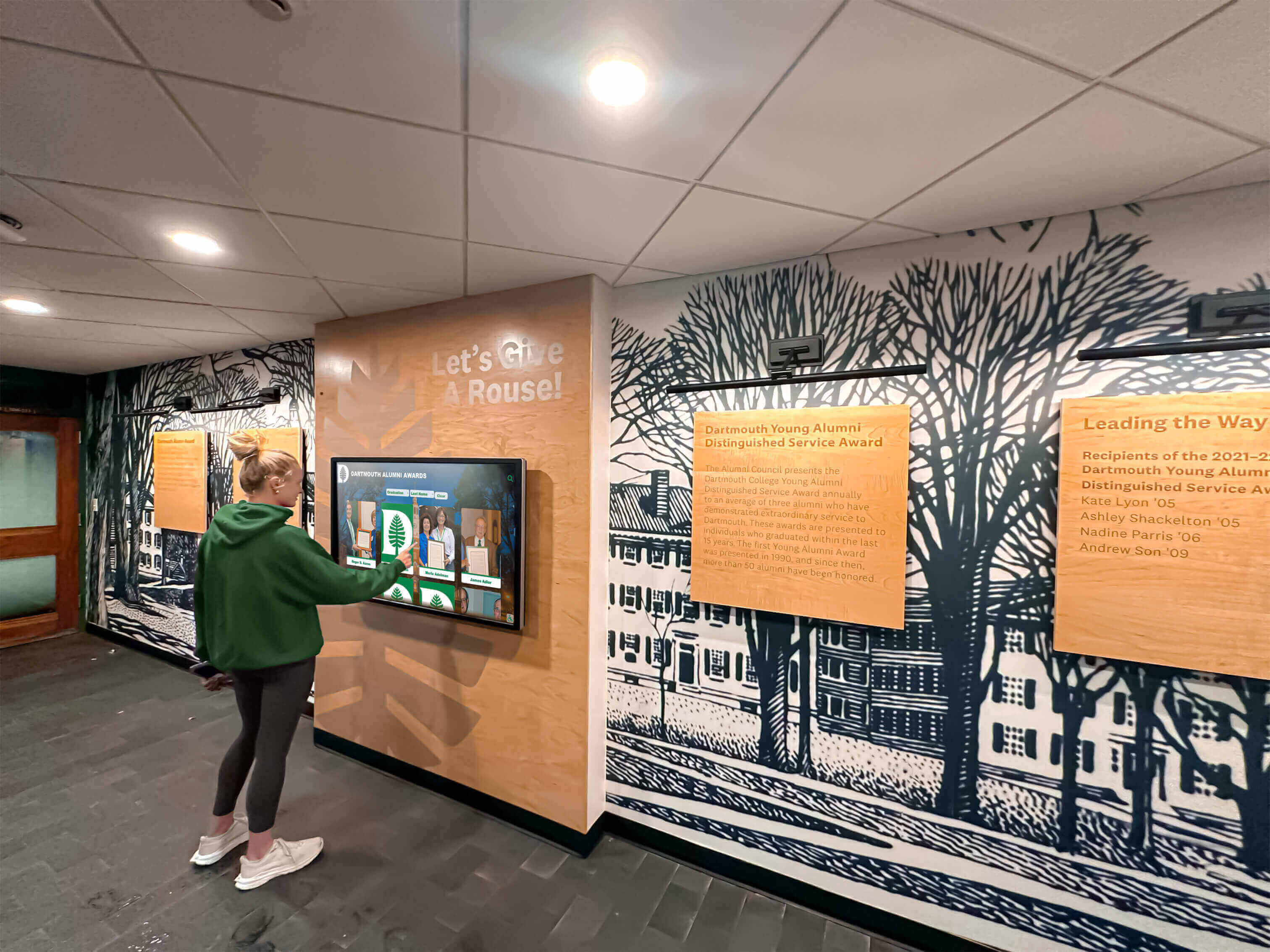
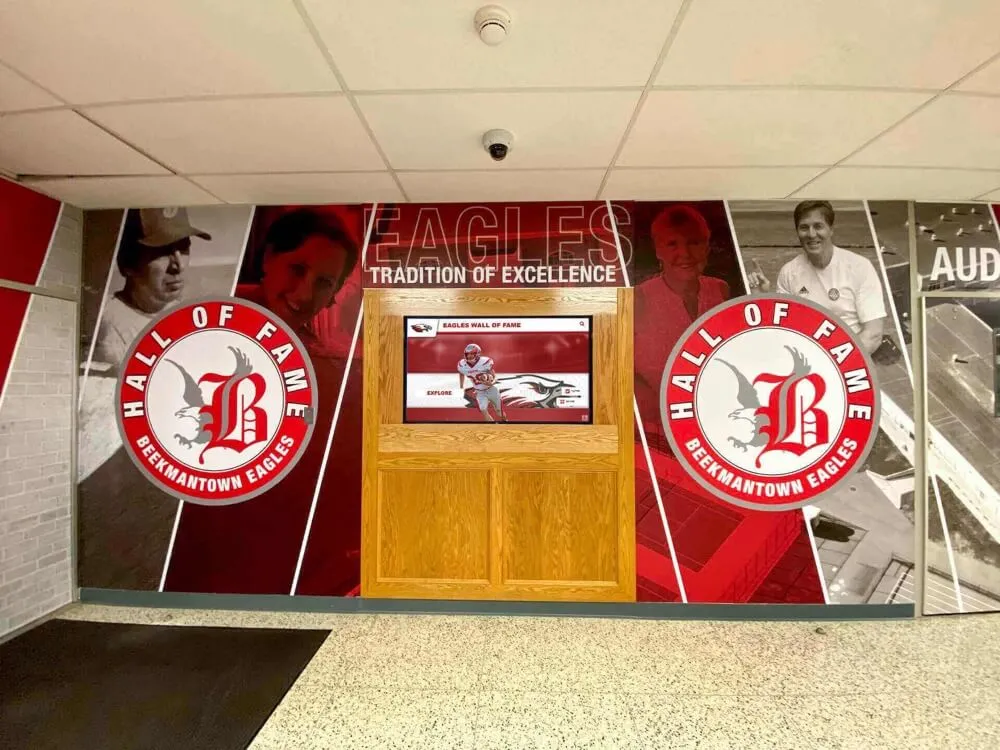
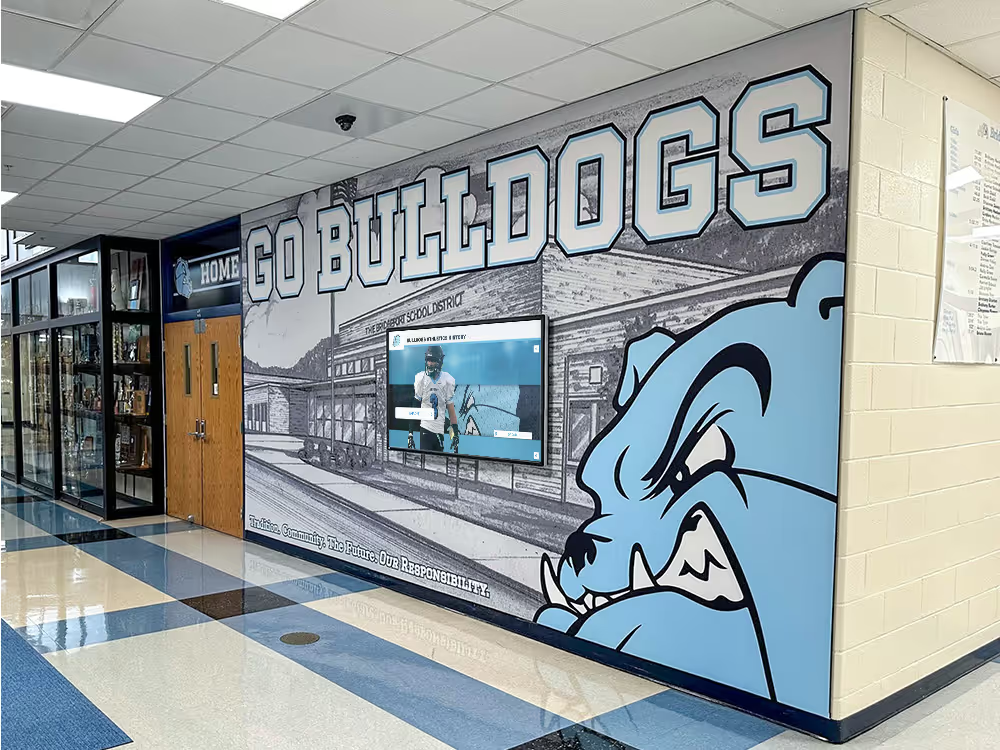
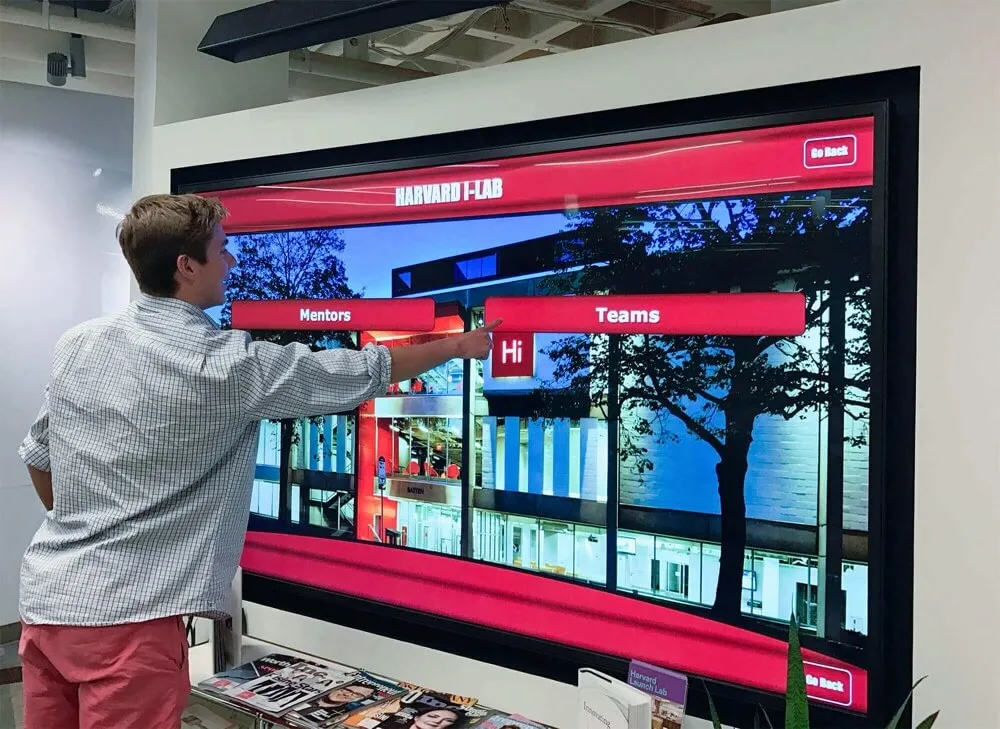
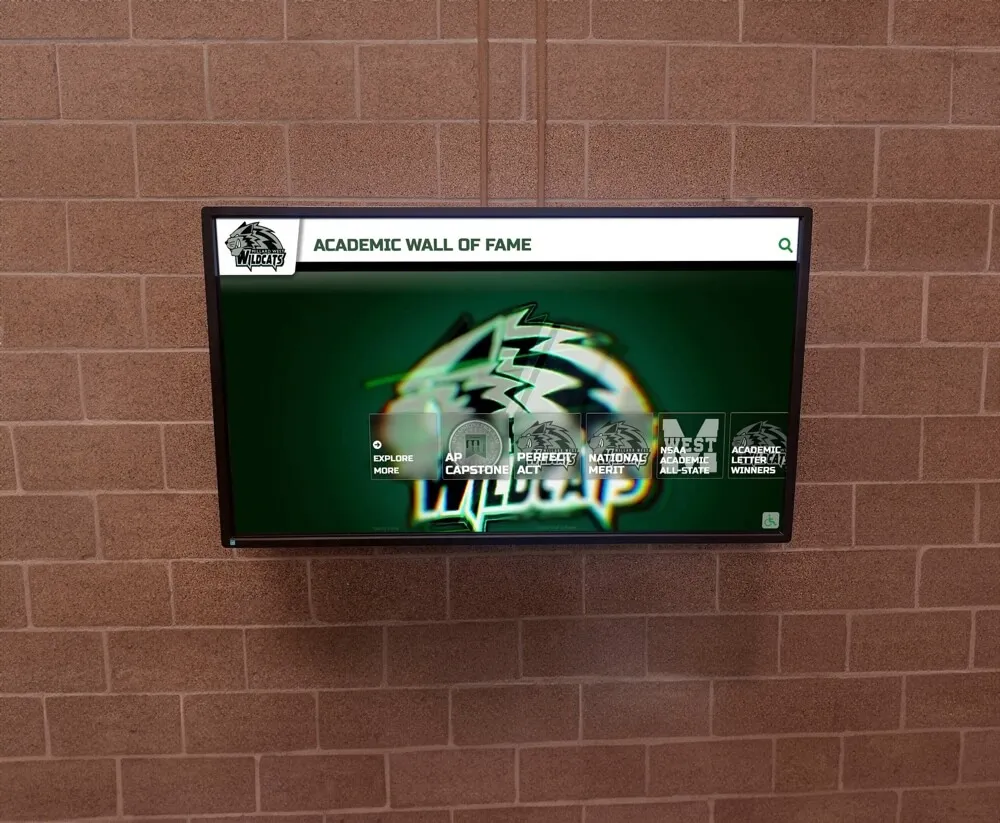
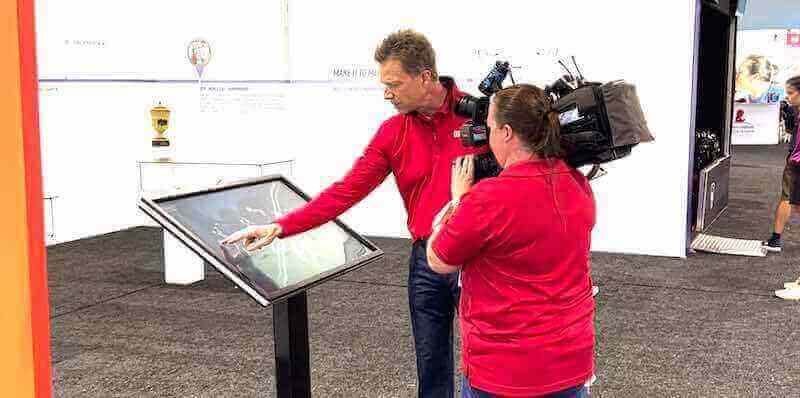
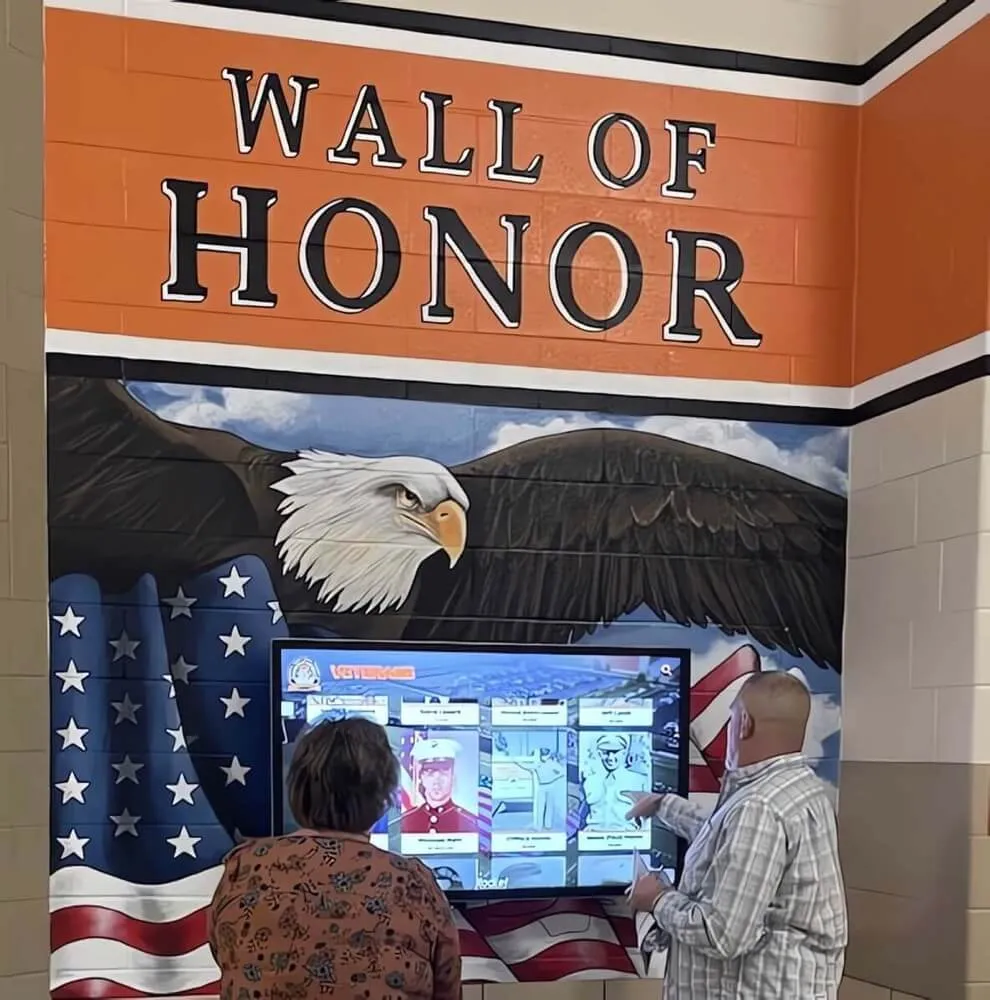
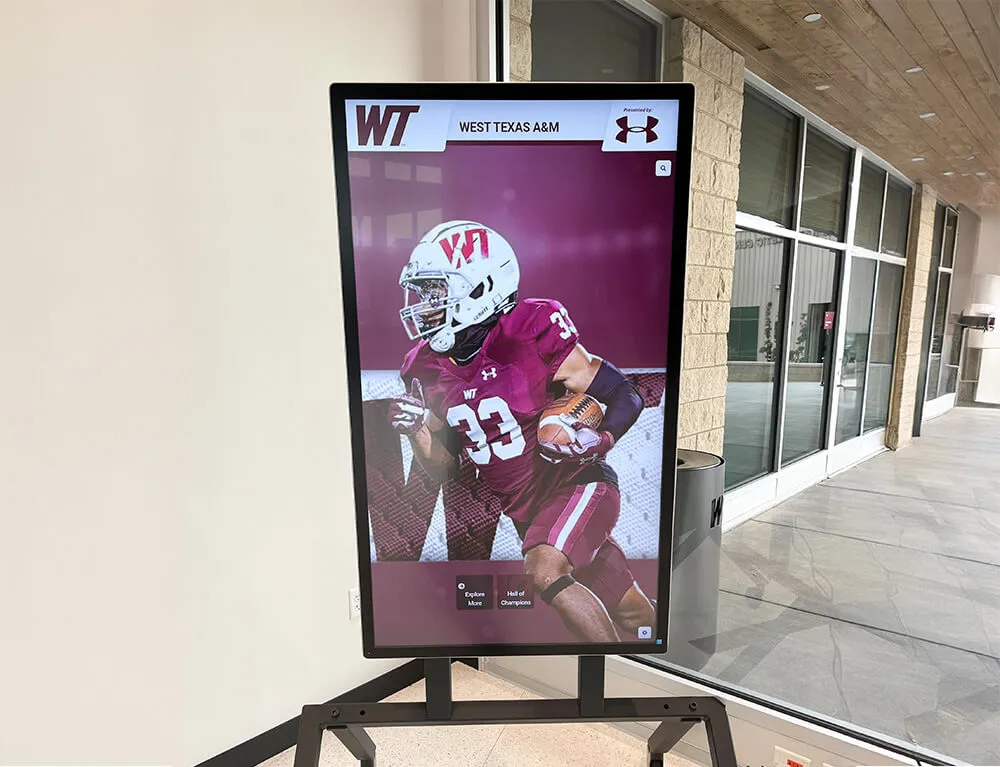
Recognition displays serving students and community visitors must keep focus indicators visible at every interaction point, including modal dialogs for inductee biography detail
Step 6: Test Search and Filter Toolbars
Digital hall of fame search tools—used to find inductees by name, sport, graduation year, or category—often include sticky toolbars that remain visible as search results scroll beneath them. These toolbars can obscure the focused search input or the first result card when focus moves from the toolbar into the results list.
Test by:
- Activating the search field with Tab.
- Entering a search query and pressing Enter or waiting for live results.
- Tabbing into the results list.
- Confirming the first result card is fully or partially visible when it receives focus.
For category filter dropdowns or year-range selectors in the sticky toolbar, open each dropdown with keyboard activation and tab through the options. Confirm that the open dropdown does not extend in a direction that places it beneath another sticky element.
Pass: Focused search inputs, active dropdowns, and result cards are not entirely hidden by sticky toolbars at any interaction state. Fail: Tabbing from the sticky toolbar into results causes the focused result to slide behind the toolbar and out of view.
Step 7: Test Floating CTAs and Chat Widgets
Floating call-to-action buttons and third-party chat widgets anchored to viewport corners have a fixed z-index that places them above page content regardless of scroll position. They can block keyboard focus on adjacent interactive elements—footer links and “back to top” controls are the most common victims.
Tab to any links or buttons in the lower-right or lower-left corner of the page. Confirm that:
- The widget itself is keyboard-reachable.
- The widget does not completely block the keyboard focus indicator on adjacent interactive elements.
Pass: Floating widgets do not entirely cover any adjacent interactive element when that element has keyboard focus. Fail: The focused element (a footer link, for example) is completely hidden behind the widget at any scroll position.
Step 8: Check Video and Media Player Overlays
Inductee profile pages often include embedded video highlights. When a video player controls bar is set to position: fixed, or when a video expands to a lightbox format, keyboard focus can move to player controls that are hidden by the player chrome or the page’s sticky header.
Test by activating embedded video players via keyboard (Tab to the play button, press Enter). Tab through the player controls. Confirm the focused control is visible and not hidden behind the player’s own overlay, the sticky navigation, or any other element.
Pass: All video player controls are visible when focused, including the full-screen toggle, volume controls, and the close button on lightbox-format players. Fail: Any player control is entirely hidden when it receives keyboard focus.
Audit Summary Table
Use this table to record pass/fail results for each element category on your hall of fame site. Add rows for any additional fixed or sticky elements identified in Step 1.
| Element Category | WCAG Criterion | What to Test | Pass Condition | Common Failure Mode |
|---|---|---|---|---|
| Cookie / privacy overlay | SC 2.4.11 (AA) | Tab through overlay; confirm dismiss is keyboard-accessible | Focus stays inside overlay; dismiss control reachable | Focus reaches page content hidden behind overlay |
| Sticky top navigation | SC 2.4.11 (AA) | Tab through main content near header at various scroll positions | Focused element partially visible at all scroll positions | Focus indicator disappears behind nav as user tabs toward top |
| Fixed announcement bar | SC 2.4.11 (AA) | Tab through content just below the bar | Focused element not entirely hidden by bar | Bar height matches gap; element slides under bar |
| Inductee profile modal | SC 2.4.11 (AA) | Open dialog; Tab all controls; Escape and verify focus return | Focus trapped in dialog; all controls visible; focus returns to trigger | Focus escapes dialog; close button hidden by dialog header |
| Search / filter toolbar | SC 2.4.11 (AA) | Tab from toolbar into search results list | First result at least partially visible when focused | First result scrolls behind sticky toolbar |
| Floating CTA / chat widget | SC 2.4.11 (AA) | Tab to footer links adjacent to widget | No footer link entirely hidden by widget | Widget z-index covers last focusable items in page |
| Video / media lightbox | SC 2.4.11 (AA) | Activate player; Tab through controls | All controls visible when focused | Close button hidden by player chrome or sticky nav |
| Dropdown menus in sticky nav | SC 2.4.11 (AA) | Open dropdown with keyboard; Tab through items | All items visible; dropdown does not slip under fixed bar | Dropdown extends behind announcement bar |
Supplemental Testing Methods
Manual keyboard testing identifies most focus-not-obscured failures, but two additional approaches improve coverage:
Browser DevTools scroll-padding check: The CSS scroll-padding-top property tells the browser to account for sticky header height when scrolling focused elements into view. Open DevTools, select the <html> or <body> element, and check whether scroll-padding-top is set to a value equal to or greater than the combined height of all sticky headers. A missing or undersized value is the most common root cause of SC 2.4.11 failures on recognition sites.
Accessibility tree inspection: In Chrome DevTools (Accessibility panel) or Firefox Accessibility Inspector, confirm that modal dialogs carry role="dialog" and aria-modal="true", and that focus management is implemented correctly. A dialog that allows background content to remain in the accessibility tree will allow keyboard focus to escape, often to elements obscured by the overlay.
For teams also evaluating the physical touch-responsiveness of in-venue kiosk displays, testing touch interaction and hysteresis on recognition displays covers complementary quality checks that pair well with this keyboard audit.
Common Fixes for Focus-Not-Obscured Failures
Once the audit identifies failures, these technical corrections resolve the most common causes:
Sticky header obscures body content:
Add scroll-padding-top: [header height]px; to the :root or html selector. This instructs the browser to offset scroll-into-view calculations by the sticky element height, keeping focused content visible below the header. If announcement bars stack above the navigation, the value must account for the combined height of all fixed elements.
Cookie overlay allows background focus:
Set aria-hidden="true" on all background content while the overlay is active, and implement focus trapping within the overlay element. Remove aria-hidden and release the focus trap when the overlay is dismissed.
Modal dialog focus escapes:
Implement a focus trap using the inert attribute on background content (supported in all modern browsers as of 2023) or with a JavaScript focus guard. Ensure the first interactive element inside the dialog receives focus when the dialog opens, and that the dialog’s close control is reachable by Tab without scrolling.
Floating widget covers footer links: Adjust the widget’s bottom anchor position to avoid overlapping the last focusable items in the page footer, or ensure the widget can be collapsed via keyboard before the user reaches the footer.
Dropdown extends under announcement bar:
If an announcement bar sits above the sticky navigation, give the navigation a top value equal to the announcement bar height, and set the dropdown’s top offset relative to the navigation rather than the viewport.
When evaluating a digital hall of fame platform for your school, understanding which sticky UI patterns each vendor uses helps you prioritize which audit steps will be most relevant to your installation. Comparing touchscreen kiosk software options for schools covers evaluation factors that include accessibility features and how configurable each platform’s front-end components are.
For athletic directors building a recognition program from the ground up, the complete guide to school athletic hall of fame administration provides the broader operational context into which an annual accessibility audit like this one fits.
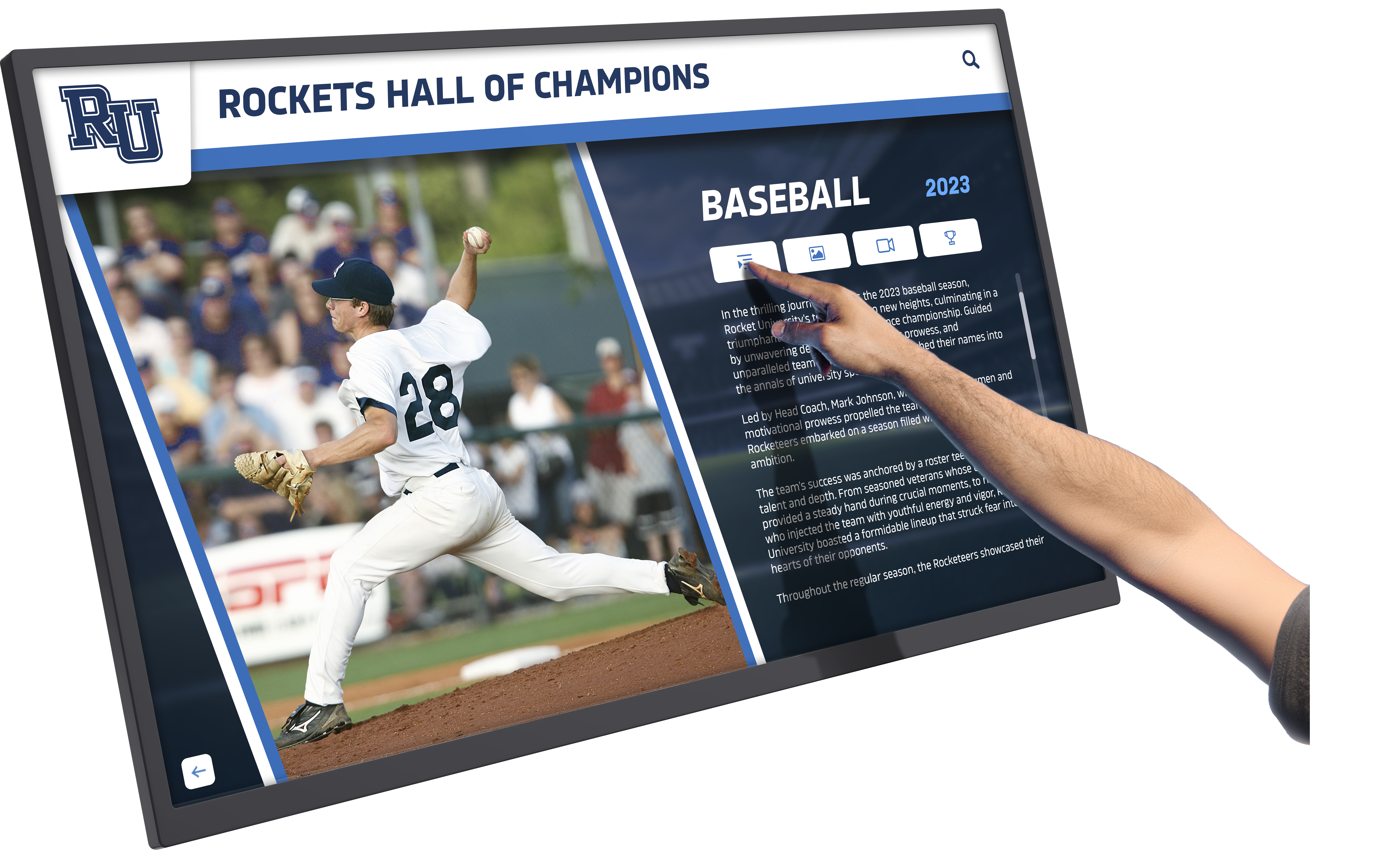
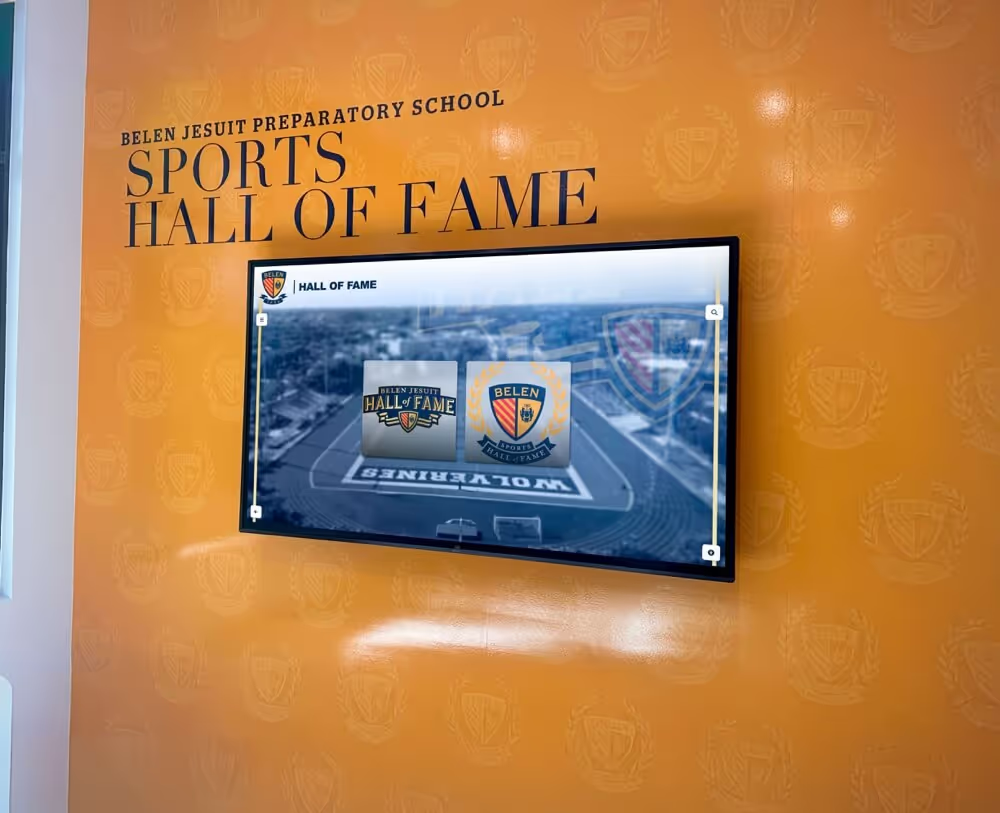
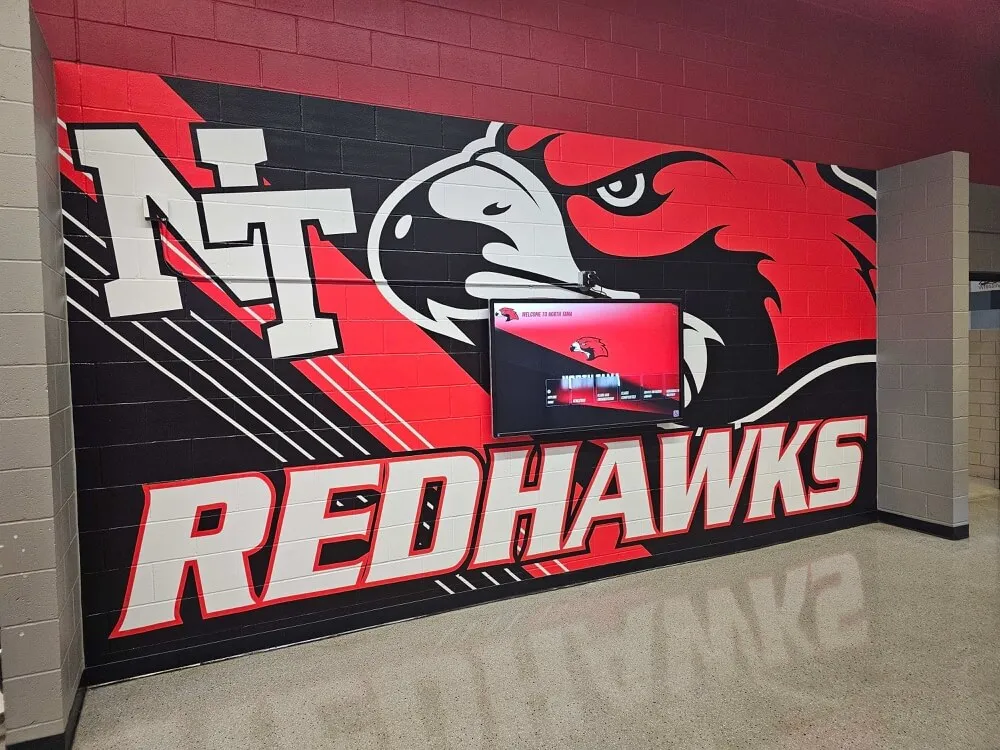
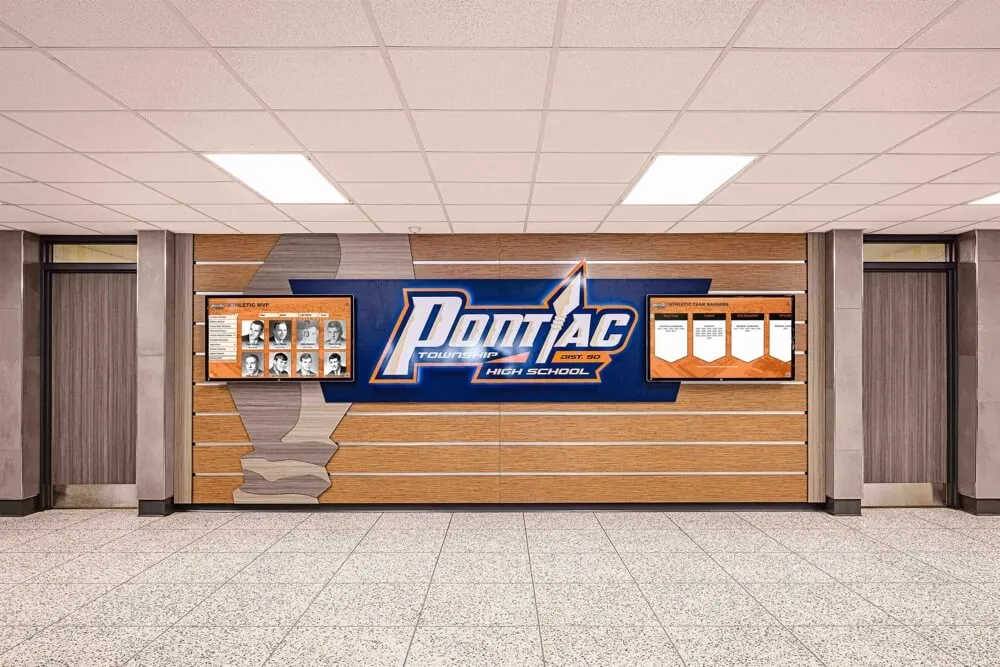
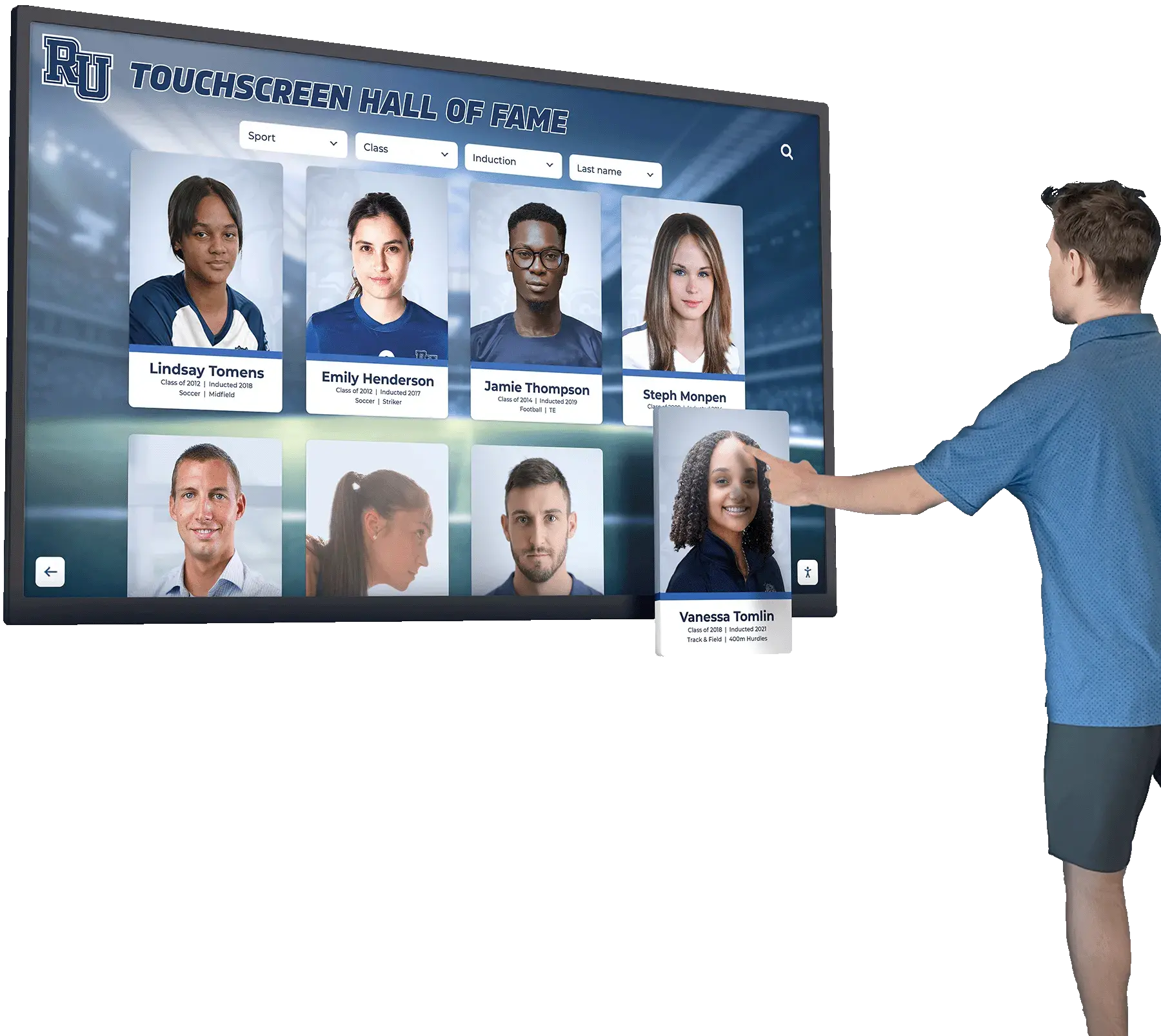
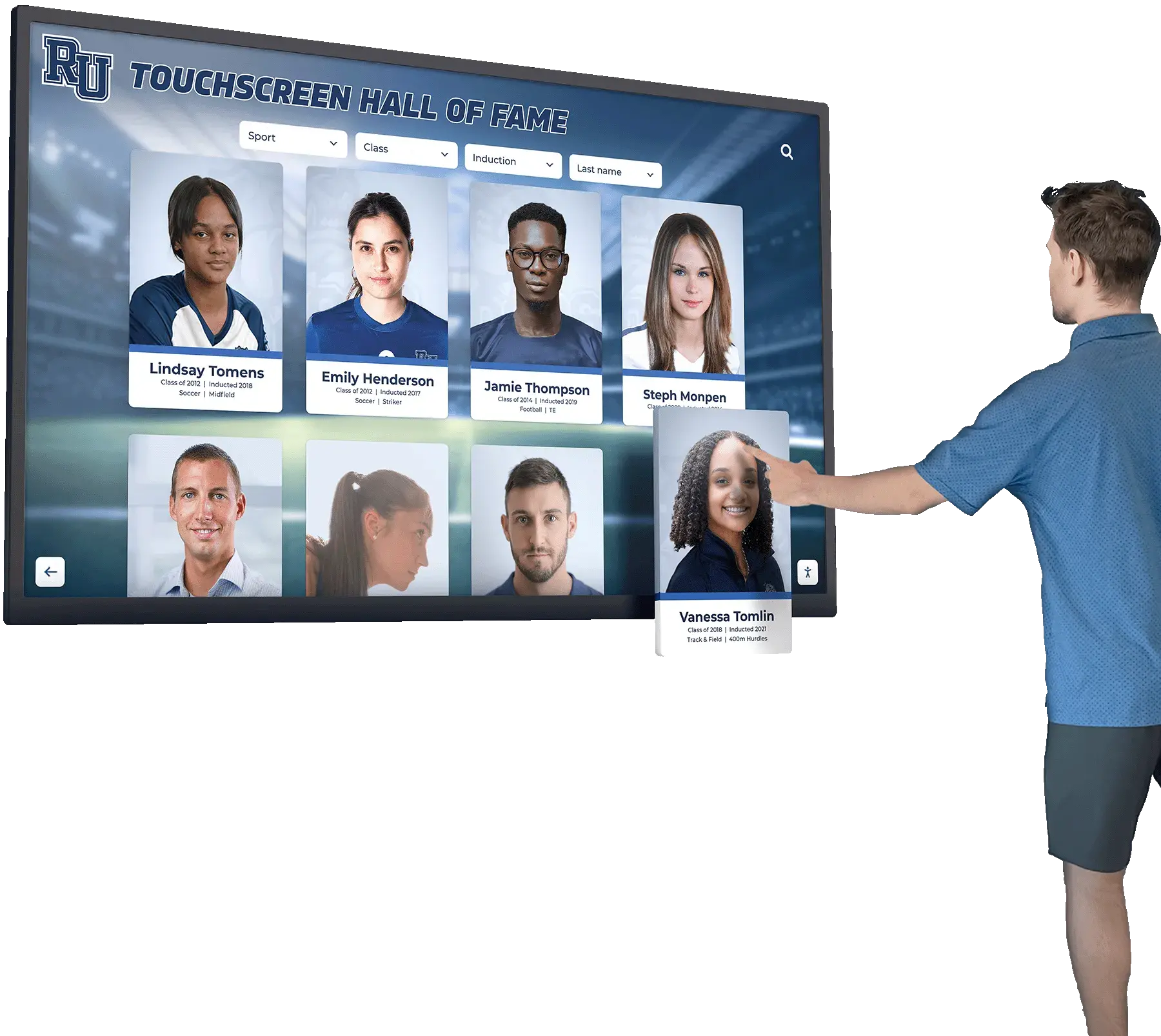
Interactive inductee profile cards on touchscreen displays must maintain keyboard focus visibility at every navigation point, from search results through to biography detail modals
Built for Accessibility from the Ground Up
Rocket Alumni Solutions' digital wall of fame platform is designed with ADA and WCAG compliance in mind, giving your school's recognition program a foundation that serves every visitor—whether they navigate by touch, mouse, or keyboard. See how it works for your institution.
Request Your Custom DemoAudit Scope: What This Checklist Does Not Cover
This checklist addresses WCAG 2.2 SC 2.4.11 and 2.4.12 specifically. It does not replace a full WCAG 2.2 audit. Related criteria that school web teams should verify in a separate review include:
- SC 2.4.7 Focus Visible (AA): A visible focus indicator must exist for all interactive elements, not only those near sticky elements.
- SC 2.4.13 Focus Appearance (AA): WCAG 2.2 specifies minimum size and contrast requirements for the focus indicator itself.
- SC 2.1.1 Keyboard (A): All functionality must be available using a keyboard, independent of focus visibility.
- SC 4.1.3 Status Messages (AA): Toast notifications and live search status messages must be conveyed to assistive technology without requiring keyboard focus.
Schools managing recognition programs that include end-of-year student award ceremonies and digital displays benefit from applying keyboard accessibility checks consistently across every page type in their recognition web presence—not only the inductee search landing page.
Learn more about Rocket Alumni Solutions’ Digital Wall of Fame platform to understand how the platform’s cloud-based CMS and display architecture addresses accessibility requirements at the platform level, reducing the configuration burden on individual school IT teams.
Frequently Asked Questions
Q: Does WCAG 2.2 replace WCAG 2.1 for school website compliance?
A: WCAG 2.2 is a backwards-compatible update to WCAG 2.1. Meeting WCAG 2.2 AA means meeting all WCAG 2.1 AA criteria plus the new criteria added in version 2.2, including SC 2.4.11, SC 2.4.13, SC 3.2.6, and several others. Schools already working toward WCAG 2.1 AA should add the new 2.2 criteria to their review process rather than treating the two standards as separate compliance targets. The W3C Web Accessibility Initiative maintains the authoritative specification at www.w3.org.
Q: Which browsers should we use for the keyboard-navigation test?
A: Test in at least Chrome and Firefox on Windows, as keyboard focus behavior and focus indicator rendering differ between browsers and operating systems. Safari on macOS requires that “Use keyboard navigation to move focus between controls” be enabled in System Settings before Tab focus will move to all interactive elements. For a complete picture, also test with a screen reader such as NVDA (Windows) or VoiceOver (macOS), which may expose additional focus management issues not apparent from keyboard-only testing.
Q: Our hall of fame site is hosted on a third-party platform. Who is responsible for fixing focus-not-obscured failures?
A: Responsibility depends on where the failure originates. Platform-level failures—core UI patterns such as dialog focus management and sticky header CSS—are the platform vendor’s responsibility to address. Configuration-layer failures—custom announcement bars, cookie-consent plugins, or floating CTA widgets added by your institution—are typically the school’s responsibility. Document your audit findings clearly and share them with your vendor, specifying whether each failure is in the platform core or in school-specific configuration.
Q: How often should we run this audit?
A: Run a full focus-not-obscured audit whenever your hall of fame site receives a major update, whenever new fixed or sticky UI elements are added (announcement bars, cookie plugins, chat widgets), and at minimum annually as part of a broader accessibility review. A lightweight spot-check—five minutes of keyboard tabbing through the main inductee search page—is worth doing after any deployment.
Q: Does the focus-not-obscured requirement apply to touchscreen-only kiosk installations?
A: SC 2.4.11 applies to keyboard-focusable components. If a physical kiosk installation is designed exclusively for touchscreen use and does not support keyboard input, the criterion does not technically apply to that device. However, if the same recognition content is accessible via a public-facing website or through a keyboard connected to the kiosk, the keyboard interface must comply. When schools are planning both in-venue installations and companion web pages, reviewing commemorative display planning considerations alongside the web accessibility audit helps align the two components of the recognition program.
Q: What does “author-created content” mean in the WCAG 2.4.11 definition?
A: “Author-created content” refers to elements deliberately placed on the page by you or your platform vendor—sticky headers, modal overlays, fixed bars, floating widgets. It does not include the browser’s own UI chrome (address bar, tab bar, browser toolbars). If the browser UI covers part of your page content, that is not a WCAG violation. If your sticky navigation bar covers a focused link in the page body, that is an author-created violation.
Q: Are there automated tools that can detect focus-not-obscured failures?
A: Automated accessibility scanners such as Axe, WAVE, and Lighthouse do not currently detect SC 2.4.11 failures reliably, because the failure depends on the visual position of the focused element relative to sticky content during a scroll interaction—a condition that requires real user interaction to reproduce. Manual keyboard testing as described in this checklist remains the most reliable detection method. Axe’s overlay detection rules can flag some cookie-consent implementations that prevent keyboard access, which is a related but distinct issue.
Q: Should we test inductee profile pages or the search landing page first?
A: Start with the inductee search page, as it typically concentrates the most sticky UI elements (navigation, filter toolbar, results grid) and is the most common entry point for keyboard users searching for a specific person. After confirming the search experience passes, run the checklist on individual inductee profile pages, which introduce modal dialogs and media players not present on the search landing page.
For schools building recognition programs that combine physical awards with digital displays, the planning guide for award certificates and banquet recognition events illustrates how a well-organized recognition calendar intersects with maintaining an accessible digital archive—since certificate records often become the source data for inductee profiles.
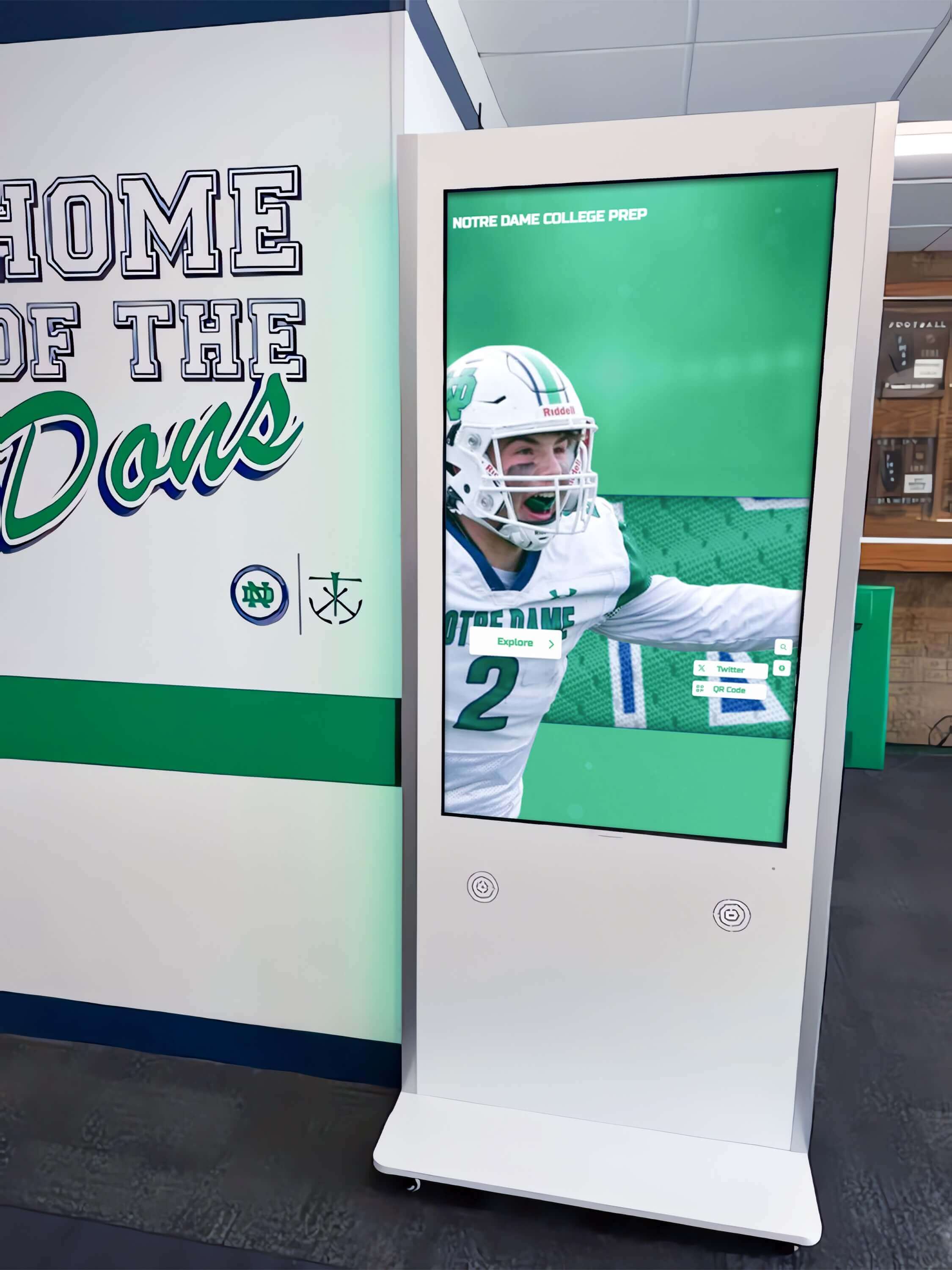
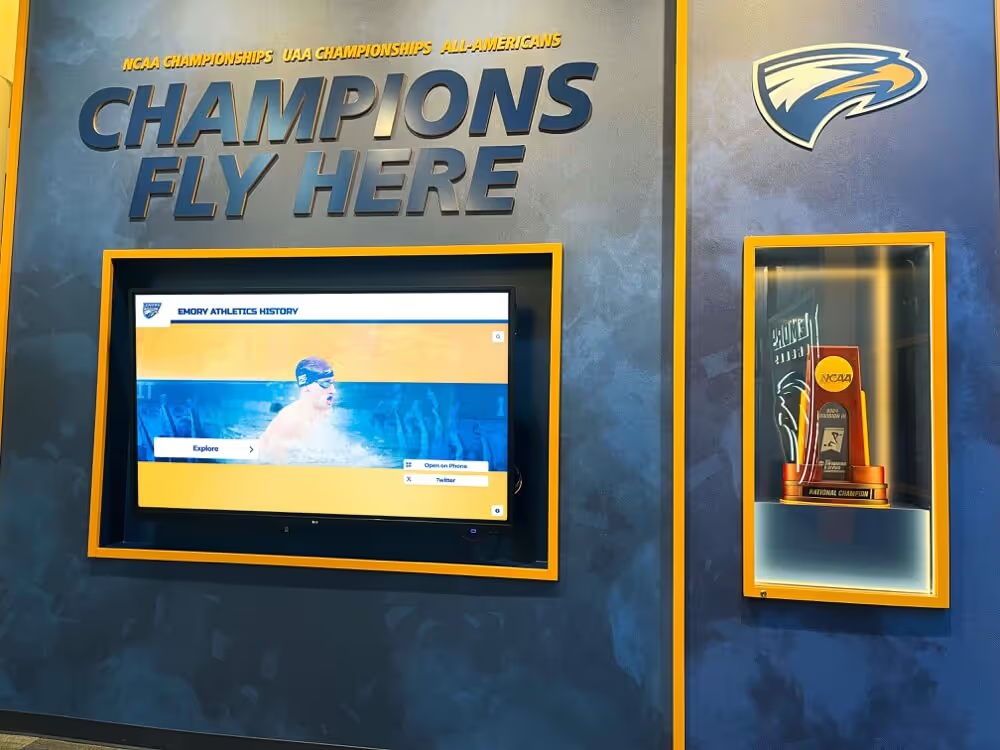
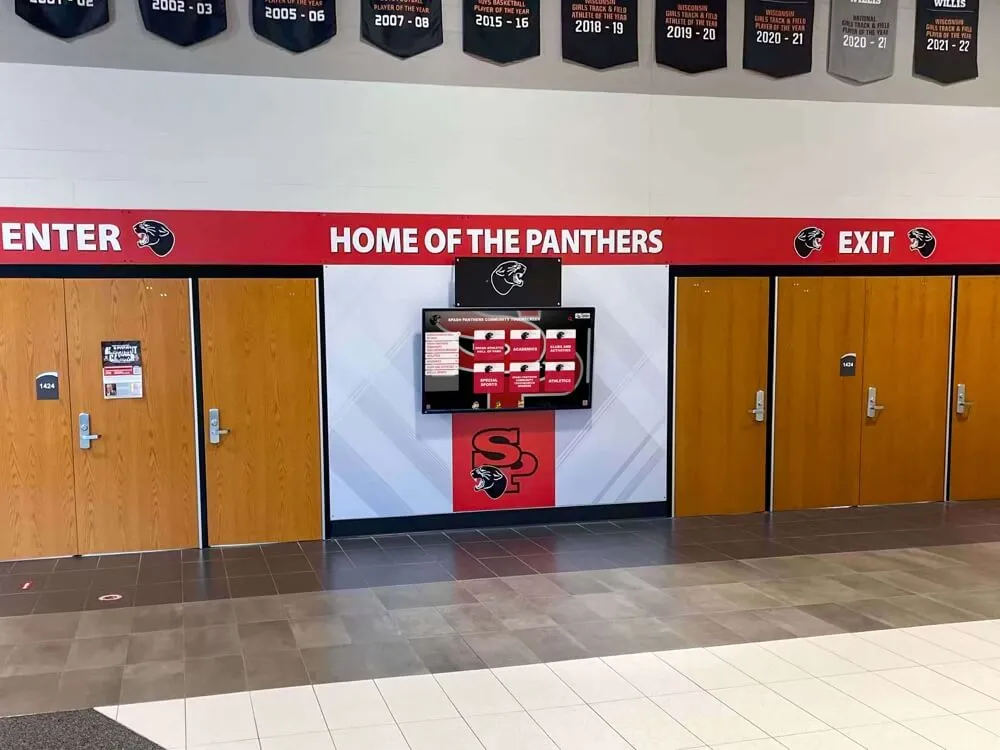
In-venue kiosk installations and public-facing websites each require their own accessibility review, with web-based hall of fame pages subject to WCAG 2.2 keyboard focus requirements
Sticky headers, cookie notices, and modal dialogs are not inherently accessibility problems—they become problems when they cover the keyboard focus indicator without the page compensating for that coverage. A focused inductee search field that disappears behind a sticky navigation bar is not a minor cosmetic issue; for keyboard-dependent visitors, it makes the page functionally unusable at that point. Running the eight-step audit in this checklist takes less than an hour for a typical hall of fame site, produces a specific list of pass and fail results by element category, and generates actionable remediation tasks that your IT or web team can execute with targeted CSS and JavaScript changes. Schools that invest in this review protect both current visitors and the inductees whose stories the recognition program exists to tell.
See an Accessible Digital Hall of Fame in Action
Rocket Alumni Solutions builds interactive touchscreen and web-based recognition programs designed to serve every visitor—keyboard users, touch users, and screen reader users alike. The cloud-based CMS keeps every inductee profile current and accessible across any device. Schedule a custom demo to see how the platform handles focus management, modal dialogs, and searchable inductee records.
Request Your Custom DemoLive Example: Rocket Alumni Solutions Touchscreen Display
Interact with a live example (16:9 scaled 1920x1080 display). All content is automatically responsive to all screen sizes and orientations.