



School web teams that manage a digital hall of fame often spend considerable effort writing inductee bios, uploading historical photos, and organizing sport-specific archives—yet the single structural detail that most directly determines whether screen reader users can navigate all of that content efficiently is rarely audited: the heading hierarchy. A digital hall of fame heading hierarchy audit is a structured review of every H1 through H6 element across the inductee profile pages and search or directory pages in a recognition collection, confirming that levels are used in the correct sequence, that no levels are skipped without reason, that each page carries exactly one H1, and that repeated page sections such as sidebar filters, “related inductees” panels, and paginated search results use heading levels that reflect their actual position in the content structure rather than their visual size on screen. The short answer: pull up each key page type in a headings-only view, verify the outline makes sense without any visual context, fix any skipped levels or duplicate H1s, and retest in a screen reader before each major content update.
A school hall of fame that begins with a single gallery page quickly grows to include class-year archives, sport-specific record boards, reunion directories, searchable biography databases, and donor recognition panels. Each new page type introduces new heading decisions: what level does the inductee’s name get, what level does “Career Statistics” get, what level does “Related Inductees” get, and how does all of that interact with the site-wide navigation heading that sits above it all? When those decisions are made inconsistently—or not made at all, with headings chosen by visual appearance rather than document structure—screen reader users lose the ability to jump directly to the content they need.

Heading hierarchy is a structural layer beneath the visual design—it determines how screen reader users experience the same content that sighted visitors see as a polished layout
Why Heading Hierarchy Matters Specifically for Hall of Fame Pages
Screen readers expose heading structure through a jump list or rotor interface. A user navigating a hall of fame inductee profile page using NVDA on Windows or VoiceOver on a Mac or iOS device can press H to move forward through headings, Shift+H to move backward, or open the heading rotor and jump directly to any level—H1 through H6. This means that a well-structured heading hierarchy functions as a table of contents the user can navigate without reading any body text first.
For a typical inductee profile page, a screen reader user might want to jump directly to “Career Statistics” without listening through the entire biography section. For a search page, they might want to jump to the results list without listening through the filter sidebar. Both tasks are possible in seconds with a correct heading hierarchy and impossible—or very slow—without one.
WCAG 2.1 Success Criterion 1.3.1 (Info and Relationships) requires that information conveyed through visual structure—including the visual hierarchy of headings—also be conveyed through programmatic structure. Using a large bold paragraph instead of an H2 element, or using an H4 to make text appear smaller rather than to represent a fourth-level subsection, violates this criterion for screen reader users even when the page looks perfectly organized to a sighted visitor.
The heading hierarchy audit described in this guide focuses specifically on the two page types where heading decisions are most consequential for school recognition programs: the inductee profile page and the search or directory page. Both appear across every category of recognition program—athletic halls of fame, academic achievement galleries, academic recognition programs that span multiple departments, and alumni directories that publish new profiles on a regular cycle.
Understanding the Heading Level Reference Map
Before auditing any individual page, establish a reference map: a written-out heading outline that describes what each heading level should represent across the recognition collection. This reference map becomes the standard against which every page is measured.
The following reference map covers the two page types most relevant to this audit.
Inductee Profile Page — Reference Heading Map
H1: [Inductee Full Name] — one per page, the primary topic of this page
  H2: Biography                    — major section of the profile
  H2: Athletic Career              — major section of the profile
    H3: High School Career         — subsection of Athletic Career
    H3: Collegiate Career          — subsection of Athletic Career
    H3: Career Statistics          — subsection of Athletic Career
  H2: Awards and Honors            — major section of the profile
  H2: Hall of Fame Induction       — major section of the profile
  H2: Related Inductees            — supplementary section, same visual weight
  H2: Return to [Sport] Directory  — navigation back to category (optional H2 or nav landmark)
Search and Directory Page — Reference Heading Map
H1: [Program Name] Hall of Fame Inductees  — one per page, primary topic
  H2: Search and Filter                    — major section containing the search controls
  H2: Search Results                       — major section containing the result list
    H3: [Inductee Name]                    — each result card heading, one per inductee card
  H2: Browse by Class Year                 — major section for alternative navigation
    H3: [Year]                             — each year subsection
  H2: Browse by Sport                      — major section for alternative navigation
    H3: [Sport Name]                       — each sport subsection
This map looks obvious when written out, but in practice most hall of fame pages deviate from it significantly. The most common deviation: inductee names on search result cards are wrapped in <strong> or a styled <p> tag rather than an <h3> element, making them invisible to heading navigation entirely.
Auditing the Inductee Profile Page
The inductee profile page is the most content-rich page type in a recognition collection and the one where heading hierarchy errors have the greatest impact. A screen reader user arriving on a profile page for a specific inductee expects to be able to jump directly to any major section—biography, statistics, awards, induction details—without listening through the sections that precede it.
Step 1: Generate the Heading Outline
Use the browser’s developer tools or a free browser extension to extract the heading outline from the page. The outline view shows only the heading elements in document order, stripped of all visual styling. The page passes if the outline:
- Contains exactly one H1, and that H1 contains or closely matches the inductee’s name
- Uses H2 for every major section at the same logical level (biography, career, awards, induction)
- Uses H3 for subsections within each H2 section, without skipping directly from H2 to H4
- Does not use any heading level solely to achieve a particular font size or visual weight
The page fails if the outline contains:
- Multiple H1 elements (common when a site header wraps the site name in an H1 and the profile page also uses H1 for the inductee name)
- A jump from H2 to H4 with no H3 in between
- An H3 or H4 outside any parent H2 section
- Heading elements that represent navigation menus, sidebars, or UI chrome rather than actual content sections
Step 2: Check the Site-Wide Header
Many school websites place the school or program name in an H1 element in the persistent site header. When an inductee profile page also uses H1 for the inductee’s name, the page has two H1 elements. This is the most common single heading hierarchy error in recognition collections.
The fix is typically to change the site-wide header element from H1 to either a styled paragraph or a link that is not wrapped in any heading tag. The H1 on any given page should describe what that page is about—and on an inductee profile page, the page is about the inductee, not the institution.
Some content management systems automatically generate the site name as H1 across all pages. In those cases, the heading level of the inductee’s name should be set to H2, and all subsections should shift down accordingly (biography becomes H3, subsections become H4). The relative hierarchy still works correctly as long as levels are not skipped.
Step 3: Verify Subsection Levels Are Consistent Across All Profiles
Heading hierarchy errors often appear inconsistently across profiles because different staff members or volunteers entered content at different times. A biography section might be H2 on profiles entered before a CMS migration and H3 on profiles entered after. Run the heading outline check on at least five profiles across different sports and class years to identify inconsistencies introduced by data entry rather than template errors.
Step 4: Check Supplementary Content Sections
Most inductee profile pages include supplementary content below the primary profile: “Related Inductees,” “Other [Sport] Inductees,” or “Explore More from the Class of [Year].” These sections should use H2 headings to mark them as major content sections distinct from the profile biography and career sections. If they use H3 or lower, screen reader users navigating by H2 will not be able to jump directly to them.
Conversely, if a “Related Inductees” panel is visually displayed as a sidebar rather than a below-the-fold section, it may belong in a complementary landmark region rather than in the main content flow—in which case the heading level should reflect its position as supporting content rather than a primary section.

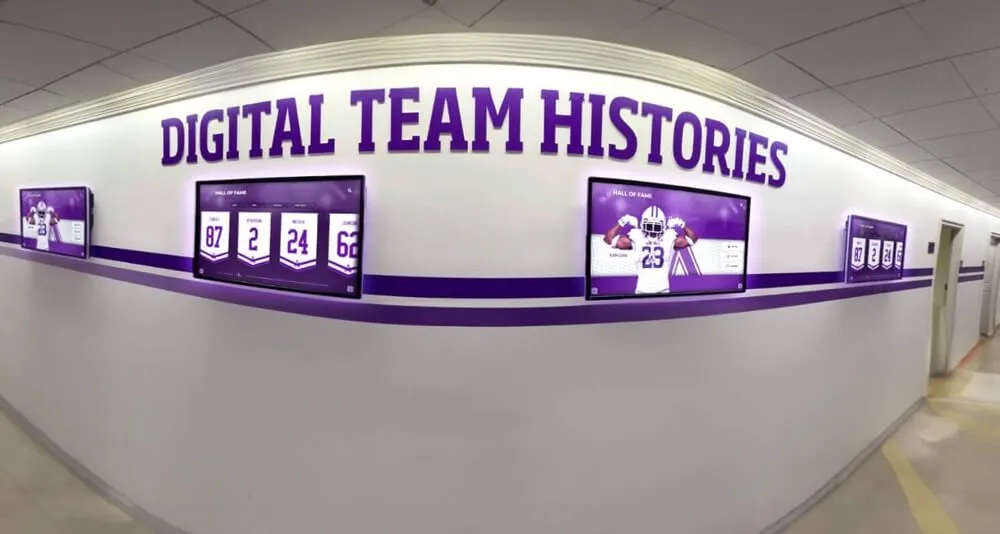
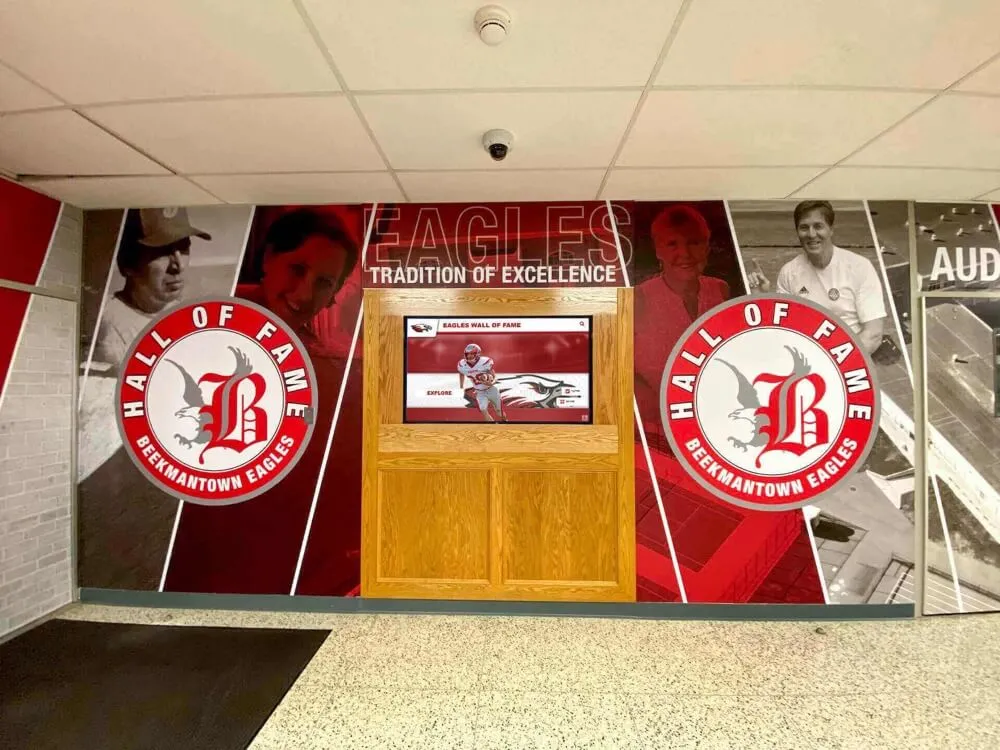
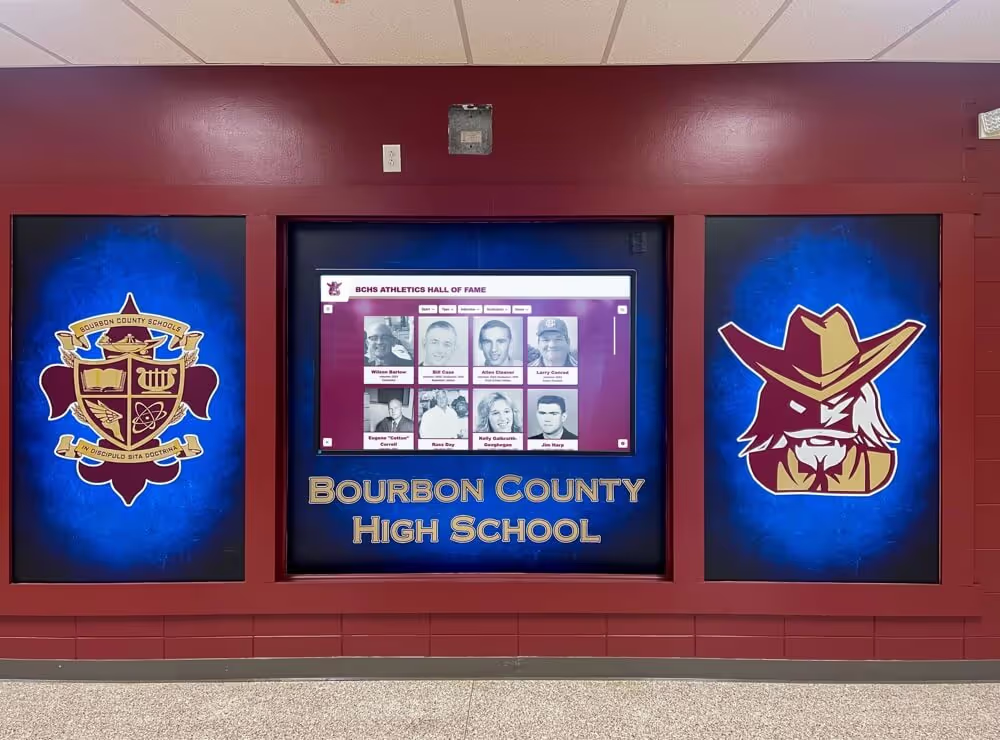
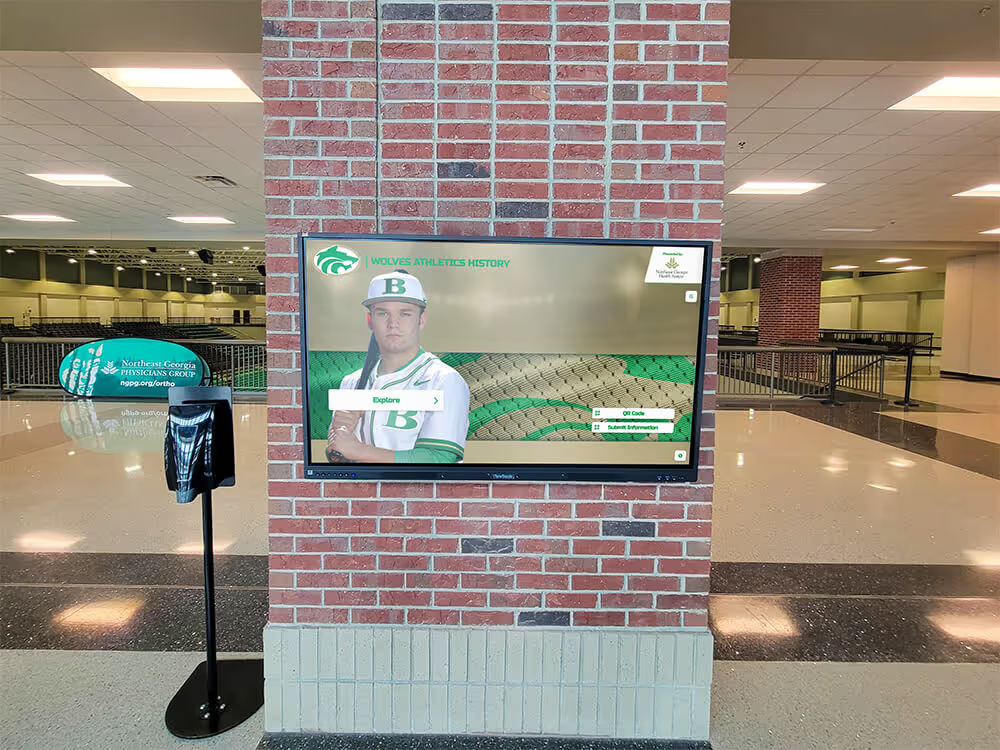
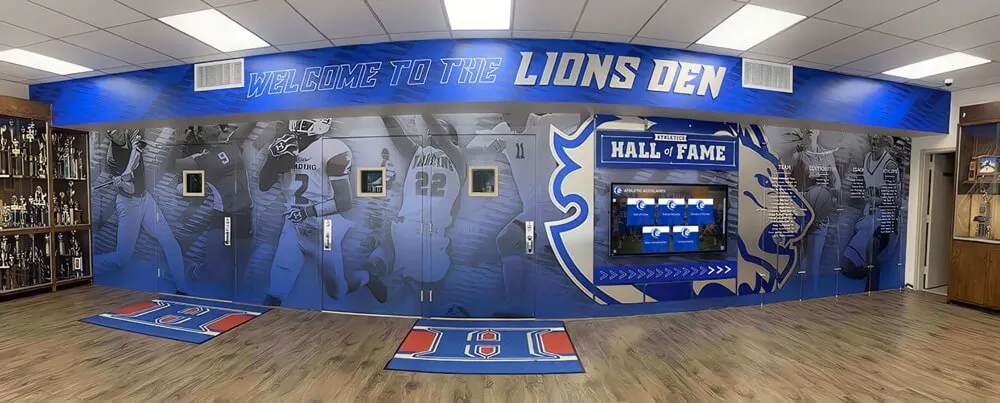
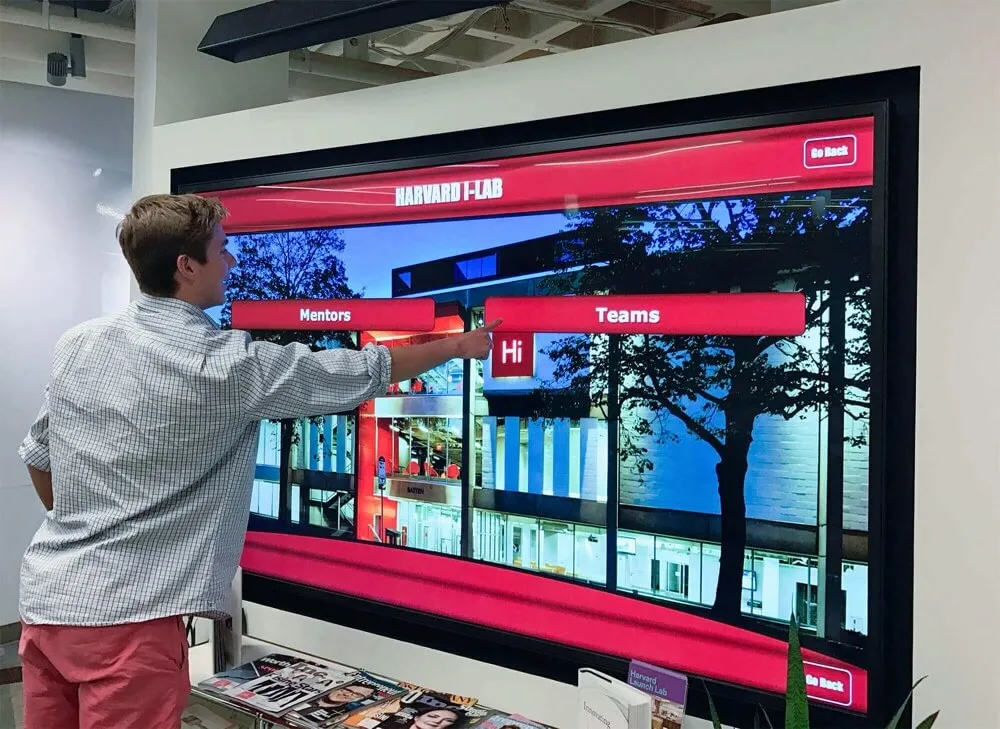
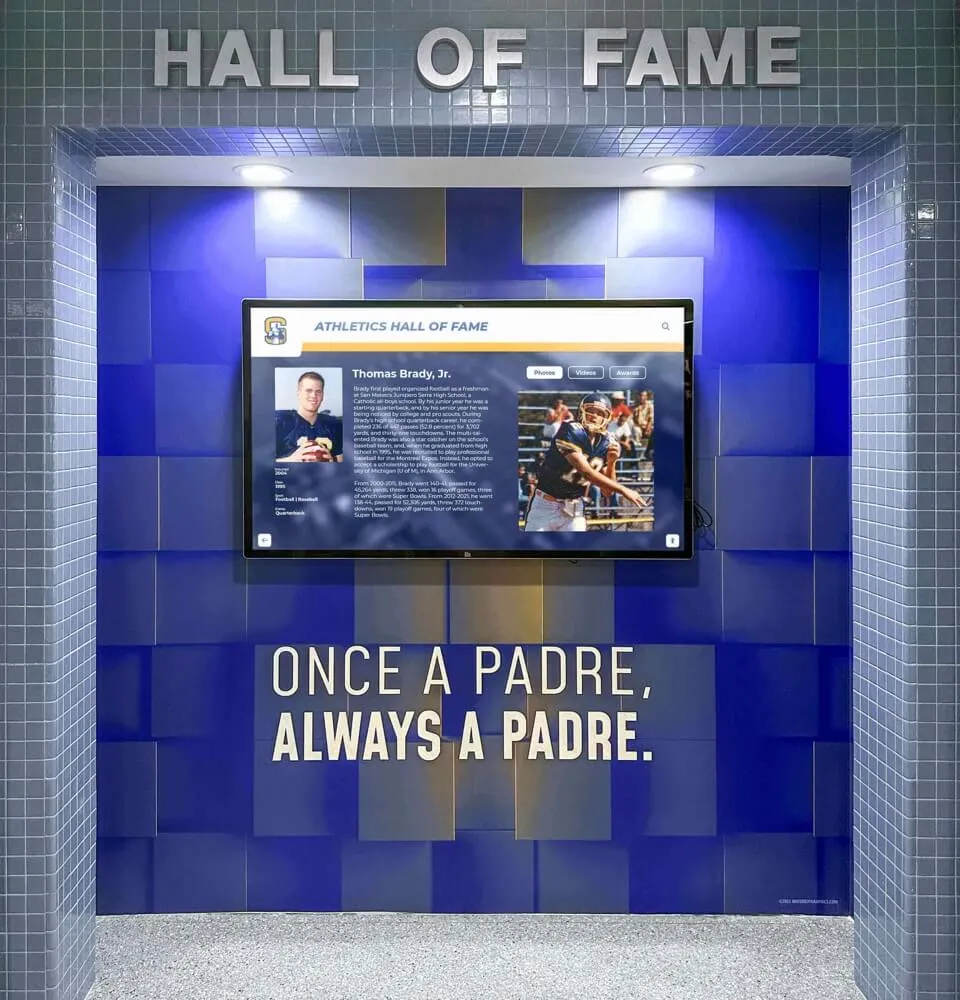
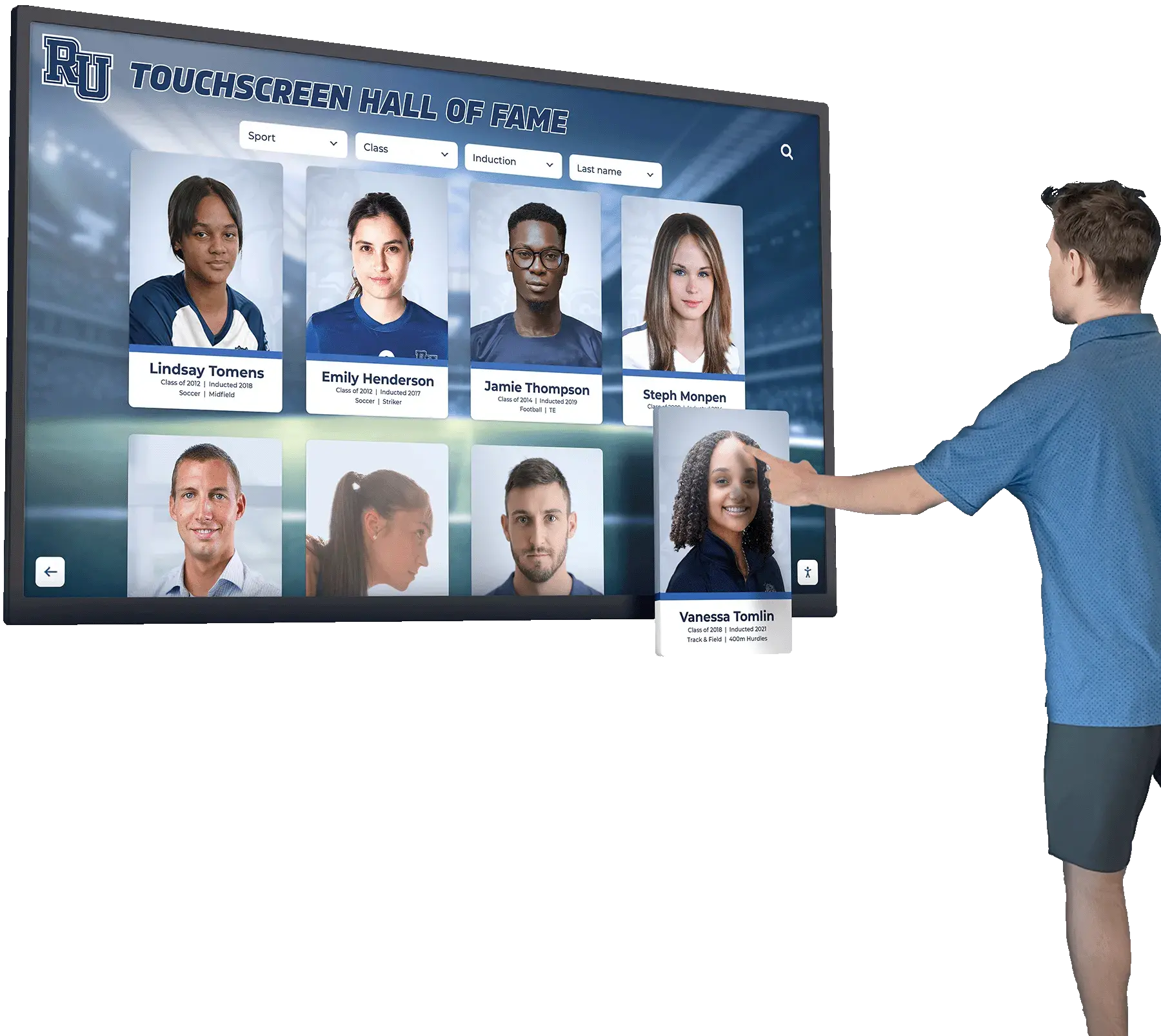
Whether a recognition profile appears on a lobby touchscreen or a web page, the underlying content structure determines how efficiently users can locate what they are looking for
Auditing the Search and Directory Page
The search or directory page is often the entry point for visitors who know they are looking for a specific inductee but do not yet have the profile URL. Screen reader users on this page need to reach the search form quickly, understand the filter controls, and then navigate the results efficiently without re-reading the entire page on each new search.
Step 1: Verify the Search Form Region and Its Heading
The search form itself should be wrapped in a landmark region with role="search" or a <search> element. The heading that labels the search section—typically something like “Search Inductees” or “Find a Hall of Fame Member”—should be an H2 on a page where the H1 describes the overall directory.
Check that the H2 for the search section appears before the form controls in document order. A common error is placing the heading after the form inputs, which means screen reader users encounter the search controls before understanding what they are for.
Step 2: Check the Results List Heading Structure
Search result items in a hall of fame directory typically display the inductee’s name, sport, class year, and sometimes a thumbnail photo. The inductee’s name in each result card should be marked up as an H3 element when the results list is under an H2 section heading. This allows screen reader users to press H3 to jump through result names without reading the sport and year metadata between each one.
The most common error here: result card names are styled with a large bold font but wrapped in a <div> or <p> tag. From a visual standpoint, they look like headings. From a screen reader perspective, they are indistinguishable from body text, and the user must Tab through every interactive element in each card to find the link that opens the profile.
Step 3: Verify Filter and Sidebar Headings Do Not Interfere with the Results Outline
Filter sidebars on search pages commonly contain their own heading elements—“Filter by Sport,” “Filter by Class Year,” “Sort Results”—which should be H2 or H3 depending on where the sidebar sits in the document structure. A frequent error is using H2 for sidebar filter headings and H2 for the results section heading, which places them at the same logical level even though the sidebar is supplementary content.
The practical fix is to either move sidebar filter headings to H3 within an H2 “Filters” section, or to wrap the sidebar in an <aside> landmark and use H2 headings within it—keeping in mind that headings inside landmark regions still contribute to the page-wide heading outline and should maintain a consistent level sequence.
Step 4: Check Pagination Headings
Paginated search results sometimes include a heading at the top of each page of results: “Results 1–25 of 147” or “Page 2 of 6.” If these are marked up as headings—typically H2 or H3—they appear in the heading outline and can help screen reader users understand their position in the results set. If they are plain text paragraphs or ARIA live regions without heading markup, they provide no heading-navigation value.
Neither approach is wrong, but the choice should be consistent across all paginated pages, and pagination headings should not use a heading level that outranks the individual result card headings.
Common Heading Hierarchy Errors in Recognition Collections
The following errors appear repeatedly in school hall of fame collections across all program types—athletic, academic, performing arts, and alumni directories.
Using Heading Levels for Visual Styling
The most pervasive problem: selecting H4 or H5 because the desired font size happens to match the default browser rendering for that level. Content management systems that expose heading level as a format dropdown make this tempting. The result is a heading outline that jumps from H2 to H4 with nothing in between, which screen readers interpret as a skipped level—a structural error that signals missing content to users navigating by headings.
The fix is to use CSS classes to control visual size independently of heading level. A correct H3 with a custom CSS class can display at any size without altering the document structure.
Multiple H1 Elements
As described in the inductee profile section above, sites that use H1 for a persistent site name or mascot header produce two H1 elements on every page that also correctly uses H1 for the page topic. Screen readers that read all headings aloud will announce two H1 elements, which is confusing—most users expect a single H1 to mark the start of the page’s primary content.
Audit this by searching the page source for <h1 and counting the occurrences. More than one is worth reviewing.
Inductee Card Names Without Heading Markup
This error appears on virtually every search and gallery page built before the team understood the connection between heading structure and screen reader navigation. Visual designers create cards with a large bold name, a thumbnail photo, and a sport/year label. Developers implement the name as a styled <div> or <p>. Screen reader users see a gallery of forty cards with no heading structure—navigating them requires Tabbing through one hundred twenty interactive elements.
Adding <h3> (or the appropriate level) around each inductee name in the card template is usually a one-line change with no visual impact.
“Section” Headings That Are Not Headings
Some hall of fame pages use heading elements for decorative or organizational text that is not actually a content section: “Welcome to Our Hall of Fame,” “Est. 1987,” or “Presented by [Sponsor].” These appear in the heading outline and create noise for users navigating by headings. They imply a document section that does not exist.
Either remove the heading markup and style the text as a paragraph, or reorganize the page so these phrases genuinely introduce a navigable content section.
Inconsistent Levels Across Page Types
An inductee profile page might use H2 for “Biography” while a related news article about the same inductee uses H3 for the same type of section. When users navigate multiple page types in a recognition collection, inconsistent heading levels increase cognitive load—the heading level that brought them to “Biography” on one page does nothing useful on another.
Establish the reference heading map described earlier and enforce it through CMS templates, editorial guidelines, or automated linting rather than relying on individual contributors to remember the convention.
The Audit Checklist: Tools and Manual Tests
Running a heading hierarchy audit does not require specialized software. The following combination of free browser tools and manual testing covers the ground.
Browser-Based Heading Outline Tools
Most modern browsers support a free extension that extracts the heading outline from any page and displays it as an indented list. Load each key page type—index, inductee profile, search results, class-year archive—and review the outline against the reference heading map for that page type. Look for:
- More than one H1 on the page
- Any heading level that jumps by more than one (H2 followed immediately by H4)
- Heading elements that represent UI chrome (navigation menus, sidebar labels) rather than content sections
- Content sections that should be headings but appear as paragraphs or styled divs
Browser Developer Tools
Open the browser’s developer tools and use the Elements inspector to search for all <h1>, <h2>, <h3> elements on the page. The search function (Ctrl+F in the Elements panel in Chrome and Edge, Command+F in Safari’s Web Inspector) accepts element tag names as search queries. Reviewing the results in sequence reveals structural errors that the outline tool may not highlight clearly.
Keyboard-Only Navigation Test
Tab through the page from top to bottom using only the keyboard. On sections where heading navigation is expected to work, press H (or use the screen reader’s heading jump key). Verify that:
- The first H key press lands on the H1 or the first content heading
- Subsequent H presses move through sections in a logical reading order
- No heading jump lands the user in the middle of a content block with no visible context for where they are
Screen Reader Test with Heading Rotor
Open the page in a screen reader—NVDA and JAWS on Windows, VoiceOver on Mac and iOS, TalkBack on Android—and use the heading rotor or heading list feature to see all headings on the page. Navigate through them in order and verify the outline matches the reference map. Ask: if a user can only see this heading list, do they understand the page’s content structure?
This test should be run on at least one inductee profile page, the main search or directory page, and any class-year or sport-specific archive page that uses a different template from the others.
Practical Fixes for Common Problems
Fix 1: Correct the Site Header H1
If the persistent site header wraps the school or program name in an H1, change it to an <a> link inside a <p> or a styled <div>. Apply CSS to maintain the visual appearance. The H1 on each page should then describe that page’s content.
If the CMS does not allow editing the site header template directly, use a CSS-class-based override to restyle the H1 in the header as a non-heading-level element, and adjust the page content heading levels accordingly.
Fix 2: Add Heading Markup to Inductee Card Names
In the card template (HTML partial, component, or CMS content block), wrap the inductee name field in an <h3> tag instead of a <div> or <p>. On search result pages where cards fall under an H2 “Search Results” section, H3 is the correct level. On gallery pages without a results section heading, H2 may be more appropriate depending on the overall page structure.
Test the change visually to confirm CSS is controlling font size independently of the heading level—if the H3 renders too large or small after the markup change, adjust the CSS rule for h3 within the card component rather than reverting the markup.
Fix 3: Remove or Demote Decorative Headings
For heading elements used purely for visual effect—large display text, section dividers, sponsor attribution lines—either remove the heading tag and replace it with a <p> with a styling class, or restructure the page so the text genuinely introduces a navigable content section that warrants a heading.
Fix 4: Enforce Levels Through CMS Templates
The most durable fix for inconsistency is template enforcement. If the CMS generates inductee profile pages from a template, hard-code the heading levels into the template rather than leaving them to the content editor’s discretion. The inductee name field always outputs an H1 (or H2 if the site header uses H1). The “Biography” section label always outputs an H2. The “Career Statistics” label always outputs an H3. Content editors cannot accidentally choose the wrong level because the template does not offer a choice.
For CMS platforms that allow rich-text editing of section headings, add editorial guidance to the content entry form specifying which level to use for each field type.
Keeping the Heading Hierarchy Consistent as Content Scales
A heading hierarchy audit is a point-in-time check. A recognition collection that adds new inductees, new award categories, and new archive pages each year needs an ongoing process to keep the heading structure consistent as the content grows.
Document the Reference Map and Keep It Accessible to Contributors
Write the reference heading map into the content style guide, CMS help documentation, or athletic department recognition procedures manual. When a new staff member or volunteer is responsible for entering inductee profiles, they should be able to look up the correct heading level for every content type without having to audit existing pages to infer the convention.
For programs that use alumni recognition programs that publish monthly profiles, the heading structure for each new profile entry should follow the reference map exactly so that users navigating the archive by headings encounter a consistent structure across profiles published years apart.
Run the Audit Before Each Major Content Update
Major content updates—a new class of inductees at the start of the academic year, a site migration to a new CMS, a redesign that changes the card template—are the moments when heading hierarchy errors most commonly appear. Schedule a heading outline review as a checklist item in the update workflow, not as an afterthought after the content is live.
Use Automated Checks as a Supplement, Not a Replacement
Automated accessibility scanners can detect a missing H1, a jump from H2 to H4, and multiple H1 elements reliably. They cannot reliably determine whether the heading levels chosen are semantically correct for the content they label—only a human reviewer who understands the page’s content structure can assess whether “Career Statistics” should be an H2 or an H3 on a given page. Use automated checks to flag structural errors quickly, and use manual heading outline reviews to verify semantic correctness.
For teams that maintain athletic archive workflows alongside recognition displays, incorporating an accessibility check into the archive update process ensures that heading structure is reviewed at the same cadence as the underlying content.
How Digital Display Systems Handle Heading Structure
Schools that run recognition programs across both web-based pages and physical interactive kiosk displays face a related but distinct set of heading structure considerations.
Web-based pages are where WCAG heading hierarchy requirements apply directly. Physical kiosk displays running proprietary software may not render HTML at all—in those cases, the accessibility considerations shift to the touchscreen interaction model, font size and contrast, and physical ADA reach-range compliance rather than heading markup.
However, many digital hall of fame platforms generate both a lobby kiosk interface and a web-accessible companion site or QR-code landing page from the same content database. In those cases, the heading structure of the web-facing pages matters regardless of how the kiosk renders the content, because the web page is the version that screen reader users on mobile devices or desktop browsers will access.
When evaluating hall of fame tools for athletics, donors, arts, and history programs, teams should ask whether the platform generates web-facing pages with configurable heading structure, or whether heading levels are hard-coded in the platform’s output templates. Platforms that hard-code headings in template output may require vendor engagement to correct heading hierarchy errors—worth confirming before committing to a platform.
Schools that have also reviewed digital donor wall implementation guides for schools and nonprofits will find that donor recognition pages face identical heading hierarchy challenges: donor tier labels, individual donor names within each tier, and supplementary recognition content all require a clear level assignment.
Heading Hierarchy in Multi-Category Recognition Collections
Schools that recognize achievement across athletics, academics, performing arts, and community service through a single unified recognition platform face an additional complexity: the heading reference map needs to work across all program categories, not just athletic inductee profiles.
An academic honor roll page, a performing arts alumni archive, and a class reunion directory page may use completely different content layouts from an athletic hall of fame profile page—but the heading hierarchy principles remain the same. Each page has one H1 describing the page topic. Major sections are H2. Subsections of those sections are H3. Individual item names within a list or gallery are typically H3 or H4 depending on whether the list itself has an H2 header.
For schools building out recognition wall design approaches that span multiple program types, establishing a unified heading reference map early prevents the accumulation of inconsistent conventions across different program areas that are difficult to reconcile retroactively.
Class reunion directory pages that aggregate profiles from multiple graduation years face a specific nesting question: should each graduation year be an H2 or H3? The answer depends on whether the page is a flat list (each year at the same level as other major sections → H2) or a subsection of a broader “Alumni Directory” section (each year nested under the directory section → H3). Either is structurally correct as long as the choice is consistent and levels are not skipped.
For programs that want guidance on organizing reunion-year content in a way that is both visually organized and accessible to screen reader users, class reunion planning resources that address directory and participant listing structures provide useful context for the content organization decisions that inform heading hierarchy choices.
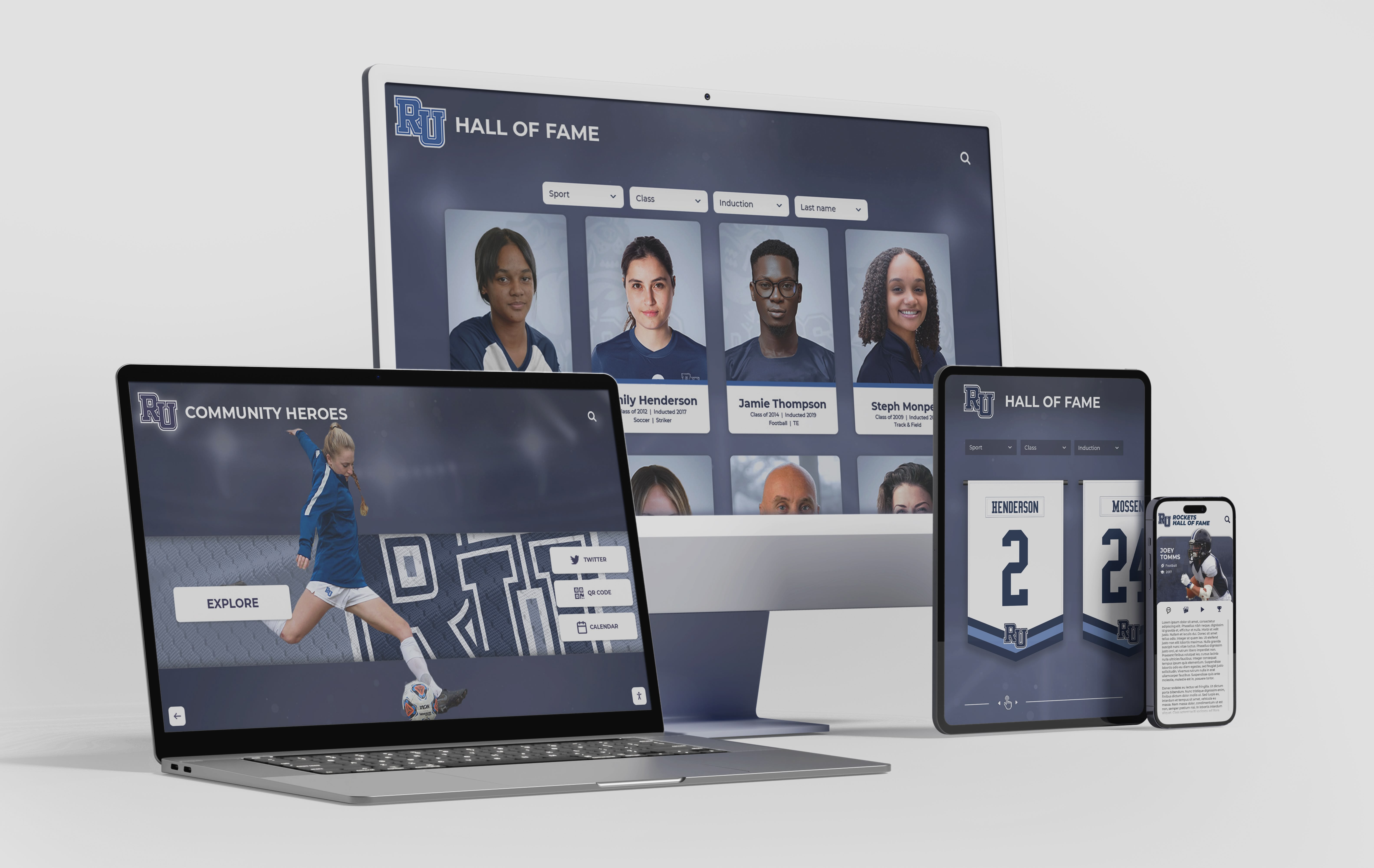
The same content that lives on a web-based recognition collection may also power a lobby kiosk—heading structure on the web-facing version determines how accessible that content is to assistive technology users
FAQ: Digital Hall of Fame Heading Hierarchy Audit
What is the correct heading level for an inductee’s name on a profile page? On a page dedicated entirely to one inductee, the inductee’s name should be the H1—it is the primary topic of that page. On a search results page where multiple inductee names appear as cards, each name should be H3 (assuming the results section is introduced by an H2 and the page itself has an H1 for the directory title). On a class-year archive page that lists all inductees from a specific year, each name might be H3 or H4 depending on whether the year is itself an H2 or H3 within the page structure.
Should the school or program name in the site header be an H1? Only if that page has no other primary topic. On a homepage where the school’s recognition program is the entire subject, H1 for the program name is reasonable. On every other page—individual inductee profiles, search pages, class-year archives—the page topic (inductee name, “Search Inductees,” “Class of 2018 Inductees”) should be the H1, and the site header name should use a non-heading element or be styled independently of its heading level.
What heading level should “Search Results” be when it appears below a search form? Typically H2, because it represents a major content section at the same logical level as other major page sections such as “Search Filters” or “Browse by Sport.” The inductee names within the results should then be H3. If the page has no other major H2 sections besides “Search Results,” the H2 may feel redundant visually but is still useful for screen reader navigation.
How do I handle heading levels in a paginated inductee gallery?
Each page of results should maintain the same heading structure as every other page. The pagination controls themselves—“Page 1 of 6,” “Next,” “Previous”—should not use heading markup unless they genuinely introduce a content section. A common approach is to wrap pagination controls in a <nav> landmark with an accessible label such as aria-label="Gallery pagination" and leave the controls themselves as plain links or buttons without heading markup.
Does skipping a heading level always break accessibility? A skipped level is a structural anomaly that screen readers announce and that automated checkers flag. Whether it “breaks” accessibility depends on context. Jumping from H2 to H4 in a way that accurately reflects the content’s logical structure—where H3 genuinely does not apply to any content between those two headings—is preferable to forcing an unnecessary H3 to avoid skipping. The goal is accuracy of structure, not mechanical level-filling. That said, most heading level skips in hall of fame pages are unintentional and do indicate a structural error worth correcting.
How does heading hierarchy interact with ARIA landmark regions?
Headings and landmarks are complementary navigation mechanisms. Landmarks let screen reader users jump between major page regions (main content, navigation, search, complementary sidebar); headings let them navigate within those regions. A correct implementation uses both: landmark regions to identify the type and purpose of each major section, and heading hierarchy to organize the content within each region. The heading level of a section heading should reflect its depth in the content hierarchy, not its position within a particular landmark—a heading inside an <aside> landmark can still be H2 if it is the primary label for that sidebar section.
What about athletic archive pages that include media files alongside profile text? Athletic archive pages that include photo galleries, video archives, or digitized records alongside profile text should treat each media type as a subsection of the inductee profile section. For example, “Photo Gallery” might be H3 (a subsection of the H2 “Athletic Career” section), and individual album titles within the gallery might be H4. For programs that manage athletic archive storage and checklist resources, the content inventory work done for archiving purposes often provides a natural starting point for the heading structure of the corresponding web pages.
Building a Recognition Collection That Screen Reader Users Can Navigate Efficiently
A heading hierarchy audit is not a one-time certification exercise. It is a structural check that should be part of the normal workflow for every team that adds inductees, updates records, migrates to a new CMS, or redesigns a recognition collection’s public-facing pages.
The practical steps are straightforward: establish a reference heading map for each page type, extract the heading outline from each key page, compare outline to reference map, fix structural errors at the template level where possible, and test the corrected structure using a screen reader before publishing. The result is a recognition collection where screen reader users can jump directly to the inductee’s name, biography, statistics, or awards section in two keystrokes rather than listening through the entire page.
Touchscreen kiosk systems that generate companion web pages from the same inductee database benefit from the same structural rigor applied to the web-facing output. The lobby display may be visually self-explanatory, but the QR-code web page that visitors scan to keep reading on their phone needs the same heading structure that any other web-based recognition collection requires.
For school web teams ready to move their recognition programs onto a platform built for heading structure, landmark navigation, and ADA-compliant touchscreen interaction, a custom demo shows exactly how inductee profiles, search pages, and class-year archives are structured and navigated across both the lobby display and the web-accessible companion.