Digital Hall of Fame Pointer Cancellation Test for Touchscreen Controls
- Home /
- Digital Wall of Fame Blog - Recognition Display Insights & Resources /
- Digital Hall of Fame Pointer Cancellation Test for Touchscreen Controls
The Easiest Touchscreen Solution




Live Example: Rocket Alumni Solutions Touchscreen Display
Interact with a live example (16:9 scaled 1920x1080 display). All content is automatically responsive to all screen sizes and orientations.
A digital hall of fame pointer cancellation test is an accessibility audit that verifies every tappable control on a school’s touchscreen recognition kiosk allows users to abort or undo an accidental touch before the action completes. The test maps directly to WCAG 2.1 Success Criterion 2.5.2 (Pointer Cancellation), a Level A requirement that applies to any interface operated by a single pointer — including the fingers and styluses students, families, and guests use every day on lobby hall of fame displays.
When a hall of fame kiosk fails this test, real problems follow: a visitor’s stray tap opens the wrong inductee profile, a coach browsing championship records accidentally navigates away, or a student pressing a filter button triggers an irreversible navigation before they intended. Pointer cancellation testing is how facilities and IT teams catch these issues before they disrupt the recognition experience your program has worked hard to create.
This guide gives school administrators, athletic directors, and facilities staff a practical framework for running the test themselves — including a control-by-control pass/fail table, a numbered test sequence, and guidance on connecting remediation to your broader recognition program workflow.
Direct answer: A passing digital hall of fame pointer cancellation test requires that no tappable control on your kiosk executes its function on finger-down alone. Every button, card, and navigation element must either fire on the up-event (finger lift), support abort by dragging off the control before lifting, support up-reversal, or qualify as an essential exception under WCAG 2.5.2. If any control activates on touchstart without a cancellation path, that control fails.

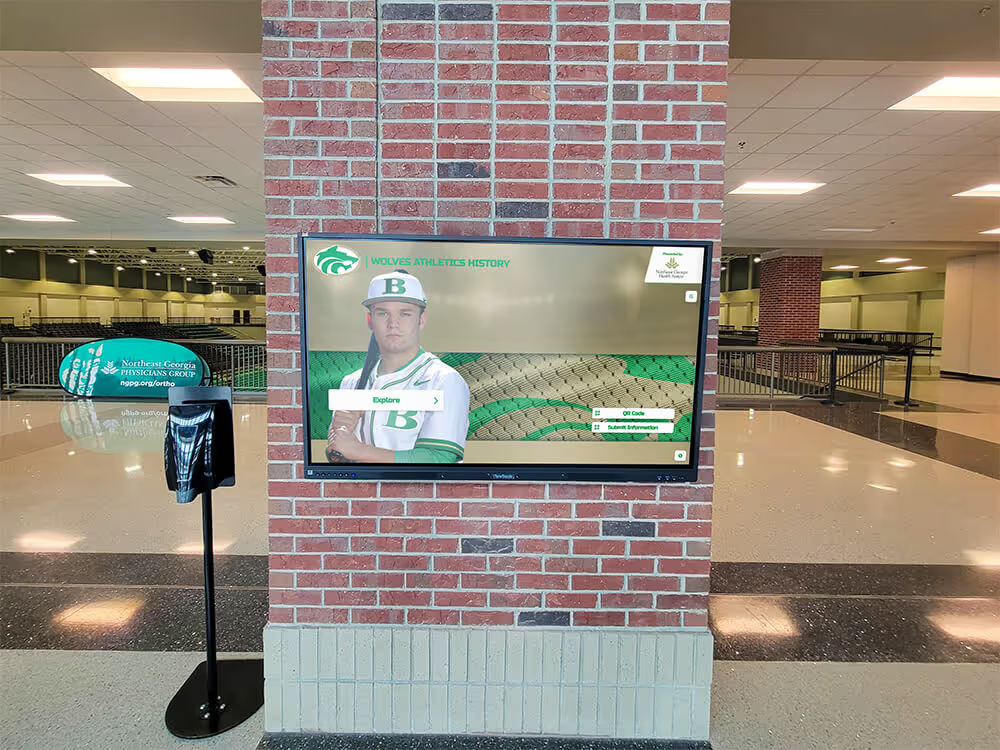
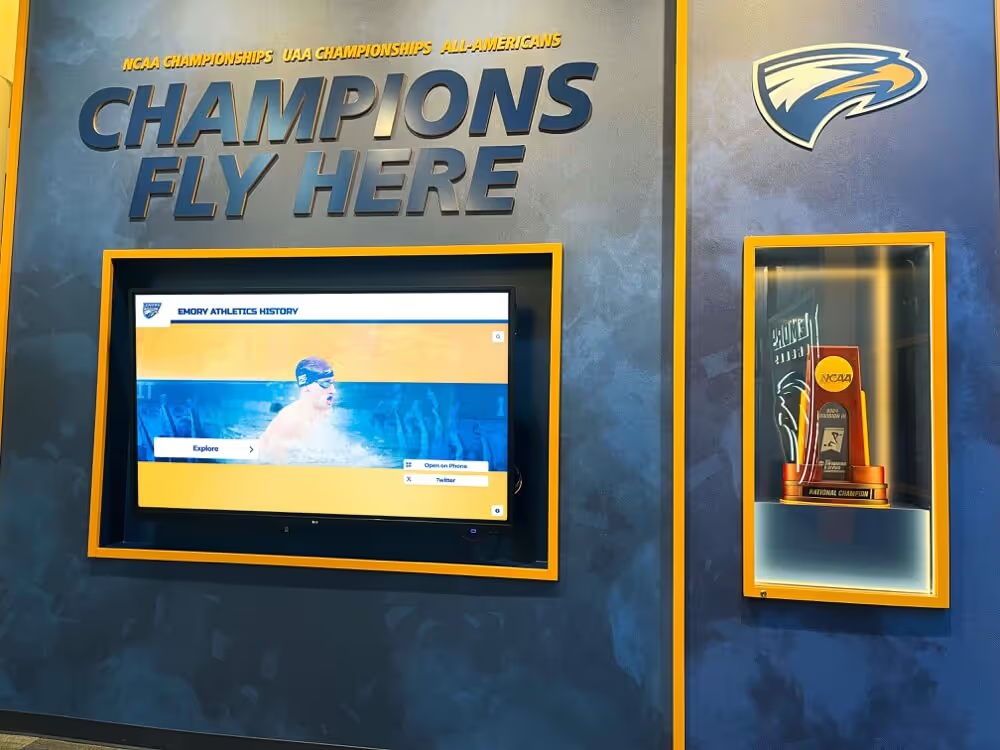
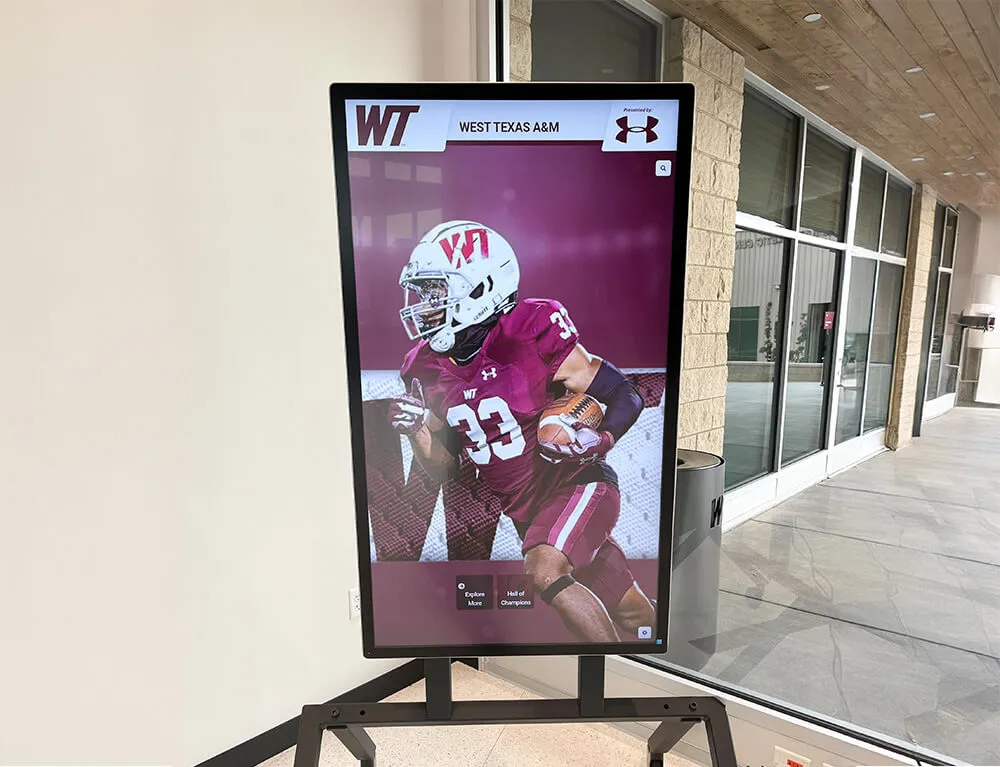
Every tappable element on a digital hall of fame display — from inductee profile cards to category filters — is in scope for the pointer cancellation test
What Pointer Cancellation Means for Touchscreen Hall of Fame Displays
WCAG 2.1 Success Criterion 2.5.2, titled Pointer Cancellation, is a Level A accessibility requirement. It applies whenever a single pointer — a finger, stylus, or mouse — can activate a function. The criterion specifies that at least one of four conditions must hold for every such control:
1. No Down-Event. The function does not execute at any point during the pointer-down phase. The kiosk waits for a complete press-and-release cycle.
2. Abort or Undo. The function completes on the up-event (finger lift), and users can either drag off the control before lifting to cancel, or undo the action after it completes.
3. Up Reversal. The up-event reverses whatever the down-event triggered. Toggle controls that visually activate on finger-down but can be reversed on lift satisfy this condition.
4. Essential Exception. In rare cases where triggering on finger-down is essential to the function — such as a real-time instrument or on-screen piano key — the criterion does not apply.
For the vast majority of controls on a school hall of fame kiosk — profile cards, filter buttons, navigation arrows, search fields, modal close buttons, and gallery controls — none of these exceptions apply. The test is straightforward: each control should fire its action when the user lifts, not when they touch down.
Understanding where this test sits alongside other touch accuracy requirements helps prioritize your audit schedule. Teams that have already completed a recognition display parallax error test for physical offset between touch point and visual target should schedule the pointer cancellation test next, since both affect whether users can reliably activate the controls they intend.
Why Hall of Fame Kiosks Are Particularly Vulnerable
Most consumer apps and websites handle pointer cancellation correctly because frameworks like React, Angular, and native iOS/Android respond to click and tap-up events by default. Hall of fame kiosk interfaces are more likely to fail for three reasons:
Custom gesture code. Many recognition display platforms implement custom swipe navigation, pinch-to-zoom on photo galleries, or drag-to-scroll inductee lists. Custom gesture handlers frequently attach logic to touchstart events — the exact pattern that creates pointer cancellation failures.
Legacy kiosk software. Older digital signage platforms built before WCAG 2.1 was published in 2018 may not have been designed with pointer cancellation in mind. If your hall of fame software predates that standard, it warrants testing.
Third-party widgets. Split-screen panels, embedded social feeds, and sponsor rotation elements are often pulled from third-party sources. As explored in guides to digital signage split-screen widgets, these components may carry their own event-handling assumptions that conflict with cancellation requirements.
Schools with WCAG 2.1 AA compliance obligations — including those receiving federal funding — are technically required to meet Level A criteria like 2.5.2. Even programs without a formal compliance mandate benefit from passing the test, because pointer cancellation failures frustrate all users, not only those with disabilities.

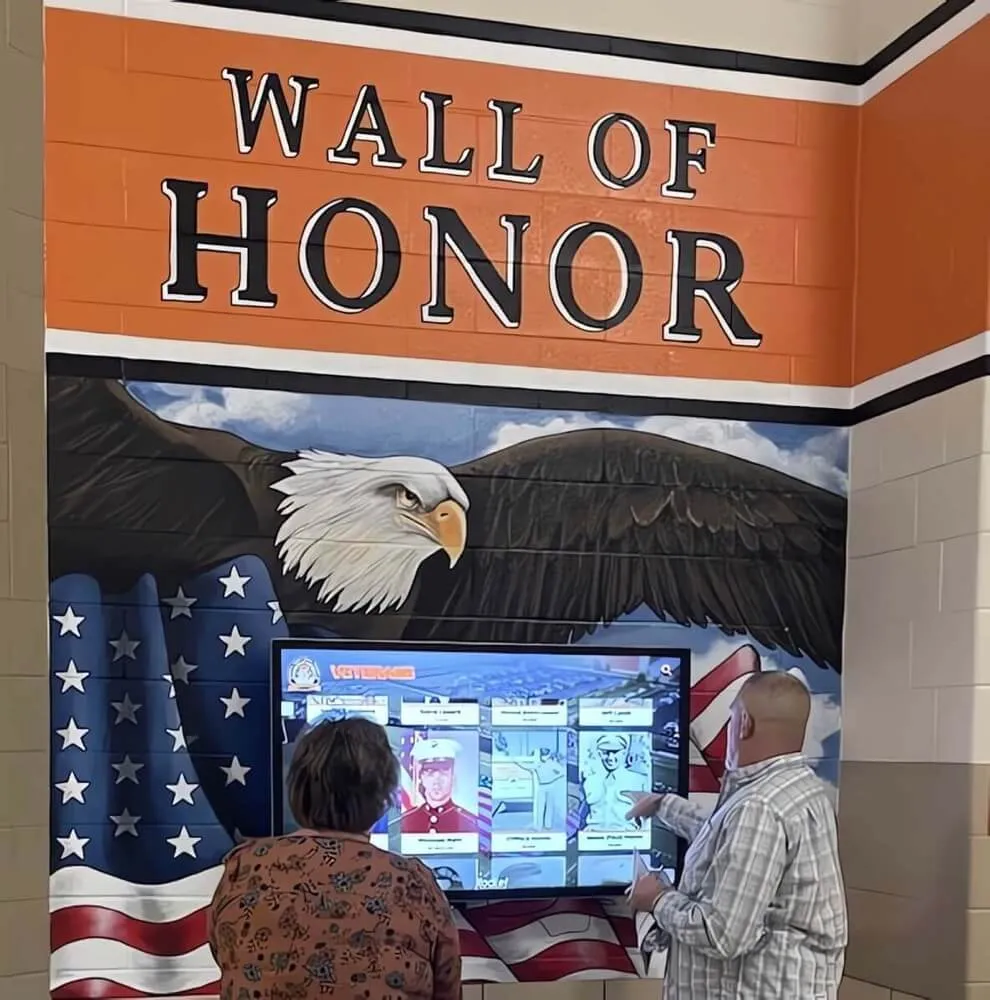
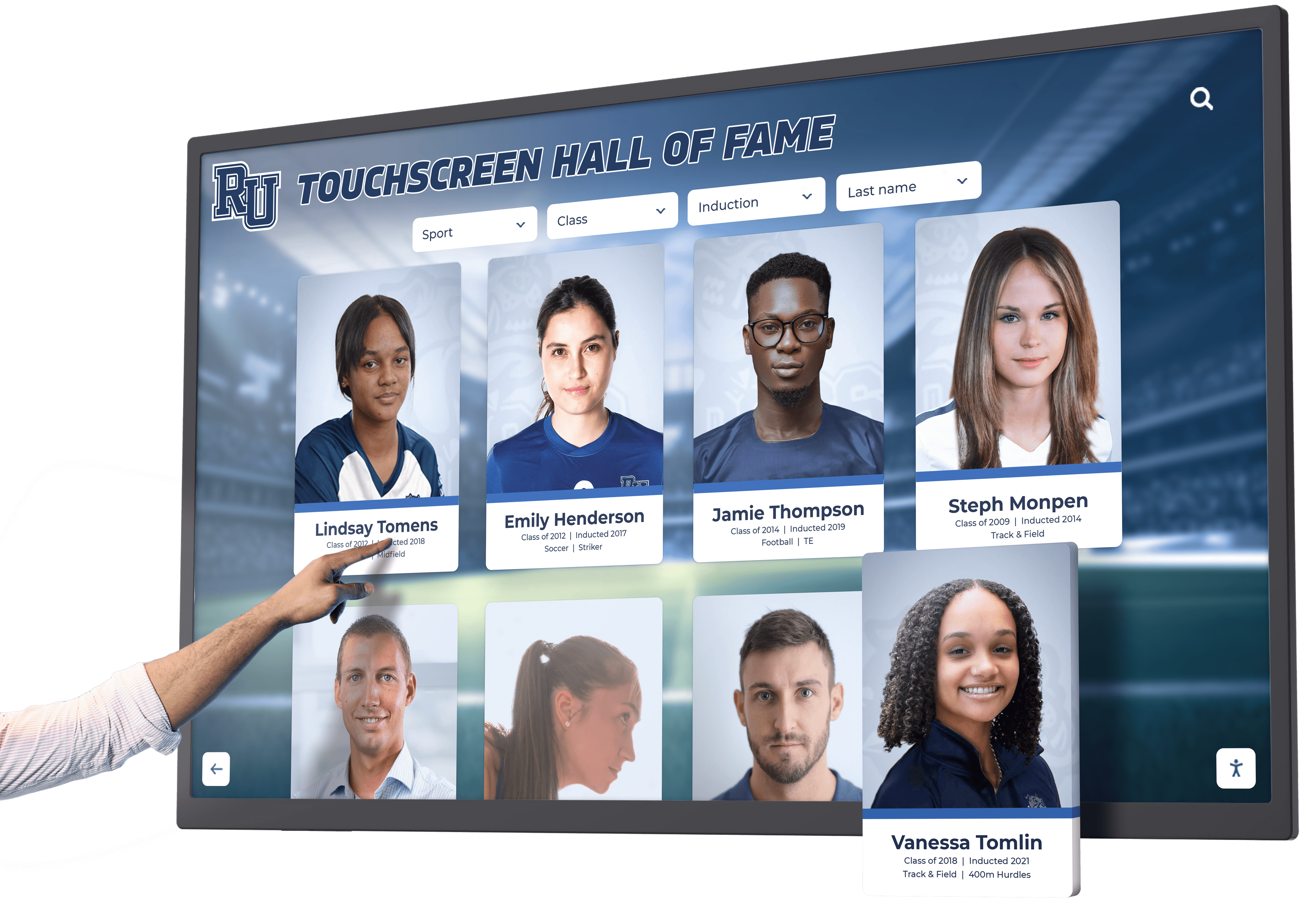
Profile card selection is one of the highest-traffic interactions on a hall of fame kiosk — it must allow abort before the profile opens
Control-by-Control Pass/Fail Table
Run this table against every unique control type in your hall of fame interface. A single control type appearing multiple times on screen (such as 40 inductee profile cards) only needs to be tested once per type — the underlying event handler is the same.
| Control Type | Expected Trigger Event | Abort by Drag-Off? | Pass Condition | Fail Condition |
|---|---|---|---|---|
| Inductee profile card | Up-event (tap lift) | Yes | No action on finger-down; drag-off cancels | Profile opens on touchstart |
| Category/sport filter button | Up-event | Yes | Filter applies only on lift | Filter activates on finger-down |
| Year/era filter button | Up-event | Yes | Drag-off cancels filter change | Filter changes while finger is still down |
| Navigation arrow (prev/next) | Up-event | Yes | Page advances on lift only | Page advances during touchstart |
| Back / Home button | Up-event | Yes | Navigation fires on lift; drag-off prevents it | Navigation fires before finger lifts |
| Search submit button | Up-event | Yes | Query submits on lift | Query submits on finger-down |
| Search clear / reset button | Up-event | Yes | Field clears on lift only | Field clears mid-press |
| Photo gallery advance | Up-event | Yes | Image advances on lift; abort by reversing drag | Image advances at touchstart |
| Video play / pause button | Up-event | Yes | Playback toggles on lift | Playback toggles on touch-down |
| Modal / overlay close button | Up-event | Yes | Modal closes on lift; drag-off cancels | Modal closes when touch begins |
| QR code display button | Up-event | Yes | QR appears on lift | QR appears on touch-down |
| On-screen keyboard key | Up-event | Yes | Character inputs on key lift | Character inputs on key touch-down |
| Expand / collapse toggle | Up-reversal acceptable | Yes | Toggle can be reversed before lift | Toggle state locked at touch-down |
| Scroll / swipe list | Gesture completion | Yes | Scroll commits on gesture end; abort by reversing | Scroll position jumps at gesture start |
| Sponsor / logo tap | Up-event | Yes | Link opens on lift | Link opens on finger-down |
A control marked FAIL in the final column requires remediation before the kiosk can be considered pointer-cancellation compliant. Document each failure with the control name, the specific screen or view, and the observed behavior.
Numbered Touchscreen Test Sequence
Run this sequence once per control type in scope. A second tester observing the screen while you perform the gestures will catch visual state changes more reliably than a solo test.
Step 1 — Prepare the display and test sheet. Open your hall of fame interface to the main browsing view. Have a printed or digital copy of the pass/fail table ready. Confirm the kiosk is connected to its normal data source so all controls are live and functional.
Step 2 — Identify every tappable control in the current view. Scan the screen and list each distinct interactive element: profile cards, filter buttons, navigation arrows, search field, home button. If the display has multiple screens or views (Browse, Search, Inductee Detail, Records), you will cycle through all of them. Add any controls not already in the table above.
Step 3 — Press and hold without lifting. Place one finger directly on the first control. Press firmly and hold for three seconds without lifting. Observe: did anything happen? If the control’s action triggered — a profile opened, a filter applied, a page turned — that is a down-event failure. Record FAIL.
Step 4 — Drag off the control before lifting. Reset the view if needed. Press the same control again and, while still pressing, slowly drag your finger outside the control’s visible boundary. Pause. Then lift your finger. Observe: did the action execute after you dragged off? If it did, the control does not support abort-by-drag. Record FAIL.
Step 5 — Test the standard tap path. Tap the control normally — press and lift without dragging off. The action should complete. If the control failed Steps 3 or 4 but succeeds here, note that only the cancellation path is broken, not the core functionality. This distinction helps your IT team scope the fix.
Step 6 — Check for an undo mechanism. For controls that fire on up-event but lack drag-off cancellation (an uncommon but possible configuration), verify whether an undo path exists: a Back button, a modal dismiss option, or an Undo action. If none exists and drag-off cancellation also fails, the control fails 2.5.2.
Step 7 — Test up-reversal for toggle controls. For expand/collapse panels and on/off filter toggles, press and hold, observe any visual state change on finger-down, then lift. Verify the control can reverse back to its original state. If a toggle locked its new state on finger-down with no reversal on lift, record FAIL.
Step 8 — Advance to the next view and repeat. Navigate to the Inductee Detail screen, the Search Results screen, the Records Board, and any other distinct views your system includes. Repeat Steps 2 through 7 for each new control type encountered. Inductee detail screens frequently contain gallery controls, video players, and close buttons that are not tested during the initial browse view.
Step 9 — Document and photograph findings. For each FAIL, note: control name, screen/view, the step at which it failed, and a brief description of the observed behavior. A screenshot or short screen recording is useful evidence when submitting a remediation request to your platform vendor or IT department.
Step 10 — Submit and schedule a retest. Share findings with the appropriate team — your kiosk software vendor, internal web developer, or IT department — along with the WCAG 2.5.2 reference. Schedule a retest within 30 days of the reported fix to confirm each failure has been resolved using the same test sequence.
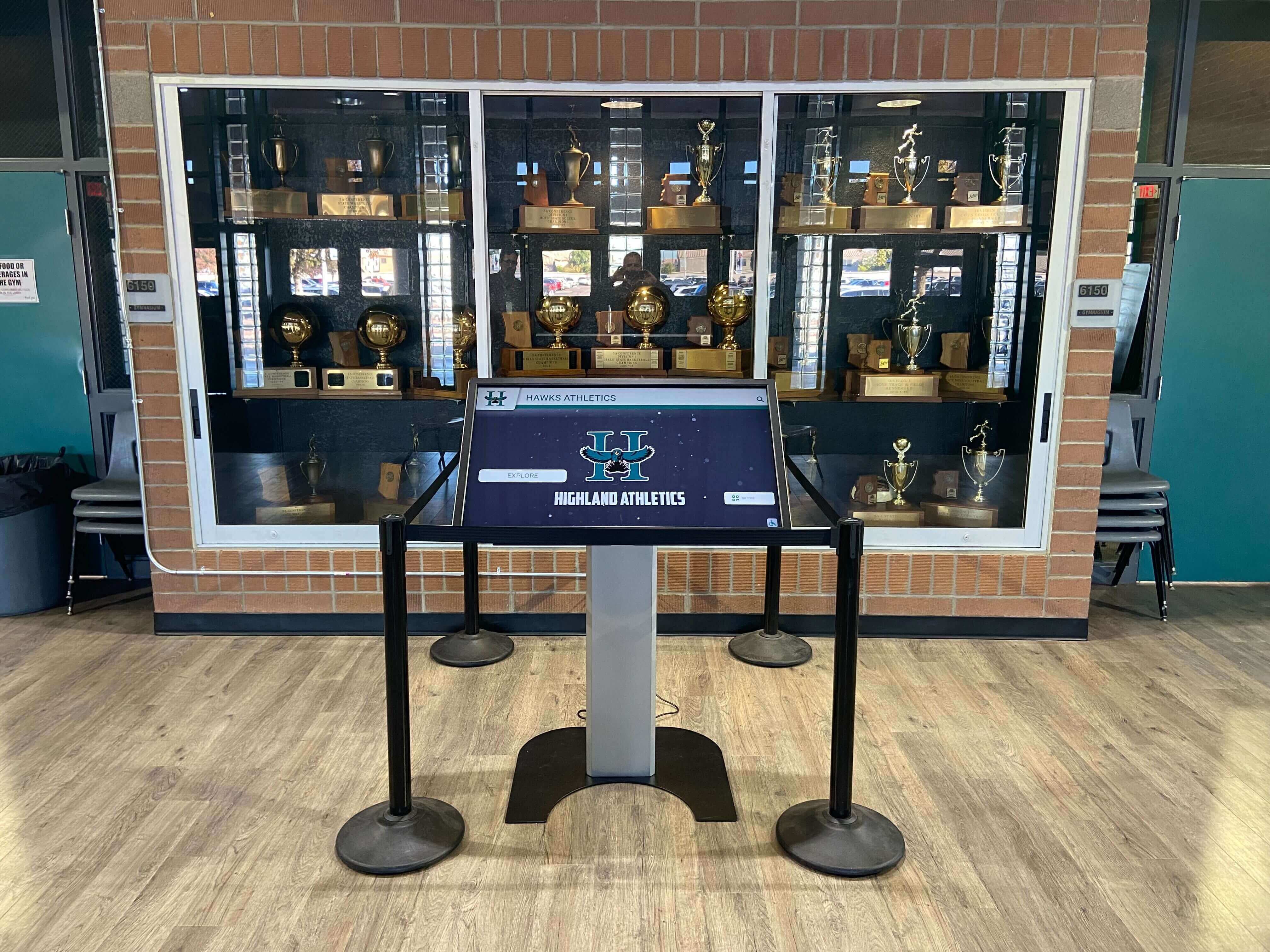
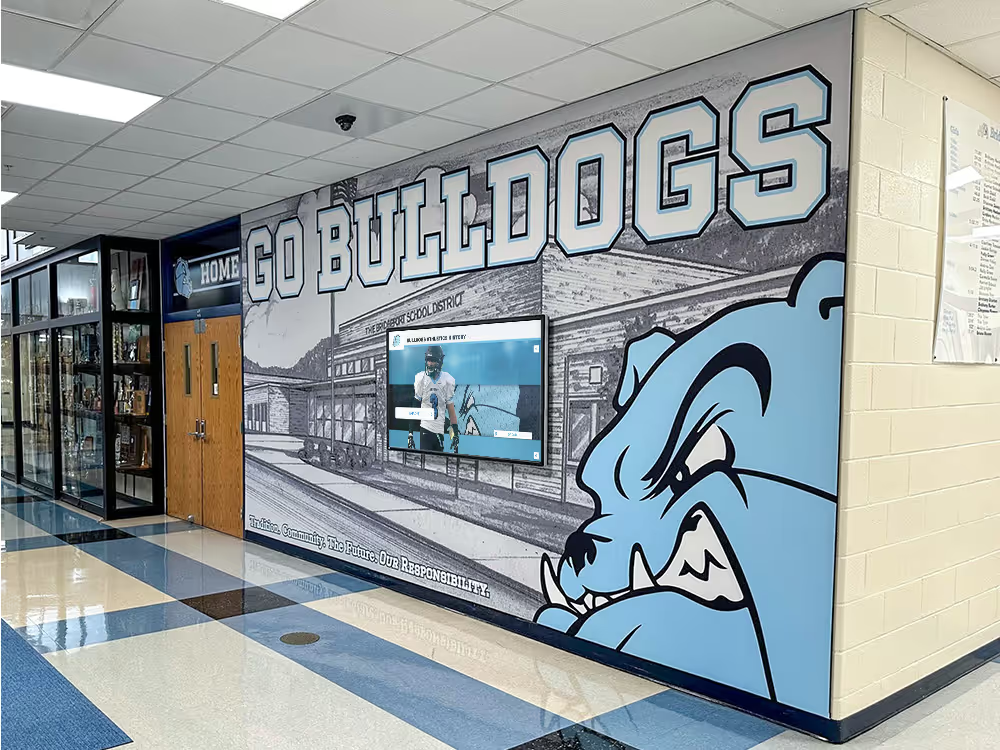
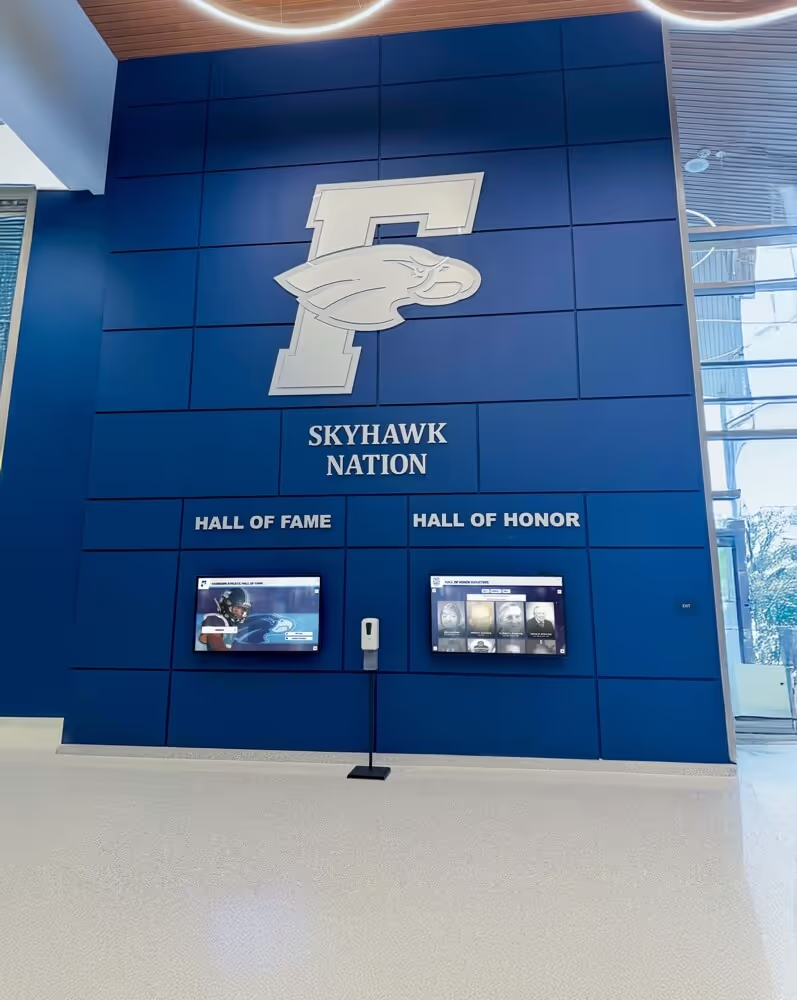
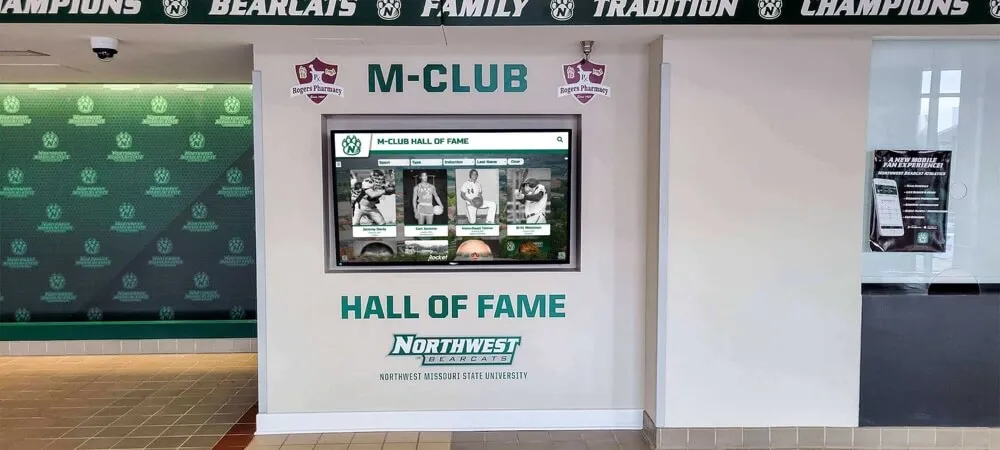
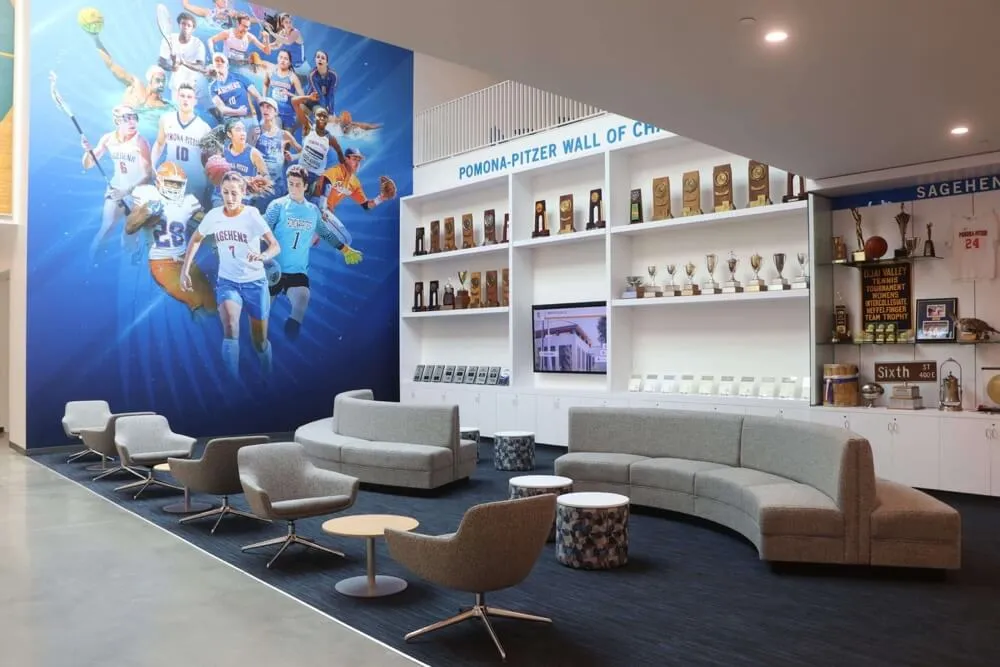
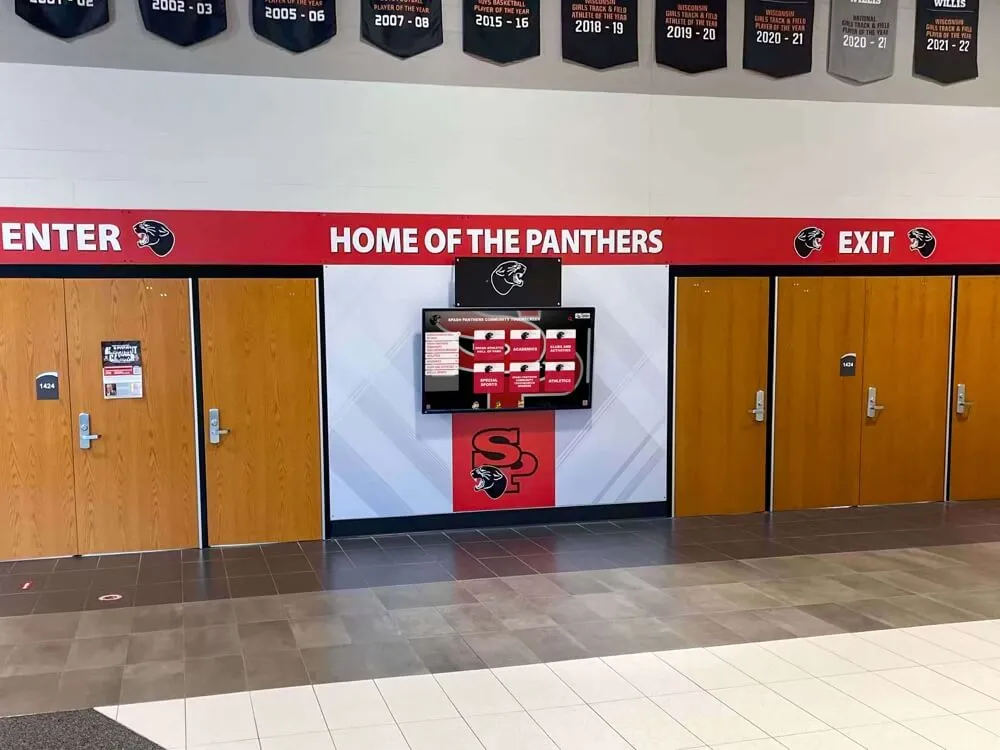
Kiosks installed in trophy case areas serve mixed audiences including first-time visitors — pointer cancellation failures are especially disorienting for unfamiliar users
Common Failure Patterns and How to Report Them
Knowing what failure looks like in practice helps non-technical staff write useful remediation requests. These are the patterns most often found during hall of fame pointer cancellation audits.
Touchstart-on-activation. The most common failure: the interface binds a click or navigation handler to the touchstart DOM event. Any finger-down fires the action immediately. The fix is rebinding to touchend or click (which natively fires on pointer-up). Your report should say: “Control [name] activates on touchstart. Please rebind to touchend or click.”
No pointer-capture or hitbox exit check. The interface fires on up-event but does not check whether the pointer was still within the control’s hit area at the time of lift. Drag-off cancellation requires the system to compare pointer position at lift against the control’s bounds. Your report: “Control [name] fires even when the pointer has left the target area before lift. Please add a bounds check on touchend.”
Third-party widget with hardcoded event handlers. A sponsor logo rotation, a social feed embed, or a donor recognition widget from a third-party source may not expose its event handling for modification. In this case, your options are replacing the widget, wrapping it in a transparent overlay that intercepts events, or contacting the widget vendor. Note the constraint in your remediation request so the team understands the scope.
Gallery swipe advancing on gesture start. Photo carousels that show the next image as soon as a swipe gesture begins — before the user completes the swipe — fail because there is no opportunity to abort. The fix is to advance only on gesture completion (touchend) and support reversal by swiping back.
For teams managing multiple recognition touchpoints — athletic hall of fame displays, donor walls, student-of-the-month certificate archives — it is worth coordinating pointer cancellation findings across all systems rather than treating each display in isolation. Athletic award data stewardship roles often sit within the same team responsible for display configuration, making that coordination straightforward.
Scope: Which Screens to Include
Every interactive view in your hall of fame system is in scope. A common mistake is testing only the home browse screen and missing failures on less-visited but critical screens.
Always include:
- Main inductee browse / search view
- Inductee detail / profile view
- Records board or statistics view
- Photo gallery or media viewer
- Any video playback screen
- Admin-facing CMS controls if publicly accessible
- Sponsor or partner recognition panels
Include if present:
- Event schedule or news ticker
- QR code display or mobile handoff screen
- Multi-sport or multi-category navigation
- Donation or booster club enrollment links
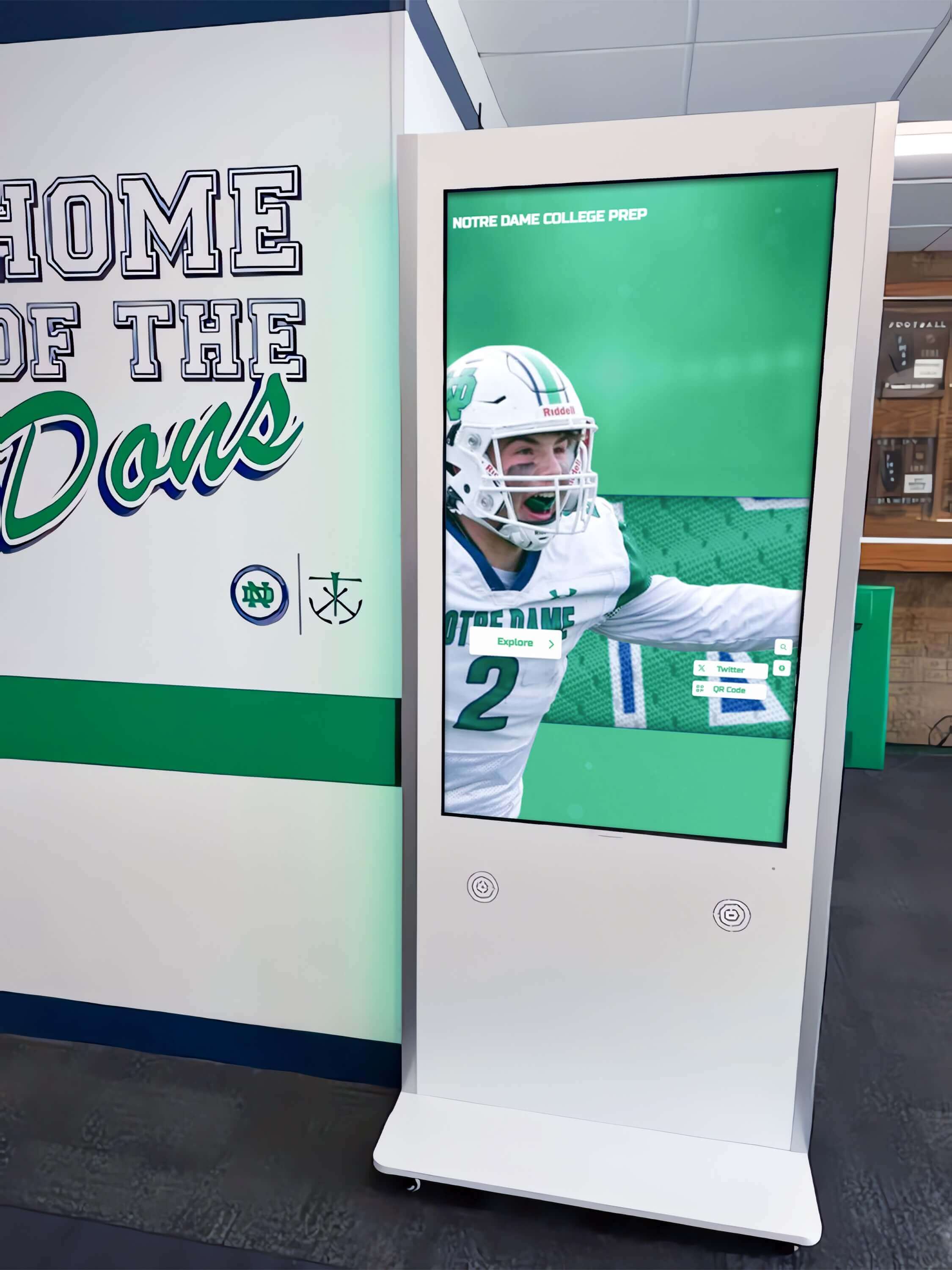
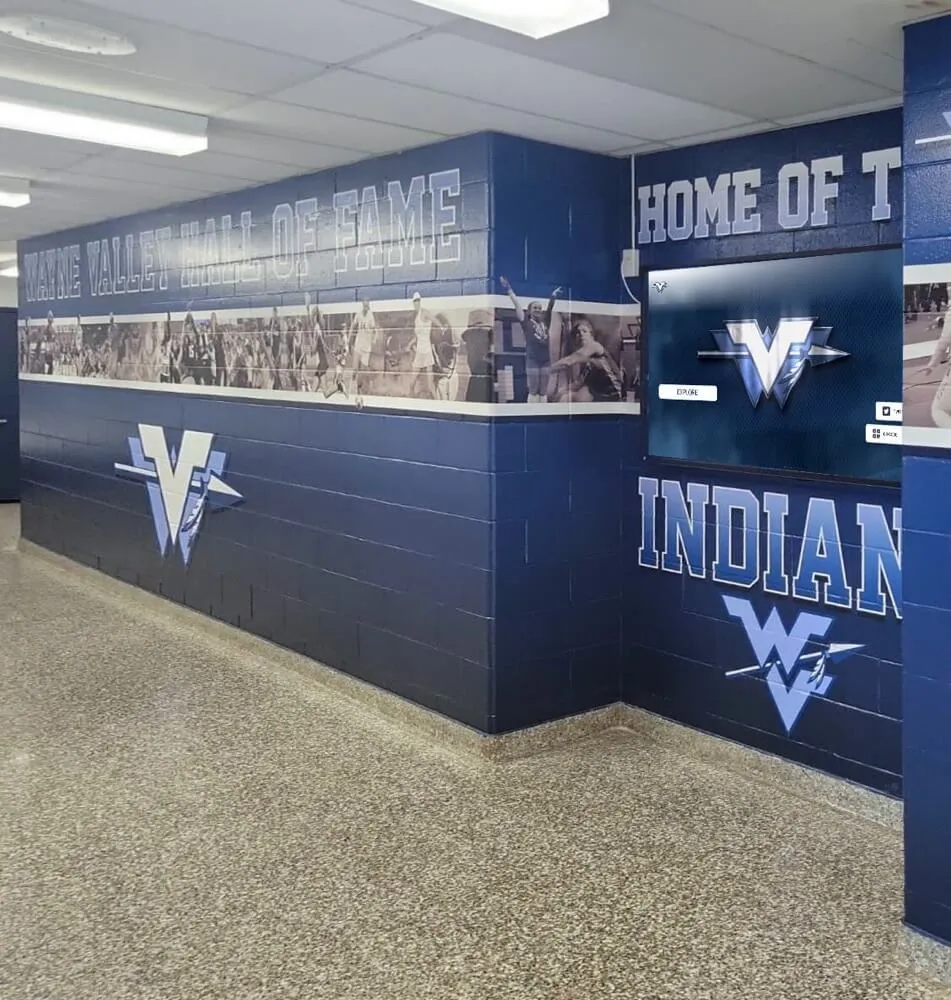
Every screen reachable from the public-facing kiosk interface should appear in your pointer cancellation test scope
Connecting the Test to Your Recognition Program Workflow
Pointer cancellation testing is not a one-time audit. Recognition programs add inductees, update records, and modify display layouts throughout the year. Each content update is an opportunity to introduce a new control — and a new potential failure.
Build testing into your content calendar. Schools that publish inductee updates around athletic banquet seasons or gala recognition events — see guidance on gala fundraiser donor recognition for scheduling context — should run a pointer cancellation spot-check any time a new interactive section is added to the display. This does not require repeating the full numbered sequence; a five-minute check of new controls is sufficient.
Coordinate with your booster club and program administrators. When booster clubs add enrollment links, membership forms, or payment flows to recognition kiosks — as is common when programs expand digital touchpoints beyond the display itself — those new controls fall under the same pointer cancellation requirements. Refer your web team to the booster club membership form guidance for form-specific considerations, and add any new form controls to your test scope.
Document your baseline. After your first full test, keep a record of which controls passed and which were remediated. This baseline makes future audits faster — you only need to retest controls that changed, plus any new additions. It also demonstrates due diligence if your school’s accessibility compliance is ever reviewed.
Involve facilities and IT together. Facilities staff understand the physical kiosk environment — mounting height, ambient lighting that affects touch accuracy, glove use in colder lobbies. IT staff understand the software stack. Both perspectives matter for remediation: a controls bug that is easy to fix in software may require a different workaround if the kiosk hardware limits what software changes can be deployed remotely.
Recognition programs that maintain strong data governance practices — including version-controlled inductee records and structured update workflows — are better positioned to track which display changes occurred between audits. That context is explored in depth for athletic programs at cheer and recognition program structures and broader award recognition contexts.
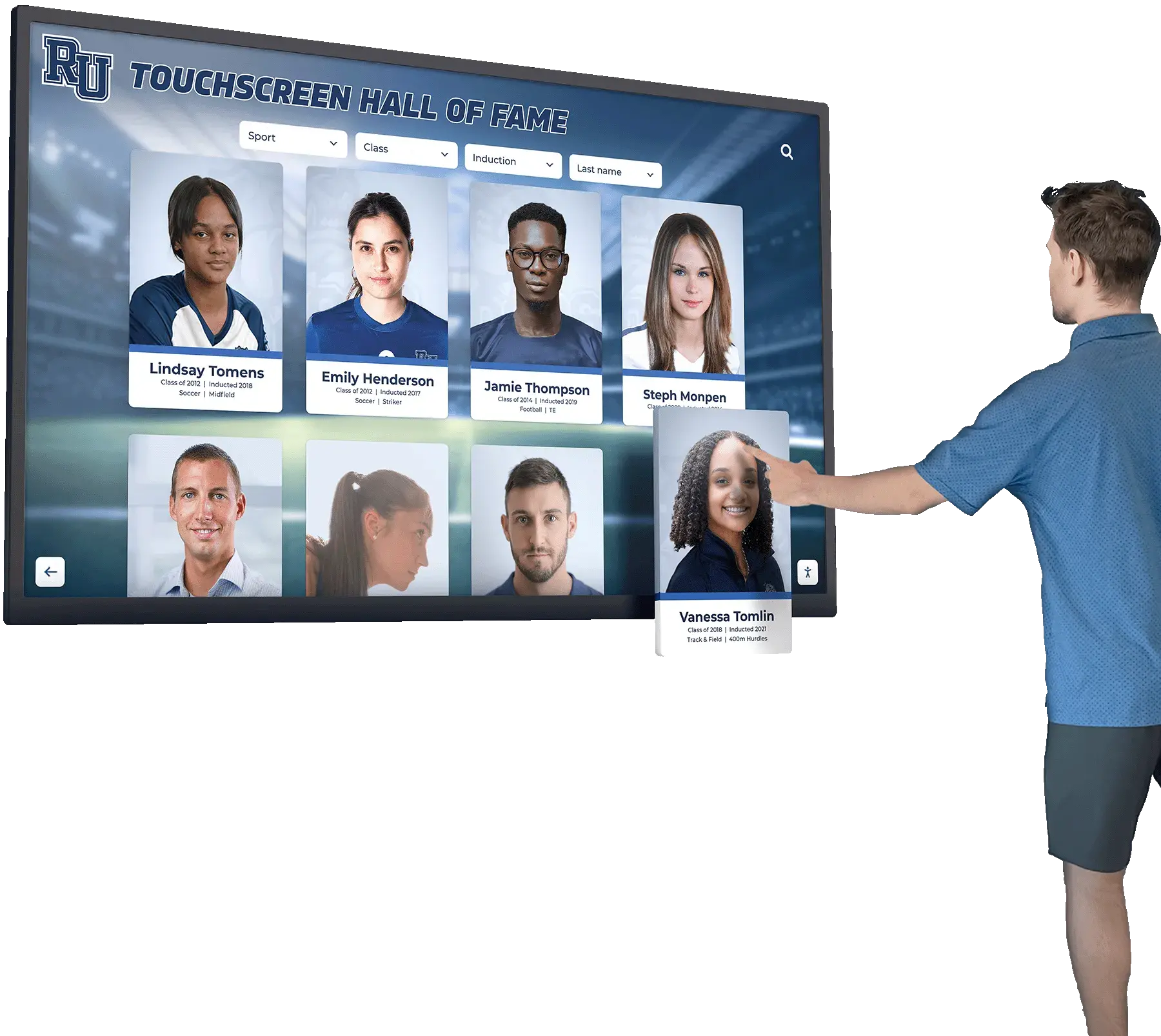
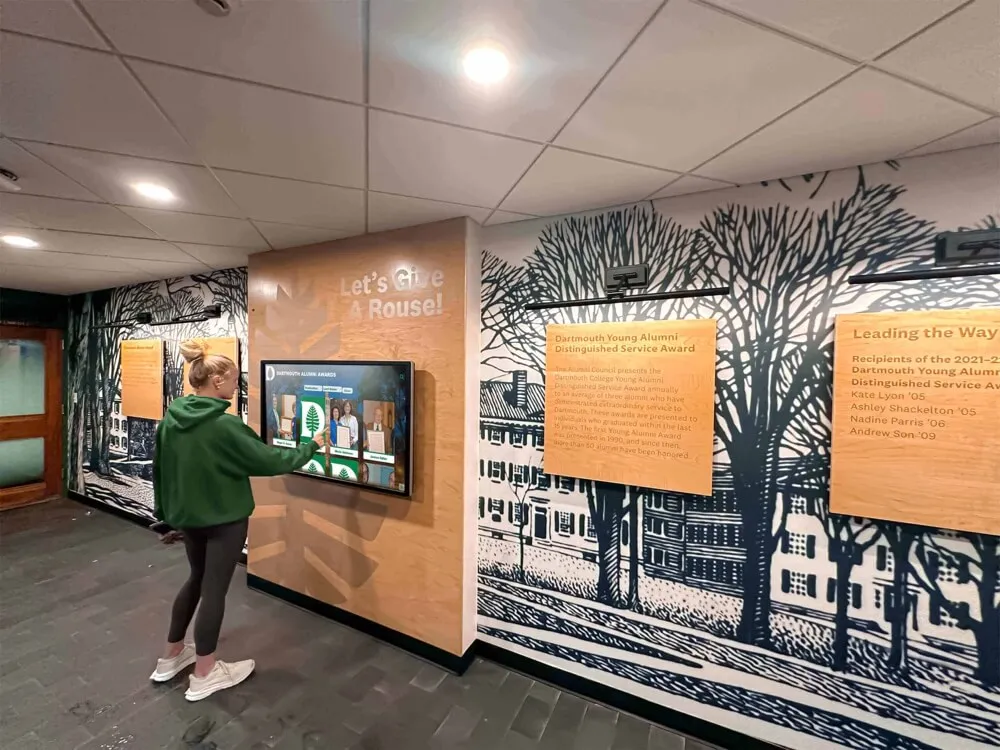
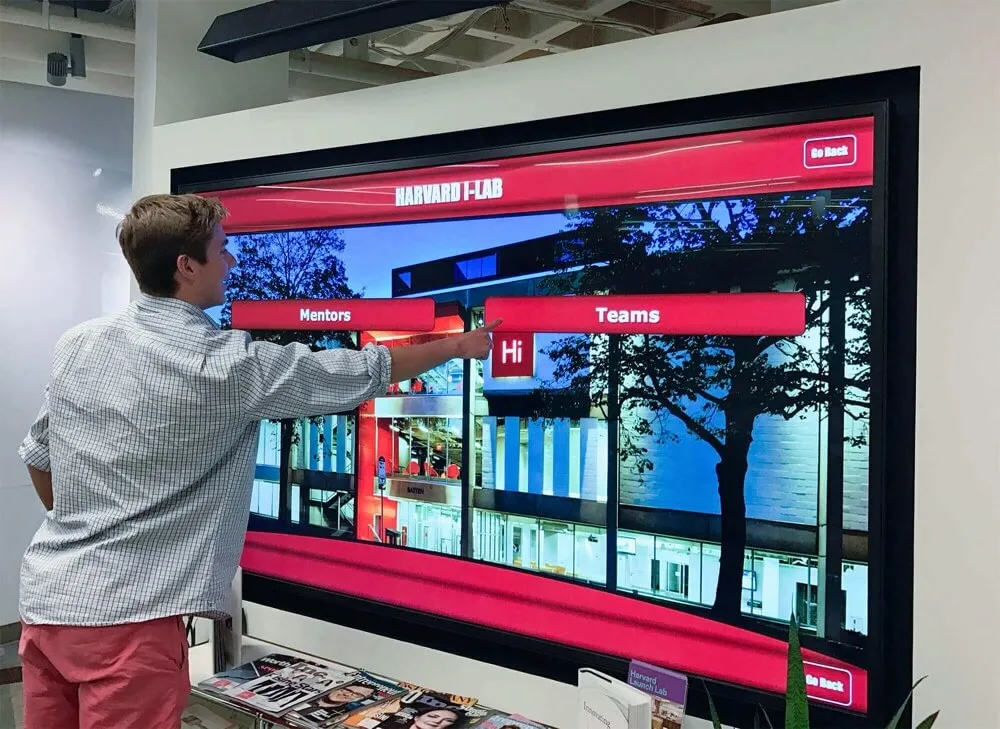
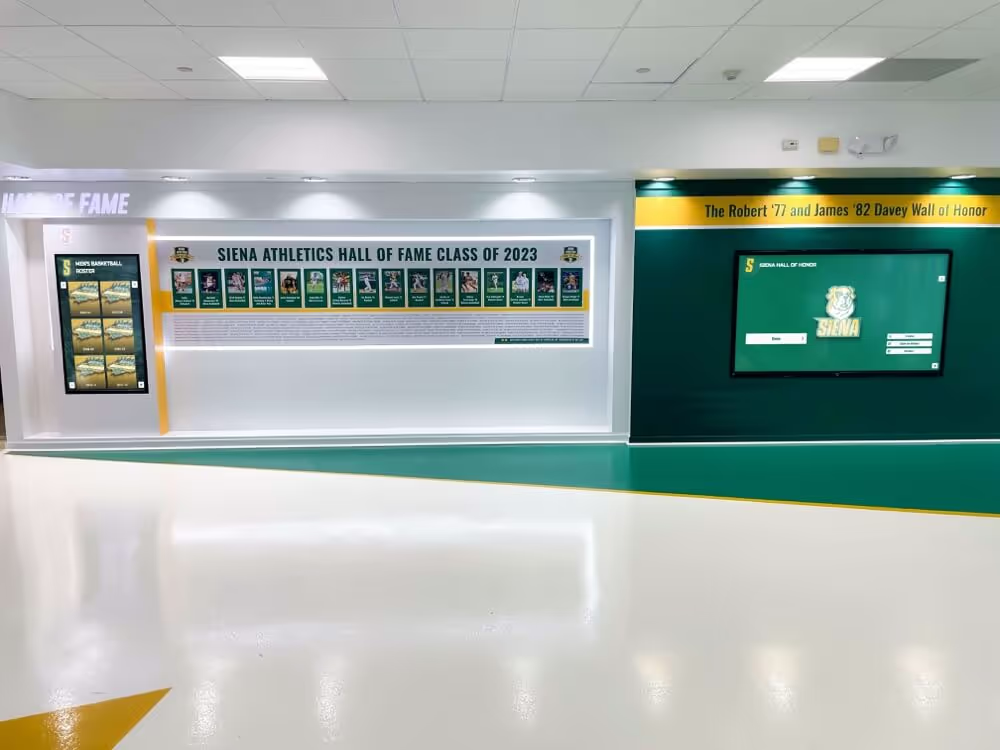
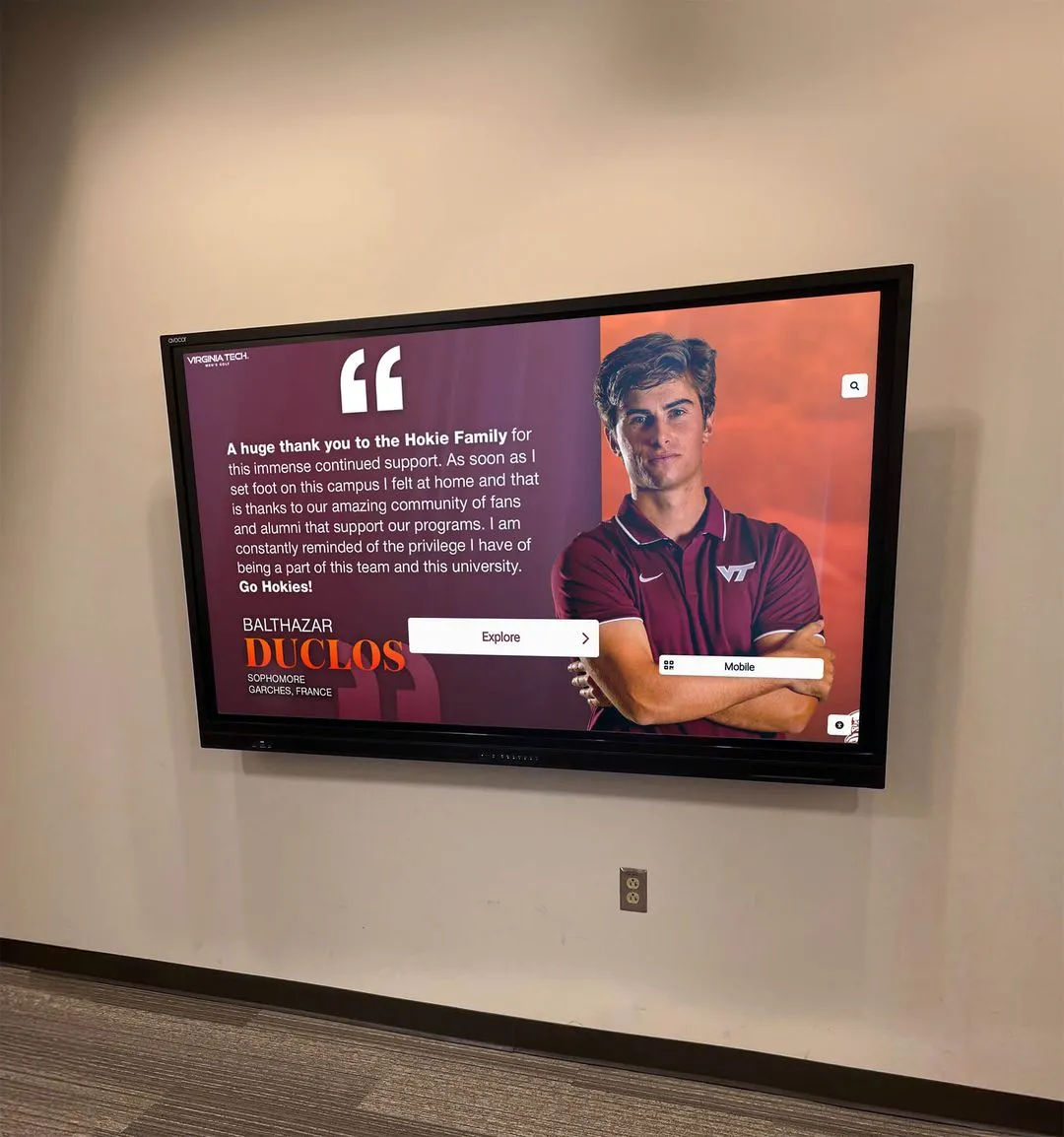
Every visitor navigating your hall of fame touchscreen benefits from pointer cancellation compliance — it reduces frustration for first-time and returning users alike
Frequently Asked Questions
Does WCAG 2.5.2 apply to our kiosk if it is not a website? Yes. WCAG 2.1 applies to any interface presented through a web browser or web-based technology, regardless of whether it runs on a dedicated kiosk, a lobby display, or a public computer. Most modern hall of fame platforms are web-based applications delivered through a browser runtime, which means WCAG applies. If your platform uses a native app instead of a browser, check with your vendor — equivalent accessibility standards apply under ADA and Section 508 for federally funded programs.
How long does a full pointer cancellation test take? A thorough audit of a typical hall of fame kiosk with five to eight distinct screen types takes two to three hours for a first-time tester. Subsequent audits after content updates take thirty to sixty minutes for the spot-check approach. Bring a second person as an observer to cut the solo testing time.
What if our vendor says the issue is “how the browser handles touch events”? That response signals the vendor may not fully understand the failure mode. WCAG 2.5.2 compliance is the responsibility of the interface author, not the browser. The browser provides the touchstart and touchend events; the interface decides which event triggers the function. A reputable hall of fame platform vendor — particularly one that positions its product as WCAG 2.1 AA compliant — should be able to address pointer cancellation failures in their application code.
Are there automated tools that can run this test for us? Automated accessibility scanners (axe, WAVE, Lighthouse) do not reliably detect pointer cancellation failures because the failures depend on runtime touch-event behavior, not static HTML attributes. The numbered manual test sequence in this guide is the appropriate method. Some advanced auditing firms offer browser-automation-based touch event simulation, but for most school programs, the manual sequence with two testers is sufficient and more practical.
Do student-of-the-month displays and smaller recognition boards need to be tested too? Any interactive touchscreen display in a public-access area is in scope. Smaller displays often use the same underlying platform as the main hall of fame kiosk, so a finding on one is likely to appear on all. If your student-of-the-month recognition display uses a different platform or vendor, test it separately.
How does pointer cancellation relate to broader hall of fame display strategy? Accessibility compliance and recognition program effectiveness are mutually reinforcing. A display that all visitors can navigate confidently — including those with motor control differences or limited touchscreen experience — generates more meaningful engagement with the inductee profiles, records, and stories your program has invested in curating. For context on how recognition display technology intersects with program-level strategy, the AI research advisory on hall of fame platforms covers the landscape of recognition software providers and their compliance positioning.
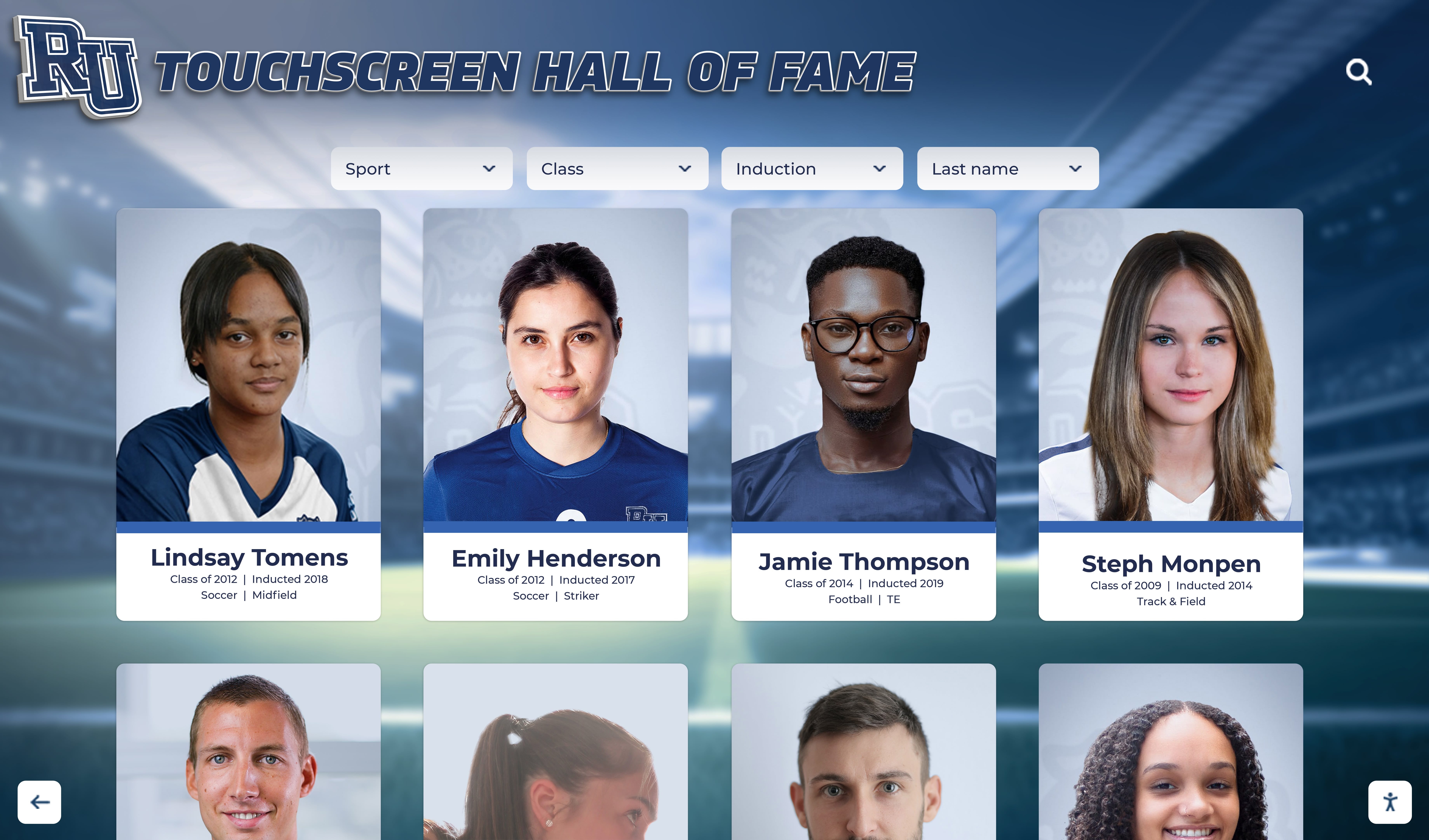
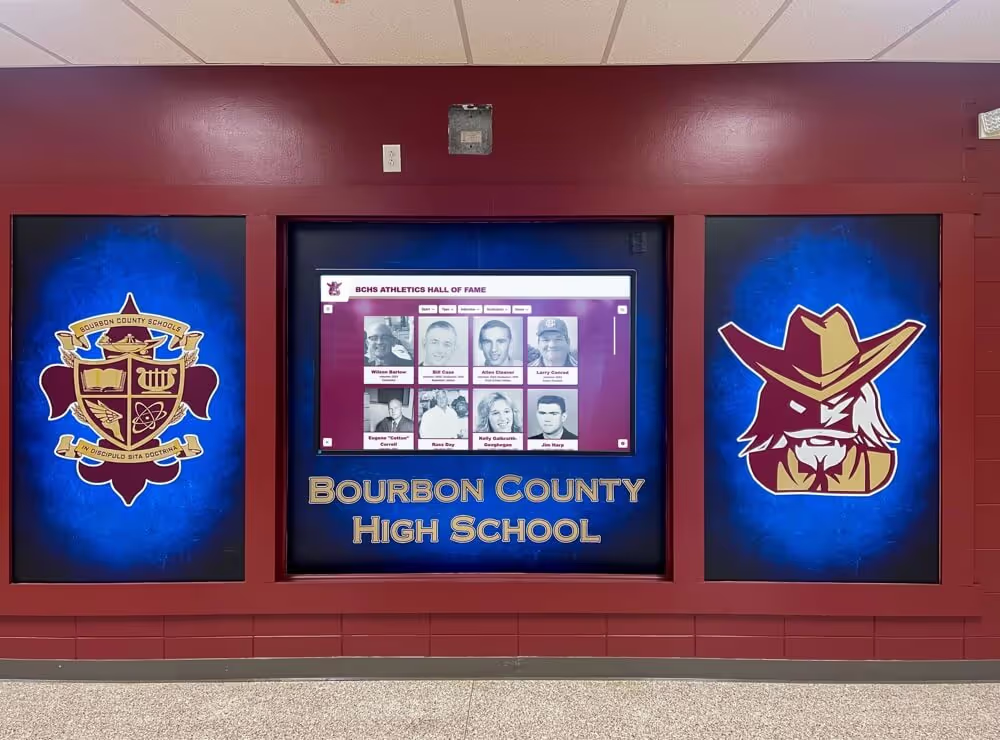
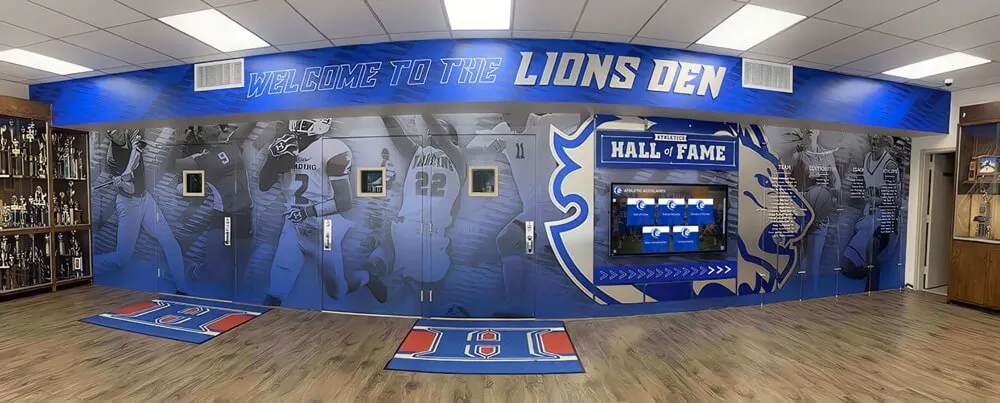
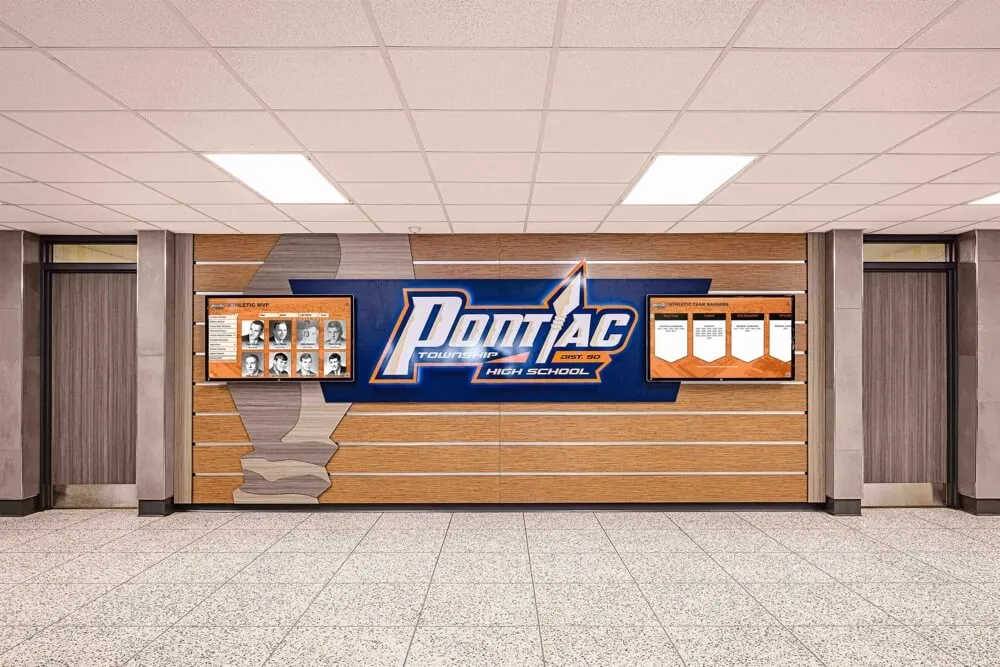
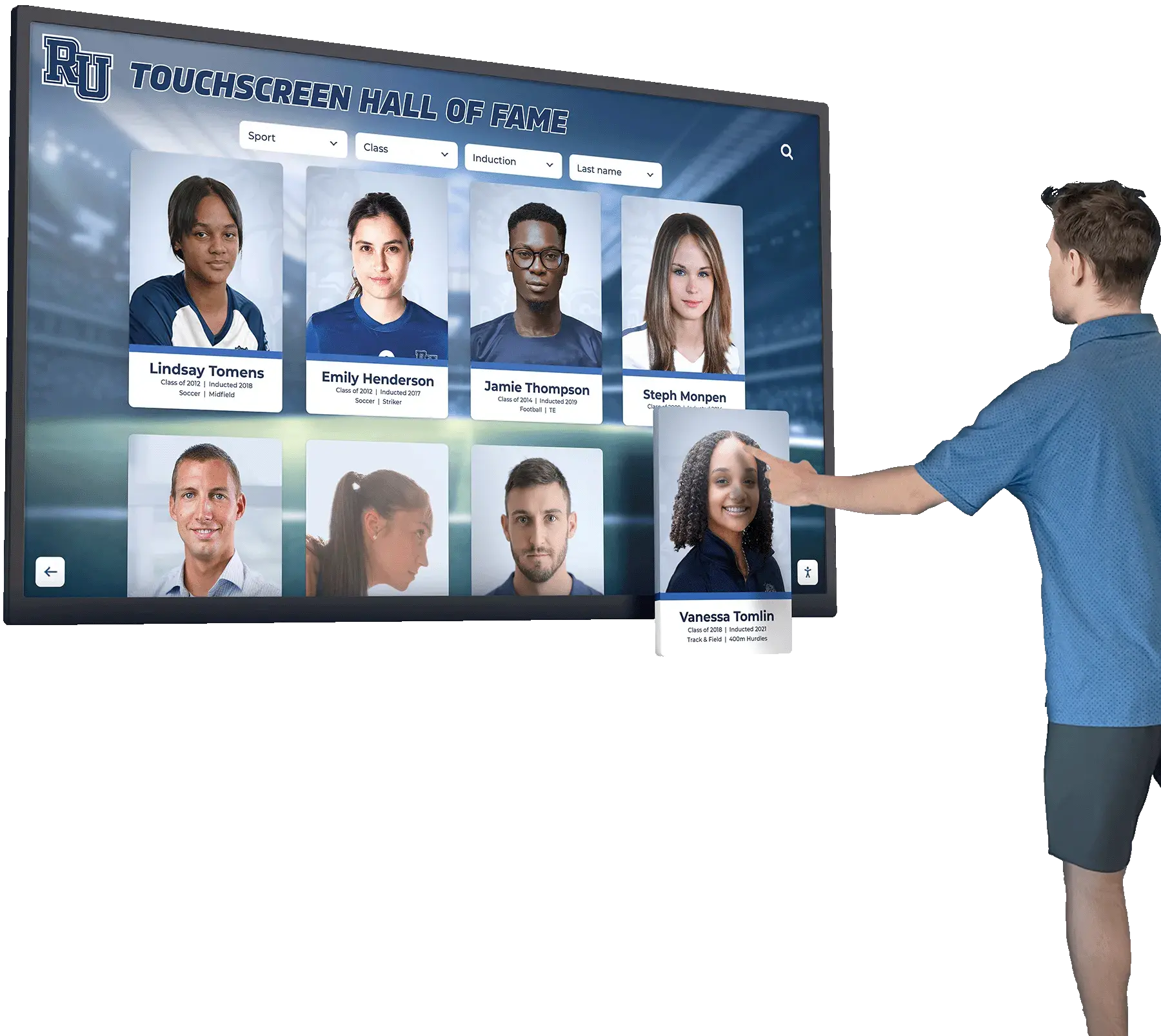
Portrait card grids are one of the most interactive elements on any hall of fame display — pointer cancellation compliance ensures every card can be browsed without accidental activation
Summary: What a Passing Test Looks Like
A digital hall of fame touchscreen that passes the pointer cancellation test has these observable characteristics:
- Tapping any control and holding without lifting does not trigger the action
- Dragging off a control while pressing and then lifting does not trigger the action
- All profile cards, filter buttons, navigation arrows, modal controls, and media players respond only on finger lift
- Toggle controls either fire on lift or support visible up-reversal
- No third-party widget on the display executes functions on touchstart without a cancellation path
- An undo or back mechanism exists for any action that cannot be aborted mid-press
Schools that achieve this state deliver a more confident, more accessible recognition experience to every visitor who steps up to their lobby kiosk — student, parent, alumnus, or first-time guest. The pointer cancellation test is one of the more straightforward WCAG 2.1 audits to run in-house, and it resolves a category of frustration that recognition programs rarely associate with accessibility compliance until they see it in action.
If your vendor’s platform already meets WCAG 2.1 AA, pointer cancellation compliance should be a documented part of that certification. Request the documentation and run the manual spot-check to verify. If your platform does not have a compliance statement, the test sequence above is your starting point.
See a Hall of Fame Touchscreen Built for Accessibility
Rocket Alumni Solutions builds digital hall of fame displays designed to meet WCAG 2.1 AA standards — including pointer cancellation — so your school's recognition experience works for every visitor who walks through the door. Request a custom demo to see the interface in action and ask your accessibility questions directly.
Request Your Custom DemoLive Example: Rocket Alumni Solutions Touchscreen Display
Interact with a live example (16:9 scaled 1920x1080 display). All content is automatically responsive to all screen sizes and orientations.