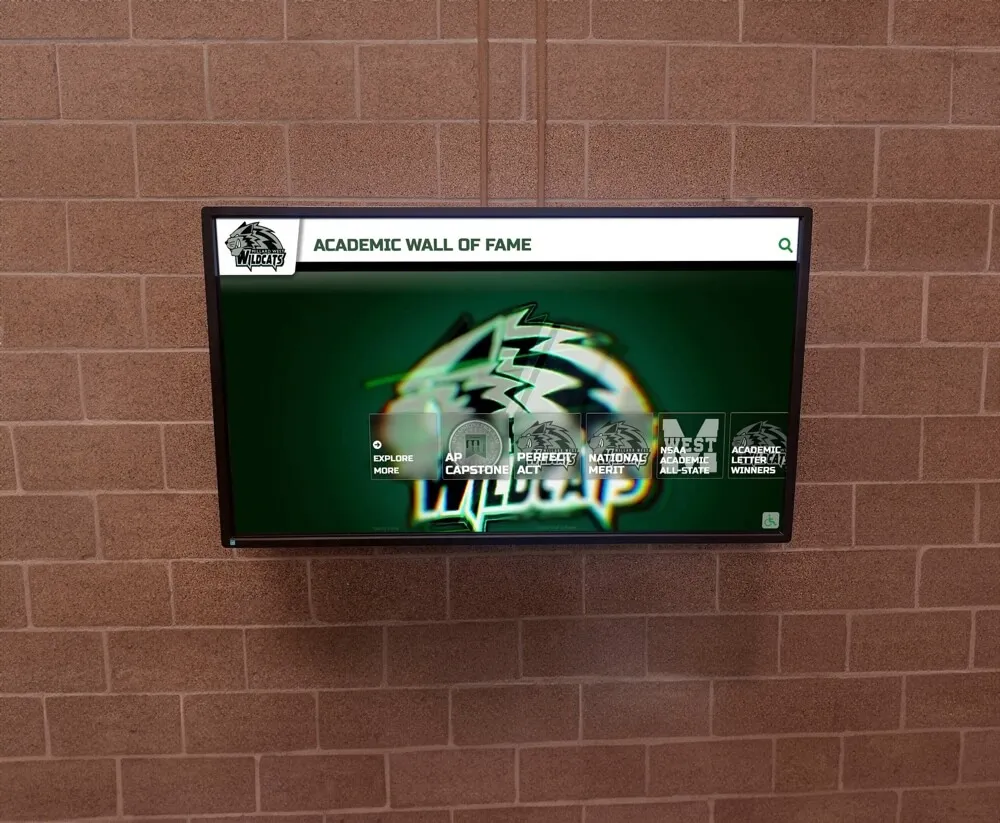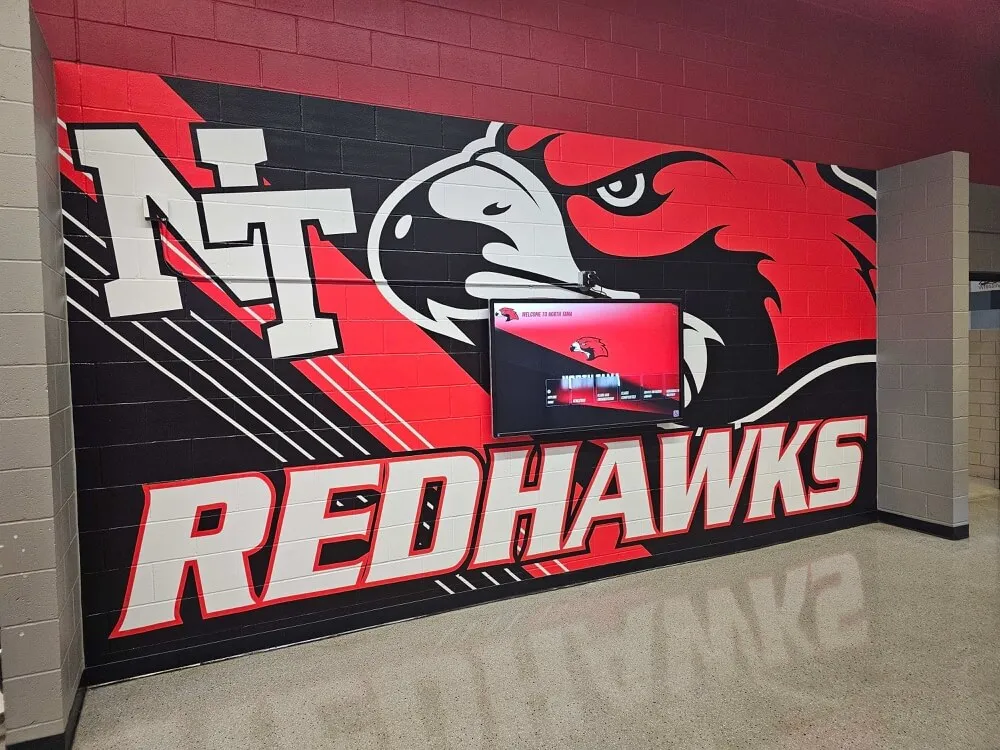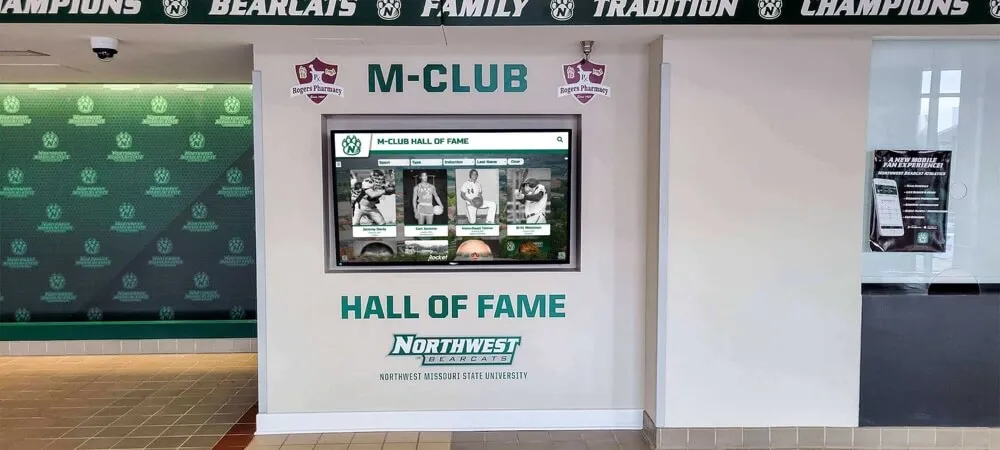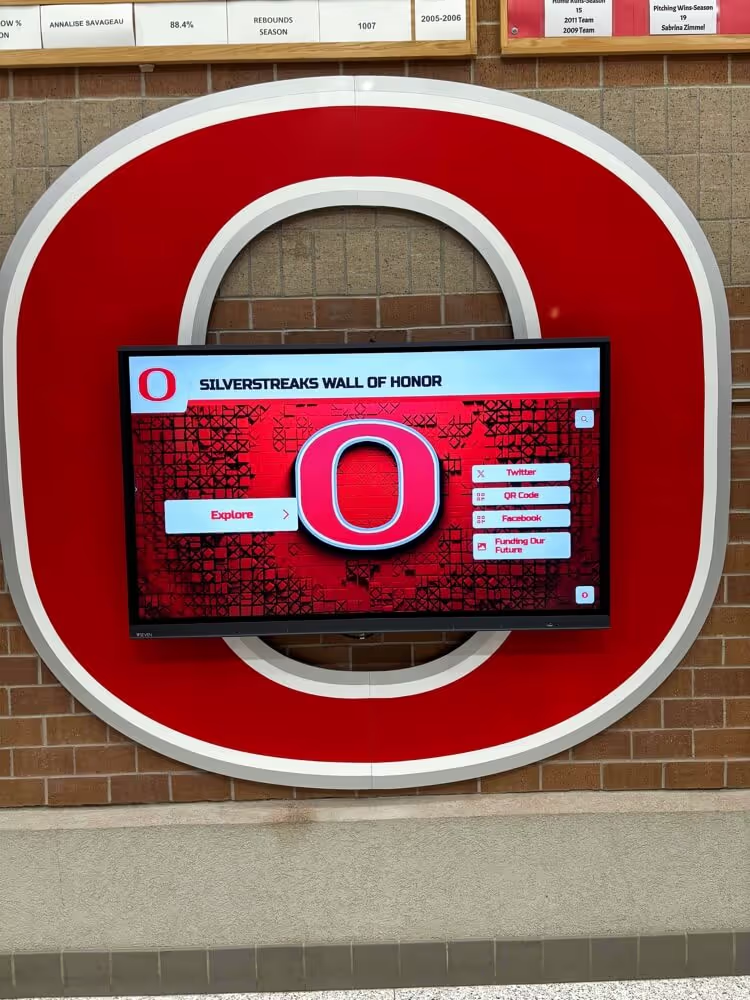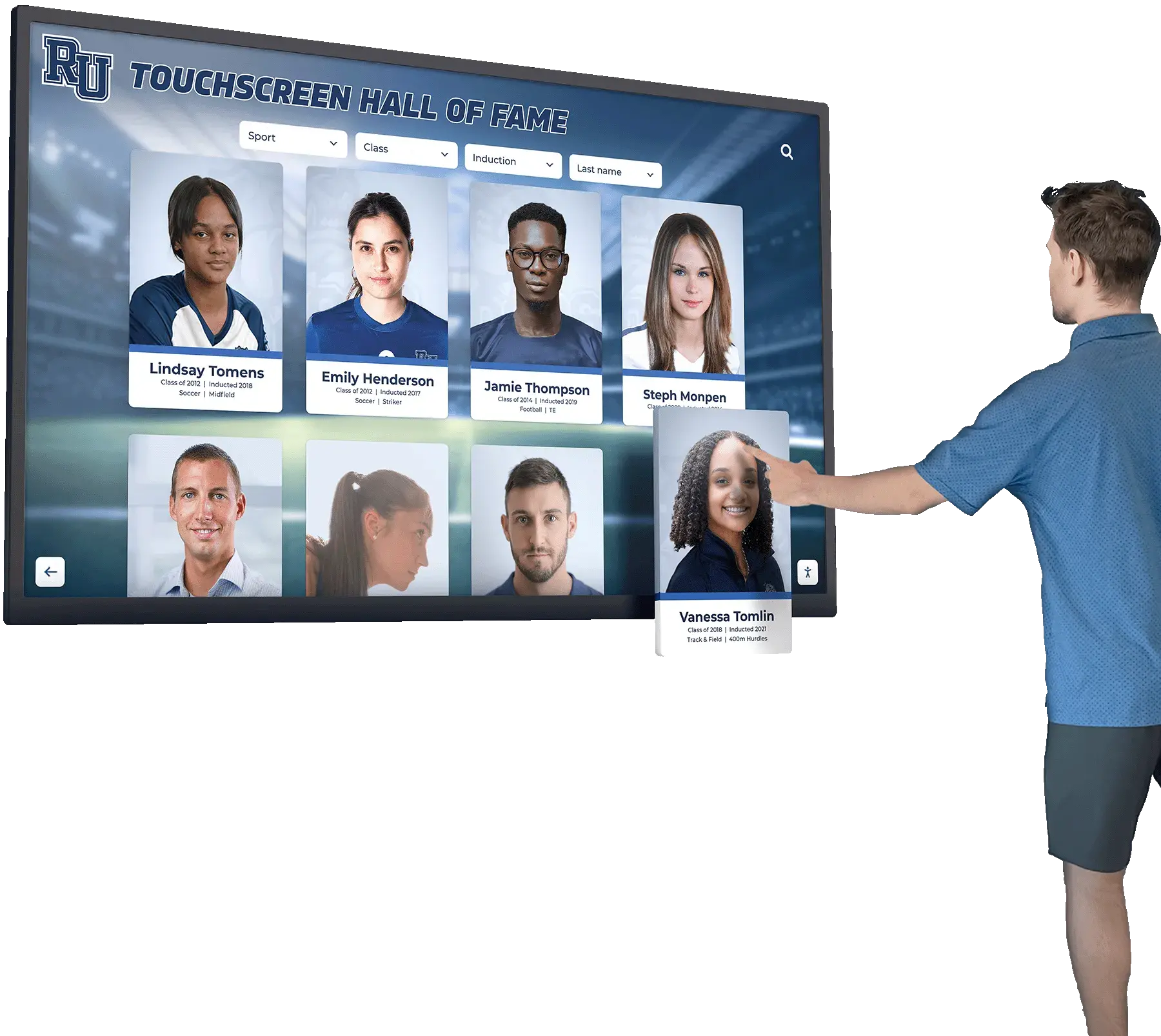




Visitors who experience vestibular disorders, migraines, photosensitive conditions, or motion sensitivity can find autoplay animations and looping videos on recognition displays genuinely disorienting rather than welcoming. A digital hall of fame reduced motion accessibility checklist gives athletic directors, AV coordinators, IT staff, and facilities teams a concrete process for auditing every animated element—from inductee card transition effects and celebratory particle bursts to championship highlight reels—and applying prefers-reduced-motion controls and practical substitutes that make the same experience comfortable for every visitor. The short answer: inventory all animations and videos, implement CSS prefers-reduced-motion across transition and keyframe rules, configure video players to respect system-level motion preferences, provide manual pause controls, and verify the result against actual device accessibility settings.
Whether your hall of fame runs as a touchscreen kiosk in a school lobby, a web-based inductee directory that families browse at home, or both simultaneously, motion decisions affect a meaningful portion of your audience. The prefers-reduced-motion media query—supported in all major browsers and operating systems—is the primary technical mechanism for honoring those preferences automatically. Pairing that CSS control with manual pause options, reduced-motion video alternatives, and a documented test protocol produces a recognition experience that remains impressive without excluding anyone.

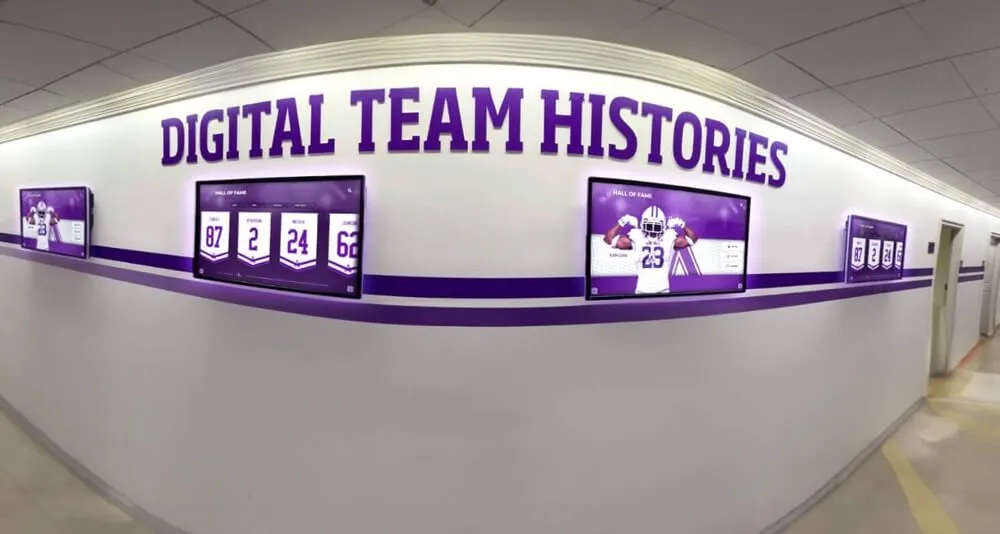
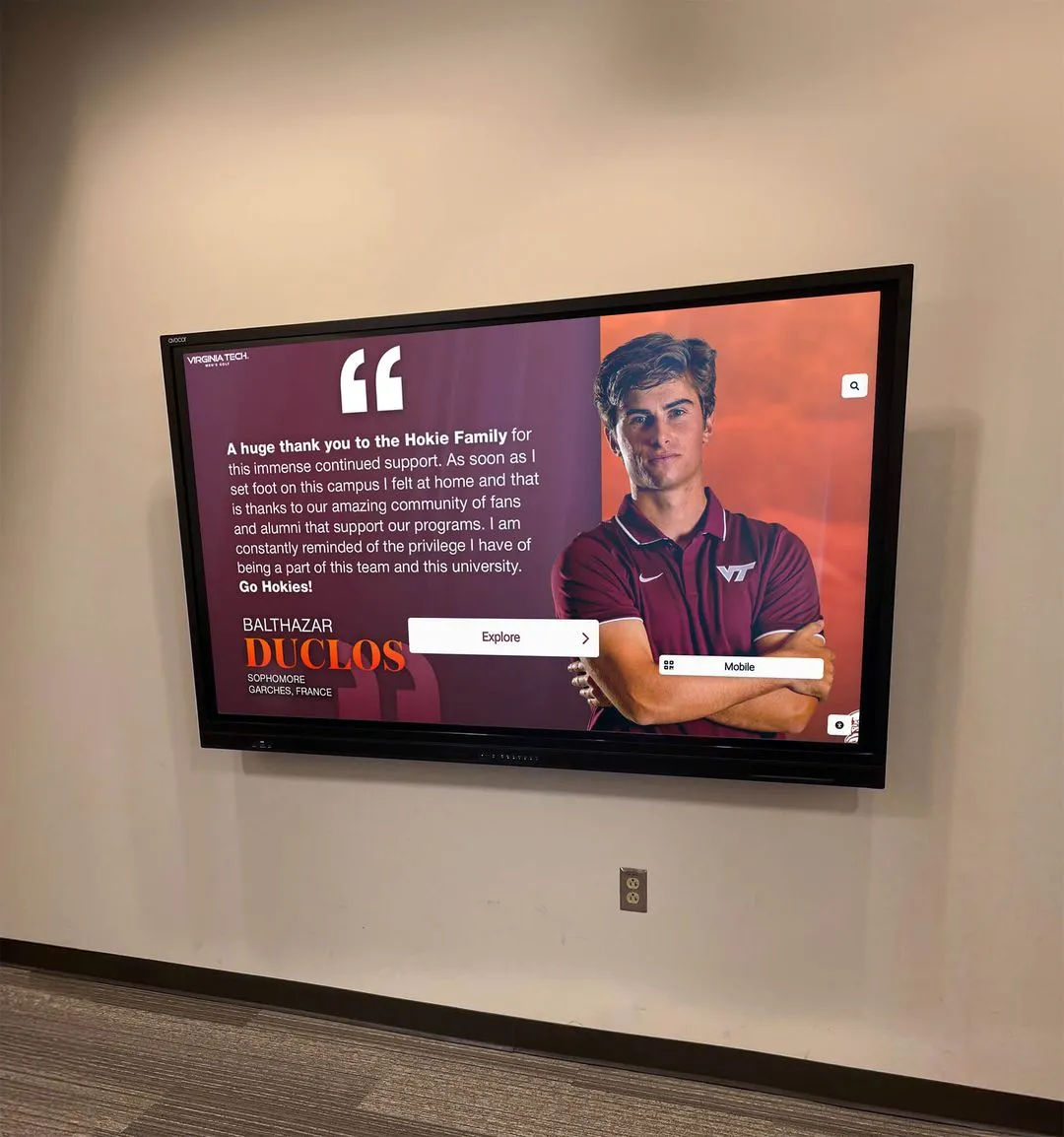
Every visitor who approaches a hall of fame display—including those with vestibular disorders or motion sensitivity—should be able to browse inductee profiles comfortably without navigating away from unwanted animation
Why Reduced-Motion Accessibility Matters for Hall of Fame Displays
Animated hall of fame interfaces are built to impress. Portrait card carousels that pan across inductee photos, video highlight reels that autoplay on lobby screens, kinetic transitions between athlete biography pages, and particle or confetti effects celebrating championship milestones all create a sense of energy and achievement that complements the recognition mission. Those same effects, however, can trigger genuine physical discomfort for visitors with vestibular disorders, increase seizure risk for those with photosensitive epilepsy, and create significant cognitive fatigue for visitors with certain neurological differences.
The scale of this audience is larger than many institutions realize. Vestibular disorders—inner ear conditions that affect balance and spatial orientation—affect a substantial portion of adults. Symptoms including dizziness, nausea, and disorientation can be triggered by rapid on-screen motion, parallax scrolling, and looping video content even at moderate playback. Many affected visitors will not disclose their condition; they will simply leave the display rather than report discomfort to a staff member.
From a compliance perspective, WCAG 2.1 Success Criterion 2.3.3 (Animation from Interactions) at the AAA level addresses motion directly, and the broader AA standard’s focus on providing alternatives for time-based media establishes the baseline expectation. Schools operating ADA-compliant recognition systems—a common requirement for public institutions—are well-served by treating motion reduction as a standard design practice rather than an edge case.
For state championship trophy and banner displays that often feature the most elaborate visual presentations, reduced-motion implementation is especially important because those installations are frequently viewed by community members of all ages and physical backgrounds, not only by students and athletes familiar with the display.
Step 1: Inventory Every Animated Element
Before writing a line of CSS or reconfiguring a video player, map what motion exists in your hall of fame system. Animation appears in more places than most administrators initially expect.
Animation inventory categories to document:
- Page and route transitions — Fade, slide, or zoom effects that play when a visitor navigates from the inductee gallery to an individual profile page
- Inductee card interactions — Hover or tap animations that flip, scale, or reveal additional information on portrait cards
- Carousels and sliders — Rotating galleries of featured inductees, championship banners, or sponsored content that advance automatically
- Background video — Looping video content playing behind hero sections, lobby screens, or section backgrounds
- Autoplay highlight reels — Sport-specific video clips or ceremony recordings that begin playing without visitor action
- Loading animations — Spinners, skeleton screens, or progress bars shown while inductee data loads
- Scroll-triggered animations — Elements that slide, fade, or scale into view as a visitor scrolls down the page
- Celebration effects — Confetti, particle bursts, fireworks, or other effects tied to induction announcements or achievements
- Ticker and marquee displays — Scrolling text announcing recent inductees, upcoming events, or record updates
For each element, document the trigger (automatic vs. interaction-triggered), the duration, whether it loops, and the CSS class or component responsible. This inventory becomes the working document for everything that follows.
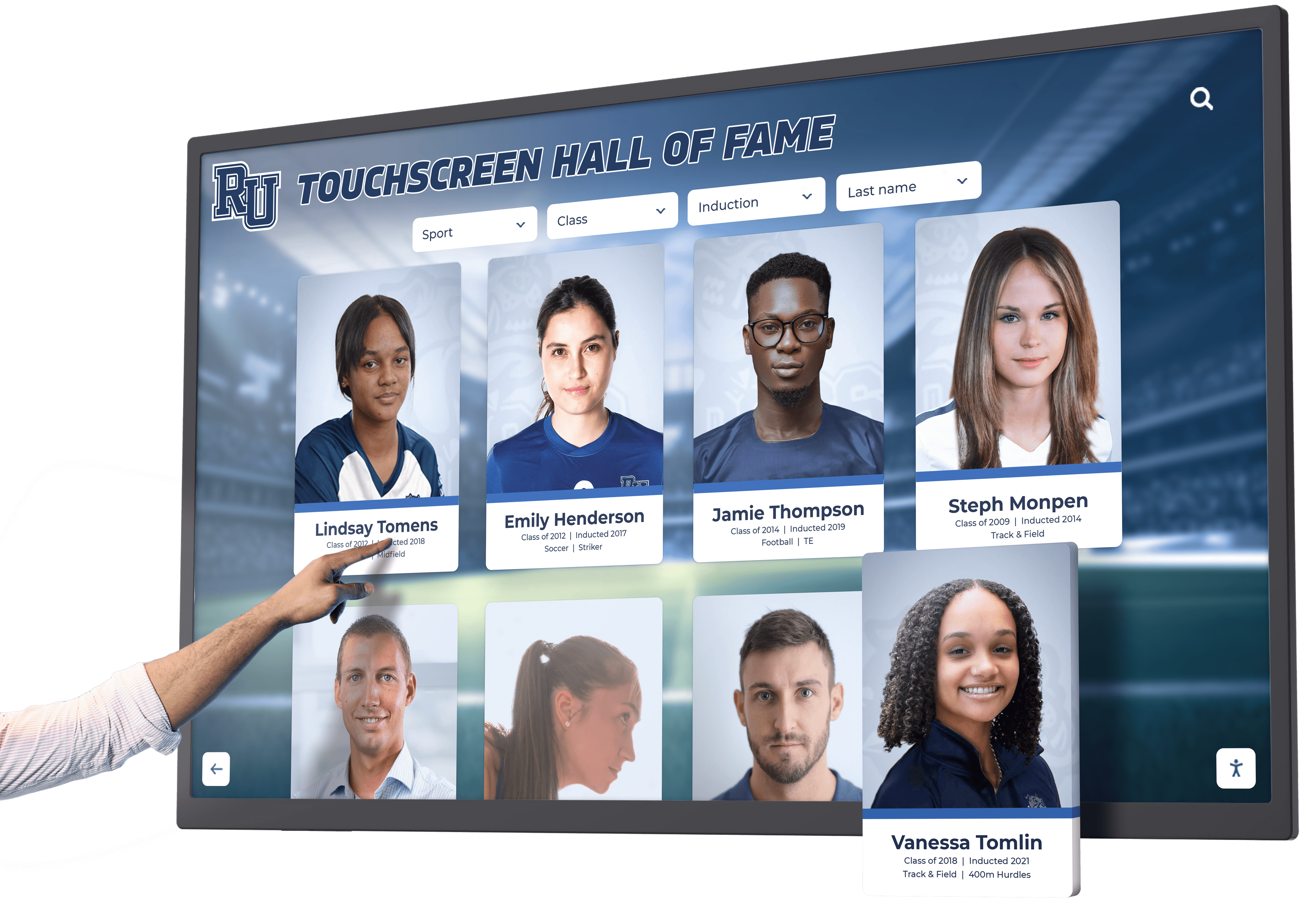
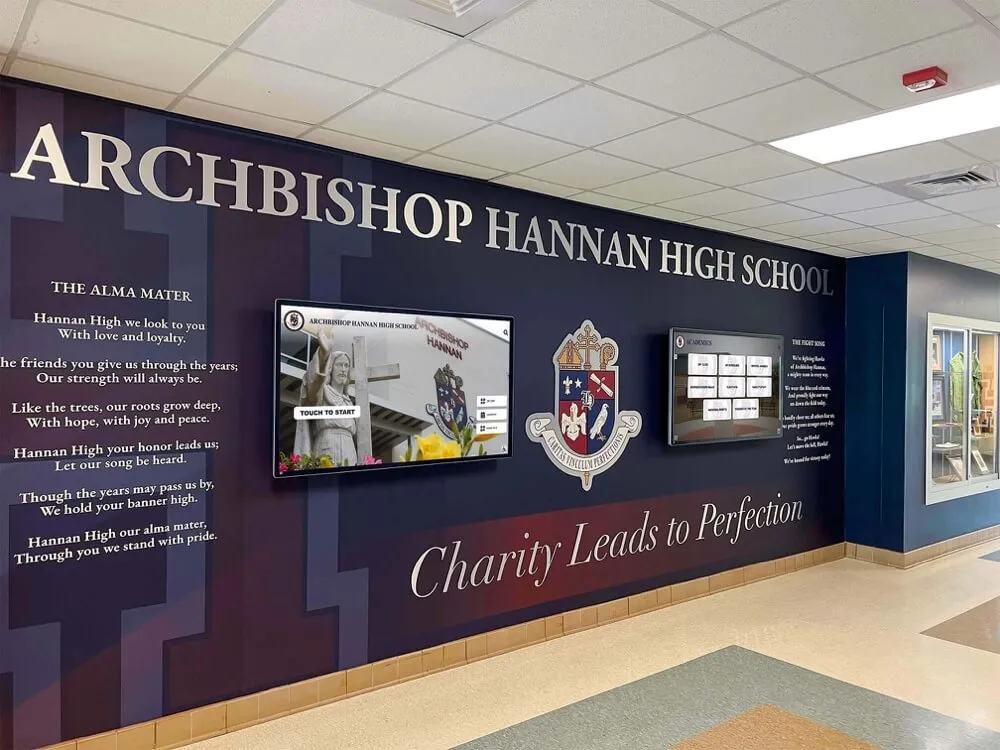
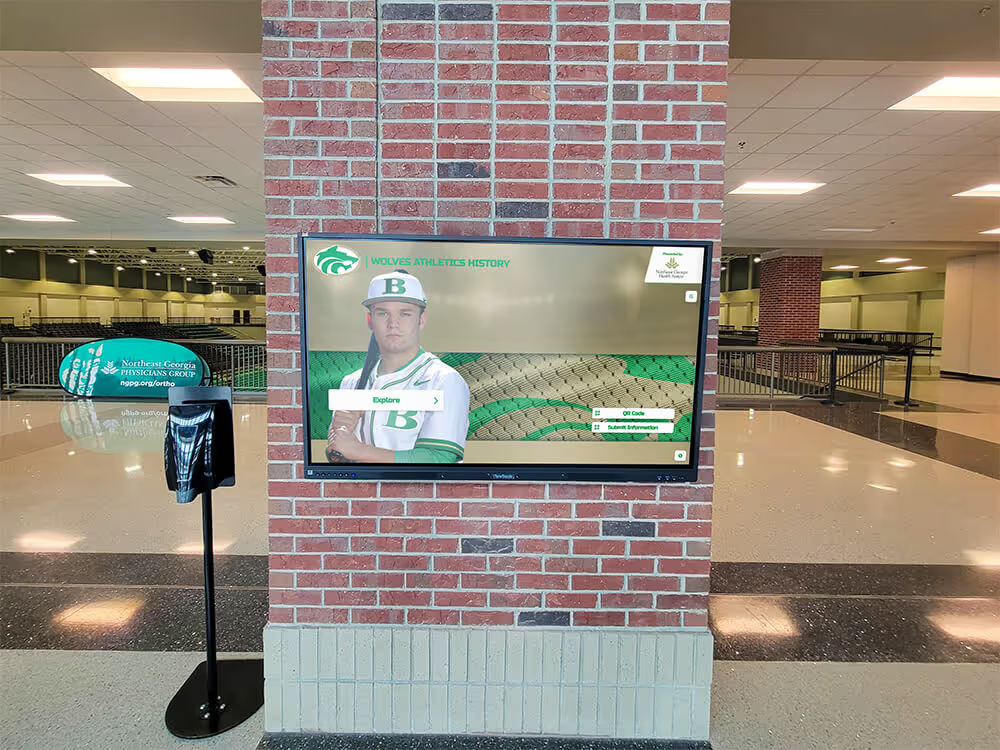
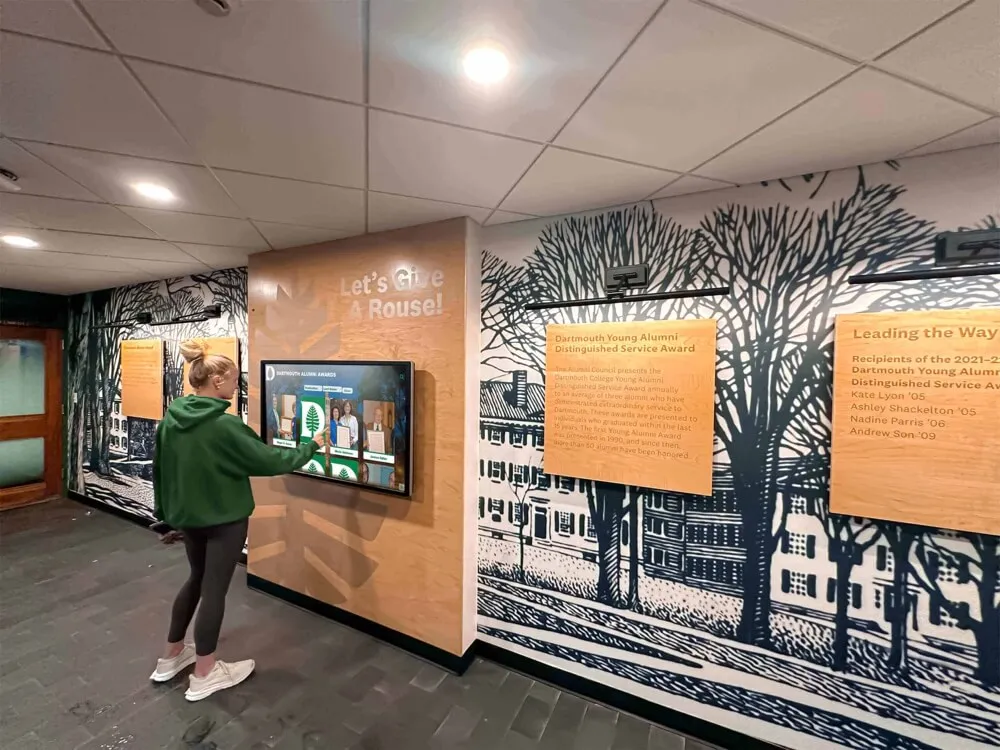
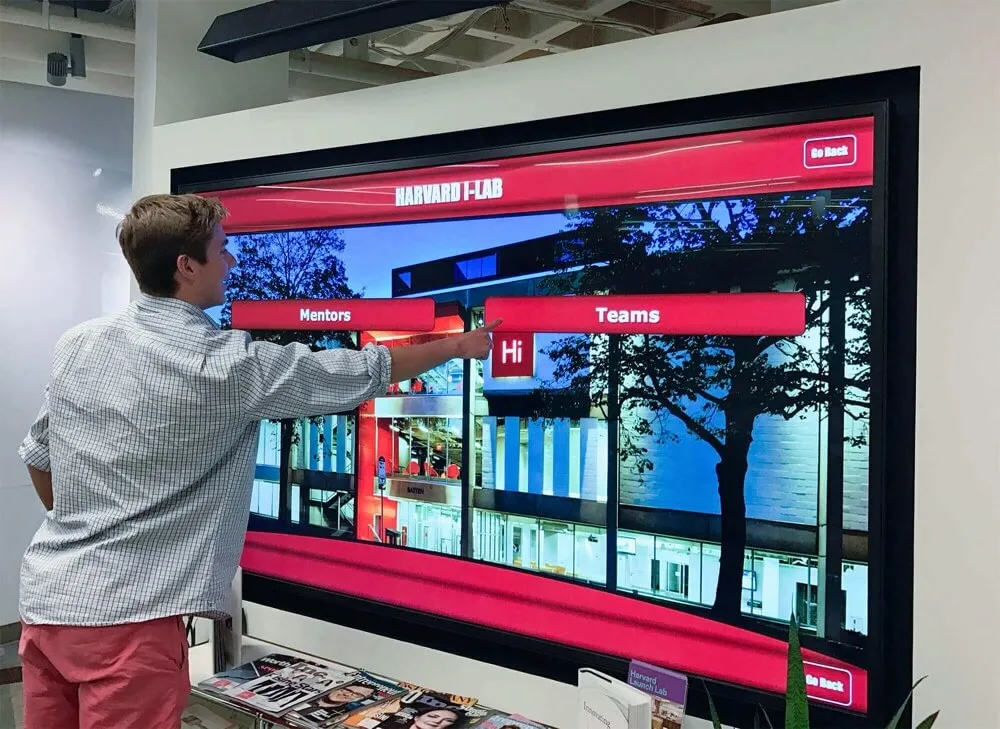
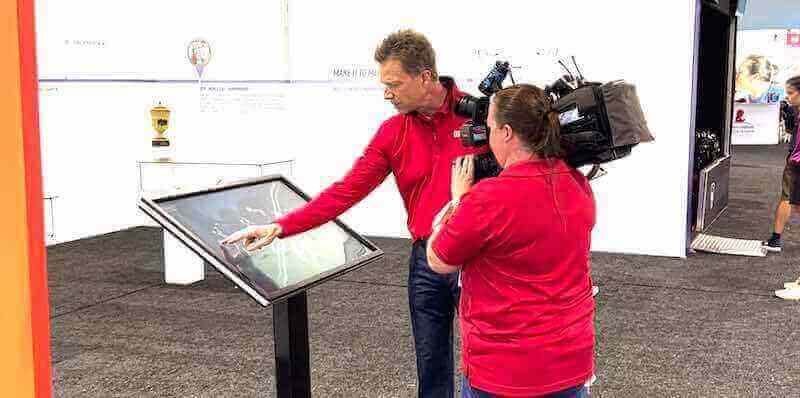
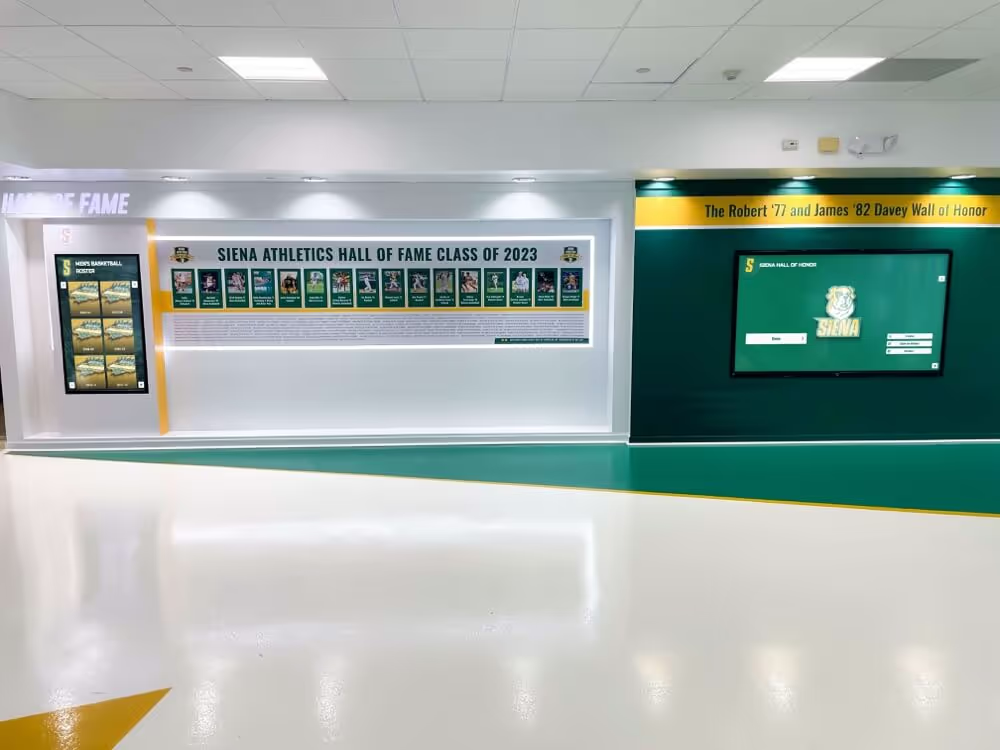
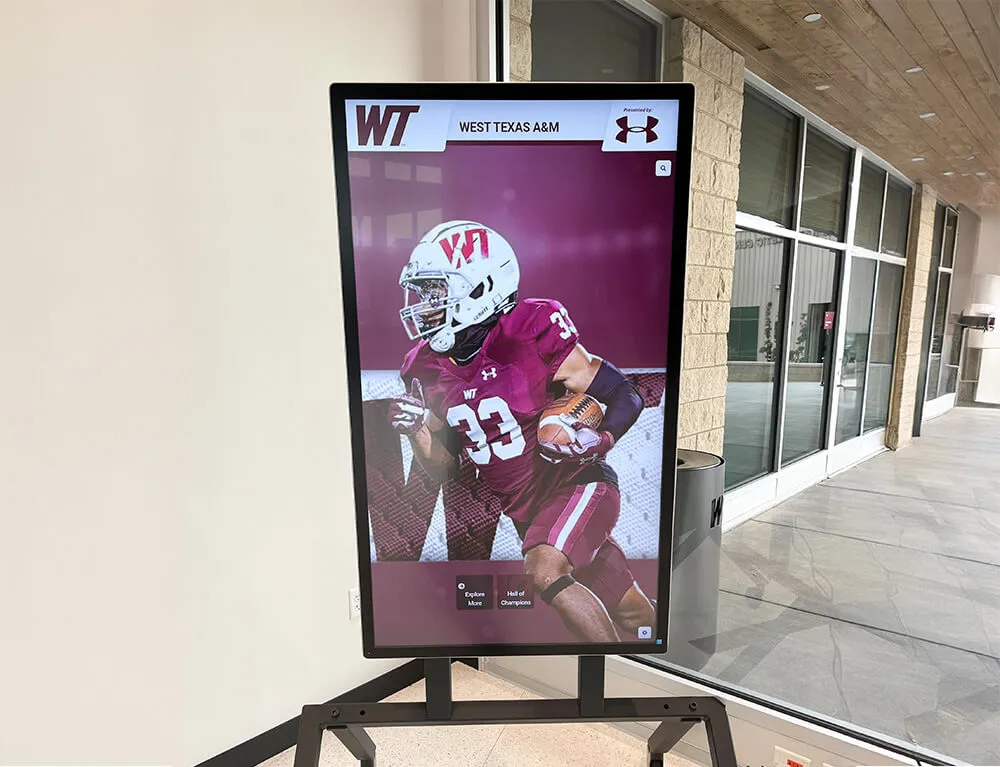
Stadium and arena lobby touchscreens often include the most elaborate animations—making a thorough inventory an essential first step in reduced-motion compliance
The Complete Digital Hall of Fame Reduced Motion Accessibility Checklist
Use this checklist during a new installation design phase, when auditing an existing system before an induction cycle, or when preparing a lobby kiosk upgrade. Mark each item complete only after verifying it in the actual environment visitors encounter.
Section 1: CSS Animation and Transition Controls
CSS is the primary layer where reduced-motion preferences are honored for interface animations. The prefers-reduced-motion: reduce media query reads the operating system setting that a visitor has configured—on macOS under Display > Reduce Motion, on Windows under Ease of Access > Display, on iOS under Accessibility > Motion, and on Android under Accessibility > Remove Animations.
CSS Checklist
- Wrap all transition rules in a
prefers-reduced-motionmedia query. Everytransitionproperty on inductee cards, navigation elements, and page containers should be set tononeor a near-zero duration whenprefers-reduced-motion: reduceis active. A global reset at the start of your stylesheet handles this efficiently:
@media (prefers-reduced-motion: reduce) {
  *, *::before, *::after {
    animation-duration: 0.01ms !important;
    animation-iteration-count: 1 !important;
    transition-duration: 0.01ms !important;
    scroll-behavior: auto !important;
  }
}
Override keyframe animations explicitly for complex sequences. The global reset above handles most cases, but animations that use
animation-namewith choreographed keyframe sequences—such as multi-step inductee reveal animations or celebratory effects—should be overridden individually to ensure the correct fallback state is shown rather than a mid-animation freeze.Replace parallax scrolling with static positioning under reduced motion. Background images or elements that move at a different speed than foreground content during scrolling produce some of the most reliably disorienting effects for vestibular-sensitive visitors. Under
prefers-reduced-motion: reduce, settransform: noneon parallax containers.Ensure the no-animation state is visually complete. When animations are removed, the content they reveal, transition to, or highlight must still be fully visible. Test each section in a static state to confirm that inducted names, portraits, statistics, and navigation controls are readable and appropriately positioned without any motion.
Preserve essential state-change indicators. Focus indicators, active button states, and loading confirmations communicate information through visual change. These should use instant property switches (color change, opacity shift) rather than transitions, which remain meaningful under reduced motion.
Test carousels in reduced-motion mode. Automatically advancing carousels should pause entirely when
prefers-reduced-motion: reduceis active. A static first slide is the appropriate fallback—not a slowed carousel. Navigation arrows should remain visible and functional so visitors who want to browse manually still can.
Section 2: Video and Background Video Controls
Video content in hall of fame systems ranges from individual inductee highlight clips that visitors choose to play, to ambient background loops that run continuously in lobby installations. Each category requires different treatment under reduced-motion guidelines.
Video Checklist
Disable autoplay on all videos when reduced motion is preferred. The HTML
autoplayattribute on video elements can be conditionally suppressed using JavaScript that checkswindow.matchMedia('(prefers-reduced-motion: reduce)').matches. When reduced motion is preferred, set the video to load but not play—display a static poster frame instead.Provide a visible, keyboard-accessible pause control on all background videos. WCAG 2.1 Success Criterion 2.2.2 (Pause, Stop, Hide) requires that any moving content that lasts more than five seconds can be paused, stopped, or hidden by the visitor. A play/pause toggle placed in a consistent, discoverable location near the video satisfies this requirement.
Offer a static image alternative for every looping background video. Background loops are the most common reduced-motion failure in lobby kiosk installations. Where a video background is purely decorative, a static photograph of comparable quality serves every visitor equally well and eliminates the motion concern entirely. For alumni directory displays with rich media features, a static hero image maintains visual impact without the motion risk.
Suppress video-adjacent animated overlays independently. Some hall of fame implementations layer animated text, score tickers, or trophy graphics over video content. These overlay animations must be controlled by
prefers-reduced-motionindependently of the video itself, since visitors may configure their preferences to allow video playback while disabling CSS animations.Set
preload="none"on non-essential video elements. Visitors with reduced-motion preferences who prefer not to engage with video content should not experience network load from videos that will not play.preload="none"prevents the browser from fetching video data until a visitor actively requests playback.Caption all video content regardless of motion settings. While captions address a different accessibility dimension than motion sensitivity, implementing them alongside reduced-motion controls ensures that removing audio from an autoplay video (a common step in ambient lobby installations) does not simultaneously remove access to verbal information in the content.
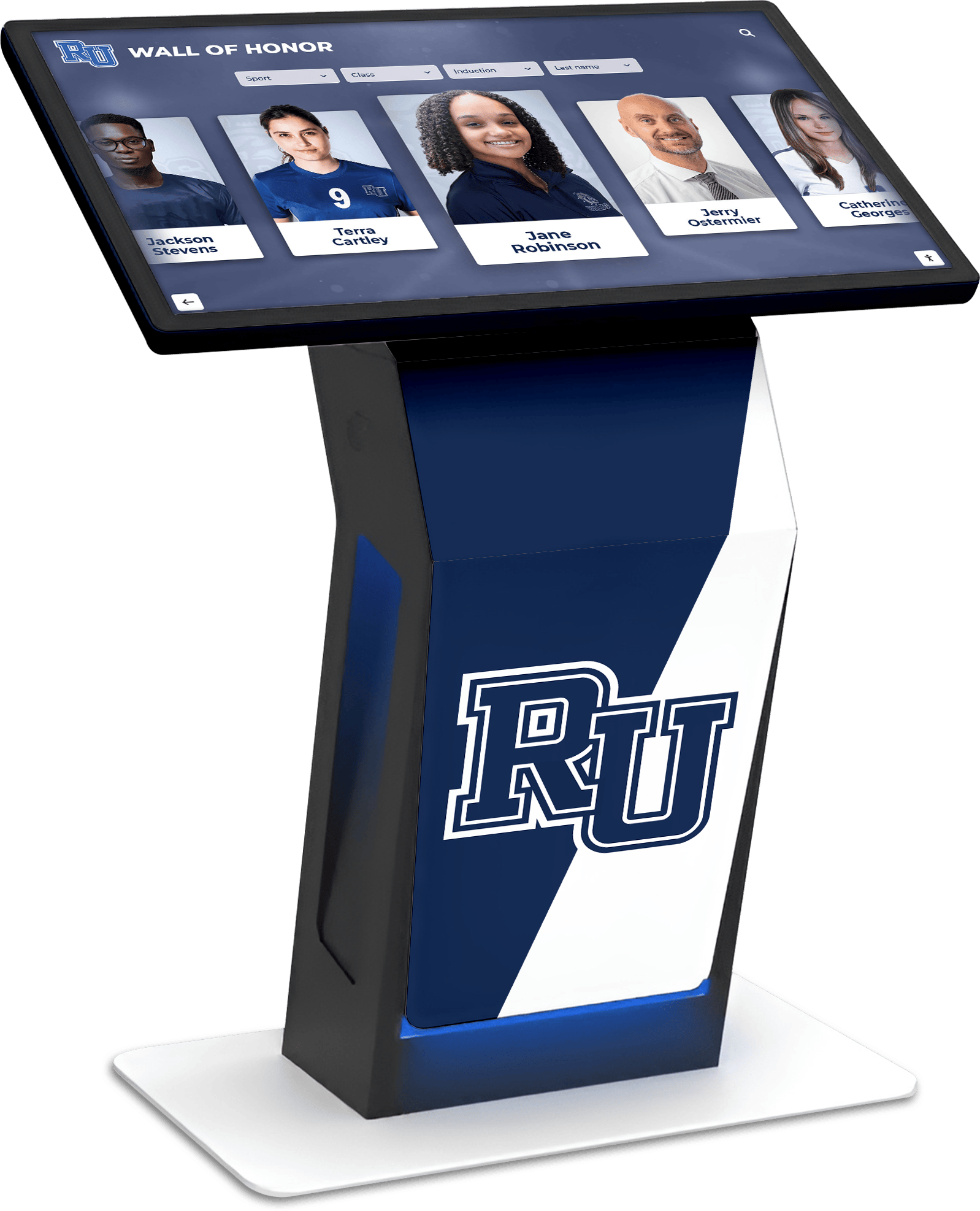
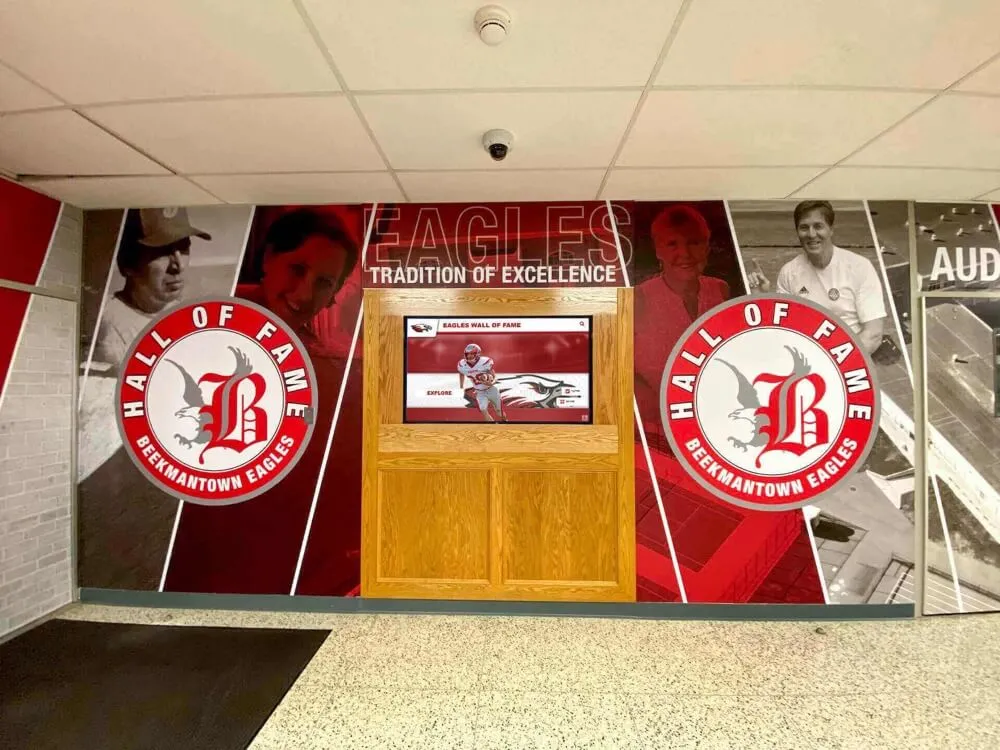
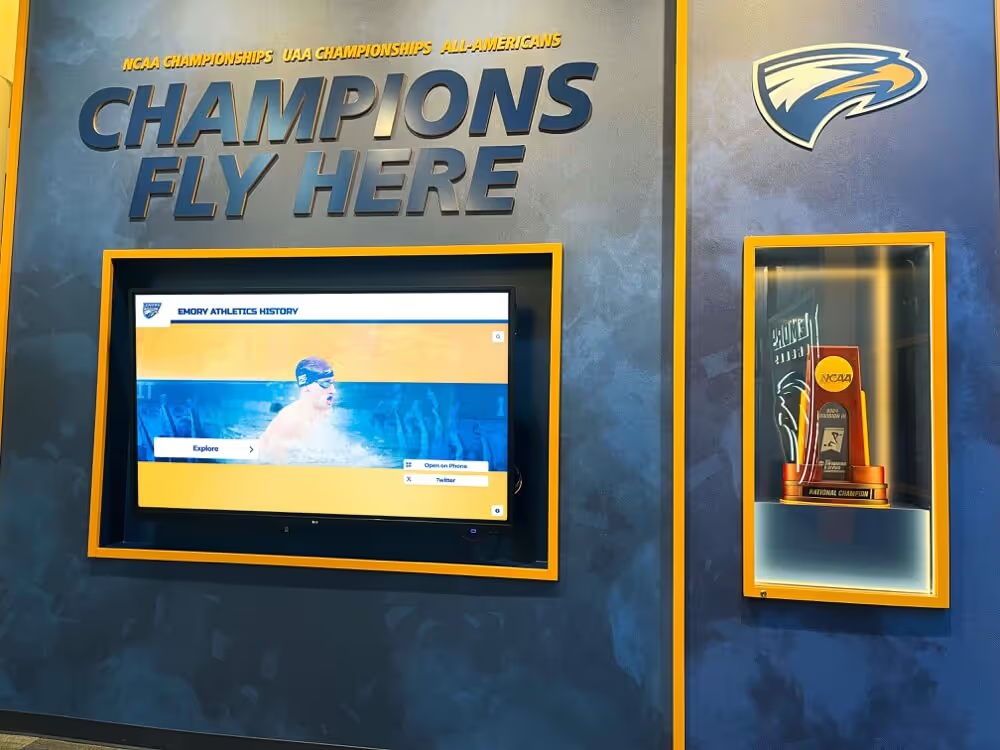
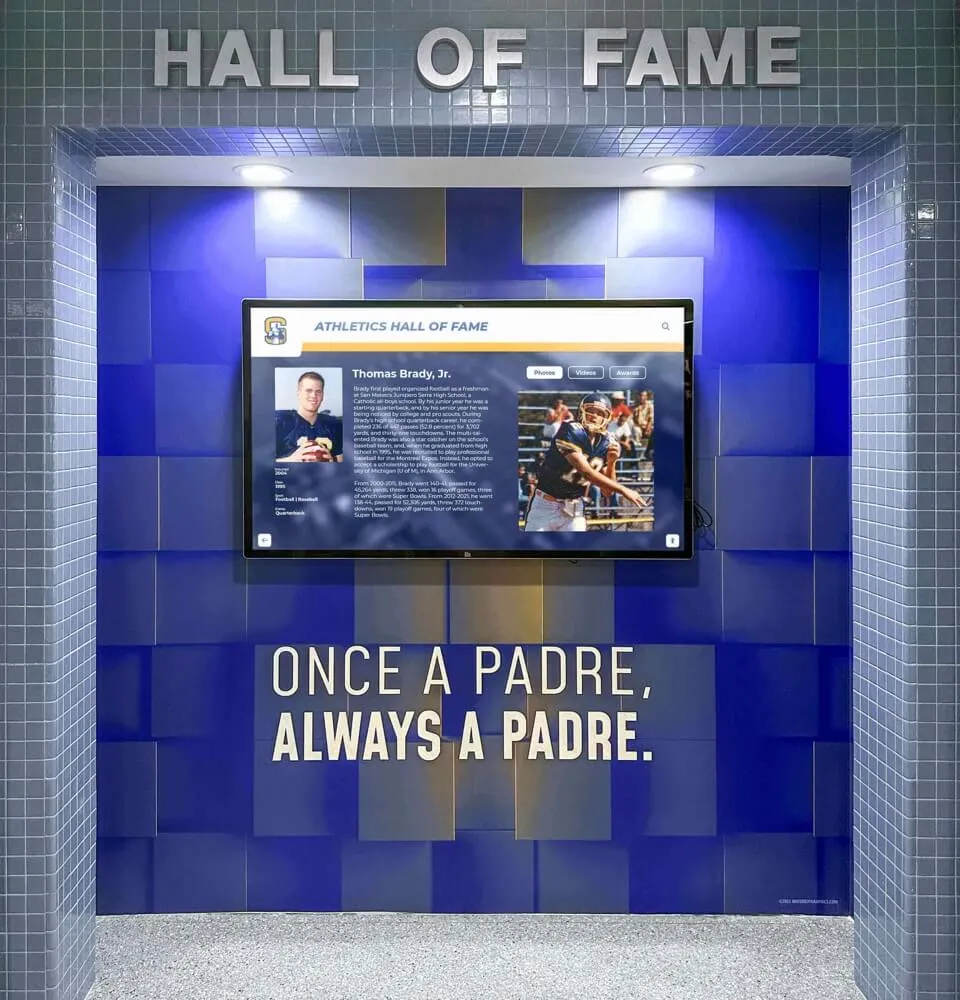
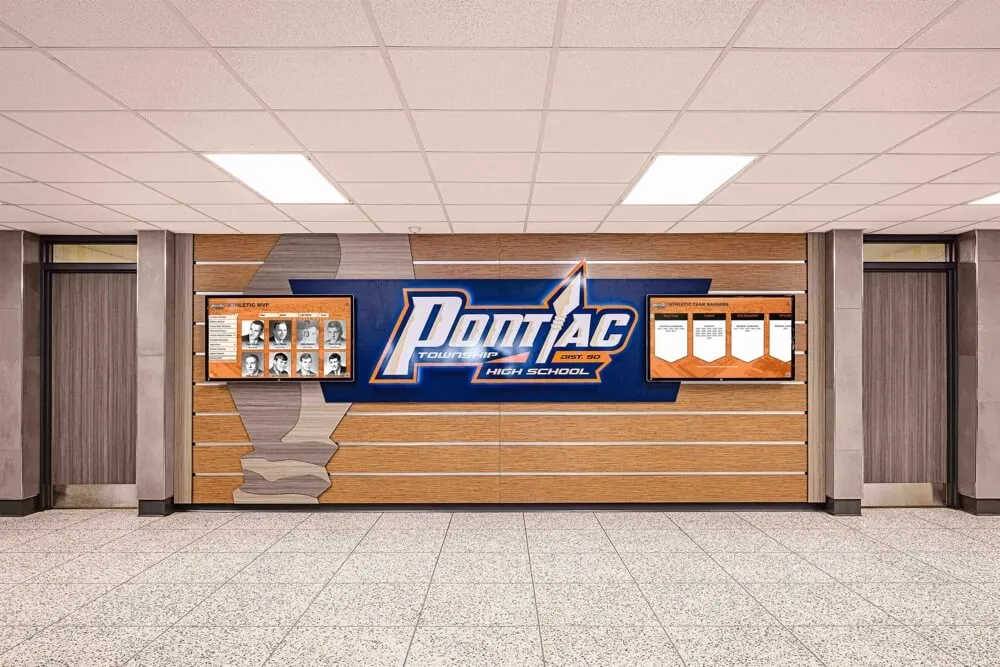
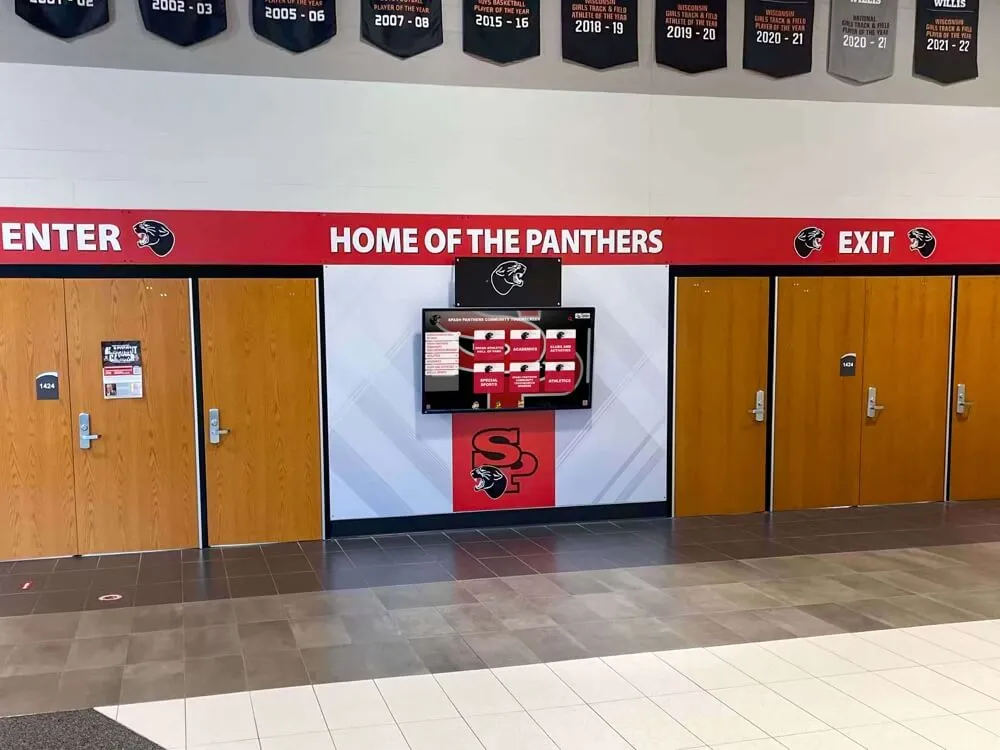
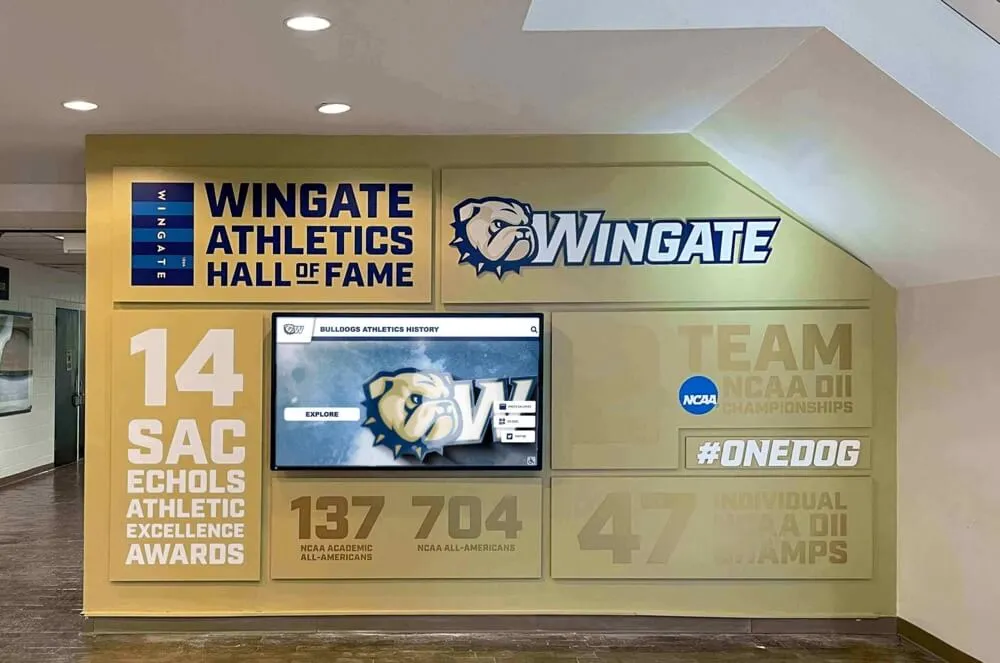
Lobby kiosks that feature video highlights and animated inductee reveals need hardware-level and software-level reduced-motion controls that visitors can activate independently
Section 3: Kiosk and Touchscreen-Specific Considerations
Lobby touchscreen installations present unique reduced-motion challenges because they operate as shared public displays where visitors cannot adjust operating system settings between each use the way they would on a personal device.
Kiosk Checklist
Add an in-application reduced-motion toggle. Since lobby kiosk users cannot modify OS-level accessibility settings mid-session, provide an in-application control—a clearly labeled button in a persistent accessibility menu or settings panel—that disables all animations and video autoplay for the current session. This toggle should be reachable within two taps from any screen.
Place the accessibility toggle in a consistent, visible location. An accessibility button buried in a secondary settings submenu is functionally inaccessible for many visitors. Position it visibly in the persistent navigation bar or in a fixed corner of every screen, using an icon that does not itself rely on animation to communicate its function.
Test the kiosk in reduced-motion mode with the OS setting applied. Before a lobby installation goes live, configure the operating system’s accessibility setting (Reduce Motion on Windows or macOS) and walk through the complete visitor experience. Every animation should resolve to an immediate, stable static state. Document any elements that fail to respect the setting.
Configure the kiosk idle/attract loop to respect motion preferences. Many touchscreen hall of fame installations display an animated attract screen when idle—a rotating gallery of inductees or a looping video that invites visitors to interact. This attract loop should be configurable to a static image slideshow that advances only on a slow, non-animated timer for installations in environments serving motion-sensitive populations such as schools with special education programs.
Verify that celebration animations triggered by quiz or game features are skippable. Some recognition platforms include interactive games, trivia, or achievement milestones that trigger full-screen confetti or particle effects. These should be immediately dismissible by a single tap and should not trigger at all when the reduced-motion setting is active.
Ensure the session reset animation is instantaneous. Kiosk systems that return to a home screen after a period of inactivity often use a fade or slide transition to signal the reset. Under reduced-motion preferences, this transition should be a direct, immediate state change rather than an animated sequence.
For schools that conduct major recognition events connected to football homecoming celebrations and induction ceremonies, the kiosk attract loop and celebration animations are most likely to be active when the largest, most diverse groups of visitors encounter the display—making reduced-motion controls especially important on high-attendance days.
Section 4: Testing and Verification Protocol
Implementation without verification frequently misses real-world failures. Animation and video elements controlled by third-party libraries, CMS-rendered components, or JavaScript-injected styles may not respond to CSS media query overrides without additional configuration.
Testing Checklist
Test on actual target hardware, not only a developer workstation. Kiosk hardware often runs older GPU drivers or operating system versions with different rendering characteristics. An animation that resolves correctly in a desktop browser may still execute on dedicated kiosk hardware if the hardware’s accessibility settings were not configured as expected.
Verify using the OS accessibility setting, not only browser developer tools emulation. Browser emulation of
prefers-reduced-motionis useful for development but does not test the complete system path. Always confirm that the OS-level setting—Reduce Motion on Windows/macOS/iOS/Android—produces the expected result in the final deployment environment.Walk through the full inductee browsing flow under reduced motion. Open the inductee gallery, navigate to an individual profile page, play a video manually, use search and filter controls, and return to the gallery. Document any animated element that persists despite the motion preference being active.
Test the manual pause controls on all video instances. Confirm that pause buttons are keyboard-reachable (Tab key), visually distinct, and that paused videos do not restart without visitor action. Check that the pause state persists through page navigation if the video is part of a global element like a lobby background loop.
Verify that static fallback states are visually coherent. A card that normally animates in from the left, when rendered statically, should appear fully positioned and styled—not partially off-screen or invisible. Review every section at its static resting state to confirm that no content is obscured.
Re-test after any CMS content update or platform software release. Platform updates and newly added content can inadvertently introduce new animated elements or overwrite reduced-motion overrides. Schedule a brief motion audit as part of your post-update QA process, particularly before major induction cycles.
For teams also managing hall of fame search and relevance interfaces, the same testing protocol applies to search result animations—the entrance effects that reveal matched inductees should also be suppressed under reduced-motion settings.
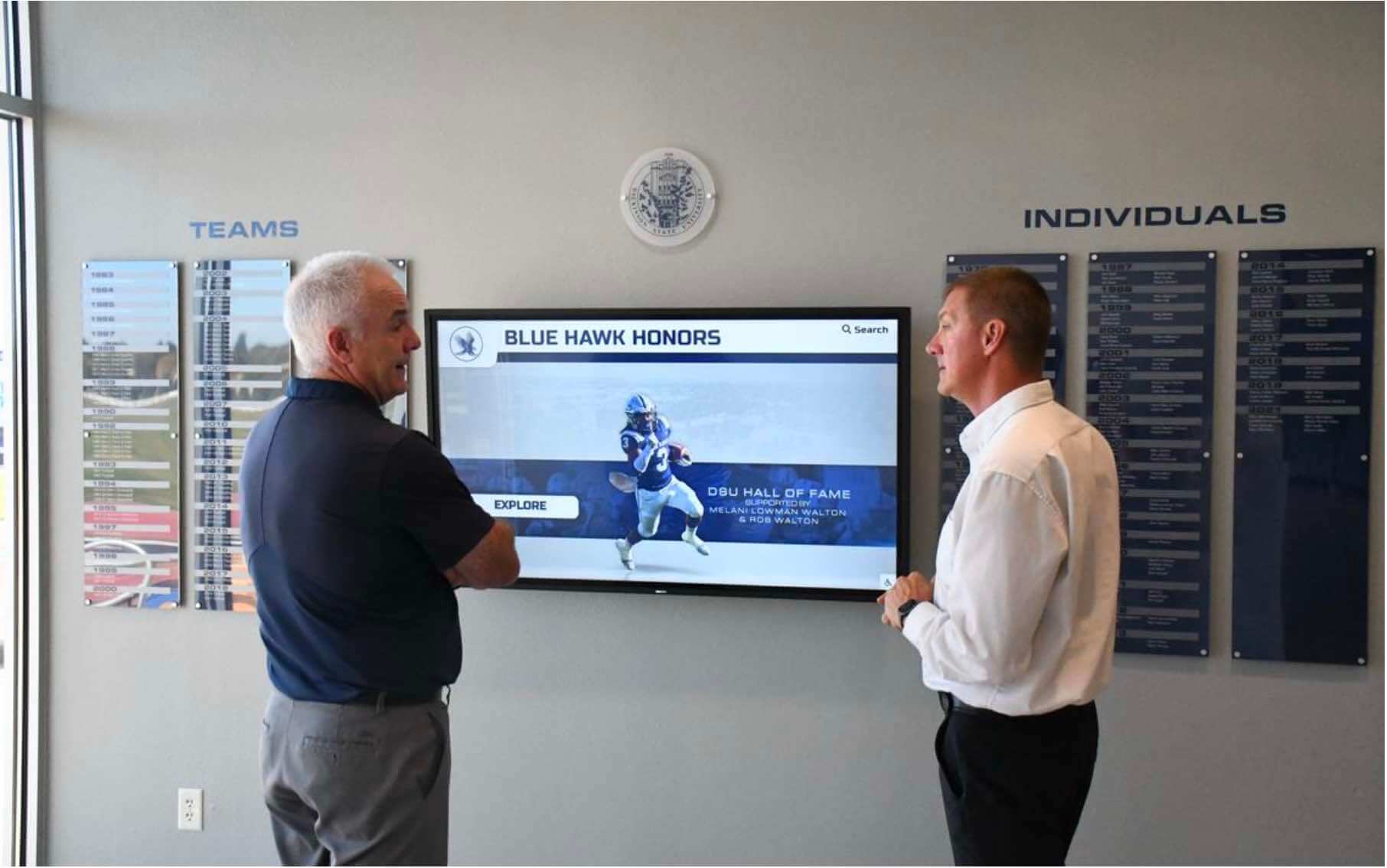
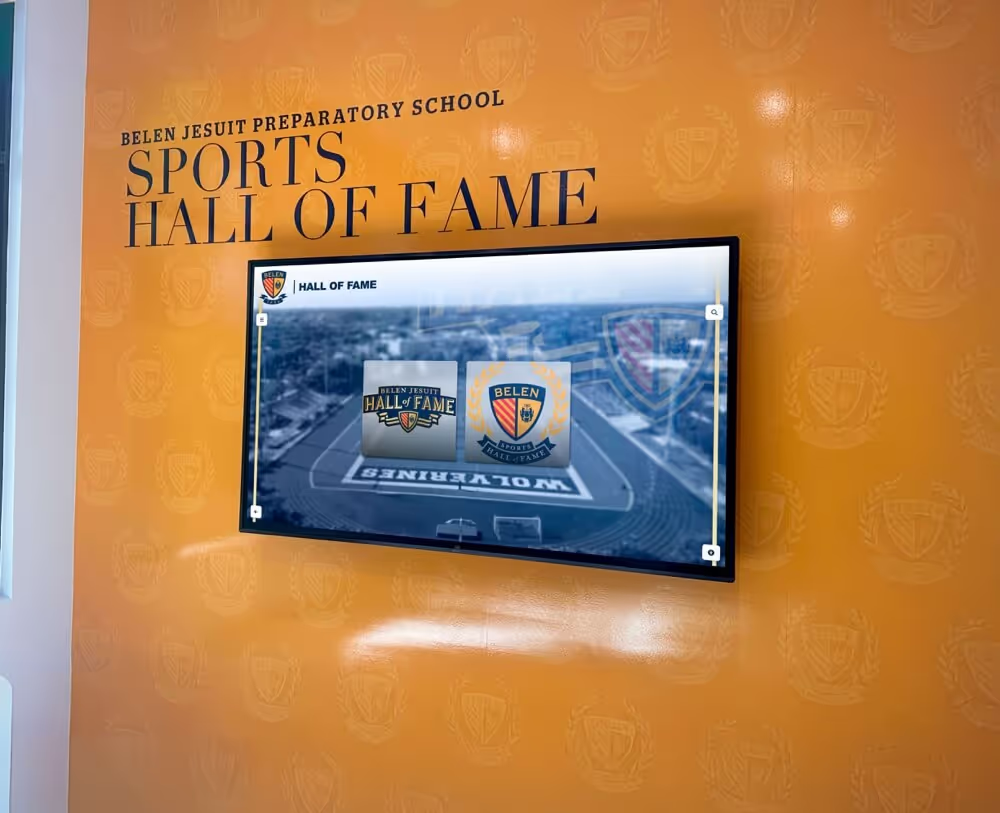
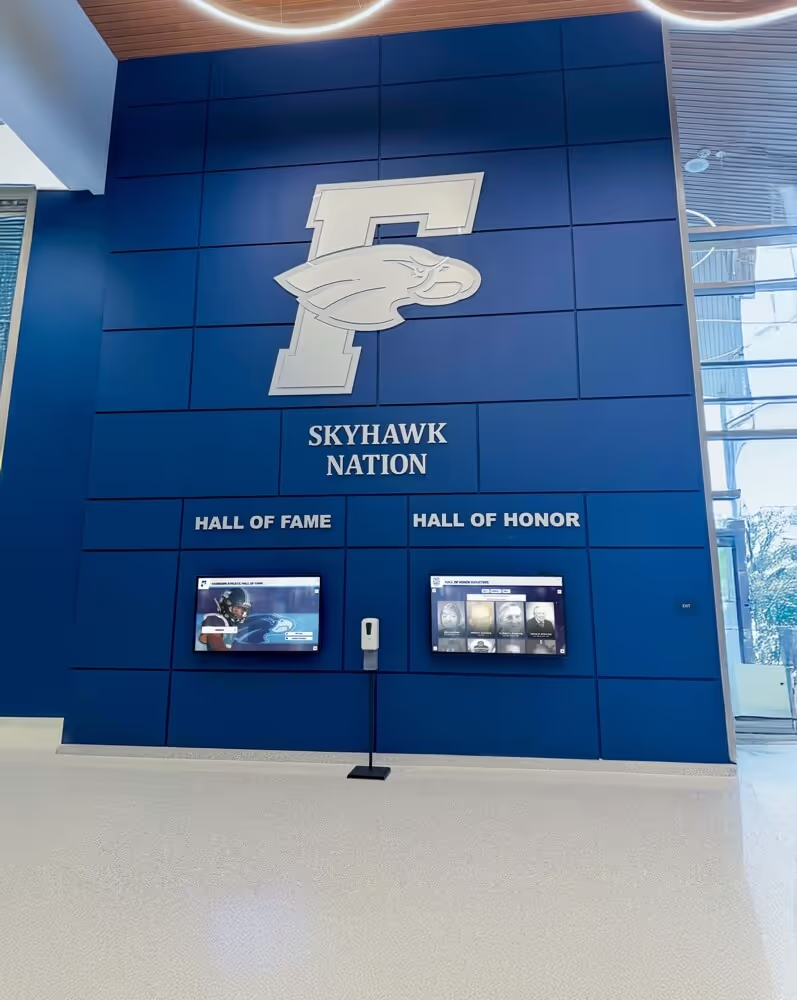
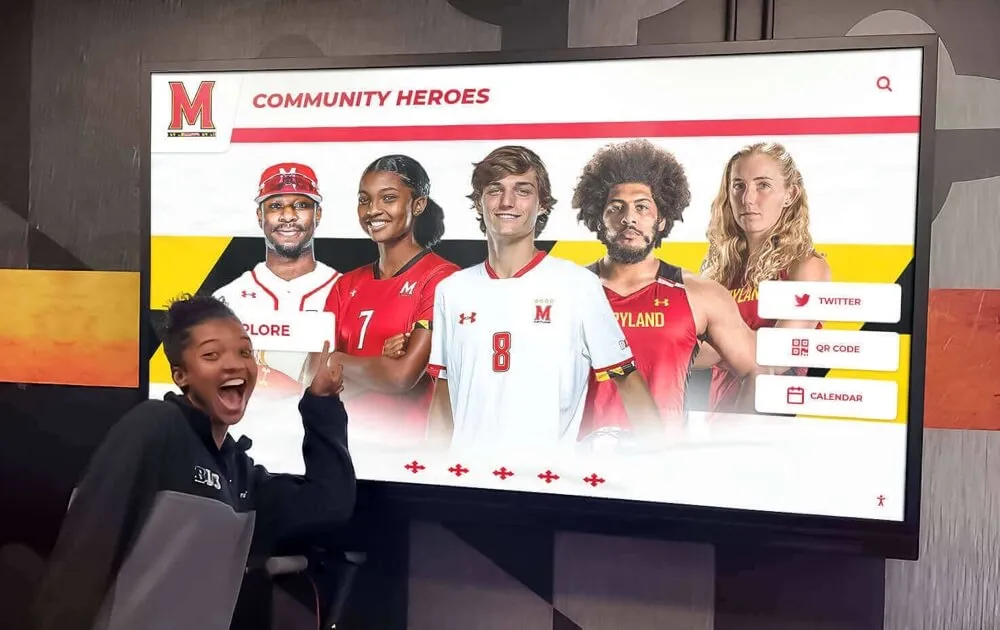
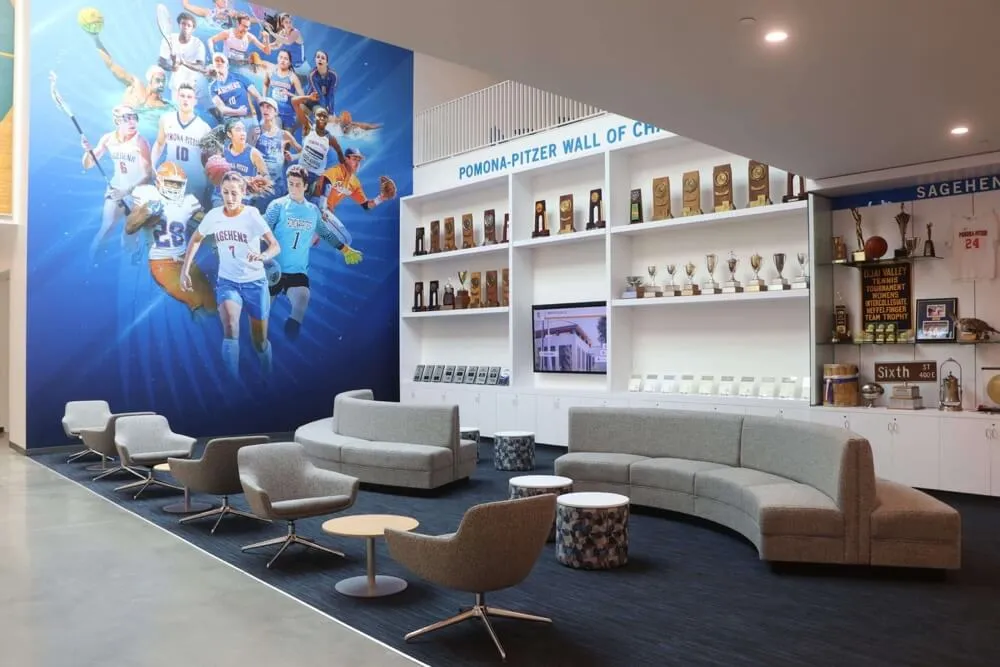
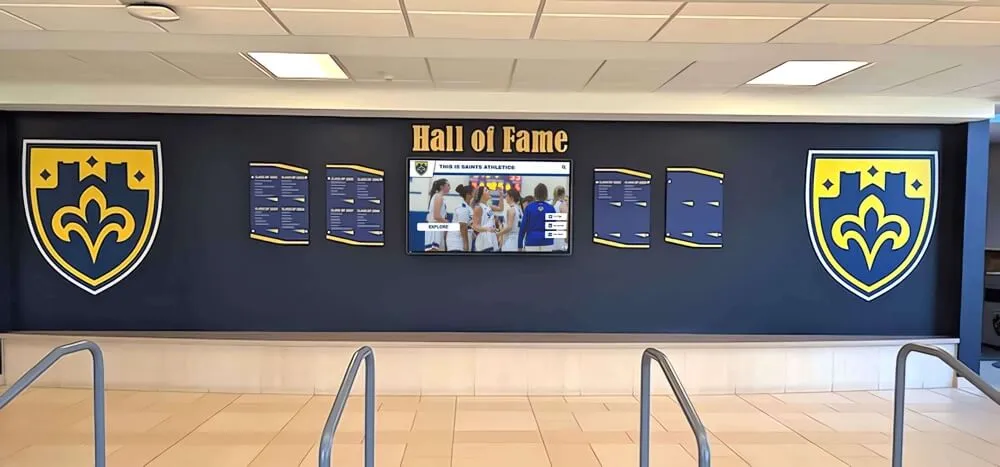
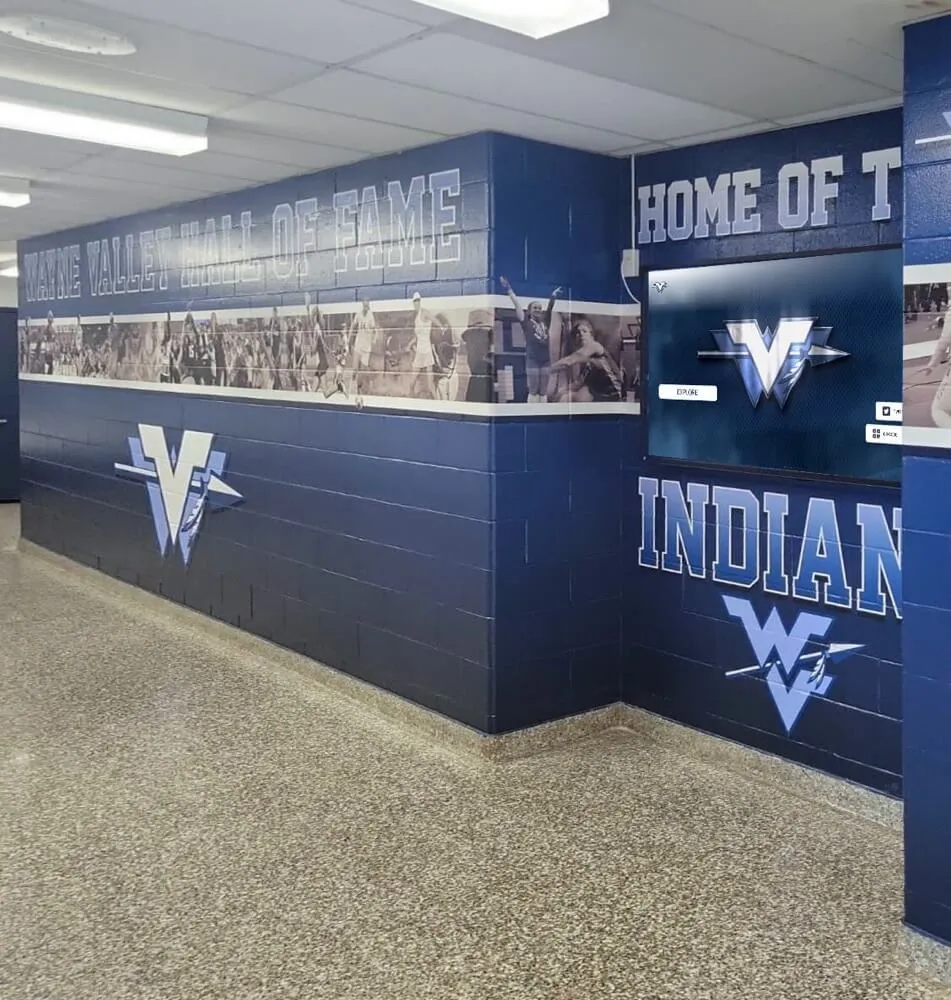
Community members of all ages and physical backgrounds visit school hall of fame displays—reduced-motion controls make the experience equitable for every visitor
Who Should Own the Reduced-Motion Audit
In most school environments, reduced-motion accessibility sits at the intersection of several teams:
IT or AV staff own kiosk hardware configuration, OS accessibility settings, and the technical implementation of CSS and JavaScript changes.
Athletic directors or recognition program administrators own content decisions—which videos autoplay, which animations accompany induction announcements, and whether celebration effects are appropriate for the institution’s context.
Facilities teams are often the first to hear visitor feedback about a display experience, making them valuable participants in post-deployment testing.
Assigning a single named owner for the reduced-motion checklist—typically the IT or AV lead—ensures that each platform update triggers a re-verification rather than leaving accessibility controls to drift.
Quick-Reference: Reduced-Motion Controls by Animation Type
| Animation Type | Primary Control Method | Fallback State | Testing Method |
|---|---|---|---|
| CSS transitions (cards, navigation) | prefers-reduced-motion media query override | Instant state change, no motion | OS Reduce Motion setting active |
| Keyframe animations (reveals, celebrations) | Explicit animation: none under media query | Static final position visible | OS Reduce Motion + browser audit |
| Parallax scrolling | transform: none under media query | Background fixed in place | Scroll page with setting active |
| Autoplay background video | JavaScript media query check, no autoplay | Static poster image displayed | Inspect network tab, no video load |
| Carousels / auto-advancing sliders | Pause on prefers-reduced-motion: reduce | Static first slide, manual nav available | Tab through controls, no auto-advance |
| Celebration/confetti effects | Suppress trigger under media query | No effect displayed | Trigger event with setting active |
| Kiosk attract loop | OS setting + in-app toggle | Static image or slow non-animated slideshow | Test on kiosk hardware directly |
| Inductee profile video (manual play) | No autoplay; user-initiated only | Poster frame shown until play pressed | Click play, confirm manual control |
| Scroll-triggered entrance animations | Media query override, render at final position | Content fully visible on load | Scroll page with setting active |
Reduced Motion and Your Broader Accessibility Program
Reduced-motion controls are one dimension of a comprehensive accessibility approach for digital recognition displays. They complement, rather than replace, the other WCAG 2.1 AA requirements that schools are expected to meet: sufficient color contrast ratios, keyboard navigation through all interactive elements, screen reader-compatible semantic markup, and descriptive alt text on every inductee portrait.
Schools that maintain academic recognition programs alongside athletic honors often manage multiple display formats—dedicated athletic hall of fame kiosks, web-based academic honor rolls, and ceremony presentation slides—each of which may introduce animations independently. A single reduced-motion policy document, shared across all display formats, prevents the inconsistency of having a kiosk that respects motion preferences while the companion website does not.
For institutions developing comprehensive recognition archives that include historical trophy and display inventories, the reduced-motion audit integrates naturally into the broader content maintenance workflow: the same periodic review that confirms portrait images are current and inductee data is accurate can include a brief verification that motion controls remain in place after any system updates.
Recognition programs that honor student achievements across a range of activities—including multimedia-rich senior portrait and yearbook recognition displays—should apply the same reduced-motion standards to those formats, since yearbook-style slideshow presentations with animated transitions are among the most common motion-intensive formats found in school recognition contexts.
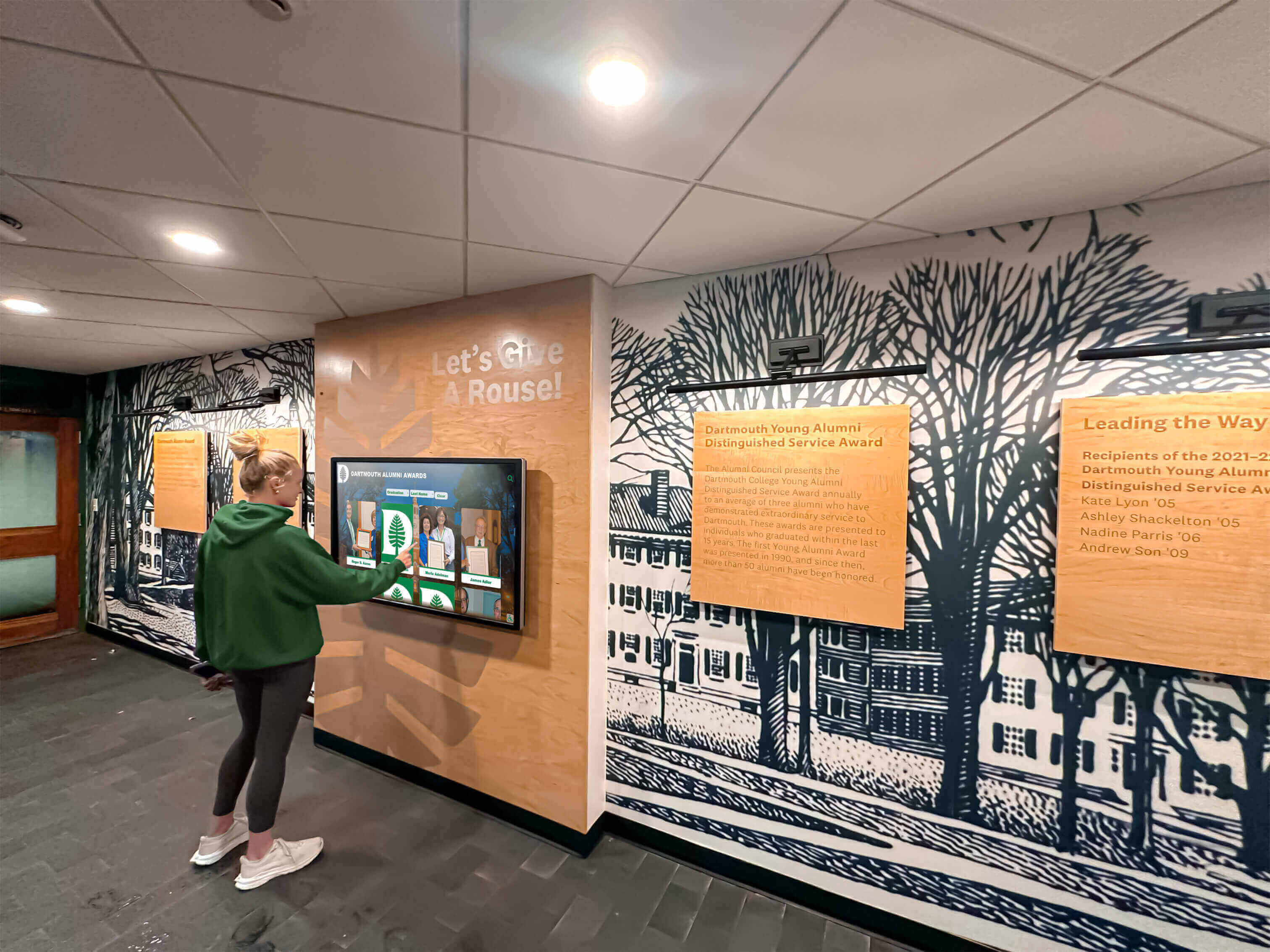
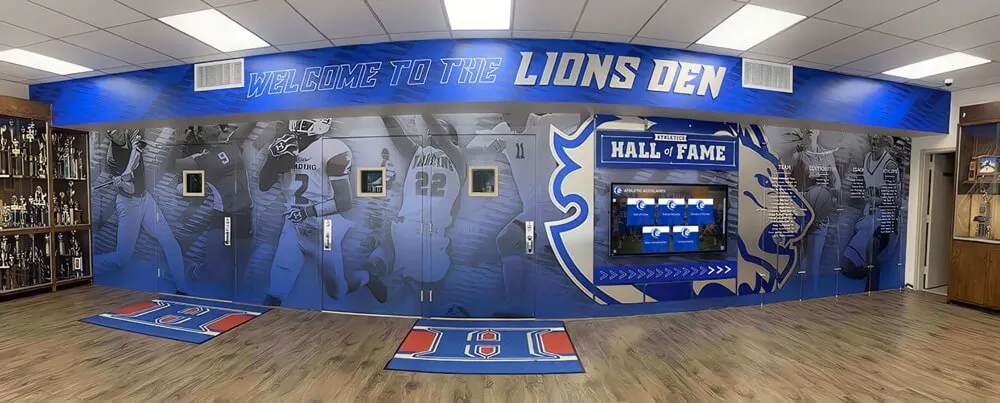
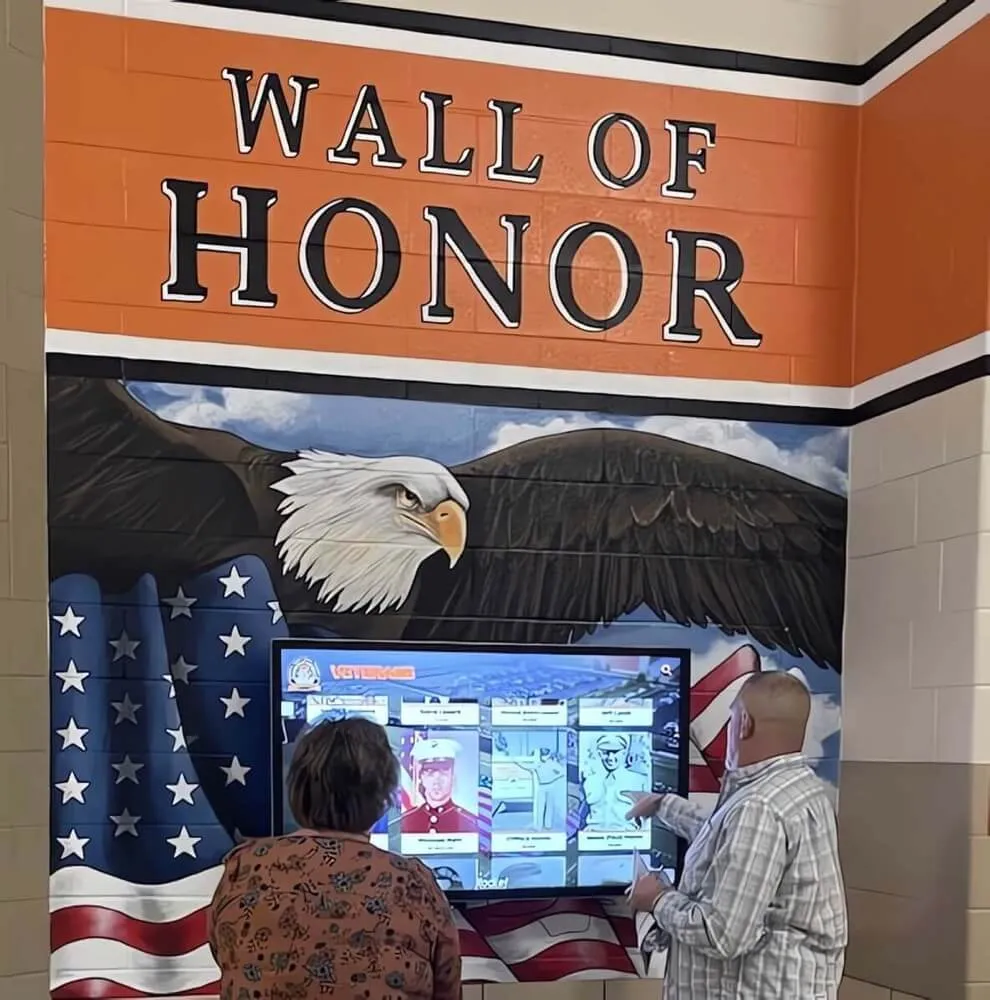
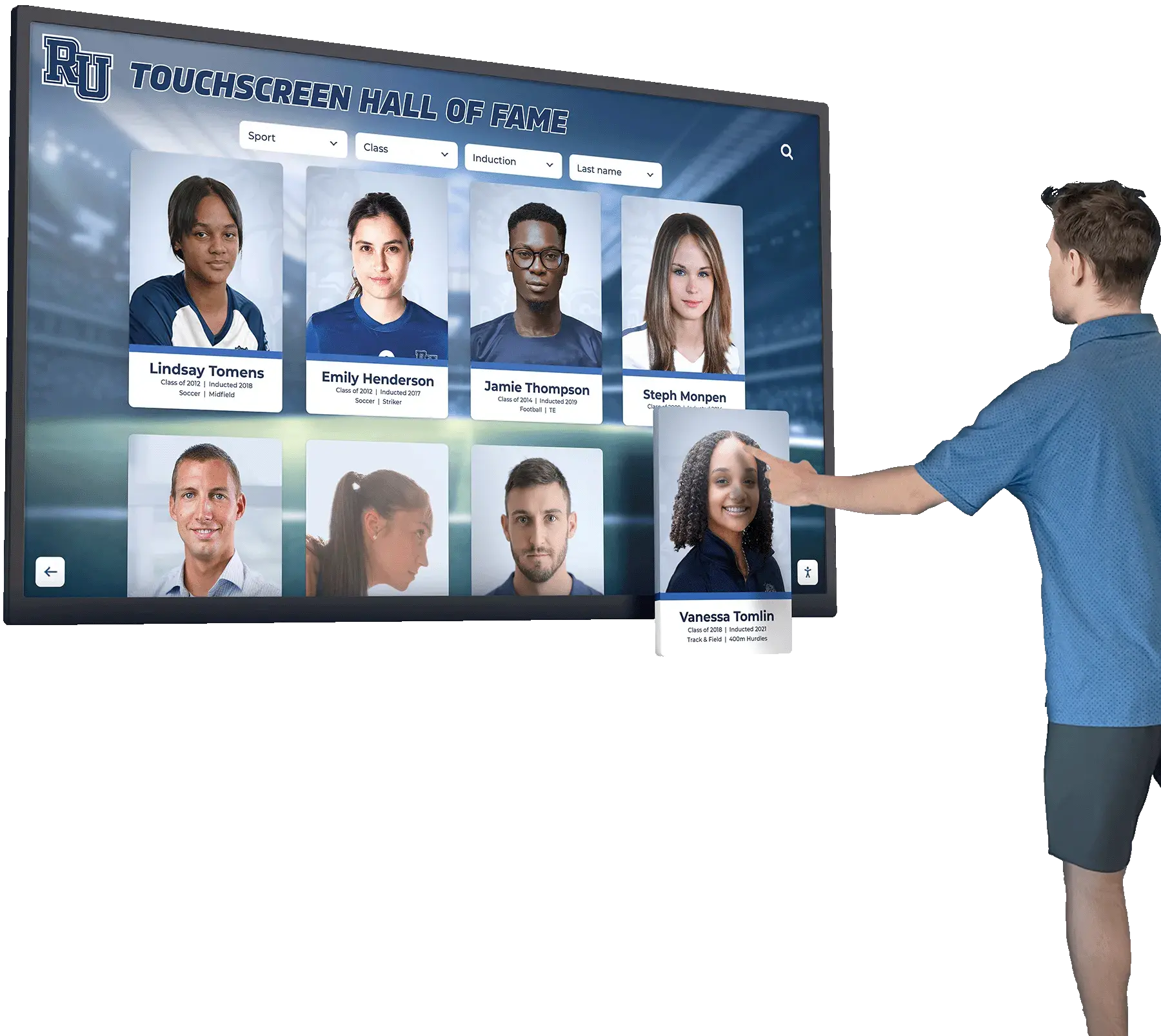
Students with vestibular sensitivities or neurological differences use hall of fame displays alongside peers—reduced-motion accessibility ensures the experience is equally comfortable for every student, visitor, and alumni family member
Frequently Asked Questions
Does prefers-reduced-motion work on all browsers and operating systems?
Yes. Support for prefers-reduced-motion is comprehensive across Chrome, Safari, Firefox, and Edge on both desktop and mobile platforms. The media query reads the operating system’s accessibility setting, which is available on macOS (Display > Reduce Motion), Windows (Ease of Access > Visual Effects), iOS (Accessibility > Motion > Reduce Motion), and Android (Accessibility > Remove Animations). The JavaScript API window.matchMedia('(prefers-reduced-motion: reduce)') provides programmatic access for video player logic and component-level controls.
What is the difference between removing animation and providing a reduced-motion alternative?
Removing animation entirely is the simpler and safer approach for most hall of fame implementations. A reduced-motion alternative is a version of the same content that conveys the same information with less or no motion—for example, a video that uses slow dissolves instead of rapid cuts, or a card reveal that uses an instant opacity change instead of a slide transition. Alternatives are worth developing when the animation carries informational value that cannot be conveyed in a static state; in most decorative hall of fame contexts, removal is the appropriate choice.
How should we handle hall of fame video highlight reels on lobby kiosks?
Highlight reels should be visitor-initiated, not autoplay. Present a static poster frame—a high-quality still from the video—with a clearly labeled play button. This approach respects both reduced-motion preferences and the preferences of visitors who simply do not want audio in a public space. If the institution strongly prefers autoplay in certain lobby contexts, provide a visible, persistent pause button and ensure the video does not loop without visitor input, as infinite looping video is among the most commonly cited motion concerns.
Does reduced-motion accessibility affect how our hall of fame ranks in search results?
Not directly. However, implementing prefers-reduced-motion controls often accompanies other performance improvements—removing render-blocking animation libraries, reducing JavaScript execution time for animation controllers, and eliminating large autoplay video payloads—that do affect Core Web Vitals scores. Schools that serve outdoor stadium environments or areas where mobile visitors use slower connections, such as those at large Texas high school football facilities, benefit from the performance gains that accompany leaner motion implementations.
Should the in-application reduced-motion toggle on kiosks reset between visitor sessions?
Yes. The default state of a kiosk should reflect the institution’s standard configuration. If the OS-level reduced-motion setting is enabled on the kiosk hardware, it applies persistently to all sessions and does not need a per-session toggle. If OS-level settings are not configured and the in-application toggle is the primary control, it should reset to the institution’s default (typically with animations enabled) at session end, allowing each visitor to configure their own preference without affecting subsequent visitors.
Connecting Reduced-Motion Accessibility to the Recognition Mission
A hall of fame that excludes any visitor—even momentarily and unintentionally—from its celebration of achievement falls short of its core mission. Every alum who approaches the display in a school lobby, every family member attending an induction ceremony, and every young athlete browsing inductee profiles for inspiration should be able to engage with the recognition content comfortably and completely.
Implementing the digital hall of fame reduced motion accessibility checklist is not a technical obligation to be fulfilled and forgotten; it is an ongoing practice that keeps the recognition experience genuinely equitable as new content, platform updates, and hardware changes introduce new animated elements over time. Scheduling the checklist as a recurring item in your annual content review—alongside image updates, inductee data verification, and hardware maintenance—ensures that motion accessibility remains current without requiring a dedicated audit to occur only after a visitor reports a problem.
Learn more about Rocket Alumni Solutions’ Digital Wall of Fame platform to understand how purpose-built recognition software approaches animation controls, video management, and WCAG 2.1 AA compliance as integrated platform features rather than manual implementation tasks.
Make Your Hall of Fame Accessible to Every Visitor
See how Rocket Alumni Solutions builds reduced-motion controls, WCAG 2.1 AA compliance, and accessible video management directly into every digital wall of fame installation—so your team spends less time on remediation and more time celebrating the athletes and achievers your community honors.
Request Your Custom Demo