



A school’s online hall of fame or digital recognition collection may honor hundreds of inductees—but if screen reader users cannot quickly jump between the page header, primary inductee gallery, search controls, and footer without listening through every repeated navigation link, the recognition experience fails a meaningful portion of the audience before it begins. A digital hall of fame screen reader landmark audit gives athletic directors, IT teams, web administrators, and recognition-program owners a concrete process for verifying that every major page region is wrapped in the correct HTML landmark element or ARIA role, that repeated blocks are labeled distinctly, and that users of NVDA, JAWS, VoiceOver, and TalkBack can reach any section in two keystrokes rather than dozens. The short answer: map your page regions, confirm one <main> landmark, label every duplicate navigation, expose the inductee search form with role="search", and test the complete flow using actual screen reader software before each major content update.
School recognition collections grow quickly. A hall of fame that starts with a single inductee gallery page expands to include class-year archives, sport-specific records, reunion directories, and searchable biography databases—each adding navigation menus, sidebar filters, and repeated header and footer regions. Without landmark structure, every additional page element increases the burden on screen reader users navigating by the only tool available to them: their screen reader’s landmark or heading jump list. With landmarks in place, the same user opens the landmark rotor, selects “main,” and lands immediately in the inductee content regardless of how many navigation menus surround it.

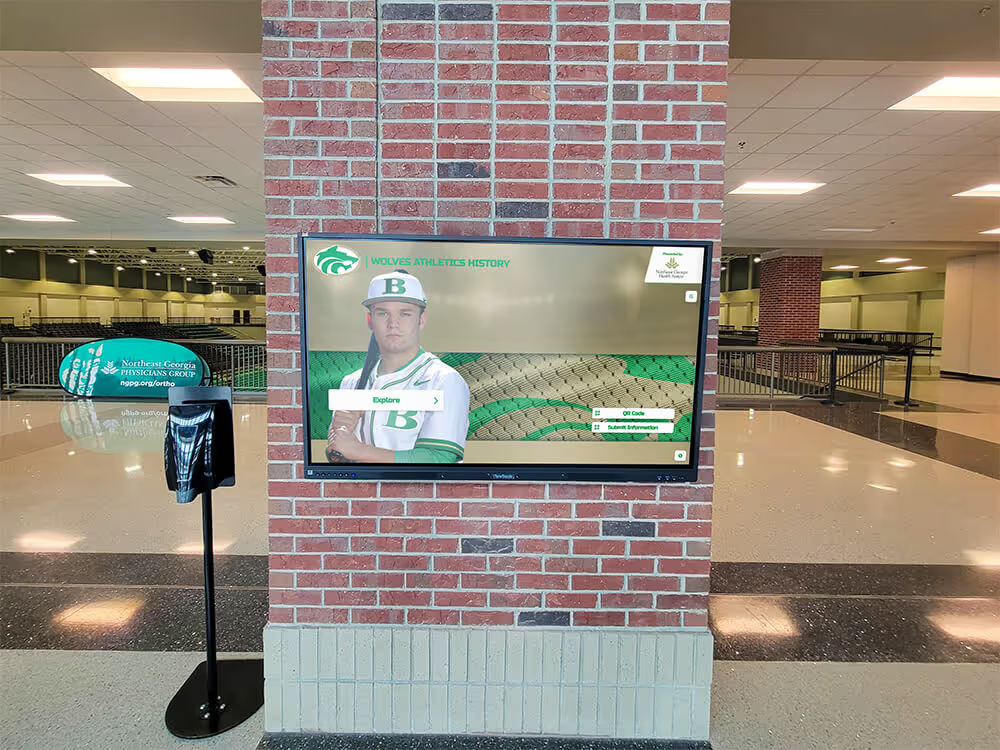
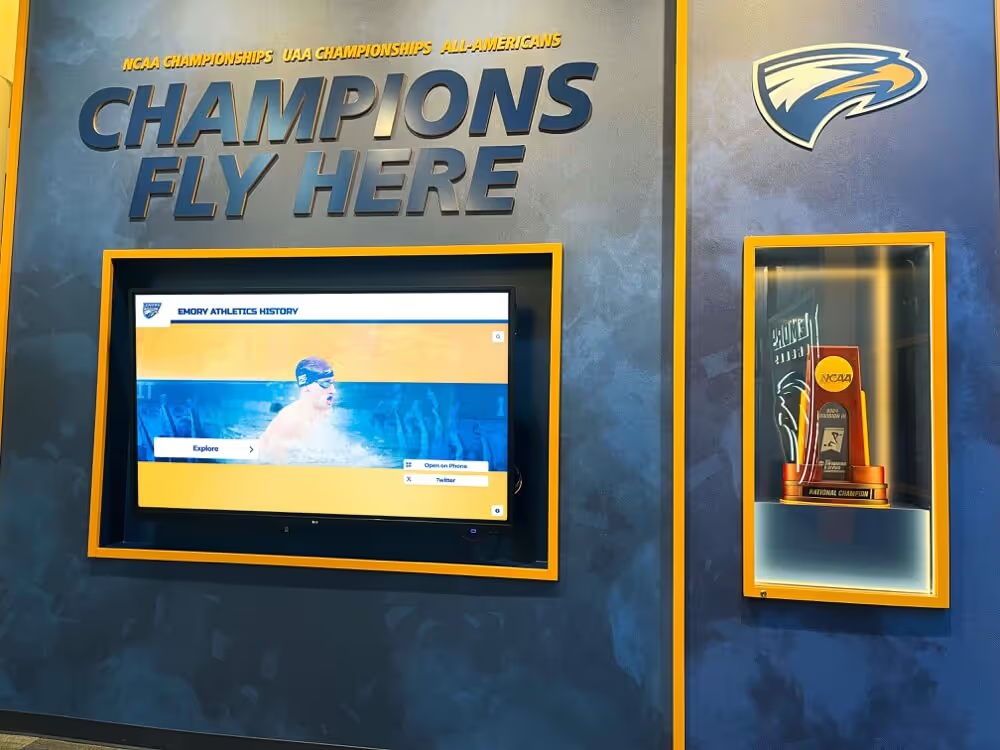
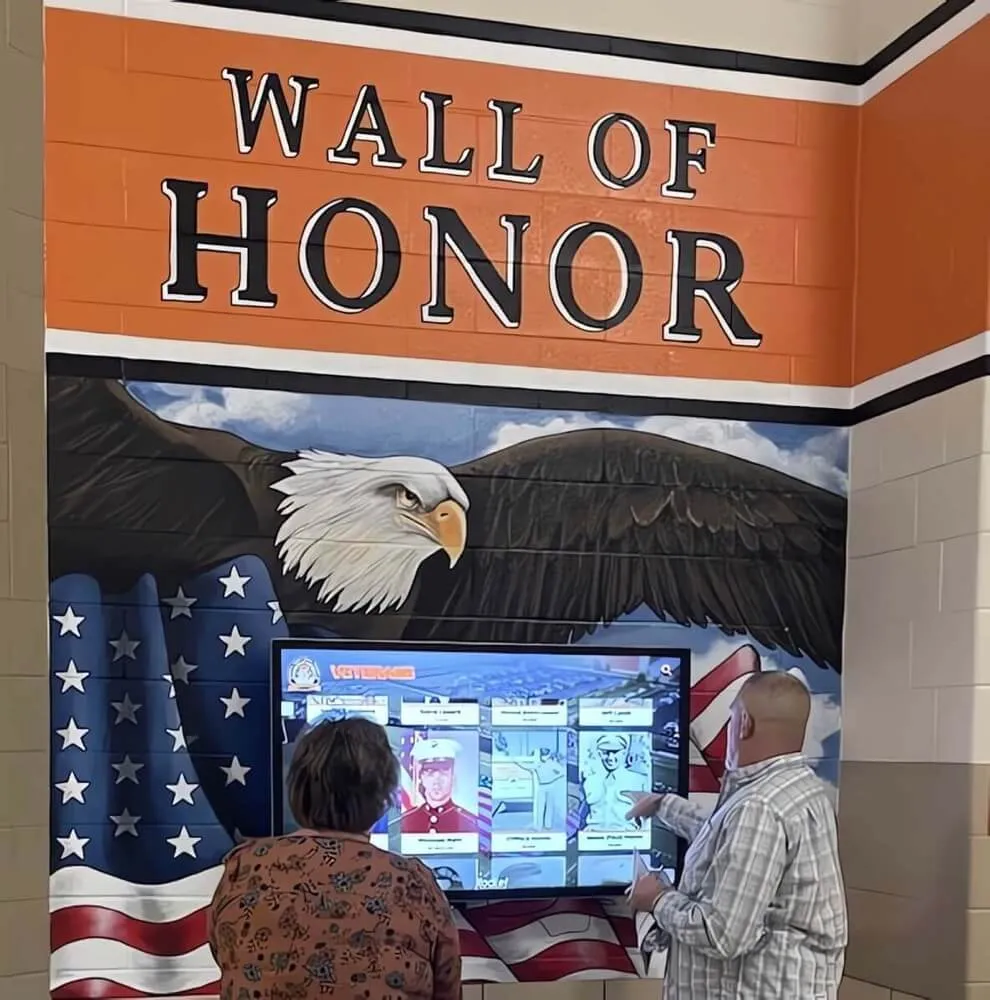
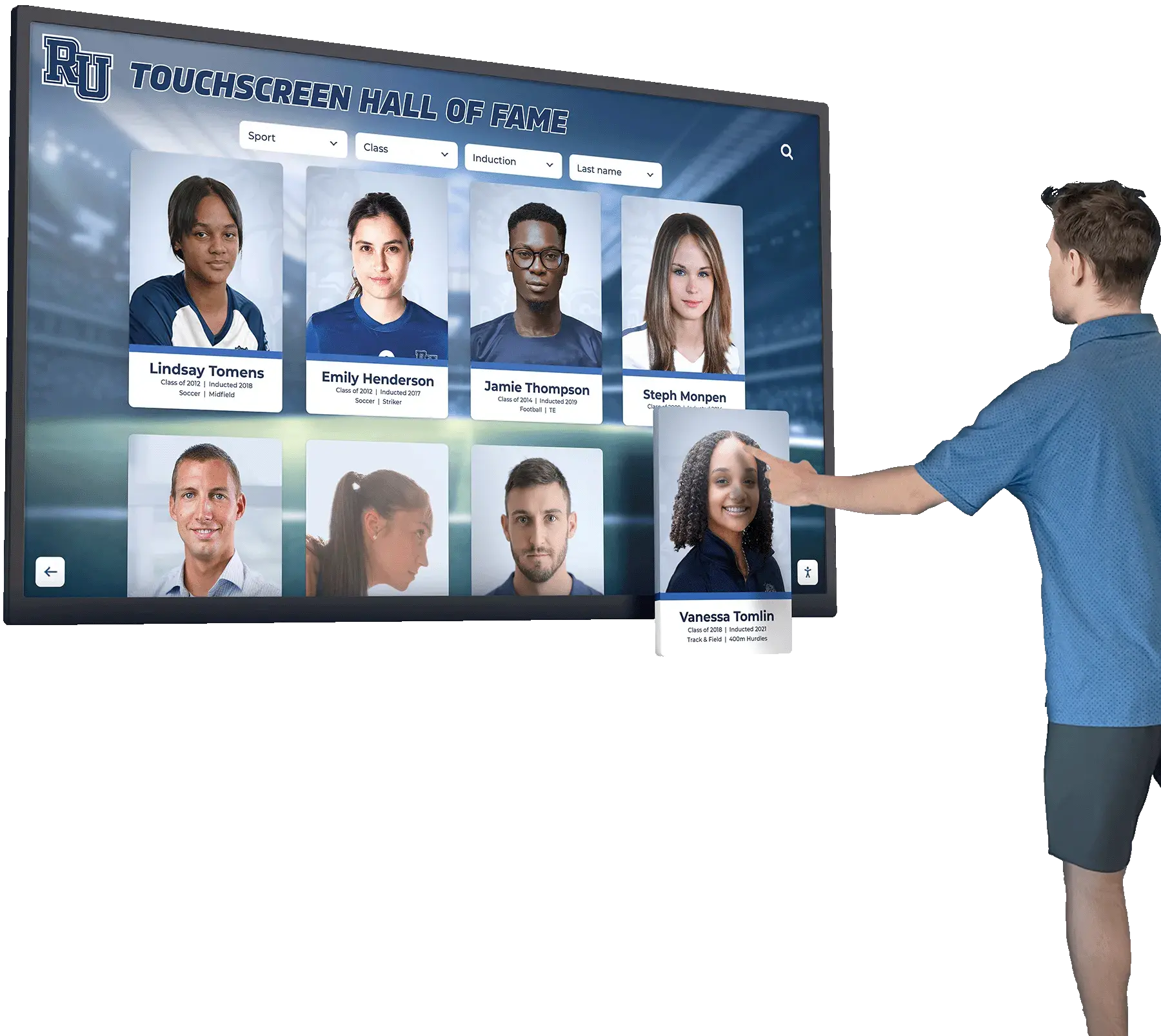
Every inductee display, whether on a lobby kiosk or a web-based recognition collection, should be structured so that screen reader users can reach any region in seconds rather than minutes
Why Landmark Regions Matter for Hall of Fame Collections
Screen readers expose page structure through two primary jump mechanisms: heading levels (H1–H6) and landmark regions. Headings help users understand the hierarchy within a section; landmarks help users jump between sections entirely. On a typical hall of fame page, the landmark regions a screen reader user needs to reach quickly include the primary site navigation, the inductee gallery or search results area, a sport-type or class-year filter sidebar, and the page footer that contains contact information or alumni links.
When those regions lack landmark markup, screen reader users must Tab through every interactive element sequentially or listen to the page read from top to bottom until they reach the relevant content. On a hall of fame page with a persistent site header containing twelve navigation links, a featured-inductee hero section, a filter sidebar with eight checkboxes, and a gallery of forty inductee cards—each with three interactive elements—the number of Tab keypresses required to reach a specific inductee without landmarks can exceed one hundred.
WCAG 2.1 Success Criterion 2.4.1 (Bypass Blocks) requires that pages provide a mechanism to skip repeated blocks of content. Landmark regions satisfy this requirement when implemented correctly, as do traditional “skip to main content” links. Implementing both offers the broadest coverage: screen reader landmark navigation for users who know it, and an explicit bypass link for users who prefer it or whose assistive technology does not expose a landmark rotor interface.
For school administrators who also manage academic achievement award programs and honor roll pages, the same landmark requirements apply to every page in the recognition collection—not only the hall of fame itself. Honor roll listings with repeated alphabetical section headers, academic award archive pages with year-over-year navigation, and reunion directory pages all benefit from consistent landmark structure.
What Are ARIA Landmark Regions?
ARIA landmark roles identify the purpose of major page regions so that assistive technology can expose them to users as a navigable list. HTML5 introduced native sectioning elements that carry implicit landmark semantics, reducing—but not eliminating—the need to add role attributes manually.
The eight landmark roles and their HTML equivalents:
| ARIA Role | Native HTML Element | Typical Use in a Hall of Fame Page |
|---|---|---|
banner | <header> (page-level only) | Site header with logo, primary navigation, and search bar |
navigation | <nav> | Primary site nav, breadcrumb trail, inductee class-year navigation |
main | <main> | Primary inductee gallery, individual profile content, search results |
contentinfo | <footer> (page-level only) | Site footer with contact info, privacy policy, alumni links |
complementary | <aside> | Sport-type filter sidebar, class-year picker, sponsor recognition panel |
search | No native equivalent | Inductee name search form, combined search-and-filter interface |
region | <section> with accessible name | Named content subsections: “Featured Inductees,” “Record Holders,” “Class of 2024” |
form | <form> with accessible name | Contact forms, nomination submission forms |
The banner and contentinfo roles apply only to the page-level <header> and <footer> elements, not to headers or footers nested inside <article> or <section> elements. A common markup error in hall of fame pages is placing a <header> inside an inductee card component—this does not create a banner landmark and does not affect landmark navigation, but it may confuse screen readers that read the element’s role aloud.
Mapping the Landmark Structure of a Typical Hall of Fame Page
Before running the checklist, draw a landmark map of each key page type in your recognition collection. A map is a simple list of the landmark regions a page should contain, in document order. The following map covers a typical school hall of fame index page:
Hall of Fame Index Page — Expected Landmark Map
banner          → Site header (logo + primary navigation + search input)
  navigation    → Primary site navigation (aria-label="Primary")
  navigation    → Breadcrumb (aria-label="Breadcrumb")
main            → Inductee gallery
  region        → Featured inductees (aria-label="Featured Inductees")
  search        → Inductee search form
  region        → Full inductee gallery (aria-label="All Inductees")
complementary   → Filter sidebar (aria-label="Filter by sport or class year")
contentinfo     → Site footer
  navigation    → Footer links (aria-label="Footer")
Individual Inductee Profile Page — Expected Landmark Map
banner          → Site header
  navigation    → Primary site navigation (aria-label="Primary")
  navigation    → Breadcrumb (aria-label="Breadcrumb")
main            → Inductee biography, statistics, photos, video
  region        → Career highlights (aria-label="Career Highlights")
  region        → Award history (aria-label="Awards and Honors")
complementary   → Related inductees sidebar or sponsor panel
contentinfo     → Site footer
  navigation    → Footer links (aria-label="Footer")
Producing this map before auditing reveals immediately whether the current implementation is over-landmarked (too many unlabeled regions causing user confusion), under-landmarked (content left in no landmark at all), or correctly structured.

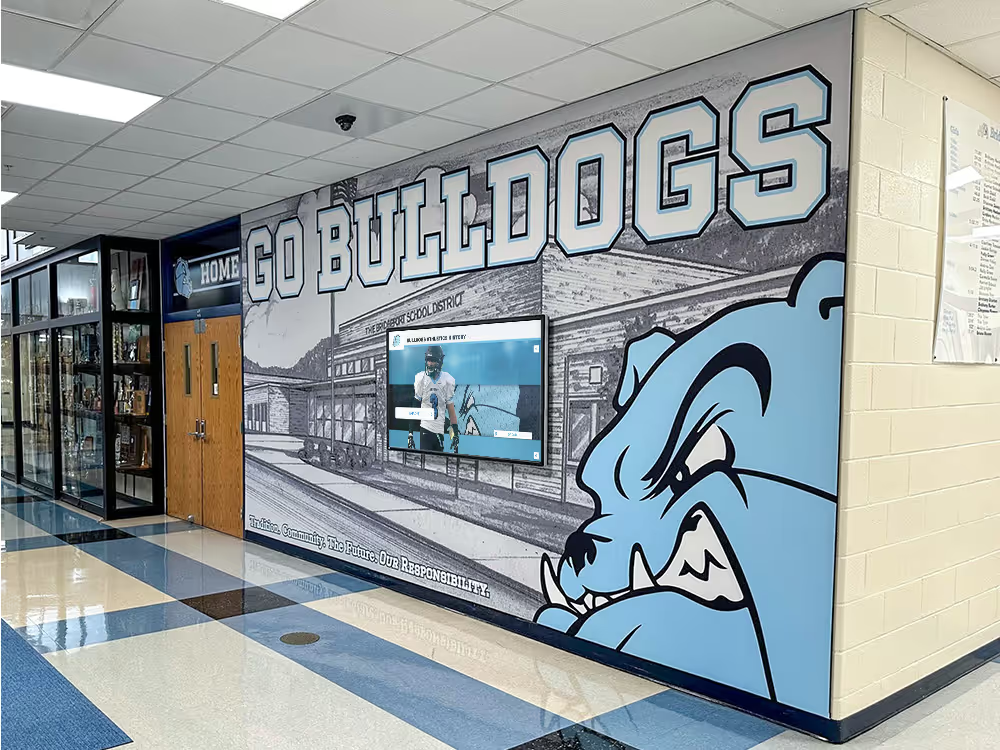
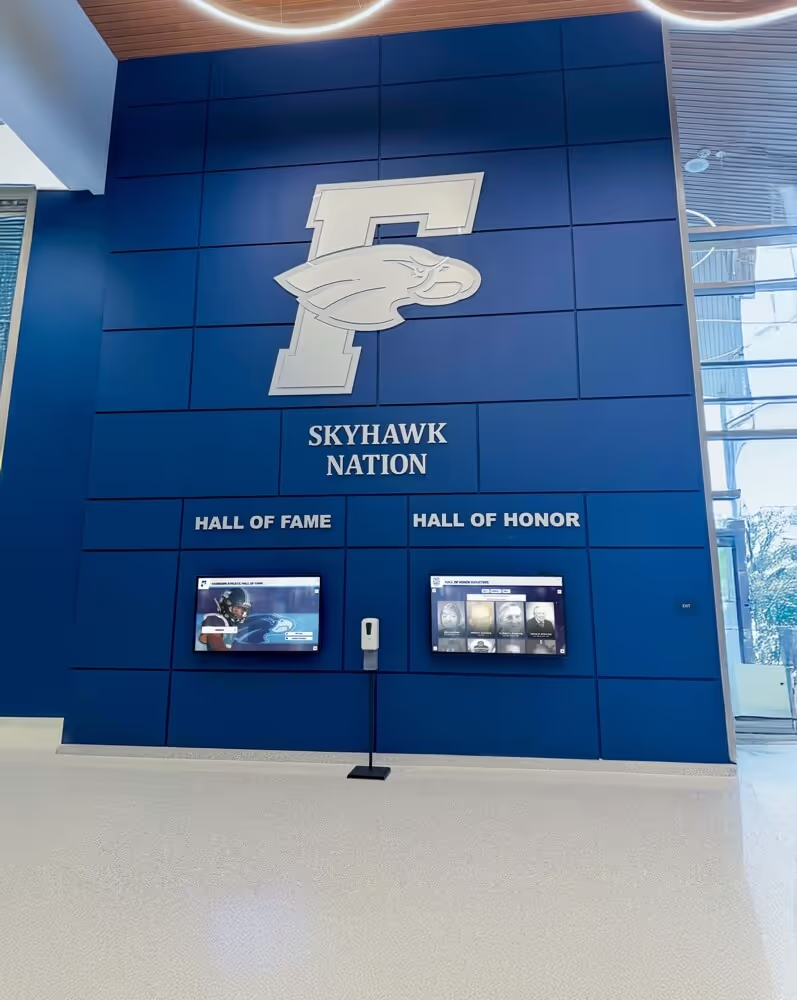
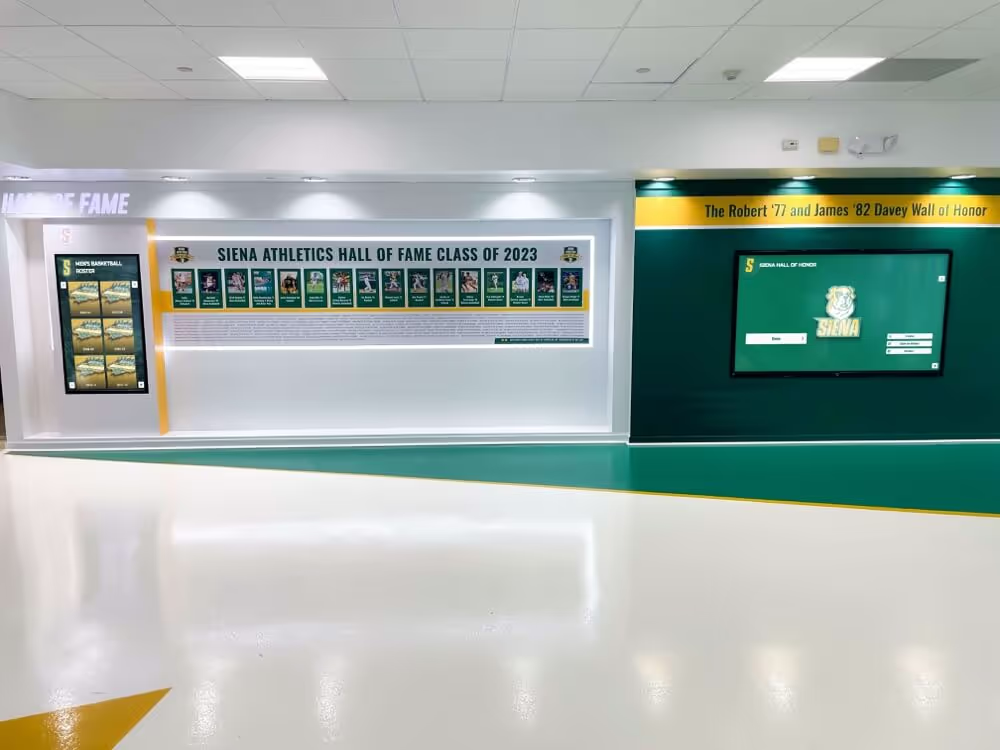
Inductee gallery sections are the primary destination for most hall of fame visitors—landmark regions ensure screen reader users can reach them without traversing every navigation link first
The Digital Hall of Fame Screen Reader Landmark Audit Checklist
Use this checklist when building a new recognition collection, auditing an existing site before an induction cycle, or reviewing updates made during a platform migration. Confirm each item by inspecting the live page HTML and testing with at least one screen reader.
Section 1: Required Landmark Regions
Exactly one
<main>orrole="main"per page. The main landmark should contain the primary inductee content—the gallery, search results, or individual profile—and nothing else. Multiple<main>regions on a single page violate the specification and cause screen readers to surface two competing “main” entries in the landmark list.A page-level
<header>orrole="banner"containing the site identity and primary navigation. Confirm this element is a direct child of<body>, not nested inside another landmark. Check that the same header template applied across all recognition pages consistently carries this structure.A page-level
<footer>orrole="contentinfo"containing institutional links and policy information. The same nesting rule applies: this element must be a direct child of<body>to carry thecontentinforole semantics.All content is contained within at least one landmark region. Screen reader audit tools (Axe, WAVE, the Accessibility panel in browser DevTools) report “orphaned content”—text or interactive elements that fall outside any landmark. Hall of fame pages frequently have orphaned content in promotional banners placed between the header and main regions, or in decorative sponsor ribbons above the footer. Wrap any such content in an appropriate landmark.
A “skip to main content” link as the first focusable element on every page. This
<a>element should be visible on keyboard focus (not permanently hidden), linked to theidof the<main>element, and confirmed functional by pressing Tab from the browser address bar and verifying the link appears.
Section 2: Navigation Landmarks and Labeling
Unlabeled duplicate navigation landmarks are the most common landmark failure in school recognition websites. When a page contains multiple <nav> elements without distinguishing aria-label attributes, screen readers announce them all as “navigation”—forcing users to enter each one to determine its purpose.
Every
<nav>element has a unique, descriptivearia-label. Common labels for hall of fame pages includearia-label="Primary",aria-label="Breadcrumb",aria-label="Inductee class years",aria-label="Sport categories", andaria-label="Footer". The label should describe the navigation’s purpose, not repeat the word “navigation” (screen readers already announce the landmark type).Breadcrumb navigation is wrapped in its own
<nav aria-label="Breadcrumb">witharia-current="page"on the final item. Hall of fame collections with sport-specific sub-galleries (Basketball > Women’s Basketball > 2018 Inductees) often use breadcrumbs that lack landmark markup, leaving the current location unannounced to screen reader users.Mobile navigation menus use
aria-expandedto communicate their open or closed state. A hamburger menu that opens and closes without updatingaria-expandedleaves screen reader users unable to determine whether the menu is available to browse.Pagination controls for inductee gallery pages are wrapped in a
<nav aria-label="Inductee gallery pages">element. Pagination links placed outside any landmark appear as generic interactive elements without context, making it harder for users to identify them as navigation rather than content links.
Section 3: Inductee Gallery and Profile Content Landmarks
The inductee gallery section is wrapped in
<main>and, if subdivided, in labeled<section>elements carryingrole="region". A single<main>that contains both a featured inductees panel and a full gallery should use two labeled<section>elements so users can jump directly to “All Inductees” without re-entering the featured panel.Each inductee profile page has a
<main>that begins with the inductee’s name as an H1. Profile pages generated from a CMS template sometimes output the site name as H1 and the inductee name as H2, inverting the heading hierarchy for screen reader users.Inductee card components use either
<article>elements (for self-contained profiles) or list items within a<ul>(for gallery listings). An<article>landmark is appropriate when each card is independently meaningful—a complete inductee summary with name, sport, and induction year. A<ul>/<li>pattern is appropriate for briefer listing entries. Avoid using only<div>wrappers for gallery cards, which provide no structural semantics.Sport-type and class-year filter sidebars are wrapped in
<aside>orrole="complementary"with a descriptivearia-label. Filters that support the inductee gallery but are not the primary content belong in a complementary landmark. Label the aside:<aside aria-label="Filter inductees">.Dynamic search results loaded without a full page refresh announce the update to screen reader users via an ARIA live region. A container with
aria-live="polite"andaria-atomic="true"wrapping the results count (“Showing 12 inductees matching ‘basketball’”) gives screen reader users immediate feedback after filtering without requiring them to navigate back to the gallery to discover what changed.
Section 4: Search and Interactive Form Landmarks
The inductee search form uses
role="search"on the<form>element.role="search"is the only ARIA landmark role with no native HTML equivalent. It designates a region as the site’s primary search functionality, allowing screen reader users to jump directly to the search form from the landmark list. The search input inside should have an associated<label>oraria-labeldescribing what the field searches: “Search inductees by name.”Nomination submission forms and contact forms use
<form>with an accessible name viaaria-labeloraria-labelledby. Without an accessible name, a<form>element does not create aformlandmark—it remains an anonymous container. A bare<form>element with no accessible name appears in the landmark list only if the browser applies a heuristic; relying on that heuristic is fragile across screen reader and browser combinations.Focus indicators are visible on all interactive elements inside landmark regions. WCAG 2.1 SC 2.4.7 requires that keyboard focus be visible. Hall of fame pages frequently suppress the default browser focus ring using
outline: nonein a global stylesheet reset without providing a custom replacement. Every interactive element—inductee card links, filter checkboxes, search input, navigation items, pagination buttons—must show a visible focus indicator when reached by keyboard. WCAG 2.2 SC 2.4.11 (Focus Appearance, AA in 2.2) specifies minimum contrast and size requirements for focus indicators; checking these during the landmark audit is an efficient combined pass.
Section 5: Testing with Screen Readers
Test the landmark list in NVDA (Windows) by pressing the NVDA key + F7 to open the Elements List, then switch to the Landmarks tab. Confirm that all expected landmarks appear, that duplicate navigation entries carry distinct labels, and that no unexpected landmarks appear (such as unnamed
<section>elements that were intended to be non-landmark containers).Test the landmark list in JAWS (Windows) by pressing Insert + F3 to open the Frame List, or use the Landmark quick-navigation key (;) to cycle through landmarks. Walk through the hall of fame index page and each profile page type, confirming the jump sequence matches the expected landmark map.
Test landmark navigation in VoiceOver (macOS) by pressing VO + U to open the Web Rotor, then using the left or right arrow to navigate to the Landmarks category. Use the up and down arrows to browse available landmarks, then press Enter to jump to each one. Confirm that the content at each landmark matches the expected region.
Test on VoiceOver (iOS) by enabling it in Settings > Accessibility > VoiceOver, then using a three-finger swipe to change the rotor to Landmarks. Hall of fame collections accessed by alumni families on mobile devices should provide the same landmark structure as the desktop version; responsive design changes must not remove landmark elements or alter their nesting.
Use the browser’s Accessibility panel (Chrome DevTools: More Tools > Accessibility, Firefox: Accessibility tab) to inspect the Accessibility Tree for each page. The tree view shows landmark regions, their computed roles, and their accessible names without requiring a screen reader installation.
Run an automated audit with Axe or WAVE before manual testing to catch orphaned content, missing labels, and duplicate landmarks. Automated tools catch the most common structural errors quickly, allowing manual screen reader testing to focus on the experience quality—whether jump navigation feels logical, whether live regions announce at the right moment, whether filter results are reachable efficiently.
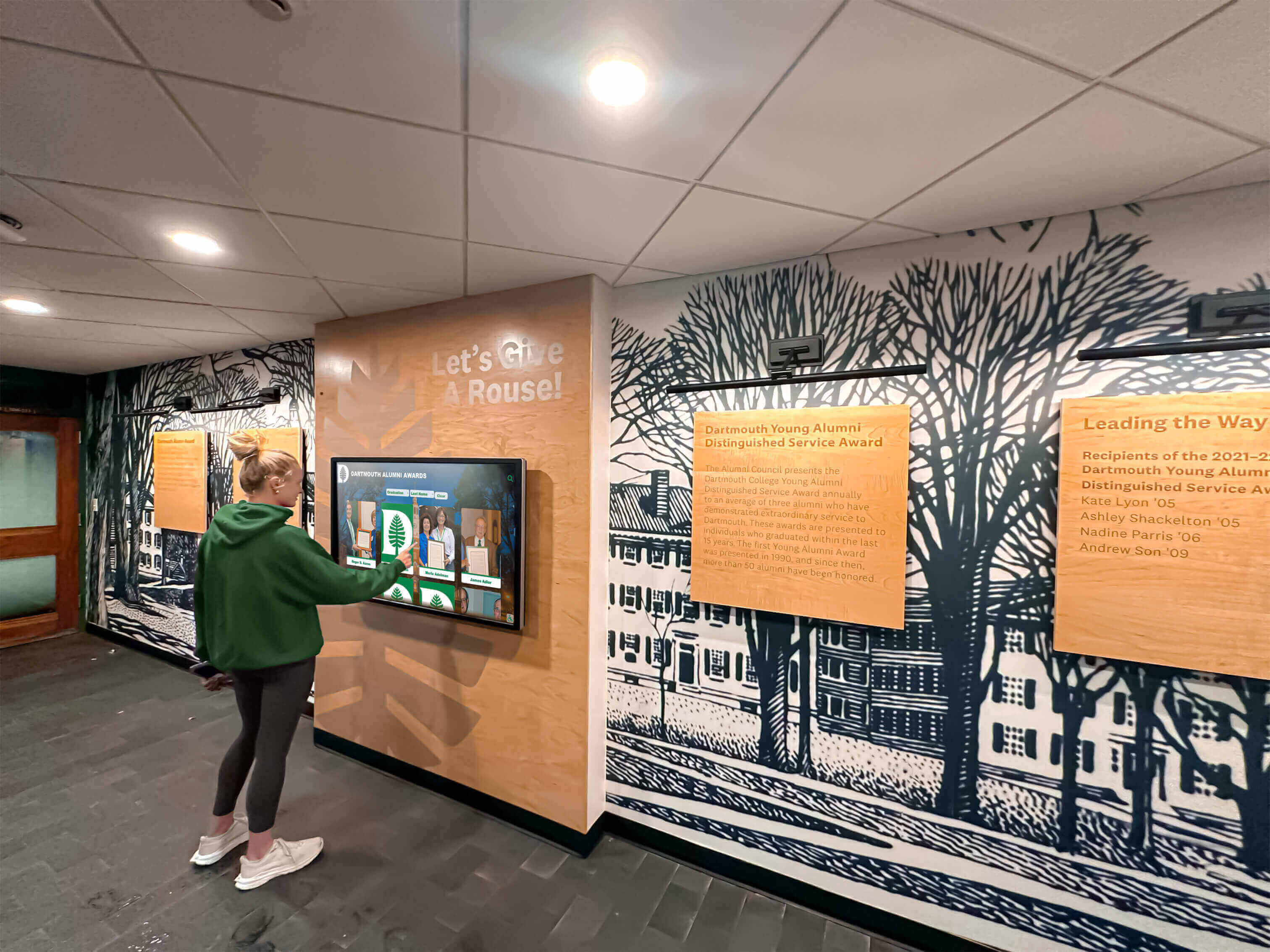
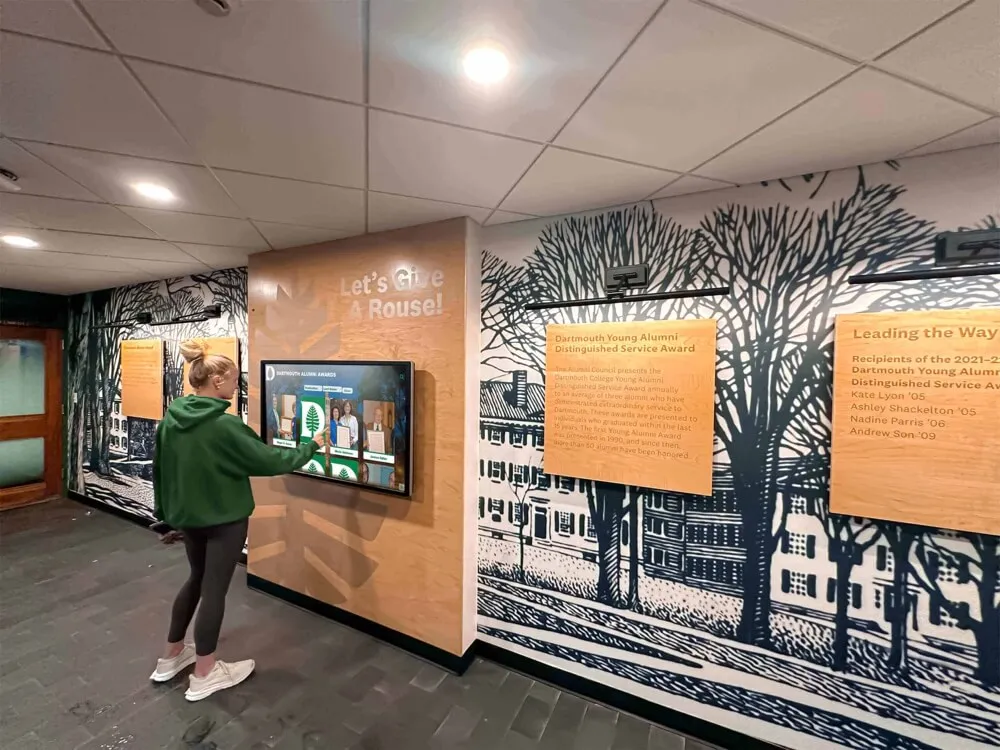
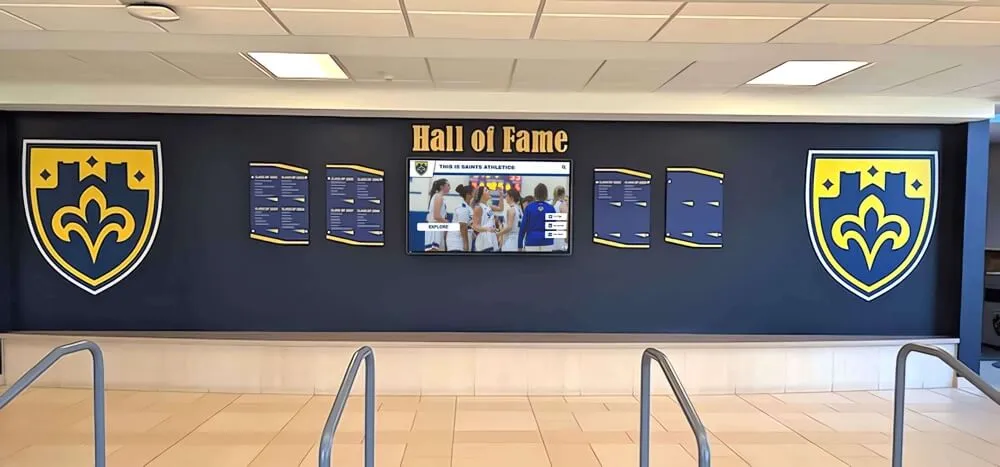
Students and alumni of all abilities access recognition collections—landmark structure ensures every user can navigate to any section efficiently
Who Should Run the Audit
In most school and athletic department environments, the landmark audit sits at the intersection of several roles:
IT or web administration staff own the technical implementation—adding landmark elements, aria-label attributes, skip links, and live regions to the CMS template or custom HTML.
Athletic directors and recognition program administrators define which page types exist in the collection and what content regions each page should contain—the information that makes the landmark map accurate before technical implementation begins.
Facilities or AV teams managing touchscreen lobby kiosks that link to online collection pages benefit from understanding that the web-based version of the recognition program is subject to the same WCAG requirements as the kiosk interface.
Assigning a named owner for the landmark checklist—typically the IT or web lead—and scheduling a re-audit after each major content migration, platform upgrade, or new page type addition ensures that landmark structure keeps pace with a growing recognition program.
Quick Reference: ARIA Landmark Roles for Hall of Fame Pages
| Landmark Role | HTML Element | Requires aria-label? | Notes for Hall of Fame Pages |
|---|---|---|---|
banner | <header> | No (only one allowed) | Must be a direct child of <body> |
navigation | <nav> | Yes, when multiple nav exist | Label each: “Primary,” “Breadcrumb,” “Footer” |
main | <main> | No (only one allowed) | Contains inductee gallery or profile |
contentinfo | <footer> | No (only one allowed) | Must be a direct child of <body> |
complementary | <aside> | Yes, when multiple aside exist | Label filter sidebars: “Filter inductees” |
search | <form role="search"> | Recommended | Use for inductee search form |
region | <section> | Yes (required to create landmark) | Use for named subsections: “Featured Inductees” |
form | <form> | Yes (required to create landmark) | Use for nomination and contact forms |
Landmark regions that do NOT require aria-label when only one appears per page: banner, main, contentinfo. If a page has only one <nav>, the label is optional but still recommended for clarity.
Common Landmark Failures in Hall of Fame Pages
Orphaned hero and promotional content. Many hall of fame pages open with a large hero section—a featured inductee portrait, a championship banner, or a sponsored recognition message—placed between the closing </header> tag and the opening <main> tag. Content in this gap belongs to no landmark and is invisible to landmark navigation. Wrap it in the <main> element or, if it is complementary to the main content, in a labeled <aside>.
Unlabeled duplicate navigation regions. A site with primary navigation, breadcrumb navigation, an inductee class-year filter rendered as a <nav>, and footer navigation may contain four <nav> elements. Without aria-label attributes on each, all four appear as “navigation” in the screen reader landmark list. Users must enter each to determine its purpose, eliminating the efficiency benefit of landmark navigation.
Section elements used as non-semantic wrappers. Developers often use <section> as a generic layout container with no semantic intent. A <section> element without an aria-label or aria-labelledby attribute does not create a region landmark—browsers and screen readers treat it as equivalent to a <div>. This is intentional behavior. If a <section> should create a navigable landmark, give it an accessible name. If it should not, use a <div> instead to avoid ambiguity.
CMS-generated templates that duplicate landmarks. Content management systems that render inductee cards, sponsor panels, or widget blocks using a shared template may inadvertently produce multiple elements with the same landmark role and no distinguishing label. Template-level landmark errors repeat across every page that uses the template, making the landmark audit of a single page insufficient—verify the template itself.
Missing role="search" on the inductee search form. The inductee search experience is often the fastest path to a specific profile for a visitor who already knows the inductee’s name. Screen reader users who know to look for a search landmark can reach it in a single keypress. A search form marked only as role="form" or with no role at all forces users to Tab through the navigation and content sections before reaching it.
For schools managing large recognition archives connected to reunion programs—such as those organizing events described in resources like 50th high school reunion planning guides or 10-year reunion programming—the volume of archived inductee pages makes landmark consistency especially critical, since template-level errors repeat across hundreds of pages.
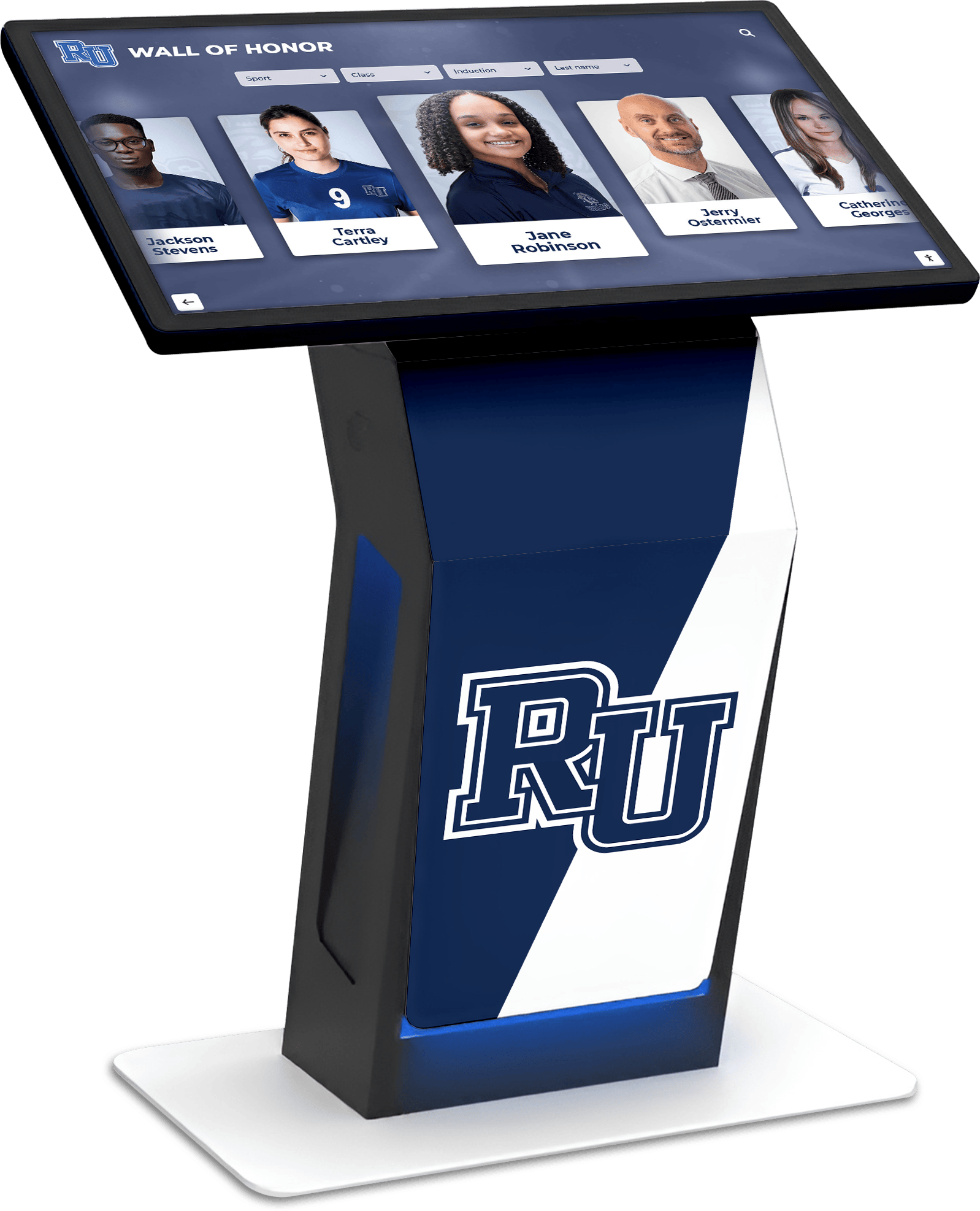
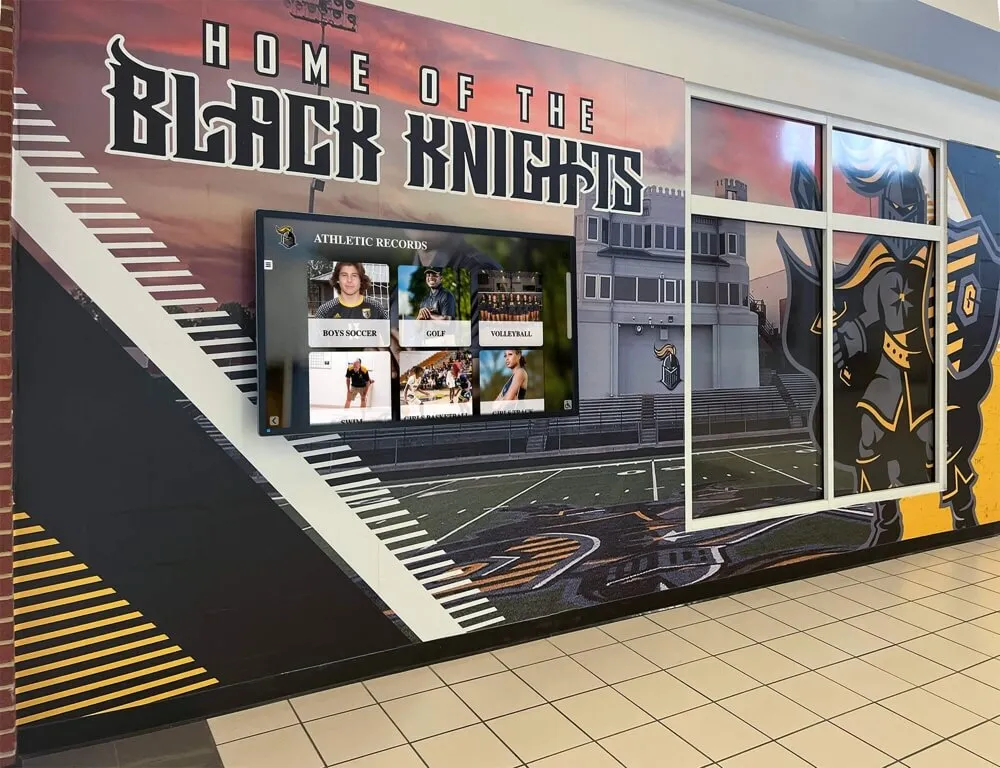
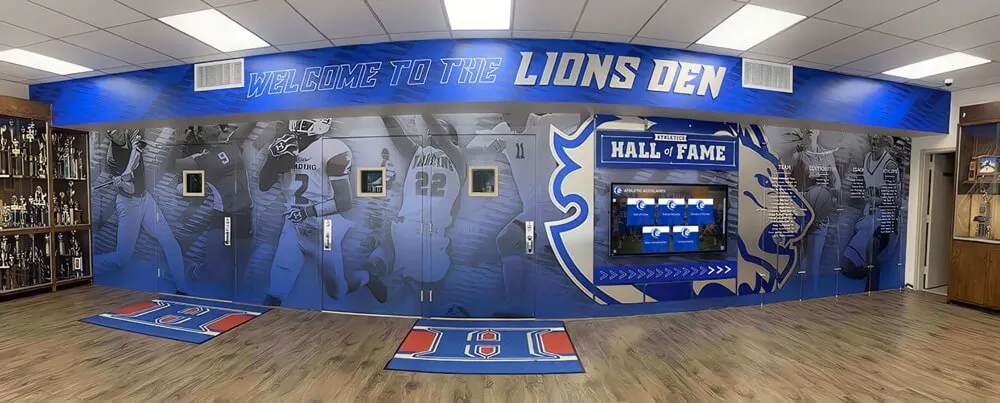
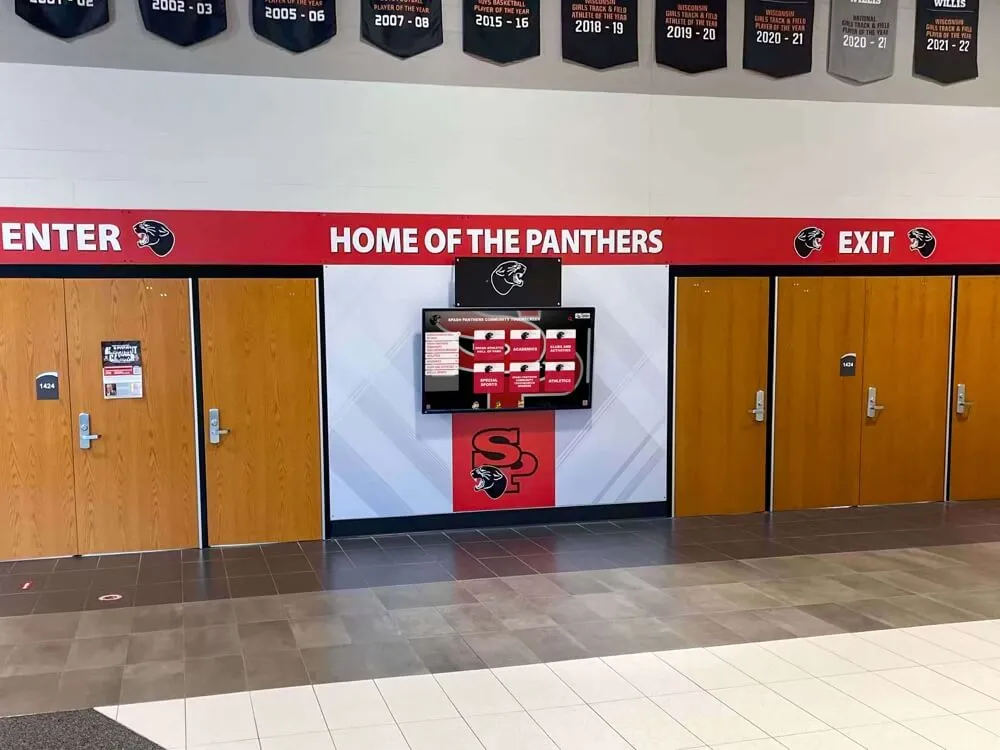
School recognition programs that span both physical kiosks and online collections must apply consistent accessibility standards across both formats
Frequently Asked Questions
What is the difference between a landmark region and a heading for screen reader navigation?
Landmarks identify the type and purpose of major page regions (banner, main, navigation, complementary), while headings describe the topic of content within those regions. Landmarks let users jump between sections of a page; headings let users jump between topics within a section. Both are important. A screen reader user looking for the inductee search form would use landmarks to reach the search region in one keystroke. A user who has already arrived in the main gallery and wants to jump to the “Class of 2018” subsection would use headings. A complete accessibility approach requires both: coherent landmark structure and a logical heading hierarchy.
Do ARIA landmark roles work on touchscreen kiosk browsers?
Yes. Modern kiosk browsers—typically a locked-down Chromium or WebKit instance—support ARIA roles and HTML5 landmark elements. Screen reader software running on the kiosk operating system (NVDA on Windows, VoiceOver on macOS) exposes these landmarks to the assistive technology interface. If your kiosk operates in a dedicated kiosk mode that suppresses standard browser controls, verify that the screen reader is still active at the OS level and that landmark navigation keystrokes are not intercepted by the kiosk application.
How many landmark regions should a hall of fame page have?
Enough to make each major content area directly reachable, but not so many that the landmark list becomes unwieldy. A typical hall of fame index page should have five to eight landmarks: one banner, one or two navigation regions (primary and breadcrumb), one main, one search, one complementary (filter sidebar), and one contentinfo. Individual inductee profile pages may have fewer. Adding region landmarks for every subsection of the main content area creates a lengthy landmark list that slows rather than assists navigation—reserve role="region" for subsections that users would want to jump to directly.
What is aria-live and when should hall of fame search results use it?
aria-live is an ARIA attribute that tells screen readers to announce changes to a region without requiring the user to navigate to it. On a hall of fame page where filtering or searching updates the inductee gallery without a full page reload, a status container with aria-live="polite" should announce the result count after the update completes (“Showing 8 inductees matching ’track’”). aria-live="polite" waits for the user to finish their current action before announcing; aria-live="assertive" interrupts immediately and should be reserved for errors or critical notifications, not routine filter updates.
Does landmark structure affect how the hall of fame page ranks in search results?
Not directly. Search engine crawlers do not use landmark regions for ranking signals. However, landmark implementation often accompanies broader semantic HTML improvements—replacing <div> wrappers with appropriate sectioning elements, adding descriptive headings, and structuring content more clearly—that do support search engine comprehension of page structure. Schools that invest in landmark structure as part of a broader accessibility program typically also improve the semantic clarity of recognition content, which can support indexing of individual inductee profiles, academic all-state recognition pages, and award category pages.
Should skip links be visible or hidden?
Skip links should be visible on keyboard focus. A skip link that is permanently hidden (using display: none or visibility: hidden) is not reachable by keyboard and fails WCAG 2.4.1. The standard implementation is to position the link off-screen visually and bring it into view when it receives focus—using a CSS class that switches position: absolute with a large negative offset to a visible, in-flow position on :focus. The link remains invisible during mouse interaction but appears immediately when a keyboard user presses Tab from the browser address bar.
Landmark Auditing Alongside Other Recognition Program Standards
Screen reader landmark structure is one component of a complete accessibility approach for digital recognition collections. It works alongside—not instead of—other WCAG 2.1 AA requirements: descriptive alt text on every inductee portrait, sufficient color contrast on achievement labels and category badges, keyboard-operable filter controls, and properly associated form labels throughout nomination and contact forms.
Schools that run academic all-American recognition programs alongside athletic halls of fame often maintain separate web pages for each recognition category. Each page type needs its own landmark audit since category-specific pages may have different templates with different structural assumptions than the main hall of fame index.
For institutions planning new digital display installations or web collection launches, integrating landmark structure into the build process is significantly less costly than retrofitting it after deployment. Resources on hall of fame tools for athletics and arts programs can help administrators evaluate platform options with accessibility built into the comparison criteria from the start.
Schools that expand recognition programs to cover youth sports awards or student achievement archives that are browsed by community members of varying abilities should plan landmark structure for every collection format—not only the flagship athletic hall of fame.
For programs that share recognition content between physical kiosk installations and online collections—a common pattern described in resources on a day in the life of school digital displays—landmark consistency between the online collection and any linked web content ensures the accessibility investment applies across every touchpoint in the recognition program.
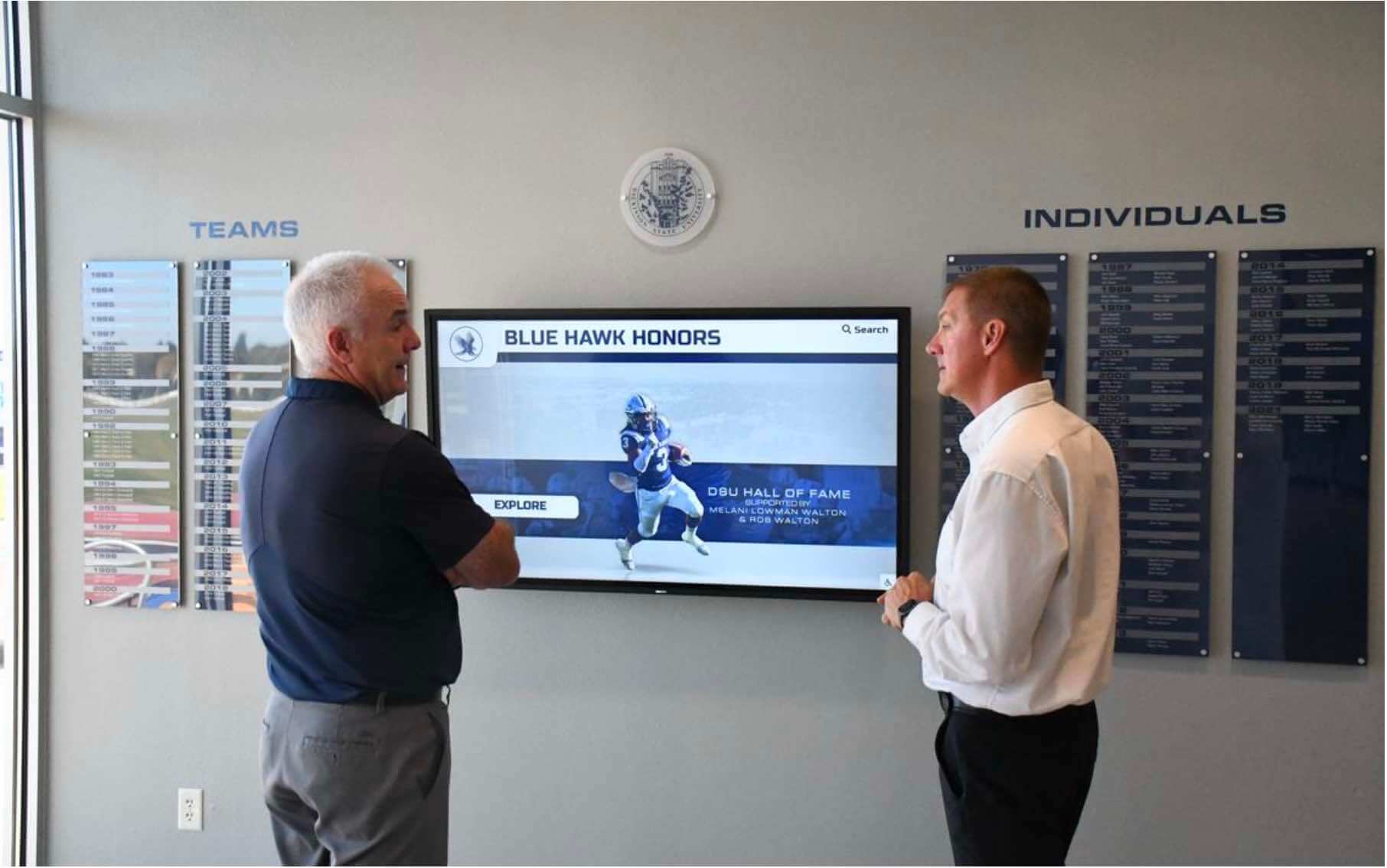
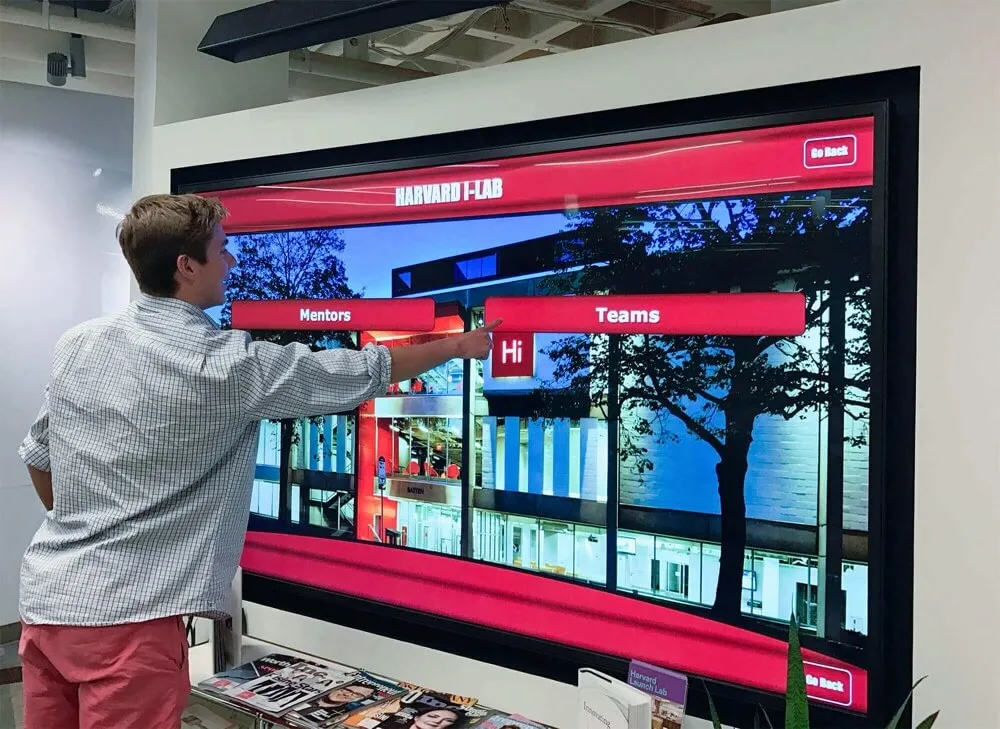
Community members access recognition collections in many contexts—landmark structure ensures that screen reader users browsing remotely have the same efficient navigation experience as in-person visitors
Connecting Landmark Accessibility to the Recognition Mission
A hall of fame’s purpose is to make the achievements of inductees visible and accessible to the full community—alumni, family members, current students, and prospective athletes who look to past honorees as inspiration. When screen reader users cannot efficiently navigate to an inductee’s profile because the page lacks landmark structure, the recognition program has excluded a member of that community from the experience it was built to provide.
The digital hall of fame screen reader landmark audit is not a one-time exercise. Platform updates, new page templates, CMS migrations, and the addition of new recognition categories each introduce opportunities for landmark structure to regress. Scheduling a brief landmark verification—using the browser Accessibility panel and one screen reader pass—as part of the post-update workflow for each induction cycle ensures that landmark coverage keeps pace with the collection as it grows.
Learn more about Rocket Alumni Solutions’ Digital Wall of Fame platform to see how purpose-built recognition software approaches accessible markup, WCAG 2.1 AA compliance, and semantic page structure as standard platform features.
Make Your Hall of Fame Navigable for Every Visitor
See how Rocket Alumni Solutions builds WCAG 2.1 AA compliance, accessible landmark structure, and screen reader-friendly recognition pages directly into every digital wall of fame—so your team spends time celebrating inductees, not remediating accessibility failures.
Request Your Custom Demo