Digital Hall of Fame Search Result Highlighting Audit: Make Name Matches Clear
- Home /
- Digital Wall of Fame Blog - Recognition Display Insights & Resources /
- Digital Hall of Fame Search Result Highlighting Audit: Make Name Matches Clear
The Easiest Touchscreen Solution




Live Example: Rocket Alumni Solutions Touchscreen Display
Interact with a live example (16:9 scaled 1920x1080 display). All content is automatically responsive to all screen sizes and orientations.
A digital hall of fame search result highlighting audit is a structured review confirming that every matched term in a recognition platform’s search results—inductee names, sport categories, graduation years, award designations—is visually distinguished from surrounding context text in a way that helps visitors quickly locate the correct record, without reducing contrast, obscuring surrounding text, or introducing barriers for users who rely on assistive technology. The short answer for school administrators, athletic directors, and IT teams: search your recognition platform for a known inductee’s name, inspect the result cards that return, verify that the matched characters are wrapped in a semantically appropriate element such as <mark> or a <span> with a distinct but accessible color, confirm that the highlight meets WCAG 1.4.3 contrast requirements, and test the highlighted results with a screen reader to confirm that assistive technology users receive equivalent information.
When a parent visits your school’s digital hall of fame and types a graduate’s name into the search bar, the results page should make it immediately clear which part of each result card matched the query. A result that returns the correct inductee but displays the name in the same visual style as every surrounding detail—sport, year, class, award title—forces the visitor to read every word of every card before confirming they found the right person. For a recognition database with hundreds of inductees sharing common surnames, that friction compounds quickly. Search result highlighting solves this problem at the display layer, and a formal audit verifies that the solution actually works across device types, user populations, and screen conditions.
For school recognition programs maintaining inductee archives that span multiple athletic generations—including programs highlighted in guides to the best hall of fame tools for athletics, donors, arts, and history—the search interface is often the primary pathway through which returning alumni and family members navigate a database that has grown too large to browse page by page. Highlighting matched terms is not a cosmetic detail; it is the primary orientation mechanism for visitors who arrive with a specific name in mind.
This audit guide is written for school IT administrators, web developers managing the recognition platform, and athletic department staff who want to verify that their search interface serves every visitor—sighted and non-sighted, on desktop and on touchscreen kiosk—with equal clarity.

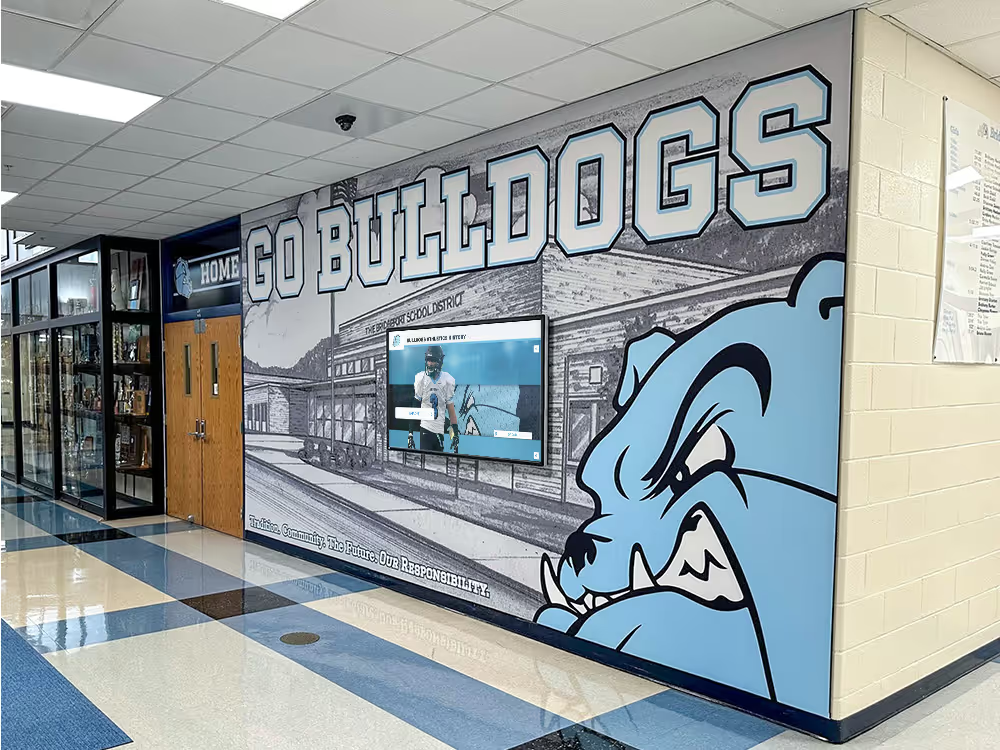
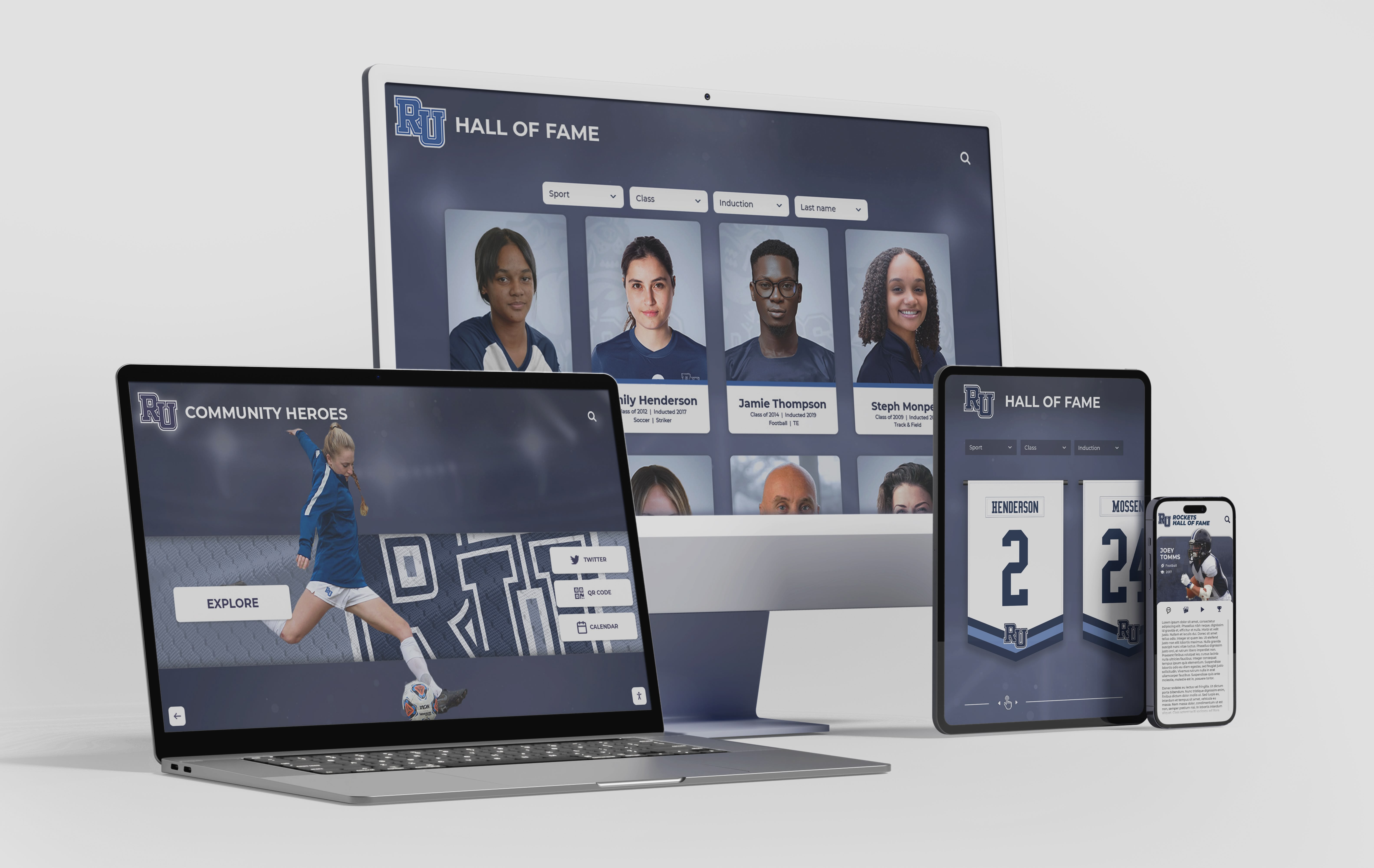
Search result highlighting must function consistently across every interface where visitors search the recognition platform—web browsers, mobile devices, and touchscreen kiosks in school lobbies and hallways
What Search Result Highlighting Is and What It Accomplishes
Search result highlighting—sometimes called query term highlighting or search snippet highlighting—is the practice of visually marking the portion of a result card’s text that matches the visitor’s search query. On a hall of fame platform, a visitor who searches for “Johnson” should see the characters “Johnson” distinguished from surrounding text on every result card that contains that name, whether the match appears in the inductee’s surname, a team name such as “Johnson City High School,” or an award title such as “Johnson Athletic Achievement Award.”
Three distinct elements of a result card can carry highlighted matches:
Name matches. The most common and highest-priority match. When a visitor searches by inductee name, the matched characters within the display name—first name, surname, or both—should be highlighted. For a search for “Smith,” a result card showing “Maria Smith, Volleyball, Class of 2008” should visually distinguish “Smith” from the surrounding text.
Category and team matches. Visitors sometimes search for a sport, team, or activity rather than a specific name. A search for “track” should highlight “track” wherever it appears in result cards—“Track and Field,” “Indoor Track,” “Head Track Coach”—so that visitors scanning a list of fifteen results can immediately see which cards matched on category rather than name.
Year and award term matches. Some visitors search for a specific graduation year, championship year, or award designation. A search for “2001” should highlight “2001” in the inductee profile summary, in the team record notation, or wherever the year appears in the card text that matched the query. Similarly, a search for “All-State” should highlight those characters in result cards where they appear in the inductee’s achievement record.
Effective highlighting serves two audiences simultaneously: sighted visitors who scan result cards visually, and visitors using assistive technology who need programmatic signals about which content is relevant to their query. An implementation that highlights text visually but provides no programmatic equivalent—no <mark> element, no accessible label—serves only the first group.
Why Highlighting Failures Go Unnoticed in Recognition Programs
Unlike broken links or missing images, search result highlighting failures are not reported by automated monitoring tools. A recognition platform can serve thousands of visitor search sessions with no highlighting at all, and the only consequence is a slightly slower, more effortful search experience that most visitors compensate for by reading more carefully.
Three conditions make highlighting failures particularly common in school recognition programs:
Platform updates that disable highlighting without warning. Highlighting is often implemented as a post-processing step applied to the raw search results returned by the search backend. When a platform vendor updates the search backend—migrating from one search engine to another, or changing the results data format—the highlighting layer may silently stop receiving the match position data it needs to apply the visual markup. Results continue to appear, but the highlighted spans are absent.
Partial highlighting that covers some fields but not others. A recognition platform that indexes inductee names, sport categories, and award designations separately may apply highlighting to the name field but not the category or award fields. Visitors who search for a sport name see correct results with no visual indication of which part of each card matched their query.
Accessibility regressions introduced during visual redesign. When a platform’s visual design is updated—new color schemes, new typography, new result card layouts—the highlight color that worked under the previous design may fall below the WCAG 1.4.3 contrast ratio threshold against the new background color. The highlighting remains present in the markup but is functionally invisible at the new contrast level.
For programs that have recently evaluated academic recognition programs and how schools structure their recognition systems, a search result highlighting audit fits naturally into the broader quality review cadence that keeps recognition platforms accurate and navigable as they grow.

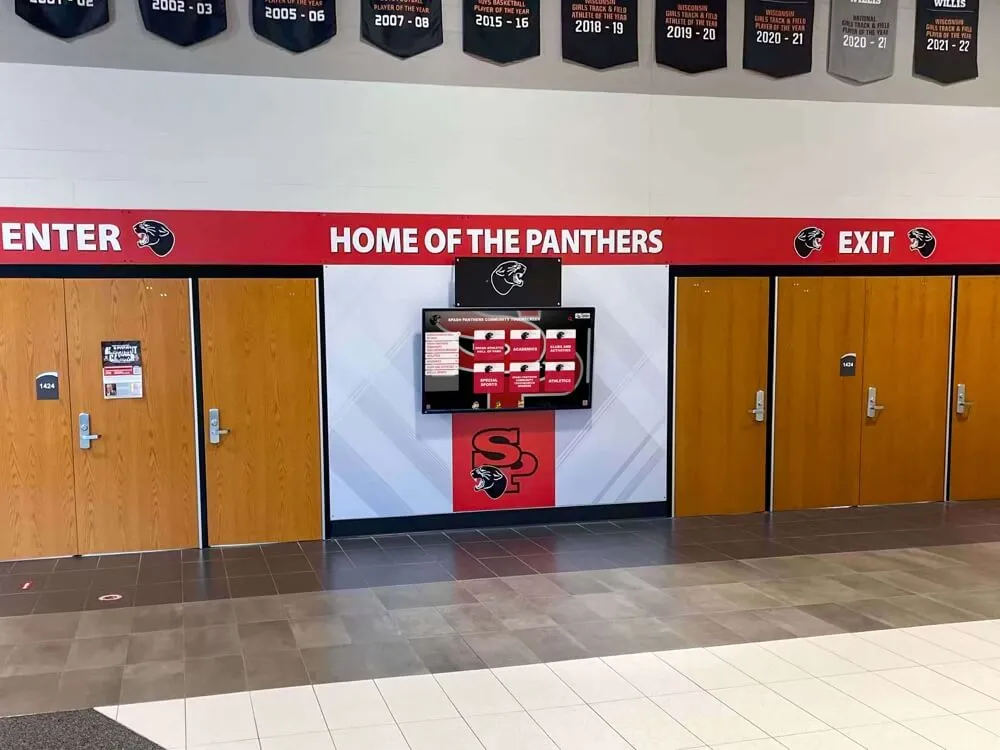
Visitors using touchscreen kiosk interfaces in school hallways interact with search results at arm's length; high-contrast, clearly bounded highlighting is especially important at kiosk viewing distances
The Search Result Highlighting Audit: Step-by-Step
Step 1: Define the Audit Scope
Before testing, establish which search interfaces and result surfaces are within scope. A typical hall of fame recognition platform exposes search results in several locations:
- The primary inductee directory search page (name or keyword search with full result cards)
- Autocomplete suggestions that appear as the visitor types
- Filter-refined result sets (filtered by sport, year, or category after a broad search)
- The “no results” and near-miss suggestion pages, if the platform returns alternative suggestions
- Touchscreen kiosk search interface, if the school operates lobby-mounted kiosks
For each interface, note whether search results display full result cards (showing name, sport, year, and additional details) or abbreviated result rows (showing only the name). Both formats require highlighting, but the audit steps differ slightly because abbreviated rows have fewer fields to test.
Step 2: Compile a Test Query Set
Generate a set of test queries that exercise every type of match that highlighting should cover. A practical test set for a school athletic hall of fame includes:
| Query Type | Example Query | Expected Highlight Location |
|---|---|---|
| Exact surname match | “Henderson” | Surname in every result card showing that name |
| Partial surname match | “Hend” | Characters “Hend” within each matching surname |
| First name match | “Maria” | First name field where it appears |
| Sport or category name | “basketball” | Category field in result cards where it matches |
| Graduation year | “1998” | Year field in result cards showing that year |
| Award or honor designation | “All-Conference” | Award or achievement field in matching cards |
| Multi-term query | “Smith basketball” | Each term highlighted separately where it appears |
| Name shared by multiple inductees | “Williams” | All instances of that surname across all matching cards |
Add at least two inductee names from your actual database that contain diacritical characters (for example, “García” or “Pérez”) to verify that highlighting applies to accented characters correctly. A search for “Garcia” (without accent) should highlight the matching characters in results showing “García” if your platform implements diacritic-insensitive search.
Step 3: Run Each Query and Visually Inspect Results
For each query in your test set, run the search in the live platform interface and examine the result cards that appear. For each result card, verify the following:
Presence of highlighting. Are the matched characters visually distinguished from surrounding text? If no visual distinction is present for any result across all cards, highlighting is absent or disabled for this query type.
Accuracy of highlighting. Does the highlighted portion exactly match the characters in the query? A highlight that covers “Hend” for a query of “Hend” is correct. A highlight that covers the entire surname “Henderson” when the query was “Hend” is an over-highlight. A highlight that marks “son” when the query was “Hend” is an incorrect offset—a common symptom of a mismatch between the search backend’s reported match positions and the text rendered in the result card.
Scope of highlighting. Does highlighting appear in every field where the query term matches, or only in some fields? If a search for “basketball” returns result cards where “basketball” appears in both the sport field and the achievement description, highlighting should appear in both locations, not only the sport field.
Consistency across result cards. Does highlighting appear on every card in the result set, or only on some cards? Inconsistent highlighting—the first three cards highlighted, the next four not—typically indicates a bug in the highlighting post-processing step rather than a design decision.
Record a screenshot of the result page for each query and annotate which cards pass and which fail.
Step 4: Inspect the Markup of Highlighted Elements
With the search results displayed, open browser developer tools and inspect the HTML of a highlighted term. Three markup patterns are common, and they have different implications for accessibility:
Pattern A: <mark> element (preferred)
<span class="inductee-name"><mark>Hend</mark>erson, Maria</span>
The <mark> element has native semantic meaning in HTML5: it represents text that is highlighted for relevance to the reader’s current activity. Screen readers such as NVDA and JAWS may announce <mark> content differently from surrounding text, depending on user settings. The element receives the browser’s default yellow highlight background, which can be overridden via CSS.
Pattern B: <span> with a class (acceptable with caveats)
<span class="inductee-name"><span class="search-highlight">Hend</span>erson, Maria</span>
A <span> with a CSS class applies visual styling but carries no native semantic meaning. Screen readers treat it identically to surrounding inline text. If this pattern is used, supplementary techniques are needed to convey the match to assistive technology users—typically through a visually hidden label or an aria-label on the surrounding container that explicitly states which terms were matched.
Pattern C: Bold or italic elements (<strong>, <em>) (discouraged)
<span class="inductee-name"><strong>Hend</strong>erson, Maria</span>
Using <strong> or <em> for search highlighting misrepresents the semantic purpose of those elements—strong importance and stress emphasis, respectively. Screen readers may announce <strong> content as “bold” or with added emphasis, creating confusion when the bolding is navigational rather than semantic. Avoid this pattern for search highlighting.
For each result card inspected, note which pattern is in use and whether the element boundaries exactly match the matched characters.
Step 5: Verify Highlight Contrast Against WCAG 1.4.3
WCAG 1.4.3 (Contrast, Minimum) requires that text have a contrast ratio of at least 4.5:1 against its background for normal text and 3:1 for large text (18pt or 14pt bold and larger). When highlighting applies a background color to the matched text, the contrast calculation must account for both the highlighted background and the text color applied within the highlight.
Common failure scenarios:
| Highlight Style | Text Color | Highlight Background | Potential Issue |
|---|---|---|---|
| Yellow background | Black text | #FFFF00 | Passes (21:1 on yellow) |
| Yellow background | White text | #FFFF00 | Fails (1.07:1 white on yellow) |
| Orange background | Dark gray text | #FF6600 | Check required; varies |
| Light blue background | Dark navy text | #DDEEFF | Check required; may pass |
| Same color as card background | Bold only | No background | No contrast failure, but no visual differentiation |
Use a contrast checker tool against each combination present in your results. If the platform uses a dark-mode or high-contrast viewing mode—common on touchscreen kiosks with ambient light adjustments—verify contrast in each mode separately, since a highlight that passes in light mode may fail in dark mode if the highlight color was not updated for that context.
For recognition programs that also review their accessibility compliance through academic recognition programs guides, the contrast requirements for search highlighting overlap directly with the platform’s broader WCAG compliance scope.
Step 6: Test with a Screen Reader
Visual highlighting is invisible to screen-reader users unless it is supplemented with a programmatic equivalent. Test the following with at least one screen reader and browser combination:
| Screen Reader | Browser |
|---|---|
| NVDA | Chrome or Firefox (Windows) |
| JAWS | Chrome or Edge (Windows) |
| VoiceOver | Safari (macOS or iOS) |
| TalkBack | Chrome (Android) |
For each screen reader:
- Navigate to the search interface using keyboard or touch navigation.
- Enter a test query and wait for results to load.
- Navigate through the result cards using the Tab key or arrow keys.
- Listen for whether the screen reader announces highlighted matches differently from surrounding text.
- Verify that the information conveyed by the visual highlighting—specifically, which part of the result matched the query—is available in some form to the screen reader user.
If the platform uses <mark> elements, check the screen reader’s announcement. Some screen readers in some configurations announce <mark> content by prefixing “highlight” before the marked text. If the platform uses <span> elements with no additional ARIA attributes, screen readers provide no differentiation—this is a failure for users who rely on screen reader navigation to understand why a result was returned.
A supplementary approach that works regardless of the highlight element type: include a visually hidden results summary at the top of the results section that states the query terms, for example: <p class="sr-only">Showing results matching: Henderson</p>. This gives screen reader users explicit context about what was searched without requiring the highlighted element to be announced differently.
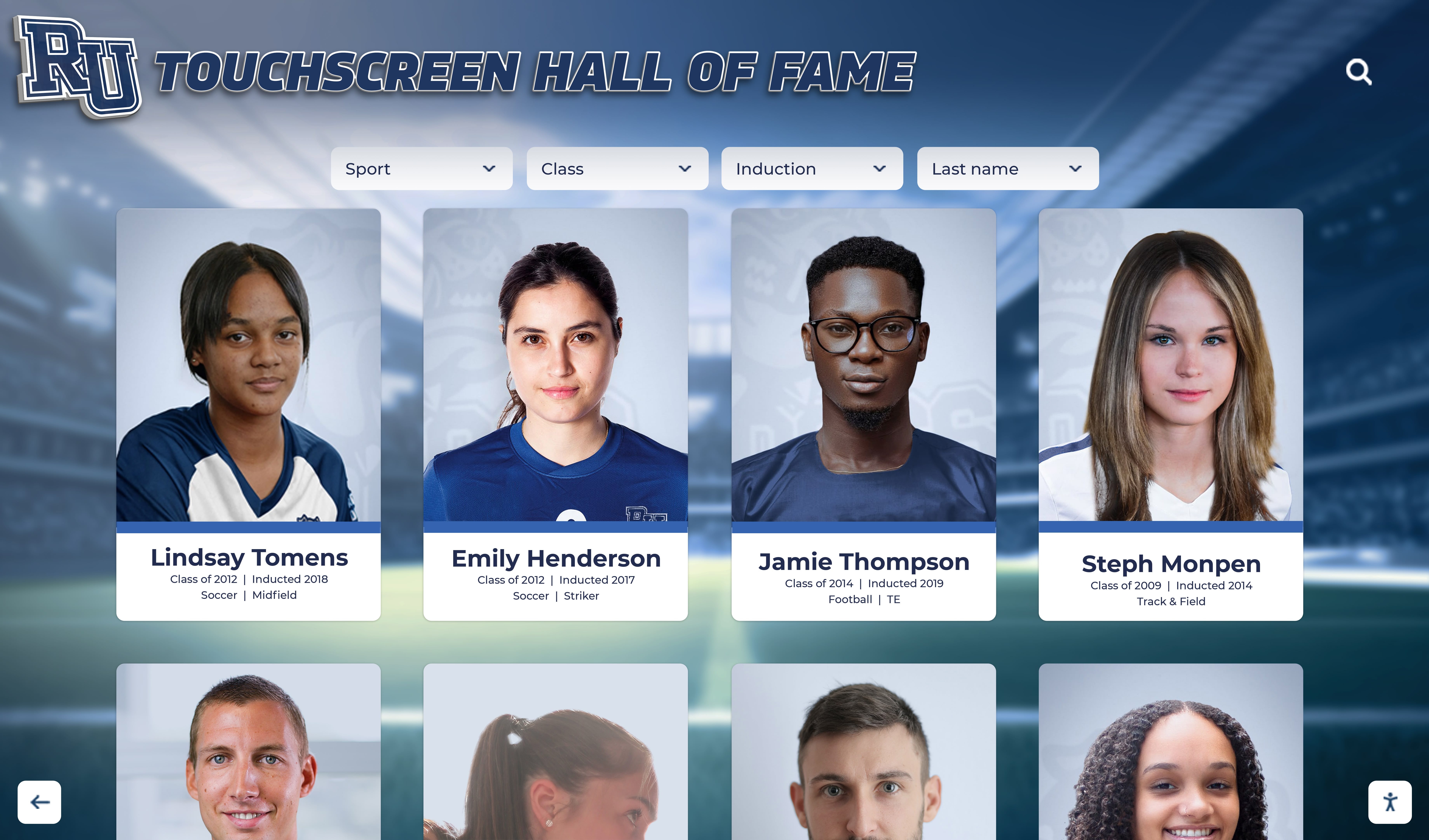
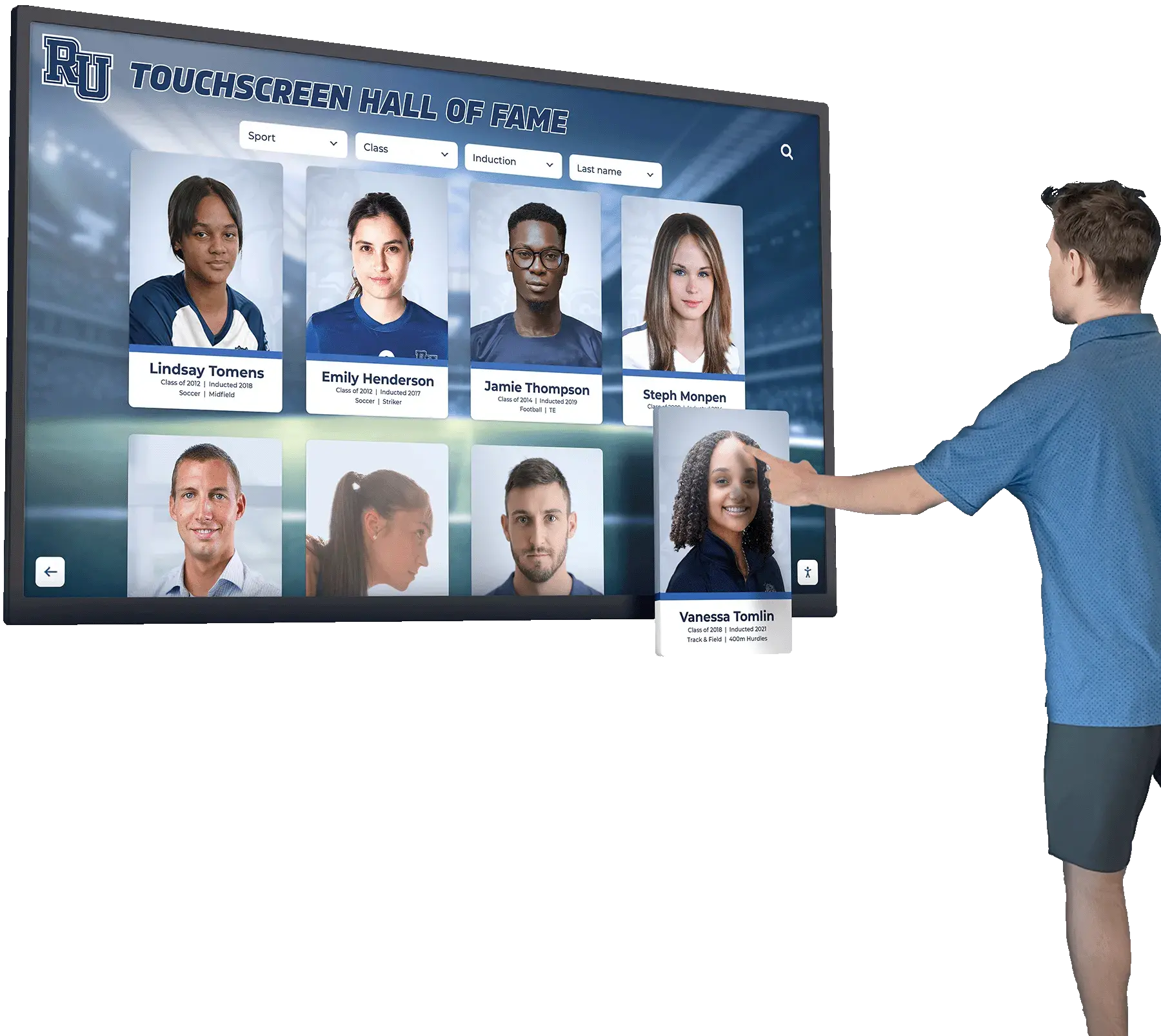
When search returns a grid of inductee cards, highlighted matched terms help visitors scan results quickly—particularly when multiple cards share a common surname or sport category
Step 7: Test Autocomplete Highlighting Separately
Autocomplete suggestions that appear as the visitor types are a separate highlighting surface from the full results page. They require their own audit pass because:
- Autocomplete suggestion lists are often implemented with a different code path than the results page and may omit highlighting even when the results page highlights correctly.
- Suggestions are typically abbreviated (showing only the inductee name, not the full card detail) so the only field that can carry a highlight is the name itself.
- Keyboard navigation of suggestion lists must not be disrupted by highlight element insertion; verify that Tab or arrow-key navigation moves through suggestions correctly when highlight spans are present.
For each test query in your set, type the first three characters and observe whether autocomplete suggestions appear and whether the typed characters are highlighted within each suggestion. A suggestion list showing “Henderson, Maria” without “Hen” highlighted provides less orientation than one that shows “Henderson, Maria.”
Step 8: Test on Touchscreen Kiosk Hardware
For schools with lobby-mounted touchscreen kiosks, perform an additional verification on the physical hardware:
Viewing distance. Kiosk interfaces are typically viewed at arm’s length (60–90 cm) rather than at desktop monitor distance (50–70 cm). Highlight colors and text sizes that appear clear at desktop distance may be difficult to distinguish at kiosk distance. Test by standing at the typical viewing distance and confirming that highlighted text is perceptible without leaning in.
Ambient light. School lobbies have variable lighting conditions. Test the kiosk interface under both high ambient light (which reduces screen contrast) and low light conditions. A yellow highlight that is visible in a dimly lit lobby may wash out when afternoon sunlight falls directly on the screen.
Touch-target separation. If result cards on the kiosk interface are touch-interactive, verify that highlight spans do not create unexpected tap targets or disrupt the touch-target boundaries of the surrounding card elements.
For programs evaluating how academic achievement awards are displayed and searchable across digital platforms, the physical kiosk interface is part of the same recognition ecosystem as the web platform and requires the same search UX quality standards.
Quick-Reference Audit Checklist
Use the table below as a field-level tracking sheet during the audit. Mark each row Pass, Fail, or N/A.
| Check | Pass Condition |
|---|---|
| Highlighting present on name field | Matched characters in inductee name visually distinguished |
| Highlighting present on category/sport field | Matched characters in sport or category field visually distinguished |
| Highlighting present on year field | Matched year characters visually distinguished where they appear in result text |
| Highlighting present on award/honor field | Matched award term characters visually distinguished |
| Highlighting accurate (correct character range) | Highlighted span covers exactly the matched characters, not adjacent characters |
| Highlighting consistent across all result cards | Every card in the result set that contains a match shows highlighting |
Highlighting uses <mark> or accessible span pattern | Element choice appropriate; <strong> or <em> not used for highlighting |
| Highlight contrast meets WCAG 1.4.3 (4.5:1 for normal text) | Contrast ratio checked with tool; passes in both light and dark modes |
| Screen reader receives equivalent match information | <mark> announces differently, or visually-hidden summary provided |
| Autocomplete suggestions show matched prefix highlighted | Typed characters highlighted within suggestion text |
| Highlighting does not break keyboard navigation of suggestions | Tab/arrow navigation through suggestion list works correctly with spans inserted |
| Kiosk interface highlighting visible at arm’s length | Tested at typical viewing distance; highlight perceptible without leaning in |
| Multi-term queries: each term highlighted separately | Both “Smith” and “basketball” highlighted in appropriate fields for query “Smith basketball” |
| Diacritical characters: match highlighted in accented form | Search for “Garcia” highlights “García” correctly in results |
| No-results page: query terms restated in accessible form | Search terms shown on no-results page so visitor can review what was searched |
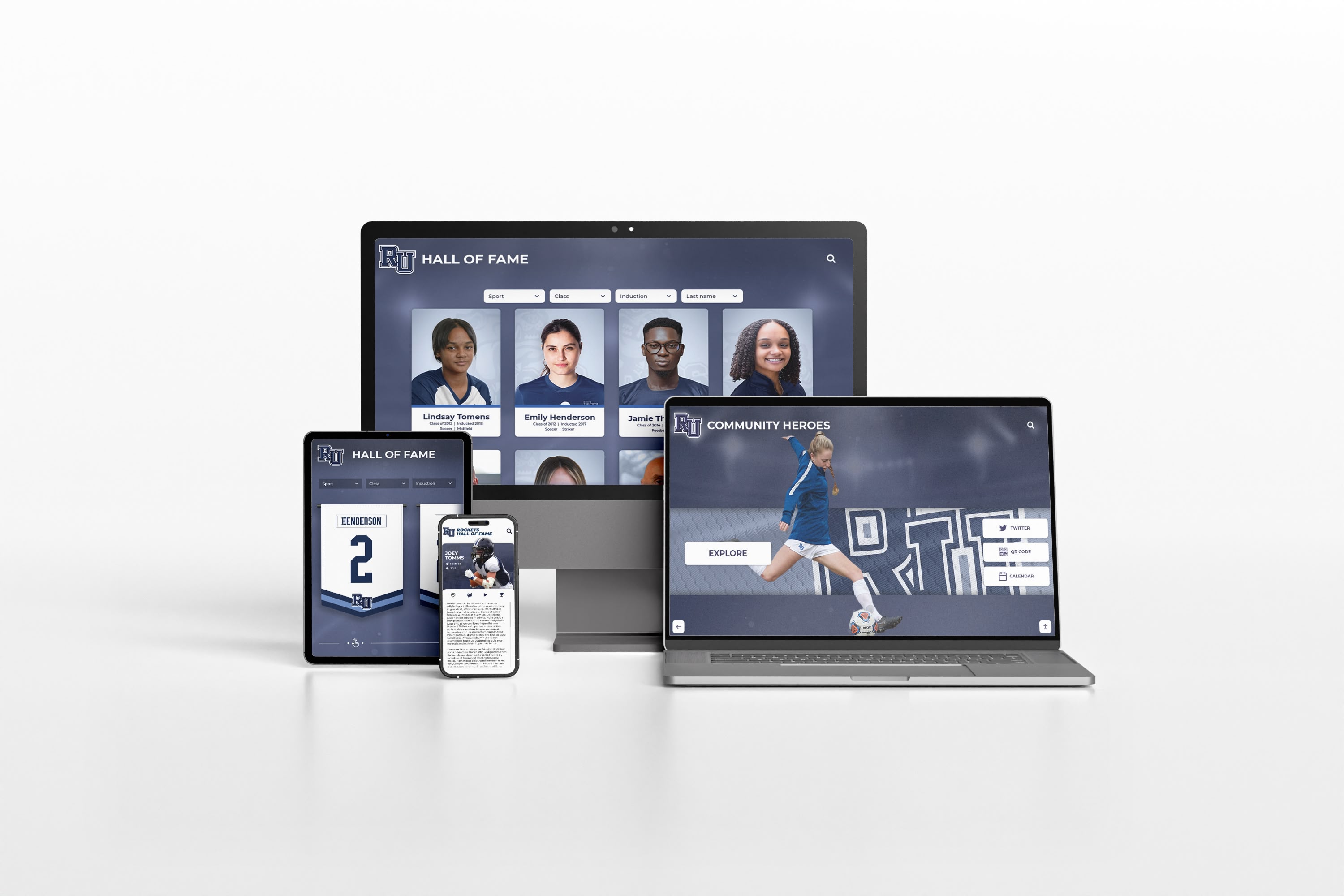
Search result highlighting must scale appropriately across device sizes; a highlight that is visible on a 27-inch desktop monitor must remain distinguishable on a 5-inch phone screen at mobile resolution
Common Highlighting Failures and Their Fixes
Failure 1: Highlighting Absent on Category and Award Fields
Symptom. A search for “All-State” returns inductee cards where “All-State” appears in the achievement summary, but no visual highlighting is applied. Only result cards where the name field matches (if the inductee’s name contained the query string) show any highlighting.
Root cause. The search backend returns match position data only for the fields it was configured to index with highlighting enabled. If the recognition platform was configured to index inductee names for full-text search but not achievement descriptions, the backend returns no position data for the achievement field, and the frontend displays it without highlighting.
Fix. In the search platform configuration (Elasticsearch, Algolia, or equivalent), add the award and achievement fields to the highlighting configuration, specifying the pre-tag and post-tag markers that the frontend should use when rendering those fields. Rebuild the search index to apply the updated configuration.
Failure 2: Highlighted Span Offsets Are Incorrect
Symptom. The highlighted characters in a result card do not correspond to the matched query. The highlight appears on characters before or after the actual match, or covers a broader or narrower range than the query.
Root cause. A mismatch between the character positions reported by the search backend and the character positions in the text rendered on the frontend. This often occurs when the stored text differs from the displayed text—for example, if HTML entities in the stored record are decoded for display, shifting the character positions that the backend reported.
Fix. Normalize the text between the stored version, the search index version, and the displayed version so that character positions are consistent at all layers. If the display text is post-processed (entity decoding, whitespace normalization, truncation), ensure the same post-processing is applied before calculating highlight spans, not after.
Failure 3: Highlight Color Fails Contrast in High-Contrast or Dark Mode
Symptom. The highlight is visible in the platform’s default light mode but disappears or becomes invisible when the system is in high-contrast mode or the platform offers a dark mode option.
Root cause. The highlight color was specified as an absolute hex value that works against a light background but is not recalculated for the dark or high-contrast context.
Fix. Define the highlight background and text colors using CSS custom properties that are updated within the dark-mode and high-contrast media queries. Verify the contrast ratio for every mode separately using a contrast checker tool. For high-contrast mode specifically, consider using the CSS mark selector and the Mark and MarkText system color keywords, which automatically resolve to the OS-defined highlight colors.
Failure 4: Autocomplete Suggestions Not Highlighted
Symptom. The full results page highlights matched characters, but autocomplete suggestions that appear while the visitor types show names without any highlighting.
Root cause. The autocomplete component fetches suggestion data from a separate endpoint that does not return match position data, or the suggestion renderer was implemented independently from the results-page renderer and was not updated to include highlighting logic.
Fix. Apply client-side highlighting to autocomplete suggestions if the backend does not provide server-side match positions. Given that autocomplete always matches the typed prefix at the beginning of the suggestion text, a client-side implementation can highlight the first N characters (where N is the current query length) without requiring backend position data. Verify that this client-side span insertion does not break the keyboard navigation event handlers on the suggestion list.
Failure 5: No Accessibility Equivalent for Highlighted Matches
Symptom. The visual highlighting is present and passes contrast requirements, but a screen-reader user who navigates through result cards receives no indication of which portion of each card matched the search query.
Root cause. The highlight element—whether <mark> or <span>—is not announced differently from surrounding text by the screen reader in the tested combination, and no supplementary mechanism (visually hidden query restatement, aria-label, or live region) conveys the query terms to the screen reader user.
Fix. Add a visually hidden paragraph before the results list that explicitly states the search query. For example: <p class="sr-only" aria-live="polite">Showing results for: Henderson</p>. Update this element dynamically each time a new search is run. If the platform uses <mark> elements, verify in the target screen reader and browser combination whether <mark> is announced differently, and adjust the supplementary text to avoid duplication if it is.
For schools that maintain recognition archives alongside other institutional history systems—including programs highlighted in resources on how schools plan and program 10-year reunion events with awards and recognition displays—the search interface serves both everyday visitors and alumni returning to check historical records. Both groups benefit from a highlighting implementation that makes matches immediately visible without requiring them to already know what they are looking for.
Contextual CTA
Ready to see how a well-built recognition platform handles search UX from the ground up? Request a demo of the Rocket Alumni Solutions platform to walk through inductee search, result display, and highlighting behavior with your school’s specific recognition program in mind.
WCAG Success Criteria Relevant to Search Result Highlighting
Search result highlighting touches several WCAG 2.1 success criteria that recognition program administrators and platform developers should understand.
1.3.1 Info and Relationships (Level A). Information conveyed through presentation must be programmatically determinable. Visual highlighting conveys the relationship “this text matched the search query”—a relationship that must be made available to users who cannot perceive the visual presentation. Using <mark> rather than a presentational <span> satisfies this criterion; using a supplementary visually-hidden label also satisfies it.
1.4.1 Use of Color (Level A). Color must not be the only visual means of conveying information. If a search result is highlighted using only a color change (no change in font weight, border, or other visual property), a user who cannot distinguish that color receives no highlighting benefit. Adding a subtle border, underline, or font-weight change alongside the background color ensures that color is not the sole differentiator.
1.4.3 Contrast (Minimum, Level AA). Text in highlighted elements must meet the same contrast requirements as surrounding text. A yellow highlight background with dark text typically satisfies this criterion; a light-blue highlight background with light-gray text may not.
2.4.3 Focus Order (Level A). If highlighted spans are interactive (for example, if clicking a highlighted term executes a filtered search), the focus order through result cards must not be disrupted by the insertion of the highlight elements.
3.2.4 Consistent Identification (Level AA). If highlighting is used to identify matched content, it must be used consistently throughout the platform. A platform that highlights matches on the search results page but not on the autocomplete suggestion list uses the same visual treatment inconsistently across functionally equivalent surfaces.
For programs considering what the digital hall of fame market looks like from a data integrity and platform quality perspective, search result highlighting quality is one of the measurable UX dimensions that distinguishes platforms designed for long-term institutional use from those built for initial deployment only.
Managing Highlighting Quality Over Time
A one-time audit resolves identified failures, but search result highlighting quality can regress after platform updates, content structure changes, or new recognition category additions. Three practices maintain quality over time.
Regression check after every platform update. Each time the recognition platform vendor deploys an update—particularly updates that affect the search backend, the results renderer, or the CSS design system—run the abbreviated version of this audit: search for three known inductee names, one category, and one year, and verify that all five queries return correctly highlighted results. This check takes less than five minutes and catches the most common regression pattern before visitors encounter it.
Include new recognition categories in audit scope. When a school adds a new recognition category—an academic hall of fame, a performing arts recognition program, or a service award tier—the inductee fields in the new category may not be covered by the existing highlighting configuration. Run the full audit against the new category at launch, not retroactively.
Document highlight element patterns for platform developers. If the recognition platform is customized by an internal development team or a third-party integrator, add a note to the development standards document specifying which element type to use for search highlighting (<mark> or <span class="search-highlight">), the required CSS properties for accessible contrast, and the visual hidden pattern for screen reader context. Documented patterns reduce the likelihood of regressions during future development.
For recognition programs that serve communities during milestone events—including programs associated with 50th high school reunions and multi-decade alumni recognition programs—the search interface receives high-traffic spikes from alumni who may not use the platform regularly and need immediate orientation through clear highlighting.
Programs evaluating the full landscape of tools available for their recognition programs can find broader context in comprehensive guides to the best hall of fame tools for athletics, donors, arts, and history.
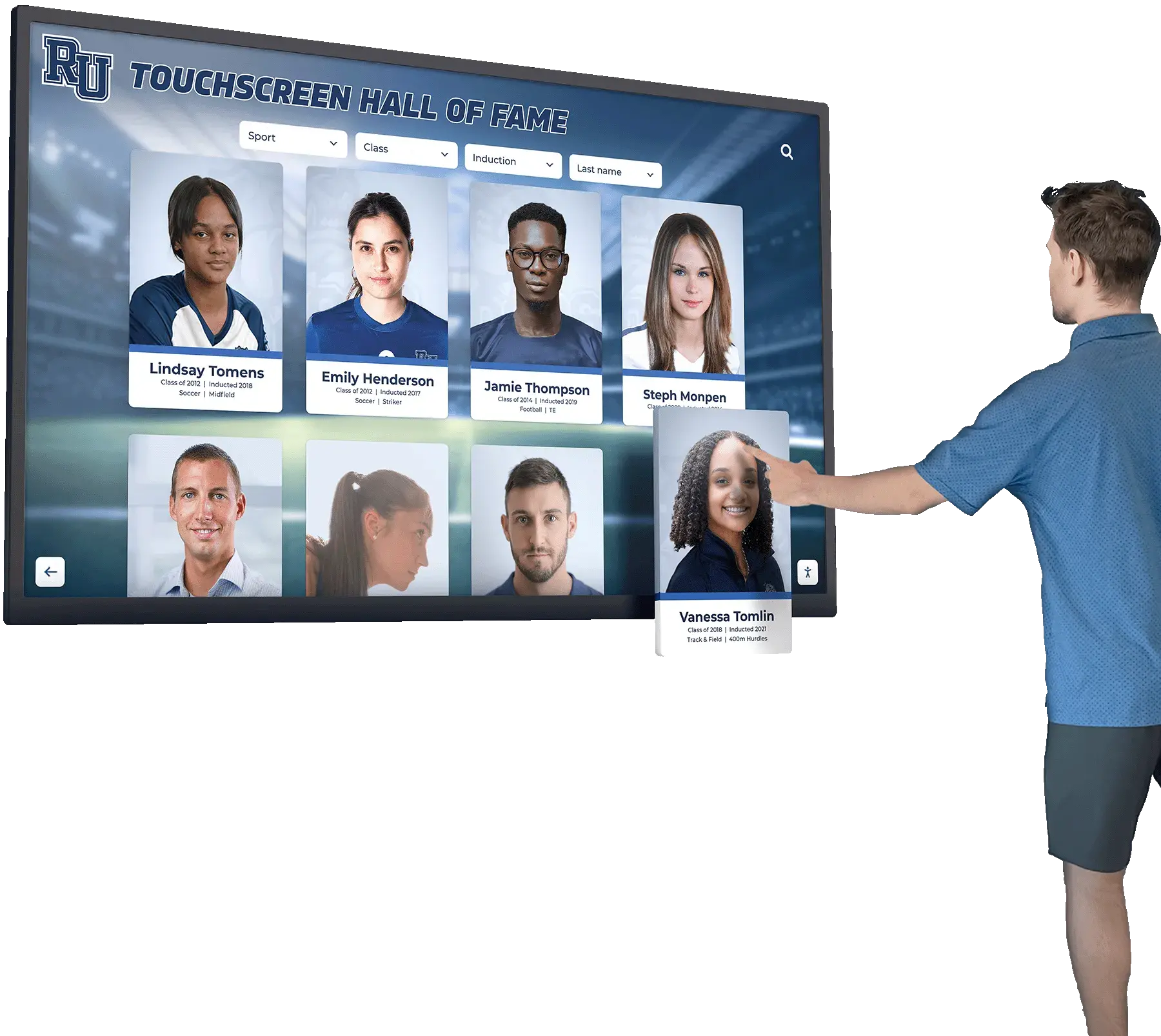
Visitors navigating a touchscreen inductee directory depend on highlighted matches to identify correct records quickly—an audit confirms that highlighting functions correctly across every search scenario the platform supports
Frequently Asked Questions
Does the HTML <mark> element change how screen readers announce highlighted text?
It depends on the screen reader and browser combination. NVDA with recent versions of Firefox may announce <mark> content differently from surrounding text; JAWS with Chrome typically does not differentiate <mark> from inline text without custom user settings. Because screen reader behavior varies, <mark> alone is not sufficient to guarantee that the match is communicated to all screen reader users. Supplement <mark> with a visually hidden query restatement or an accessible results summary to ensure the information reaches all users.
Should we highlight partial matches or only exact matches?
Highlight whatever the search backend considers a match—including prefix matches and stemmed matches—but highlight only the characters that were actually in the query, not the extended characters that completed the match. If a visitor searched for “Hend” and the platform matched “Henderson” by prefix, highlight “Hend” within “Henderson,” not the full word. Over-highlighting (marking the entire word when only a prefix was searched) reduces precision and may confuse visitors who are trying to understand why a result was returned.
What should we display when a search returns zero results?
The no-results page should clearly restate the search query (so the visitor can confirm what was searched), offer suggestions for alternative queries (check spelling, try a last name only, use fewer terms), and provide a direct contact path for visitors who believe an inductee should be in the database but cannot find them. There are no matched terms to highlight on a no-results page, but the restated query should still be presented clearly so the visitor understands what the system searched for.
Our platform highlights matches inside a modal or detail overlay rather than on the result card. Is that acceptable?
No—highlighting should appear on the result card, not only inside a detail view that requires an additional action to open. A visitor scanning a list of fifteen results should be able to identify which portion of each card matched their query at a glance, without opening each card individually. Reserving highlighting for the detail view forces additional work on every visitor and negates the primary benefit of highlighting.
How do we handle queries that match extremely common terms and return hundreds of results?
Highlighting is still required across all returned cards, but the UX challenge becomes result relevance ranking rather than highlighting itself. When a search for “1998” returns 80 result cards because that graduation year is common, highlighting “1998” in each card confirms the match but does not help visitors distinguish between results. At that scale, the search interface needs additional filtering and sorting tools—filter by sport, sort by year range—so that visitors can narrow the result set before scanning. Highlighting and filtering are complementary, not alternatives.
Does search result highlighting need to be audited separately for print or PDF export?
If the recognition platform allows visitors to print or export search results, the exported format should present the query terms in text (for example: “Search results for: Henderson — 12 inductees found”) rather than attempting to replicate the visual highlighting in print. Most print stylesheets suppress background-color properties, which means highlighting backgrounds do not appear in print output. Verify that the query restatement is present in the printed format and that the suppression of the highlight background does not remove any information that was only conveyed through the color.
Learn more about Rocket Alumni Solutions’ Digital Wall of Fame platform to understand how cloud-based inductee search, result display, and content management work together to serve every visitor who uses your recognition program.
See How Rocket Alumni Solutions Builds Search for Recognition Programs
Rocket Alumni Solutions builds interactive touchscreen and web-based recognition platforms for schools, universities, and institutions—with search designed to serve every visitor clearly, accessibly, and at scale. Request a personalized demo to walk through inductee search, result highlighting, and content management with your school's specific recognition program in mind.
Live Example: Rocket Alumni Solutions Touchscreen Display
Interact with a live example (16:9 scaled 1920x1080 display). All content is automatically responsive to all screen sizes and orientations.