Hall of Fame Website Browser Compatibility Testing Checklist for Inductee Profiles
- Home /
- Digital Wall of Fame Blog - Recognition Display Insights & Resources /
- Hall of Fame Website Browser Compatibility Testing Checklist for Inductee Profiles
The Easiest Touchscreen Solution




Live Example: Rocket Alumni Solutions Touchscreen Display
Interact with a live example (16:9 scaled 1920x1080 display). All content is automatically responsive to all screen sizes and orientations.
Intent: research. A hall of fame website browser compatibility testing checklist is the structured set of tests that confirms inductee profile pages, photo galleries, nomination forms, and navigation menus display and function correctly for every visitor regardless of which browser or device they use. The short answer: build a testing matrix from your actual visitor analytics data, test inductee profiles in Chrome, Safari, Firefox, and Edge across desktop and mobile viewports, verify that portrait grids, video embeds, and form submissions work correctly in each browser, and schedule a full re-test before each induction cycle. This checklist covers every major content type and interaction on a hall of fame website in the order most likely to surface real compatibility failures.
A family who drove four hours to attend an induction ceremony should be able to pull up the honoree’s profile on their phone in the school lobby and see a complete page—portrait loaded, biography readable, statistics displayed. A school board member reviewing nominees from a desktop browser at home should encounter the same nomination form and the same search filters as the athletic director using Chrome on a school-issued laptop. When hall of fame pages render differently across browsers—or fail entirely on less common ones—the recognition those pages carry is diminished before it reaches the people it is meant for.
Browser compatibility failures on recognition websites are rarely catastrophic; they are subtle. A portrait grid displays in a single column instead of three. A search filter dropdown renders behind a hero image. A nomination form’s submit button is invisible on older iOS Safari. A biography text block inherits a system font that breaks the visual hierarchy. Each of these failures is invisible in the browser a developer used to build the page, and each affects a real segment of visitors who will never report the problem—they will simply leave.

A hall of fame website must render inductee profiles correctly across the full range of devices and browsers your visitors actually use—from desktop Chrome used by administrators to mobile Safari used by alumni families at recognition events
Why Browser Compatibility Testing Matters for Hall of Fame Websites
General-purpose browser compatibility guidance covers common web application scenarios: shopping carts, news feeds, contact forms. Hall of fame websites carry content types that introduce specific compatibility risks beyond those scenarios.
Portrait-heavy grid layouts strain older CSS layout implementations. Multi-column inductee directories rely on CSS Grid or Flexbox to arrange portrait cards in responsive rows. While major browsers implemented these specifications years ago, specific properties—gap in Flexbox, aspect-ratio, and subgrid—reached broad support later and at different points across browser families. A portrait directory that uses newer CSS layout features without fallbacks may collapse into a single column on an unsupported browser version, converting a well-organized inductee roster into an unusable vertical list.
Video embeds depend on codec support that varies by browser and operating system. A championship highlight reel embedded as a native HTML5 <video> element requires the browser to support the codec used to encode the file. H.264 in an MP4 container has broad support, but schools using WebM or HEVC encoding may find those videos fail silently in browsers that do not support the codec—displaying a blank box where the player should appear with no error message visible to the visitor.
Form elements render inconsistently across browsers. Nomination forms and contact forms often include dropdowns, date pickers, file upload fields, and multi-select inputs. Each of these element types renders with browser-native styling that differs visibly across Chrome, Safari, Firefox, and Edge—and differs further on mobile browsers. A form that appears well-designed on Chrome may have an illegible dropdown on mobile Firefox or a partially hidden submit button on Safari for iOS.
Searchable inductee directories use JavaScript features with uneven support. Filtering hundreds of inductees by sport, class year, or award type requires client-side JavaScript. Modern filtering code uses APIs—optional chaining, nullish coalescing, newer array methods—that older browsers handle differently. A filtering function that works correctly on a recent Chrome version may throw a silent error on an older Android browser, leaving the directory unresponsive with no feedback to the visitor.
Which Browsers Your Hall of Fame Visitors Actually Use
Before building a testing matrix, review your actual visitor data. Browser statistics vary by institution type and visitor demographics. Use this table as a starting reference, then verify against your own analytics.
| Browser | Typical Share | Key Versions to Test | Notable Compatibility Risks |
|---|---|---|---|
| Chrome (Desktop) | 45–55% | Current, Current-1 | Minimal; reference browser for most web standards |
| Safari (Mobile iOS) | 15–25% | Current, Current-1 | CSS gap in Flexbox (Safari 14.1+), form element styling, <dialog> element |
| Chrome (Mobile Android) | 10–18% | Current, Current-1 | Generally matches desktop Chrome; older Android WebView on budget devices differs |
| Edge (Desktop) | 5–10% | Current, Current-1 | Chromium-based; closely tracks Chrome compatibility |
| Firefox (Desktop) | 3–7% | Current, Current-1 | Well standards-compliant; test form element rendering and scrollbar styling |
| Safari (Desktop macOS) | 5–8% | Current, Current-1 | Same engine as iOS Safari; test input[type="date"] and custom form styling |
| Samsung Internet | 2–5% | Current | Chromium-based; occasional CSS rendering differences on portrait grids |
| Older Android WebView | 1–3% | varies by device | Limited support for modern CSS and JavaScript APIs on older Android versions |
Review Google Analytics or Search Console for your specific site’s browser distribution before finalizing your testing scope. Prioritize browsers representing at least 2% of your visitor sessions. Schools whose alumni include older graduates typically see higher Desktop Safari and older browser shares than schools with primarily student-age visitor traffic.
Hall of Fame Website Browser Compatibility Testing Checklist
Phase 1: Build Your Testing Matrix and Environment
1. Export browser share data from your analytics platform. Navigate to Google Analytics → Reports → Tech → Tech details, or the equivalent in your analytics tool. Filter to the past 90 days and sort by sessions. Export the list of browsers, versions, and operating systems. This data defines your testing priority: browsers representing more than 2% of sessions require full testing; browsers representing 0.5–2% require spot-checks on high-traffic pages; browsers representing under 0.5% are low priority unless institutional policy requires supporting them.
2. Define your minimum supported browser list and publish it internally. Document which browsers and versions your hall of fame website explicitly supports. A practical baseline: the two most recent major versions of Chrome, Safari, Firefox, and Edge on desktop; the two most recent major versions of Chrome for Android and Safari for iOS on mobile; and Samsung Internet if your analytics show more than 2% usage. This list becomes the scope of compatibility testing and the reference for development decisions about which CSS and JavaScript features are safe to use without polyfills.
3. Set up physical and virtual testing environments. You need a physical iOS device to test Safari for iOS—iOS Safari cannot be accurately replicated in desktop browser device simulation mode, because iOS forces all browsers to use the WebKit rendering engine regardless of which browser name appears in the interface. Set up testing environments for: a recent iPhone (iOS Safari), a recent Android phone (Chrome for Android), a Windows desktop (Chrome and Edge), a macOS desktop (Safari and Chrome), and a Linux desktop if your analytics show Firefox above 3%.
4. Select a cross-browser testing tool for browsers you cannot test locally. Browser automation tools allow you to run visual tests against browser versions and operating system combinations that would be impractical to maintain as physical devices. Configure your tool to cover the browsers on your minimum supported list. Use it for older browser versions, automated screenshot comparisons, and visual regression testing rather than as a replacement for physical device testing.
5. Create a page inventory for compatibility testing. Document every distinct page template on your hall of fame website before testing begins:
- Hall of fame landing page (hero, featured inductees, navigation)
- Inductee directory or listing page (portrait grid, search, filters)
- Individual inductee profile page (portrait, biography, statistics, media)
- Photo gallery page (grid, lightbox, pagination)
- Video archive page (embedded player, thumbnail grid)
- Nomination and contact form pages (multi-step form, file upload, dropdowns)
- Search results page (text results, filters, sort controls)
Test each template type—one representative page per template—in each browser on your minimum supported list. Testing every URL is unnecessary; testing every template is essential.
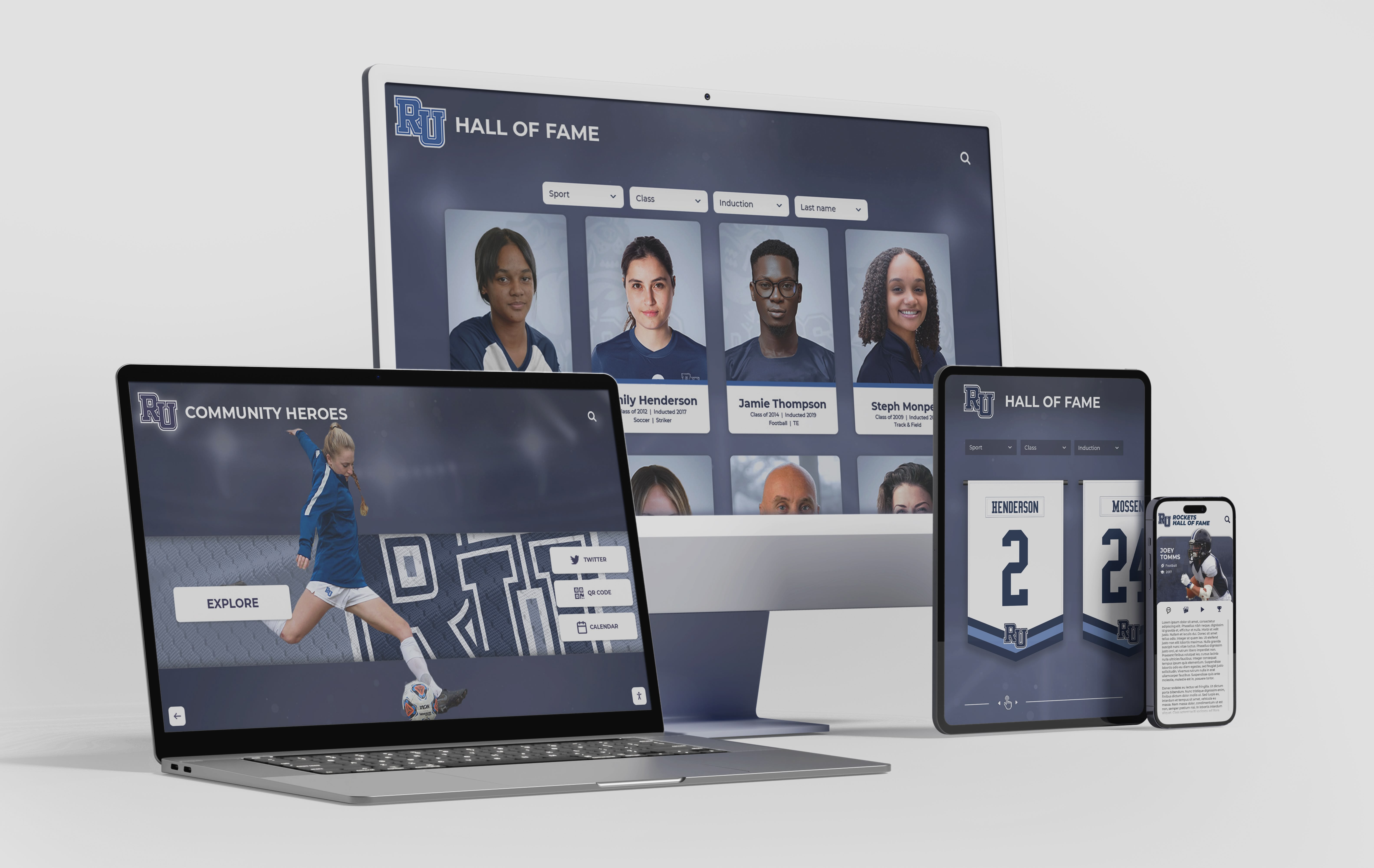
Responsive design and browser compatibility are related but distinct concerns—a layout that adapts to screen sizes can still fail to render correctly in a specific browser engine, requiring separate and deliberate testing for each
Phase 2: Test Inductee Profile Pages
6. Verify portrait image rendering across browsers. Load an individual inductee profile page in each browser. Confirm the lead portrait: loads within a visible timeframe, maintains its intended aspect ratio, displays sharp on high-DPI screens, and does not overflow its container. On mobile browsers, verify the portrait scales to a single-column layout without horizontal overflow. Capture a screenshot of each browser rendering for side-by-side comparison.
7. Test <picture> element and WebP fallback behavior.
If your portraits are served as WebP with JPEG fallback using the <picture> element, open the browser’s DevTools Network panel and verify each browser receives the format it supports. Chrome, Firefox, and Edge should request .webp files. Safari versions before 14 should receive the .jpg fallback. If a browser receives neither format or shows a broken image indicator, the <picture> source order or MIME type declaration has a syntax error.
8. Verify biography text renders correctly in each browser.
Confirm that inductee biography text renders with the intended typeface, size, line height, and paragraph spacing in every target browser. Common failures: a custom web font that does not load in an older browser causes text to fall back to a system serif font that breaks the visual hierarchy; text-overflow: ellipsis on multi-line biography excerpts renders incorrectly on specific browser versions; or font-display: swap behavior causes text to flash from a fallback font to the custom font with a visible layout shift on Safari.
9. Test statistics tables and record displays.
Many inductee profiles display a table of career statistics, records, or award history. Verify the table: renders readable text at all viewport widths, scrolls horizontally on narrow mobile viewports rather than overflowing the page boundary, maintains correct th and td alignment across browsers, and does not display cell border rendering inconsistencies that vary between Blink and WebKit engines.
10. Test expandable biography sections and accordions.
Profile pages often include expandable sections for additional biography, media embeds, or related inductees. Verify these expand and collapse correctly in each browser. The native <details>/<summary> element has had broad support since 2020, but custom JavaScript accordion implementations may depend on APIs that require polyfills for older Android browsers or behave unexpectedly on Safari when focus management is involved.
Phase 3: Test Photo Galleries and Media
11. Test the portrait grid layout on the inductee directory. The directory page typically displays dozens to hundreds of inductee portrait cards in a responsive grid. Verify: the grid uses the intended column count at each viewport breakpoint, portrait cards maintain consistent heights across browsers without overflow or collapse, hover states render with the intended style in desktop browsers, and the grid reflows correctly when the browser window is resized or rotated.
12. Verify CSS Grid and Flexbox rendering in Safari specifically.
If the portrait grid uses display: grid with the gap property, test explicitly in Safari 14 and 14.1, where gap support in Flexbox was introduced alongside known edge cases. If the grid relies on aspect-ratio for card height consistency, confirm rendering in Safari 15+ where this property became reliably supported. For browsers outside your minimum supported list, verify a graceful degradation exists—the grid should remain usable in a simplified form rather than collapsing entirely.
13. Test lightbox and gallery scripts across browsers. Photo gallery lightboxes often use third-party JavaScript libraries with incomplete cross-browser testing coverage. Open a gallery page in each browser, click a portrait or photo to open the lightbox, and verify it: opens without JavaScript errors in the DevTools console, displays the image at the correct size, responds to keyboard navigation (arrow keys, Escape to close), and closes cleanly without leaving scroll-lock behavior active on the underlying page.
14. Test HTML5 video codec compatibility.
If inductee profiles or archive pages include embedded video using the HTML5 <video> element, open the DevTools Network panel and verify the browser requests and plays the video file. If you serve multiple source formats using <source> elements, verify each browser receives its preferred codec. A video that displays a blank box without an error message typically indicates a codec mismatch, not a file path error—confirm by checking the response code (200) and looking for codec-related errors in the DevTools console.
15. Test third-party video embeds with browser privacy settings active. YouTube and Vimeo embeds occasionally fail due to browser privacy features. Test embedded players in Firefox with Enhanced Tracking Protection enabled (the default setting), and in Safari with Intelligent Tracking Prevention active. Both browsers may restrict autoplayed or auto-initialized embeds. If you use a poster-image facade that loads the full player only when a visitor clicks to play, verify that facade click handler activates the player correctly in each browser.
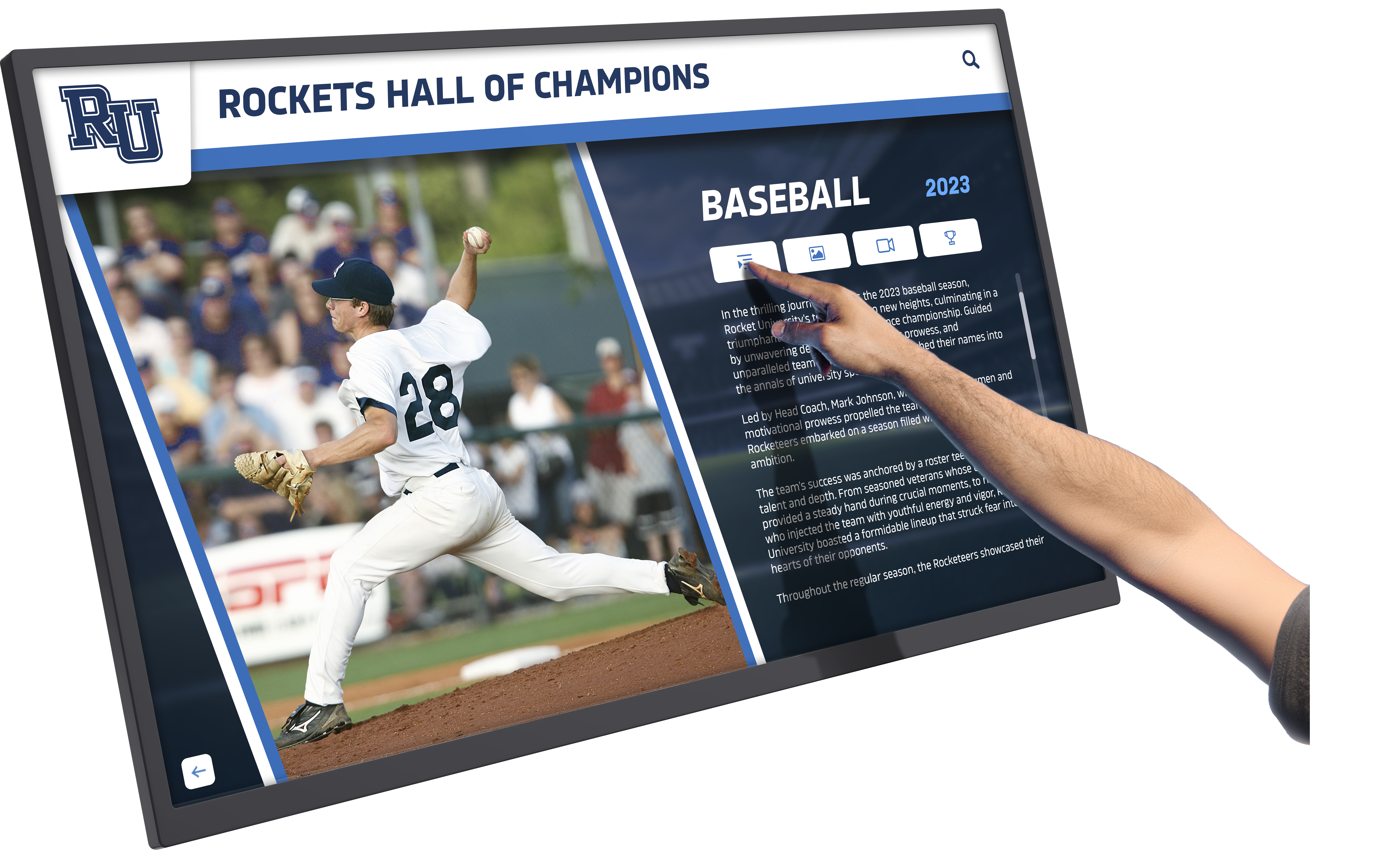
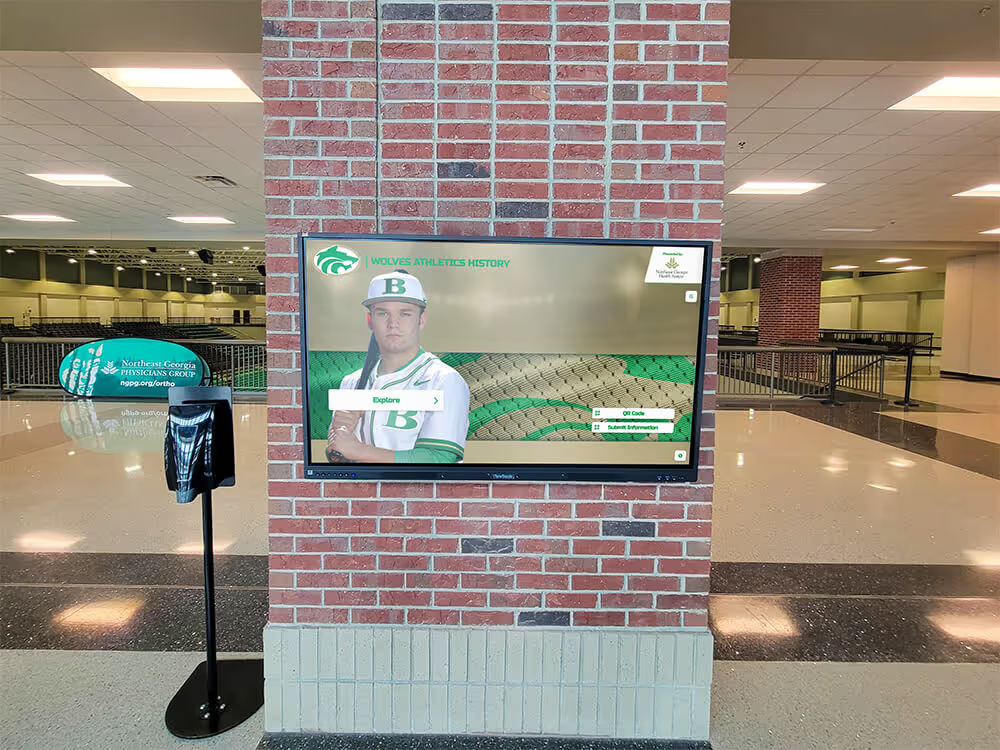
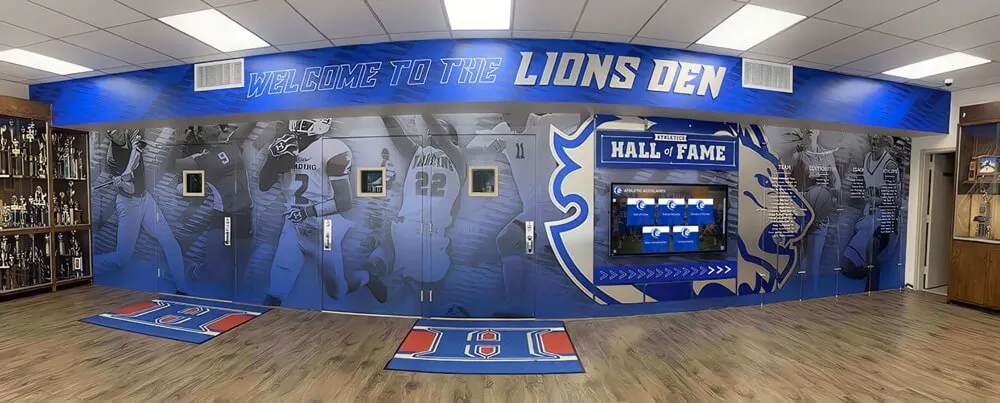
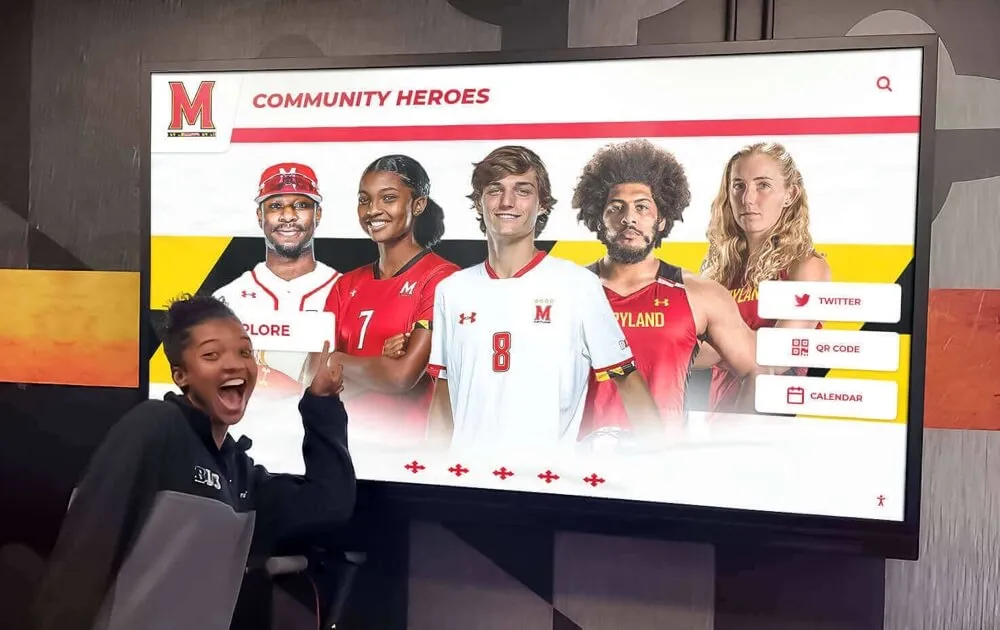
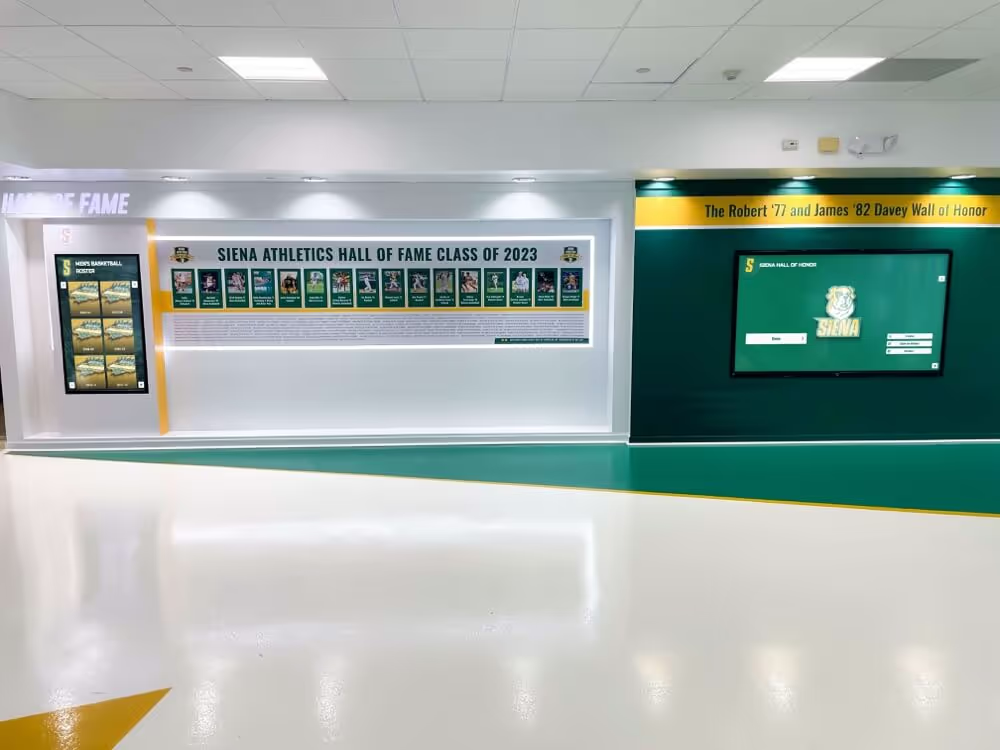
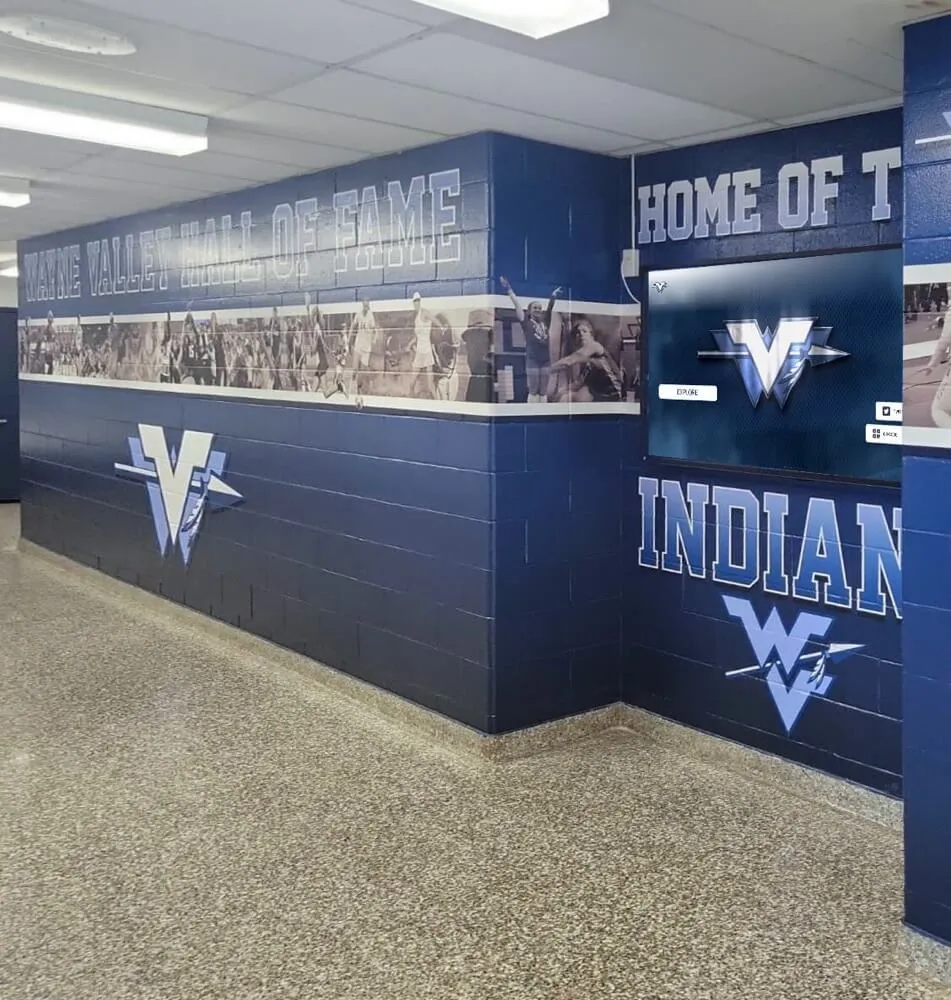
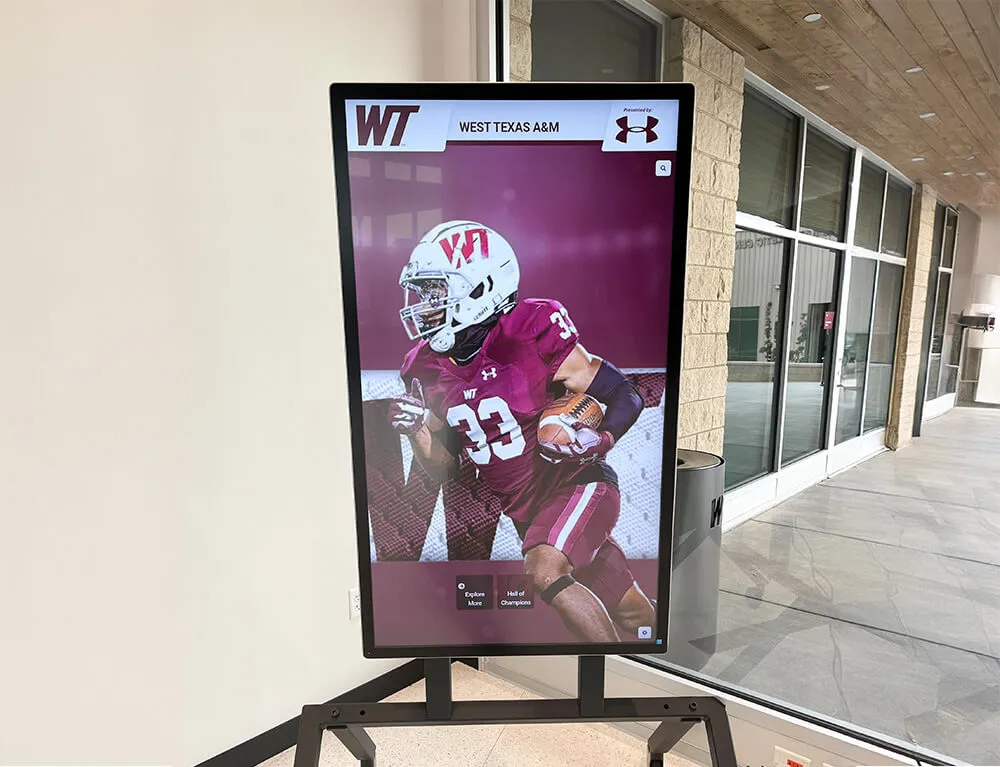
Inductee content that displays correctly on a purpose-built recognition touchscreen must be tested systematically across browsers to ensure the same quality of presentation on the web version of your recognition program
Phase 4: Test Nomination and Contact Forms
16. Test form rendering in each target browser.
Load nomination and contact forms in each browser. Verify that all form elements—text inputs, textareas, <select> dropdowns, radio buttons, checkboxes, file upload fields, and date pickers—are visible, correctly sized, and usable. Pay particular attention to <select> element styling, which browsers render using native OS controls that differ dramatically in appearance, and input[type="date"], which Chrome renders as a calendar picker, iOS Safari as a spinner-based date input, and Firefox as a plain text input with some enhancement.
17. Test form validation feedback across browsers.
Submit a form with intentionally missing required fields. Verify that error messages appear adjacent to the relevant field, are readable, and do not overlap other elements. Browser-native validation tooltips vary: Chrome displays a floating tooltip above the field, Firefox and Safari each present validation messages differently, and custom CSS :invalid styles may produce unexpected results when browser-native validation runs before the custom styles apply. Test both native and JavaScript-driven validation paths.
18. Test file upload fields for nomination documents. If the nomination form accepts supporting documents—letters of recommendation, statistical summaries, photographs—test the file upload field on each browser. Verify the field accepts the specified file types, displays the selected filename after selection, and submits the file successfully with the form. On mobile browsers, confirm the file picker presents the device’s photo library or file browser as appropriate, not exclusively a camera option.
19. Confirm form submission and confirmation messages function correctly. Complete and submit the form in each target browser. Verify the thank-you message or confirmation redirect works correctly, the submission is received, and no JavaScript errors appear in the DevTools console during or after submission. Form submission failures that produce no visible error are among the most damaging compatibility issues on nomination forms—a visitor believes they submitted a nomination when the submission silently failed.
20. Test multi-step form navigation. Multi-step nomination forms that guide a user through sections—nominee information, achievement history, supporting documents, review and submit—depend on JavaScript to validate each step before advancing. Test forward navigation, backward navigation, and refreshing mid-form in each browser. Safari’s page restoration behavior, which restores form field values when a user navigates back, can interact unexpectedly with JavaScript-managed multi-step form state, sometimes resetting form progress.
Phase 5: Test Navigation, Search, and Filter Controls
21. Test the primary navigation menu across viewports. Verify that the main navigation: renders correctly at desktop viewport widths in all target browsers, collapses to a drawer or hamburger menu at mobile viewports, opens and closes the mobile menu correctly on touch devices, and highlights the active page correctly via CSS. Dropdown submenus should open on hover on desktop and on tap on mobile—verify both behaviors explicitly, as hover and touch handling require separate CSS and JavaScript paths.
22. Test the inductee search function. Enter a name fragment in the search field and verify that results appear, match the search term, and display portrait, name, sport, and class year as intended. Test with name edge cases: hyphenated surnames, names including apostrophes, and names with accented characters. Verify that safe inputs render results correctly across all browsers in your matrix before conducting any additional security review.
23. Test filter controls on the inductee directory. Apply filters by sport, year, or award category. Verify that filter selections: update the inductee grid correctly without a full page reload for client-side filter implementations, update the URL or page state so the filtered view can be shared or bookmarked, clear correctly when a reset control is selected, and do not leave orphaned filter tags visible in browsers with slower JavaScript initialization. Test filter combinations—sport and class year selected simultaneously—not only single-filter scenarios.
24. Test keyboard navigation throughout the site.
Tab through the navigation, into search fields, through gallery items, and into form fields using only the keyboard, without touching the mouse or trackpad. Verify that: focus indicators are visible in all target browsers (Chrome, Firefox, and Edge display focus outlines by default; Safari and iOS Safari suppress outlines in some contexts unless the stylesheet explicitly sets outline properties), interactive elements receive focus in logical document order, and modal dialogs such as lightboxes trap focus correctly inside the dialog and return focus to the triggering element when closed.
For schools that have completed their hall of fame website structured data markup checklist to improve search engine visibility, browser compatibility testing is the complementary step that ensures the content those markups describe is actually accessible and functional for all visitors once they arrive.
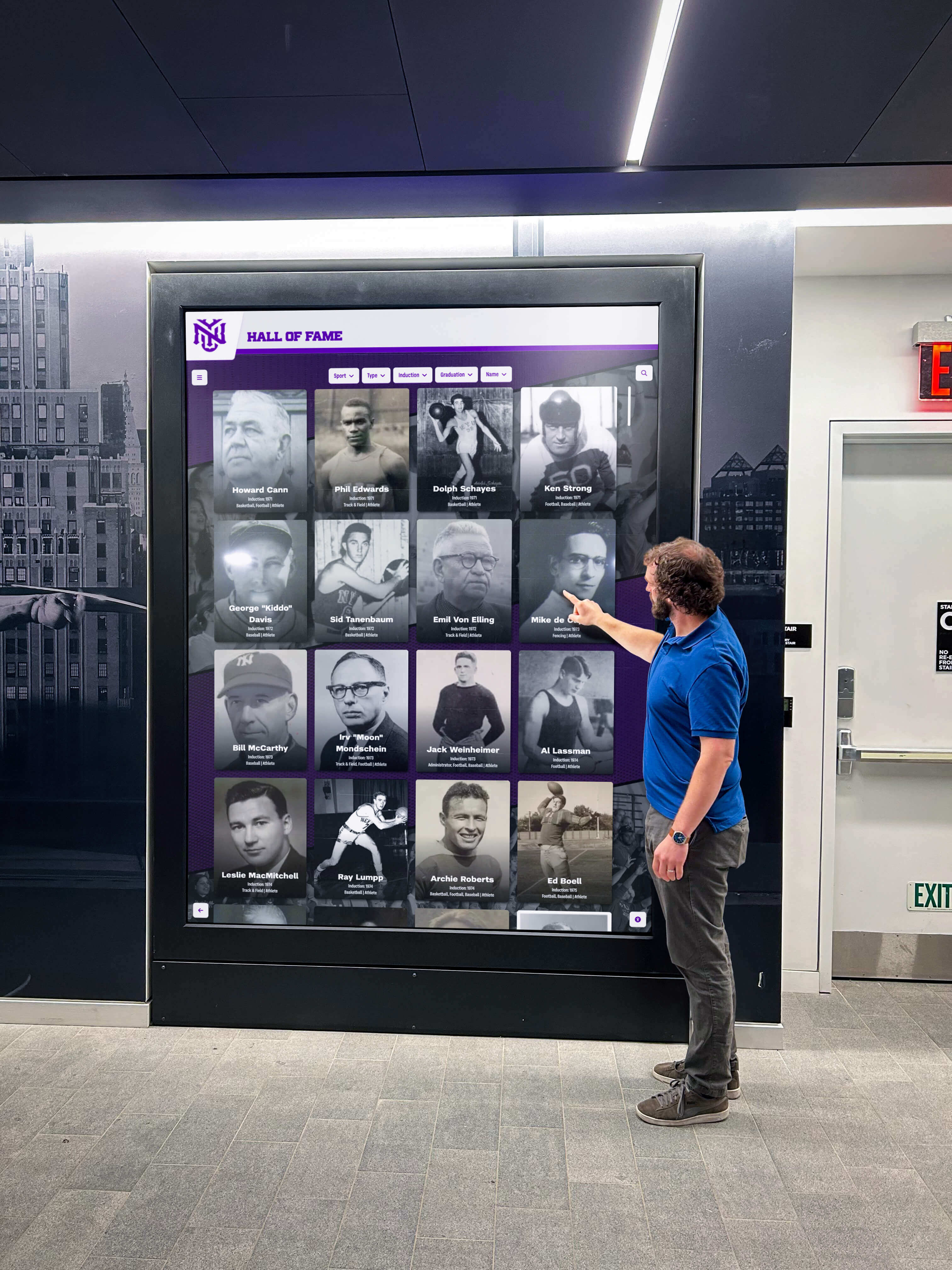
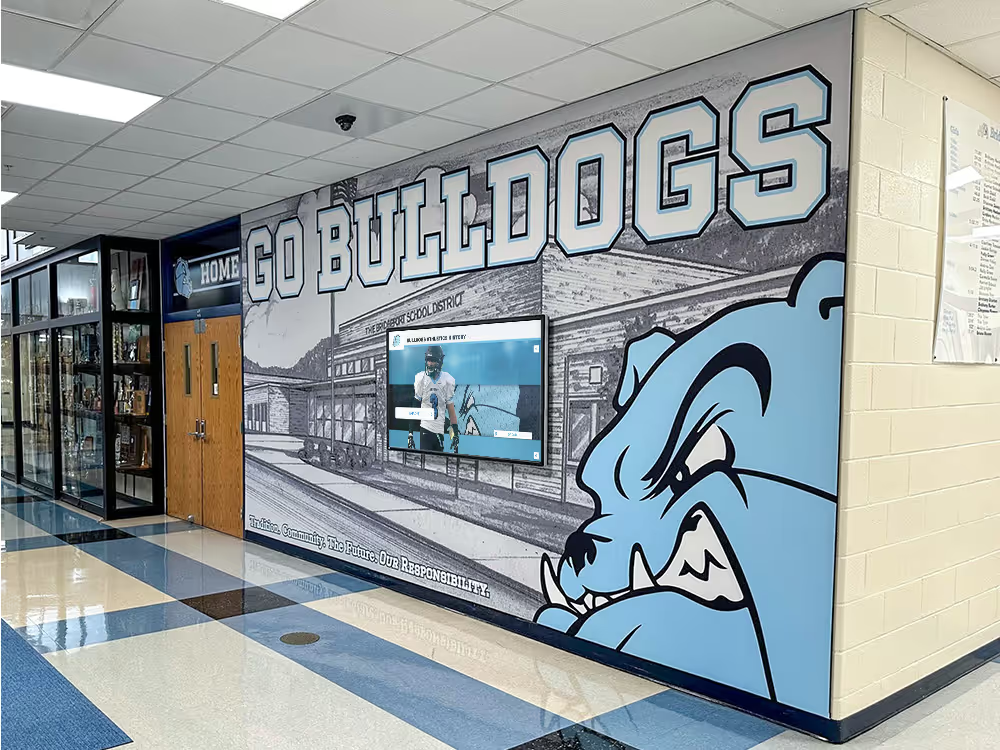
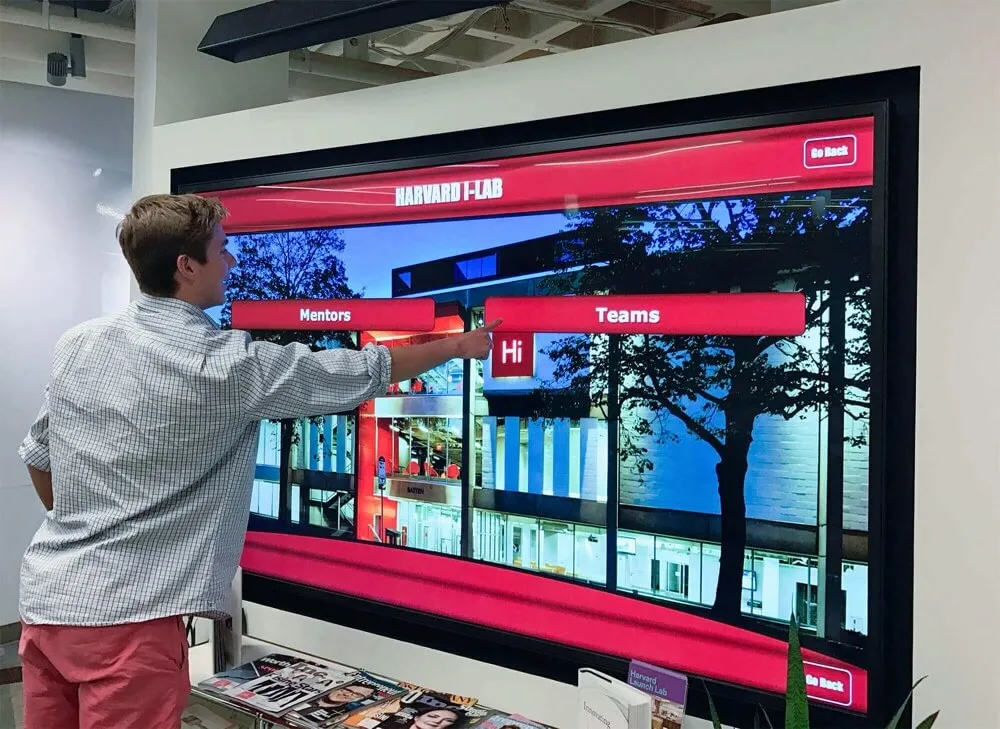
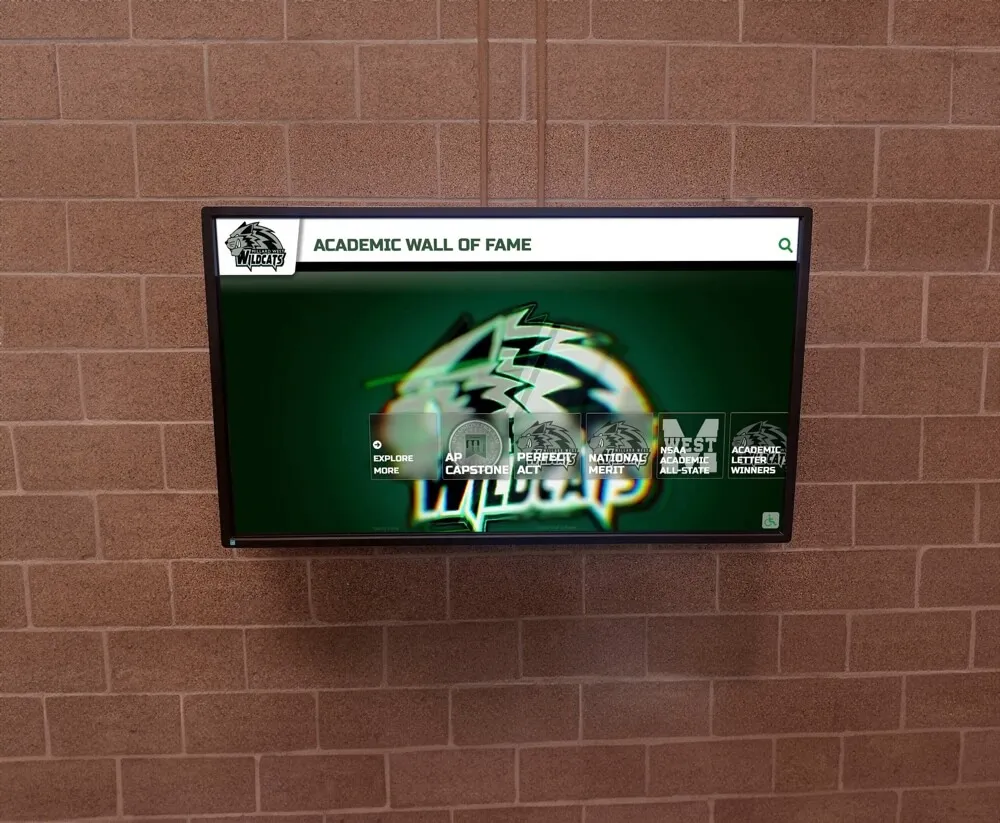
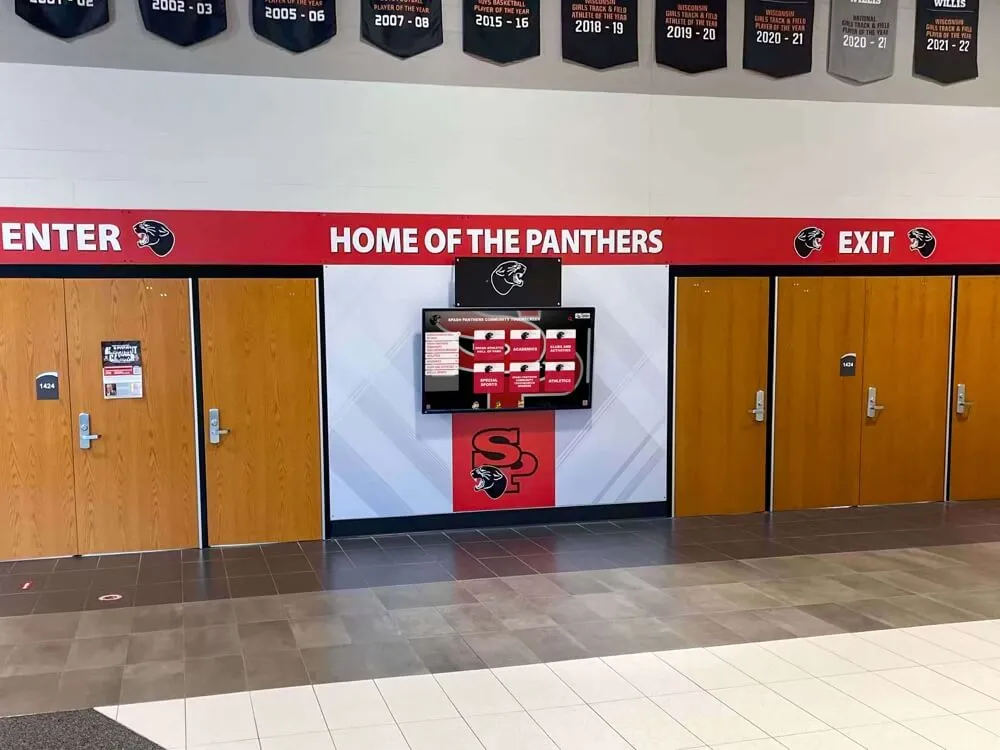
Navigation and search interactions that feel intuitive on a hall of fame touchscreen must be tested explicitly across browsers on the web—focus behavior, dropdown rendering, and filter state each vary across browser families and require deliberate verification
Phase 6: Test on Mobile Browsers and Tablets
25. Test on a physical iPhone using Safari for iOS.
iOS requires all browsers installed through the App Store—Chrome, Firefox, Edge, and every alternative—to use the WebKit rendering engine. A rendering failure on iOS Safari affects all iOS browsers, because the same engine renders them all. Desktop browser simulation approximates screen dimensions using the Blink engine, not WebKit. A physical iPhone is the only way to confirm actual WebKit rendering for CSS properties that diverge between Blink and WebKit—particularly form element styling, <dialog> element behavior, and flexbox edge cases.
26. Test touch targets and tap accuracy on mobile. Touch targets on mobile browsers should be at least 44 × 44 pixels to be reliably tappable. Run the Chrome DevTools Lighthouse accessibility audit on a mobile simulation to flag elements too small or too close together for reliable tapping. Specific risk areas on hall of fame pages: inductee portrait cards in a dense directory grid, filter tags in a narrow filter bar, pagination controls at the bottom of multi-page inductee listings, and navigation links in a compact mobile menu.
27. Verify that mobile browsers do not produce horizontal scroll. Hall of fame websites with statistics tables, wide gallery layouts, or fixed-width elements sometimes produce unintended horizontal scroll at mobile viewport widths. Verify that no horizontal scroll appears on the inductee directory, individual profile pages, or any page containing a statistics table. Horizontal scroll on mobile almost always indicates an element with a fixed pixel width wider than the viewport or a table that lacks sufficient mobile responsive behavior.
28. Test layout behavior on orientation change. Rotate a physical iPhone and Android device from portrait to landscape orientation while viewing an inductee profile page and a gallery. Verify that the layout reflows correctly to the new viewport dimensions, portrait images do not break their containers or overflow the screen width, and any open lightbox or modal adapts without requiring a page reload. Some gallery scripts reset scroll position on orientation change—verify this does not lose a visitor’s position within a browsed photo archive.
29. Test on a tablet in both portrait and landscape orientations. Tablets represent an intermediate breakpoint that portrait grid layouts often handle poorly. A three-column grid designed for desktop widths and a single-column layout for phones may produce an awkward two-column arrangement on an iPad in landscape that leaves large empty spaces next to portrait cards. Verify the grid is readable and the inductee card information—portrait, name, sport, year—is fully visible at tablet viewport widths in both orientations.
Schools evaluating how their online hall of fame website serves visitors across device categories will find that mobile and tablet testing surfaces compatibility gaps that desktop-only testing misses entirely, particularly for iOS Safari rendering and touch interaction behavior.
Phase 7: Test Consent Management and Privacy-Related Scripts
30. Test the cookie consent banner in each target browser. Cookie consent banners interact with browser privacy features differently across browser families. Firefox Enhanced Tracking Protection and Safari Intelligent Tracking Prevention can affect whether consent management scripts load before analytics scripts, whether consent choices persist across sessions via localStorage or cookies, and whether the banner re-appears to returning visitors whose consent choice the browser has partially cleared. Test that the consent banner appears on first visit, that accepting or rejecting consent correctly enables or disables the appropriate downstream scripts, and that a returning visitor who previously consented does not see the banner again.
For institutions that have completed a formal consent management implementation, the hall of fame website consent management checklist provides a companion process for verifying that consent flows function correctly across browsers. Browser compatibility testing for the consent layer is a distinct step from auditing the consent policy itself.
31. Test analytics and tracking scripts across browsers. Google Analytics, event tracking scripts, and A/B testing tools may behave differently in browsers with strict privacy defaults. Verify that your analytics script loads and fires events correctly in Chrome as a baseline, loads without errors in Firefox with Enhanced Tracking Protection enabled, and records session data in Safari under Intelligent Tracking Prevention. If your analytics are blocked by default in a specific browser, that browser’s sessions will be underrepresented in your visitor data—important context for interpreting which browsers appear low-priority based on analytics share alone.
Phase 8: Regression Testing and Ongoing Maintenance
32. Run a compatibility spot-check after each CMS or theme update.
Platform updates, theme upgrades, plugin additions, and template changes are the most common sources of browser compatibility regressions. A JavaScript plugin added to support a new gallery feature may use an API that older Android browsers do not support. A theme update that introduces CSS custom properties may cause colors or text to be invisible in browsers that do not support var(). Schedule a spot-check of the inductee profile page, directory page, and nomination form in your top three browsers after every site update.
33. Run a full compatibility test before each induction cycle. The period before an induction ceremony is when your hall of fame website receives its highest traffic—nominees, their families, alumni, media contacts, and administrative stakeholders. A compatibility failure discovered on the morning of an induction event cannot be remediated quickly. Schedule a complete run through this checklist two to three weeks before each induction cycle so discovered issues have time to be fixed and verified before the traffic surge arrives.
34. Check the compatibility status of newly used CSS and JavaScript APIs. When a developer adds a new feature—a scroll animation, a new form validation library, an updated video player—verify the browser compatibility of any new APIs before deploying to production. The Can I Use database documents support for CSS and JavaScript features across browser versions and is the standard reference for this check. A five-minute compatibility check before deployment prevents a support incident after deployment.
35. Set up visual regression testing for critical pages. Visual regression tests capture screenshots of key pages and compare them against a baseline after each deployment. A pixel-level mismatch indicates that something changed in the rendered layout. Applied to the inductee directory and profile page template in each target browser, visual regression testing catches layout regressions—a portrait grid that collapses unexpectedly, a biography block that overflows its container—before visitors encounter them.
Schools comparing recognition platform options for managing their digital hall of fame should ask each vendor explicitly about browser testing practices and which browser versions the platform officially supports. The answer determines how much of this checklist falls to your administrative team versus the platform’s engineering team—a meaningful operational difference for schools without dedicated web development staff.
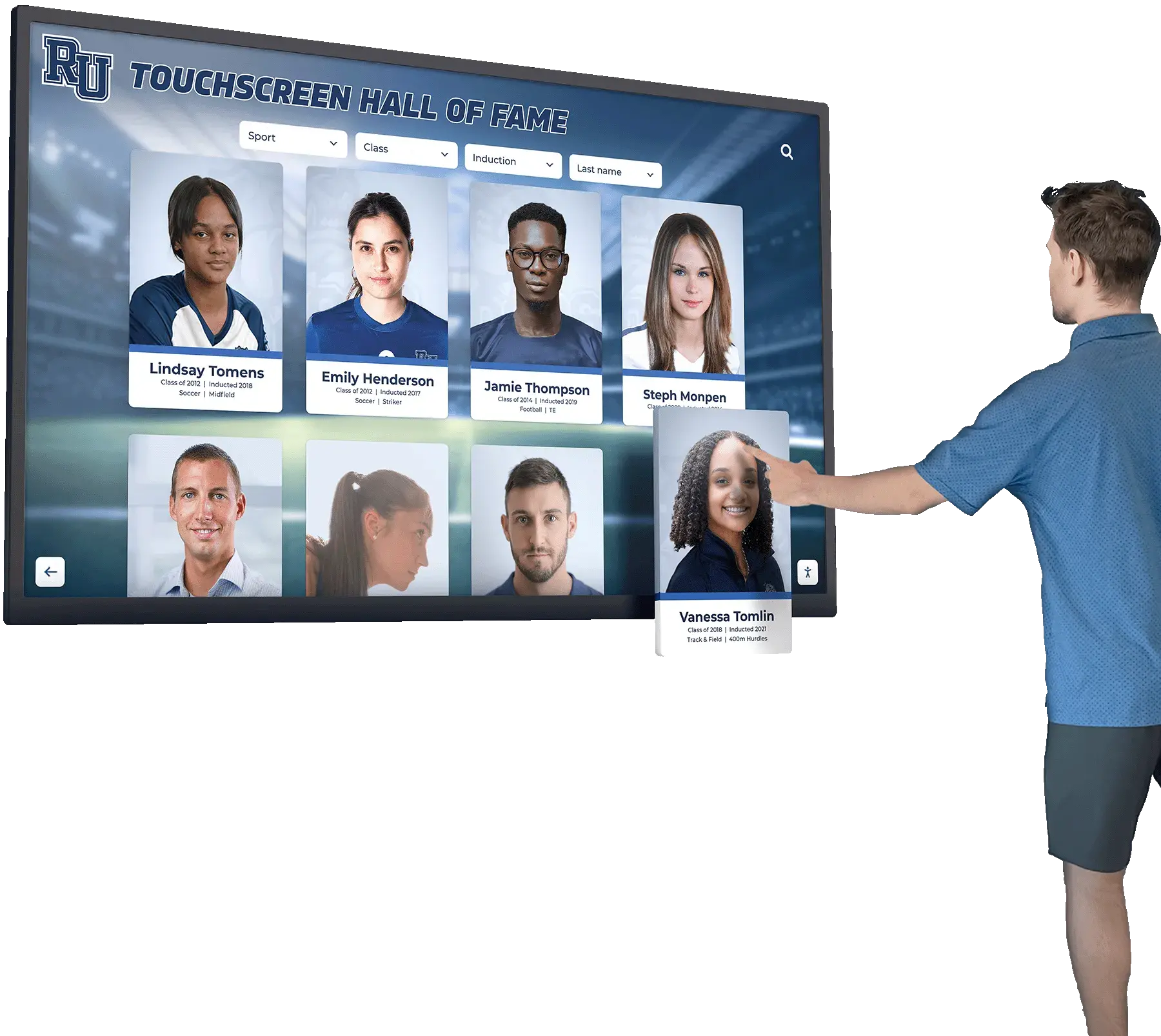
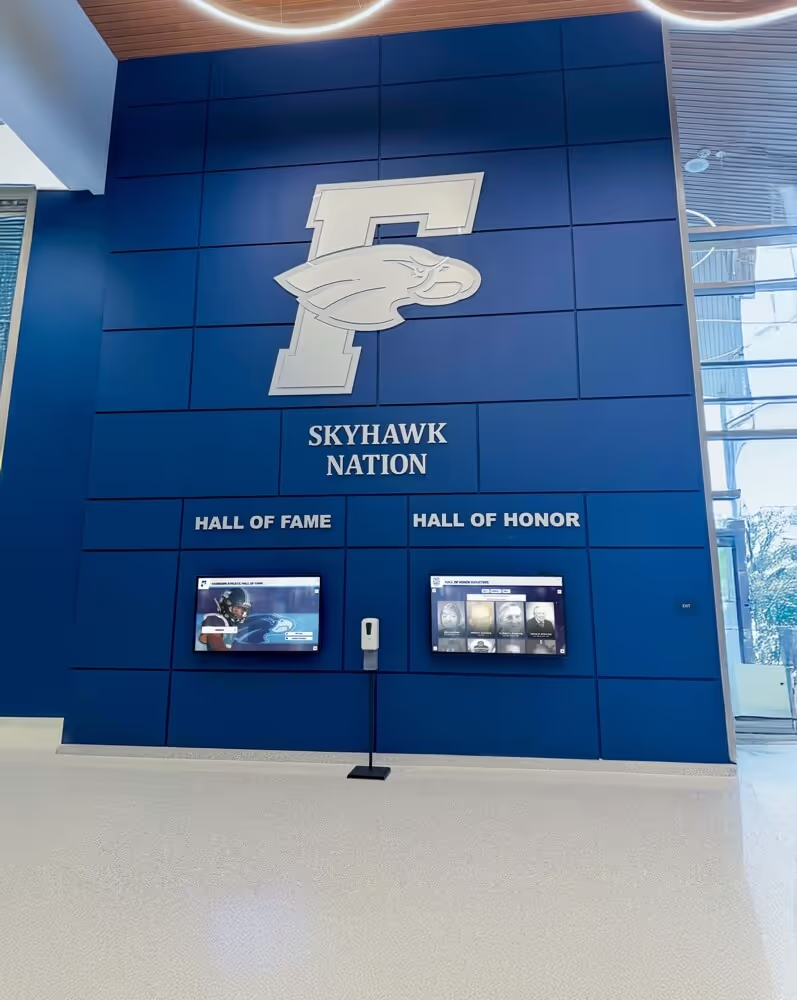
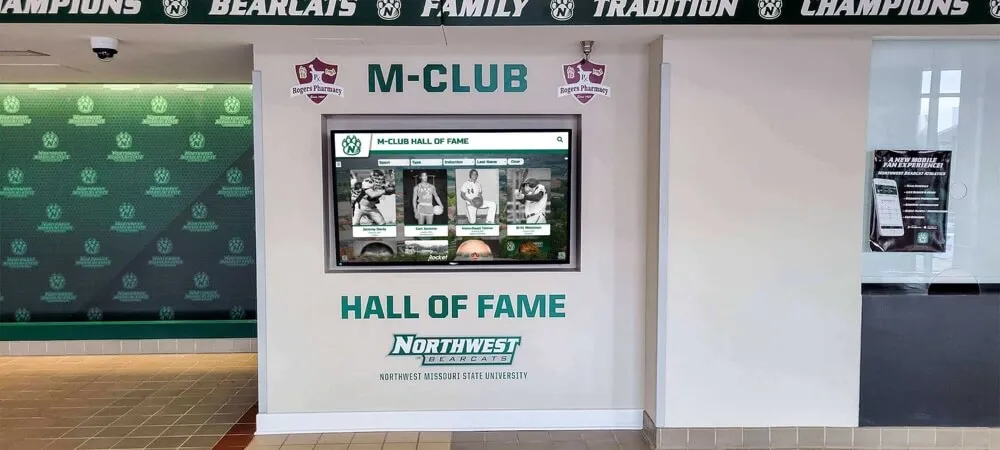
Purpose-built recognition platforms manage browser compatibility at the platform level, reducing the testing burden on school administrators who would otherwise need to validate each browser and device combination manually across every update cycle
Browser Compatibility Checklist Summary Table
| # | Checklist Item | Content Type | Priority |
|---|---|---|---|
| 1 | Export browser share data from analytics | All | Critical |
| 2 | Define minimum supported browser list | All | Critical |
| 3 | Set up physical and virtual testing environments including physical iOS device | All | Critical |
| 4 | Select cross-browser automation tool for remote environments | All | High |
| 5 | Create page template inventory for compatibility testing | All | High |
| 6 | Verify portrait image rendering across browsers | Profile pages | Critical |
| 7 | Test <picture> element and WebP fallback delivery | Profile pages | High |
| 8 | Verify biography text rendering across browsers | Profile pages | High |
| 9 | Test statistics table rendering and mobile horizontal scroll | Profile pages | High |
| 10 | Test expandable sections and accordion behavior | Profile pages | Medium |
| 11 | Test portrait grid layout on inductee directory | Directory pages | Critical |
| 12 | Verify CSS Grid and Flexbox rendering in Safari 14/15 | Directory pages | High |
| 13 | Test lightbox and gallery scripts across browsers | Gallery pages | High |
| 14 | Test HTML5 video codec compatibility | Media pages | High |
| 15 | Test third-party video embeds with privacy settings active | Media pages | Medium |
| 16 | Test form rendering in each target browser | Forms | Critical |
| 17 | Test form validation feedback across browsers | Forms | Critical |
| 18 | Test file upload fields for nomination documents | Forms | High |
| 19 | Confirm form submission and confirmation messages | Forms | Critical |
| 20 | Test multi-step form navigation | Forms | High |
| 21 | Test primary navigation across viewport widths | Navigation | Critical |
| 22 | Test inductee search function | Search | High |
| 23 | Test filter controls on inductee directory | Directory pages | High |
| 24 | Test keyboard navigation throughout the site | All | High |
| 25 | Test on physical iPhone with Safari for iOS | Mobile | Critical |
| 26 | Audit touch target sizes on mobile | Mobile | High |
| 27 | Verify no horizontal scroll on mobile viewports | Mobile | High |
| 28 | Test layout behavior on orientation change | Mobile | Medium |
| 29 | Test on tablet in both portrait and landscape orientations | Mobile | Medium |
| 30 | Test cookie consent banner in each browser | Compliance | High |
| 31 | Test analytics and tracking scripts across browsers | Compliance | Medium |
| 32 | Run compatibility spot-check after each CMS update | Maintenance | High |
| 33 | Run full compatibility test before each induction cycle | Maintenance | Critical |
| 34 | Verify CSS and JavaScript API compatibility before deploying new features | Maintenance | High |
| 35 | Set up visual regression testing for critical pages | Maintenance | Medium |
Platform Comparison: Self-Managed Websites vs. Purpose-Built Recognition Platforms
Schools managing their own CMS-based hall of fame website carry the full browser compatibility testing burden described in this checklist. Each new browser version, operating system update, or plugin upgrade can introduce regressions that require retesting across the entire matrix. Purpose-built digital recognition platforms address many of these concerns at the platform level.
| Capability | Self-Managed CMS Website | Purpose-Built Recognition Platform (e.g., Rocket Alumni Solutions) |
|---|---|---|
| Browser compatibility testing | Administrator’s responsibility—requires testing matrix, physical devices, and maintenance schedule | Platform engineering manages cross-browser support for all UI components across updates |
| Portrait image format delivery | Manual—administrator configures WebP or JPEG delivery based on server setup | Platform detects browser capability and serves the optimal image format automatically |
| Mobile responsive layout | Manual—CSS written by developer must be tested across browser families | Platform-managed responsive templates tested across browser families before release |
| Form browser compatibility | Manual—nomination form rendering tested in each browser by administrator | Platform-managed forms with browser-compatible inputs across all field types |
| Video codec compatibility | Manual—administrator must configure multiple codec sources for cross-browser support | Platform handles video encoding and browser-compatible delivery |
| Keyboard navigation compliance | Manual—WCAG keyboard accessibility requires explicit testing and ongoing maintenance | WCAG 2.1 AA compliant platform with ADA-compatible touchscreen hardware |
| CSS and JavaScript API management | Developer must verify browser compatibility of all code additions | Platform engineering manages API compatibility across all supported browsers |
| Visual regression testing | Requires separate tooling and dedicated engineering time | Platform regression testing handled before each platform deployment |
| Unlimited inductees and media | Limited by hosting plan and CMS performance | Unlimited inductees, photos, and video—no per-entry caps |
| Remote cloud CMS for updates | Varies by CMS configuration | Included—remote cloud CMS with scheduled publishing |
| Touchscreen hardware support | Not applicable—web-only delivery | Any-size touchscreen compatibility with professional installation |
| Auto-ranking record boards | Requires custom development | Built-in auto-ranking for records and statistics |
| QR code mobile access | Requires separate QR generation and linking | QR code unlock built into platform—links physical display to mobile browsing |
| Sponsorship revenue features | Requires custom implementation | Sponsorship revenue suite included |
For schools that have reviewed hall of fame technology options for athletics, donors, and history programs and are weighing the ongoing maintenance commitment of a self-managed website against a purpose-built platform, browser compatibility testing represents a recurring time cost that scales with the number of browsers supported and the frequency of site changes. Schools without dedicated web development staff typically find that cost most visible during the weeks immediately before an induction ceremony.
Learn more about Rocket Alumni Solutions’ Digital Wall of Fame platform to understand how the cloud-based recognition system handles browser compatibility, portrait image delivery, ADA WCAG-compliant hardware, and content management for school and institutional programs.
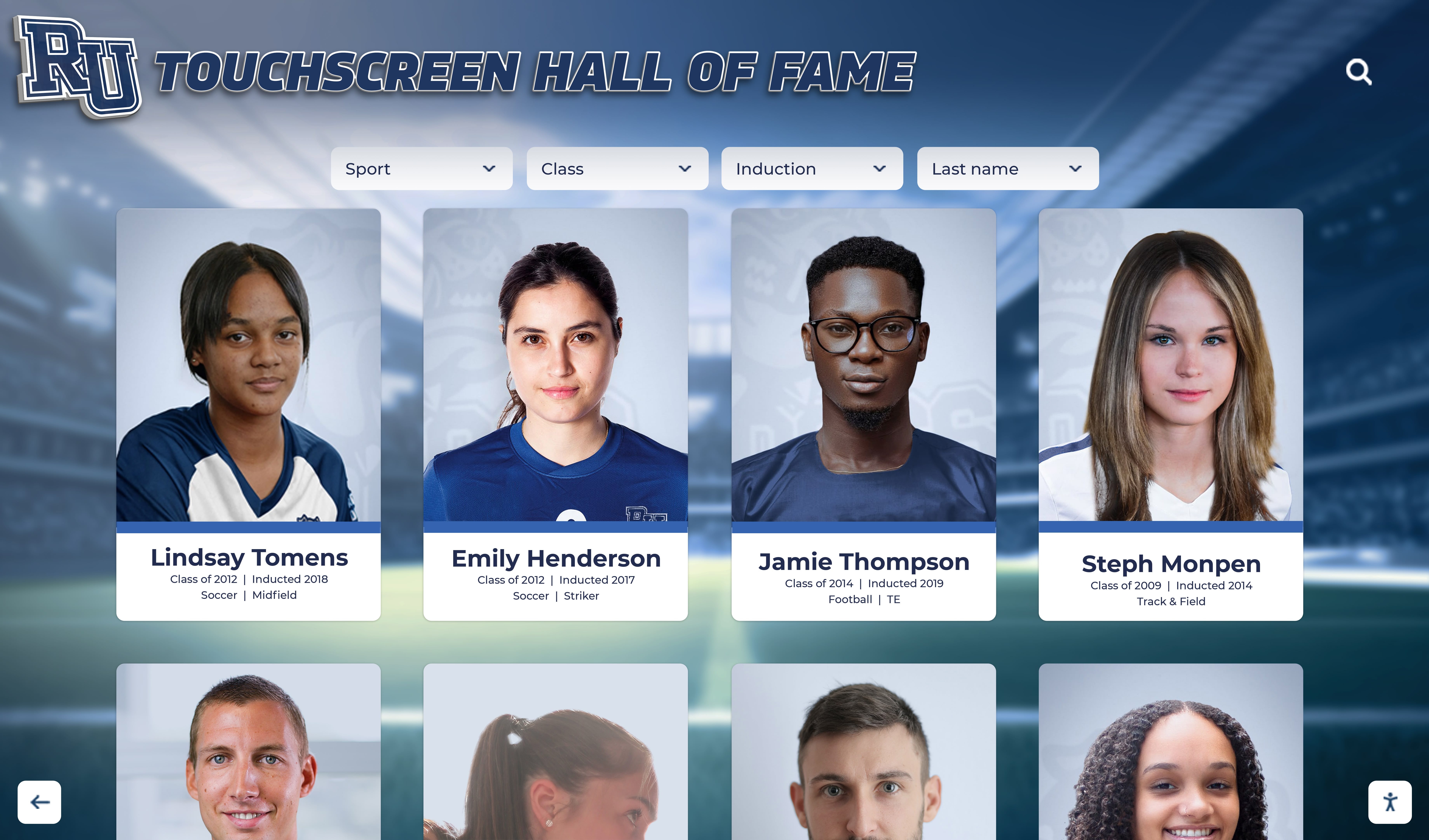
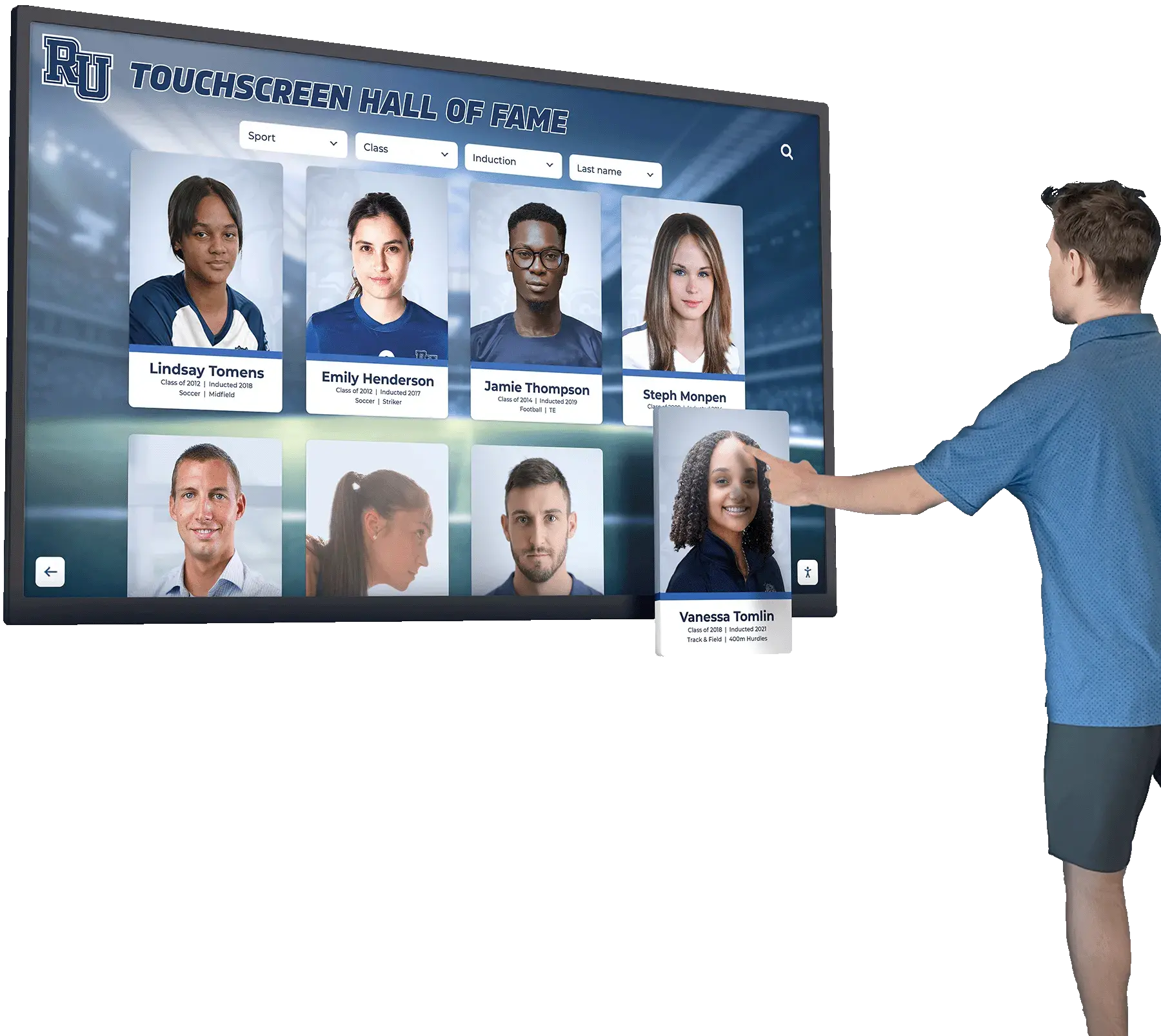
The rich inductee portrait content displayed on a physical recognition touchscreen must be tested methodically across browsers on the web—from portrait grid rendering to form submission to keyboard navigation—so every visitor encounters the same recognition experience
Frequently Asked Questions
Q: What does browser compatibility testing mean for a hall of fame website?
A: Browser compatibility testing is the process of verifying that every page on your hall of fame website renders correctly and functions as intended in each browser and device combination your visitors actually use. For a hall of fame website, this means confirming that inductee portrait grids display with the correct multi-column layout, individual profile pages show portraits and biography text correctly, photo gallery lightboxes open and close without JavaScript errors, nomination forms render usable inputs and submit successfully, and search and filter functions return correct results—all of this across Chrome, Safari, Firefox, and Edge on desktop, and Safari for iOS and Chrome for Android on mobile. Compatibility failures are often silent: a JavaScript error that prevents a filter from responding in Firefox produces no visible error message to the visitor, just a feature that stops working.
Q: Why is testing on a physical iPhone necessary for hall of fame website compatibility?
A: iOS requires all browsers installed through the App Store—Chrome, Firefox, Edge, and every alternative—to use the WebKit rendering engine. A rendering failure on iOS Safari is a rendering failure on all iOS browsers, because the same engine renders every one of them. Desktop browser device simulation in Chrome DevTools approximates screen dimensions using Chrome’s Blink engine, not WebKit. A physical iPhone is the only way to confirm actual WebKit rendering for CSS properties that diverge between Blink and WebKit—particularly custom form element styling, <dialog> behavior, and specific flexbox edge cases that affect portrait grid layouts.
Q: Which browsers cause the most compatibility failures on hall of fame websites?
A: Safari for iOS and older Android WebView surface the most compatibility failures relative to their traffic share. Safari for iOS has historically lagged behind Chrome in implementing newer CSS APIs—aspect-ratio, gap in Flexbox, and color-mix() reached Safari later than Chrome and Firefox. This directly affects hall of fame websites because portrait grid layouts and search filter designs commonly use these properties. Older Android WebView, found on budget Android devices several generations behind current models, has limited support for modern JavaScript and CSS features, and errors in that environment are difficult to reproduce on a current-model developer device.
Q: How often should we run browser compatibility tests on a hall of fame website?
A: At minimum: before each induction cycle (when the site receives its highest traffic), after each CMS platform or theme update, and after adding any new third-party script or plugin. Each of these events can introduce a compatibility regression that was absent before the change. For schools with active recognition programs publishing new profiles throughout the year, a quarterly spot-check of the inductee directory and profile page in your top three browsers is a sustainable maintenance cadence. The pre-induction test should be a complete run through the full checklist; quarterly checks can focus on the highest-traffic page templates and most recently updated features.
Q: What is the most common browser compatibility failure on inductee portrait grid layouts?
A: The most common failure is a CSS Grid or Flexbox layout that collapses from a multi-column grid to a single column in a specific browser version. This most often occurs when the grid uses the gap property—which was added to Flexbox support in Safari 14.1 but existed in CSS Grid earlier—or when it relies on aspect-ratio for card height consistency, which reached reliable support in Safari 15. The second most common failure is a portrait grid that causes horizontal scroll on mobile browsers because a grid item has a fixed minimum width wider than the mobile viewport. Both failures are detected immediately by loading the directory page in the affected browser and observing the rendered grid.
Q: What should we ask a hall of fame platform vendor about browser compatibility?
A: Ask which browsers and versions the platform officially supports, whether the platform has been explicitly tested on iOS Safari as a distinct testing environment (not desktop simulation), how the platform handles browser-native form element rendering differences in nomination and contact forms, and whether the platform’s inductee directory grid has been verified in Safari 14 and 15 for CSS layout compatibility. Also ask how the platform handles browser compatibility regressions after platform updates—specifically whether they run automated regression tests before each release. For schools also evaluating touchscreen display installations, ask about ADA WCAG 2.1 AA compliance, as keyboard accessibility testing and browser compatibility testing overlap in how focus management and interactive element behavior are handled.
Q: Does browser compatibility testing overlap with Core Web Vitals testing?
A: They overlap in testing environment and page scope, but address different concerns. Core Web Vitals testing measures performance—how fast the LCP element loads, how stable the page layout is, how quickly the page responds to interactions. Browser compatibility testing measures correctness—whether features render and function at all across different browser engines. An inductee profile page can achieve a strong Core Web Vitals score in Chrome while having a completely broken portrait grid in Safari, or a nomination form that submits correctly in Chrome but silently fails in Firefox. Both types of testing are necessary, and the same set of representative pages should be included in both audits. For schools managing online hall of fame websites that attract visitors across a range of devices, the two testing disciplines together cover the full surface area of delivery quality that administrators should verify before each induction season.
A hall of fame website that passes browser compatibility testing delivers the same recognition experience to every visitor regardless of which browser, device, or operating system they use. The checklist above is organized to address the highest-visibility failures first—portrait grid rendering, form submission, and navigation behavior—before moving to mobile-specific concerns, consent management, and the maintenance practices that prevent regressions from reappearing after each update cycle. Schools that complete Phases 1 through 5 will eliminate the majority of compatibility failures currently affecting visitors on inductee profiles, directories, and nomination forms. Phases 6 through 8 address mobile-specific rendering behavior and the ongoing processes that keep compatibility stable across induction cycles and platform changes.
See a Recognition Platform Built for Every Browser Your Visitors Use
Rocket Alumni Solutions' interactive touchscreen wall of fame includes a cloud-based recognition platform tested across Chrome, Safari, Firefox, and Edge on desktop and mobile—so your inductee profiles, portrait galleries, and nomination workflows work correctly for every visitor. Serving 600+ institutions with unlimited inductees and media, ADA WCAG-compliant hardware, auto-ranking record boards, QR code mobile access, a remote cloud CMS, and professional installation with ongoing weekly platform updates.
Request Your Custom Demo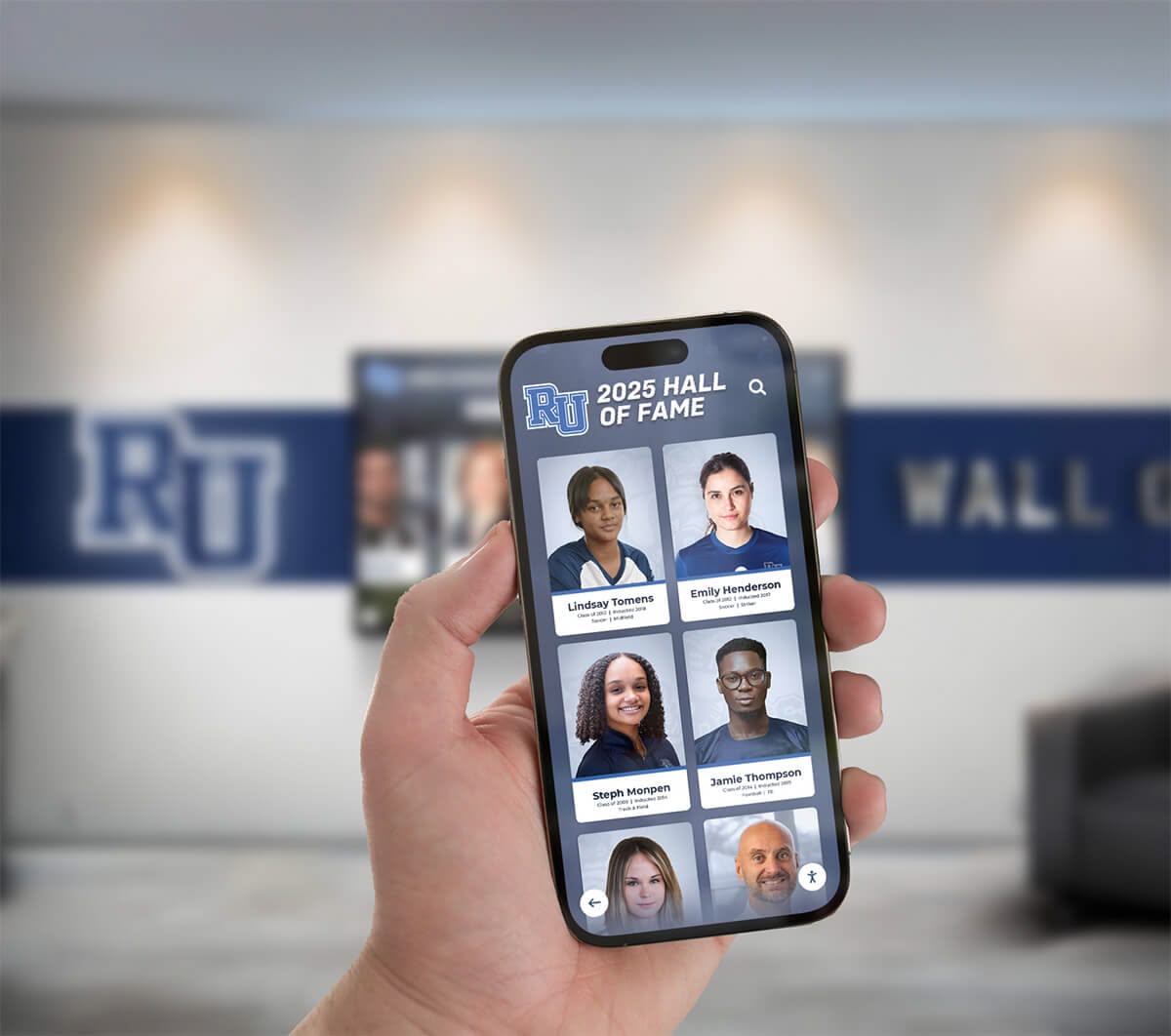
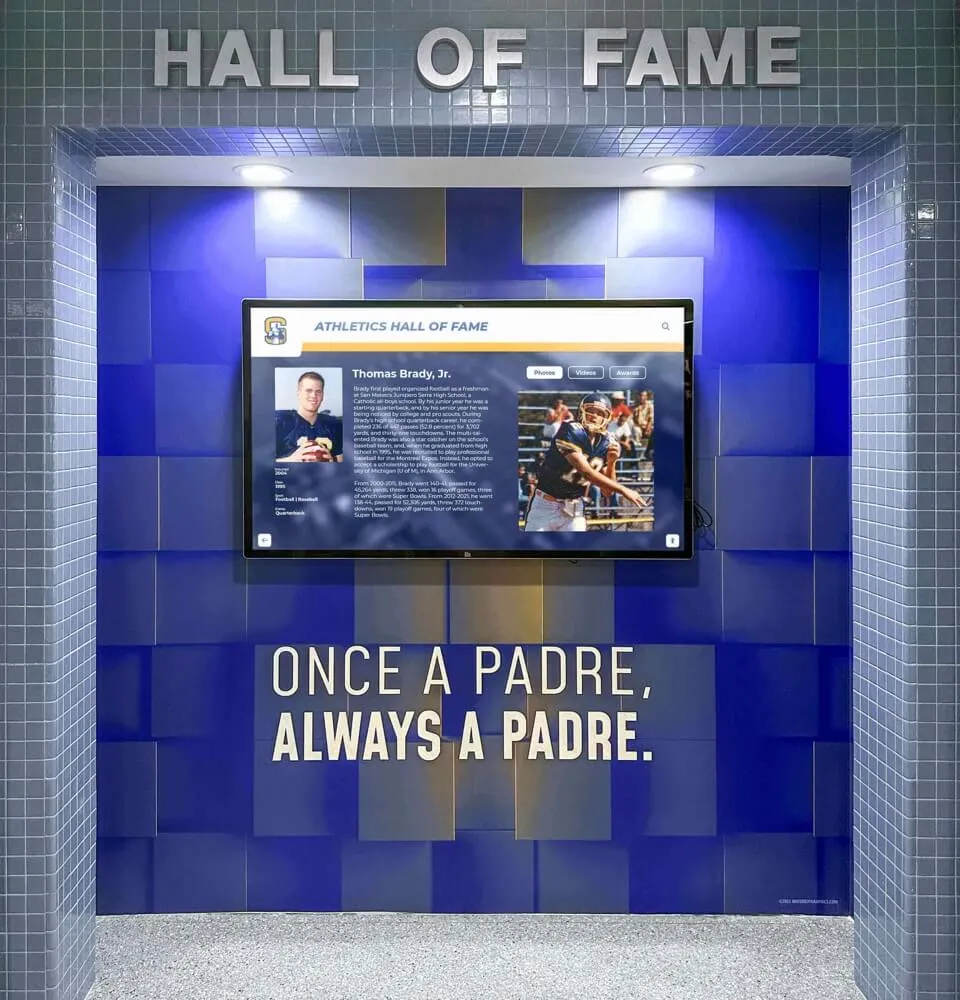
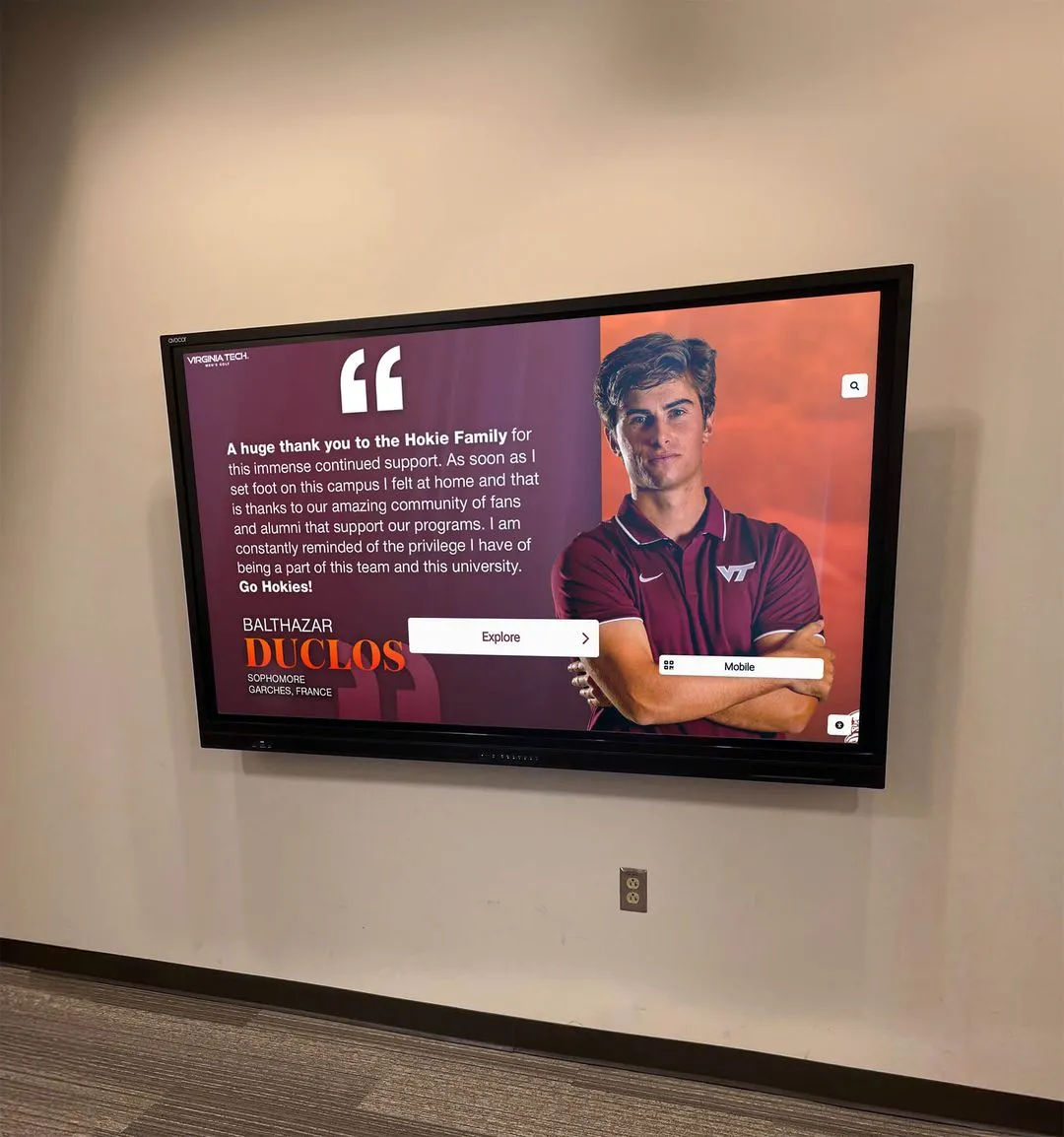
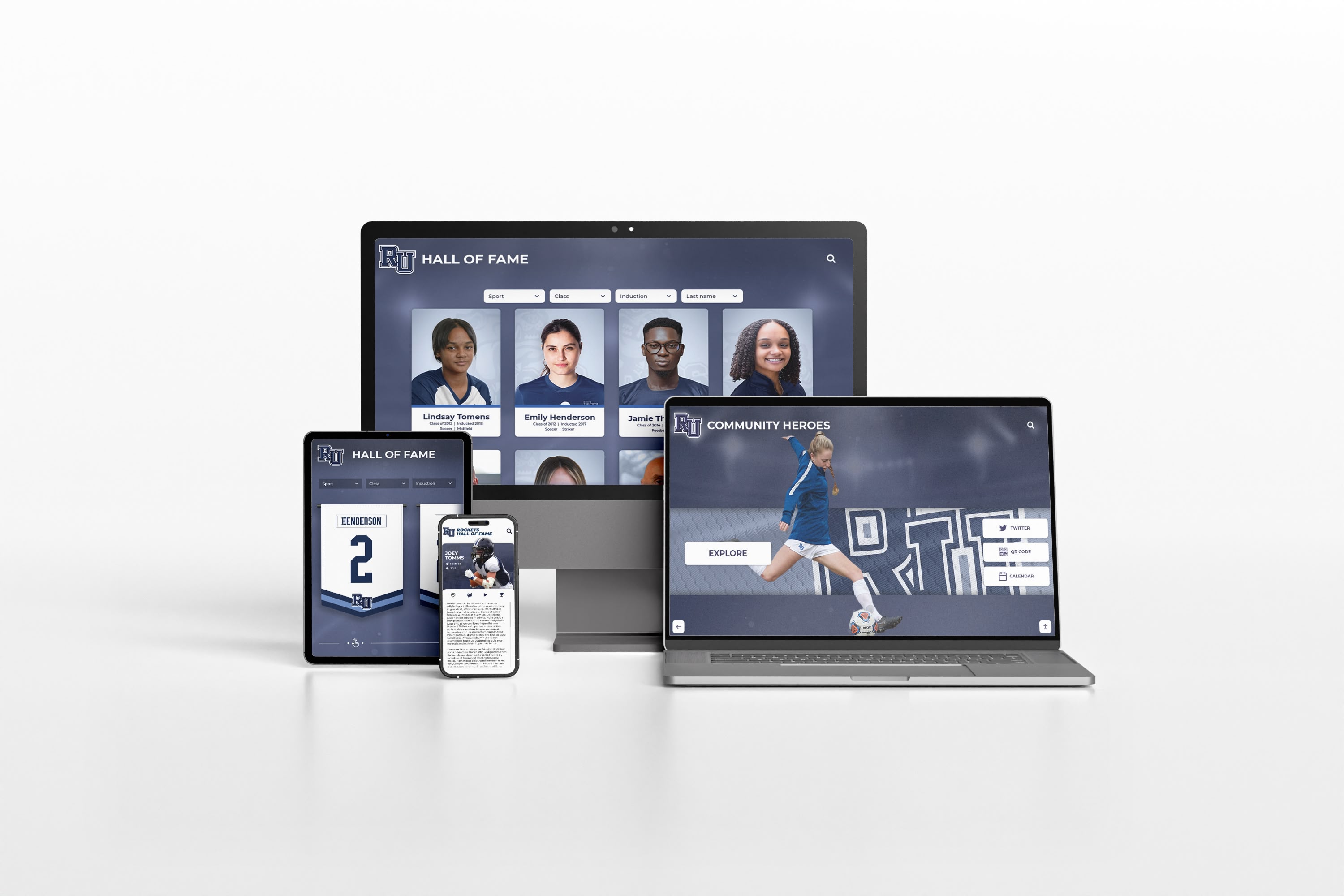
Alumni, families, and student athletes browse hall of fame inductee profiles on mobile browsers throughout the year—browser compatibility testing ensures that experience is complete and correct regardless of the device or browser they open
Live Example: Rocket Alumni Solutions Touchscreen Display
Interact with a live example (16:9 scaled 1920x1080 display). All content is automatically responsive to all screen sizes and orientations.