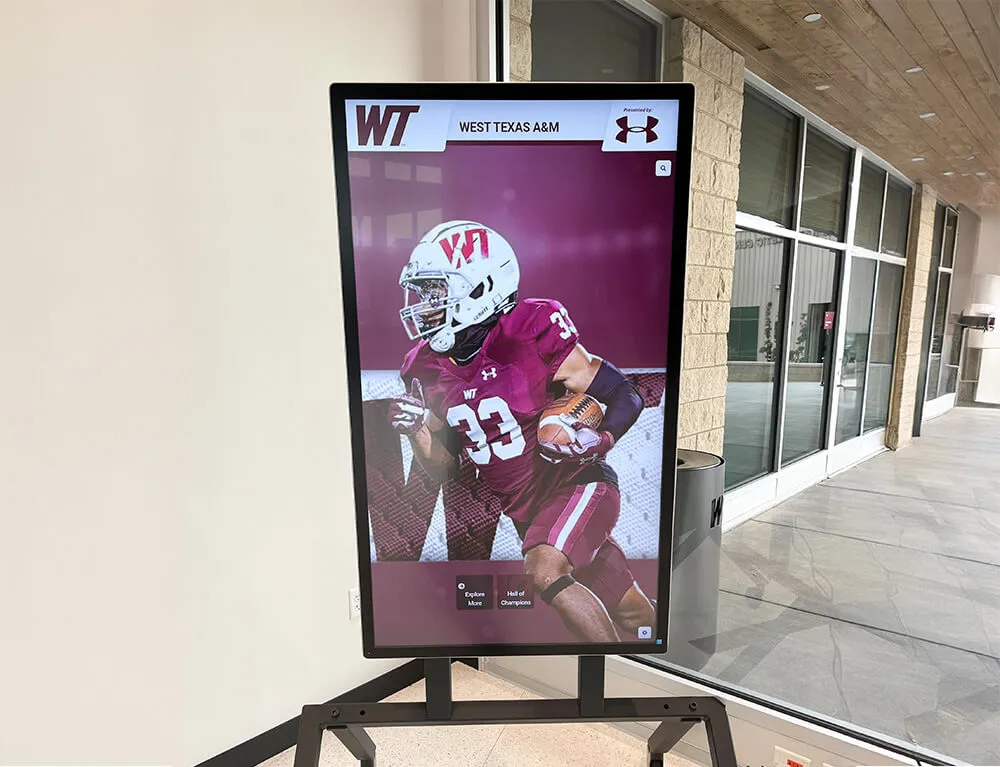
Hall of Fame Website Image Optimization Checklist: Faster Profiles Without Losing Detail
- Home /
- Digital Wall of Fame Blog - Recognition Display Insights & Resources /
- Hall of Fame Website Image Optimization Checklist: Faster Profiles Without Losing Detail
The Easiest Touchscreen Solution




Live Example: Rocket Alumni Solutions Touchscreen Display
Interact with a live example (16:9 scaled 1920x1080 display). All content is automatically responsive to all screen sizes and orientations.
Intent: research. A hall of fame website image optimization checklist is the set of decisions—format, compression, alt text, filename, responsive delivery—that determines whether your inductee portraits load quickly and crisply on every device, rank well in image search, and remain accessible to all visitors. The short answer: convert color portraits to WebP with a JPEG fallback, target 100–150 KB per portrait at display resolution, write descriptive alt text for every image, name files with inductee name and context, add srcset for responsive delivery, and set explicit dimensions to prevent layout shift. This checklist walks through each step in sequence.
Portrait-heavy hall of fame websites face a specific image problem. Inductee profile pages carry high-quality headshots and action photos that visitors expect to look sharp—but those same photos can slow page load to a crawl if they are exported at print resolution, saved in the wrong format, or served without responsive breakpoints. A page that takes four seconds to load on a phone in a school lobby loses visitors before they ever read a single biography.
The checklist below is organized by phase: audit what you have, choose the right format, optimize each image type, handle metadata and filenames for search, implement responsive delivery, and verify the result. It applies equally to schools managing a standalone hall of fame website, an athletic department page, or a digital alumni recognition portal.

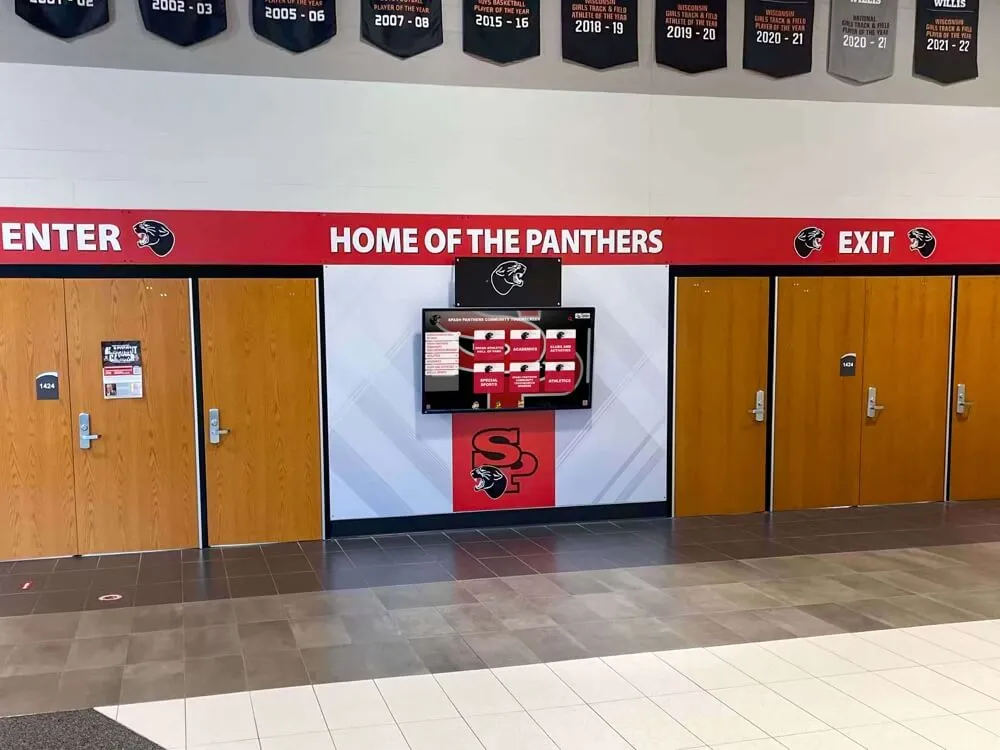
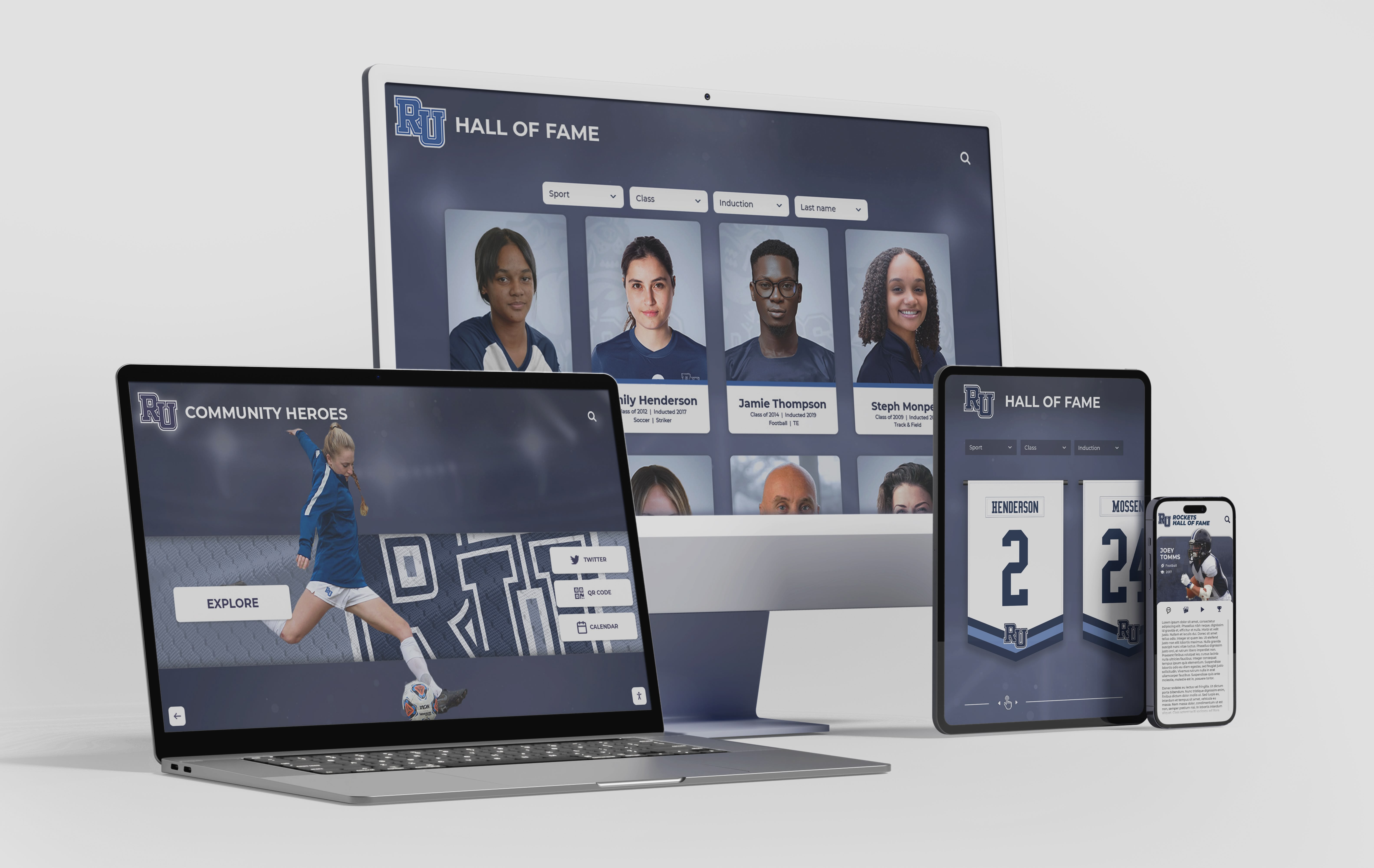
Inductee profiles on a hall of fame website must load quickly and render sharply across desktop, tablet, and mobile breakpoints—requiring a deliberate image optimization strategy at every layer
Why Image Optimization Matters for Hall of Fame Websites
Inductee profile pages are among the most image-dense pages on any school or athletics website. A single profile may include a portrait, an action photo from the athlete’s playing days, a ceremony photo, and a scanned plaque or award document. Multiply that across hundreds of inductees and the cumulative image payload on a browsing session can be substantial.
Three specific consequences follow from unoptimized images on hall of fame sites.
Page speed and Core Web Vitals. Large images are the most common cause of a poor Largest Contentful Paint (LCP) score, the Core Web Vitals metric that measures how fast the main visible element loads. A portrait that is the first visible element on an inductee profile page directly controls that score. Schools that maintain digital recognition displays alongside traditional plaques already understand that presentation quality reflects institutional standards—the same logic applies to how fast the digital version loads.
Mobile experience. A significant share of hall of fame visitors browse on phones—alumni checking profiles at a reunion, families looking up a parent’s record, or student athletes exploring their predecessors. A portrait saved at 3,000 pixels wide and served without a responsive srcset forces a mobile device to download far more data than it can display.
Image search visibility. Search engines index images separately from text. A well-named, properly described portrait of an inductee can surface in image search results when someone searches that person’s name. Missing or generic alt text, undescriptive filenames, and format choices that confuse crawlers all reduce that visibility.
Image Format Matrix
Choose the format that matches each image type. This matrix covers the formats relevant to a school hall of fame website.
| Format | Best Use Cases | File Size vs. JPEG | Portrait Detail | Browser Support |
|---|---|---|---|---|
| JPEG | Color portraits, action photos, ceremony photos | Baseline | Good at quality 75–85 | Universal |
| WebP | Same as JPEG; primary delivery format for modern browsers | 25–35% smaller | Comparable to JPEG at same visual quality | 95%+ of browsers; Chrome, Firefox, Safari, Edge |
| PNG | Logos, transparent overlays, text-on-background graphics, sponsor marks | Larger than JPEG for photos | Lossless—no compression artifacts | Universal |
| AVIF | Next-generation format for photos and portraits | 40–50% smaller than JPEG | Excellent; handles skin tones and shadow detail well | Growing—Chrome, Firefox, Safari 16+; not IE |
| SVG | School crests, mascot icons, sport-category icons, geometric decorations | Smallest for vector content | Not applicable | Universal |
| GIF | Avoid for hall of fame content; limited color depth and large file sizes | Larger than WebP for animation | Poor | Universal but obsolete for this use |
Practical decision rule: Serve WebP to supported browsers with a JPEG fallback for all portrait and event photography. Use PNG only for graphics that require transparency or are text-heavy. If your platform supports AVIF delivery, add it as the preferred format ahead of WebP. Use SVG for all logos and iconographic elements.
Hall of Fame Website Image Optimization Checklist
Phase 1: Audit Your Current Image Library
1. Export a full inventory of every image on the site.
Most content management systems can export a list of all media library files. For sites without that export, a crawler tool that lists all <img> src attributes across every page serves the same purpose. The output should include: file path, format, file size, and the page or pages where the image appears.
2. Flag images that exceed 200 KB. Any image larger than 200 KB on a hall of fame profile page is a candidate for recompression, resizing, or format conversion. Images above 500 KB on any page warrant immediate action.
3. Note which images are served at display resolution and which are oversized. An inductee portrait displayed at 400 × 400 pixels on screen should be delivered at a maximum of 800 × 800 pixels (2× for high-density screens), not at the 3,000 × 3,000 pixels at which it may have been photographed. Record the display size and the actual pixel dimensions of each image.
4. Identify formats currently in use. Note which images are JPEG, PNG, WebP, or other formats. PNG images used for portrait photography are a common source of unnecessary file size and should be converted.
Phase 2: Choose and Convert to the Right Format
5. Convert all portrait and event photography to WebP. Use your image editor or a batch conversion tool to produce WebP versions of every JPEG or PNG photograph. Target a quality setting of 80–85 for portraits—this range retains facial detail and tone without producing visible compression artifacts. Keep the original JPEG as a fallback.
6. Implement <picture> elements to serve WebP with fallback.
The HTML <picture> element allows browsers to select from multiple sources. A modern browser receives the WebP version; an older browser that does not support WebP falls back to JPEG. This pattern requires no JavaScript and degrades gracefully.
<picture>
  <source srcset="jane-doe-basketball-2018.webp" type="image/webp">
  <img src="jane-doe-basketball-2018.jpg" alt="Jane Doe, Basketball, Class of 2018" width="400" height="400" loading="lazy">
</picture>
7. Keep PNG only for assets that require transparency or are vector-rendered bitmaps. School logos used as watermarks, transparent overlays on portrait cards, and sport-category icons with transparent backgrounds are appropriate PNG uses. Portrait photographs should not be PNG.
Phase 3: Set Compression and Dimension Targets for Portraits
8. Resize portraits to match their display dimension before compression. If an inductee portrait displays at 400 × 500 pixels at the largest breakpoint, export the image at 800 × 1000 pixels (2× for retina displays). Serving a 3,000-pixel image where 800 pixels suffice wastes bandwidth without improving perceived quality.
9. Target 100–150 KB per portrait at 2× resolution. This range delivers sharp portrait detail at high-density display sizes while keeping page load manageable. Action photos and ceremony photos that display larger—full-width banners or featured profile headers—can run to 200–300 KB at their largest display size.
10. Preserve color profile accuracy for skin tones. Portrait photographs converted between color profiles (sRGB, Adobe RGB, Display P3) can shift in hue in ways that affect how an inductee’s portrait looks. Export consistently in sRGB, which is the standard web color space, to ensure portraits render accurately across devices.
For institutions managing alumni recognition and mentorship program profiles, portrait accuracy matters beyond aesthetics—an inductee’s photograph may be the only image a younger alum has ever seen of that person.
Phase 4: Write Alt Text for Every Image
11. Write descriptive, specific alt text for every inductee portrait. Alt text serves two purposes: it describes the image to screen readers for visitors with visual impairments, and it provides search engines with text to associate with the image. Generic alt text like “photo” or “inductee image” serves neither purpose.
A well-written alt text for an inductee portrait includes the person’s name, the relevant sport or achievement category, and the year or class if known.
| Image Type | Weak Alt Text | Strong Alt Text |
|---|---|---|
| Portrait headshot | “inductee photo” | “Marcus Rivera, Football, Hall of Fame Class of 2019” |
| Action photo | “athlete playing” | “Sarah Kim competing in the 400m hurdles at the 2017 state championship” |
| Ceremony photo | “induction ceremony” | “Induction ceremony for the Athletic Hall of Fame Class of 2023, gymnasium stage” |
| Scanned plaque | “plaque” | “Original induction plaque for James Okonkwo, Wrestling, 1998” |
| Group portrait | “team photo” | “1994 state championship baseball team, Riverside High School” |
12. Leave alt text empty only for decorative images.
An empty alt="" attribute (not missing, but empty) signals to screen readers that an image is decorative and can be skipped. This is appropriate for background textures, divider graphics, or icon elements that carry no informational content. Every image that depicts a person, an achievement, or a piece of recognition evidence needs descriptive alt text.
13. Do not stuff alt text with keywords. Alt text is not a keyword field. Writing “hall of fame inductee football sports athlete award recognition school” in an alt attribute produces no SEO benefit and degrades accessibility for screen reader users. Write a natural phrase that accurately describes what is in the image.
Phase 5: Name Files Using Descriptive, SEO-Aware Conventions
14. Rename image files before upload using a consistent naming convention.
File names contribute to image search indexing. A file named IMG_4831.jpg provides no context to a search engine. A file named marcus-rivera-football-hall-of-fame-2019.jpg provides the inductee’s name, sport, recognition type, and year—all terms that someone searching for that person might use.
Recommended file naming convention:
[first-name]-[last-name]-[sport-or-category]-[context]-[year].webp
Examples:
sarah-kim-track-400m-hurdles-class-of-2017.webp1994-baseball-team-state-championship-riverside-high.webpjames-okonkwo-wrestling-induction-ceremony-1998.webp
15. Use hyphens, not underscores, to separate words.
Search engines treat hyphens as word separators in file names. Underscores join words into a single token. marcus-rivera-football.webp is correctly parsed as three words; marcus_rivera_football.webp may be treated as one.
16. Keep file names lowercase. Mixed-case file names can cause path-matching issues on case-sensitive servers (Linux-based hosting). Lowercase consistently to avoid broken image references when file paths are copied or linked.
Phase 6: Implement Responsive Image Delivery
17. Add srcset and sizes attributes for multi-resolution delivery.
The srcset attribute lets the browser choose the most appropriate image size for the current display. Providing two or three sizes—one for mobile, one for tablet, one for desktop—lets each device download only what it needs.
<img
  src="sarah-kim-track-2017.jpg"
  srcset="sarah-kim-track-2017-400w.webp 400w,
          sarah-kim-track-2017-800w.webp 800w,
          sarah-kim-track-2017-1200w.webp 1200w"
  sizes="(max-width: 600px) 100vw, (max-width: 1024px) 50vw, 400px"
  alt="Sarah Kim, Track, Hall of Fame Class of 2017"
  width="400"
  height="500"
  loading="lazy">
Platforms designed for digital recognition—such as the interactive touchscreen-based systems schools use for interactive community showcases and history displays—typically handle responsive image delivery at the platform level, removing this step from the administrator’s workflow.
18. Set explicit width and height attributes on every <img> tag.
Browsers that know an image’s dimensions before it loads can reserve the correct space in the layout, preventing cumulative layout shift (CLS). CLS is a Core Web Vitals metric that measures how much the page jumps as elements load. A low CLS score improves both the measured performance score and the actual reading experience.
19. Apply loading="lazy" to images below the fold.
Lazy loading instructs the browser to defer loading an image until the user scrolls near it. This reduces initial page load time for profile pages and profile listing grids, where many portraits appear below the initial viewport. Images that appear above the fold—the first visible portrait on a profile page, for example—should not be lazy-loaded; they should load immediately.
20. Do not lazy-load the Largest Contentful Paint image. The LCP image is whichever visible element loads last among the largest above-the-fold content. Lazy-loading it tells the browser to defer it, which by definition worsens the LCP score. Identify the primary portrait on each profile page template and ensure it loads eagerly.
Phase 7: Verify Performance and Accessibility
21. Run a Core Web Vitals check after optimization. Google’s PageSpeed Insights tool measures LCP, CLS, and Interaction to Next Paint (INP) for any URL. Run it against a representative inductee profile page, a profile listing or directory page, and the homepage after completing image optimizations. Address any metric flagged as “Needs Improvement” before publishing updated images.
22. Test on a throttled mobile connection. Desktop performance scores rarely reveal the problems that mobile visitors on slower connections encounter. Browser developer tools allow you to simulate a “slow 4G” or “fast 3G” connection. Load an inductee profile page under that simulation and observe which images are slowest to appear.
23. Verify alt text with a screen reader or accessibility checker. An automated accessibility checker such as WAVE or axe can scan your hall of fame pages and flag images missing alt text or using placeholder text. Address all flagged images before each induction cycle adds new profiles.
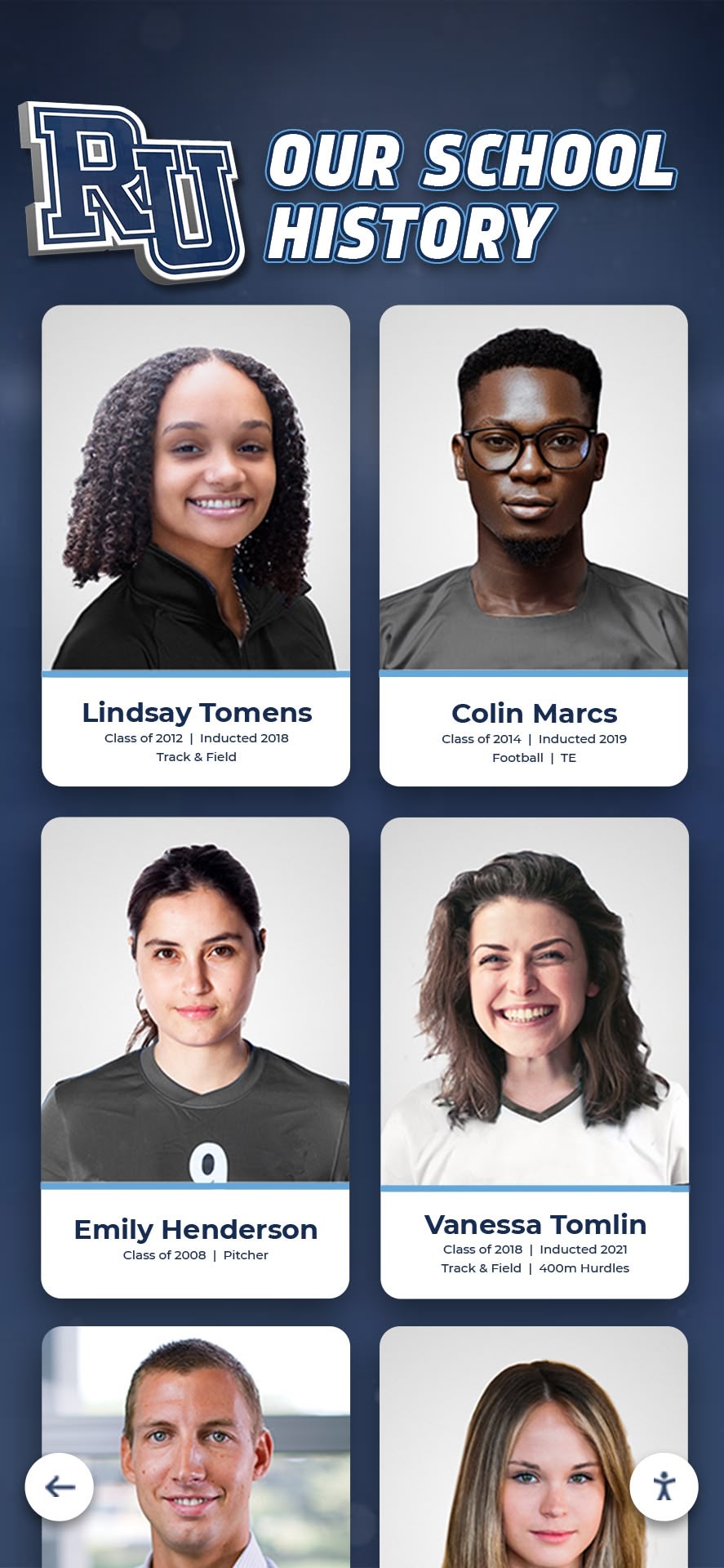
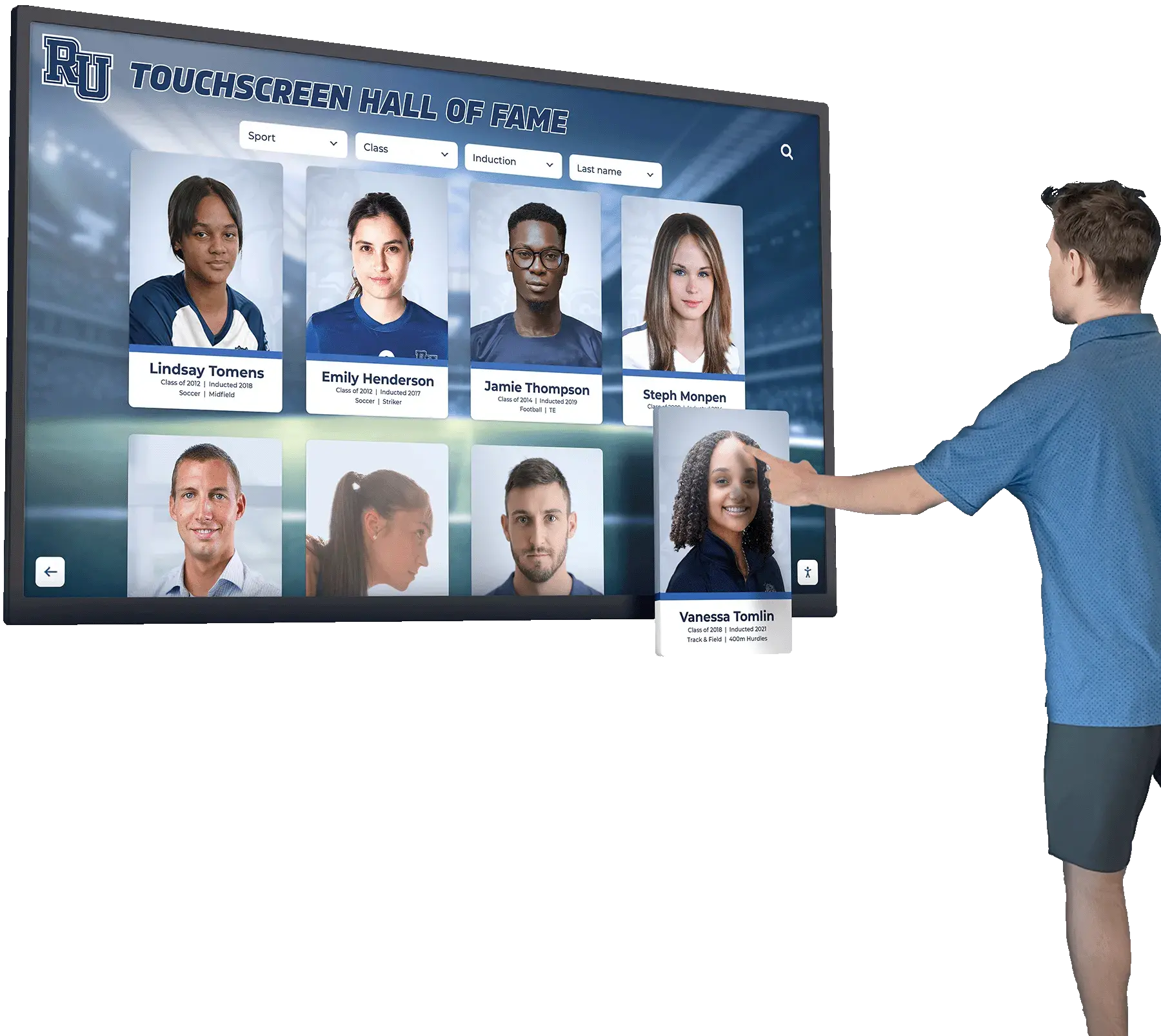
Portrait cards on a hall of fame website or touchscreen display require careful compression settings to preserve facial detail while keeping file sizes browser-friendly
Phase 8: Maintain Optimization Across Induction Cycles
24. Set upload standards before each induction cycle. The most efficient way to maintain image quality is to set standards before new content is submitted, not after. Provide inductee nominators and photography coordinators with a simple spec sheet: portrait dimensions, file format, maximum file size, file naming convention.
25. Run the optimization workflow on every new image before it goes live. New induction portraits should pass through format conversion, dimension check, compression target, alt text review, and filename standardization before publication—not as a retroactive cleanup project after the profile page is live.
26. Audit image performance after platform or template changes. Whenever your website undergoes a redesign, CMS migration, or template update, recheck image delivery. Template changes frequently alter the display dimensions of portrait containers, which can either waste resolution (serving too large an image) or degrade quality (scaling a small image up). Selecting the right hall of fame platform includes evaluating how the system handles image upload, resizing, and delivery across device types.
Portrait Optimization: Detail-Preservation Specifics
Inductee portraits occupy a different visual category than generic website photography. They represent specific real people, often at important moments in their lives, and families and alumni scrutinize them closely. The image optimization choices that work for background photographs and hero banners require adjustment for portrait use.
Sharpness around facial features matters more than overall file size targets. A portrait compressed aggressively to hit a low file size target may show compression artifacts around hair, eyes, and clothing edges—artifacts that are far more visible on a face than on a landscape. When compressing portraits, examine the rendered result at display size before publishing. If facial detail looks blocky or smeared at quality 80, step up to quality 85 or 90 for that image.
Avoid oversharpening filters. Some image tools apply a sharpening filter during export to counteract compression blur. Applied too heavily, sharpening creates visible halos around edges—a visible ring of lighter or darker pixels around hair and collar lines. Export at a slightly higher quality setting rather than compensating with post-compression sharpening.
Standardize portrait aspect ratios. When portraits on a listing page or profile grid display at the same size but have inconsistent original aspect ratios, browsers scale them differently—producing distorted or inconsistently cropped thumbnails. Establish a standard crop ratio (3:4 is common for portrait orientation) and apply it to all inductee portraits. This also simplifies the srcset generation because all images share the same width-to-height relationship.
Hall of fame browsing experiences on interactive displays depend on portrait quality as the first visual impression of each inductee. A blurry or visually degraded portrait signals carelessness even when the biography text is thorough and accurate.
Responsive Hall of Fame Image Delivery: Key Considerations
Schools that operate a hall of fame website alongside a physical touchscreen display face a related but distinct set of image considerations. The touchscreen display typically renders portraits at a fixed, known resolution on managed hardware—a simpler delivery problem. The website must handle unknown device sizes, screen densities, and connection speeds.
High-density (Retina) screens require 2× images. A display-pixel portrait at 400 × 500 looks sharp on a standard monitor but blurry on a Retina or high-DPI screen, which maps two or more hardware pixels to each CSS pixel. Serving a 2× image (800 × 1000 in this example) at the same CSS size produces the crisp appearance those screens expect.
WebP typically closes the gap between detail quality and file size. The format was designed to match JPEG visual quality at meaningfully smaller file sizes—which means a WebP portrait at quality 85 often produces a smaller file than the equivalent JPEG at quality 75, while looking better. If your current workflow produces only JPEGs, adding a WebP conversion step is the single highest-impact image optimization change for most hall of fame sites.
Content delivery networks reduce latency for geographically dispersed visitors. Alumni browsing a school’s hall of fame may be located anywhere. A CDN stores cached copies of images at edge servers close to the visitor, reducing the time between request and display. Many school hosting providers and CMS platforms offer CDN delivery as a standard feature; confirm whether yours is enabled and configured to cache image files.
Schools building out digital recognition programs—from college athlete signing day celebrations to multi-decade alumni archives—benefit from establishing consistent image delivery infrastructure at the start rather than retrofitting optimization after the library grows large.
Learn more about Rocket Alumni Solutions’ Digital Wall of Fame platform to see how cloud-based recognition systems handle image hosting, responsive delivery, and CMS-managed portrait uploads for school programs.
Image Optimization Checklist Summary
| # | Checklist Item | Priority |
|---|---|---|
| 1 | Export full image inventory with file size and format | High |
| 2 | Flag images exceeding 200 KB for review | High |
| 3 | Identify and eliminate oversized source dimensions | High |
| 4 | Convert portrait photography to WebP with JPEG fallback | High |
| 5 | Implement <picture> element for format-aware delivery | High |
| 6 | Resize portraits to 2× display dimension before compression | High |
| 7 | Target 100–150 KB per portrait at 2× resolution | High |
| 8 | Export in sRGB color profile for consistent skin tone rendering | Medium |
| 9 | Write descriptive alt text for every image | High |
| 10 | Leave alt text empty only for decorative images | Medium |
| 11 | Rename files using [name]-[sport]-[context]-[year].webp convention | Medium |
| 12 | Use hyphens not underscores; keep filenames lowercase | Medium |
| 13 | Add srcset and sizes for responsive multi-resolution delivery | High |
| 14 | Set explicit width and height on every <img> tag | High |
| 15 | Apply loading="lazy" to below-the-fold portrait images | High |
| 16 | Do not lazy-load the LCP image | High |
| 17 | Run PageSpeed Insights on a representative profile page | High |
| 18 | Test on simulated slow mobile connection | Medium |
| 19 | Verify alt text coverage with an accessibility checker | High |
| 20 | Establish pre-induction photo submission standards | Medium |
| 21 | Run optimization workflow on every new image before publishing | High |
| 22 | Recheck image delivery after any platform or template update | Medium |
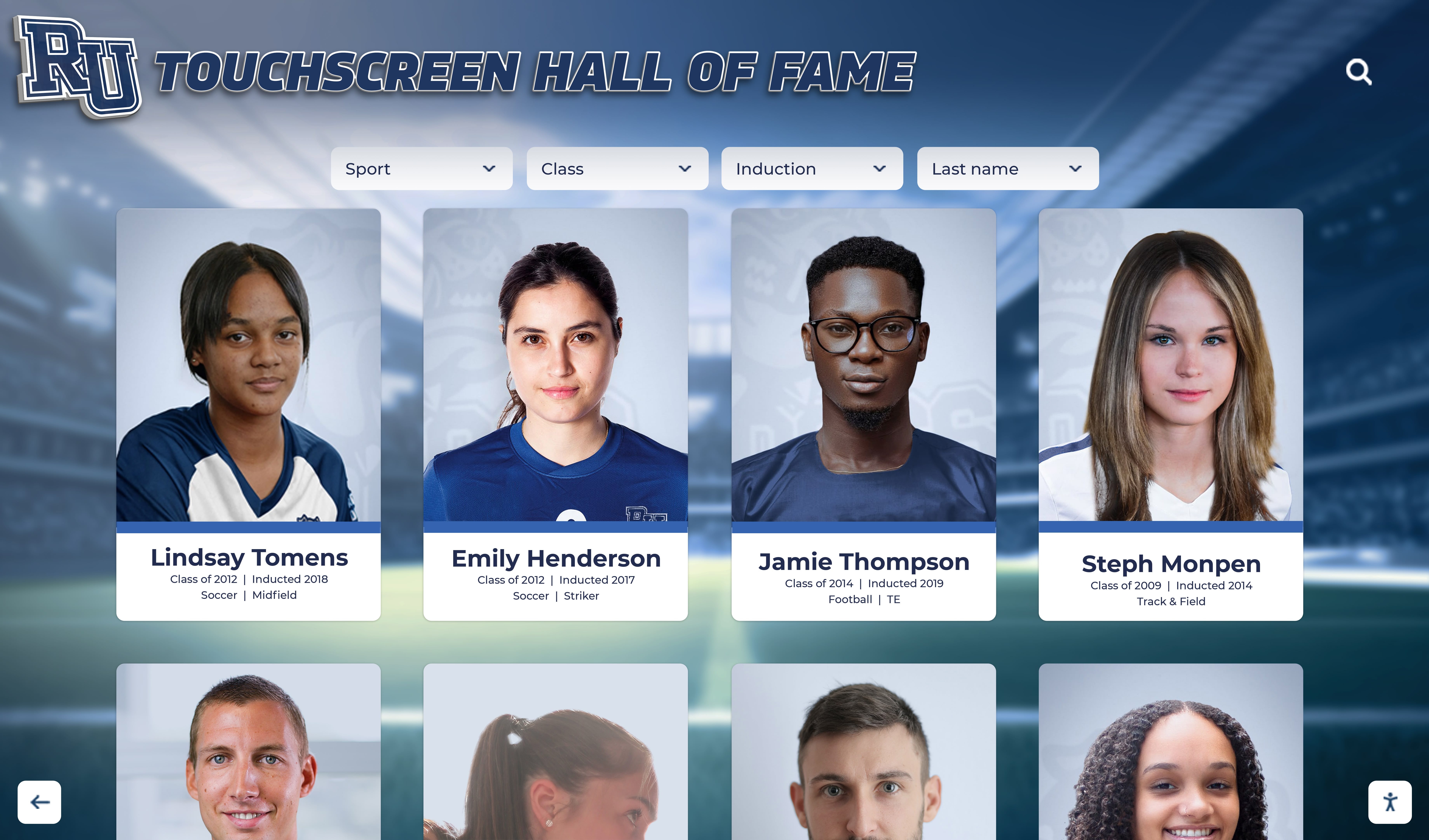
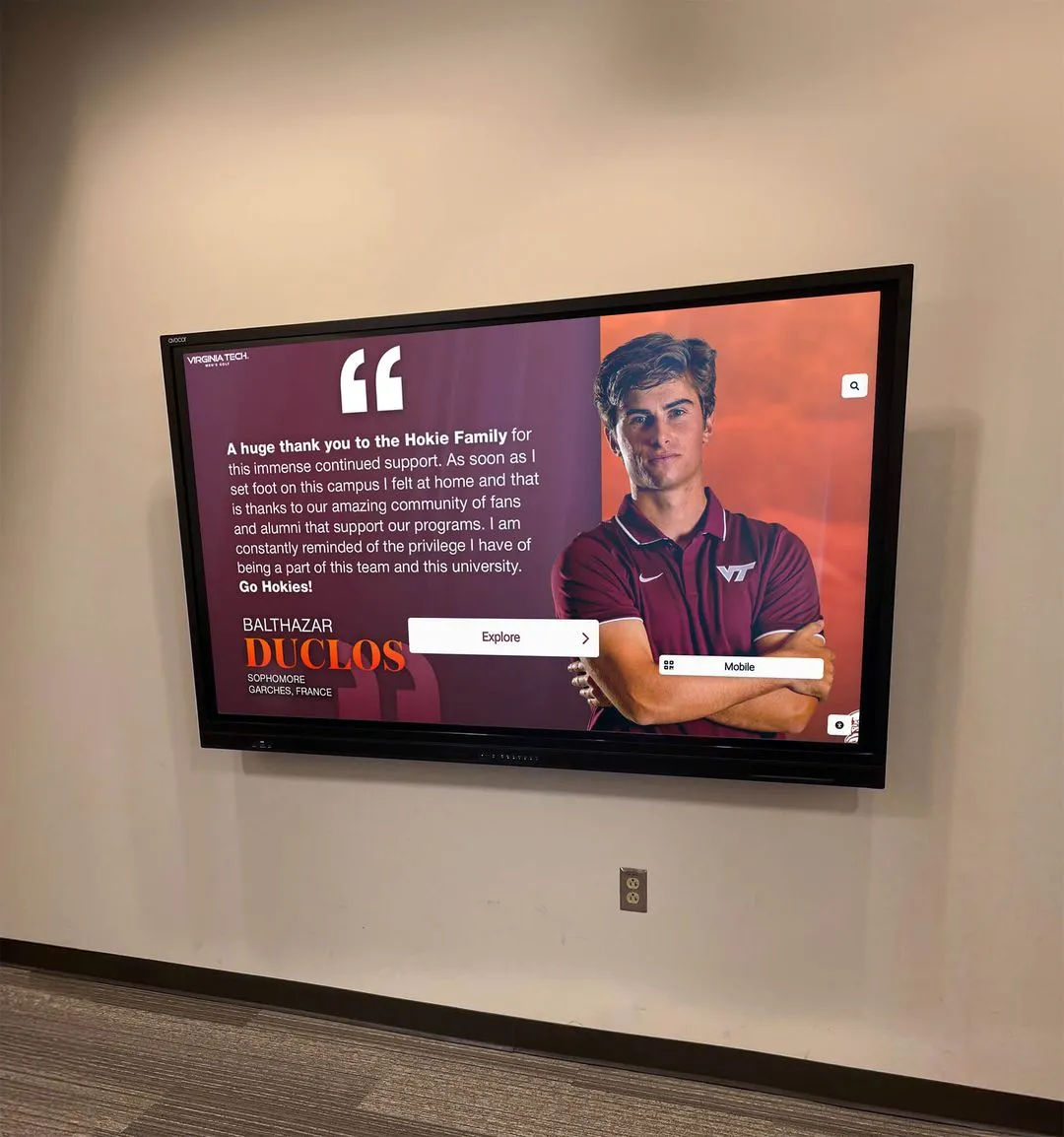
Optimized inductee portraits load quickly and render sharply whether a visitor browses on a phone, a desktop browser, or an in-person touchscreen recognition display
Frequently Asked Questions
Q: What image format should a hall of fame website use for inductee portraits?
A: WebP with a JPEG fallback is the practical standard for portrait photography. WebP produces significantly smaller files than JPEG at equivalent visual quality, and browser support now covers over 95% of users. Use a <picture> element to serve WebP to supporting browsers and JPEG to the rest. If your hosting environment supports AVIF delivery, add it as the preferred format ahead of WebP for browsers that support it.
Q: How do I preserve portrait detail while reducing file size?
A: Set quality between 80 and 90 for WebP portrait exports, and examine the rendered output at display size before publishing. Compression artifacts appear first around edges—hair, collar lines, and fine facial features. If you see blocking or smearing at quality 80, raise to 85. Avoid applying post-compression sharpening filters, which can add visible halos around edges. Correct the problem at the quality setting, not with a sharpening overlay.
Q: Does alt text actually affect image search rankings for inductee photos?
A: Alt text provides the primary textual signal that search engines use to understand what an image depicts. A portrait of a named inductee with accurate alt text—including name, sport, and year—is indexable against searches for that person’s name. Without descriptive alt text, the image is nearly invisible to image search indexing. Alt text is also an accessibility requirement for visitors using screen readers, which makes it both a search and an accessibility priority.
Q: Should logos and school crests be treated differently from portrait photography?
A: Yes. School logos, mascot icons, and sport-category graphic elements should use SVG format whenever the source is vector-based. SVG scales without pixelation at any size, has no quality-compression tradeoff, and typically produces very small file sizes for geometric graphics. For bitmap logos (those that exist only as raster images), PNG with lossless compression is appropriate. Never use PNG for portrait photography.
Q: What causes Cumulative Layout Shift on inductee profile pages?
A: CLS on profile pages most commonly results from images that load without explicit width and height attributes. When those dimensions are absent, the browser allocates no space for the image until it begins downloading, then jumps the layout to accommodate it. Adding width and height to every <img> tag—even if CSS overrides the display size—allows the browser to reserve the correct space before the image loads, preventing the jump.
Q: How should image filenames be handled when an inductee’s profile is updated with a newer photo?
A: Treat the new photograph as a distinct file with a filename that reflects its context, not a replacement for the original. If the original was james-okonkwo-wrestling-1998.webp, a later ceremony photo might be named james-okonkwo-wrestling-induction-ceremony-2023.webp. Avoid overwriting existing image files in your media library because other pages, cached CDN copies, or search engine image indexes may reference the original URL. Serve both files and update the relevant profile page to reference whichever is appropriate in each context.
Q: Can a purpose-built hall of fame platform handle image optimization automatically?
A: Many dedicated recognition platforms handle resizing, format conversion, and CDN delivery at the system level, so administrators upload source photographs and the platform generates display-ready versions. This eliminates the manual workflow described in this checklist—administrators do not need to convert WebP files or write srcset attributes themselves. For schools evaluating platforms, asking specifically about automatic image resizing, WebP delivery, CDN integration, and alt text fields is worth doing during the selection process. A comprehensive digital hall of fame guide can help administrators understand which technical capabilities to prioritize when comparing platforms.
Image optimization for a hall of fame website is not a one-time project. Each induction cycle adds new portraits. Platform migrations reset delivery configurations. Template redesigns change display dimensions. A checklist approach—run at each induction cycle, and again after any platform change—keeps portrait quality high, page load fast, and inductee profiles accessible to every visitor who comes looking for them.
A Recognition Platform That Handles Images the Right Way
Rocket Alumni Solutions' interactive touchscreen wall of fame includes cloud-based portrait hosting, responsive delivery, and a content management system that keeps every inductee profile looking sharp—without requiring manual image optimization workflows for each induction cycle.
Request Your Custom DemoLive Example: Rocket Alumni Solutions Touchscreen Display
Interact with a live example (16:9 scaled 1920x1080 display). All content is automatically responsive to all screen sizes and orientations.