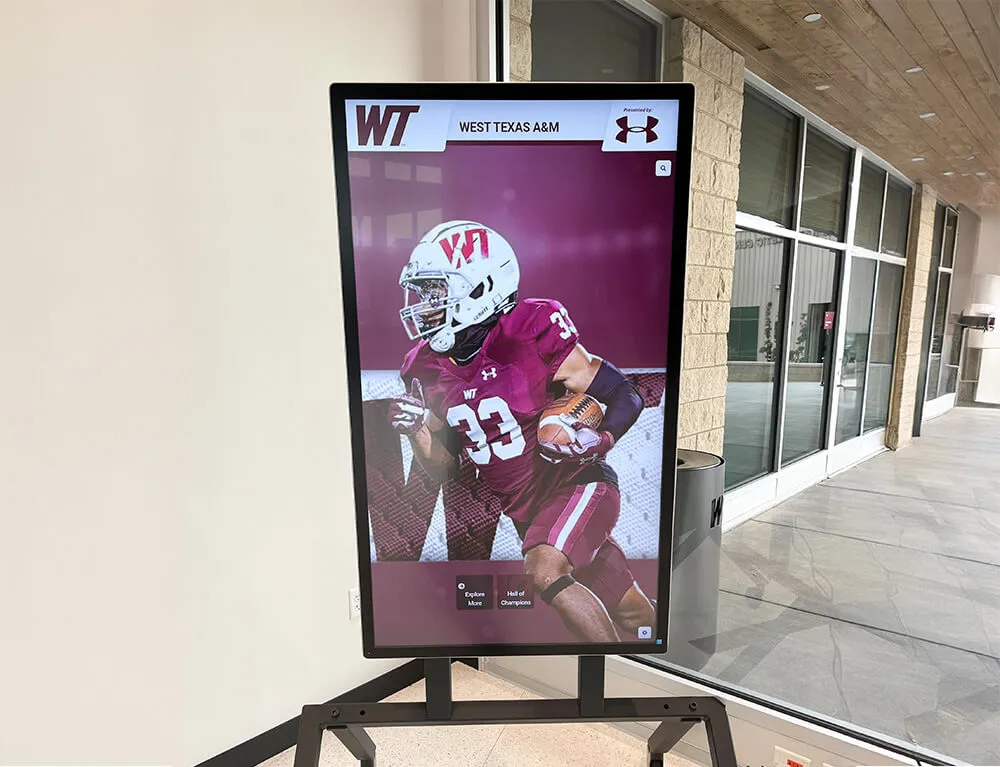
Interactive Touch Screen Digital Signage: How It Works and What You Need
- Home /
- Digital Wall of Fame Blog - Recognition Display Insights & Resources /
- Interactive Touch Screen Digital Signage: How It Works and What You Need
The Easiest Touchscreen Solution




Live Example: Rocket Alumni Solutions Touchscreen Display
Interact with a live example (16:9 scaled 1920x1080 display). All content is automatically responsive to all screen sizes and orientations.
Interactive touch screen digital signage puts information, navigation, and recognition directly in the hands of visitors — without requiring staff assistance or printed materials that go out of date. Schools use these systems for hall of fame inductee displays and wayfinding. Universities deploy them in lobby kiosks and alumni centers. Athletic facilities mount them beside trophy cases. Corporate buildings embed them in reception areas.
But buying the wrong system — or misunderstanding what actually drives results — is a common and expensive mistake. Most buyers spend the majority of their research time evaluating display hardware while giving the software layer far less attention than it deserves. In practice, the software platform determines whether your interactive display is easy to keep current, accessible to all visitors, and genuinely useful day after day.
This guide covers every layer of an interactive touch screen digital signage system: how touch sensing works, what hardware specifications actually matter, how to evaluate software platforms, what accessibility compliance requires, how to plan for total cost of ownership, and what questions to ask before committing to a purchase.
If you’ve already received hardware quotes but haven’t fully evaluated the software powering those displays, start with the software section — it’s where most long-term value is either created or lost.

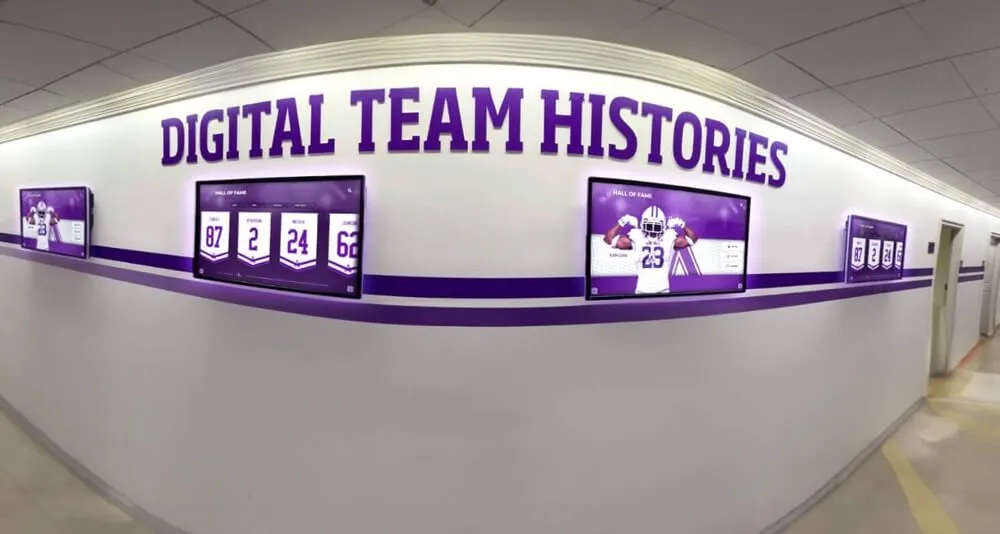
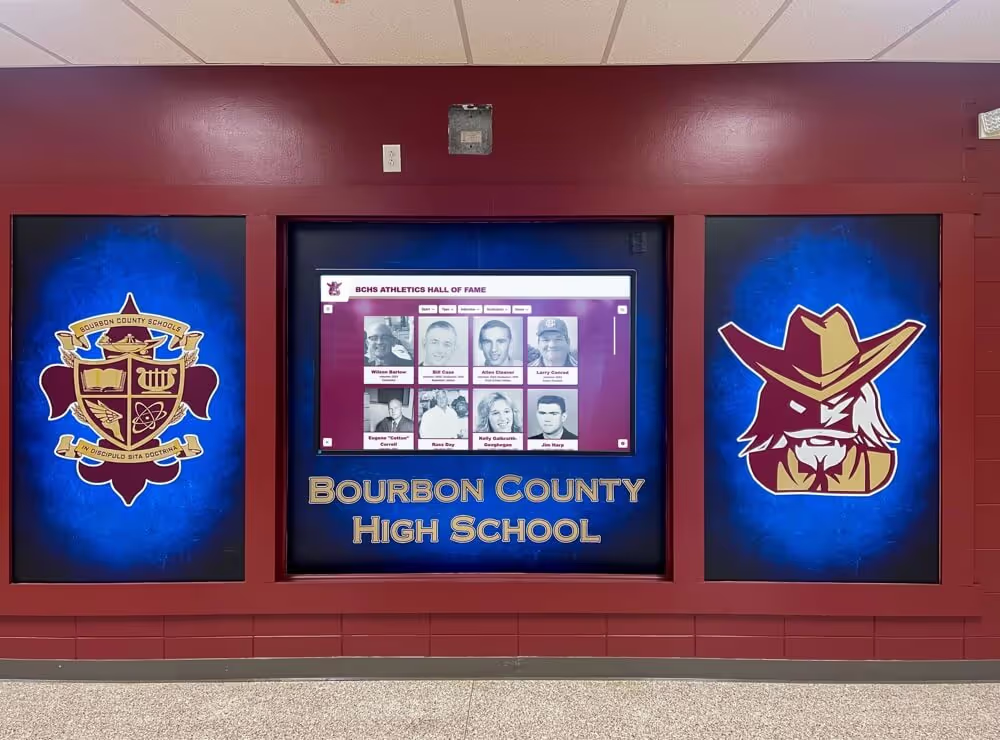
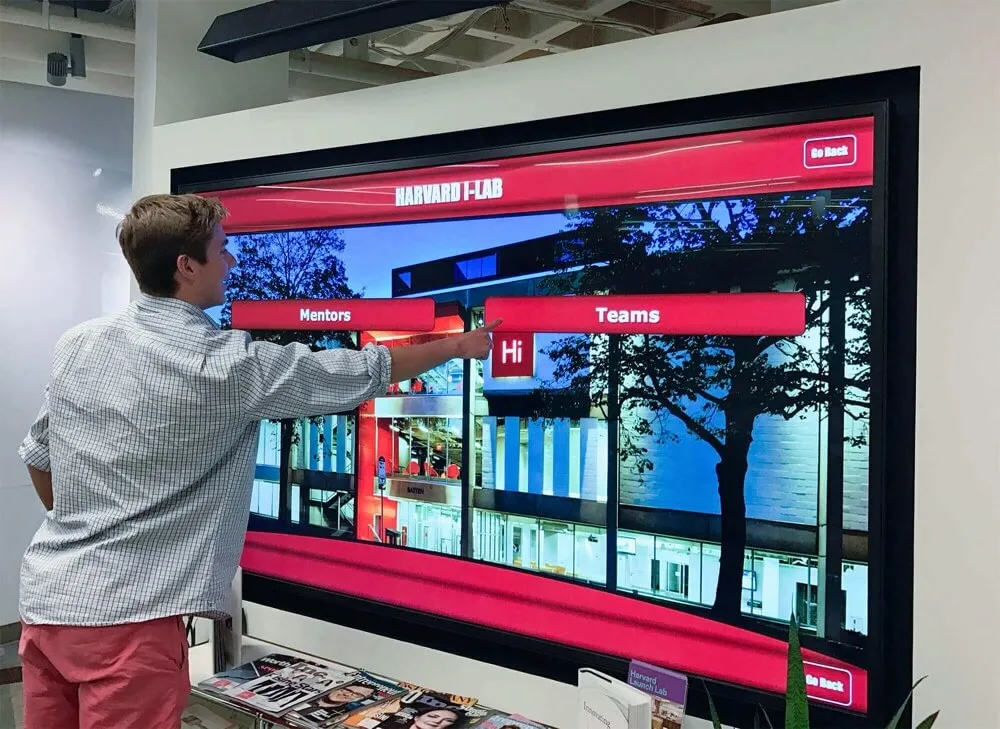
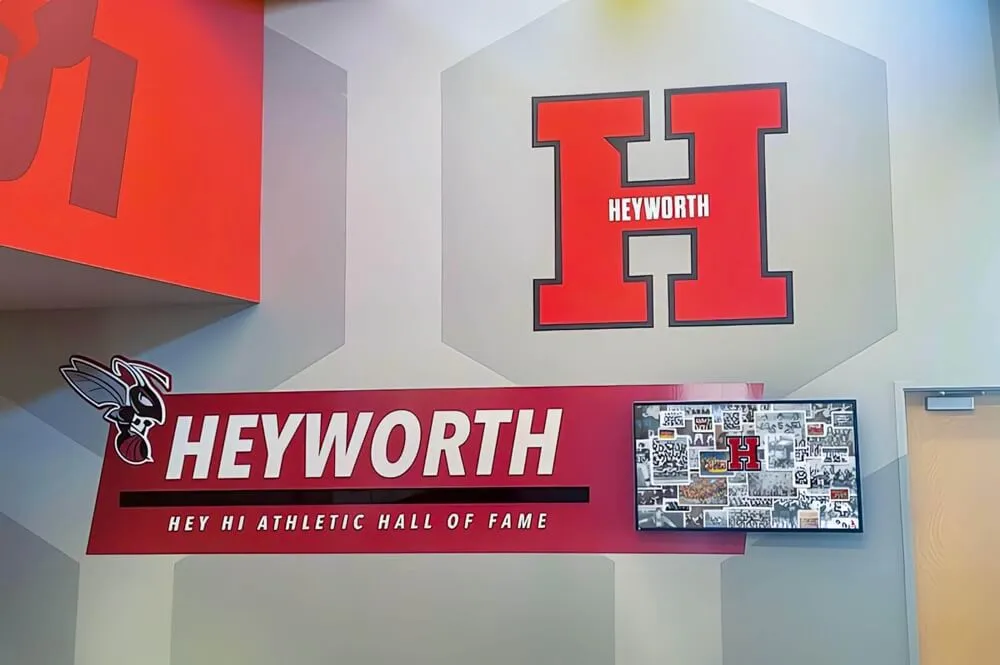
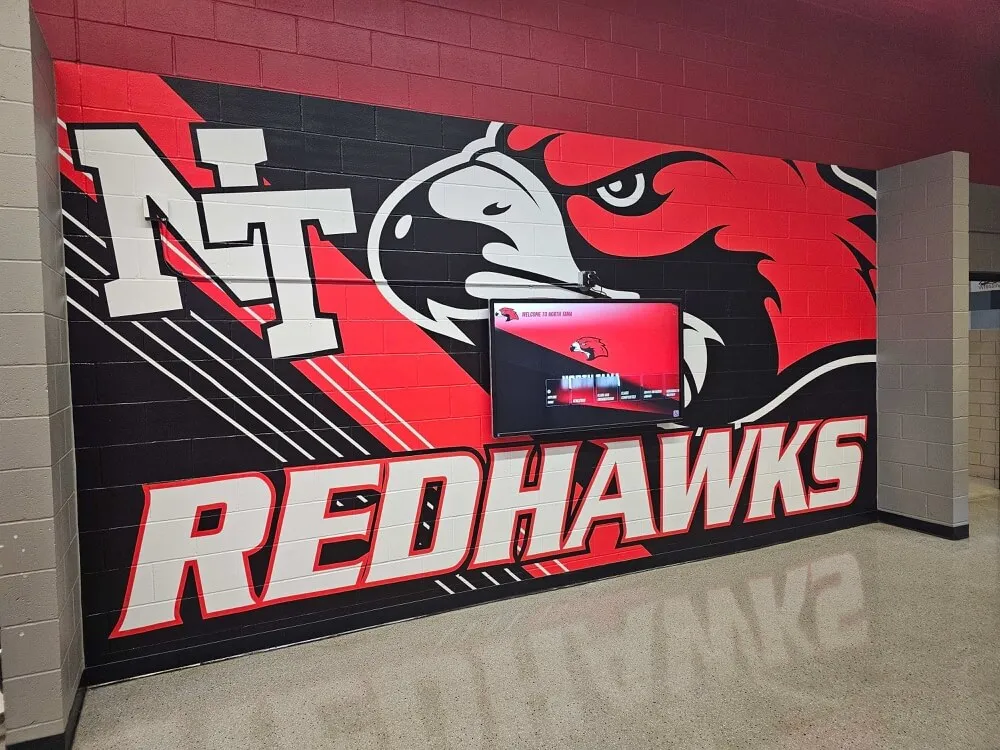
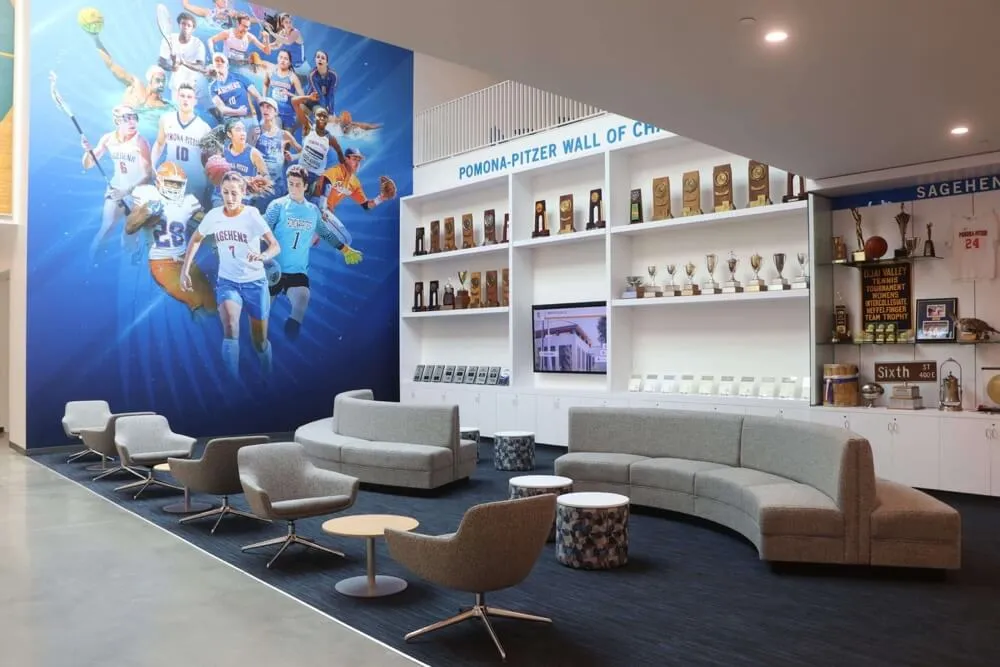
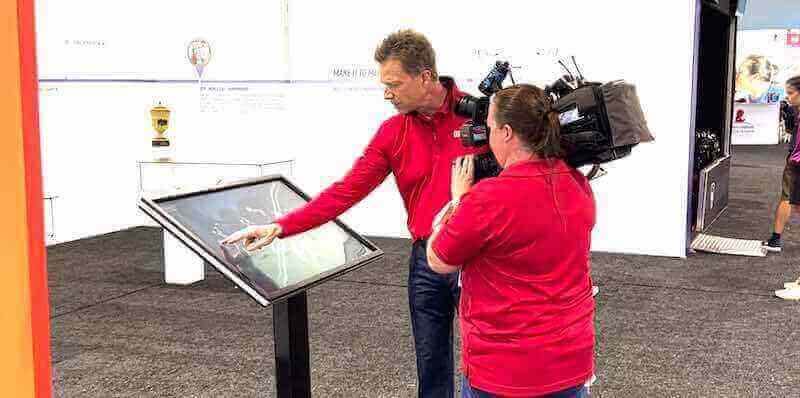
Interactive touch screen displays require both capable hardware and well-designed software to deliver useful experiences for visitors
What Interactive Touch Screen Digital Signage Actually Is
Interactive touch screen digital signage is a display system that responds to direct physical input — a tap, swipe, or press — and changes its output accordingly. That distinguishes it from passive digital signage, which plays a scheduled content loop with no visitor interaction.
A passive display shows whatever the content schedule dictates. An interactive display lets a visitor search a name, browse a directory, explore profiles, or navigate a facility map. The screen adapts to what that specific visitor is looking for, rather than cycling through content regardless of who is watching.
These systems appear across environments where self-service information access improves the visitor experience:
- Schools and universities: Hall of fame displays, building directories, wayfinding kiosks, athletic record boards
- Sports facilities and arenas: Fan experience centers, alumni walls, trophy case extensions
- Corporate buildings: Lobby directories, recognition walls, meeting room finders
- Museums and cultural institutions: Exhibit information, wayfinding, historical archives
- Healthcare facilities: Department directories, wayfinding, visitor information
In each of these settings, an interactive display reduces reliance on staff for routine questions while giving visitors richer information than any static sign can provide.
How an Interactive Touch Screen Works: The Three Layers
Every interactive touch screen system operates across three distinct layers. Understanding each one helps you evaluate systems more accurately.
Layer 1: The Display Hardware and Touch Sensor
The display hardware is the physical screen itself — the panel, backlight, protective glass, and touch sensor assembly. Commercial-grade interactive displays typically integrate the touch sensor directly into the display stack, though some installations add external touch overlays to existing non-touch screens.
The touch sensor registers input and sends position data to the operating system. Two technologies dominate the market:
Projected Capacitive (PCAP): The same technology used in smartphones. A grid of electrodes detects the electrical properties of a fingertip at the point of contact. PCAP supports multi-touch gestures (pinch, zoom, rotate), responds accurately with light pressure, and works reliably with a stylus. It requires a bare fingertip or conductive stylus — gloved hands generally don’t register. PCAP is the standard choice for indoor lobbies, school hallways, and any environment where visitors interact with menu navigation, search fields, or touch-based browsing.
Infrared (IR): An array of infrared LEDs and sensors around the display bezel detect interruptions caused by a finger or object touching the screen surface. IR works with gloved hands, bare hands, or nearly any object. It’s more common in industrial settings, outdoor-rated displays, or environments where users wear gloves. Image clarity and multi-touch precision are typically lower than PCAP for menu-driven applications.
Optical bonding: A manufacturing process that eliminates the air gap between the touch layer and the display panel, bonding them directly with optical-grade adhesive. Optically bonded screens show significantly less parallax (the gap between where you touch and where the cursor registers), sharper image quality in bright light, and better contrast. For recognition displays, donor walls, and hall of fame kiosks where image quality matters, optical bonding is worth specifying.
You can explore a broader comparison of screen and panel types used in digital signage installations to understand which technology fits which deployment environment.
Layer 2: The Operating System and Media Player
The operating system (typically Android, Windows, or ChromeOS) manages hardware resources and provides the environment in which signage software runs. The media player — either a separate computing device or a system-on-chip built into the display — handles the actual processing.
In a passive signage setup, the media player runs a scheduled content loop. In an interactive setup, it also handles touch input, executes user navigation logic, loads content in response to selections, and manages the idle-state timeout that returns the screen to its default loop after a period of inactivity.
Media player performance matters more in interactive installations than in passive ones. Search queries, profile navigation, and real-time content rendering require meaningful processing headroom. Slow or laggy responses to touch input frustrate visitors and reduce engagement. When evaluating hardware, test the full interactive navigation experience on the actual platform — not just the video playback.
Layer 3: The Software Platform
The software platform controls what content appears, how it’s organized, how visitors navigate it, and how administrators update it. This layer determines:
- What templates and content types are available
- How difficult it is to add or update content without technical help
- Whether you can schedule content changes in advance
- How analytics and usage data are captured
- Whether the system meets accessibility requirements
- How multiple displays across different locations are managed centrally
The software layer receives the least attention during the buying process and causes the most operational problems after purchase. A system that’s difficult to update will be neglected — and stale content is what turns an interactive display into an expensive screensaver.
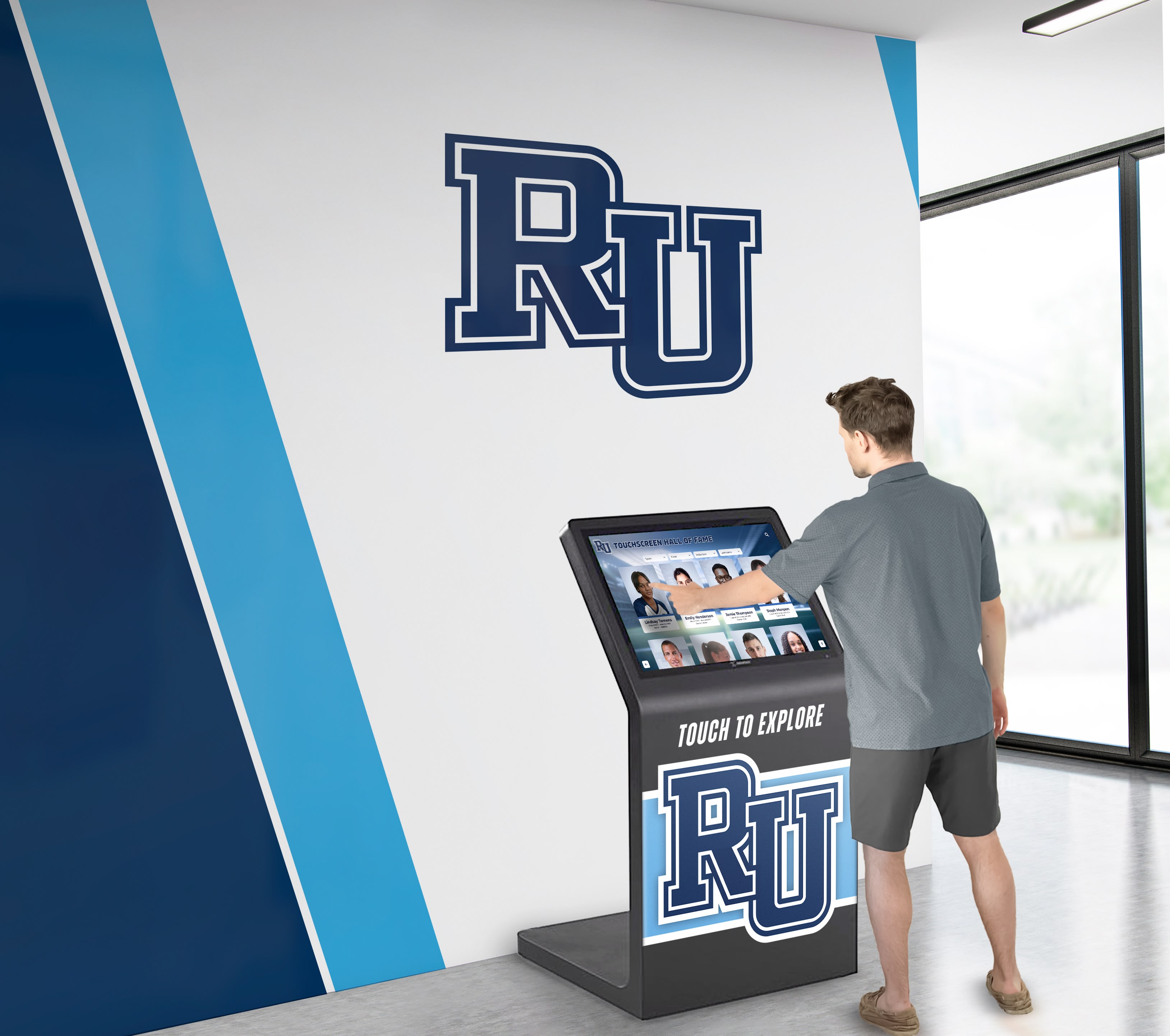
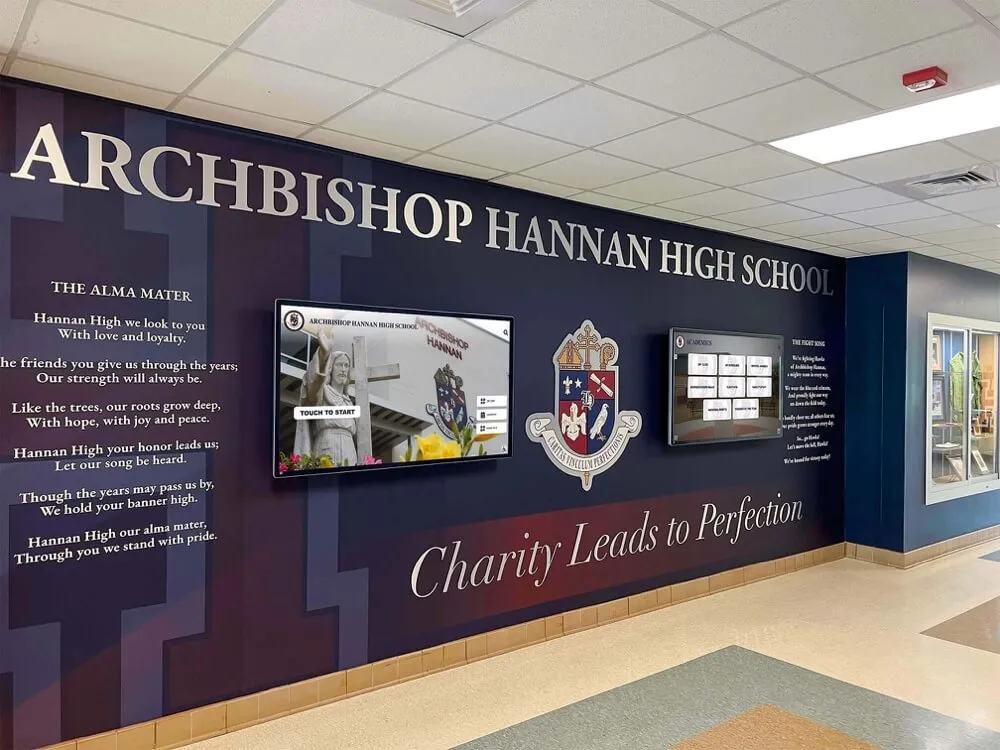
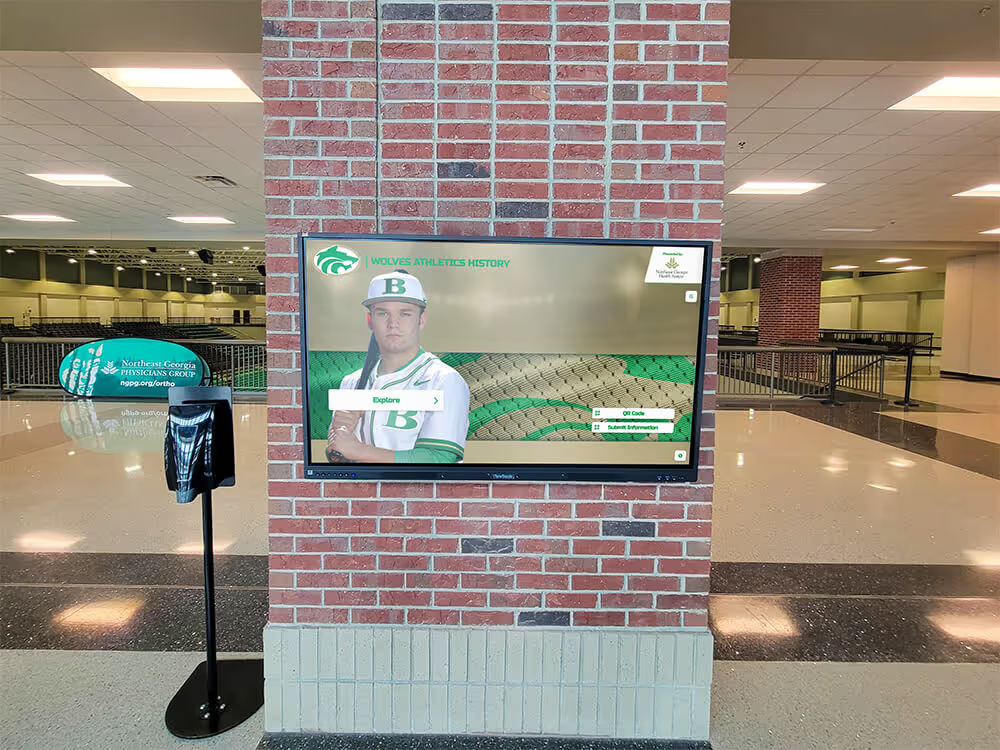
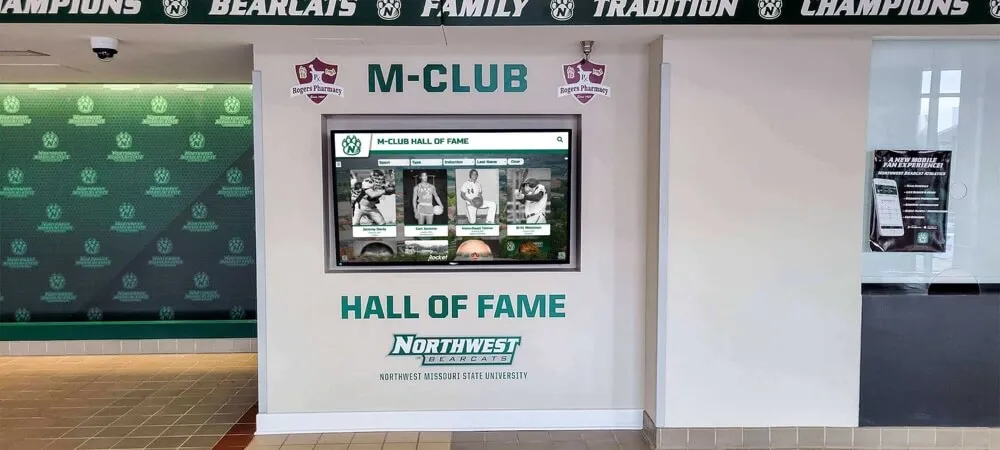
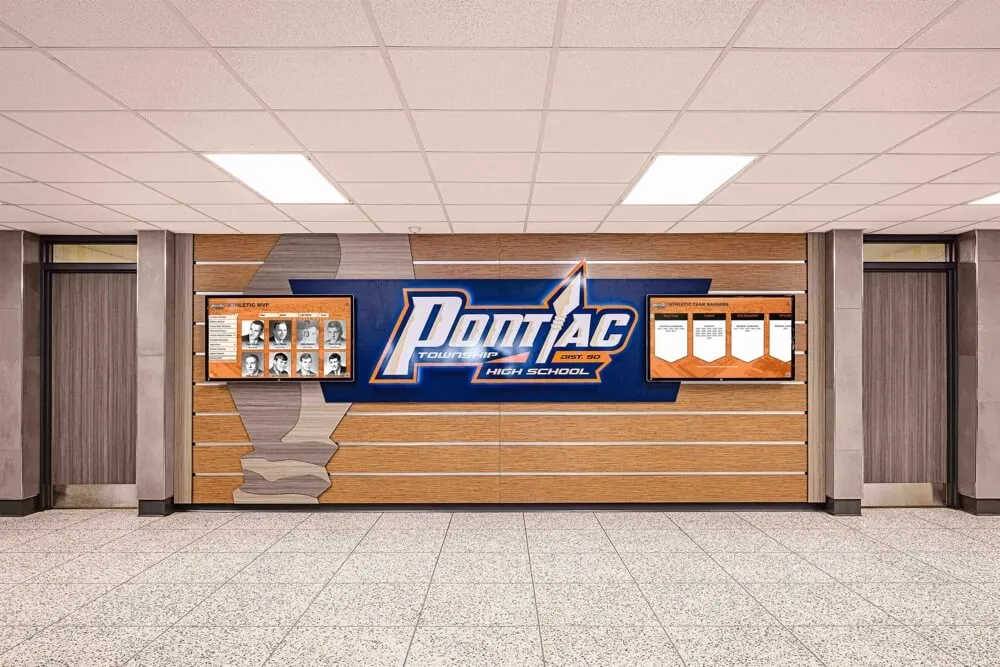
The software platform determines how useful an interactive display actually is — for visitors navigating it and for staff keeping it current
Hardware Specifications That Actually Matter
When reviewing display specifications, several factors influence real-world performance more than headline numbers like resolution or panel size.
Screen Size by Deployment Context
Match screen size to viewing distance and content density. General guidelines:
- 43–55": Appropriate for wall-mounted lobby displays, hallway kiosks, or any location where visitors stand 2–5 feet from the screen
- 65–75": Better for large open spaces, entrance atria, or installations where content needs to read from across a room
- 86"+ or multi-screen arrays: Suited for large-format recognition walls, fan experience centers, or installations where visual impact is the primary goal
Larger is not always better. A 75" screen mounted in a narrow corridor where visitors stand 18 inches away creates an uncomfortable experience. A 43" display in a large open lobby may go unnoticed. Context-appropriate sizing matters more than maximum size.
Brightness and Lighting Conditions
Display brightness is measured in nits (candelas per square meter). The appropriate brightness depends on ambient light:
- 350–500 nits: Adequate for standard indoor environments with controlled lighting
- 700–1000 nits: Better for lobbies with significant natural light from windows or skylights
- 2500+ nits: Required for semi-outdoor environments (under canopies, covered entries) with direct light exposure
- 3500+ nits: Necessary for direct outdoor installations in full sunlight
Underspecifying brightness in naturally lit spaces causes washed-out, unreadable displays. Always evaluate the installation environment’s lighting conditions before specifying brightness.
Learn more about touchscreen display brightness scheduling and ambient light management for maintaining display quality across different times of day.
Duty Rating
Consumer displays are designed for 8–12 hours of daily use. Commercial-grade displays intended for continuous operation are rated for 16–24 hours per day and use components with significantly longer service lifespans. For lobby, hallway, or common area installations where displays run during all operating hours and potentially through the night in attract-loop mode, specify commercial duty-rated hardware. Consumer panels will fail early and more frequently under these conditions.
Mounting Orientation
Many interactive displays default to horizontal (widescreen) orientation. Portrait orientation (vertical) is preferable for tall, narrow content — inductee profiles, directory listings, wayfinding with vertical building layouts. Not all commercial displays support portrait mounting with full software functionality. Confirm orientation support early in the specification process before committing to a hardware model.
Enclosure and Protection
For high-traffic locations, consider:
- Anti-vandal glass: Tempered or laminated glass with impact resistance
- IP-rated enclosures: IP-54 or higher for any installation exposed to moisture, cleaning chemicals, or outdoor conditions
- ADA-compliant mounting height: The Americans with Disabilities Act requires operable parts of interactive displays to be reachable from a wheelchair. For front-approach access, the maximum height is 48" above the floor; for side-approach, 54". Wall-mounted interactive displays must account for reach range standards.
Software Platform Evaluation
The software platform governs your day-to-day experience more than any hardware specification. Evaluate platforms across these dimensions before purchasing.
Content Management Accessibility
Can non-technical staff update content without vendor assistance? This is the most important question. Systems that require IT involvement or vendor support for routine content updates are systematically neglected — budgets don’t allow for constant external help, and internal IT teams have competing priorities.
Look for:
- Browser-based content management with no software installation required
- Role-based access (different permissions for content editors vs. administrators)
- Bulk import tools for large data sets (inductee lists, directory entries, award records)
- Scheduled publishing for planned updates
- Preview functionality before content goes live
Interactive Content Capabilities
For recognition and wayfinding applications, the software needs to support:
- Search functionality: Fast, accurate search across names, categories, sports, graduation years, departments, or other relevant attributes
- Profile display: Rich individual profiles with photos, statistics, video, biographical text, and related records
- Filtering and browsing: Category navigation so visitors without a specific name in mind can browse by sport, year, honor type, or other relevant classifications
- QR code handoff: Generation of QR codes that transfer a visitor’s current view to their personal device for continued exploration after leaving the display
Read through a detailed comparison of interactive touchscreen kiosk software platforms to understand how different platforms handle these capabilities.
Content Strategy for Long-Term Success
Software capabilities alone don’t keep a display current — you also need a content maintenance plan. Before deployment, establish:
Who owns each content category. Athletic directors update sports records and hall of fame inductees. Facilities managers update building directories. Communications teams update event information. Assign clear ownership before the system goes live.
How frequently each category needs updates. Athletic records might change every season. Directory information changes with staff turnover. Award recognition may update annually. Match your update workflow to realistic staff capacity.
What triggers a content review. Create a schedule for reviewing content accuracy — at minimum annually, more frequently for high-velocity categories like event schedules or directory listings.
Practical digital signage content strategies for screens and kiosks can guide initial content planning for different deployment contexts.
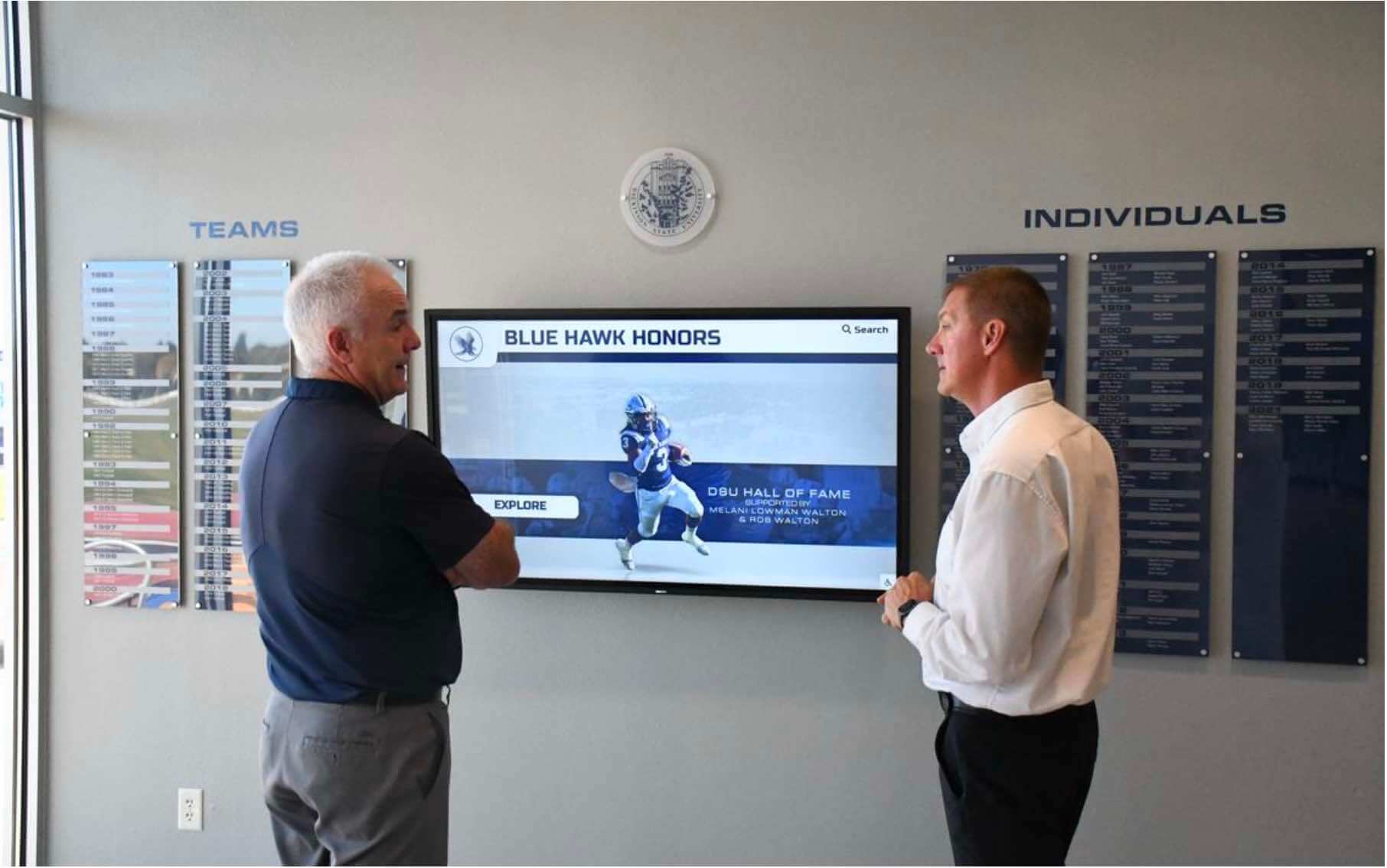
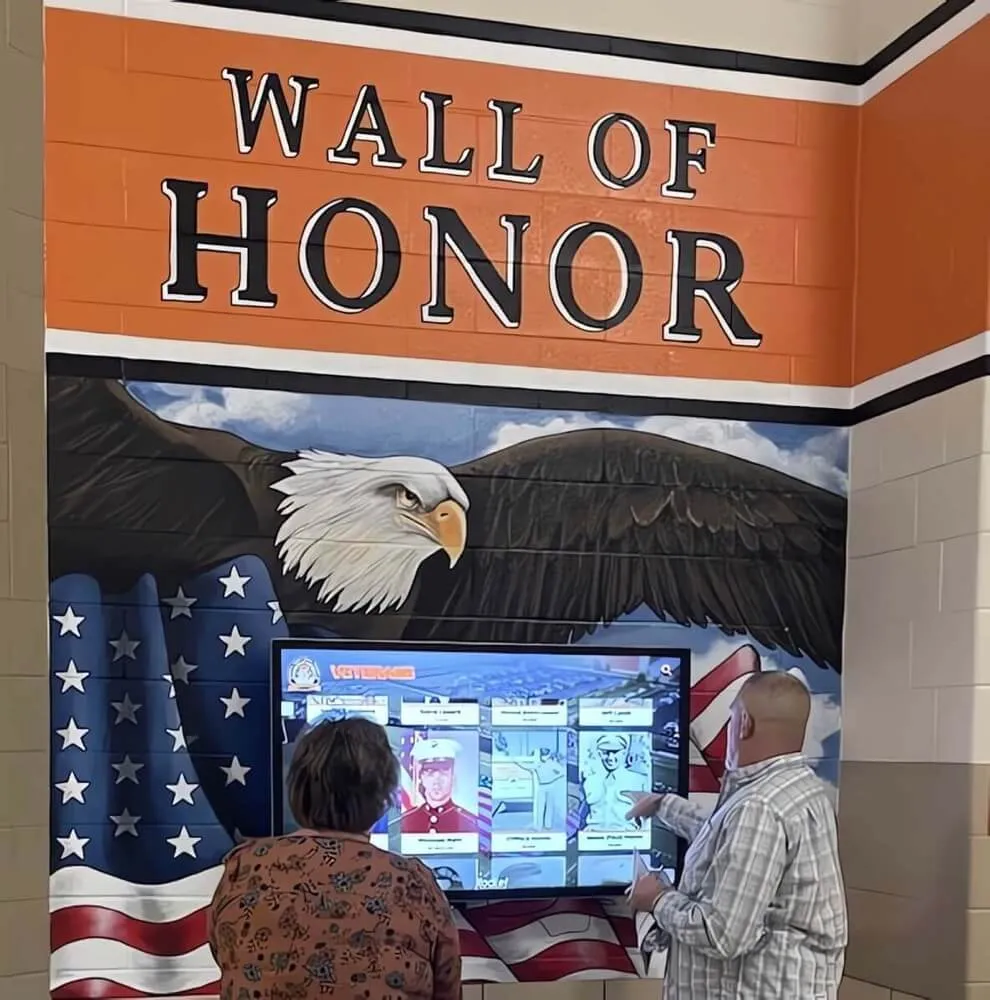
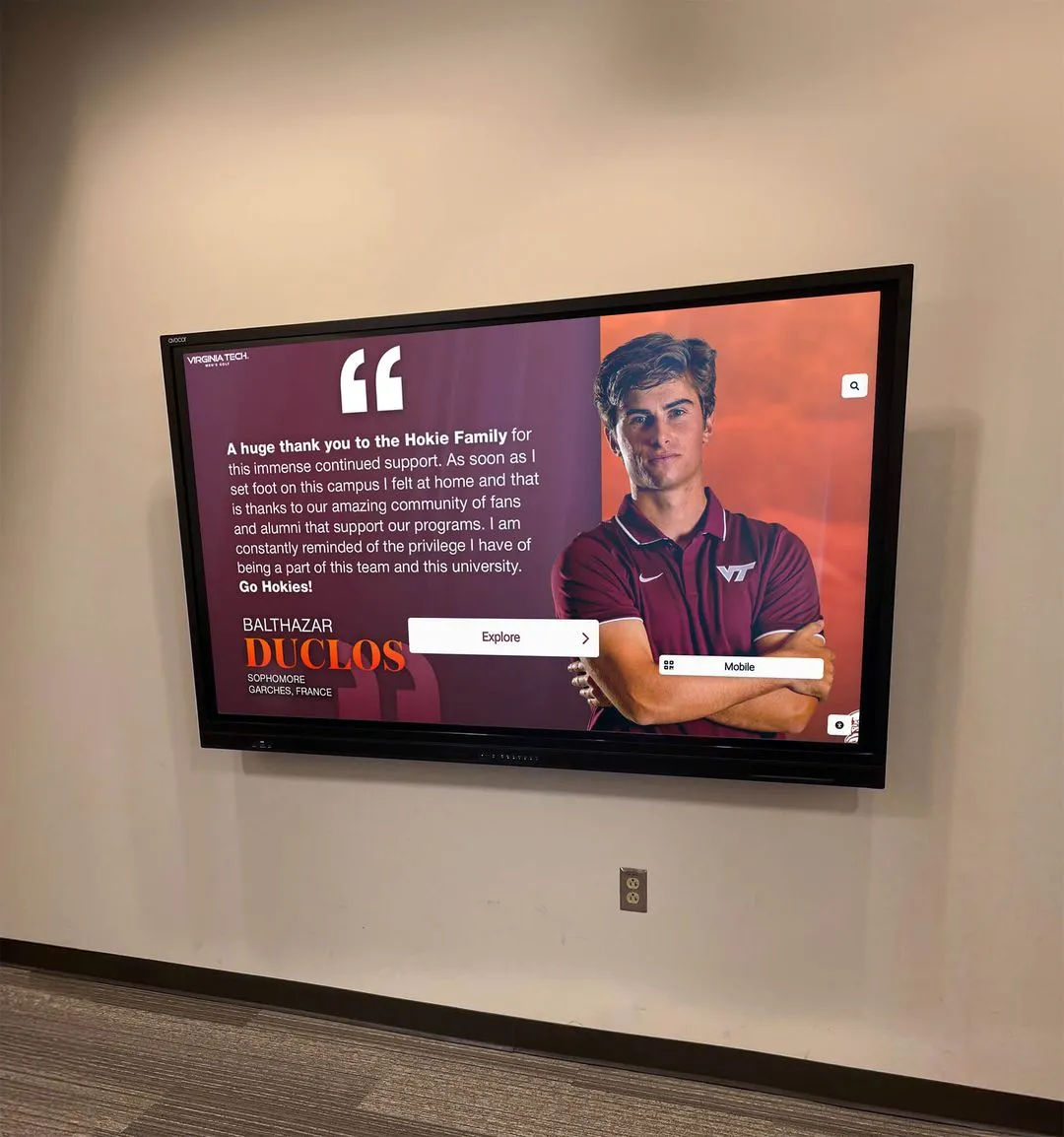
Visitors spend significantly more time with well-maintained interactive displays than with static signage — but that engagement depends on content that is accurate and current
Accessibility and ADA Compliance
Accessibility requirements for interactive touch screen displays are not optional for most institutions. Schools and universities receiving federal funding, public facilities, and government buildings are bound by Section 508 and the Americans with Disabilities Act. Ignoring accessibility requirements creates legal exposure and excludes a meaningful portion of your visitor population.
Physical Accessibility
The ADA specifies reach range requirements for interactive components. Touch controls must be reachable from a wheelchair (48" maximum height for forward approach, 54" for side approach). Interactive surfaces mounted higher than these limits are non-compliant.
Freestanding kiosk designs vary significantly in whether they accommodate wheelchair users. If your installation plan includes freestanding kiosks, confirm the control surface height and ensure the base design allows wheelchair approach from at least one direction.
Digital Accessibility (WCAG 2.1 AA)
The Web Content Accessibility Guidelines (WCAG) 2.1 Level AA standard applies to interactive software interfaces, including those running on kiosks and touchscreen displays. Key requirements include:
- Color contrast: Text must meet minimum contrast ratios against its background (4.5:1 for normal text, 3:1 for large text)
- Touch target size: Interactive controls (buttons, navigation elements, profile cards) should have minimum touch targets of 44×44 pixels
- Alternative navigation: Interfaces should support keyboard navigation and be compatible with assistive technology where applicable
- Error identification: If a search returns no results or an input fails, the interface must communicate this clearly in text — not only through color
For hall of fame displays and athletic record boards, WCAG 2.1 AA compliance also means that inductee profiles, search results, and navigation controls must be structured accessibly, with proper labels and logical focus order.
Installation: What Buyers Often Overlook
Hardware specs and software demos rarely include the full picture of what installation actually requires. Before finalizing a purchase, verify:
Structural requirements. Wall-mounted displays, particularly large-format ones, require wall anchors into studs or blocking, not just drywall. Freestanding kiosks require level flooring and, in high-traffic areas, may need to be anchored to prevent tipping.
Power access. Interactive displays require dedicated power circuits. Running visible extension cords is unsafe and typically violates building codes. Assess the distance from your planned installation location to the nearest dedicated circuit.
Network connectivity. Cloud-managed systems require a reliable network connection at the display location. Wired Ethernet is more reliable than Wi-Fi for this purpose. If your installation location lacks a wired drop, plan for the cost of running one.
Cable management. In visible lobby and hallway installations, exposed cables undermine the professional appearance you’re investing in. Plan for in-wall or raceway cable routing.
Professional installation vs. DIY. Large displays and freestanding kiosks require more than one person to install safely. If your team lacks AV installation experience, professional installation services reduce the risk of mounting errors, hardware damage, or unsafe electrical connections.
A detailed resource on wall-mounted touchscreen display installation considerations covers the specific requirements for different mounting configurations.
Total Cost of Ownership
Initial hardware cost is typically 30–50% of what an interactive signage system actually costs over five years. Budget for the full picture:
Hardware: Commercial interactive displays range widely. Smaller 43" units start around $1,500–$3,000. Larger 75"+ commercial panels with built-in touch typically run $4,000–$10,000+. Freestanding kiosk enclosures with built-in computing add $2,000–$8,000 on top of the display cost.
Media players: If the display doesn’t include a built-in computing module, add $300–$1,000 for a commercial media player, or more for higher-performance units.
Software licensing: Signage software platforms typically charge per-display, per-month or per-year fees. These range from $50–$200/display/month for full-featured platforms with interactive capabilities. Platforms with specialized recognition, hall of fame, or directory features may vary; request a quote specific to your display count and feature requirements.
Installation: Professional AV installation typically runs $500–$2,000 per display depending on complexity, location, and whether in-wall cable work is required.
Content development: Initial content population — entering inductee profiles, building directory data, maps — requires staff time or paid vendor assistance. Budget 20–80 hours depending on the volume of content.
Ongoing maintenance: Budget for software subscription fees, periodic hardware maintenance, content updates, and eventual hardware replacement (commercial display lifespans typically run 5–7 years for heavy-use installations).
Understanding the multi-year cost picture prevents budget surprises and helps justify the investment to stakeholders who see only the hardware quote.
Use Cases Where Interactive Signage Delivers the Most Value
Schools and Athletic Programs
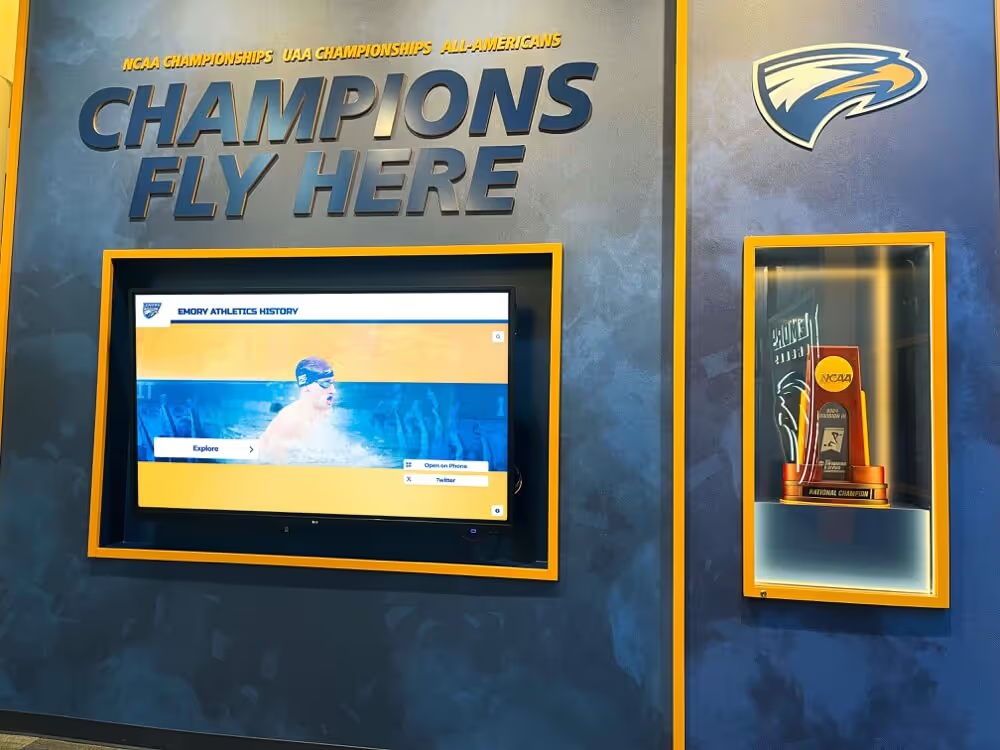
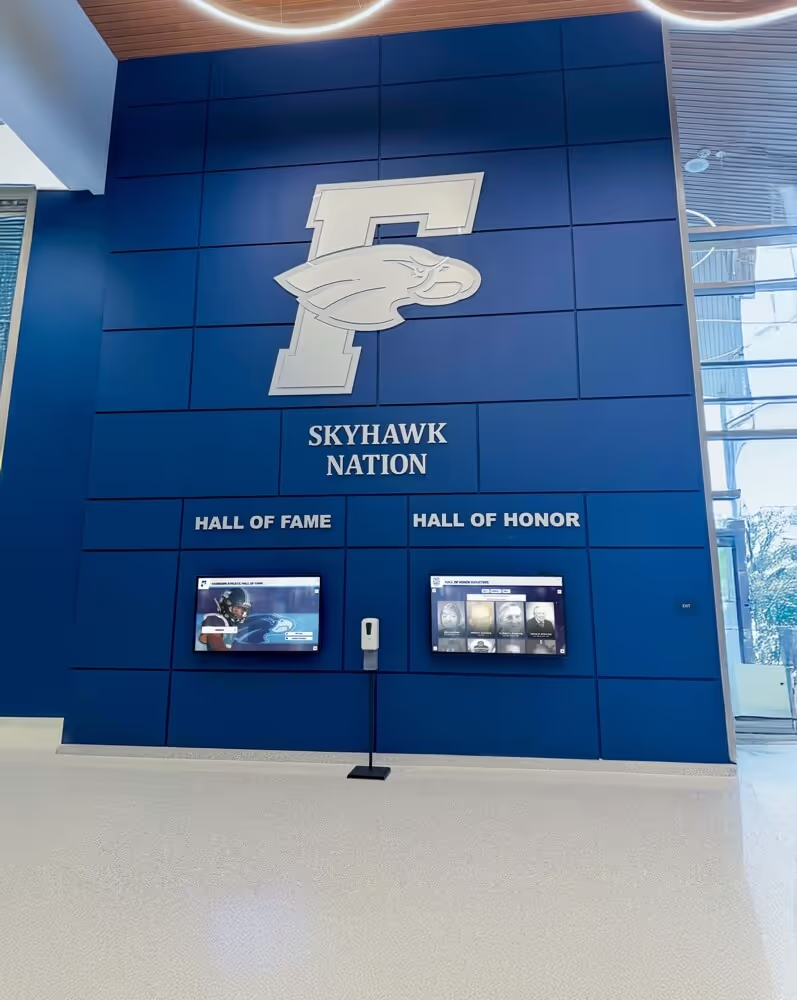
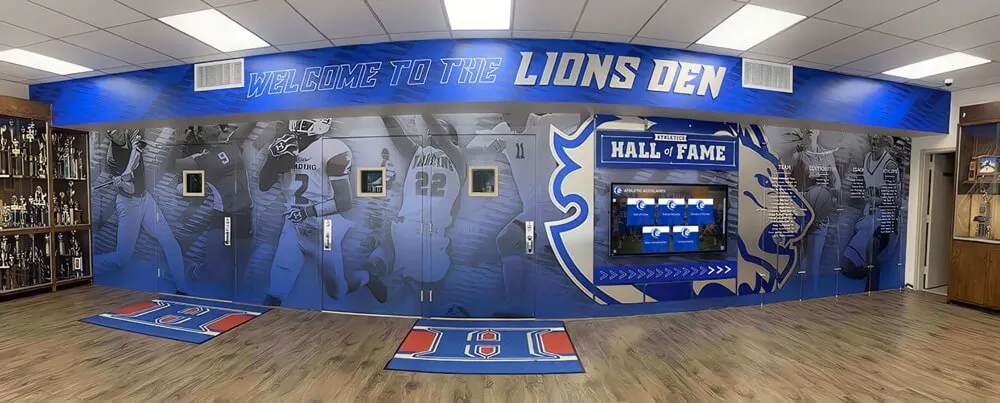
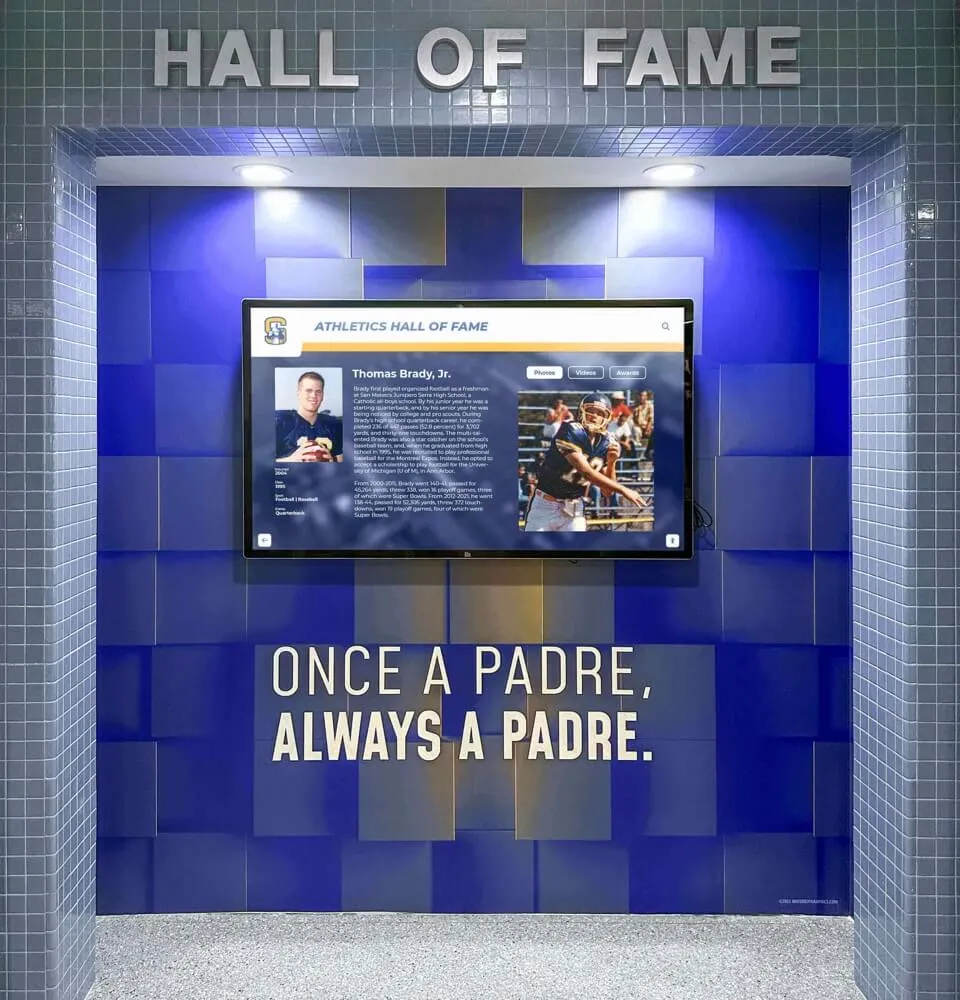
Schools benefit from interactive signage in several specific ways. Athletic hall of fame displays allow visitors to search inductees by name or sport, view career statistics and photos, and explore championship histories — all without staff assistance. These displays are particularly effective in lobbies and near athletic facilities where alumni, prospective students, and families visit during events.
For schools managing growing athletic archives, a touchscreen platform can surface decades of records and inductee profiles that would be impossible to display in physical form. See how digital signage serves school athletic programs for recognition and community engagement.
Wayfinding in schools is another high-value application — during open houses, athletic events, or parent-teacher conferences, visitor traffic increases significantly and front desk staff become overwhelmed with navigation questions that a touchscreen directory handles automatically.
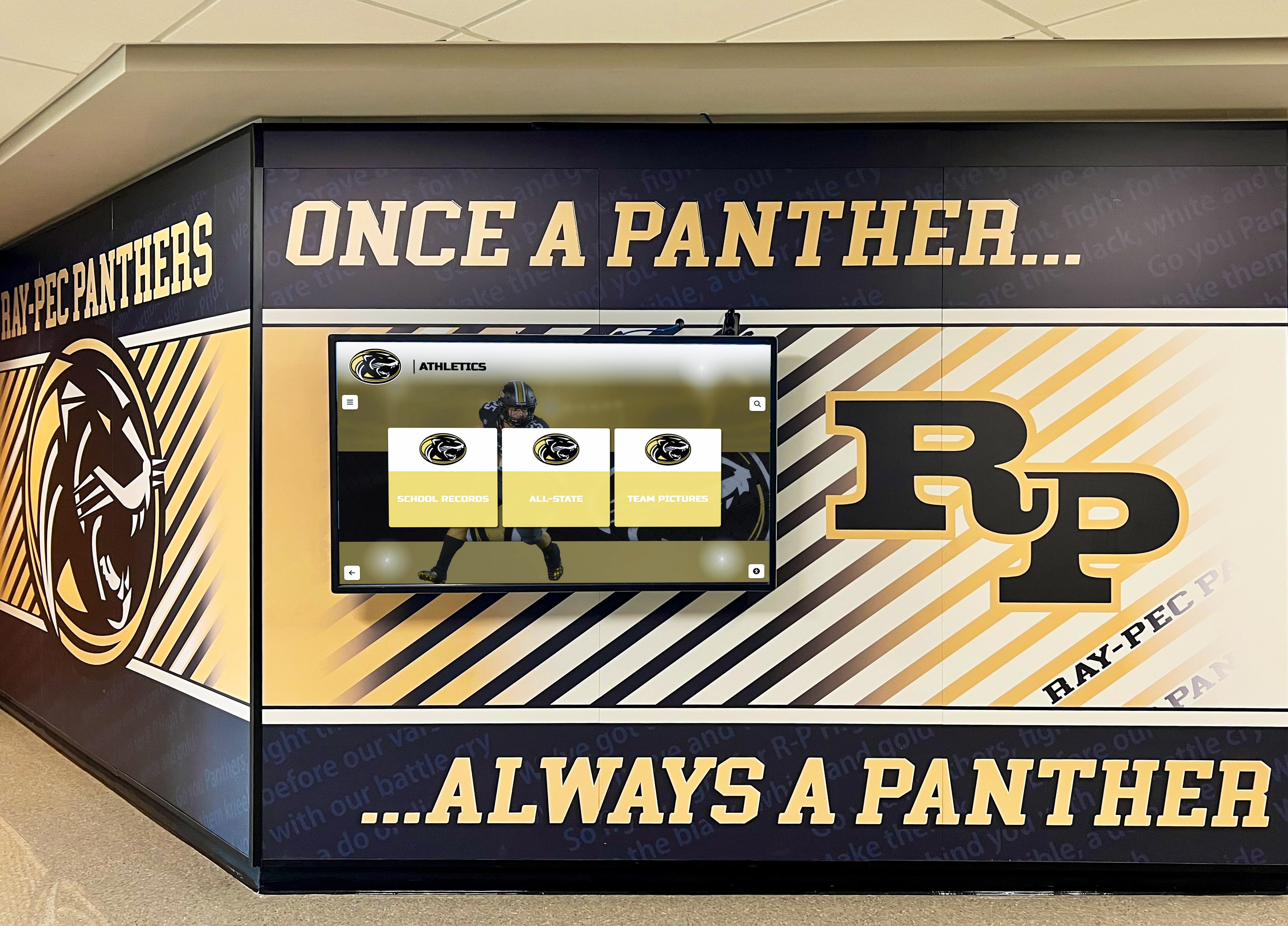
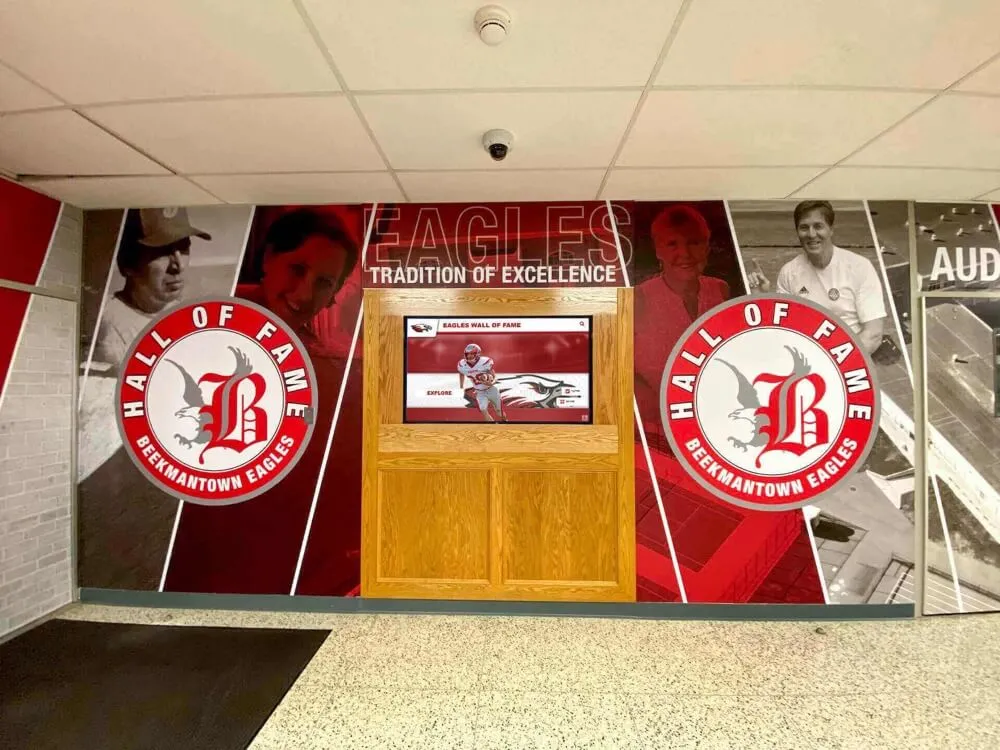
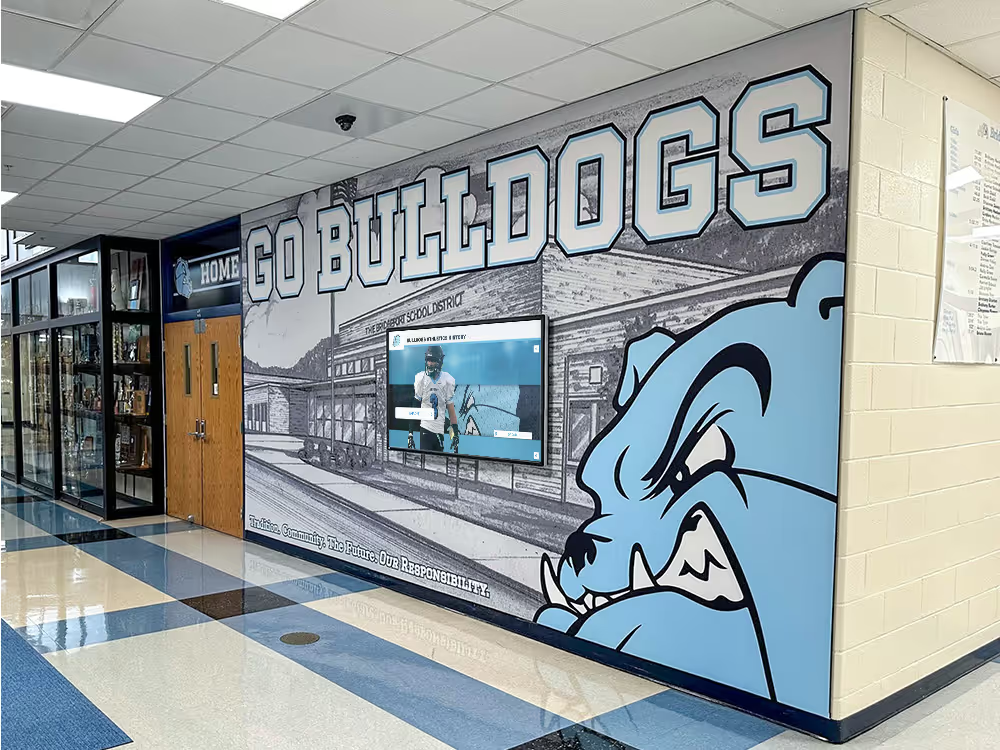
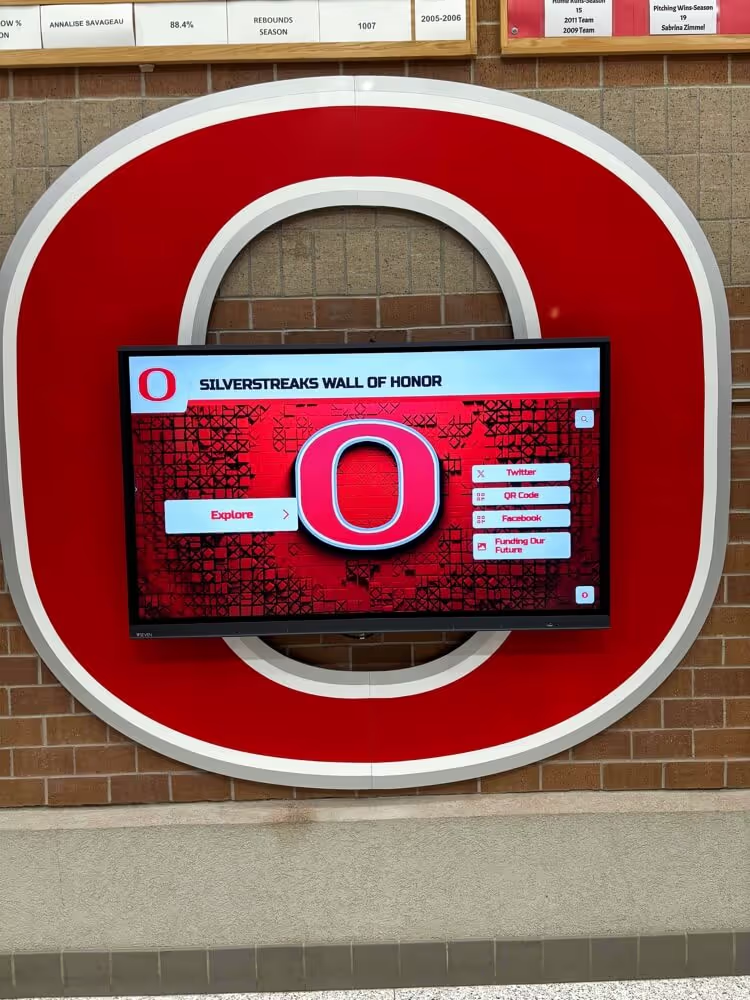
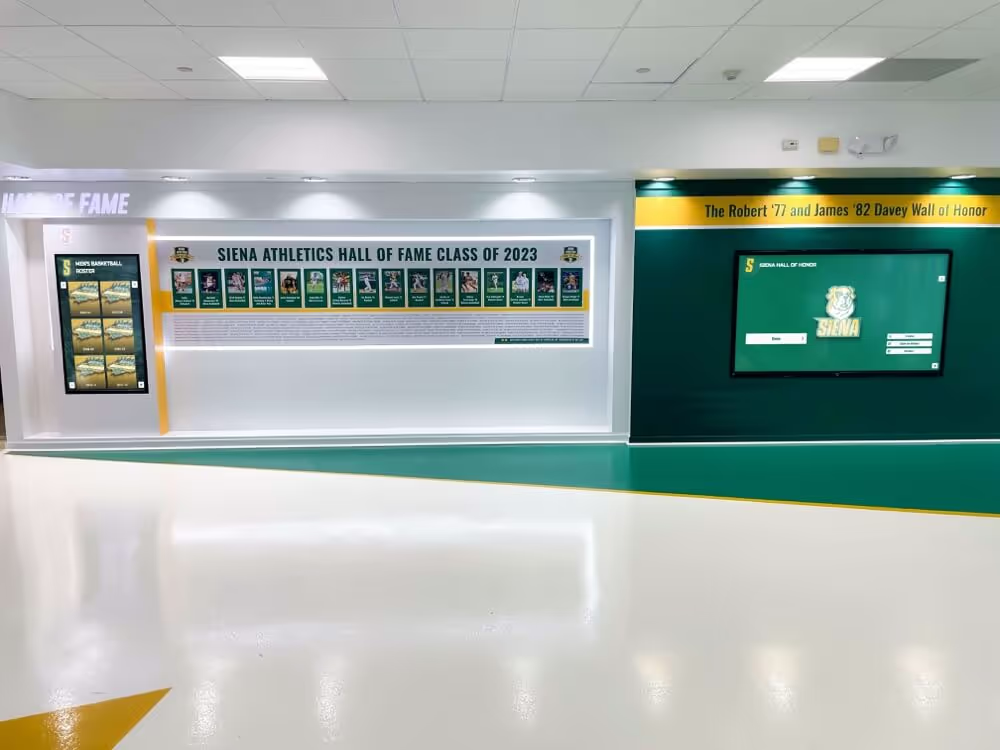
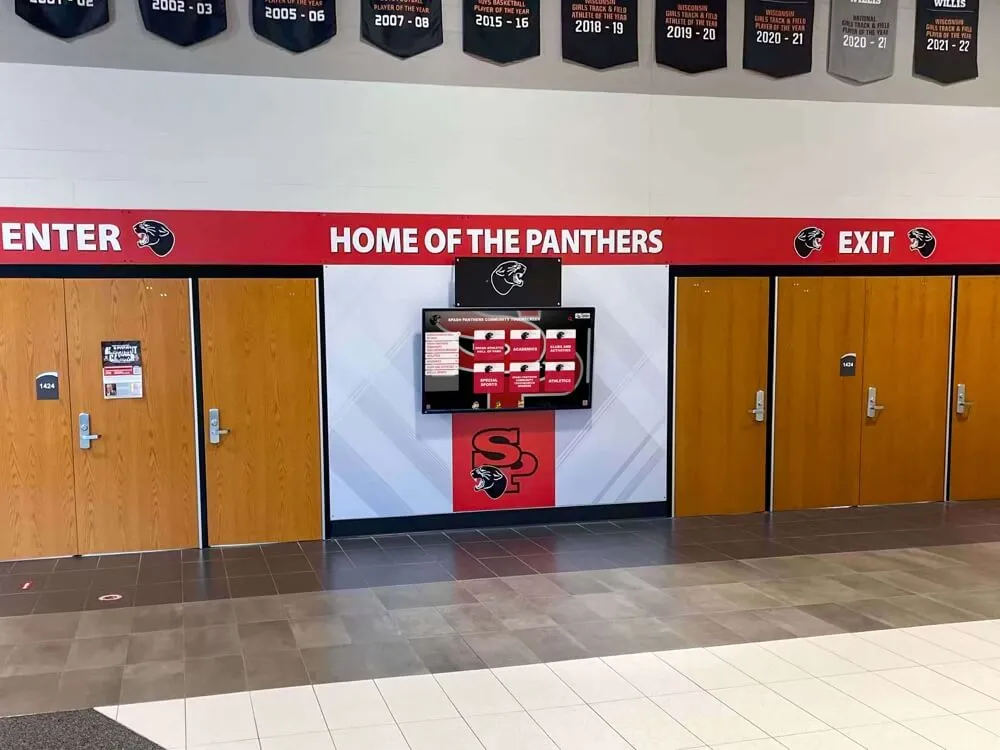
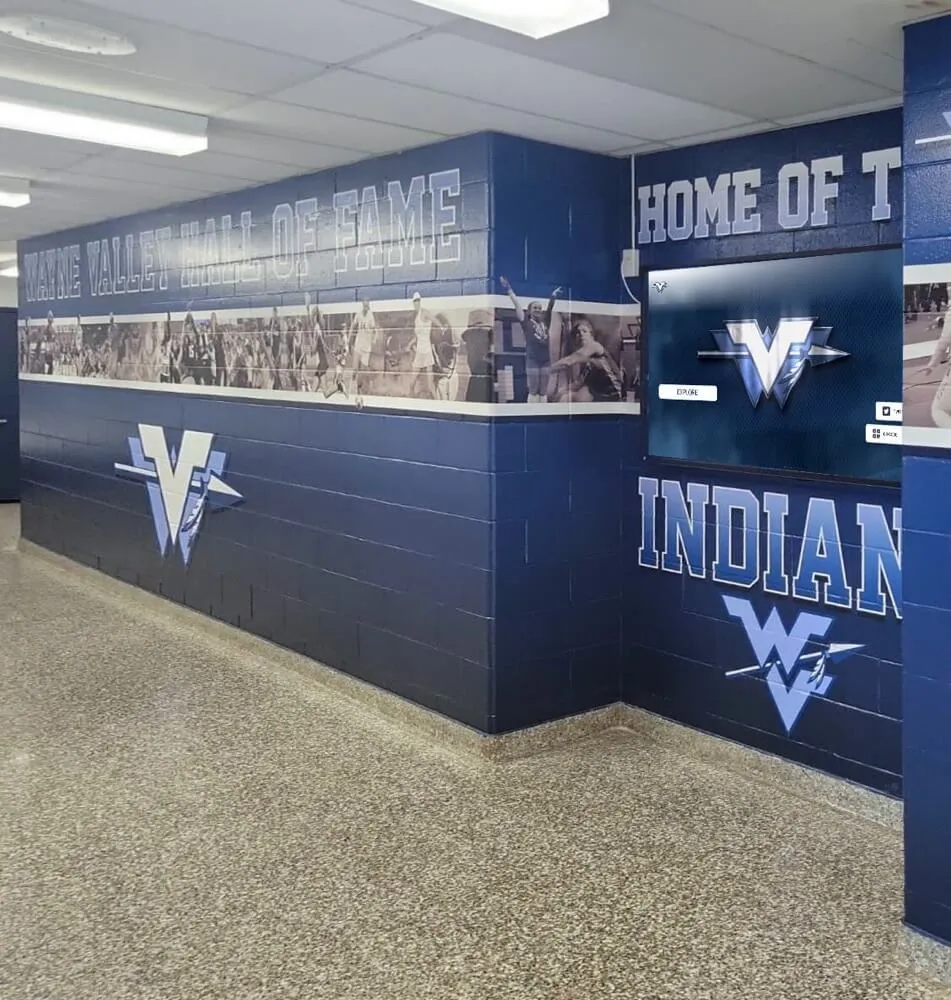
Interactive displays in school athletic hallways create rich recognition environments that engage visitors throughout their visit
Athletic Facilities and Sports Organizations
Sports facilities use interactive displays for fan experience centers, alumni walls, retired jersey tributes, and record boards. Interactive elements allow fans and visitors to explore team histories and individual athlete records in depth — far beyond what static displays can provide.
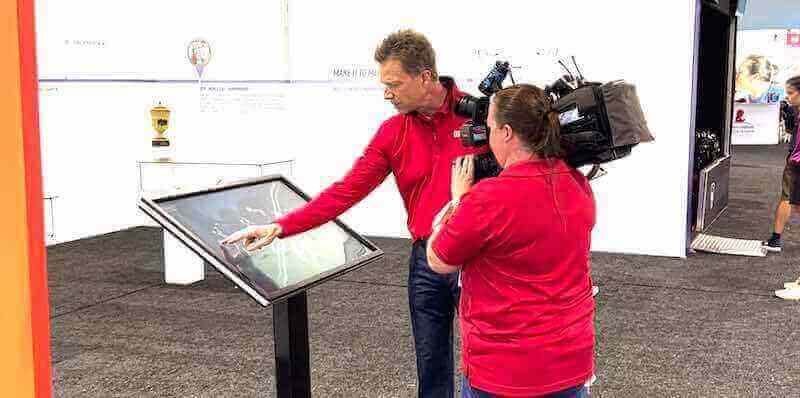
For professional sports venues and arenas, hall of fame kiosks become destination features rather than afterthoughts. Visitors spend meaningful time browsing careers, watching highlight clips, and exploring historical records. See touchscreen kiosk applications at events and equipment displays to understand deployment in high-traffic event environments.
Corporate Recognition and Lobby Displays
Employee recognition walls, donor displays, and leadership histories translate effectively to interactive format. Searchable directories allow visitors and employees to find information without staff assistance. Recognition displays that highlight employee milestones, awards, and tenures reinforce organizational culture while serving as conversation starters during tours and visits.
Donor Recognition
Nonprofit organizations, universities, and healthcare systems use interactive displays to honor donor contributions in a way that scales beyond traditional engraved plaques. A touchscreen donor wall can display thousands of contributors with personal profiles, giving histories, and recognition categories — far more content than any physical wall can accommodate.

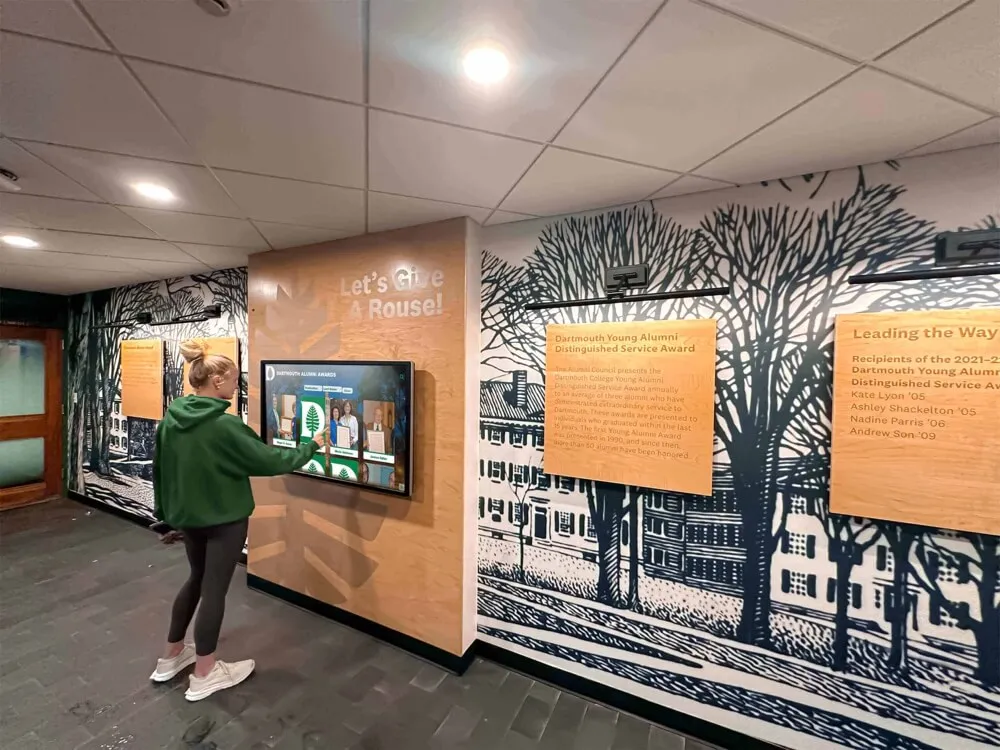
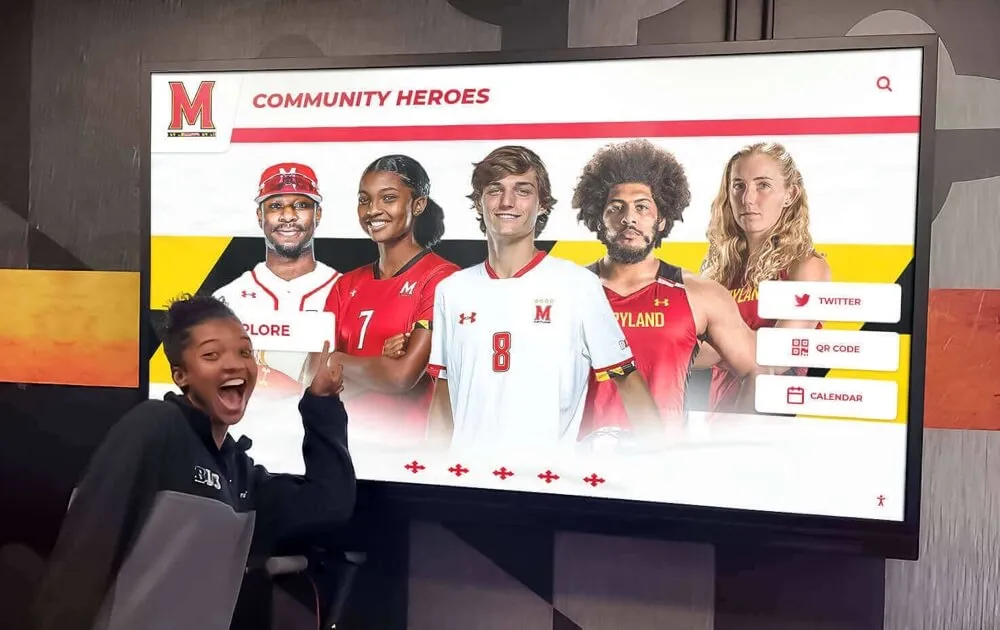
Student athletes engaging with a lobby display — recognition that makes them feel seen also motivates incoming classes and reconnects alumni
How Rocket Alumni Solutions Approaches Interactive Signage
For schools, universities, athletic organizations, and institutions building recognition displays, Rocket Alumni Solutions offers a platform built specifically for these use cases — not a general-purpose signage platform adapted with workarounds, but a system designed from the ground up for athletic halls of fame, donor walls, alumni recognition, and institutional history displays.
The platform supports unlimited inductee profiles with photos, statistics, career records, and video. Content is managed through a browser-based system that non-technical staff can use without training beyond initial onboarding. Auto-ranking record boards update automatically as records are entered. QR code access lets visitors continue exploring profiles on their personal devices after leaving the display.
Rocket Alumni Solutions also handles the full implementation picture — professional installation services, content migration from existing records, initial content population support, and ongoing platform updates included in the subscription. That distinction matters for institutions that don’t have AV staff or IT capacity to manage a self-installed platform.
For a clearer picture of what an effective implementation looks like in practice, explore what implementing a digital wall of fame involves from planning through go-live.
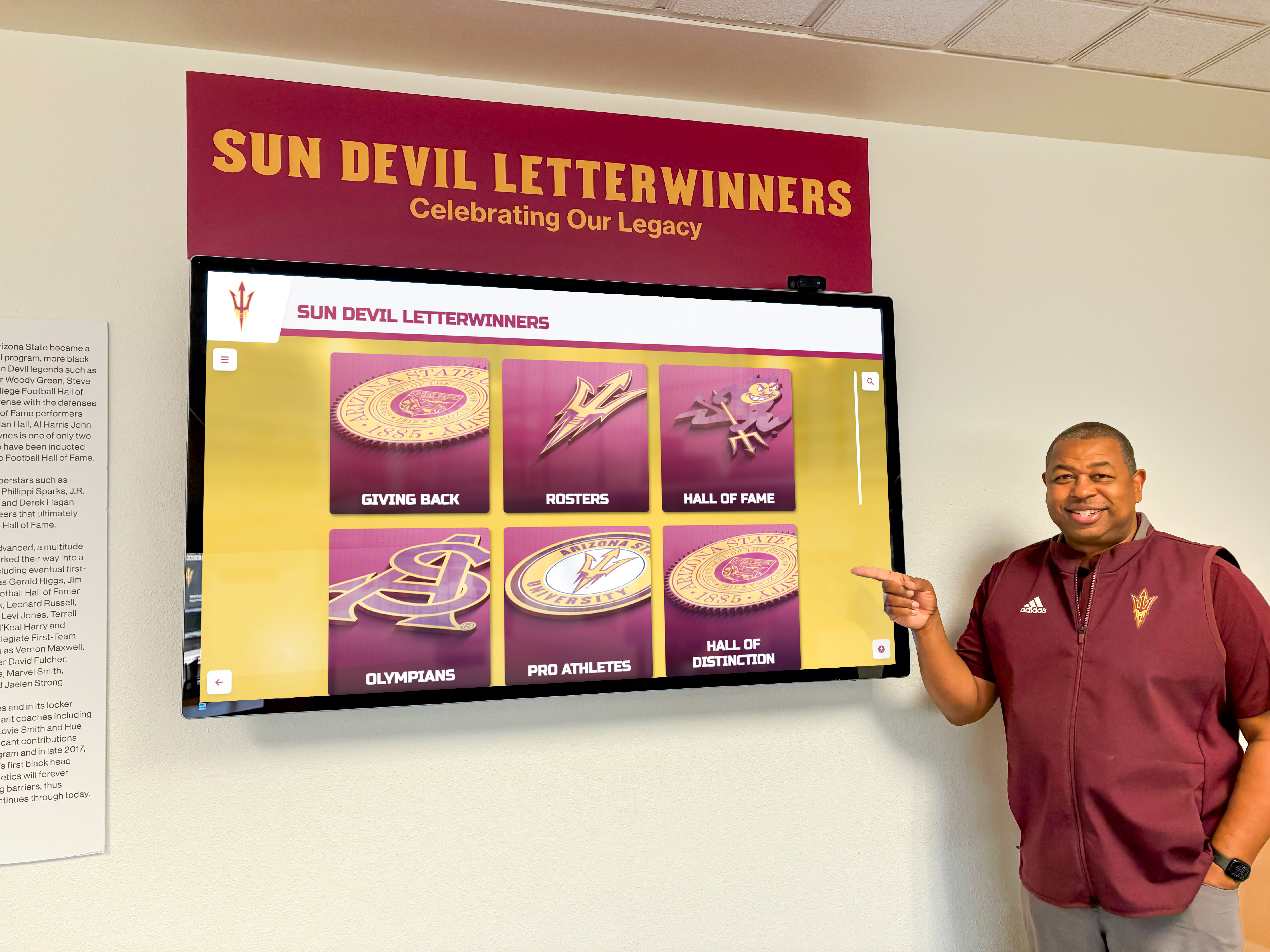
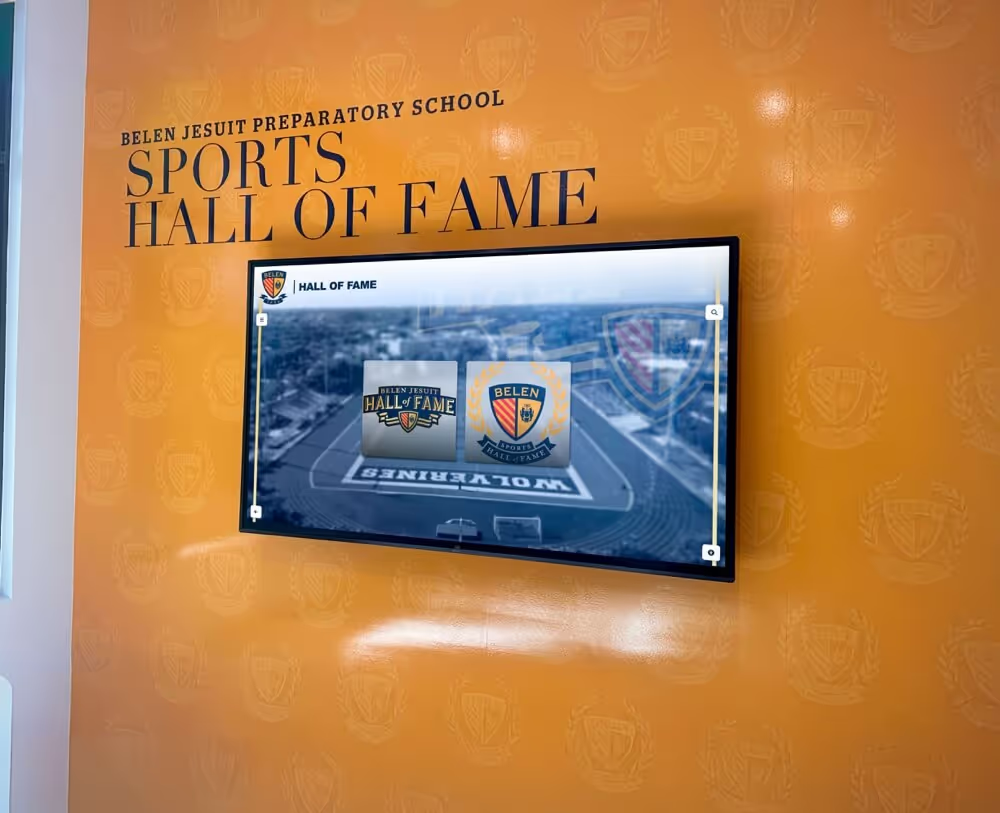
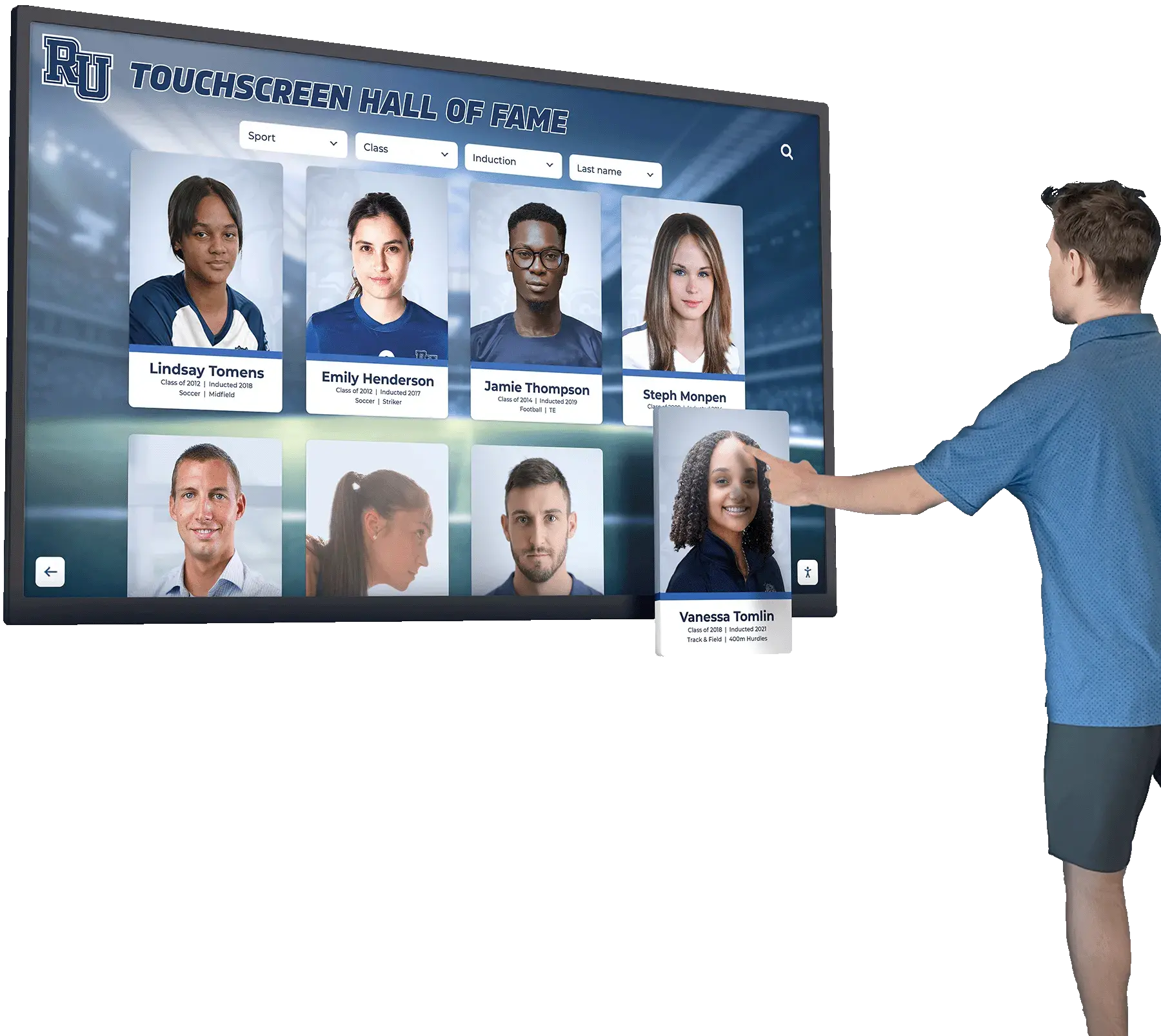
Purpose-built recognition platforms allow visitors to browse inductees by sport, era, or achievement category — delivering the depth that static displays cannot match
Buyer’s Checklist: Questions to Ask Before You Commit
Use this checklist when evaluating interactive touch screen signage systems:
Hardware:
- Is the display commercial-grade and rated for continuous operation?
- What is the brightness rating, and is it appropriate for the installation environment?
- Does the touch technology match the use case (PCAP for menu navigation, IR for gloved-hand environments)?
- Does the display support the required orientation (portrait or horizontal)?
- Is the enclosure rated appropriately for the installation environment (indoor, semi-outdoor, high-traffic)?
- Does the mounting configuration comply with ADA reach range requirements?
Software:
- Can non-technical staff update content independently without vendor assistance?
- Does the platform include bulk import tools for large data sets?
- Is interactive navigation (search, browse, profile view) included, or is it an add-on?
- Does the platform support scheduled content publishing?
- What analytics and usage data are captured?
- Is WCAG 2.1 AA compliance documented and verifiable?
Implementation:
- Does the vendor provide professional installation, or is setup self-managed?
- What content migration support is included?
- What is the timeline from purchase to operational display?
- What training is provided for content management staff?
Cost:
- What is the total five-year cost including hardware, software licensing, installation, and content development?
- Are software updates and new features included in the subscription, or billed separately?
- What does hardware warranty and repair service cover?
Support:
- What is the support response time for technical issues?
- Is there a dedicated support contact or a general help desk?
- How are software updates delivered and who manages deployment?
Conclusion
Interactive touch screen digital signage rewards careful research before purchase. The hardware layer is visible and easy to compare — screen sizes, brightness ratings, and form factors are all straightforward to evaluate. The software layer, the implementation support, the total cost structure, and the accessibility compliance are where the meaningful differences between systems emerge.
For schools, universities, and athletic organizations specifically, general-purpose signage platforms often require significant customization to serve recognition, hall of fame, and athletic record use cases effectively. Purpose-built platforms designed for these applications deliver the search depth, profile richness, and administrative simplicity that recognition programs need without extensive configuration work.
Approach your evaluation with the full picture: hardware, software, installation, content strategy, accessibility, and ongoing cost. That framework produces better decisions and systems that serve your visitors well for years rather than months.
See Rocket Alumni Solutions in Action
Explore how a purpose-built interactive touchscreen platform handles hall of fame inductees, athletic records, donor walls, and alumni recognition — with professional installation and a content management system your staff can actually use.
Book a DemoLive Example: Rocket Alumni Solutions Touchscreen Display
Interact with a live example (16:9 scaled 1920x1080 display). All content is automatically responsive to all screen sizes and orientations.